
Getting Started with Power Point The following slides



- Slides: 28
Getting Started with Power. Point The following slides outline the steps to planning and creating your Power. Point slide show presentation. 1
Step #1 Plan your presentation ü Write your report before you begin your slide show. ü Select the layout and design of the presentation before your start working on individual slides. ü Create your slides. Add effects for interest. ü Edit and rehearse your presentation. 2
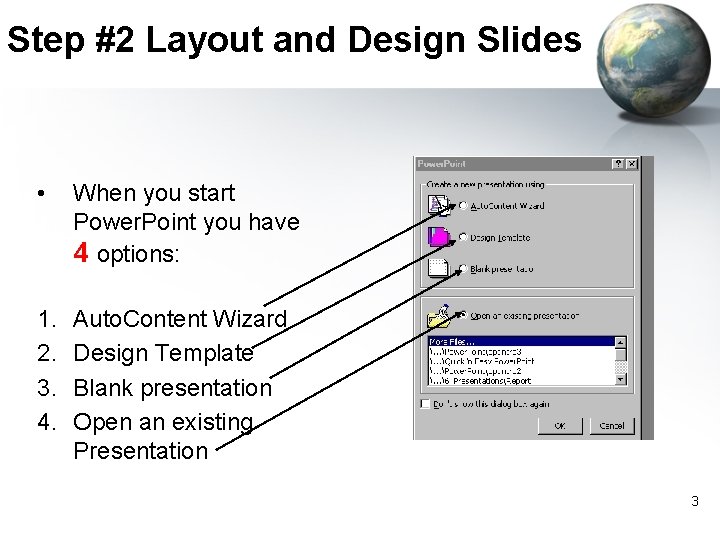
Step #2 Layout and Design Slides • When you start Power. Point you have 4 options: 1. 2. 3. 4. Auto. Content Wizard Design Template Blank presentation Open an existing Presentation 3
Creating Your Slides Once you have planned the design and layout for your presentation, you can introduce text, elements and animations to create your slides. 4
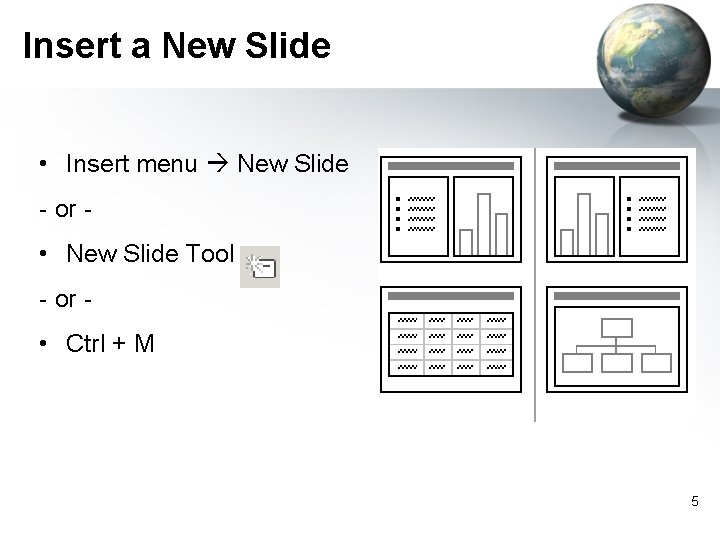
Insert a New Slide • Insert menu New Slide - or - • New Slide Tool - or - • Ctrl + M 5
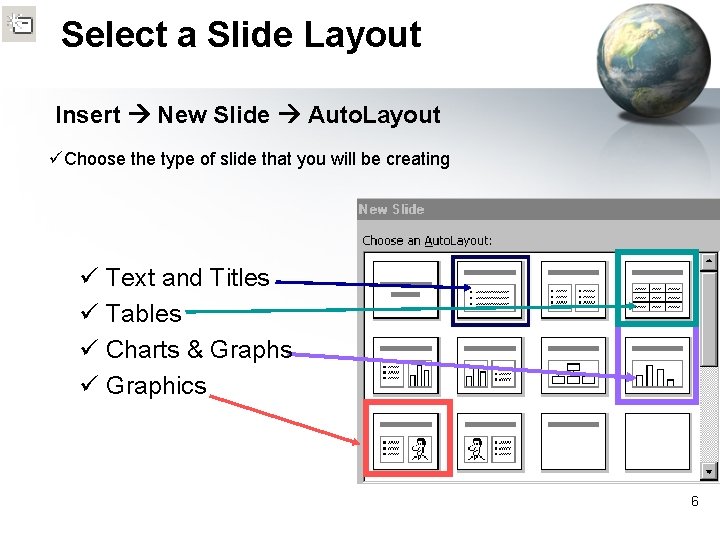
Select a Slide Layout Insert New Slide Auto. Layout üChoose the type of slide that you will be creating ü Text and Titles ü Tables ü Charts & Graphs ü Graphics 6
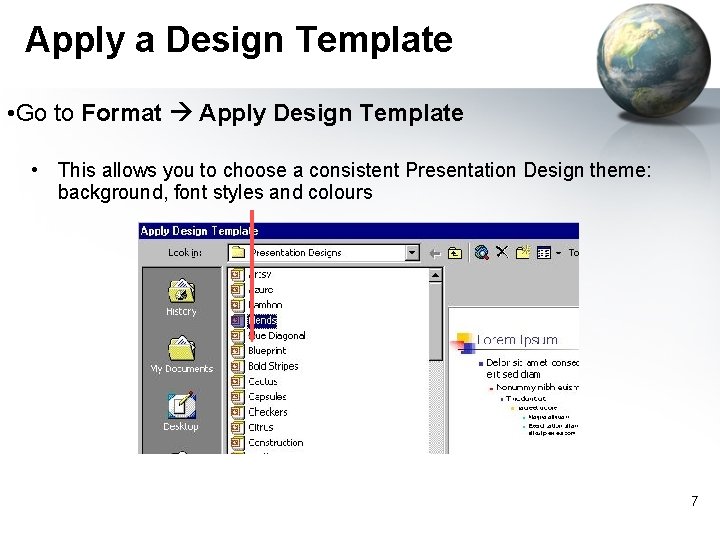
Apply a Design Template • Go to Format Apply Design Template • This allows you to choose a consistent Presentation Design theme: background, font styles and colours 7
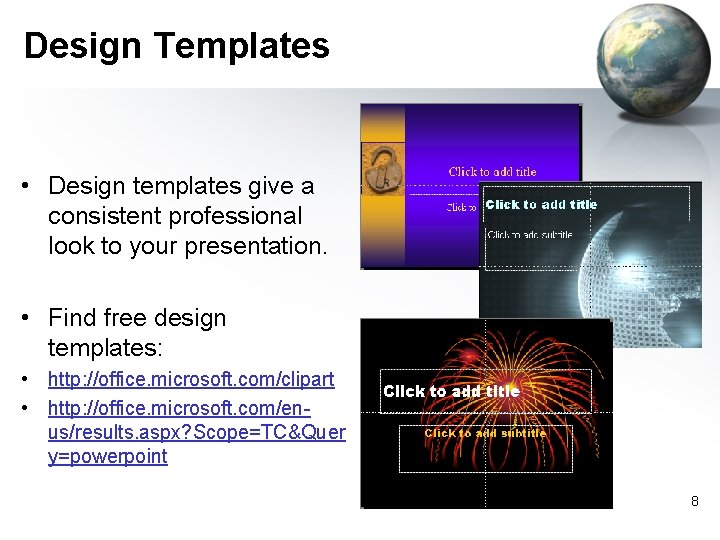
Design Templates • Design templates give a consistent professional look to your presentation. • Find free design templates: • http: //office. microsoft. com/clipart • http: //office. microsoft. com/enus/results. aspx? Scope=TC&Quer y=powerpoint 8
Use Placeholders for Elements • Title Bar • Text Box • Picture Frame You can change the layout with… Format Slide Layout 9
Step #3 Edit and View Slides How to organize, delete, and preview your slides. 10
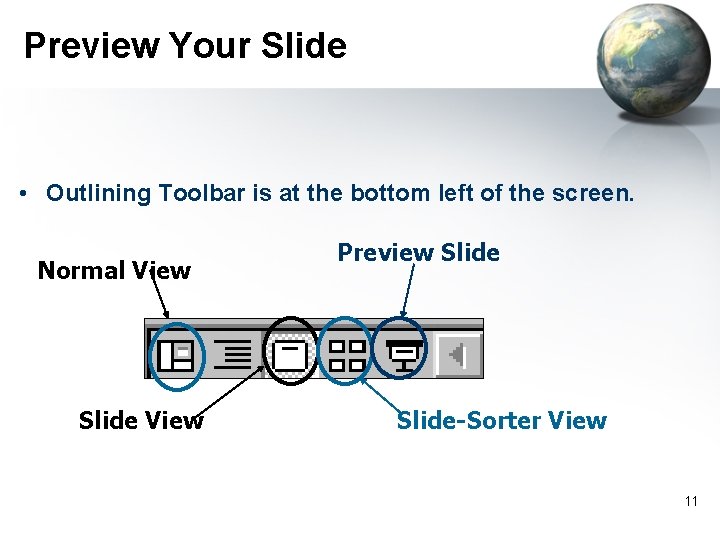
Preview Your Slide • Outlining Toolbar is at the bottom left of the screen. Normal View Slide View Preview Slide-Sorter View 11
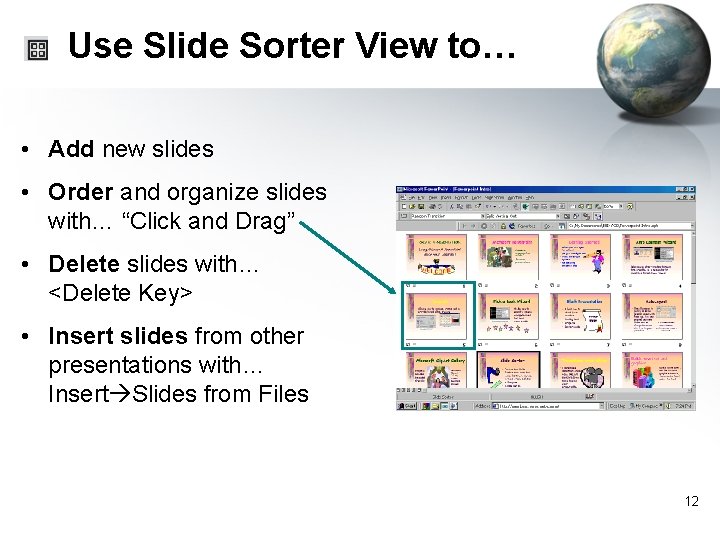
Use Slide Sorter View to… • Add new slides • Order and organize slides with… “Click and Drag” • Delete slides with… <Delete Key> • Insert slides from other presentations with… Insert Slides from Files 12
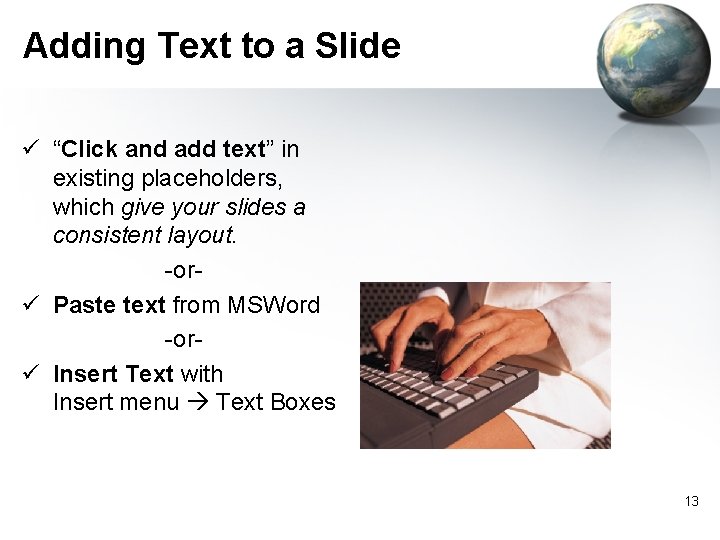
Adding Text to a Slide ü “Click and add text” in existing placeholders, which give your slides a consistent layout. -orü Paste text from MSWord -orü Insert Text with Insert menu Text Boxes 13
Step #3: Insert Objects How to add pictures and objects… BACK 14
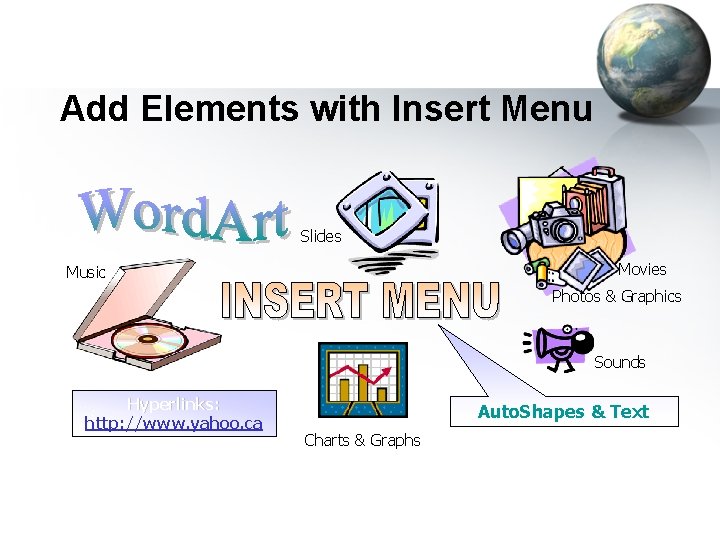
Add Elements with Insert Menu Slides Movies Music Photos & Graphics Sounds Hyperlinks: http: //www. yahoo. ca Auto. Shapes & Text Charts & Graphs
Microsoft Template Gallery Search by keyword through thousands of free graphics, animations and sounds to add to your presentations. ü Insert menu Picture Clip Art Clips Online ü http: //office. microsoft. com/clipart 16
Step #4: Add Entry Effects How to add animation and sound… 17
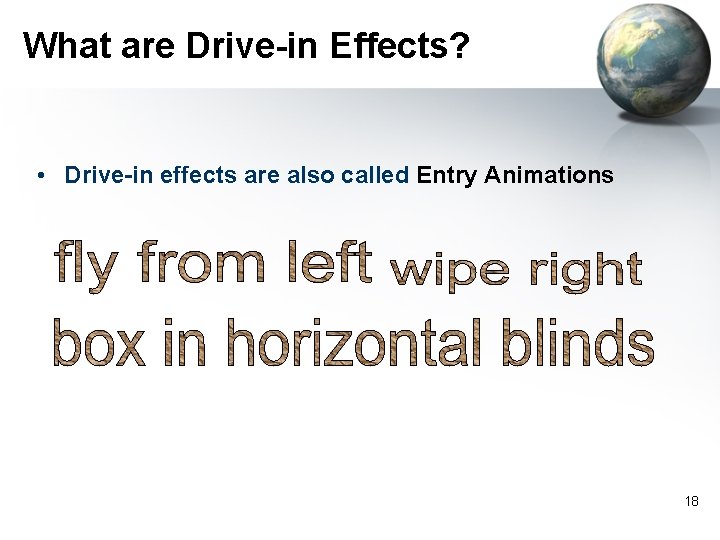
What are Drive-in Effects? • Drive-in effects are also called Entry Animations 18
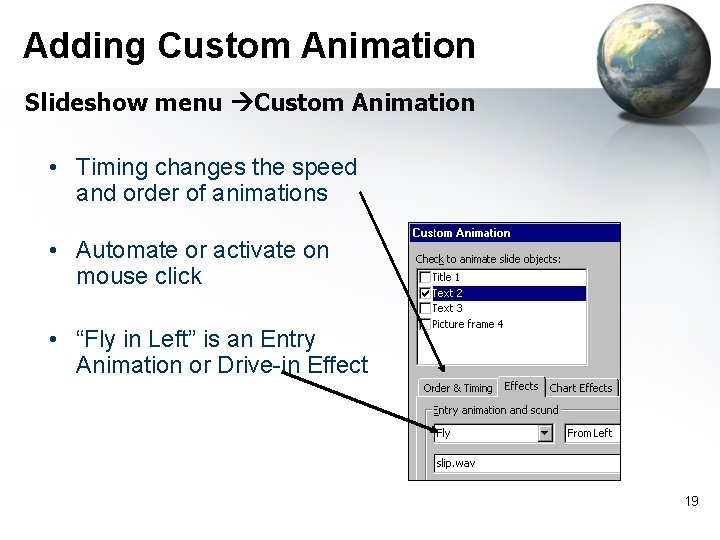
Adding Custom Animation Slideshow menu Custom Animation • Timing changes the speed and order of animations • Automate or activate on mouse click • “Fly in Left” is an Entry Animation or Drive-in Effect 19
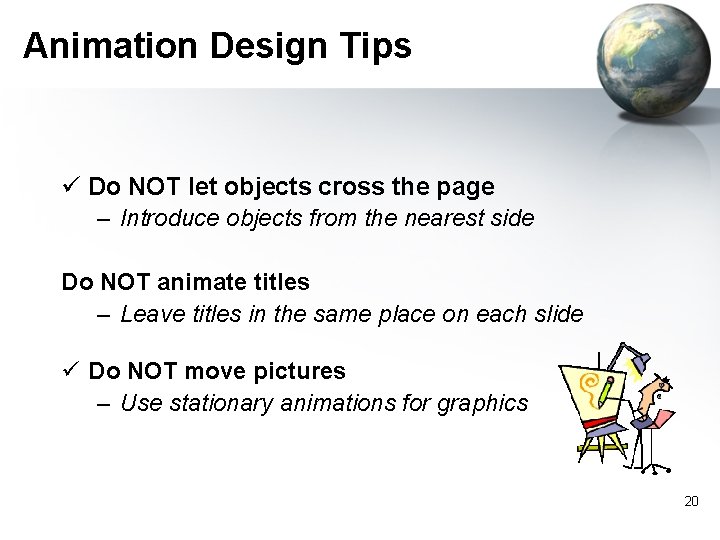
Animation Design Tips ü Do NOT let objects cross the page – Introduce objects from the nearest side Do NOT animate titles – Leave titles in the same place on each slide ü Do NOT move pictures – Use stationary animations for graphics 20
Step #5: Add Transitions and how to apply them… 21
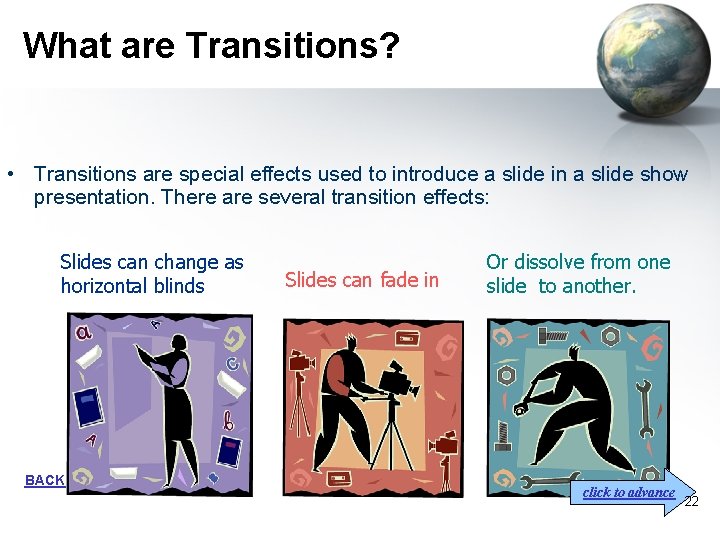
What are Transitions? • Transitions are special effects used to introduce a slide in a slide show presentation. There are several transition effects: Slides can change as horizontal blinds BACK Slides can fade in Or dissolve from one slide to another. click to advance 22
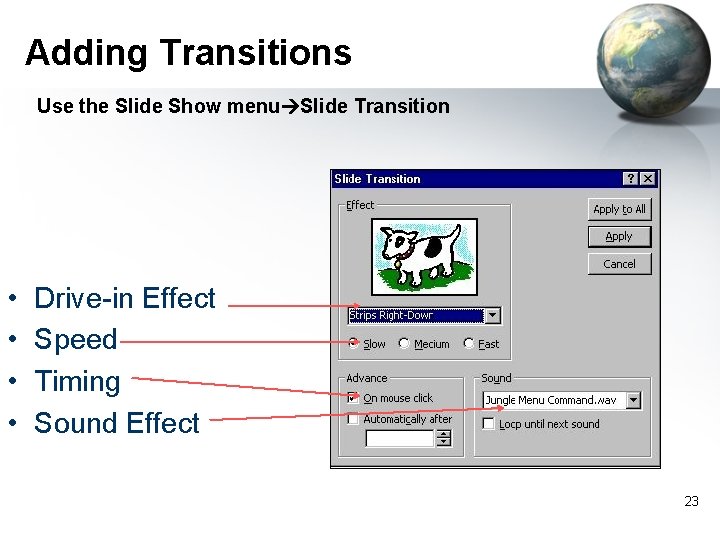
Adding Transitions Use the Slide Show menu Slide Transition • • Drive-in Effect Speed Timing Sound Effect 23
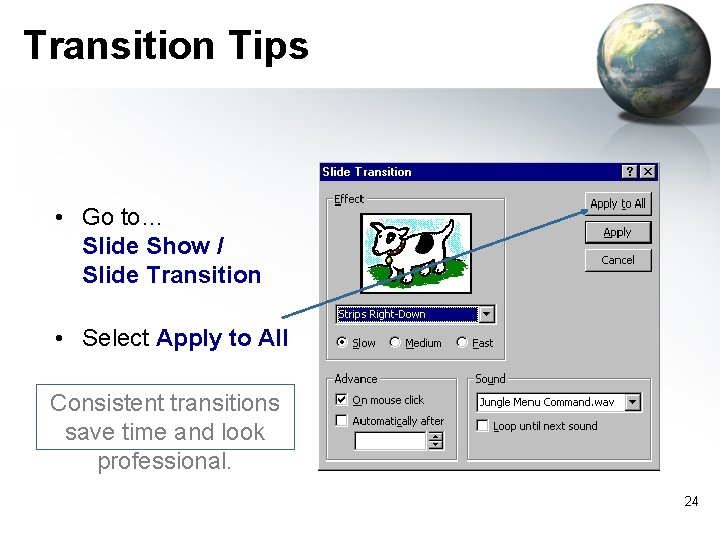
Transition Tips • Go to… Slide Show / Slide Transition • Select Apply to All Consistent transitions save time and look professional. 24
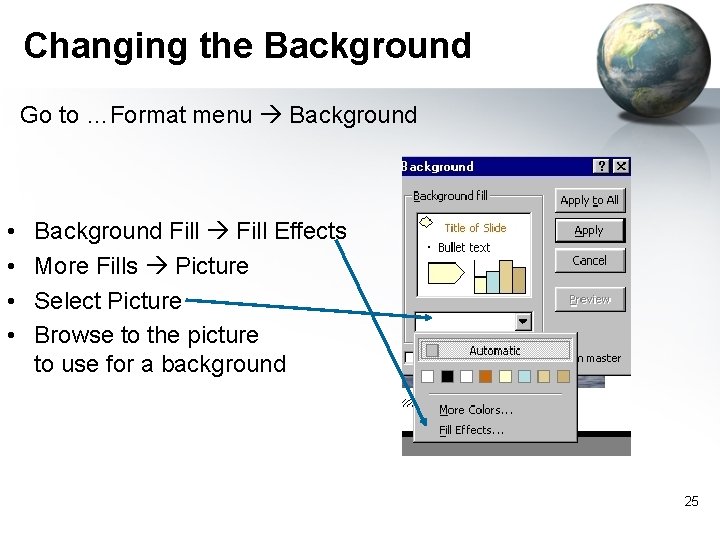
Changing the Background Go to …Format menu Background • • Background Fill Effects More Fills Picture Select Picture Browse to the picture to use for a background 25
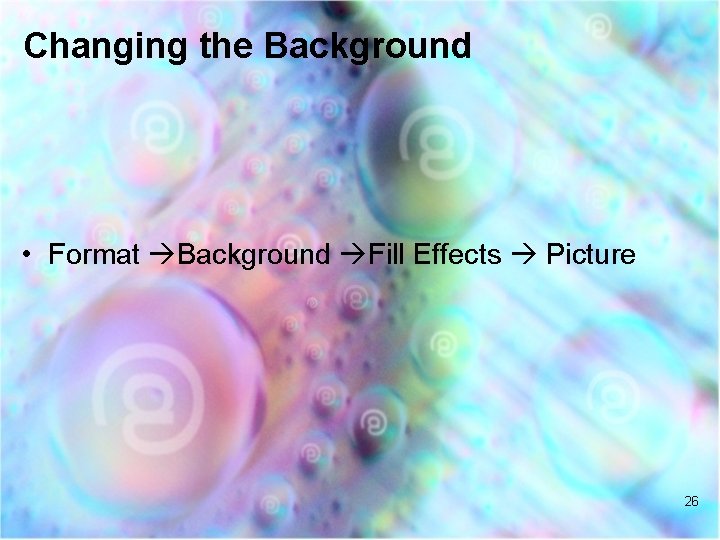
Changing the Background • Format Background Fill Effects Picture 26
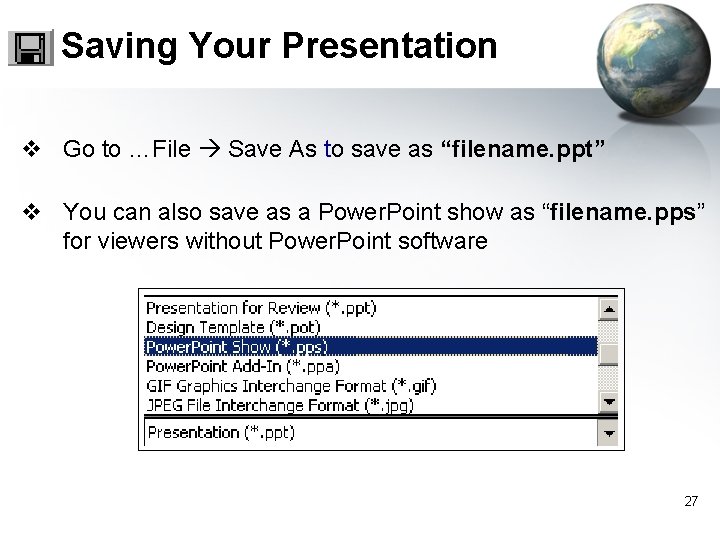
Saving Your Presentation v Go to …File Save As to save as “filename. ppt” v You can also save as a Power. Point show as “filename. pps” for viewers without Power. Point software 27
Step #6 Edit and Rehearse • Preview your slideshow by going to • Slide Show Menu View Show Press HERE to see the presentation again, <ESC> to end. 28