
Getting Started with OSG Connect an Interactive Tutorial
- Slides: 44
Getting Started with OSG Connect ~ an Interactive Tutorial ~ Emelie Harstad <eharstad@unl. edu>, Mats Rynge <rynge@isi. edu>, Lincoln Bryant <lincolnb@hep. uchicago. edu>, Suchandra Thapa <sthapa@ci. uchicago. edu>, Balamurugan Desinghu <balamurugan@uchicago. edu>, David Champion <dgc@uchicago. edu>, Chander Sehgal <cssehgal@fnal. gov>, Rob Gardner <rwg@hep. uchicago. edu>, <connect-support@opensciencegrid. org> 1
OSG Connect • • • Entry path to the OSG For researchers who don’t belong to another VO OSG Connect users are part of OSG VO Opportunistic A login/submit node and a web portal Tools / Data storage / Software repository / Support 2
Topics • Properties of DHTC/OSG Jobs • Getting Started with OSG Connect – Accounts/Logging In/Joining Projects • Introduction to HTCondor ² Exercise: Submit a Simple Job • Distributed Environment Modules ² Exercise: Submit a Batch of R Jobs • Scaling Your Job (with short exercise) • Job Failure Recovery (with short exercise) • Handling Data: Stash ² Exercise: Transfer Data with Globus ² Exercise: Access Stash from Job with http • Workflows with DAGMan ² Exercise: DAG NAMD Workflow • BOSCO – Submit locally, Compute globally ² Exercise: Submit Job from Laptop Using BOSCO 3
Properties of DHTC Jobs • Run-time: 1 -12 hours • Single-threaded • Require <2 GB Ram • Statically compiled executables (transferred with jobs) • Input and Output files transferred with jobs, and reasonably sized: <10 GB per job (no shared file system on OSG) 4
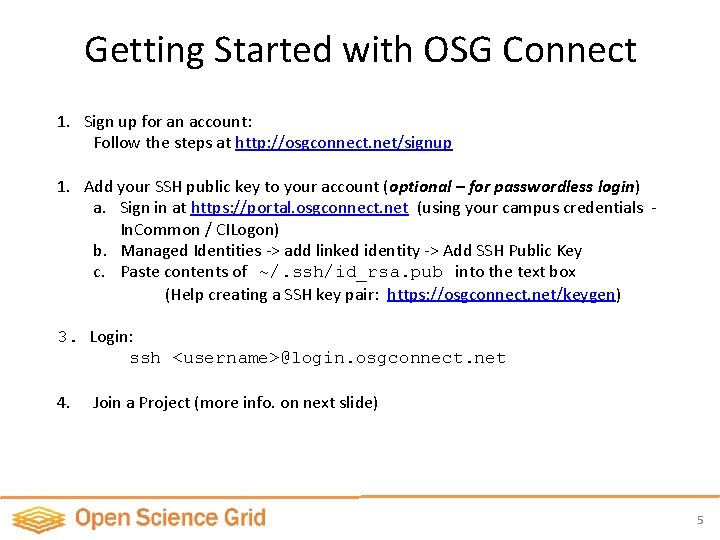
Getting Started with OSG Connect 1. Sign up for an account: Follow the steps at http: //osgconnect. net/signup 1. Add your SSH public key to your account (optional – for passwordless login) a. Sign in at https: //portal. osgconnect. net (using your campus credentials In. Common / CILogon) b. Managed Identities -> add linked identity -> Add SSH Public Key c. Paste contents of ~/. ssh/id_rsa. pub into the text box (Help creating a SSH key pair: https: //osgconnect. net/keygen) 3. Login: ssh <username>@login. osgconnect. net 4. Join a Project (more info. on next slide) 5
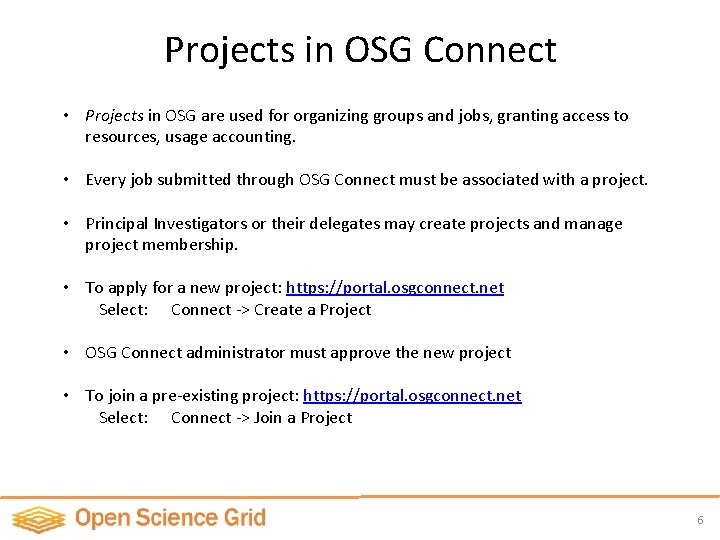
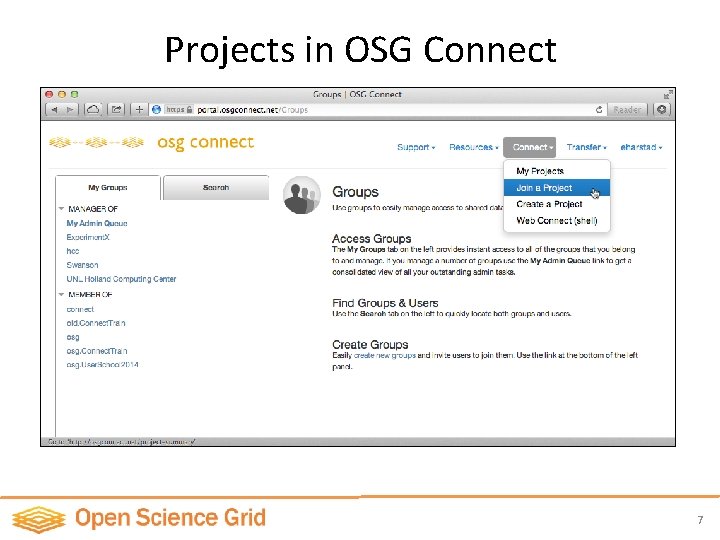
Projects in OSG Connect • Projects in OSG are used for organizing groups and jobs, granting access to resources, usage accounting. • Every job submitted through OSG Connect must be associated with a project. • Principal Investigators or their delegates may create projects and manage project membership. • To apply for a new project: https: //portal. osgconnect. net Select: Connect -> Create a Project • OSG Connect administrator must approve the new project • To join a pre-existing project: https: //portal. osgconnect. net Select: Connect -> Join a Project 6
Projects in OSG Connect 7
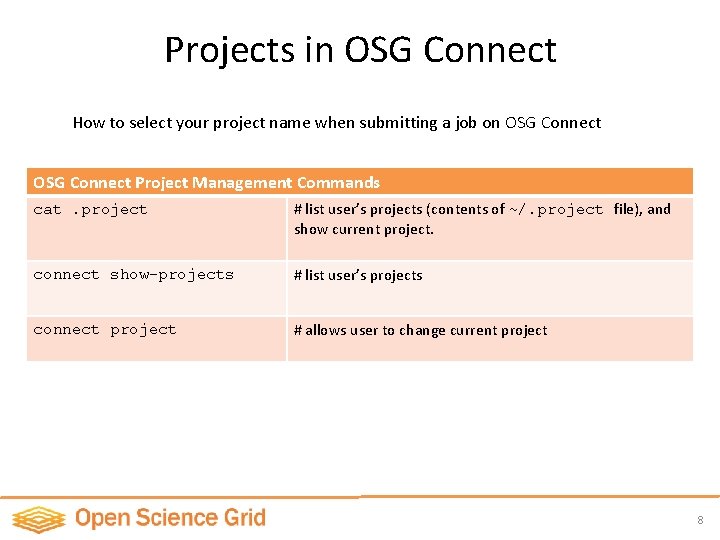
Projects in OSG Connect How to select your project name when submitting a job on OSG Connect Project Management Commands cat. project # list user’s projects (contents of ~/. project file), and show current project. connect show-projects # list user’s projects connect project # allows user to change current project 8
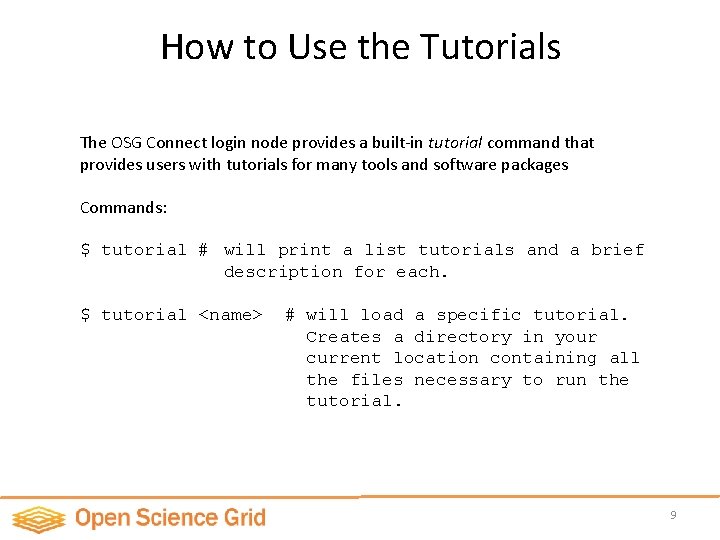
How to Use the Tutorials The OSG Connect login node provides a built-in tutorial command that provides users with tutorials for many tools and software packages Commands: $ tutorial # will print a list tutorials and a brief description for each. $ tutorial <name> # will load a specific tutorial. Creates a directory in your current location containing all the files necessary to run the tutorial. 9
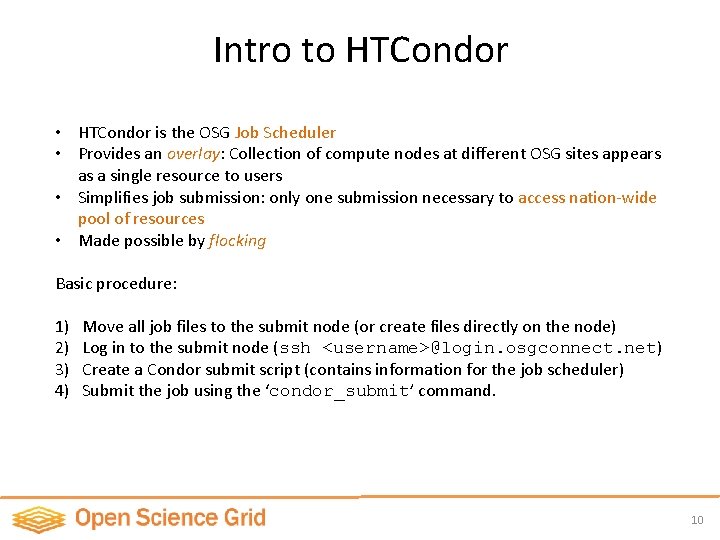
Intro to HTCondor • HTCondor is the OSG Job Scheduler • Provides an overlay: Collection of compute nodes at different OSG sites appears as a single resource to users • Simplifies job submission: only one submission necessary to access nation-wide pool of resources • Made possible by flocking Basic procedure: 1) 2) 3) 4) Move all job files to the submit node (or create files directly on the node) Log in to the submit node (ssh <username>@login. osgconnect. net) Create a Condor submit script (contains information for the job scheduler) Submit the job using the ‘condor_submit’ command. 10
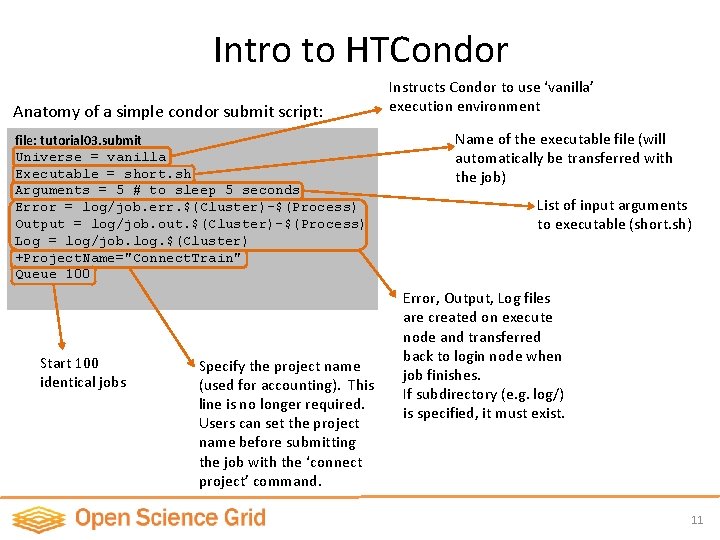
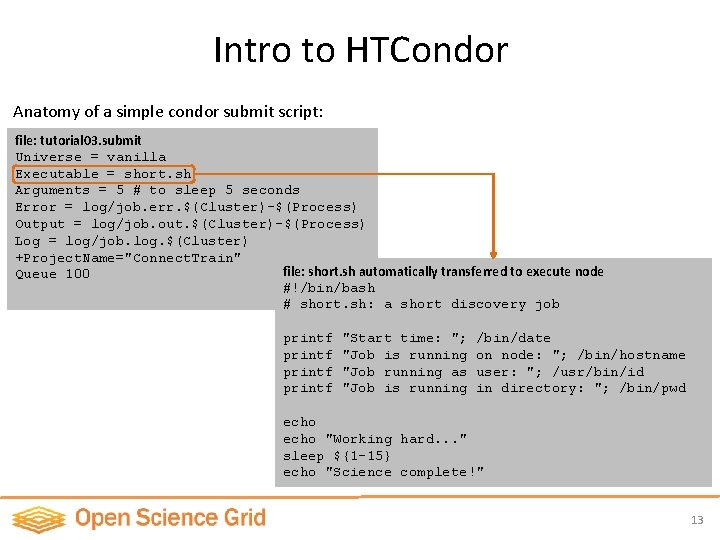
Intro to HTCondor Anatomy of a simple condor submit script: file: tutorial 03. submit Universe = vanilla Executable = short. sh Arguments = 5 # to sleep 5 seconds Error = log/job. err. $(Cluster)-$(Process) Output = log/job. out. $(Cluster)-$(Process) Log = log/job. log. $(Cluster) +Project. Name="Connect. Train" Queue 100 Start 100 identical jobs Specify the project name (used for accounting). This line is no longer required. Users can set the project name before submitting the job with the ‘connect project’ command. Instructs Condor to use ‘vanilla’ execution environment Name of the executable file (will automatically be transferred with the job) List of input arguments to executable (short. sh) Error, Output, Log files are created on execute node and transferred back to login node when job finishes. If subdirectory (e. g. log/) is specified, it must exist. 11
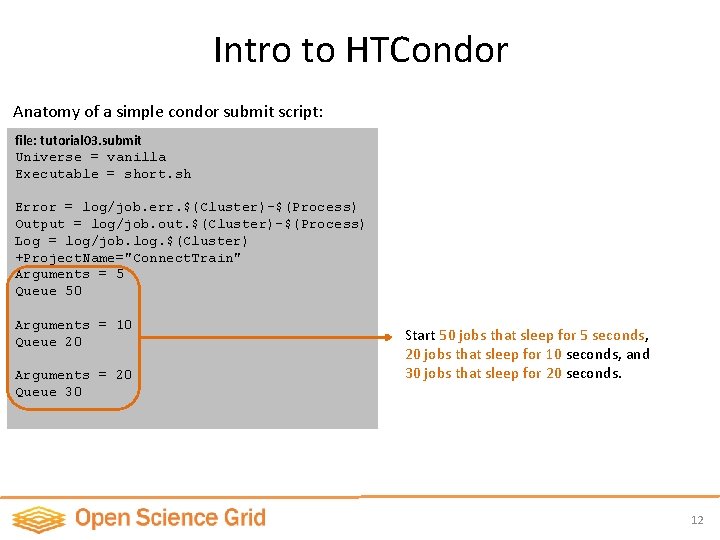
Intro to HTCondor Anatomy of a simple condor submit script: file: tutorial 03. submit Universe = vanilla Executable = short. sh Error = log/job. err. $(Cluster)-$(Process) Output = log/job. out. $(Cluster)-$(Process) Log = log/job. log. $(Cluster) +Project. Name="Connect. Train" Arguments = 5 Queue 50 Arguments = 10 Queue 20 Arguments = 20 Queue 30 Start 50 jobs that sleep for 5 seconds, 20 jobs that sleep for 10 seconds, and 30 jobs that sleep for 20 seconds. 12
Intro to HTCondor Anatomy of a simple condor submit script: file: tutorial 03. submit Universe = vanilla Executable = short. sh Arguments = 5 # to sleep 5 seconds Error = log/job. err. $(Cluster)-$(Process) Output = log/job. out. $(Cluster)-$(Process) Log = log/job. log. $(Cluster) +Project. Name="Connect. Train" file: short. sh automatically transferred to execute node Queue 100 #!/bin/bash # short. sh: a short discovery job printf "Start time: "; "Job is running "Job running as "Job is running /bin/date on node: "; /bin/hostname user: "; /usr/bin/id in directory: "; /bin/pwd echo "Working hard. . . " sleep ${1 -15} echo "Science complete!" 13
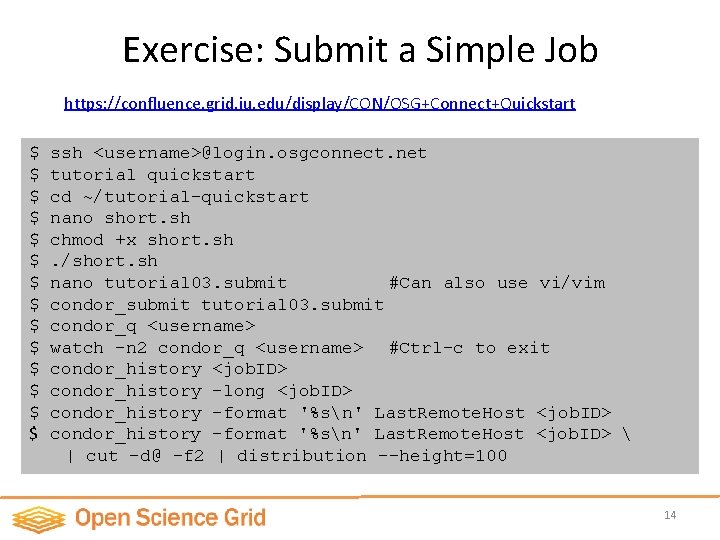
Exercise: Submit a Simple Job https: //confluence. grid. iu. edu/display/CON/OSG+Connect+Quickstart $ $ $ $ ssh <username>@login. osgconnect. net tutorial quickstart cd ~/tutorial-quickstart nano short. sh chmod +x short. sh. /short. sh nano tutorial 03. submit #Can also use vi/vim condor_submit tutorial 03. submit condor_q <username> watch -n 2 condor_q <username> #Ctrl-c to exit condor_history <job. ID> condor_history -long <job. ID> condor_history -format '%sn' Last. Remote. Host <job. ID> | cut -d@ -f 2 | distribution --height=100 14
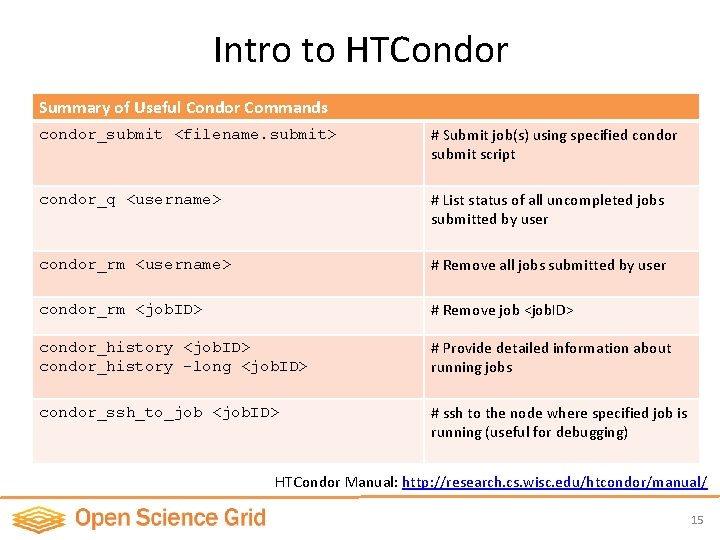
Intro to HTCondor Summary of Useful Condor Commands condor_submit <filename. submit> # Submit job(s) using specified condor submit script condor_q <username> # List status of all uncompleted jobs submitted by user condor_rm <username> # Remove all jobs submitted by user condor_rm <job. ID> # Remove job <job. ID> condor_history -long <job. ID> # Provide detailed information about running jobs condor_ssh_to_job <job. ID> # ssh to the node where specified job is running (useful for debugging) HTCondor Manual: http: //research. cs. wisc. edu/htcondor/manual/ 15
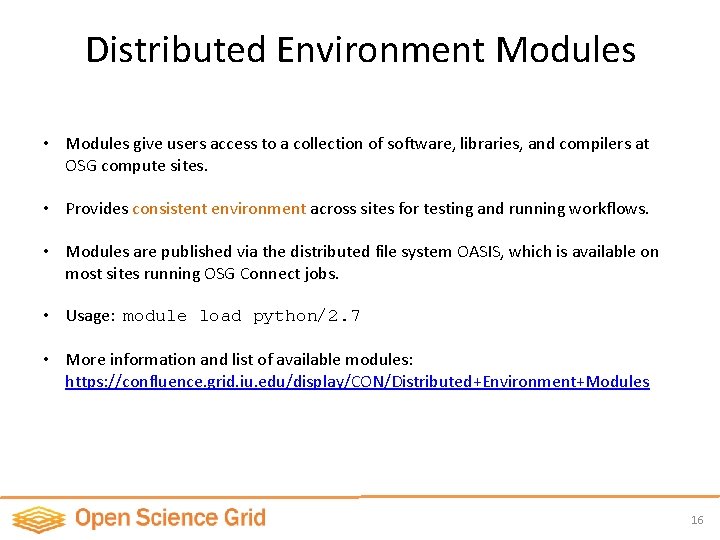
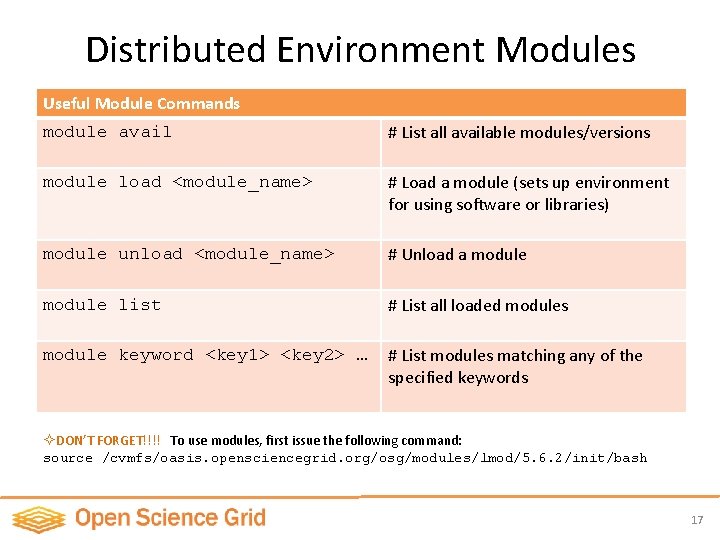
Distributed Environment Modules • Modules give users access to a collection of software, libraries, and compilers at OSG compute sites. • Provides consistent environment across sites for testing and running workflows. • Modules are published via the distributed file system OASIS, which is available on most sites running OSG Connect jobs. • Usage: module load python/2. 7 • More information and list of available modules: https: //confluence. grid. iu. edu/display/CON/Distributed+Environment+Modules 16
Distributed Environment Modules Useful Module Commands module avail # List all available modules/versions module load <module_name> # Load a module (sets up environment for using software or libraries) module unload <module_name> # Unload a module list # List all loaded modules module keyword <key 1> <key 2> … # List modules matching any of the specified keywords ² DON’T FORGET!!!! To use modules, first issue the following command: source /cvmfs/oasis. opensciencegrid. org/osg/modules/lmod/5. 6. 2/init/bash 17
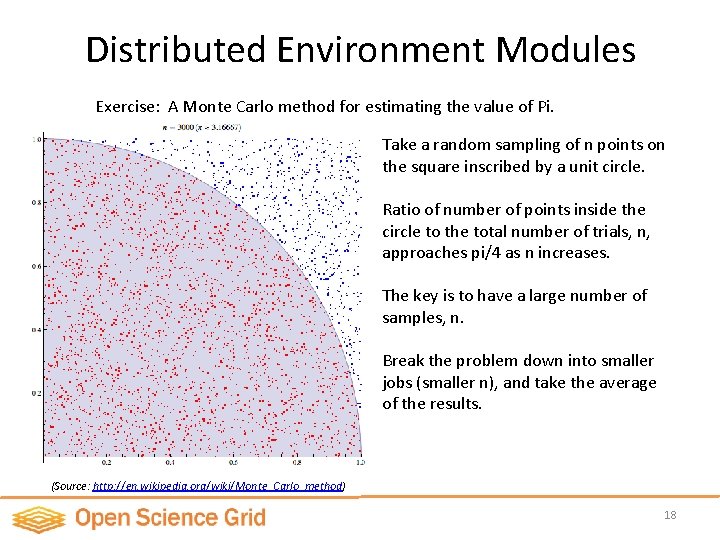
Distributed Environment Modules Exercise: A Monte Carlo method for estimating the value of Pi. Take a random sampling of n points on the square inscribed by a unit circle. Ratio of number of points inside the circle to the total number of trials, n, approaches pi/4 as n increases. The key is to have a large number of samples, n. Break the problem down into smaller jobs (smaller n), and take the average of the results. (Source: http: //en. wikipedia. org/wiki/Monte_Carlo_method) 18
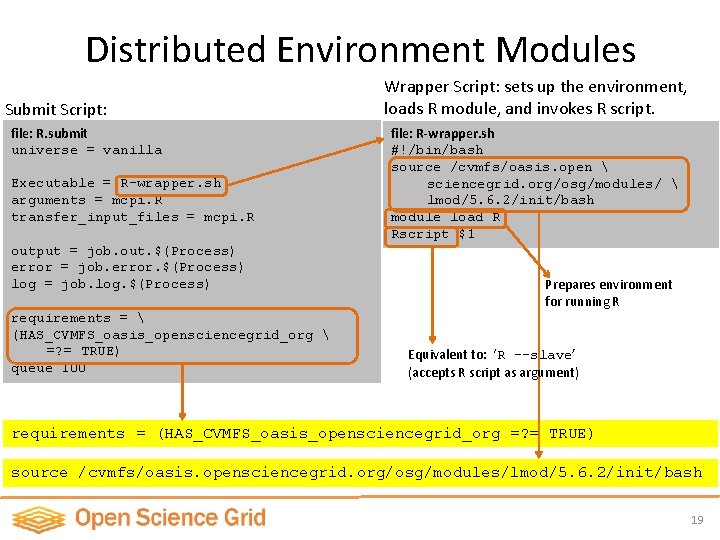
Distributed Environment Modules Submit Script: file: R. submit universe = vanilla Executable = R-wrapper. sh arguments = mcpi. R transfer_input_files = mcpi. R output = job. out. $(Process) error = job. error. $(Process) log = job. log. $(Process) requirements = (HAS_CVMFS_oasis_opensciencegrid_org =? = TRUE) queue 100 Wrapper Script: sets up the environment, loads R module, and invokes R script. file: R-wrapper. sh #!/bin/bash source /cvmfs/oasis. open sciencegrid. org/osg/modules/ lmod/5. 6. 2/init/bash module load R Rscript $1 Prepares environment for running R Equivalent to: ‘R --slave’ (accepts R script as argument) requirements = (HAS_CVMFS_oasis_opensciencegrid_org =? = TRUE) source /cvmfs/oasis. opensciencegrid. org/osg/modules/lmod/5. 6. 2/init/bash 19
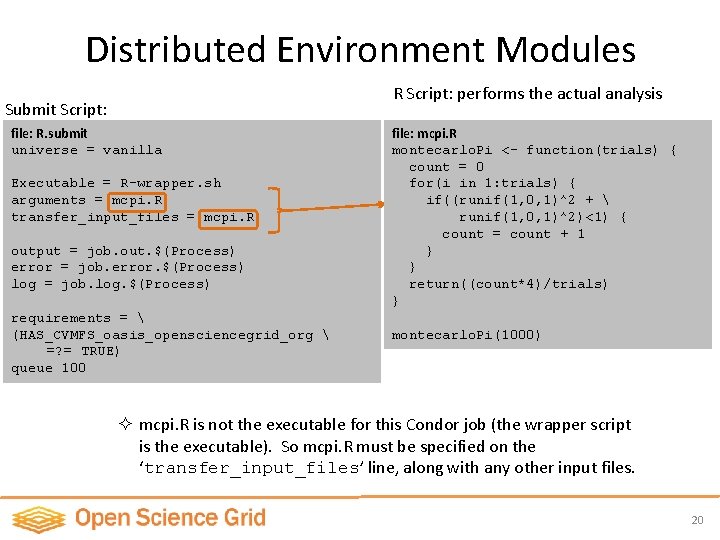
Distributed Environment Modules R Script: performs the actual analysis Submit Script: file: R. submit universe = vanilla Executable = R-wrapper. sh arguments = mcpi. R transfer_input_files = mcpi. R output = job. out. $(Process) error = job. error. $(Process) log = job. log. $(Process) requirements = (HAS_CVMFS_oasis_opensciencegrid_org =? = TRUE) queue 100 file: mcpi. R montecarlo. Pi <- function(trials) { count = 0 for(i in 1: trials) { if((runif(1, 0, 1)^2 + runif(1, 0, 1)^2)<1) { count = count + 1 } } return((count*4)/trials) } montecarlo. Pi(1000) ² mcpi. R is not the executable for this Condor job (the wrapper script is the executable). So mcpi. R must be specified on the ‘transfer_input_files’ line, along with any other input files. 20
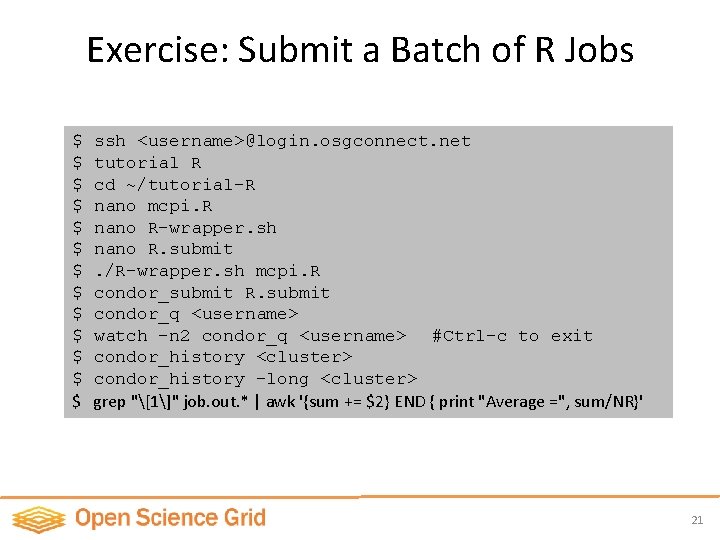
Exercise: Submit a Batch of R Jobs $ $ $ $ ssh <username>@login. osgconnect. net tutorial R cd ~/tutorial-R nano mcpi. R nano R-wrapper. sh nano R. submit. /R-wrapper. sh mcpi. R condor_submit R. submit condor_q <username> watch -n 2 condor_q <username> #Ctrl-c to exit condor_history <cluster> condor_history -long <cluster> grep "[1]" job. out. * | awk '{sum += $2} END { print "Average =", sum/NR}' 21
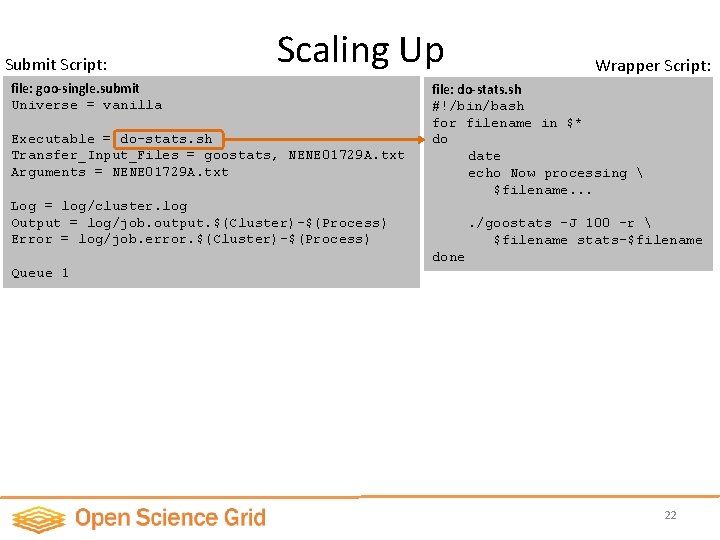
Submit Script: Scaling Up file: goo-single. submit Universe = vanilla Executable = do-stats. sh Transfer_Input_Files = goostats, NENE 01729 A. txt Arguments = NENE 01729 A. txt Wrapper Script: file: do-stats. sh #!/bin/bash for filename in $* do date echo Now processing $filename. . . Log = log/cluster. log Output = log/job. output. $(Cluster)-$(Process) Error = log/job. error. $(Cluster)-$(Process) . /goostats -J 100 –r $filename stats-$filename done Queue 1 22
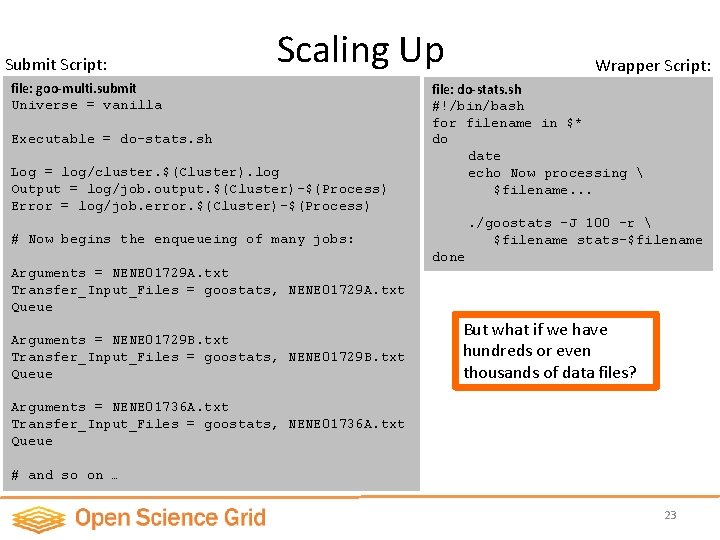
Submit Script: Scaling Up file: goo-multi. submit Universe = vanilla Executable = do-stats. sh Log = log/cluster. $(Cluster). log Output = log/job. output. $(Cluster)-$(Process) Error = log/job. error. $(Cluster)-$(Process) Wrapper Script: file: do-stats. sh #!/bin/bash for filename in $* do date echo Now processing $filename. . /goostats -J 100 –r $filename stats-$filename # Now begins the enqueueing of many jobs: done Arguments = NENE 01729 A. txt Transfer_Input_Files = goostats, NENE 01729 A. txt Queue Arguments = NENE 01729 B. txt Transfer_Input_Files = goostats, NENE 01729 B. txt Queue But what if we have hundreds or even thousands of data files? Arguments = NENE 01736 A. txt Transfer_Input_Files = goostats, NENE 01736 A. txt Queue # and so on … 23
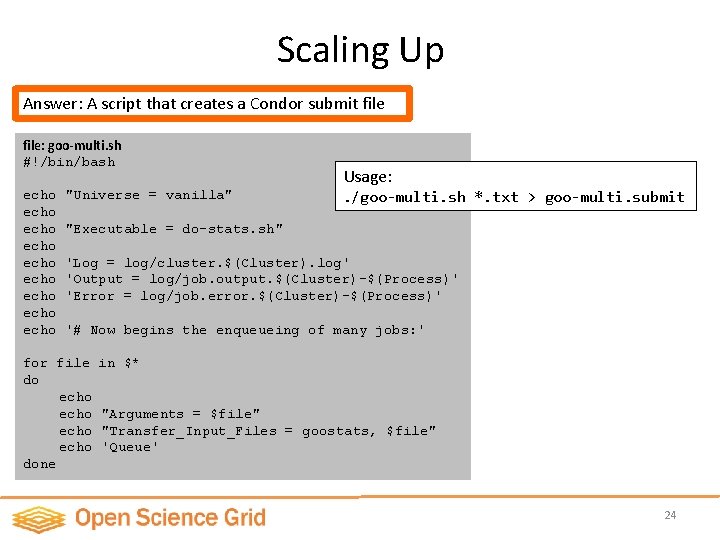
Scaling Up Answer: A script that creates a Condor submit file: goo-multi. sh #!/bin/bash echo echo echo "Universe = vanilla" Usage: . /goo-multi. sh *. txt > goo-multi. submit "Executable = do-stats. sh" 'Log = log/cluster. $(Cluster). log' 'Output = log/job. output. $(Cluster)-$(Process)' 'Error = log/job. error. $(Cluster)-$(Process)' '# Now begins the enqueueing of many jobs: ' for file do echo done in $* "Arguments = $file" "Transfer_Input_Files = goostats, $file" 'Queue' 24
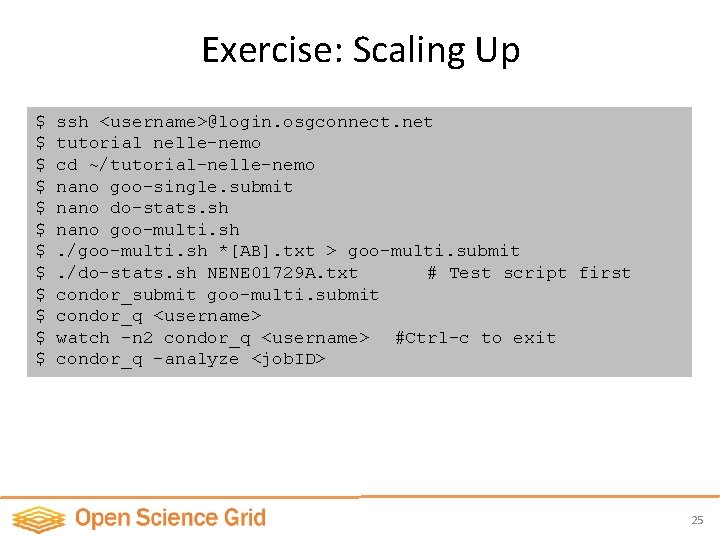
Exercise: Scaling Up $ $ $ ssh <username>@login. osgconnect. net tutorial nelle-nemo cd ~/tutorial-nelle-nemo nano goo-single. submit nano do-stats. sh nano goo-multi. sh. /goo-multi. sh *[AB]. txt > goo-multi. submit. /do-stats. sh NENE 01729 A. txt # Test script first condor_submit goo-multi. submit condor_q <username> watch -n 2 condor_q <username> #Ctrl-c to exit condor_q -analyze <job. ID> 25
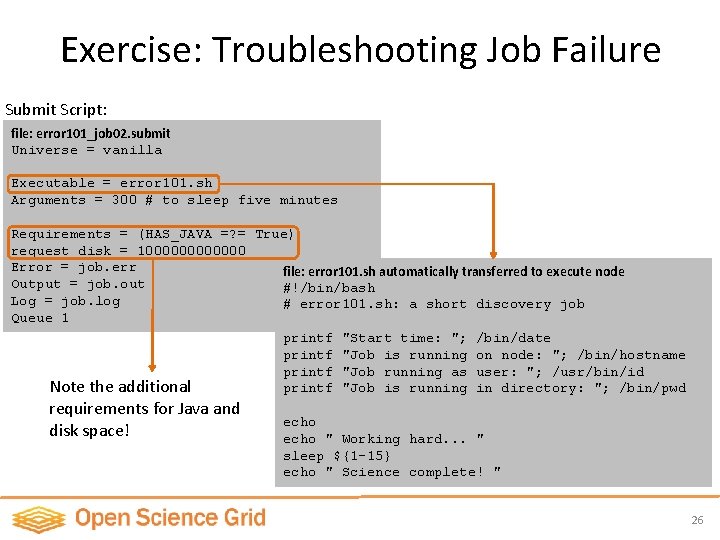
Exercise: Troubleshooting Job Failure Submit Script: file: error 101_job 02. submit Universe = vanilla Executable = error 101. sh Arguments = 300 # to sleep five minutes Requirements = (HAS_JAVA =? = True) request_disk = 1000000 Error = job. err file: error 101. sh automatically transferred to execute node Output = job. out #!/bin/bash Log = job. log # error 101. sh: a short discovery job Queue 1 printf "Start time: "; /bin/date printf "Job is running on node: "; /bin/hostname printf "Job running as user: "; /usr/bin/id Note the additional printf "Job is running in directory: "; /bin/pwd requirements for Java and disk space! echo " Working hard. . . " sleep ${1 -15} echo " Science complete! " 26
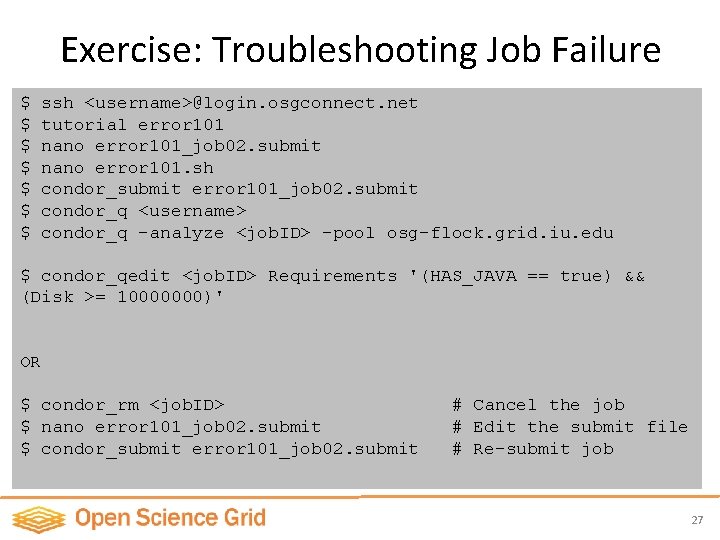
Exercise: Troubleshooting Job Failure $ $ $ $ ssh <username>@login. osgconnect. net tutorial error 101 nano error 101_job 02. submit nano error 101. sh condor_submit error 101_job 02. submit condor_q <username> condor_q -analyze <job. ID> -pool osg-flock. grid. iu. edu $ condor_qedit <job. ID> Requirements '(HAS_JAVA == true) && (Disk >= 10000000)' OR $ condor_rm <job. ID> $ nano error 101_job 02. submit $ condor_submit error 101_job 02. submit # Cancel the job # Edit the submit file # Re-submit job 27
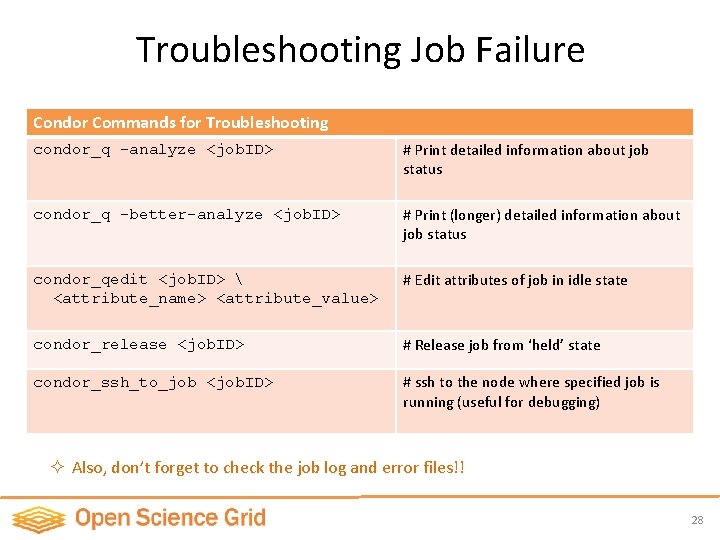
Troubleshooting Job Failure Condor Commands for Troubleshooting condor_q -analyze <job. ID> # Print detailed information about job status condor_q -better-analyze <job. ID> # Print (longer) detailed information about job status condor_qedit <job. ID> <attribute_name> <attribute_value> # Edit attributes of job in idle state condor_release <job. ID> # Release job from ‘held’ state condor_ssh_to_job <job. ID> # ssh to the node where specified job is running (useful for debugging) ² Also, don’t forget to check the job log and error files!! 28
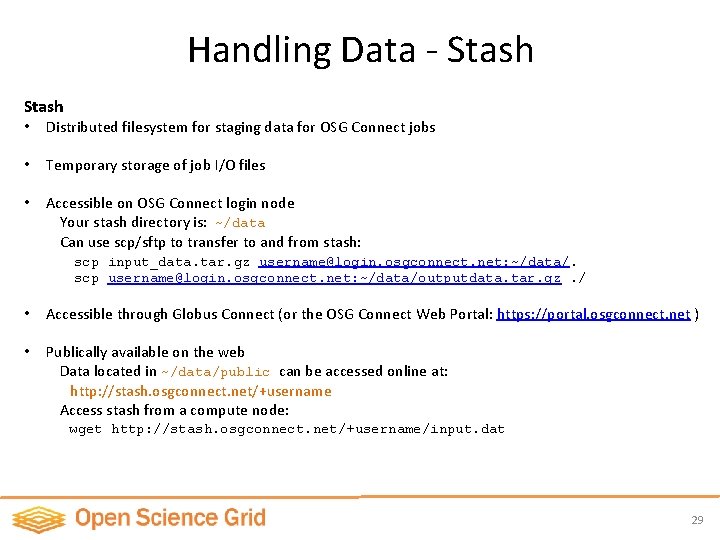
Handling Data - Stash • Distributed filesystem for staging data for OSG Connect jobs • Temporary storage of job I/O files • Accessible on OSG Connect login node Your stash directory is: ~/data Can use scp/sftp to transfer to and from stash: scp input_data. tar. gz username@login. osgconnect. net: ~/data/. scp username@login. osgconnect. net: ~/data/outputdata. tar. gz. / • Accessible through Globus Connect (or the OSG Connect Web Portal: https: //portal. osgconnect. net ) • Publically available on the web Data located in ~/data/public can be accessed online at: http: //stash. osgconnect. net/+username Access stash from a compute node: wget http: //stash. osgconnect. net/+username/input. dat 29
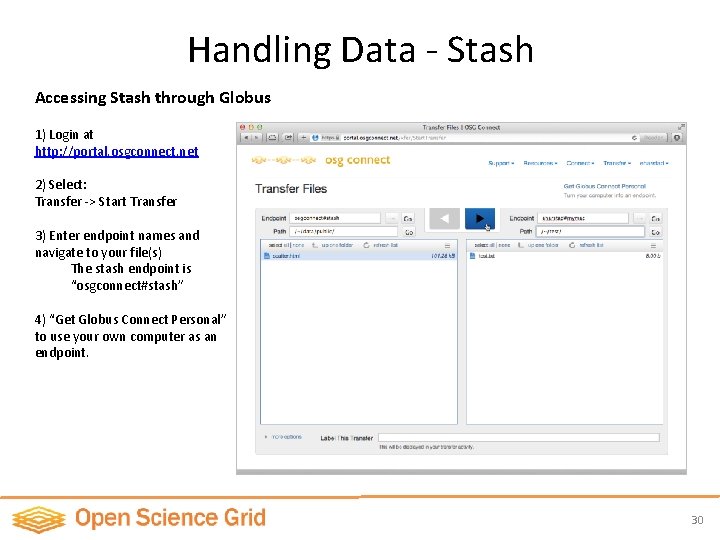
Handling Data - Stash Accessing Stash through Globus 1) Login at http: //portal. osgconnect. net 2) Select: Transfer -> Start Transfer 3) Enter endpoint names and navigate to your file(s) The stash endpoint is “osgconnect#stash” 4) “Get Globus Connect Personal” to use your own computer as an endpoint. 30
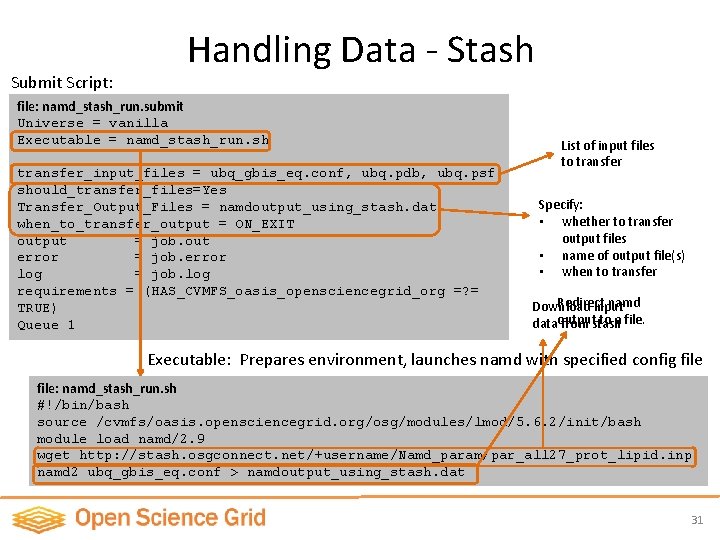
Submit Script: Handling Data - Stash file: namd_stash_run. submit Universe = vanilla Executable = namd_stash_run. sh transfer_input_files = ubq_gbis_eq. conf, ubq. pdb, ubq. psf should_transfer_files=Yes Transfer_Output_Files = namdoutput_using_stash. dat when_to_transfer_output = ON_EXIT output = job. out error = job. error log = job. log requirements = (HAS_CVMFS_oasis_opensciencegrid_org =? = TRUE) Queue 1 List of input files to transfer Specify: • whether to transfer output files • name of output file(s) • when to transfer Redirect namd Download input to a file. dataoutput from stash Executable: Prepares environment, launches namd with specified config file: namd_stash_run. sh #!/bin/bash source /cvmfs/oasis. opensciencegrid. org/osg/modules/lmod/5. 6. 2/init/bash module load namd/2. 9 wget http: //stash. osgconnect. net/+username/Namd_param/par_all 27_prot_lipid. inp namd 2 ubq_gbis_eq. conf > namdoutput_using_stash. dat 31
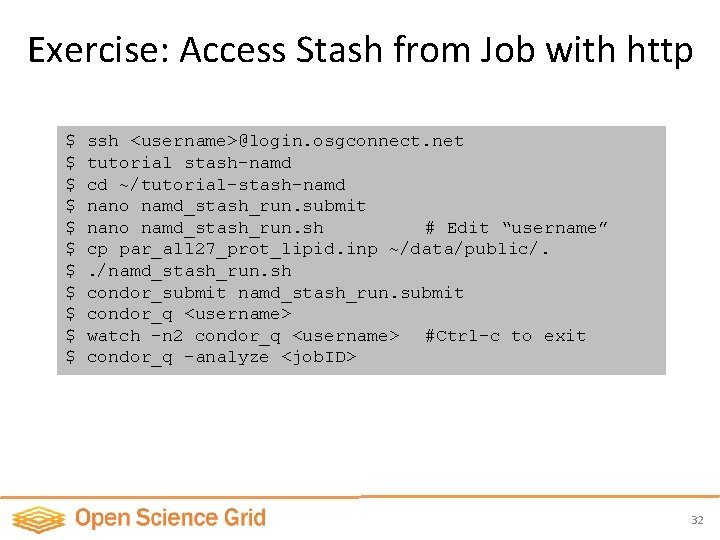
Exercise: Access Stash from Job with http $ $ $ ssh <username>@login. osgconnect. net tutorial stash-namd cd ~/tutorial-stash-namd nano namd_stash_run. submit nano namd_stash_run. sh # Edit “username” cp par_all 27_prot_lipid. inp ~/data/public/. . /namd_stash_run. sh condor_submit namd_stash_run. submit condor_q <username> watch -n 2 condor_q <username> #Ctrl-c to exit condor_q -analyze <job. ID> 32
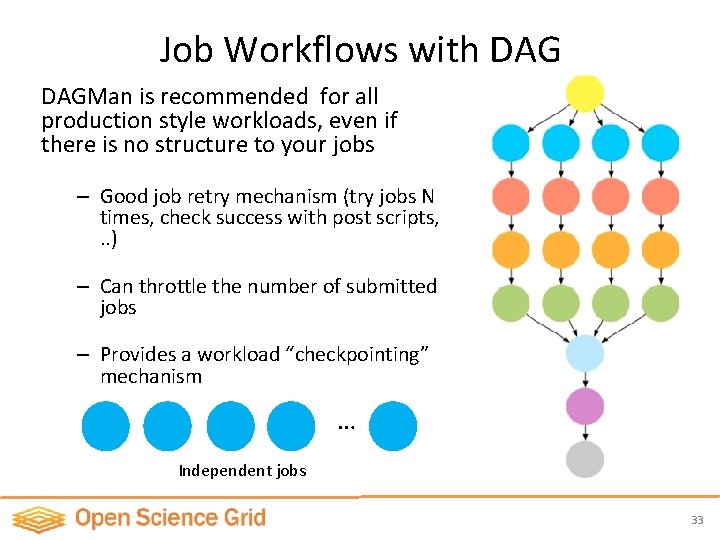
Job Workflows with DAGMan is recommended for all production style workloads, even if there is no structure to your jobs – Good job retry mechanism (try jobs N times, check success with post scripts, . . ) – Can throttle the number of submitted jobs – Provides a workload “checkpointing” mechanism … Independent jobs 33
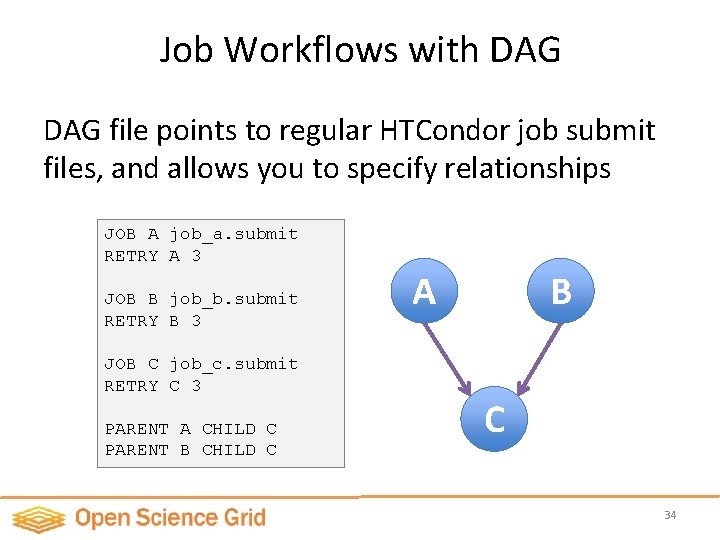
Job Workflows with DAG file points to regular HTCondor job submit files, and allows you to specify relationships JOB A job_a. submit RETRY A 3 JOB B job_b. submit RETRY B 3 JOB C job_c. submit RETRY C 3 PARENT A CHILD C PARENT B CHILD C A B C 34
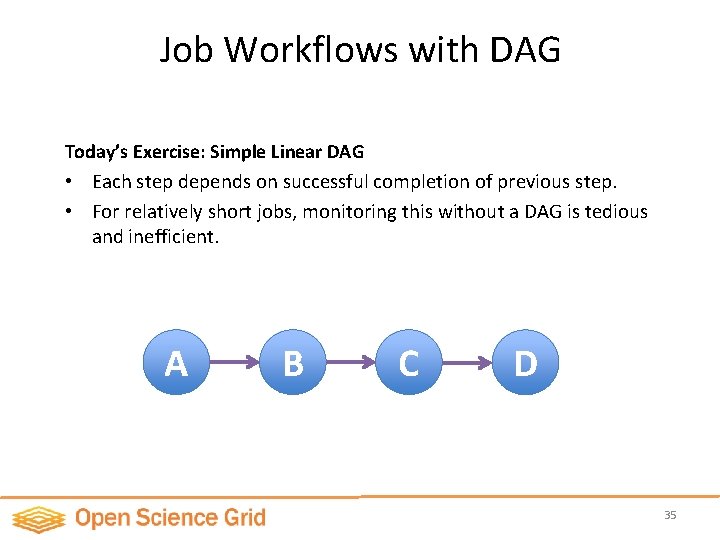
Job Workflows with DAG Today’s Exercise: Simple Linear DAG • Each step depends on successful completion of previous step. • For relatively short jobs, monitoring this without a DAG is tedious and inefficient. A B C D 35
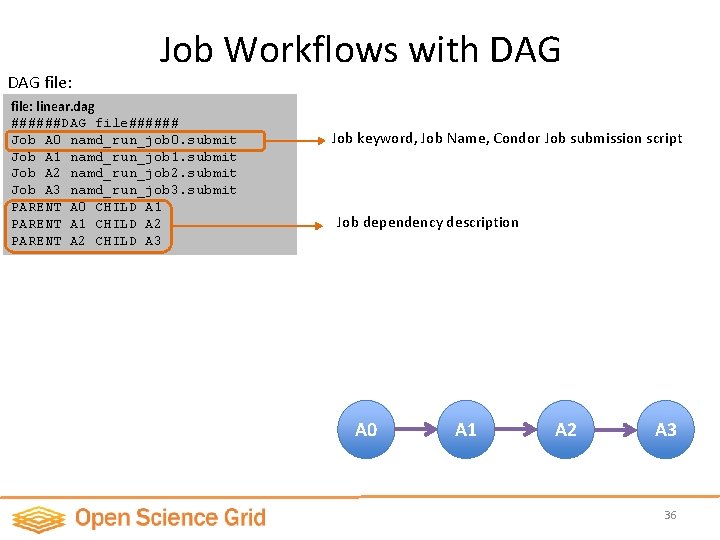
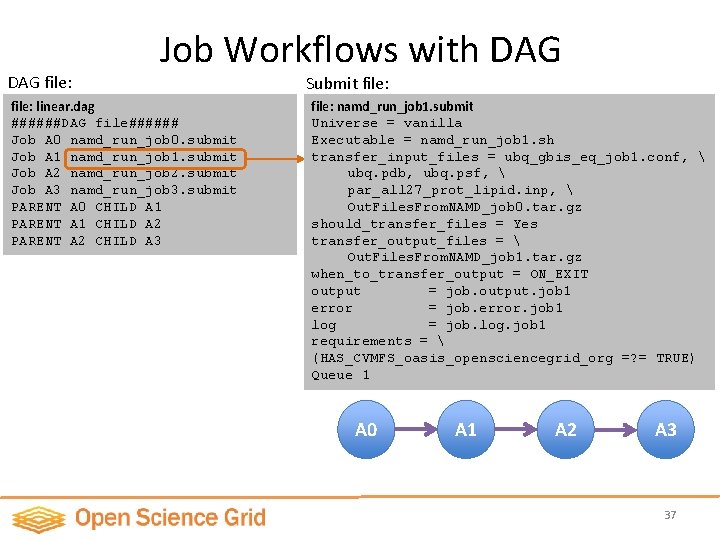
DAG file: Job Workflows with DAG file: linear. dag ######DAG file###### Job A 0 namd_run_job 0. submit Job A 1 namd_run_job 1. submit Job A 2 namd_run_job 2. submit Job A 3 namd_run_job 3. submit PARENT A 0 CHILD A 1 PARENT A 1 CHILD A 2 PARENT A 2 CHILD A 3 Job keyword, Job Name, Condor Job submission script Job dependency description A 0 A 1 A 2 A 3 36
DAG file: Job Workflows with DAG file: linear. dag ######DAG file###### Job A 0 namd_run_job 0. submit Job A 1 namd_run_job 1. submit Job A 2 namd_run_job 2. submit Job A 3 namd_run_job 3. submit PARENT A 0 CHILD A 1 PARENT A 1 CHILD A 2 PARENT A 2 CHILD A 3 Submit file: namd_run_job 1. submit Universe = vanilla Executable = namd_run_job 1. sh transfer_input_files = ubq_gbis_eq_job 1. conf, ubq. pdb, ubq. psf, par_all 27_prot_lipid. inp, Out. Files. From. NAMD_job 0. tar. gz Job dependency description should_transfer_files = Yes transfer_output_files = Out. Files. From. NAMD_job 1. tar. gz when_to_transfer_output = ON_EXIT output = job. output. job 1 error = job. error. job 1 log = job. log. job 1 requirements = (HAS_CVMFS_oasis_opensciencegrid_org =? = TRUE) Queue 1 A 0 A 1 A 2 A 3 37
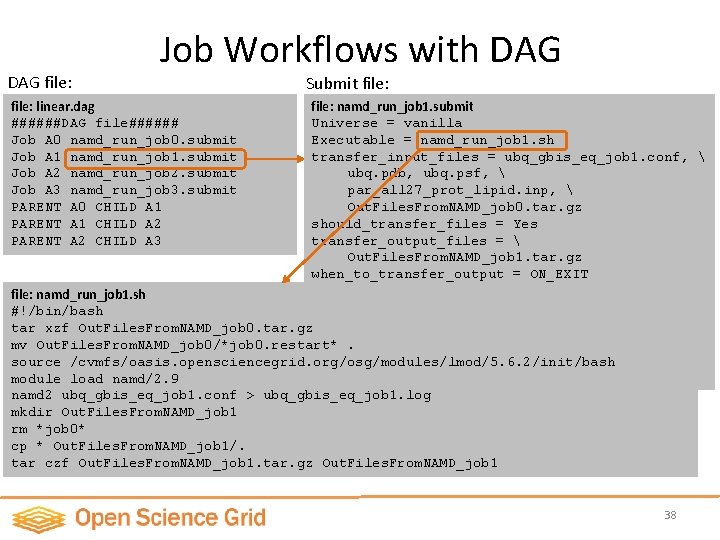
DAG file: Job Workflows with DAG Submit file: linear. dag ######DAG file###### Job A 0 namd_run_job 0. submit Job A 1 namd_run_job 1. submit Job A 2 namd_run_job 2. submit Job A 3 namd_run_job 3. submit PARENT A 0 CHILD A 1 PARENT A 1 CHILD A 2 PARENT A 2 CHILD A 3 file: namd_run_job 1. submit Universe = vanilla Executable = namd_run_job 1. sh transfer_input_files = ubq_gbis_eq_job 1. conf, ubq. pdb, ubq. psf, par_all 27_prot_lipid. inp, Out. Files. From. NAMD_job 0. tar. gz should_transfer_files = Yes transfer_output_files = Out. Files. From. NAMD_job 1. tar. gz when_to_transfer_output = ON_EXIT output = job. output. job 1 file: namd_run_job 1. sh error = job. error. job 1 #!/bin/bash = job. log. job 1 tar xzf Out. Files. From. NAMD_job 0. tar. gzlog requirements = mv Out. Files. From. NAMD_job 0/*job 0. restart*. (HAS_CVMFS_oasis_opensciencegrid_org =? = TRUE) source /cvmfs/oasis. opensciencegrid. org/osg/modules/lmod/5. 6. 2/init/bash Queue 1 module load namd/2. 9 namd 2 ubq_gbis_eq_job 1. conf > ubq_gbis_eq_job 1. log mkdir Out. Files. From. NAMD_job 1 rm *job 0* cp * Out. Files. From. NAMD_job 1/. tar czf Out. Files. From. NAMD_job 1. tar. gz Out. Files. From. NAMD_job 1 38
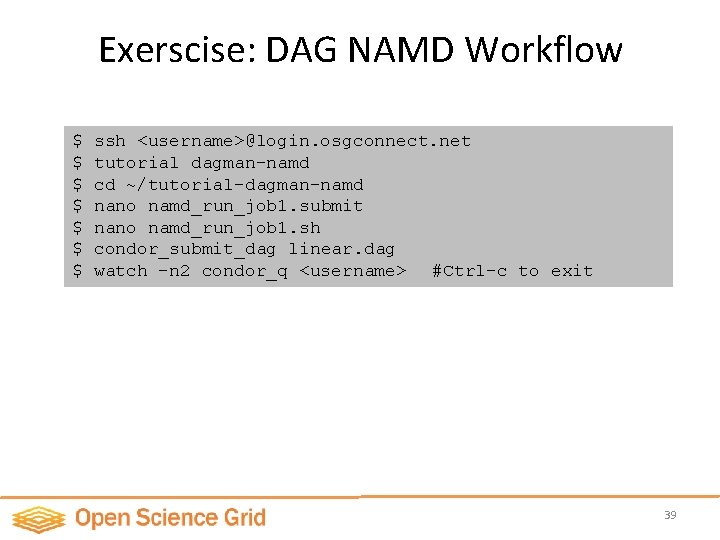
Exerscise: DAG NAMD Workflow $ $ $ $ ssh <username>@login. osgconnect. net tutorial dagman-namd cd ~/tutorial-dagman-namd nano namd_run_job 1. submit nano namd_run_job 1. sh condor_submit_dag linear. dag watch -n 2 condor_q <username> #Ctrl-c to exit 39
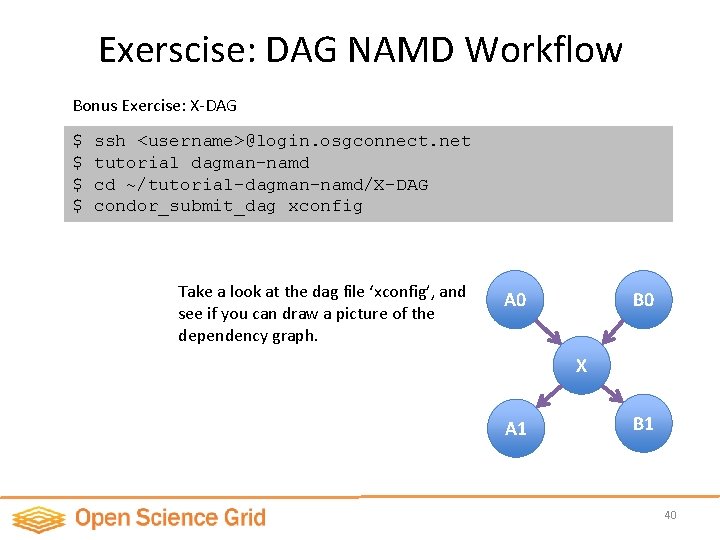
Exerscise: DAG NAMD Workflow Bonus Exercise: X-DAG $ $ ssh <username>@login. osgconnect. net tutorial dagman-namd cd ~/tutorial-dagman-namd/X-DAG condor_submit_dag xconfig Take a look at the dag file ‘xconfig’, and see if you can draw a picture of the dependency graph. A 0 B 0 X A 1 B 1 40
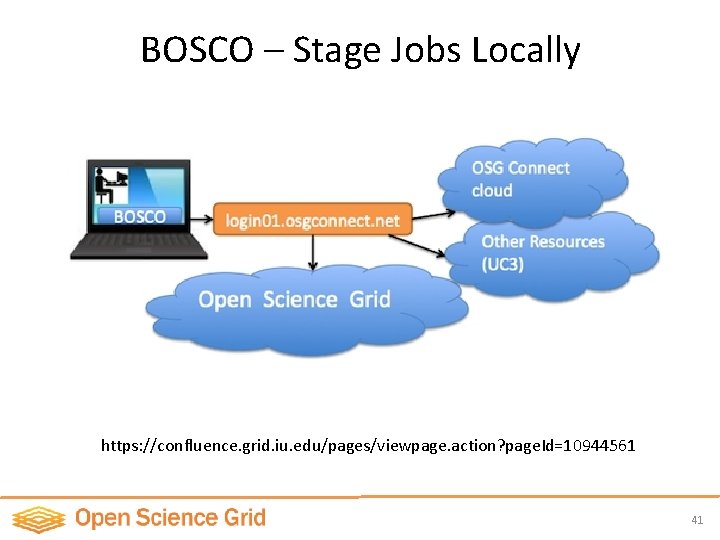
BOSCO – Stage Jobs Locally https: //confluence. grid. iu. edu/pages/viewpage. action? page. Id=10944561 41
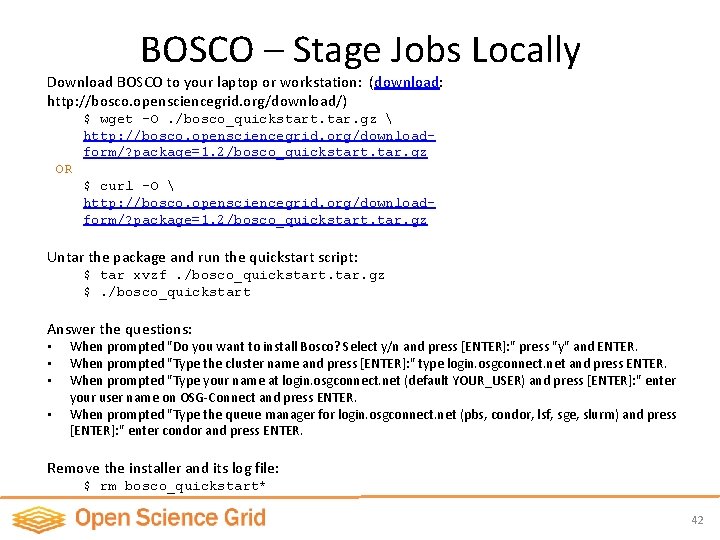
BOSCO – Stage Jobs Locally Download BOSCO to your laptop or workstation: (download: http: //bosco. opensciencegrid. org/download/) $ wget -O. /bosco_quickstart. tar. gz http: //bosco. opensciencegrid. org/downloadform/? package=1. 2/bosco_quickstart. tar. gz OR $ curl -O http: //bosco. opensciencegrid. org/downloadform/? package=1. 2/bosco_quickstart. tar. gz Untar the package and run the quickstart script: $ tar xvzf. /bosco_quickstart. tar. gz $. /bosco_quickstart Answer the questions: • • When prompted "Do you want to install Bosco? Select y/n and press [ENTER]: " press "y" and ENTER. When prompted "Type the cluster name and press [ENTER]: " type login. osgconnect. net and press ENTER. When prompted "Type your name at login. osgconnect. net (default YOUR_USER) and press [ENTER]: " enter your user name on OSG-Connect and press ENTER. When prompted "Type the queue manager for login. osgconnect. net (pbs, condor, lsf, sge, slurm) and press [ENTER]: " enter condor and press ENTER. Remove the installer and its log file: $ rm bosco_quickstart* 42
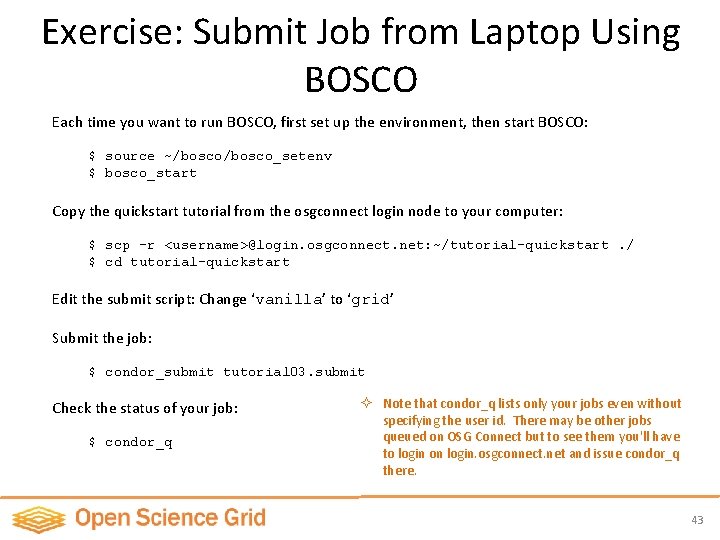
Exercise: Submit Job from Laptop Using BOSCO Each time you want to run BOSCO, first set up the environment, then start BOSCO: $ source ~/bosco_setenv $ bosco_start Copy the quickstart tutorial from the osgconnect login node to your computer: $ scp -r <username>@login. osgconnect. net: ~/tutorial-quickstart. / $ cd tutorial-quickstart Edit the submit script: Change ‘vanilla’ to ‘grid’ Submit the job: $ condor_submit tutorial 03. submit Check the status of your job: $ condor_q ² Note that condor_q lists only your jobs even without specifying the user id. There may be other jobs queued on OSG Connect but to see them you'll have to login on login. osgconnect. net and issue condor_q there. 43
Extra Time • Work through exercises on your own • Explore Connect. Book https: //confluence. grid. iu. edu/display/CON/Home • Questions? 44