
Getting Started with GUI Programming 1 Topics n
![Drawing Polygons and Polylines int[] x = {40, 70, 60, 45, 20}; int[] y](https://slidetodoc.com/presentation_image_h2/6e159b4386187ab797e2a9e3d232c718/image-48.jpg "Drawing Polygons and Polylines int[] x = {40, 70, 60, 45, 20}; int[] y")
- Slides: 58
Getting Started with GUI Programming 1
Topics n n n GUI components. Java GUI API hierarchy. User interfaces with frames, panels, and UI components. Layout managers. Flow. Layout, Grid. Layout, and Border. Layout managers applied to components in a container. Color and Font classes. JPanel as a subcontainer. paint. Component method on a panel. Strings, lines, rectangles, ovals, arcs, and polygon methods in the Graphics class. Centering displays using the Font. Metrics Class. Reusable component Message. Panel to display a message on a panel. Still. Clock that emulates an analog clock. 2
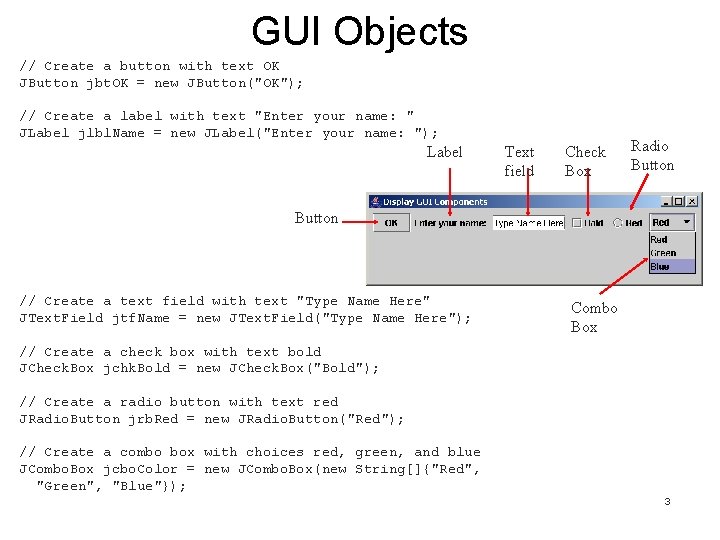
GUI Objects // Create a button with text OK JButton jbt. OK = new JButton("OK"); // Create a label with text "Enter your name: " JLabel jlbl. Name = new JLabel("Enter your name: "); Label Text field Check Box Radio Button // Create a text field with text "Type Name Here" JText. Field jtf. Name = new JText. Field("Type Name Here"); Combo Box // Create a check box with text bold JCheck. Box jchk. Bold = new JCheck. Box("Bold"); // Create a radio button with text red JRadio. Button jrb. Red = new JRadio. Button("Red"); // Create a combo box with choices red, green, and blue JCombo. Box jcbo. Color = new JCombo. Box(new String[]{"Red", "Green", "Blue"}); 3
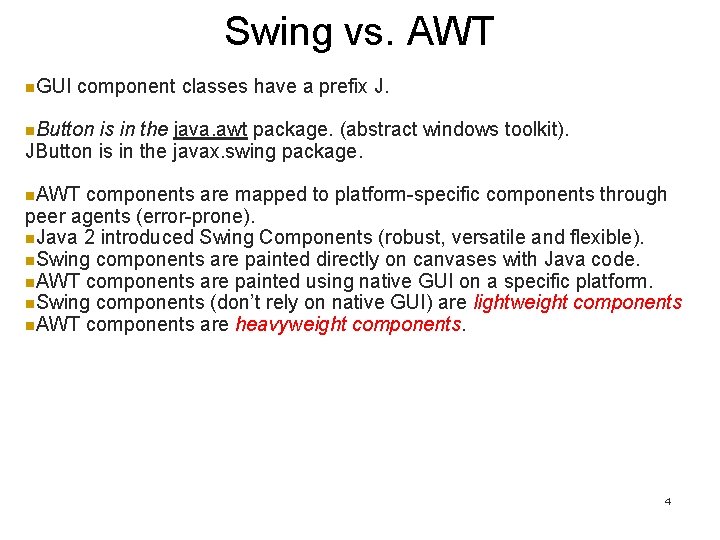
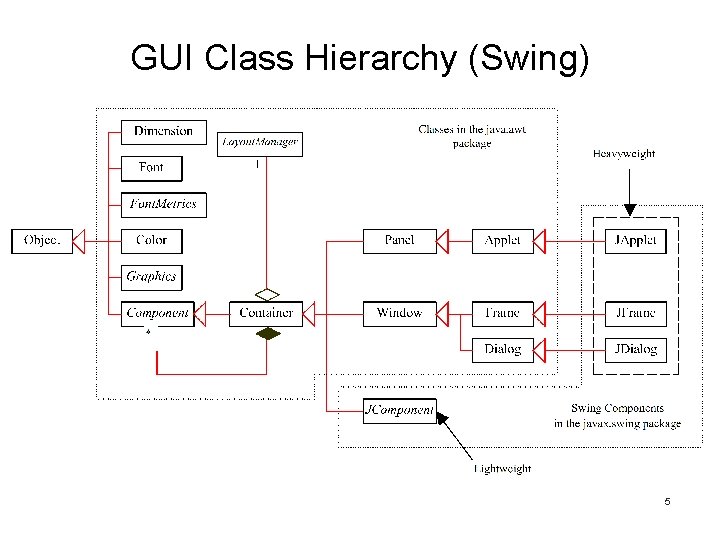
Swing vs. AWT n. GUI component classes have a prefix J. n. Button is in the java. awt package. (abstract windows toolkit). JButton is in the javax. swing package. n. AWT components are mapped to platform-specific components through peer agents (error-prone). n. Java 2 introduced Swing Components (robust, versatile and flexible). n. Swing components are painted directly on canvases with Java code. n. AWT components are painted using native GUI on a specific platform. n. Swing components (don’t rely on native GUI) are lightweight components n. AWT components are heavyweight components. 4
GUI Class Hierarchy (Swing) 5
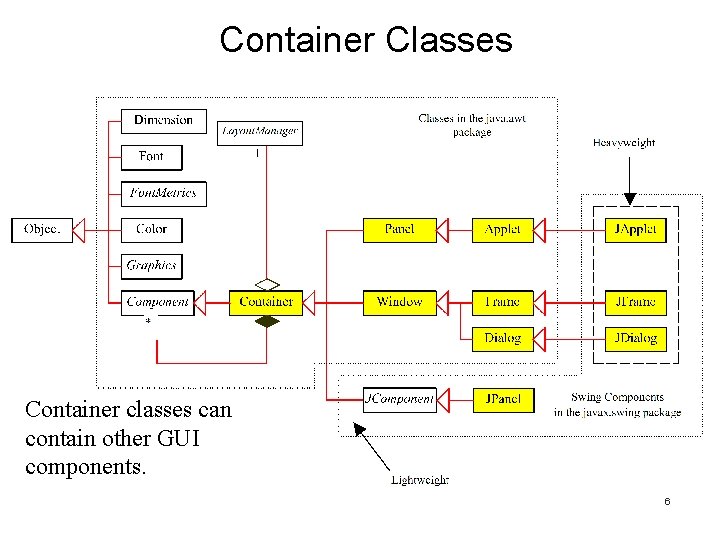
Container Classes Container classes can contain other GUI components. 6
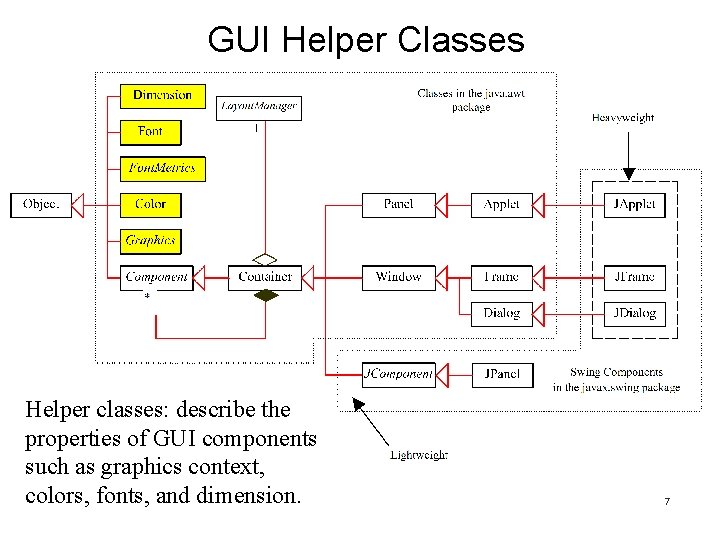
GUI Helper Classes Helper classes: describe the properties of GUI components such as graphics context, colors, fonts, and dimension. 7
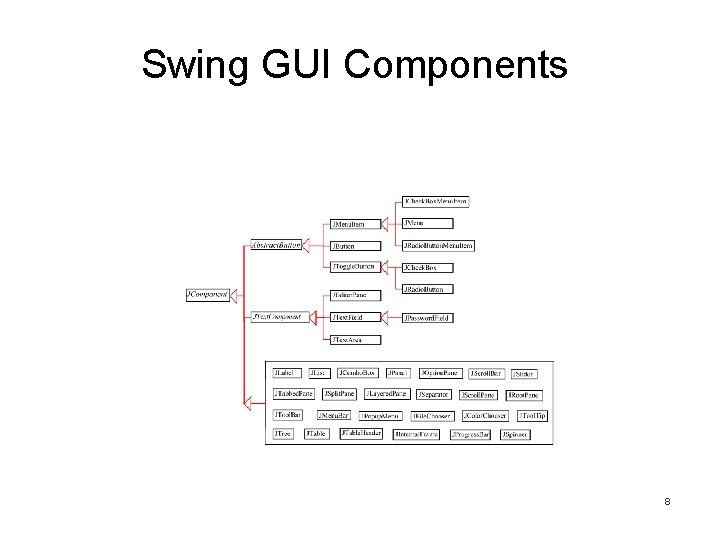
Swing GUI Components 8
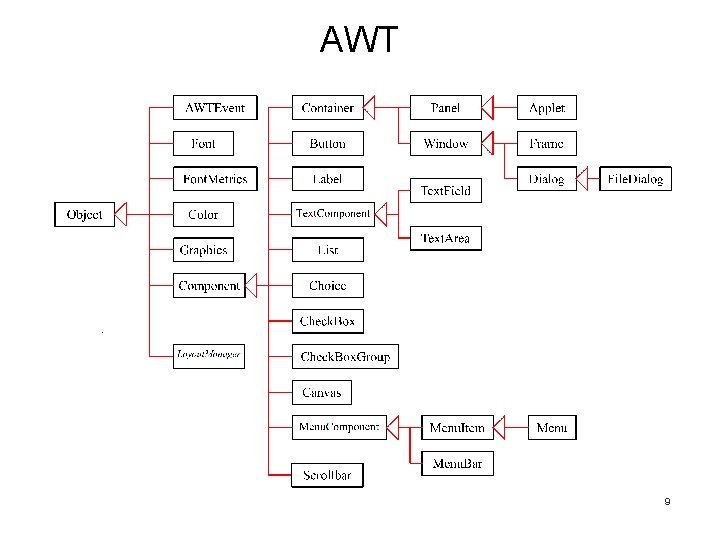
AWT 9
Frames n j. Frame is a Window. n Frame: contains other user interface components in Java GUI applications. n Use JFrame class for swing gui’s. . 10
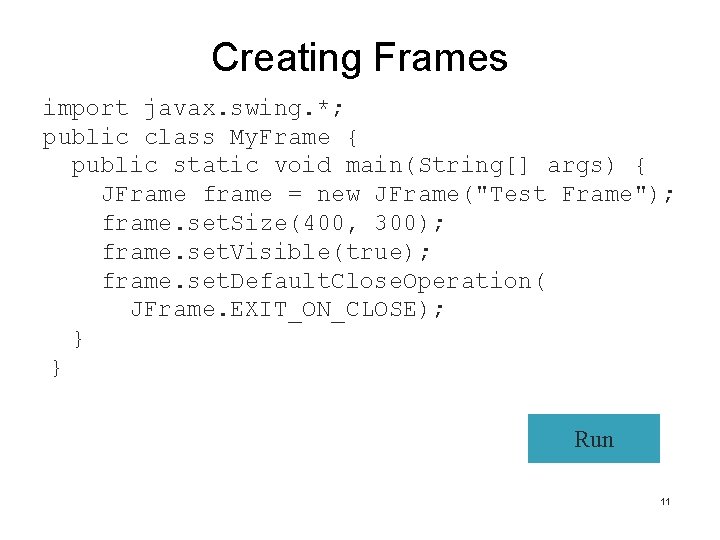
Creating Frames import javax. swing. *; public class My. Frame { public static void main(String[] args) { JFrame frame = new JFrame("Test Frame"); frame. set. Size(400, 300); frame. set. Visible(true); frame. set. Default. Close. Operation( JFrame. EXIT_ON_CLOSE); } } Run 11
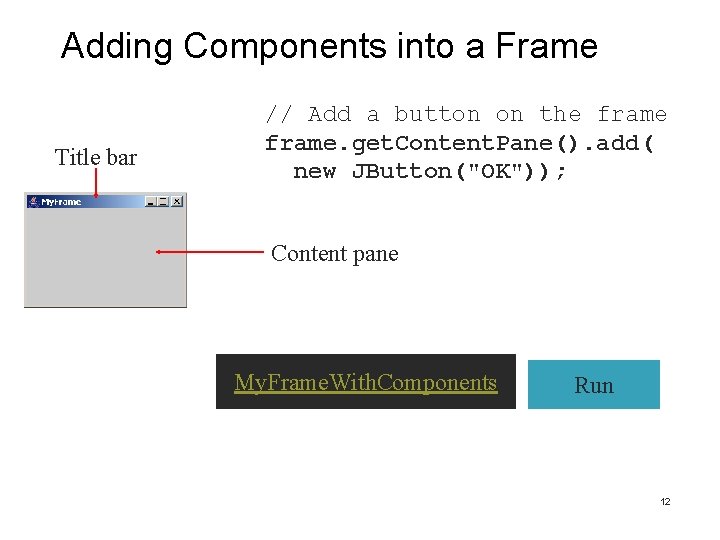
Adding Components into a Frame Title bar // Add a button on the frame. get. Content. Pane(). add( new JButton("OK")); Content pane My. Frame. With. Components Run 12
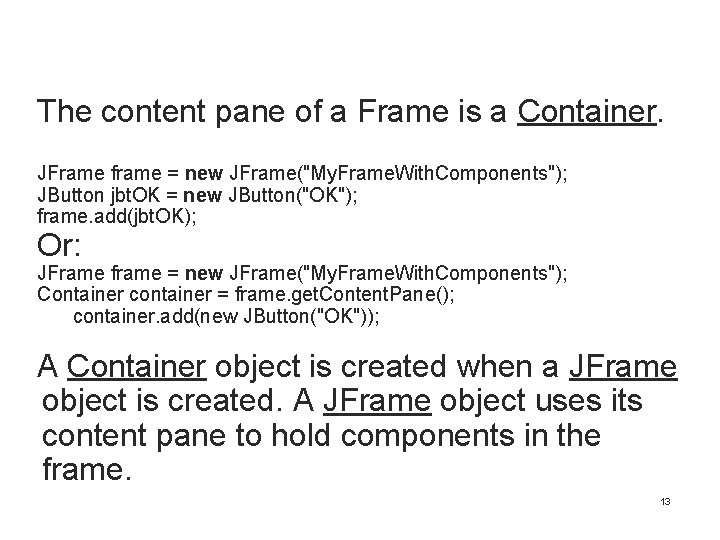
The content pane of a Frame is a Container. JFrame frame = new JFrame("My. Frame. With. Components"); JButton jbt. OK = new JButton("OK"); frame. add(jbt. OK); Or: JFrame frame = new JFrame("My. Frame. With. Components"); Container container = frame. get. Content. Pane(); container. add(new JButton("OK")); A Container object is created when a JFrame object is created. A JFrame object uses its content pane to hold components in the frame. 13
Placing Frames on monitor • Default: a frame is displayed in the upper-left corner of the screen. • set. Location(x, y) method in the JFrame class. “pins” the upper-left corner of a frame at pixel location (x, y). 14
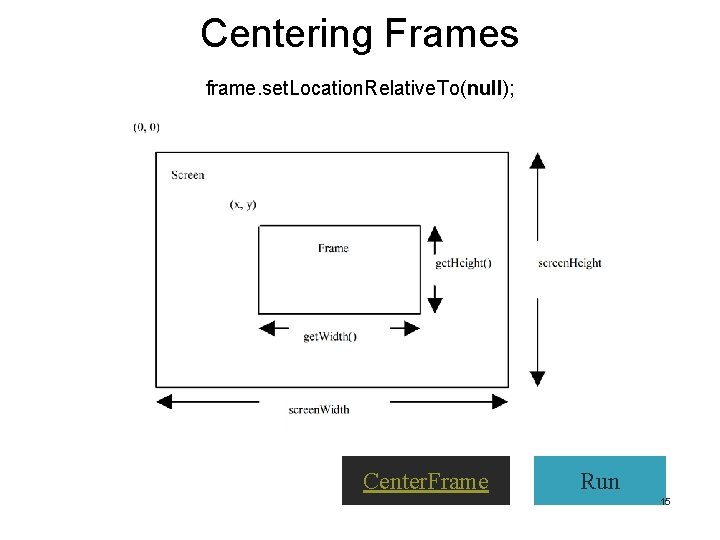
Centering Frames frame. set. Location. Relative. To(null); Center. Frame Run 15
Layout Manager n UI components are placed in a container by a layout manager. n A Layout manager is set in a container using the set. Layout(Layout. Manager) method of the container. 16
Layout Managers n Flow. Layout n Grid. Layout n Border. Layout n Others 17
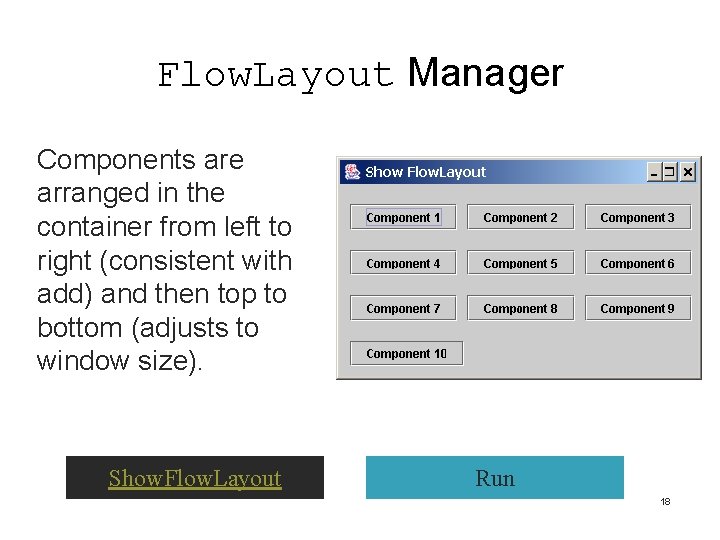
Flow. Layout Manager Components are arranged in the container from left to right (consistent with add) and then top to bottom (adjusts to window size). Show. Flow. Layout Run 18
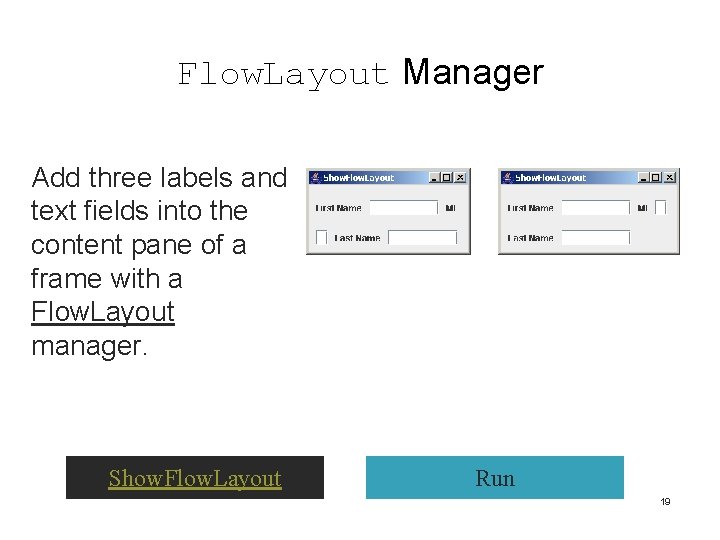
Flow. Layout Manager Add three labels and text fields into the content pane of a frame with a Flow. Layout manager. Show. Flow. Layout Run 19
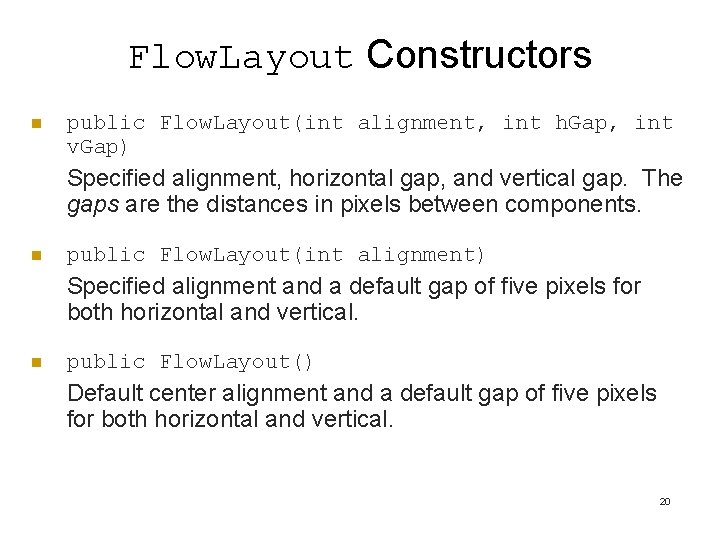
Flow. Layout Constructors n public Flow. Layout(int alignment, int h. Gap, int v. Gap) Specified alignment, horizontal gap, and vertical gap. The gaps are the distances in pixels between components. n public Flow. Layout(int alignment) Specified alignment and a default gap of five pixels for both horizontal and vertical. n public Flow. Layout() Default center alignment and a default gap of five pixels for both horizontal and vertical. 20
Grid. Layout Manager manager arranges components in a grid (matrix) formation specifying rows and columns. n. Components are added in the grid from left to right starting with the first row, then the second, and so on. n. Grid. Layout Show. Grid. Layout Run 21
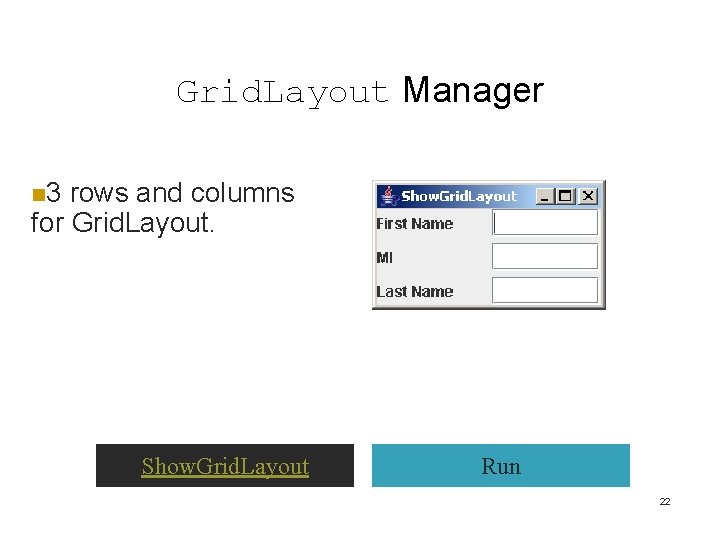
Grid. Layout Manager n 3 rows and columns for Grid. Layout. Show. Grid. Layout Run 22
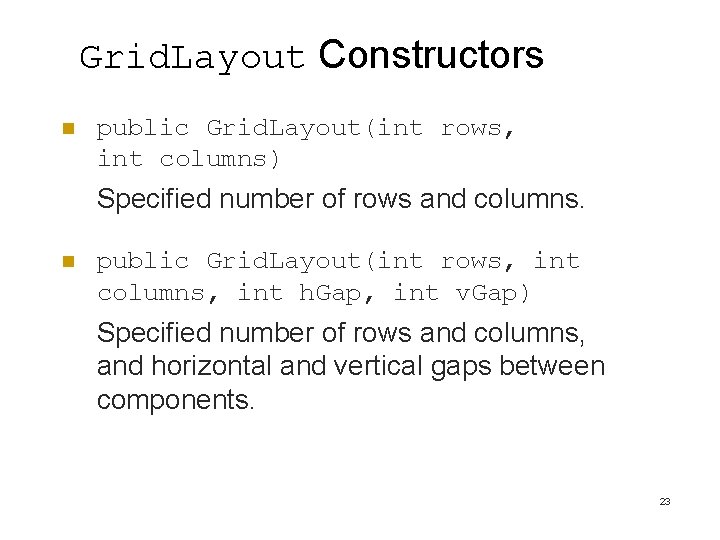
Grid. Layout Constructors n public Grid. Layout(int rows, int columns) Specified number of rows and columns. n public Grid. Layout(int rows, int columns, int h. Gap, int v. Gap) Specified number of rows and columns, and horizontal and vertical gaps between components. 23
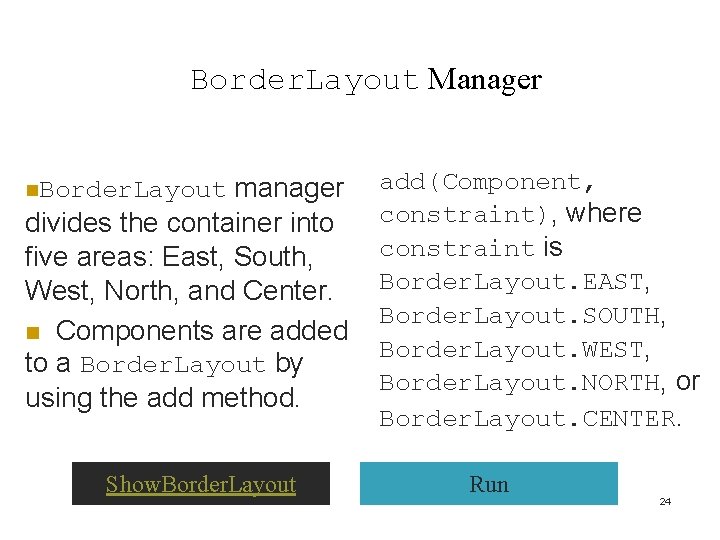
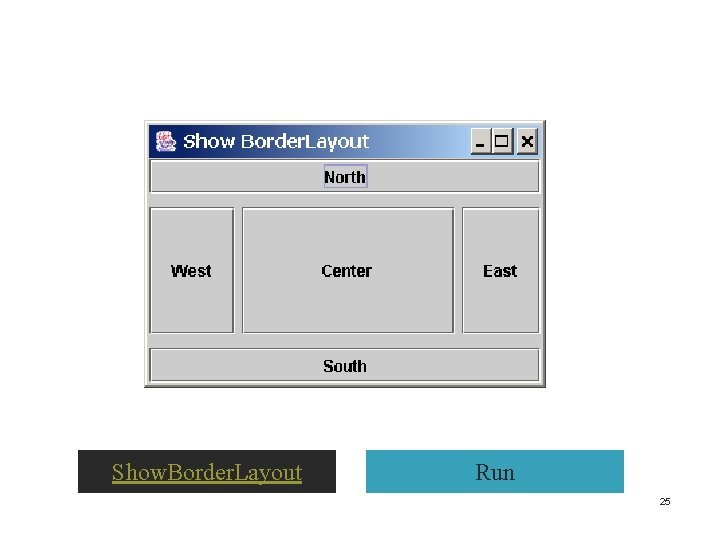
Border. Layout Manager manager divides the container into five areas: East, South, West, North, and Center. n Components are added to a Border. Layout by using the add method. n. Border. Layout Show. Border. Layout add(Component, constraint), where constraint is Border. Layout. EAST, Border. Layout. SOUTH, Border. Layout. WEST, Border. Layout. NORTH, or Border. Layout. CENTER. Run 24
Show. Border. Layout Run 25
Java. awt. Color n. Set colors for GUI components by using the java. awt. Color class. n. Colors are comprised of red, green, and blue components, each of which is represented by a value that describes its intensity, ranging from 0 (darkest shade) to 255 (lightest shade). n. Color c = new Color(r, g, b); r, g, and b specify a color by its red, green, and blue components. Color c = new Color(228, 100, 255); 26
Standard Colors n. Thirteen standard colors (black, blue, cyan, dark. Gray, green, light. Gray, magenta, orange, pink, red, white, yellow): constants in java. awt. Color. n. Note strange upper and lower case naming. 27
Setting Colors n. Set the component’s background and foreground colors: set. Background(Color c) set. Foreground(Color c) jbt. set. Background(Color. yellow); jbt. set. Foreground(Color. red); 28
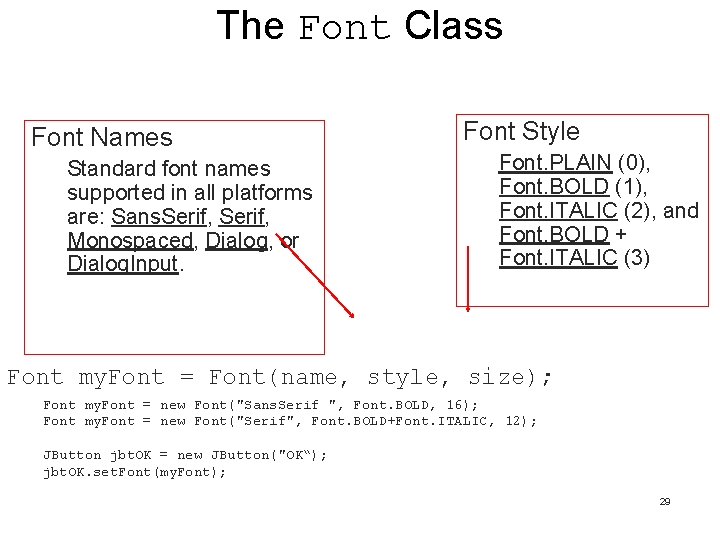
The Font Class Font Names Standard font names supported in all platforms are: Sans. Serif, Monospaced, Dialog, or Dialog. Input. Font Style Font. PLAIN (0), Font. BOLD (1), Font. ITALIC (2), and Font. BOLD + Font. ITALIC (3) Font my. Font = Font(name, style, size); Font my. Font = new Font("Sans. Serif ", Font. BOLD, 16); Font my. Font = new Font("Serif", Font. BOLD+Font. ITALIC, 12); JButton jbt. OK = new JButton("OK“); jbt. OK. set. Font(my. Font); 29
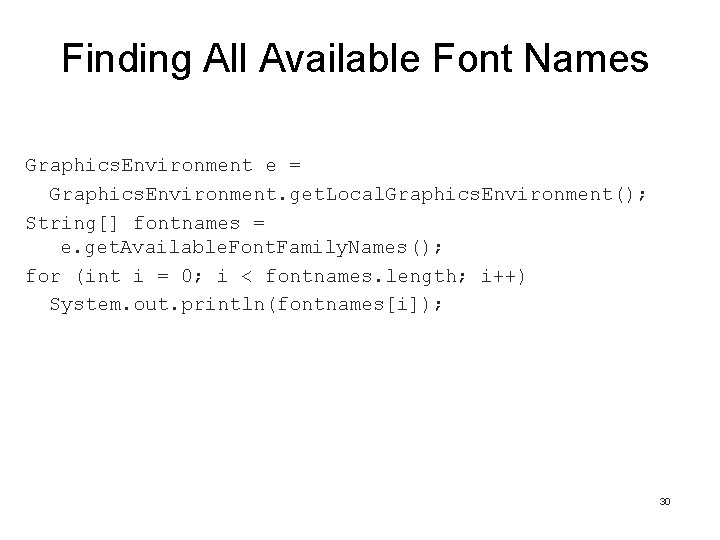
Finding All Available Font Names Graphics. Environment e = Graphics. Environment. get. Local. Graphics. Environment(); String[] fontnames = e. get. Available. Font. Family. Names(); for (int i = 0; i < fontnames. length; i++) System. out. println(fontnames[i]); 30
Using Panels as Sub-Containers n Panels are containers for grouping user interface components. n Place the user interface components in a panel; place panels in a frame. Can also place panels in a panel. n Add a component to the content pane of JFrame. n Use add to place a component in a panel. 31
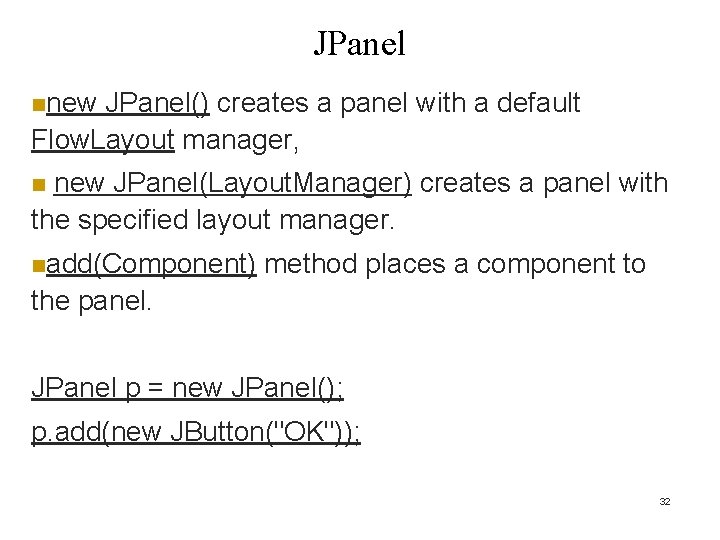
JPanel nnew JPanel() creates a panel with a default Flow. Layout manager, new JPanel(Layout. Manager) creates a panel with the specified layout manager. n nadd(Component) method places a component to the panel. JPanel p = new JPanel(); p. add(new JButton("OK")); 32
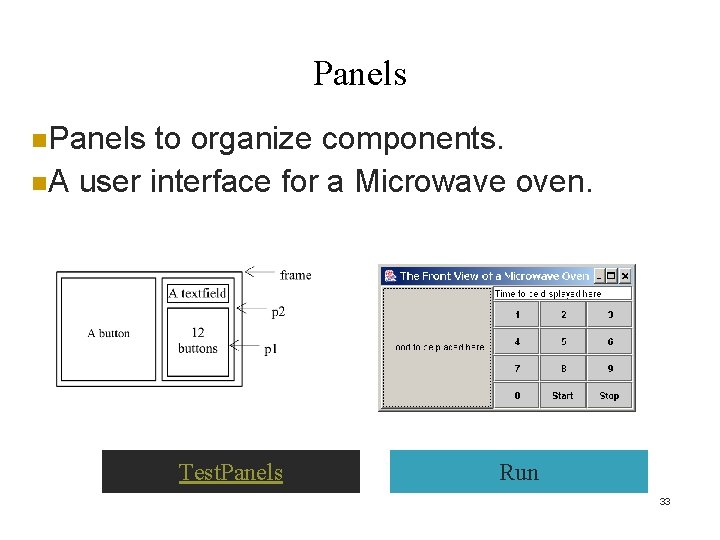
Panels n. Panels to organize components. n. A user interface for a Microwave oven. Test. Panels Run 33
Drawing on Panels n JPanel can be used to draw graphics (including text) and enable user interaction. n To draw in a panel: create a new class that extends JPanel and override the paint. Component method. Draw strings and geometric shapes and view images on the panel. n 34
paint. Component () n. The paint. Component method is defined in JComponent: protected void paint. Component(Graphics g) n. The Graphics object g is created automatically by the JVM for every visible GUI component. This object controls how information is drawn. n Drawing methods defined in the Graphics class are used to draw strings and geometric figures. n. Draw a string using the following method in the Graphics class: public void draw. String(String string, int x, int y) 35
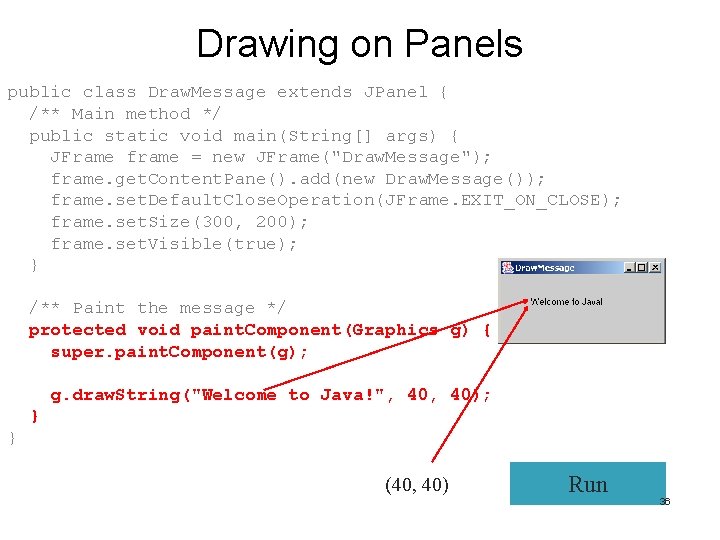
Drawing on Panels public class Draw. Message extends JPanel { /** Main method */ public static void main(String[] args) { JFrame frame = new JFrame("Draw. Message"); frame. get. Content. Pane(). add(new Draw. Message()); frame. set. Default. Close. Operation(JFrame. EXIT_ON_CLOSE); frame. set. Size(300, 200); frame. set. Visible(true); } /** Paint the message */ protected void paint. Component(Graphics g) { super. paint. Component(g); g. draw. String("Welcome to Java!", 40); } } (40, 40) Run 36
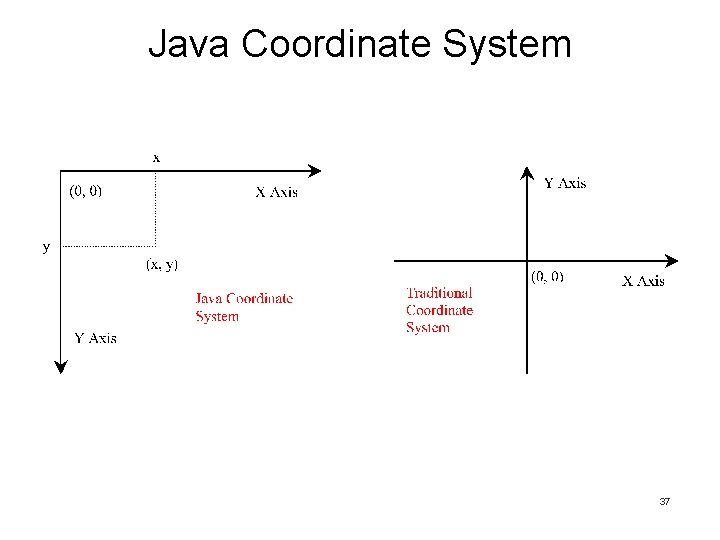
Java Coordinate System 37
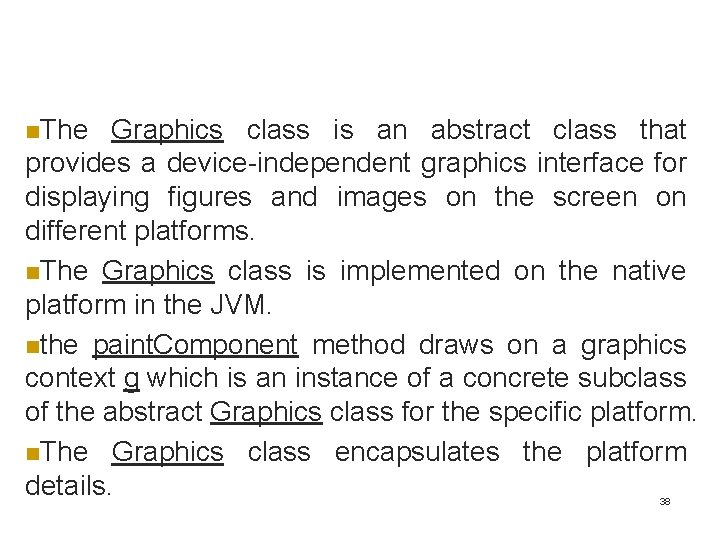
n. The Graphics class is an abstract class that provides a device-independent graphics interface for displaying figures and images on the screen on different platforms. n. The Graphics class is implemented on the native platform in the JVM. nthe paint. Component method draws on a graphics context g which is an instance of a concrete subclass of the abstract Graphics class for the specific platform. n. The Graphics class encapsulates the platform details. 38
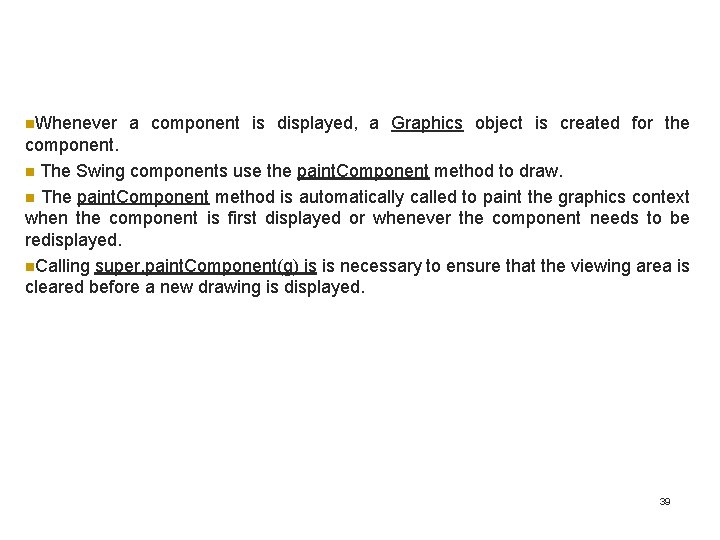
n. Whenever a component is displayed, a Graphics object is created for the component. n The Swing components use the paint. Component method to draw. n The paint. Component method is automatically called to paint the graphics context when the component is first displayed or whenever the component needs to be redisplayed. n. Calling super. paint. Component(g) is is necessary to ensure that the viewing area is cleared before a new drawing is displayed. 39
Drawing n. Create a subclass of JPanel and override its paint. Component method. n Can draw on any GUI component. 40
Drawing Geometric Figures n Drawing Lines n Drawing Rectangles n Drawing Ovals Drawing Arcs Drawing Polygons n n 41
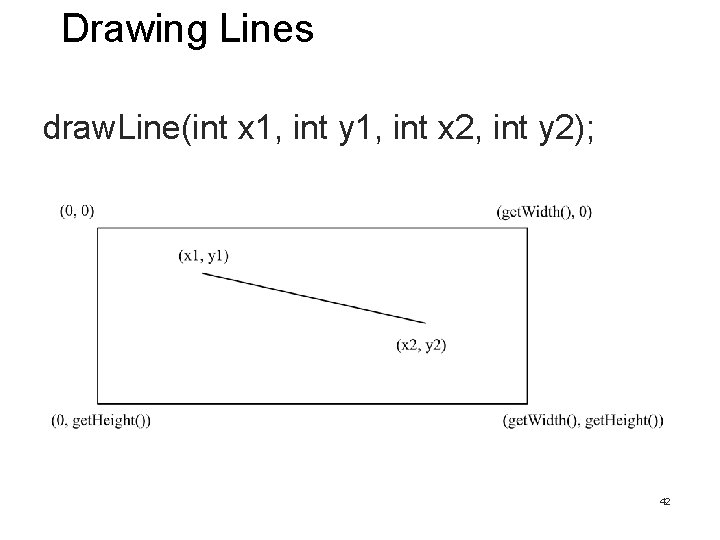
Drawing Lines draw. Line(int x 1, int y 1, int x 2, int y 2); 42
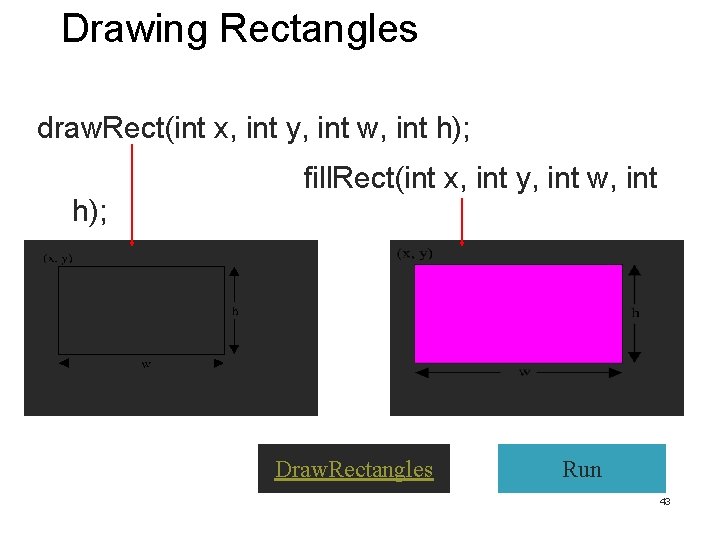
Drawing Rectangles draw. Rect(int x, int y, int w, int h); fill. Rect(int x, int y, int w, int Draw. Rectangles Run 43
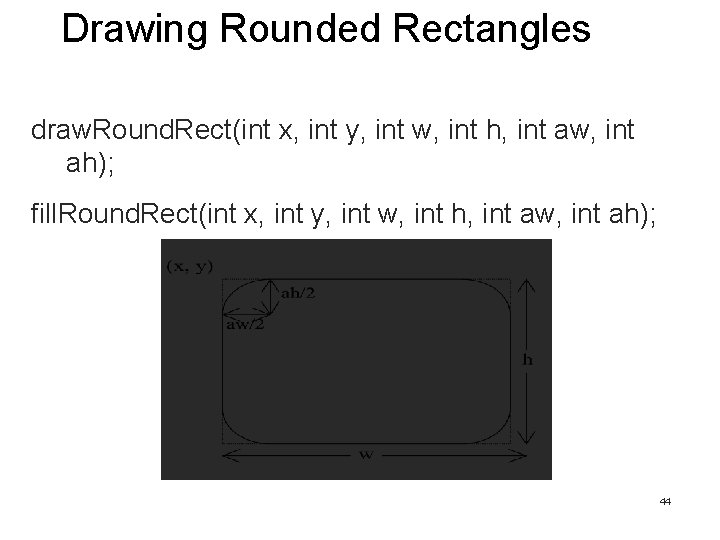
Drawing Rounded Rectangles draw. Round. Rect(int x, int y, int w, int h, int aw, int ah); fill. Round. Rect(int x, int y, int w, int h, int aw, int ah); 44
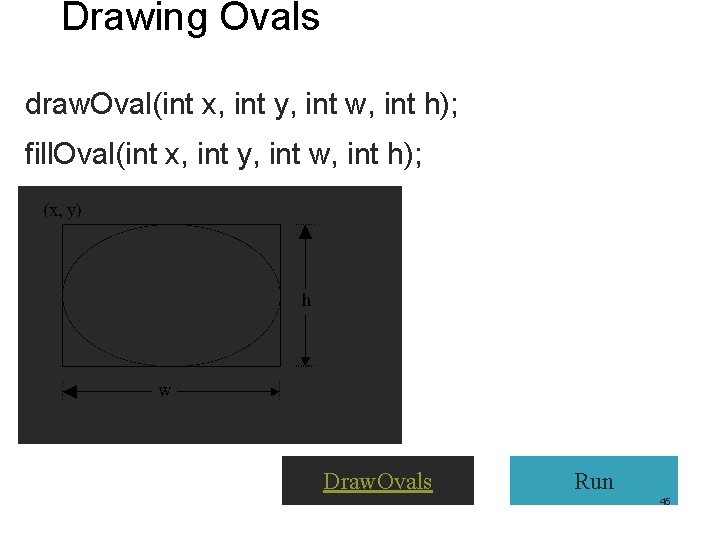
Drawing Ovals draw. Oval(int x, int y, int w, int h); fill. Oval(int x, int y, int w, int h); Draw. Ovals Run 45
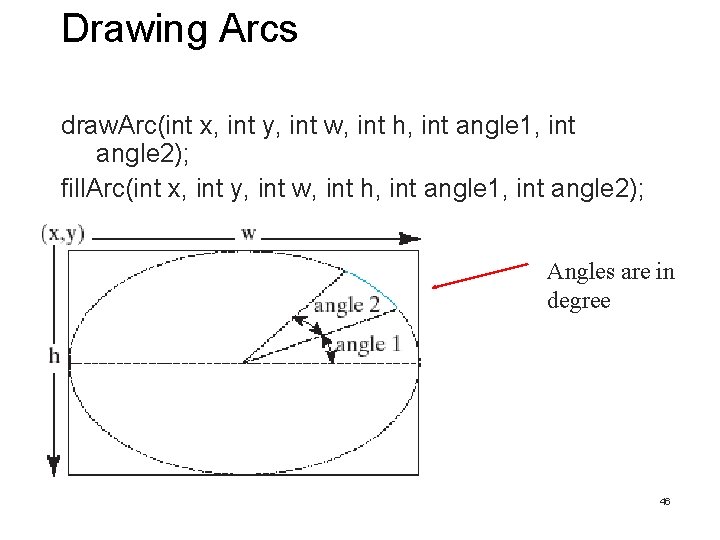
Drawing Arcs draw. Arc(int x, int y, int w, int h, int angle 1, int angle 2); fill. Arc(int x, int y, int w, int h, int angle 1, int angle 2); Angles are in degree 46
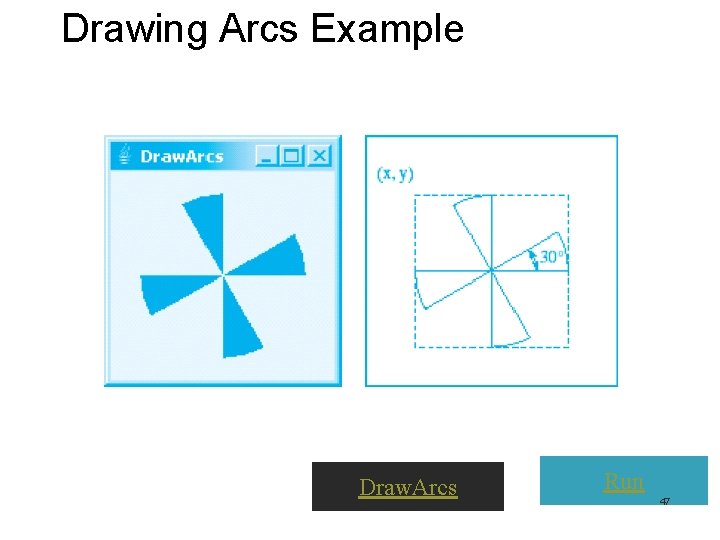
Drawing Arcs Example Draw. Arcs Run 47
Drawing Polygons and Polylines int[] x = {40, 70, 60, 45, 20}; int[] y = {20, 40, 80, 45, 60}; g. draw. Polygon(x, y, x. length); g. draw. Polyline(x, x. length); y, 48
Drawing Polygons Using the Polygon Class Polygon polygon = new Polygon(); polygon. add. Point(40, 59); polygon. add. Point(40, 100); polygon. add. Point(10, 100); g. draw. Polygon(polygon); 49
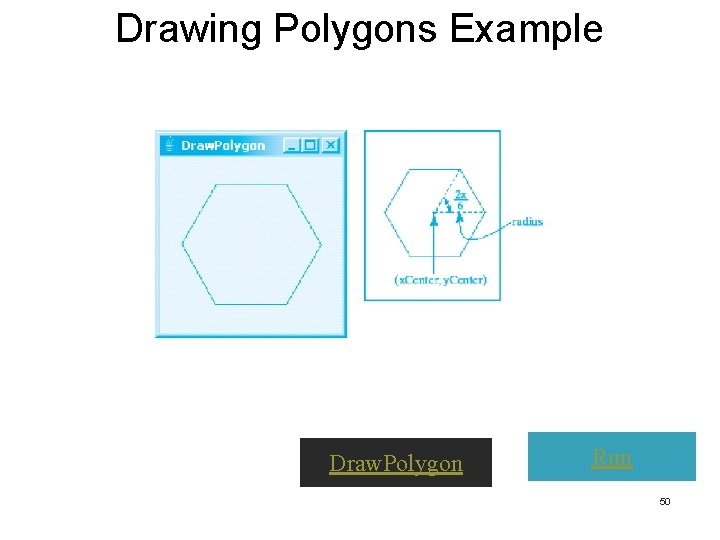
Drawing Polygons Example Draw. Polygon Run 50
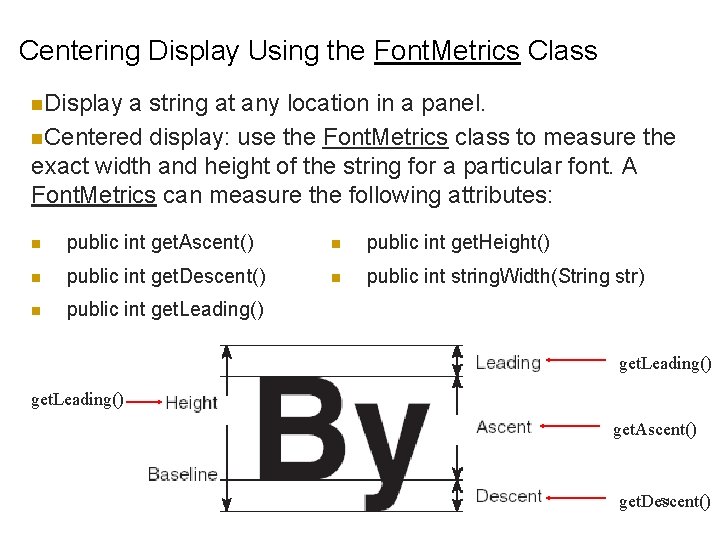
Centering Display Using the Font. Metrics Class n. Display a string at any location in a panel. n. Centered display: use the Font. Metrics class to measure the exact width and height of the string for a particular font. A Font. Metrics can measure the following attributes: n public int get. Ascent() n public int get. Height() n public int get. Descent() n public int string. Width(String str) n public int get. Leading() get. Ascent() 51 get. Descent()
Font. Metrics Class n. Font. Metrics is an abstract class. n. To get a Font. Metrics object for a specific font, use get. Font. Metrics methods defined in the Graphics class: · public Font. Metrics get. Font. Metrics(Font f) Returns the font metrics of the specified font. · public Font. Metrics get. Font. Metrics() Returns the font metrics of the current font. 52
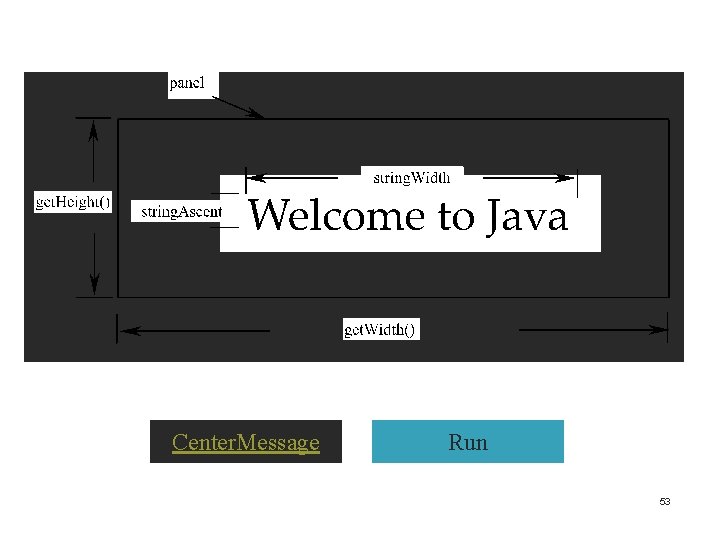
Center. Message Run 53
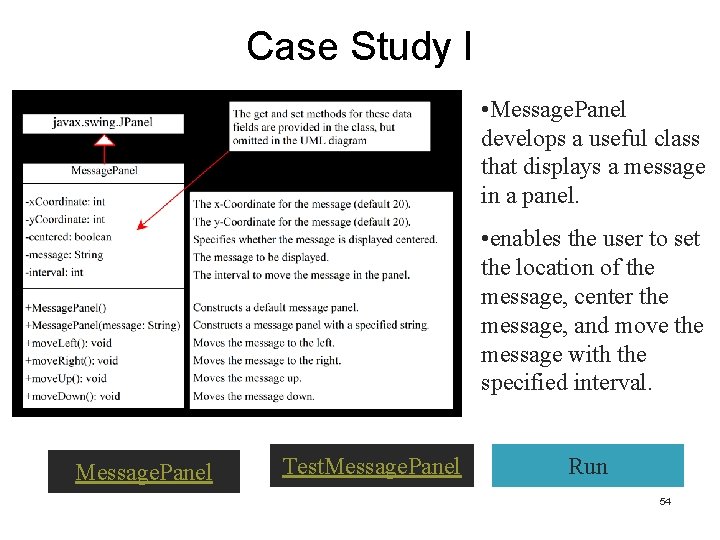
Case Study I • Message. Panel develops a useful class that displays a message in a panel. • enables the user to set the location of the message, center the message, and move the message with the specified interval. Message. Panel Test. Message. Panel Run 54
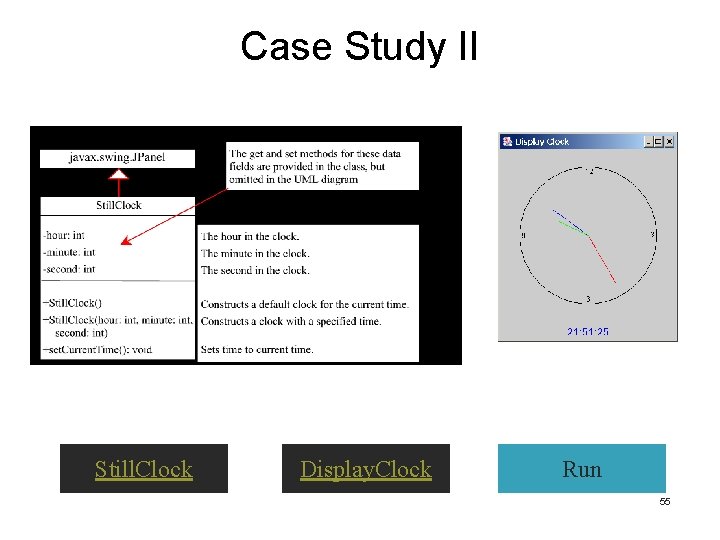
Case Study II Still. Clock Display. Clock Run 55
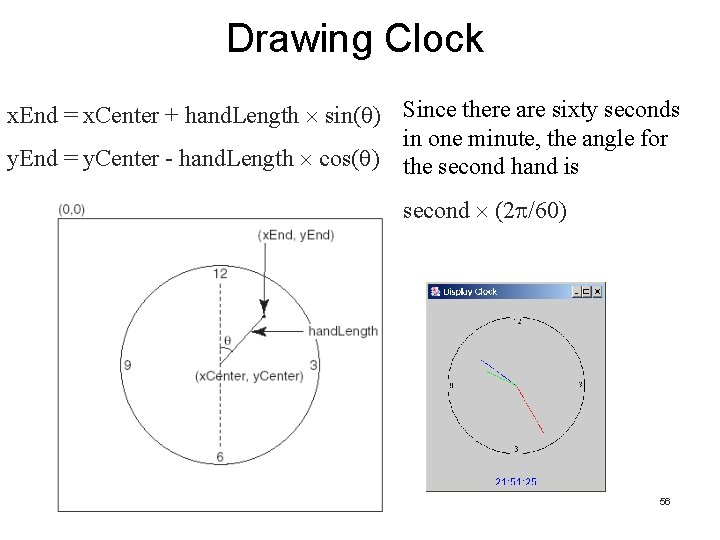
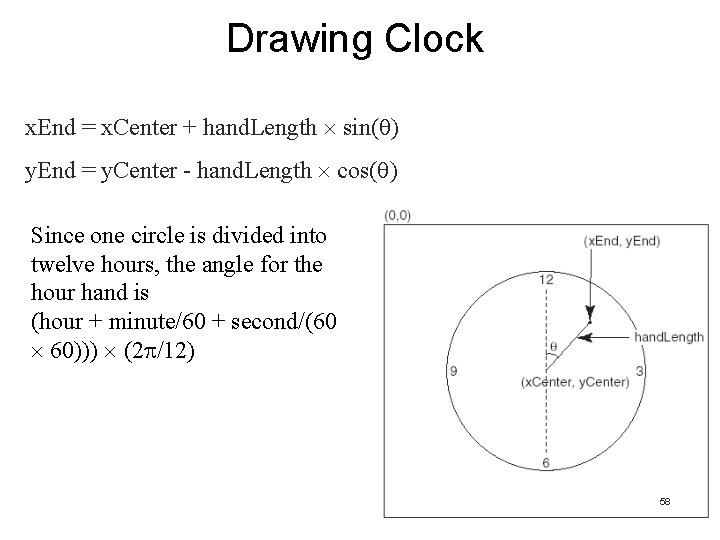
Drawing Clock x. End = x. Center + hand. Length sin( ) Since there are sixty seconds in one minute, the angle for y. End = y. Center - hand. Length cos( ) the second hand is second (2 /60) 56
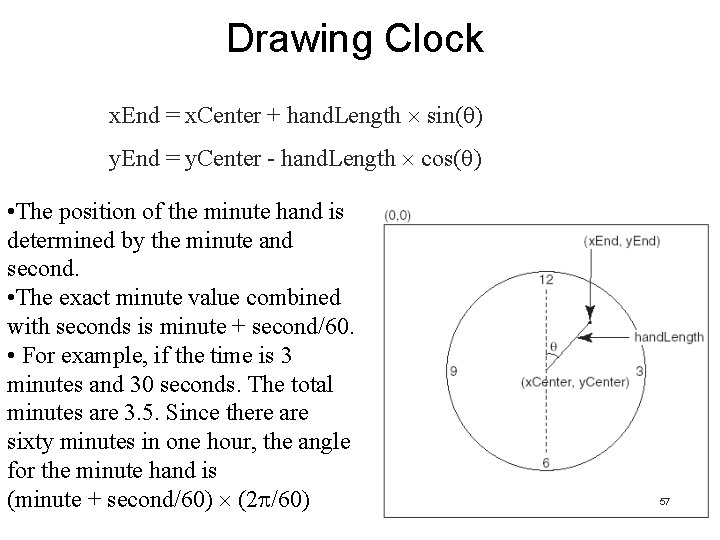
Drawing Clock x. End = x. Center + hand. Length sin( ) y. End = y. Center - hand. Length cos( ) • The position of the minute hand is determined by the minute and second. • The exact minute value combined with seconds is minute + second/60. • For example, if the time is 3 minutes and 30 seconds. The total minutes are 3. 5. Since there are sixty minutes in one hour, the angle for the minute hand is (minute + second/60) (2 /60) 57
Drawing Clock x. End = x. Center + hand. Length sin( ) y. End = y. Center - hand. Length cos( ) Since one circle is divided into twelve hours, the angle for the hour hand is (hour + minute/60 + second/(60 60))) (2 /12) 58