
Getting Started with Google Slides 2 Advantages of

- Slides: 20
Getting Started with Google Slides
2 Advantages of Google Slides �� Google Slides is free �� It can be accessed from any device that has an Internet connection. �� All changes are saved automatically. There is no need to worry about your data in case the battery runs out. �� Presentations are easy to share �� You can open and edit any Powerpoint presentation with Google Slides
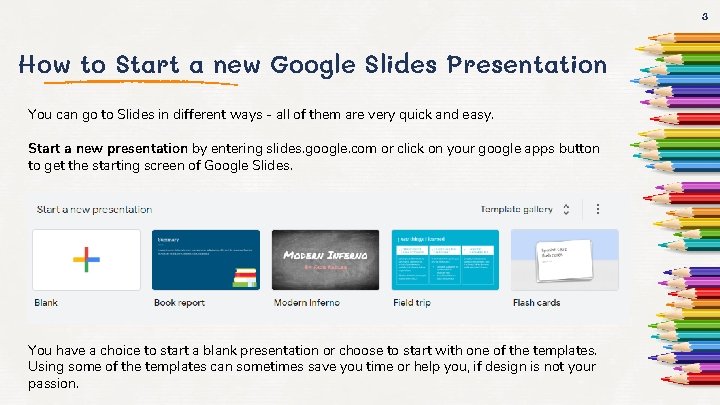
3 How to Start a new Google Slides Presentation You can go to Slides in different ways - all of them are very quick and easy. Start a new presentation by entering slides. google. com or click on your google apps button to get the starting screen of Google Slides. You have a choice to start a blank presentation or choose to start with one of the templates. Using some of the templates can sometimes save you time or help you, if design is not your passion.
4 Import an Existing Presentation You would use this feature if you want to convert an existing Powerpoint presentation into Google Slides. Some of the supported files are: . PPTX. PPS Converting a presentation from another app creates a copy of your original file into a Google Slides format on your Google Drive. You can then edit it in your browser like any other presentation. The great thing about Google Slides is that everything you do or make will automatically be saved on your Google Drive. No need for a save button!
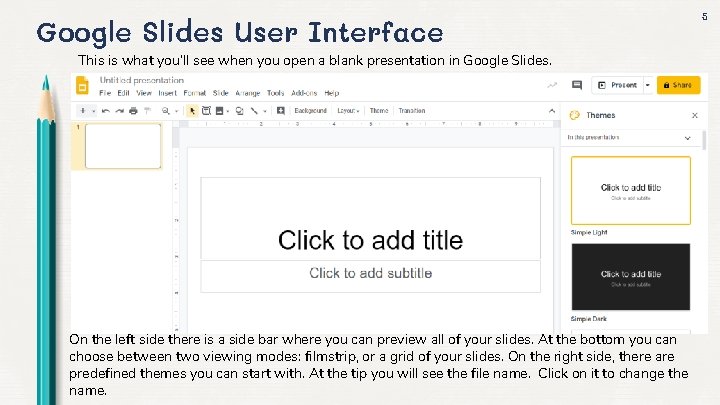
Google Slides User Interface This is what you’ll see when you open a blank presentation in Google Slides. On the left side there is a side bar where you can preview all of your slides. At the bottom you can choose between two viewing modes: filmstrip, or a grid of your slides. On the right side, there are predefined themes you can start with. At the tip you will see the file name. Click on it to change the name. 5
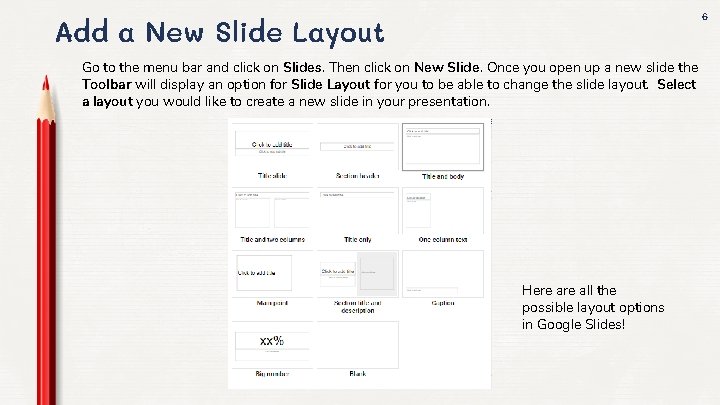
6 Add a New Slide Layout Go to the menu bar and click on Slides. Then click on New Slide. Once you open up a new slide the Toolbar will display an option for Slide Layout for you to be able to change the slide layout. Select a layout you would like to create a new slide in your presentation. Here all the possible layout options in Google Slides!
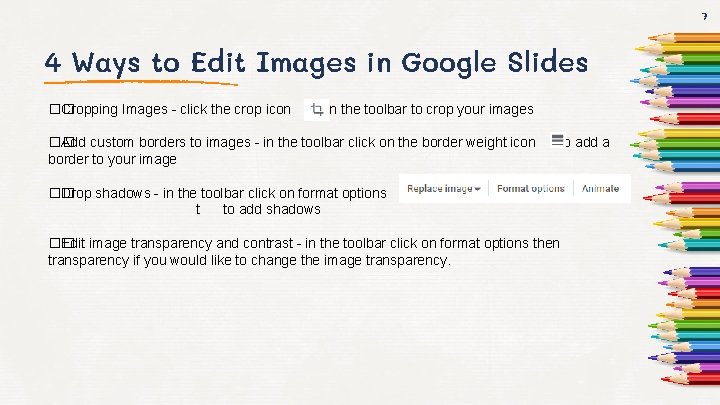
7 4 Ways to Edit Images in Google Slides �� Cropping Images - click the crop icon in the toolbar to crop your images �� Add custom borders to images - in the toolbar click on the border weight icon border to your image to add a �� Drop shadows - in the toolbar click on format options t to add shadows �� Edit image transparency and contrast - in the toolbar click on format options then transparency if you would like to change the image transparency.
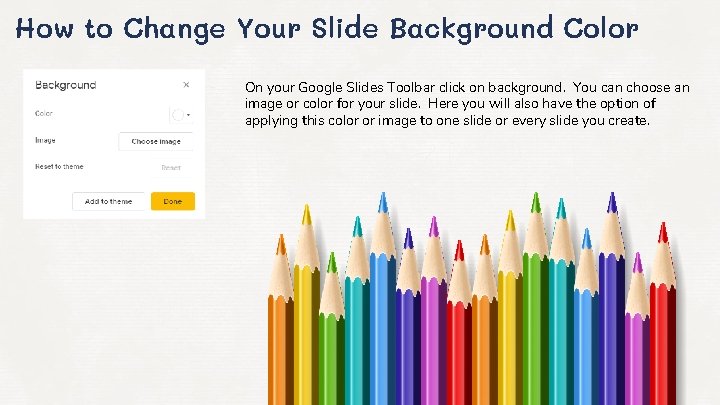
How to Change Your Slide Background Color On your Google Slides Toolbar click on background. You can choose an image or color for your slide. Here you will also have the option of applying this color or image to one slide or every slide you create.
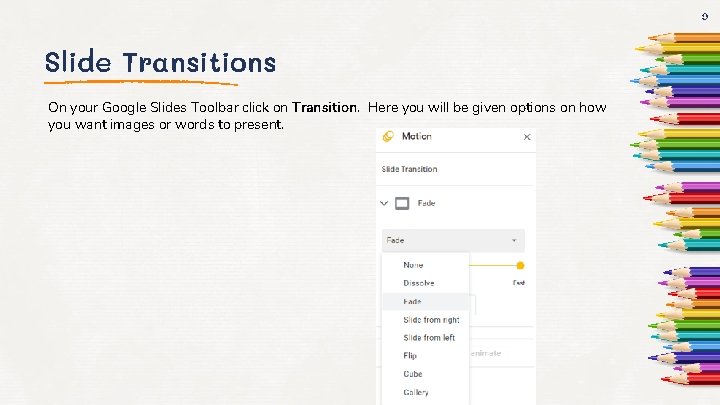
9 Slide Transitions On your Google Slides Toolbar click on Transition. Here you will be given options on how you want images or words to present.
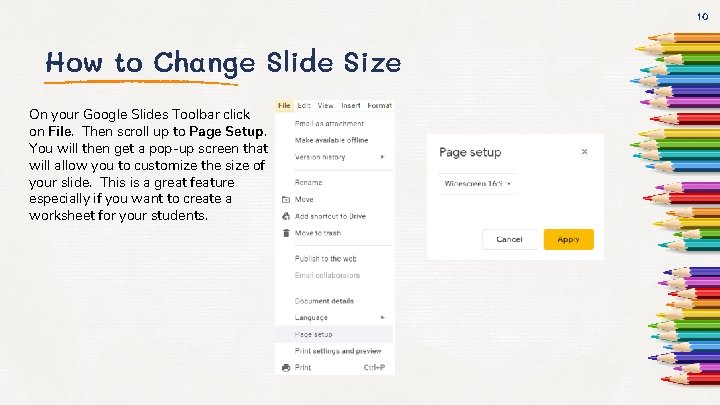
10 How to Change Slide Size On your Google Slides Toolbar click on File. Then scroll up to Page Setup. You will then get a pop-up screen that will allow you to customize the size of your slide. This is a great feature especially if you want to create a worksheet for your students.
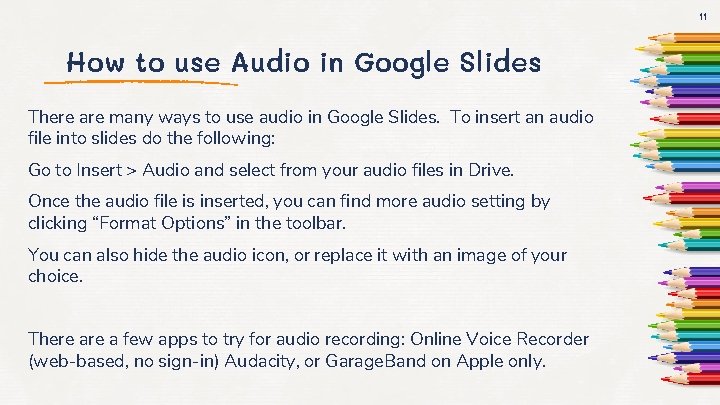
11 How to use Audio in Google Slides There are many ways to use audio in Google Slides. To insert an audio file into slides do the following: Go to Insert > Audio and select from your audio files in Drive. Once the audio file is inserted, you can find more audio setting by clicking “Format Options” in the toolbar. You can also hide the audio icon, or replace it with an image of your choice. There a few apps to try for audio recording: Online Voice Recorder (web-based, no sign-in) Audacity, or Garage. Band on Apple only.
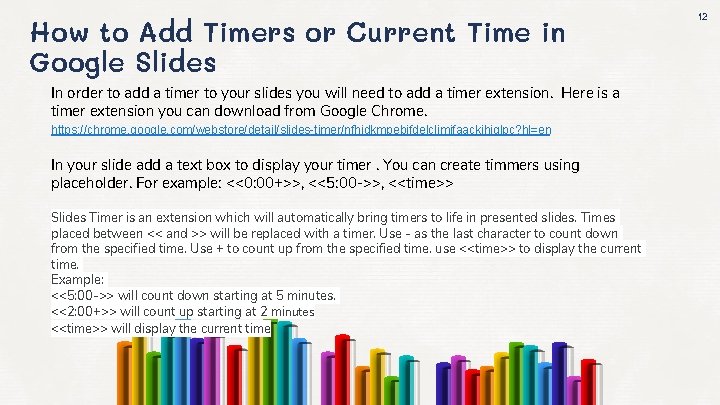
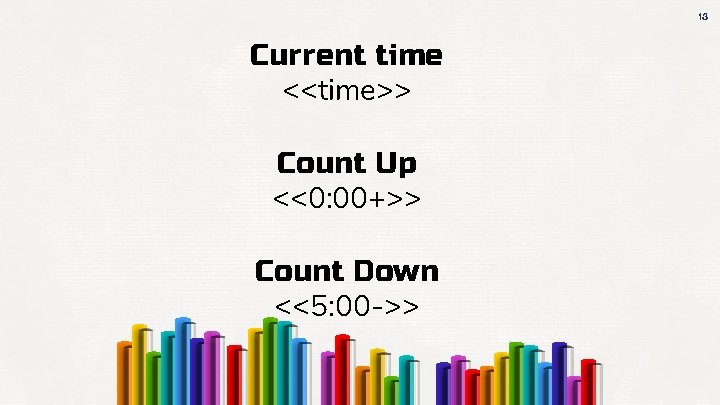
How to Add Timers or Current Time in Google Slides In order to add a timer to your slides you will need to add a timer extension. Here is a timer extension you can download from Google Chrome. https: //chrome. google. com/webstore/detail/slides-timer/nfhjdkmpebifdelclimjfaackjhiglpc? hl=en In your slide add a text box to display your timer. You can create timmers using placeholder. For example: <<0: 00+>>, <<5: 00 ->>, <<time>> Slides Timer is an extension which will automatically bring timers to life in presented slides. Times placed between << and >> will be replaced with a timer. Use - as the last character to count down from the specified time. Use + to count up from the specified time. use <<time>> to display the current time. Example: <<5: 00 ->> will count down starting at 5 minutes. <<2: 00+>> will count up starting at 2 minutes <<time>> will display the current time 12
13 Current time <<time>> Count Up <<0: 00+>> Count Down <<5: 00 ->>
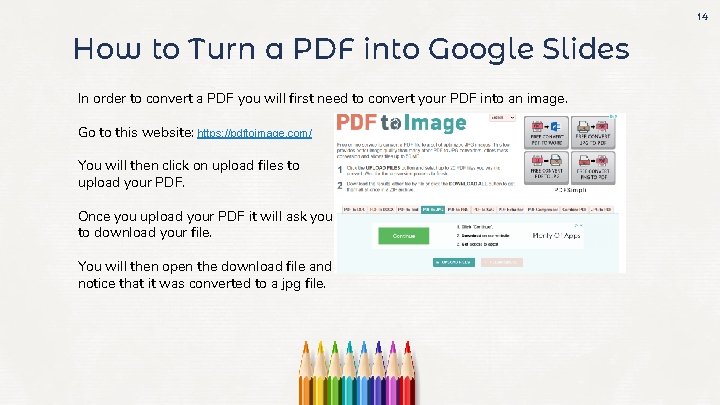
14 How to Turn a PDF into Google Slides In order to convert a PDF you will first need to convert your PDF into an image. Go to this website: https: //pdftoimage. com/ You will then click on upload files to upload your PDF. Once you upload your PDF it will ask you to download your file. You will then open the download file and notice that it was converted to a jpg file.
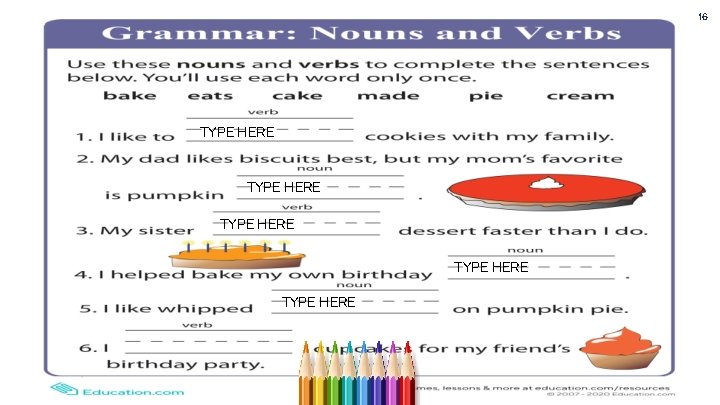
15 How to Turn a PDF into Google Slides Open the file or drag and drop it to your pictures. Next open up a new slide. Click on change background, then add image, upload your saved jpg file of your pdf. NOTE: Make sure that you change the page layout to 8. 5 by 11 in order to display the worksheet correctly. If the pdf is landscape then you would have your page size be 11 X 8. 5. Lastly, just add text boxes so the students can just type their answers.
16 TYPE HERE TYPE HERE
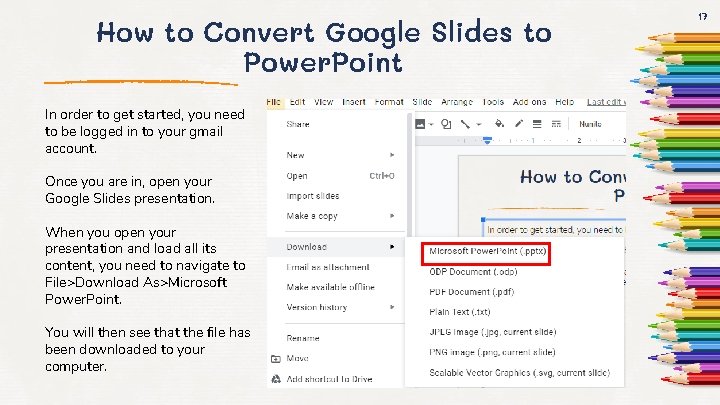
How to Convert Google Slides to Power. Point In order to get started, you need to be logged in to your gmail account. Once you are in, open your Google Slides presentation. When you open your presentation and load all its content, you need to navigate to File>Download As>Microsoft Power. Point. You will then see that the file has been downloaded to your computer. 17
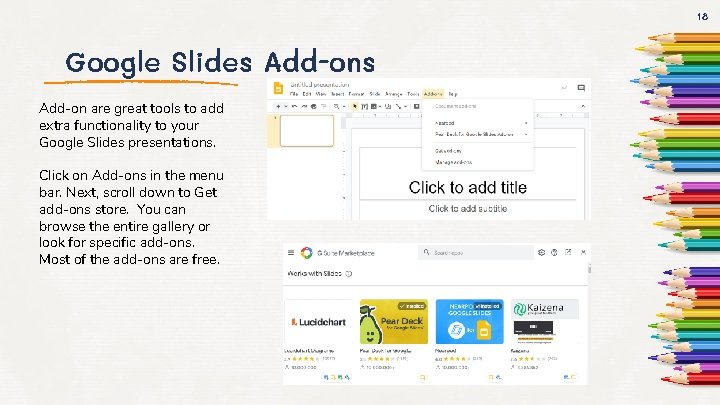
18 Google Slides Add-on are great tools to add extra functionality to your Google Slides presentations. Click on Add-ons in the menu bar. Next, scroll down to Get add-ons store. You can browse the entire gallery or look for specific add-ons. Most of the add-ons are free.
Google Slides Add-ons 19 Lucidchart Diagrams - is perfect for creating any diagrams or visuals that you would use in the classroom. Pear Deck - Bring your slides to life with Pear Deck. With this tool you can incorporate interactive questions into your presentation. Audio Player - Play audio files while presenting your Google Slides. Use this feature to narrate a slideshow for students to watch on their own. Math Equations - Great feature for all the Math Teachers. Simple type the equation using your typeset language and convert it to an image. This tool is perfect for sharing formulas with students or for giving them practice equations to solve.
20