
Getting started With Google Docs Overview of Google


- Slides: 24
Getting started With Google Docs
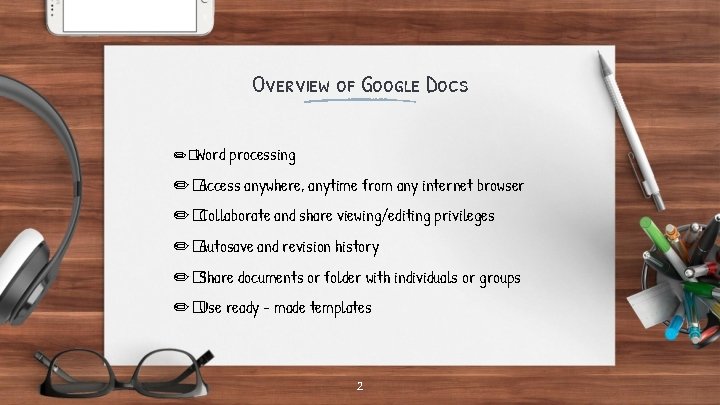
Overview of Google Docs ✏�Word processing ✏�Access anywhere, anytime from any internet browser ✏�Collaborate and share viewing/editing privileges ✏�Autosave and revision history ✏�Share documents or folder with individuals or groups ✏�Use ready - made templates 2
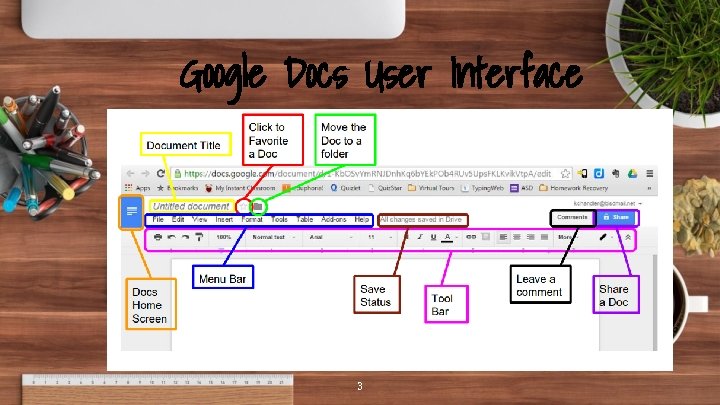
Google Docs User Interface 3
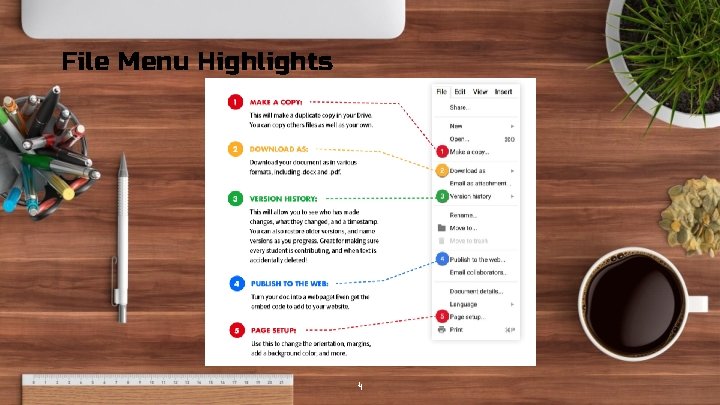
File Menu Highlights 4
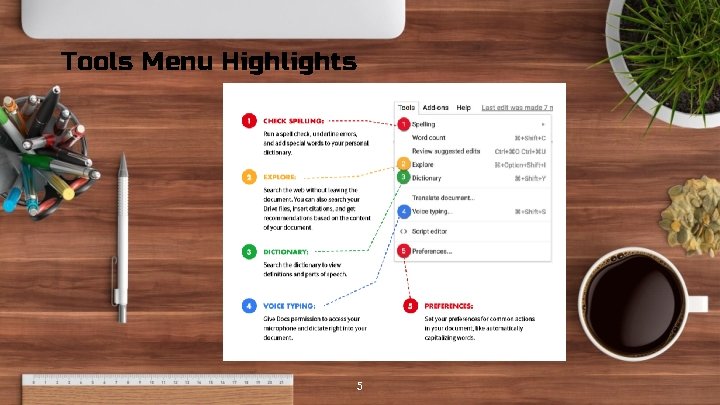
Tools Menu Highlights 5
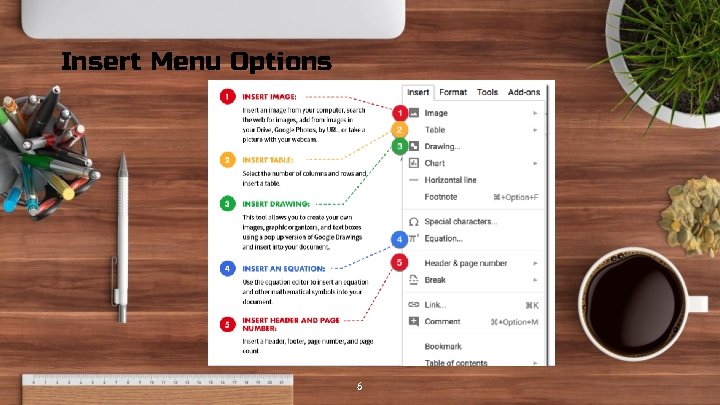
Insert Menu Options 6
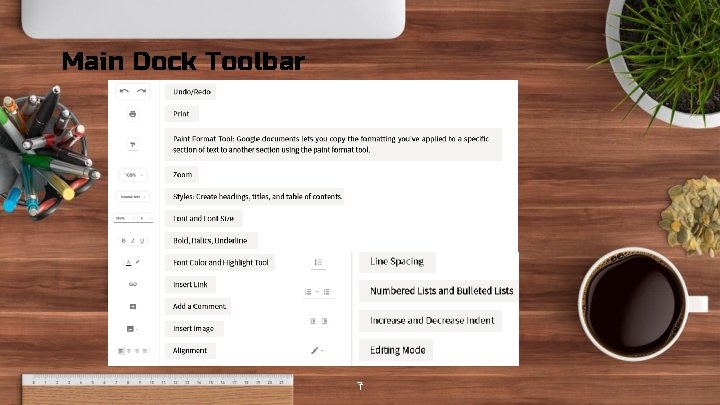
Main Dock Toolbar 7
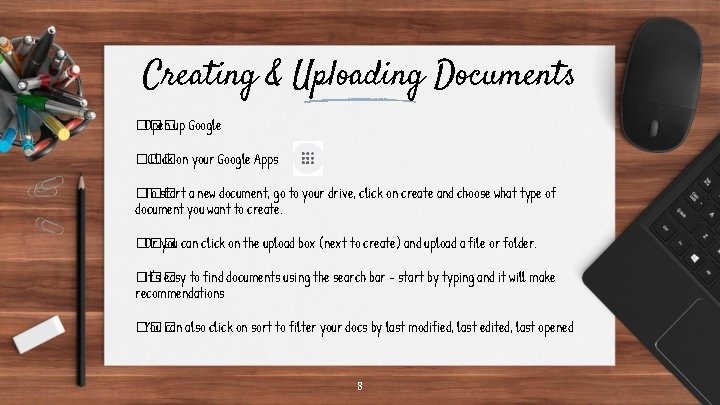
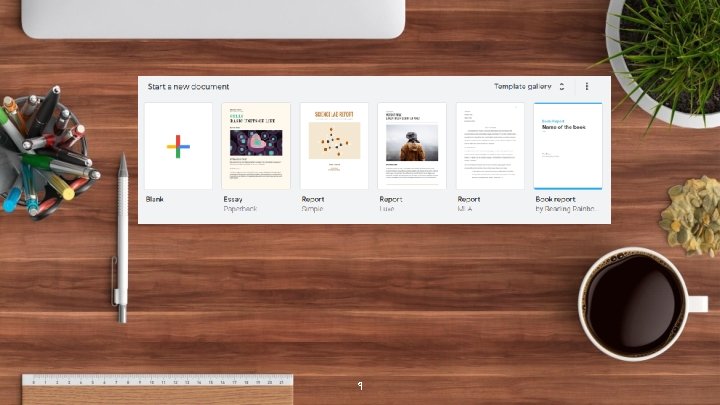
Creating & Uploading Documents ��� Open up Google ��� Click on your Google Apps ��� To start a new document, go to your drive, click on create and choose what type of document you want to create. ��� Or you can click on the upload box (next to create) and upload a file or folder. ��� It’s easy to find documents using the search bar - start by typing and it will make recommendations ��� You can also click on sort to filter your docs by last modified, last edited, last opened 8
9
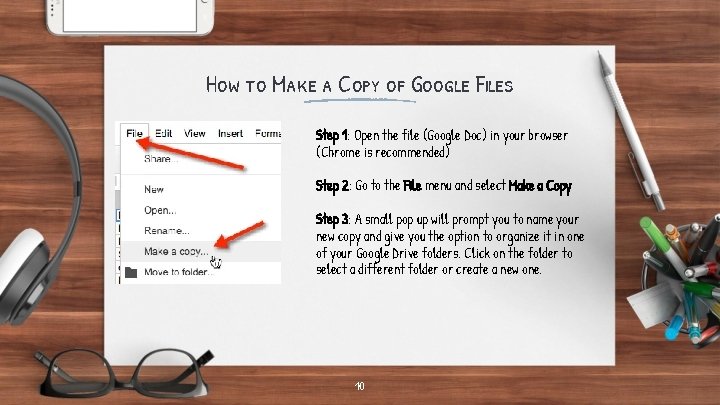
How to Make a Copy of Google Files Step 1: Open the file (Google Doc) in your browser (Chrome is recommended) Step 2: Go to the File menu and select Make a Copy Step 3: A small pop up will prompt you to name your new copy and give you the option to organize it in one of your Google Drive folders. Click on the folder to select a different folder or create a new one. 10
Sharing Documents �� There are two types of settings when sharing: visability (how people access your document) and sharing (who can edit or view) �� There are 5 visibility options: private, public on the web, people at my organization with a link, and anyone with the link �� There are three forms of sharing options: owners, editors, viewers
Collaboration �� Real time collaboration - you can see who is doing what �� There is a built-in chat feature - you can access this feature by clicking on viewer and begin messaging �� You can also insert comments on a document. You would do this by highlighting the text you want to comment on then click insert and then comment. With this feature you can also reply to and resolve comments.
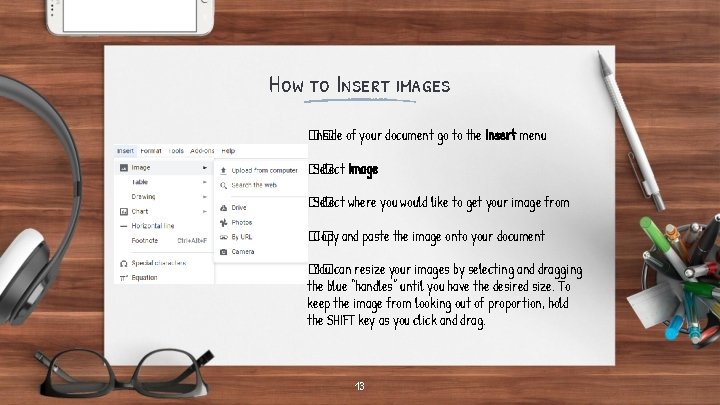
How to Insert images �� Inside of your document go to the Insert menu �� Select Image �� Select where you would like to get your image from �� Copy and paste the image onto your document �� You can resize your images by selecting and dragging the blue “handles” until you have the desired size. To keep the image from looking out of proportion, hold the SHIFT key as you click and drag. 13
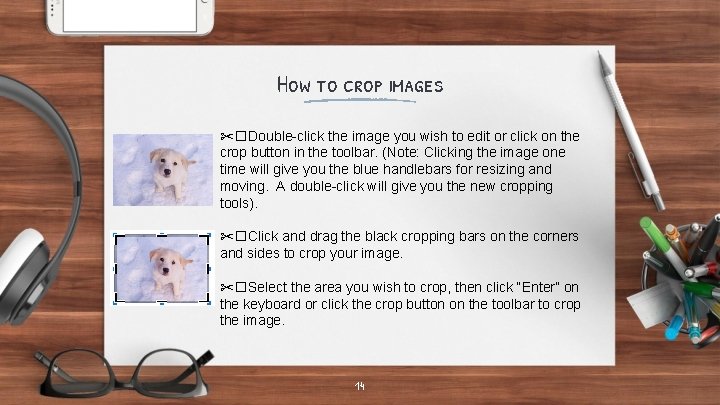
How to crop images ✂�Double-click the image you wish to edit or click on the crop button in the toolbar. (Note: Clicking the image one time will give you the blue handlebars for resizing and moving. A double-click will give you the new cropping tools). ✂�Click and drag the black cropping bars on the corners and sides to crop your image. ✂�Select the area you wish to crop, then click “Enter” on the keyboard or click the crop button on the toolbar to crop the image. 14
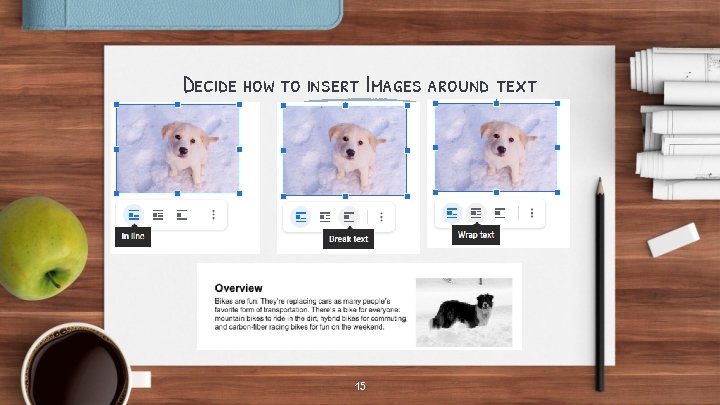
Decide how to insert Images around text 15
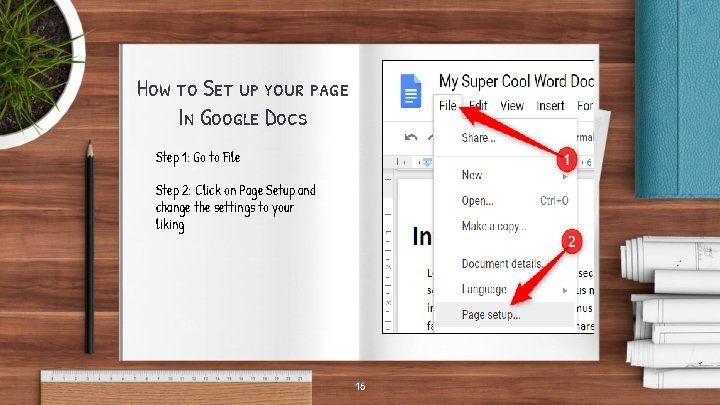
How to Set up your page In Google Docs Step 1: Go to File Step 2: Click on Page Setup and change the settings to your liking 16
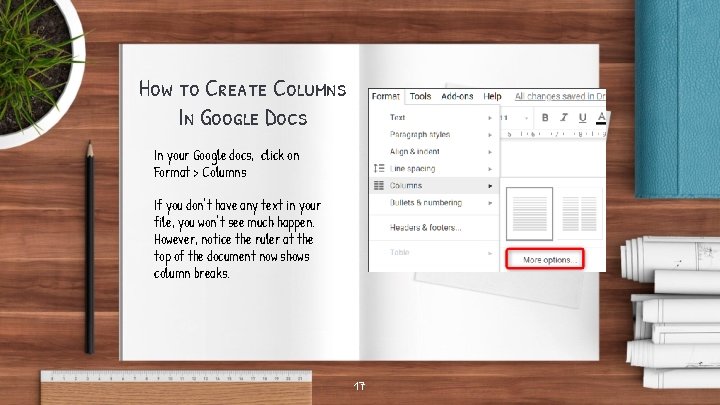
How to Create Columns In Google Docs In your Google docs, click on Format > Columns If you don’t have any text in your file, you won’t see much happen. However, notice the ruler at the top of the document now shows column breaks. 17
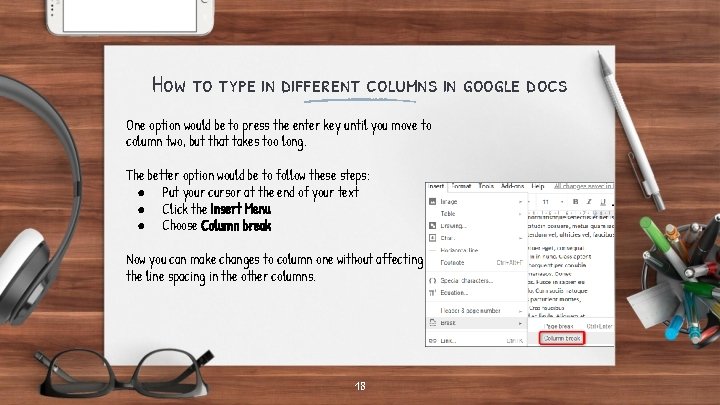
How to type in different columns in google docs One option would be to press the enter key until you move to column two, but that takes too long. The better option would be to follow these steps: ● Put your cursor at the end of your text ● Click the Insert Menu ● Choose Column break Now you can make changes to column one without affecting the line spacing in the other columns. 18
How to Use Voice-to-text in Google Docs Typing with your Voice on your Computer: 1. 2. 3. 4. Open a document in Google docs with a Chrome browser. Click Tools > Voice Typing. A microphone box appears. When you’re ready to speak, click the microphone. When you’re done, click the microphone again. Tips: 1. To have the most accurate typing remember to speak loudly and clearly. 2. The dictation software can sometimes pick up speech in the room so working in a quiet place can be very helpful. 19
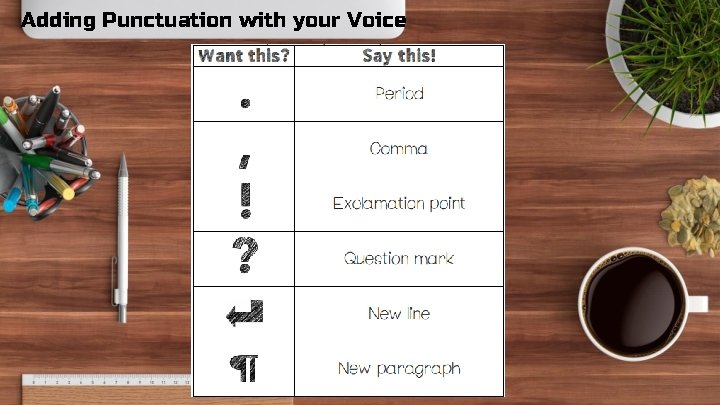
Adding Punctuation with your Voice 20
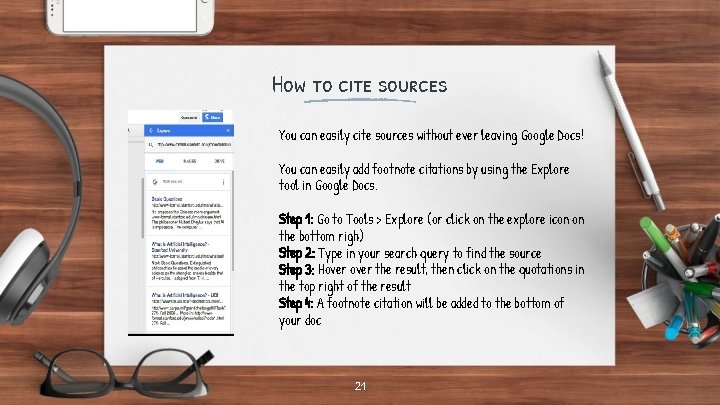
How to cite sources You can easily cite sources without ever leaving Google Docs! You can easily add footnote citations by using the Explore tool in Google Docs. Step 1: Go to Tools > Explore (or click on the explore icon on the bottom righ) Step 2: Type in your search query to find the source Step 3: Hover the result, then click on the quotations in the top right of the result Step 4: A footnote citation will be added to the bottom of your doc 21
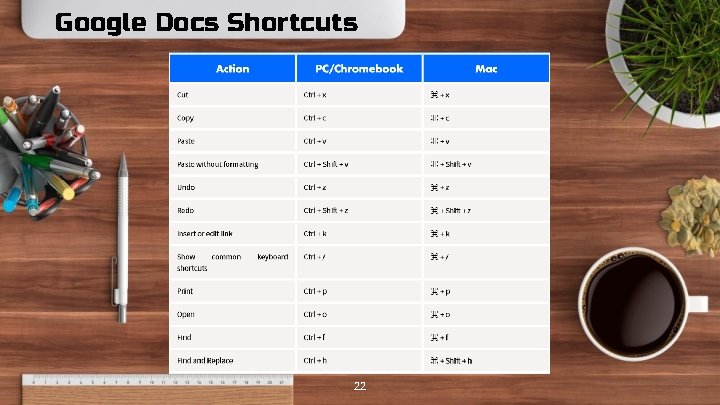
Google Docs Shortcuts 22
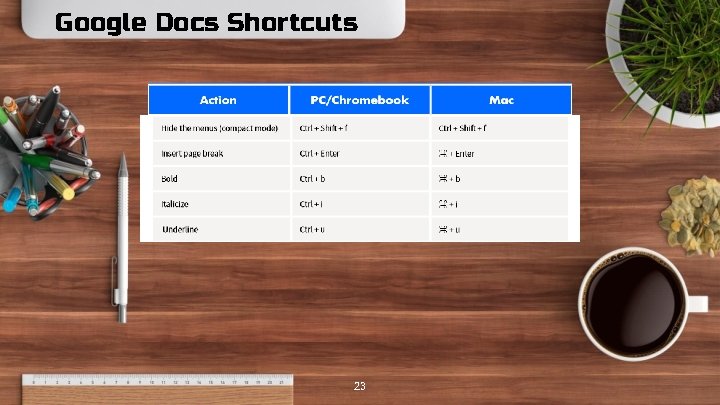
Google Docs Shortcuts 23
24