
Getting Started with Geo Gebra Using Technology to
Getting Started with Geo. Gebra Using Technology to Uncover Mathematics Day 3 Dave Brown dabrown@ithaca. edu 1
Standards for Mathematical Practice • Make sense of problems and persevere in solving them. • Reason abstractly and quantitatively. • Construct viable arguments and critique the reasoning of others. • Model with mathematics. • Use appropriate tools strategically. • Attend to precision. • Look for and make use of structure. • Look for and express regularity in repeated reasoning. 2
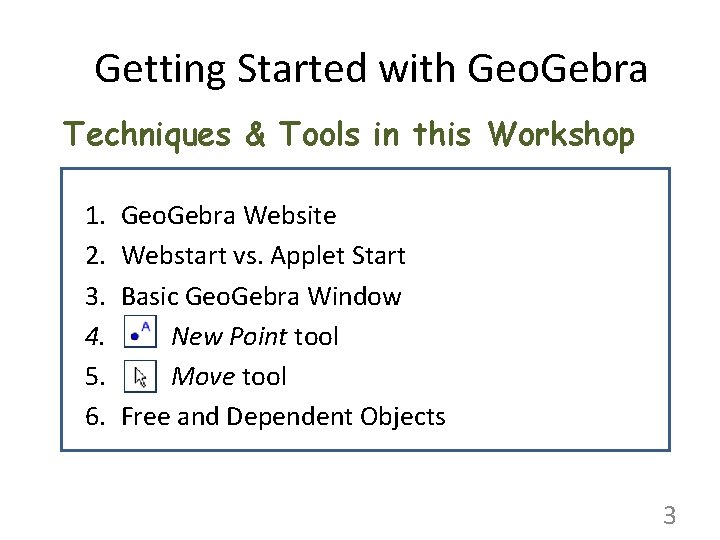
Getting Started with Geo. Gebra Techniques & Tools in this Workshop 1. 2. 3. 4. 5. 6. Geo. Gebra Website Webstart vs. Applet Start Basic Geo. Gebra Window New Point tool Move tool Free and Dependent Objects 3
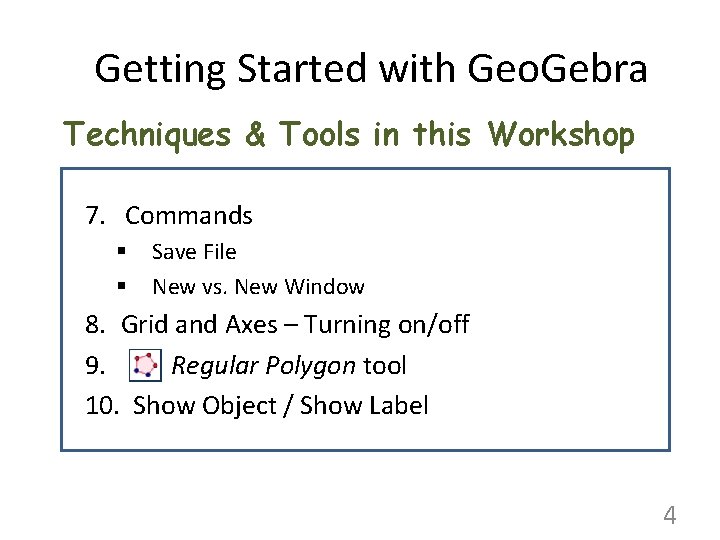
Getting Started with Geo. Gebra Techniques & Tools in this Workshop 7. Commands § § Save File New vs. New Window 8. Grid and Axes – Turning on/off 9. Regular Polygon tool 10. Show Object / Show Label 4
Getting Started with Geo. Gebra Techniques & Tools in this Workshop 11. Object Properties - Changing § Label Options – Right Pane: Basic Tab § Category – Left Pane: Selecting Multiple Objects 12. Undo and 13. Polygon tool Redo 14. Animation 5
Getting Started with Geo. Gebra Techniques & Tools in this Workshop 15. Slider tool 16. Circle with Center and Radius tool 17. Play and Pause buttons 18. Zoom and Pan (Move Drawing Pad) 19. Object Properties § Fill – Right Pane: Style Tab § Color – Right Pane: Color Tab 6
Getting Started with Geo. Gebra Techniques & Tools in this Workshop 20. Line through 2 Points tool 21. Perpendicular line tool 22. Parallel line tool 23. Intersect 2 Objects tool 24. Insert Text tool § Dynamic Text 7
Getting Started with Geo. Gebra Techniques & Tools in this Workshop 25. Geometry Explorations and Tools menu 26. Lines vs. Linear Functions 27. Spreadsheet View § § Cell Addresses Inputting formulas with numbers/functions Copying Create List of Points 8
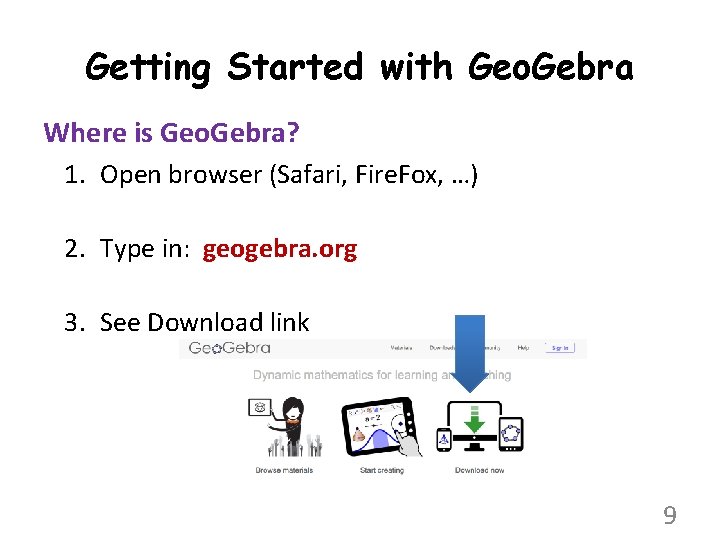
Getting Started with Geo. Gebra Where is Geo. Gebra? 1. Open browser (Safari, Fire. Fox, …) 2. Type in: geogebra. org 3. See Download link 9

First Time Geo. Gebra Tabs Download here 10
Getting started with Geo. Gebra Can you install a program on your computer? – Yes Choose appropriate platform Program will download and you install it once. You get icon on desktop and you start from there. – No Use JAVA Applet Some school LANs do NOT allow you to install. So you will use Applet Start each time within your browser. 11
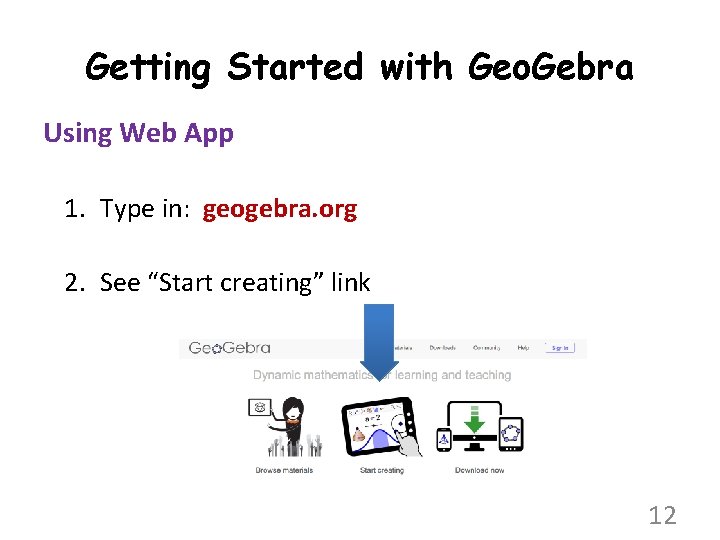
Getting Started with Geo. Gebra Using Web App 1. Type in: geogebra. org 2. See “Start creating” link 12
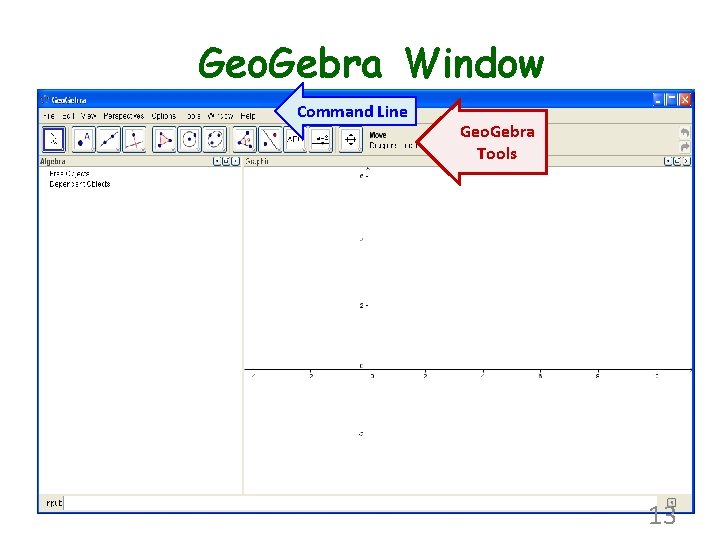
Geo. Gebra Window Command Line Geo. Gebra Tools 13
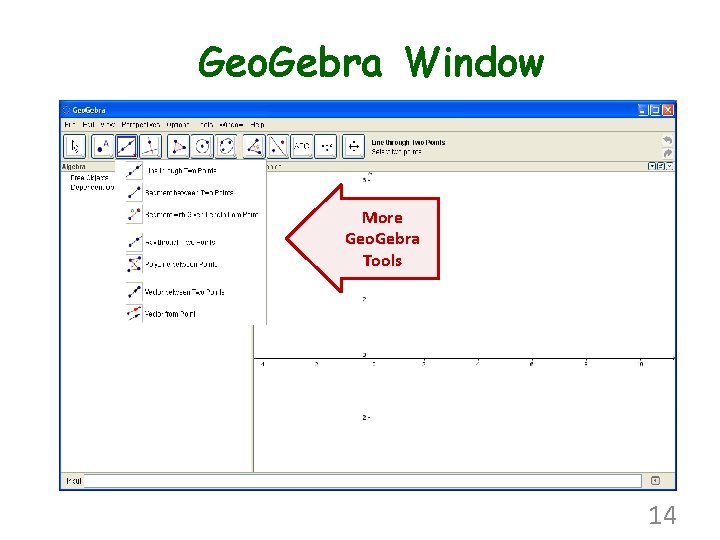
Geo. Gebra Window More Geo. Gebra Tools 14
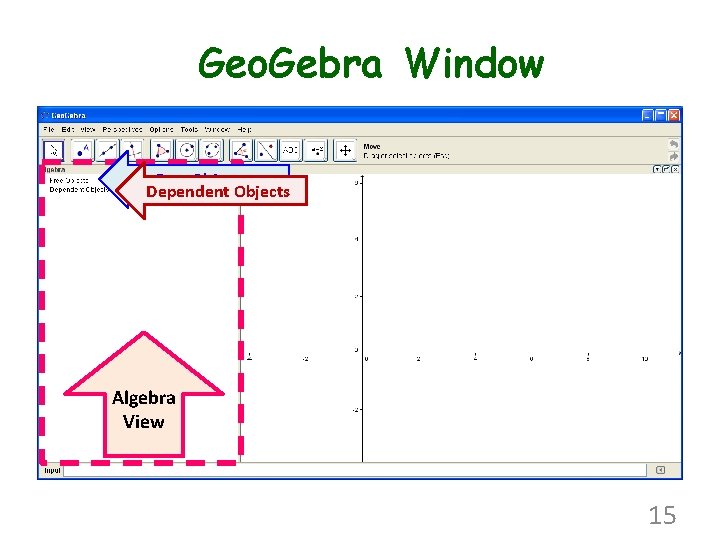
Geo. Gebra Window Free Objects Dependent Objects Algebra View 15
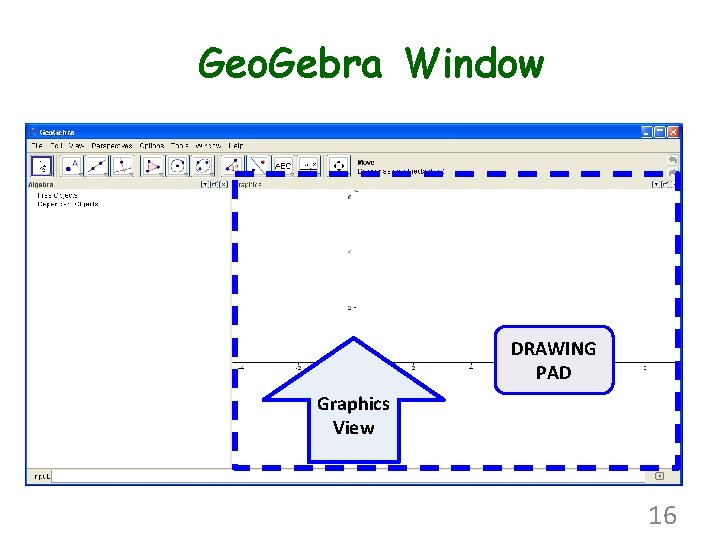
Geo. Gebra Window DRAWING PAD Graphics View 16
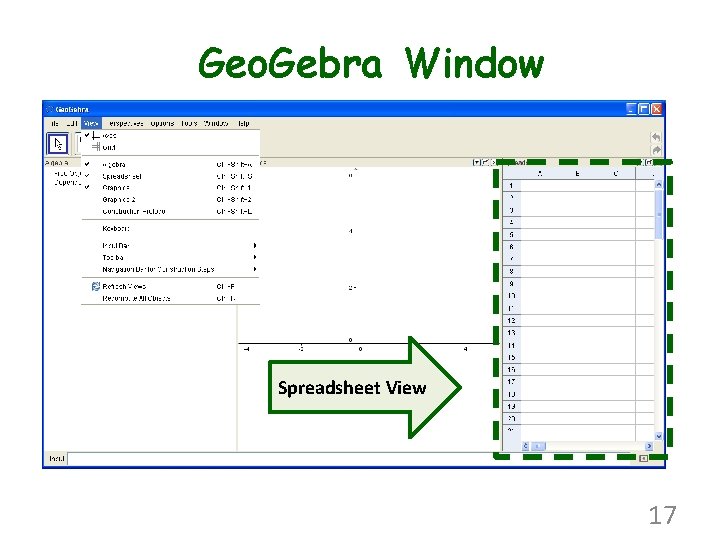
Geo. Gebra Window Spreadsheet View 17
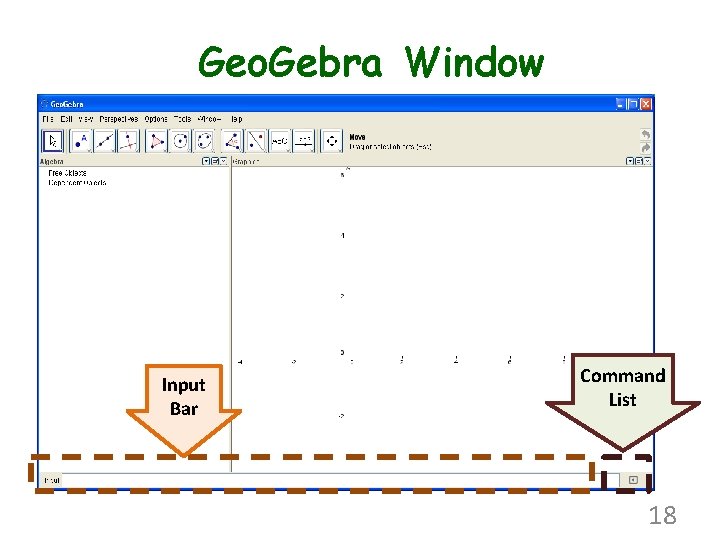
Geo. Gebra Window Input Bar Command List 18
Understanding Objects • Objects - Algebraic – Free objects (dark blue) you can click and drag them anywhere – Dependent objects - Semi-dependent (light blue) you can click and drag them within their parent object (i. e. the object on which they depend) - Dependent (black) you cannot drag them (they will move with their parent object) 19
Understanding Objects • Activate (click on) the New point tool • Click once inside the first quadrant. – You will get a free point A. • Click again somewhere along the x-axis. – You will get a semi-dependent point B. • Click again on (0, 0). – You will get a (completely) dependent point C. 20
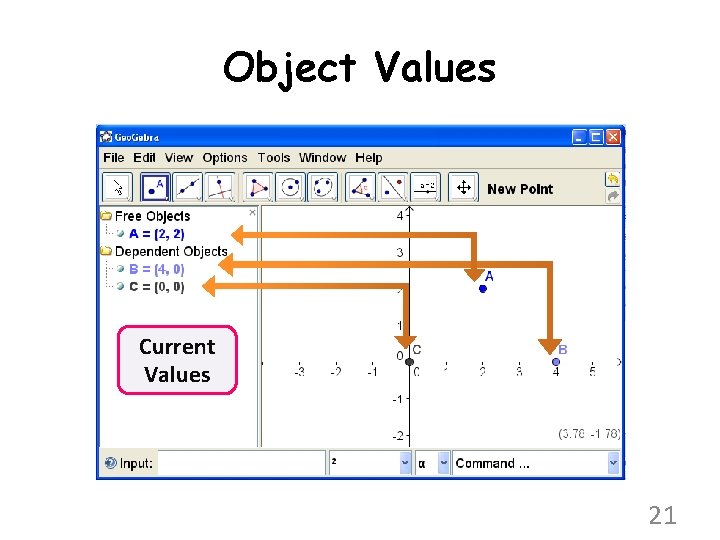
Object Values Current Values 21
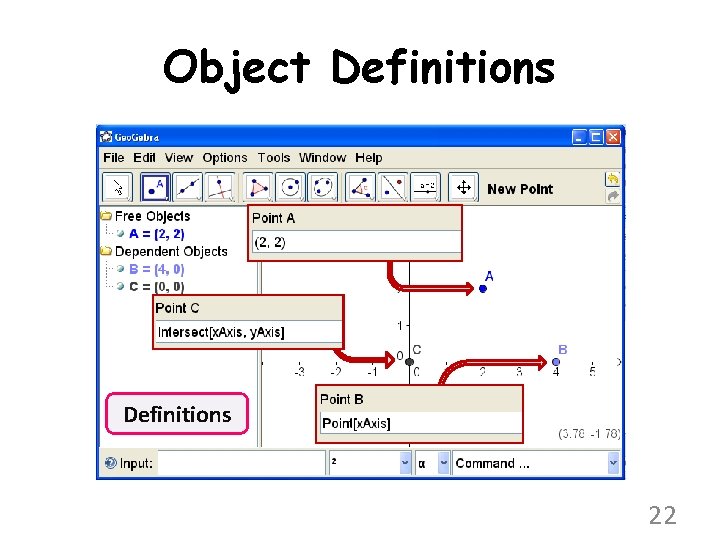
Object Definitions 22
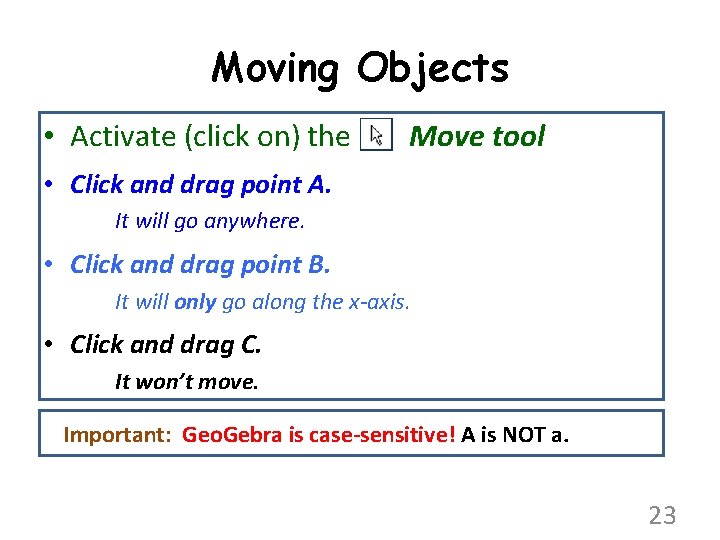
Moving Objects • Activate (click on) the Move tool • Click and drag point A. It will go anywhere. • Click and drag point B. It will only go along the x-axis. • Click and drag C. It won’t move. Important: Geo. Gebra is case-sensitive! A is NOT a. 23
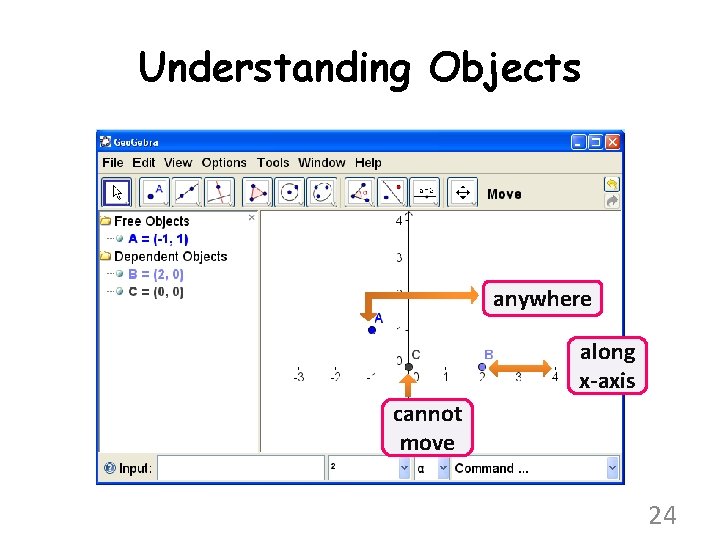
Understanding Objects anywhere along x-axis cannot move 24
Save File – What’s next? • Save your file – Standard command with filename: file_one – File type is ggb • New Goal: Create a Dynamic Square • New File – 2 ways File -> New Window (Ctrl+N) opens new file without closing current file File -> New closes current file and opens new blank file 25
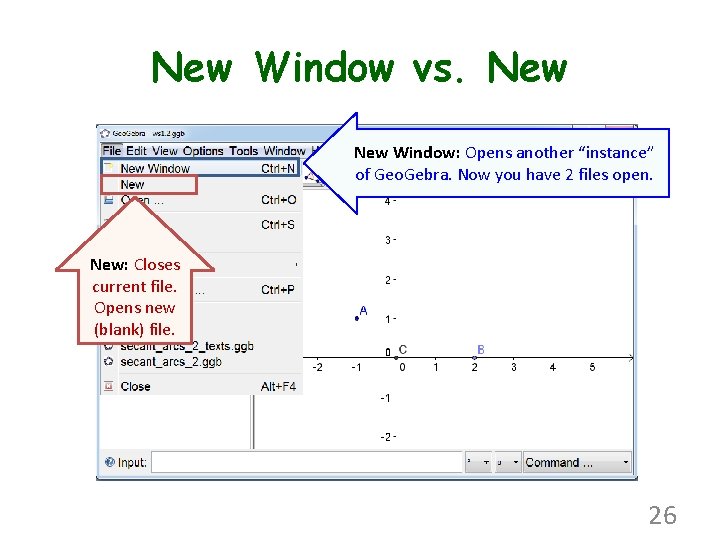
New Window vs. New Window: Opens another “instance” of Geo. Gebra. Now you have 2 files open. New: Closes current file. Opens new (blank) file. 26
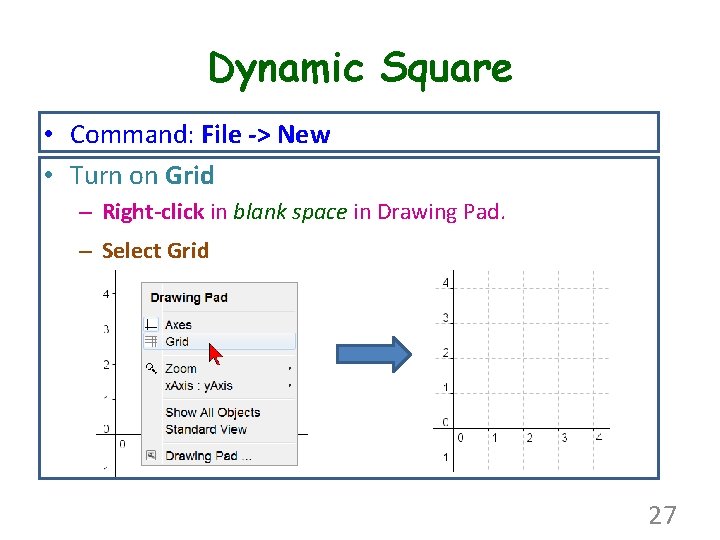
Dynamic Square • Command: File -> New • Turn on Grid – Right-click in blank space in Drawing Pad. – Select Grid 27
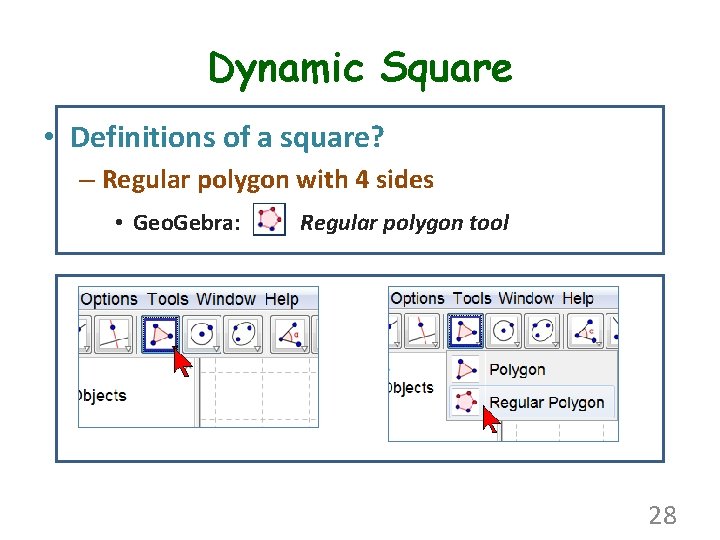
Dynamic Square • Definitions of a square? – Regular polygon with 4 sides • Geo. Gebra: Regular polygon tool 28
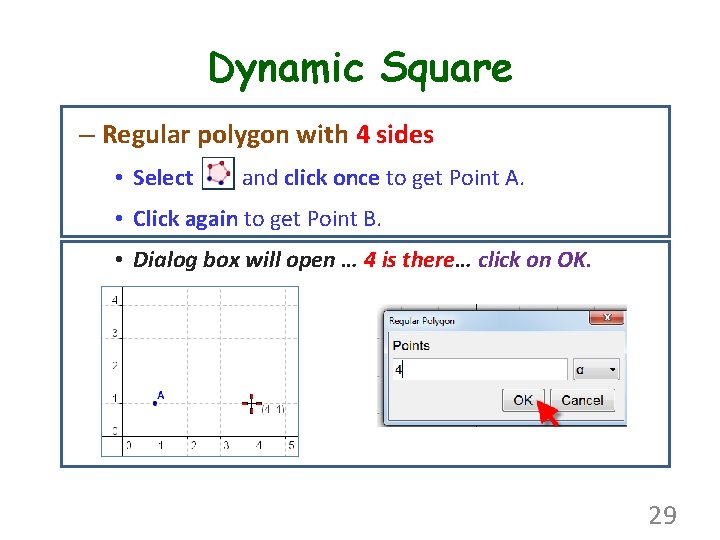
Dynamic Square – Regular polygon with 4 sides • Select and click once to get Point A. • Click again to get Point B. • Dialog box will open … 4 is there… click on OK. 29
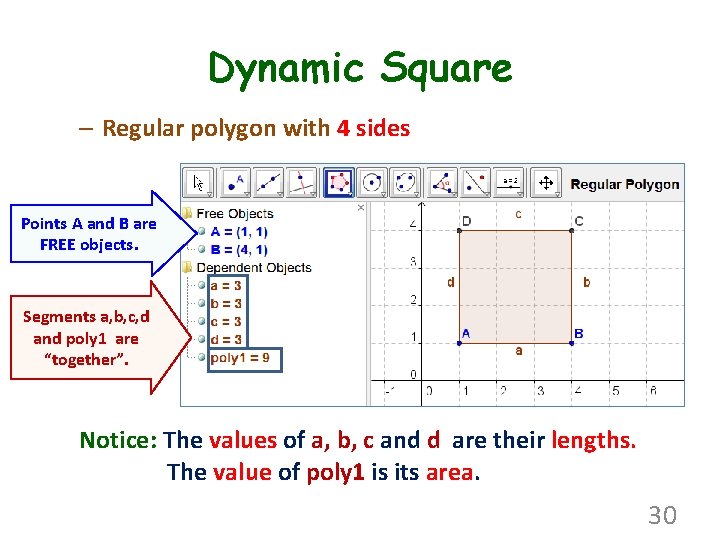
Dynamic Square – Regular polygon with 4 sides Points A and B are FREE objects. Segments a, b, c, d and poly 1 are “together”. Notice: The values of a, b, c and d are their lengths. The value of poly 1 is its area. 30
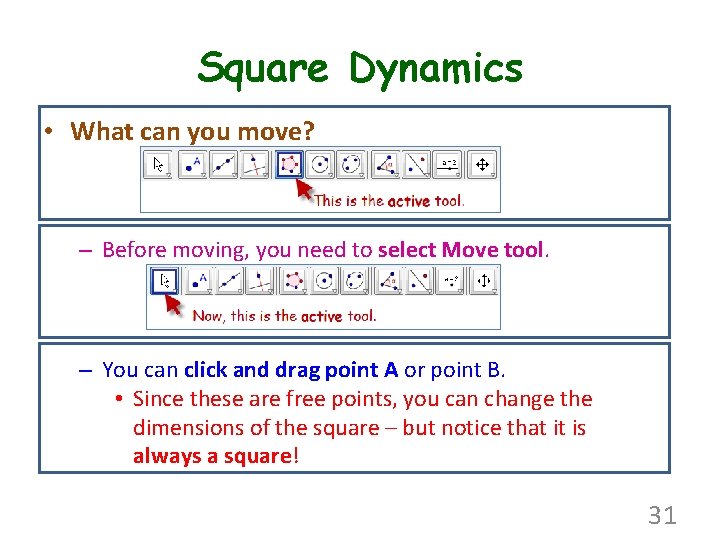
Square Dynamics • What can you move? – Before moving, you need to select Move tool. – You can click and drag point A or point B. • Since these are free points, you can change the dimensions of the square – but notice that it is always a square! 31
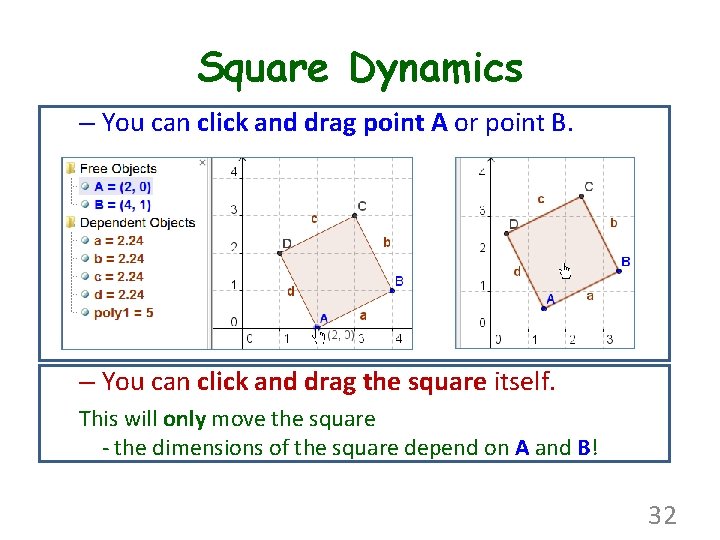
Square Dynamics – You can click and drag point A or point B. – You can click and drag the square itself. This will only move the square - the dimensions of the square depend on A and B! 32
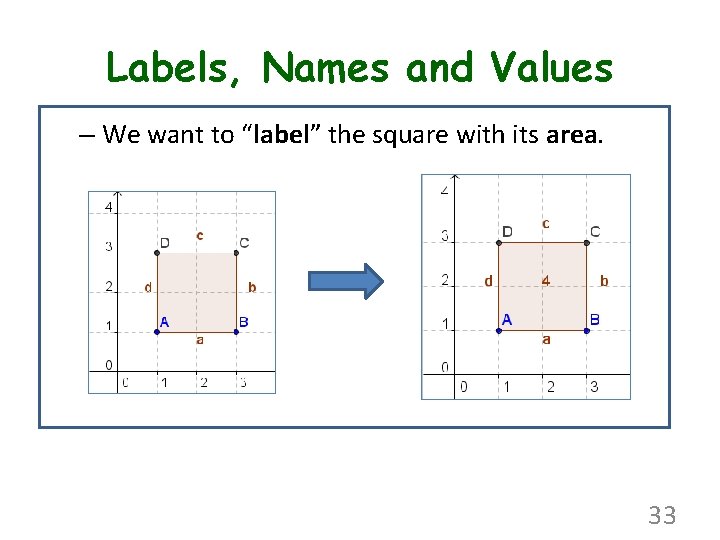
Labels, Names and Values – We want to “label” the square with its area. 33
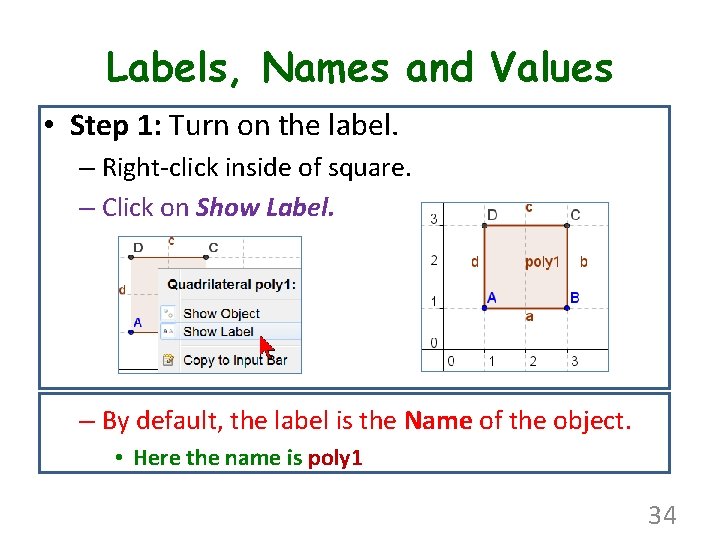
Labels, Names and Values • Step 1: Turn on the label. – Right-click inside of square. – Click on Show Label. – By default, the label is the Name of the object. • Here the name is poly 1 34
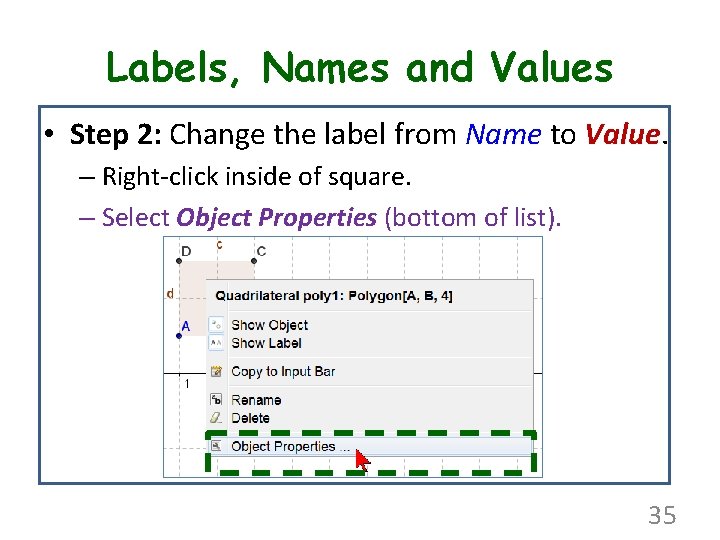
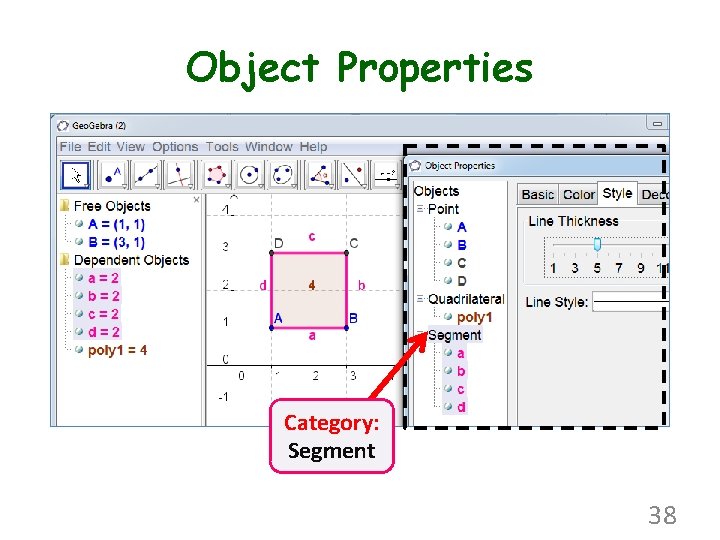
Labels, Names and Values • Step 2: Change the label from Name to Value. – Right-click inside of square. – Select Object Properties (bottom of list). 35
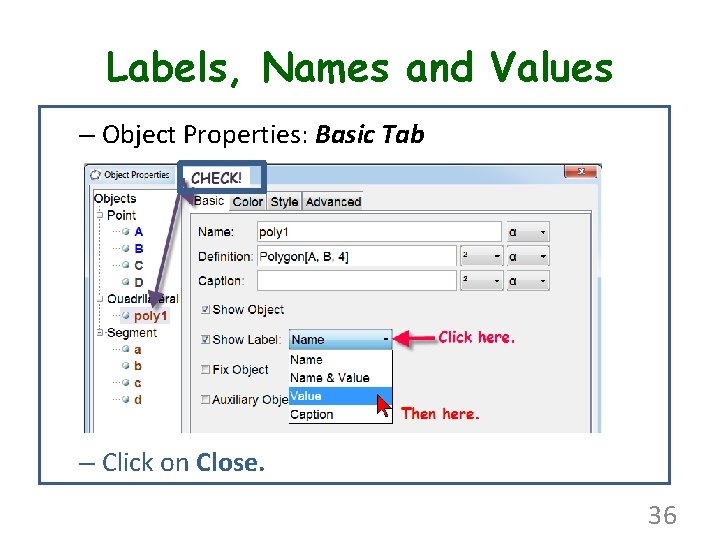
Labels, Names and Values – Object Properties: Basic Tab – Click on Close. 36
Object Properties • Let’s do that again. – Right-click on ANY object; select Object Properties. or Edit -> Properties or Ctrl+E In the Object Properties windows … – Choose an object or category in the left pane. • Move this window off to the right so you see changes as you make them. • Try the options on other tabs! • Click on Close when you are done. 37
Object Properties Category: Segment 38
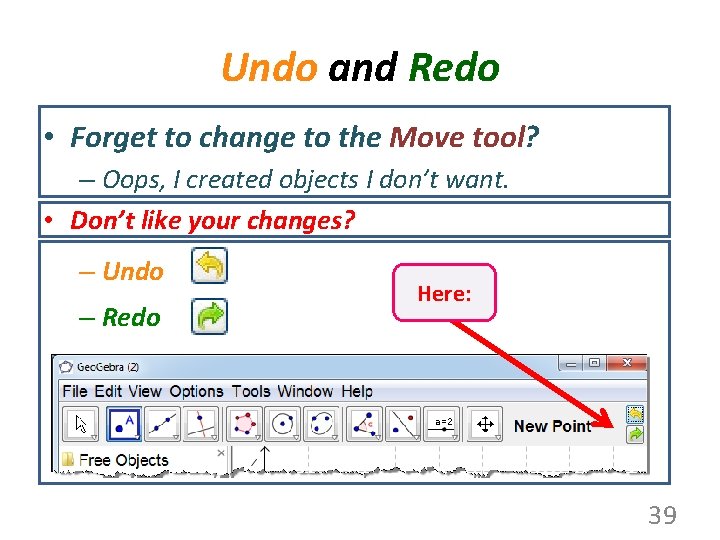
Undo and Redo • Forget to change to the Move tool? – Oops, I created objects I don’t want. • Don’t like your changes? – Undo – Redo Here: 39
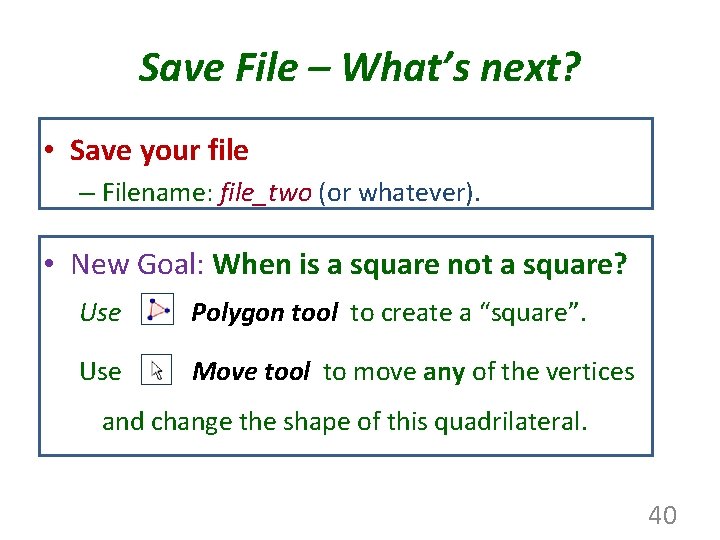
Save File – What’s next? • Save your file – Filename: file_two (or whatever). • New Goal: When is a square not a square? Use Polygon tool to create a “square”. Use Move tool to move any of the vertices and change the shape of this quadrilateral. 40
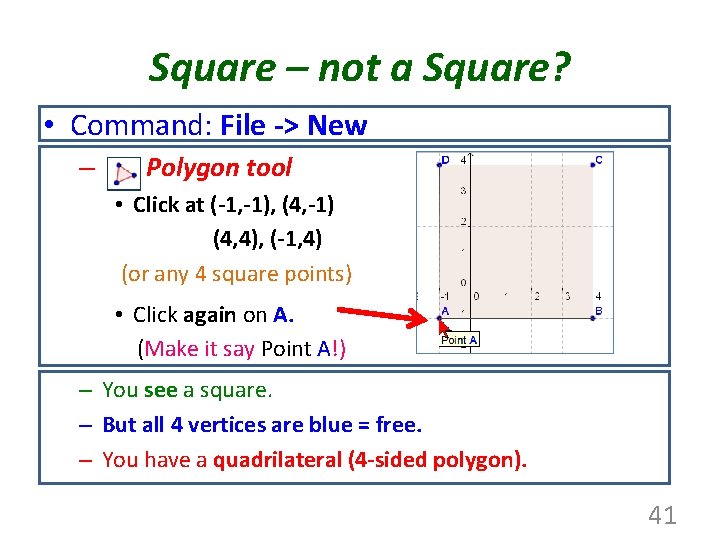
Square – not a Square? • Command: File -> New – Polygon tool • Click at (-1, -1), (4, -1) (4, 4), (-1, 4) (or any 4 square points) • Click again on A. (Make it say Point A!) – You see a square. – But all 4 vertices are blue = free. – You have a quadrilateral (4 -sided polygon). 41
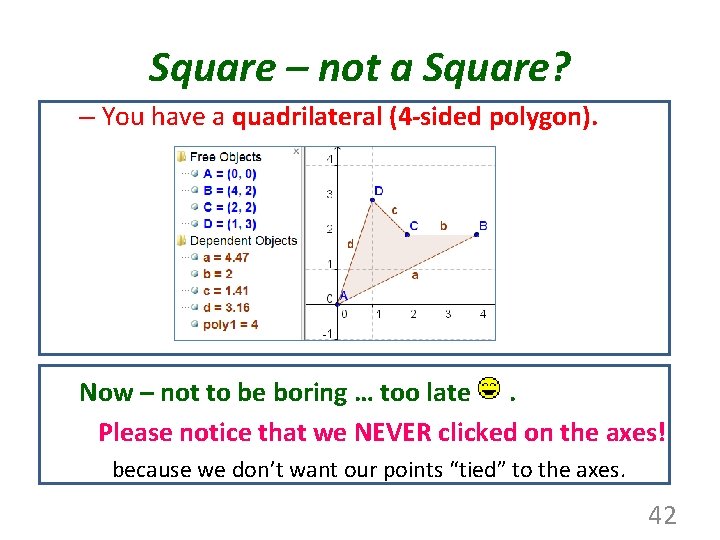
Square – not a Square? – You have a quadrilateral (4 -sided polygon). Now – not to be boring … too late. Please notice that we NEVER clicked on the axes! because we don’t want our points “tied” to the axes. 42
Save File – What’s next? • Save your file – Filename: file_three (or whatever). • New Goal: Create an Animation – Use Slider tool to define radius – Use Circle with center and radius tool … to make circles with various radii. – Animate the circles 43
Animation – Slider first • Command: File -> New • Turn off Grid (right-click in DP, click on Grid). • Turn off Axes (right-click in DP, click on Axes). • We create a slider – why? – Sliders can be animated either manually (click & drag) or automatically (play & pause) – Slider is a number whose value can be changed. 44
![Animation - Slider first • Make a slider a from [0, 2] increment 0.](http://slidetodoc.com/presentation_image/308f8d89a4d72391451ee6407b509d29/image-45.jpg "Animation - Slider first • Make a slider a from [0, 2] increment 0.")
Animation - Slider first • Make a slider a from [0, 2] increment 0. 01. – Select Slider tool. – Click in the Drawing pad (upper right). – Type 0 (min), 2 (max) and 0. 01 (increment) – Click on Apply. 45
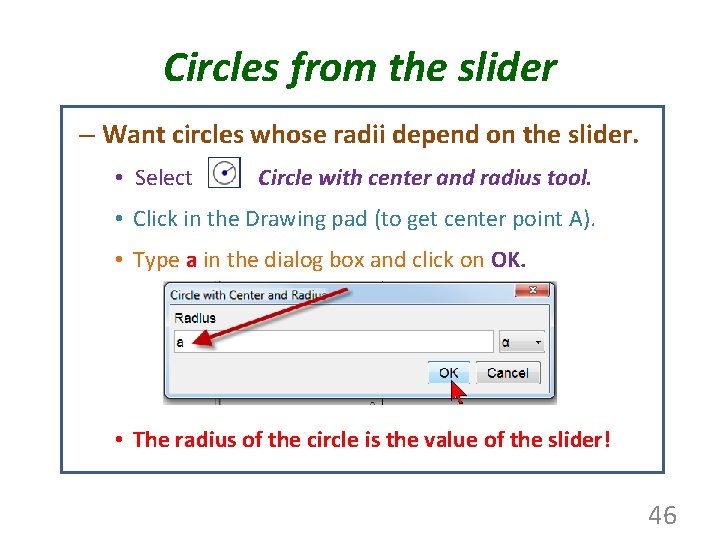
Circles from the slider – Want circles whose radii depend on the slider. • Select Circle with center and radius tool. • Click in the Drawing pad (to get center point A). • Type a in the dialog box and click on OK. • The radius of the circle is the value of the slider! 46
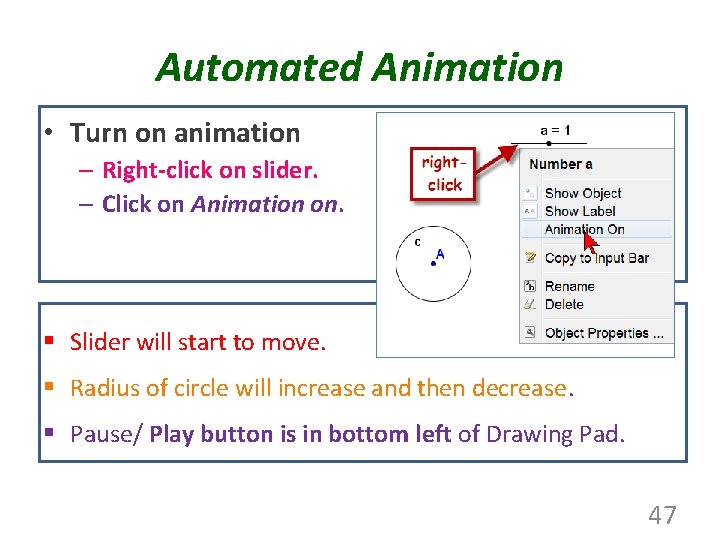
Automated Animation • Turn on animation – Right-click on slider. – Click on Animation on. § Slider will start to move. § Radius of circle will increase and then decrease. § Pause/ Play button is in bottom left of Drawing Pad. 47
Manual Animation • Press the Pause button • Activate the Move tool. • Click and drag the slider point to change the value of a manually. Sliders can be set to increase, decrease, oscillate or random. Both manual and automated animation work “better” if the width of the slider is a multiple of interval of the slider. 48
More circles from the slider 1. Again, select Circle with center and radius tool. 2. Click in the Drawing pad (to get center point B). 3. Type a/2 in the dialog box and click on OK. • Repeat 1 -3 with radius a/3 • Repeat 1 -3 with radius 2*a • Repeat 1 -3 with radius 3*a – Press – Use Play button to animate again. Move tool to click and drag circles. 49
Zooming and Panning – Zoom 1. Use your mouse scroll button to zoom in and out. – Place mouse pointer in Drawing pad and scroll. 2. Use Zoom out tool and Zoom in tool. 3. Zooming is not “undoable”. – Pan 1. Use shift + mouse click & drag to pan – Place mouse pointer in Drawing pad, press and hold Shift key and then click & drag mouse. 2. Use Move drawing pad tool. 3. Panning can be “undone”. Use 50
Fill in the circles with color – Fill the circles 1. Right-click on any circle and choose Object properties. 2. Click and drag the Properties window to one side so you can see the Drawing pad. Click on category Point. q Click on the Basic tab and deselect Show Label Click on category Conic. q Click on the Basic tab and deselect Show Label. q Click on the Color tab and Click & drag Opacity to 50. – – Click on each circle at left and then pick a color at right. You can also use drop down tools in the Graphics menu 51
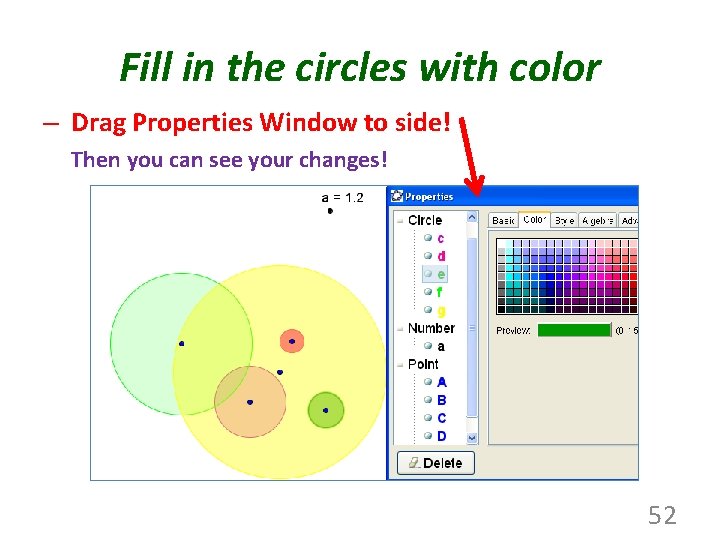
Fill in the circles with color – Drag Properties Window to side! Then you can see your changes! 52
Position Circles and Turn off Points 1. Position your circles before you turn off the points! 2. Right-click on any object and choose Object properties. 3. Click on the category Points and on the Basic tab and deselect Show object. • If you want to re-position the circles, you must first turn-on the points again. • To do this, right-click on any object and select Object properties. (Ctrl+E) • Now you have access to the Points again! Turn them on and then re-position. 53
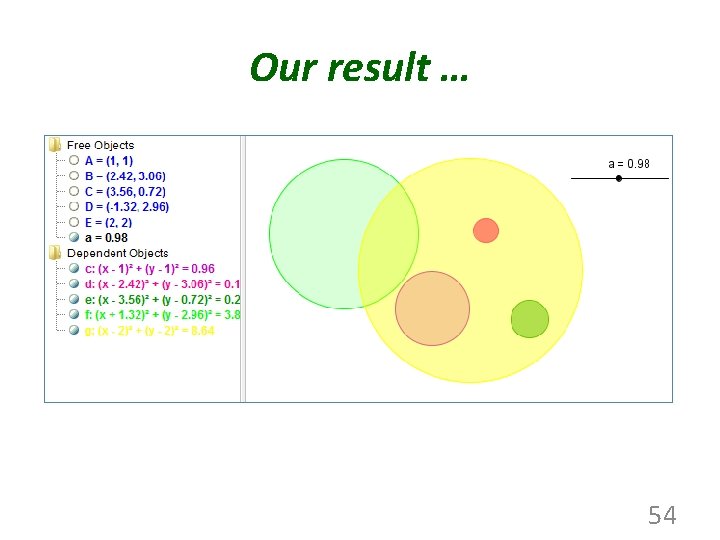
Our result … 54
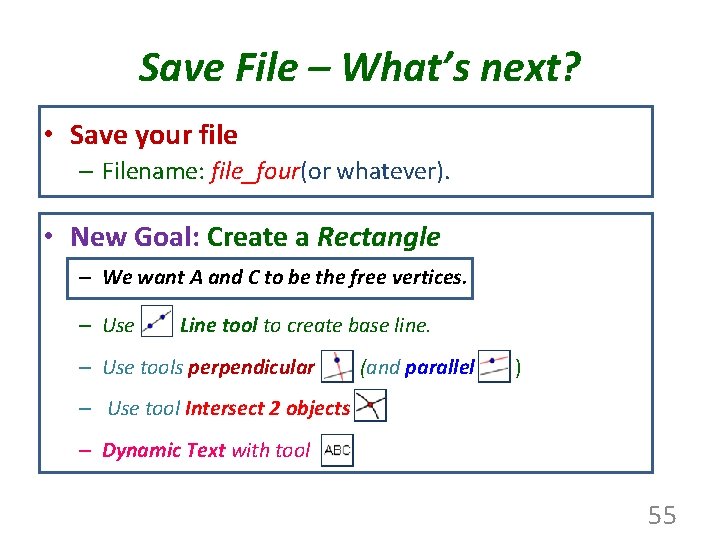
Save File – What’s next? • Save your file – Filename: file_four(or whatever). • New Goal: Create a Rectangle – We want A and C to be the free vertices. – Use Line tool to create base line. – Use tools perpendicular (and parallel ) – Use tool Intersect 2 objects – Dynamic Text with tool 55
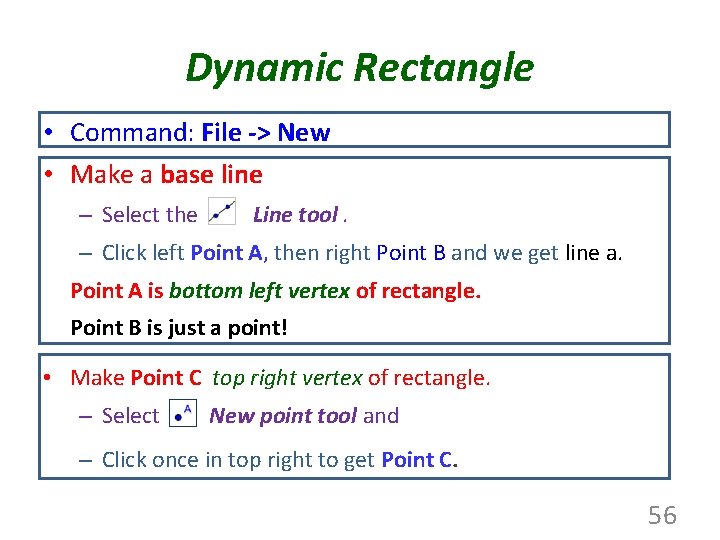
Dynamic Rectangle • Command: File -> New • Make a base line – Select the Line tool. – Click left Point A, then right Point B and we get line a. Point A is bottom left vertex of rectangle. Point B is just a point! • Make Point C top right vertex of rectangle. – Select New point tool and – Click once in top right to get Point C. 56
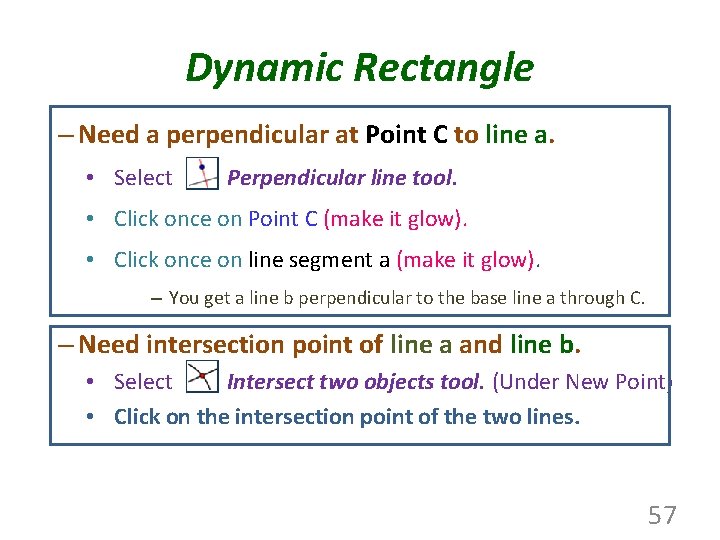
Dynamic Rectangle – Need a perpendicular at Point C to line a. • Select Perpendicular line tool. • Click once on Point C (make it glow). • Click once on line segment a (make it glow). – You get a line b perpendicular to the base line a through C. – Need intersection point of line a and line b. • Select Intersect two objects tool. (Under New Point) • Click on the intersection point of the two lines. 57
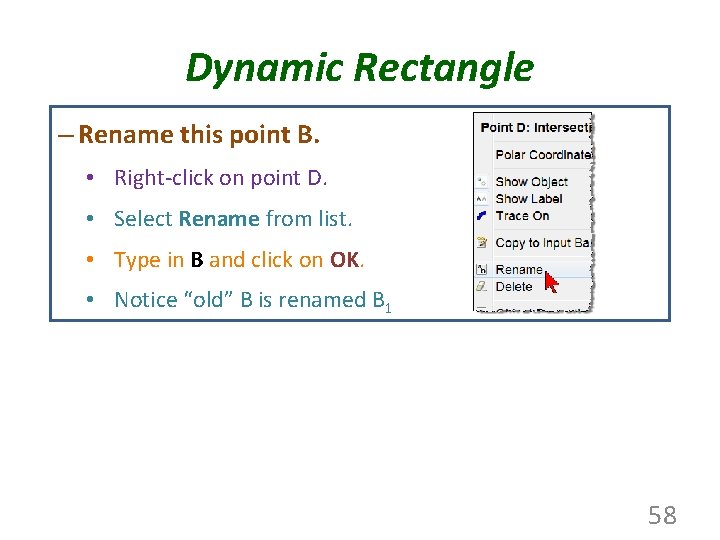
Dynamic Rectangle – Rename this point B. • Right-click on point D. • Select Rename from list. • Type in B and click on OK. • Notice “old” B is renamed B 1 58
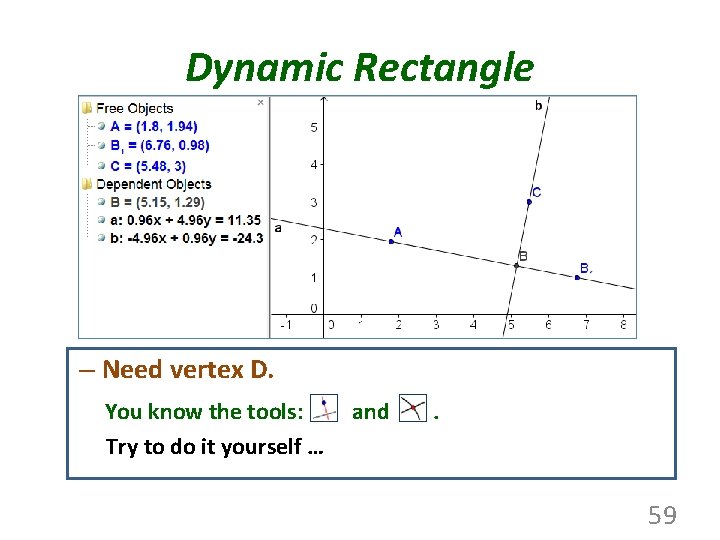
Dynamic Rectangle – Need vertex D. You know the tools: Try to do it yourself … and . 59
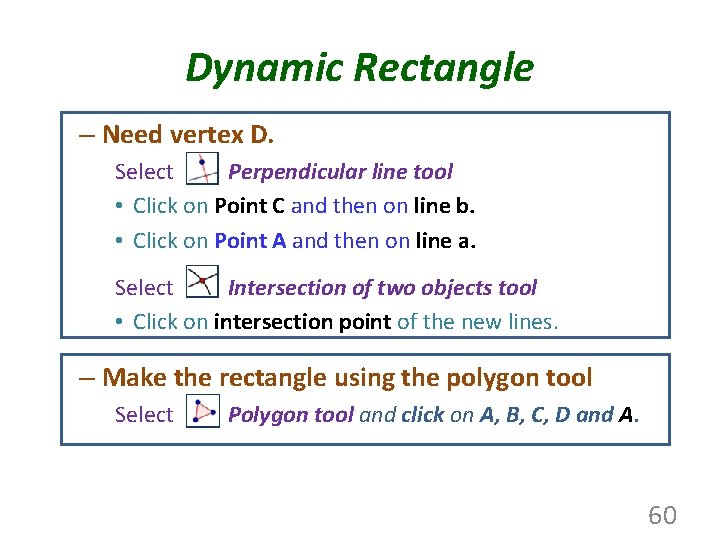
Dynamic Rectangle – Need vertex D. Select Perpendicular line tool • Click on Point C and then on line b. • Click on Point A and then on line a. Select Intersection of two objects tool • Click on intersection point of the new lines. – Make the rectangle using the polygon tool Select Polygon tool and click on A, B, C, D and A. 60
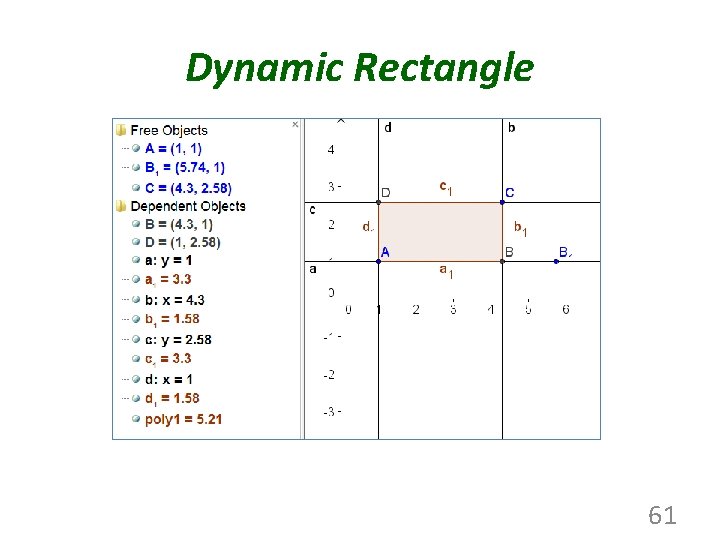
Dynamic Rectangle 61
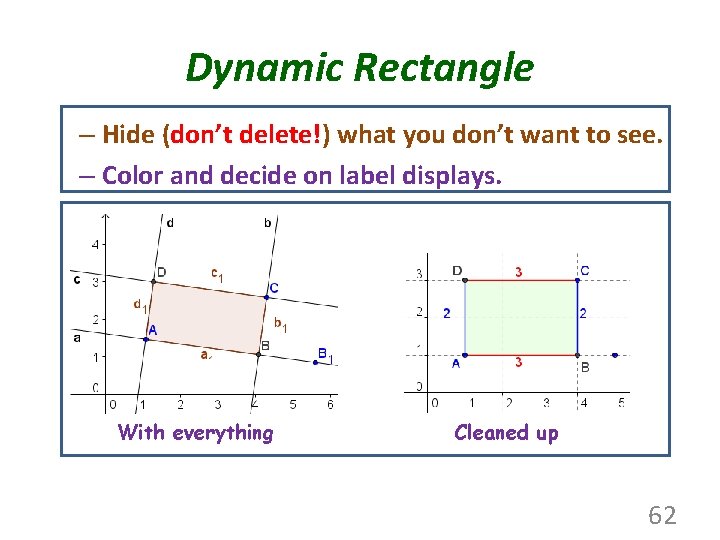
Dynamic Rectangle – Hide (don’t delete!) what you don’t want to see. – Color and decide on label displays. With everything Cleaned up 62
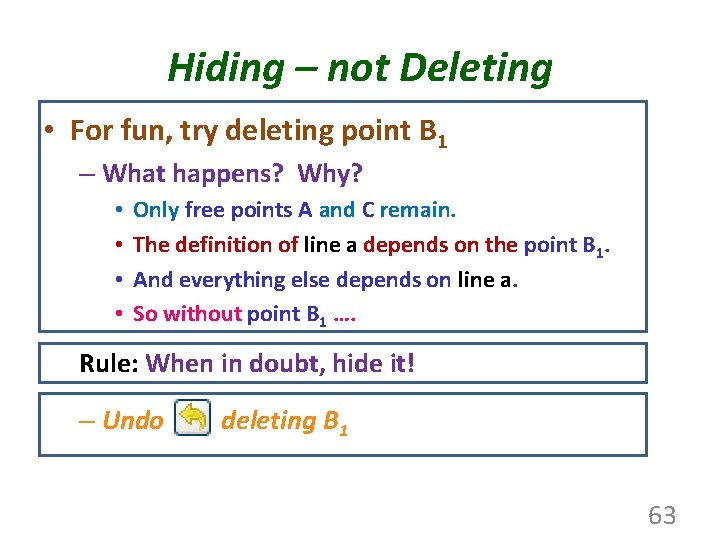
Hiding – not Deleting • For fun, try deleting point B 1 – What happens? Why? • • Only free points A and C remain. The definition of line a depends on the point B 1. And everything else depends on line a. So without point B 1 …. Rule: When in doubt, hide it! – Undo deleting B 1 63
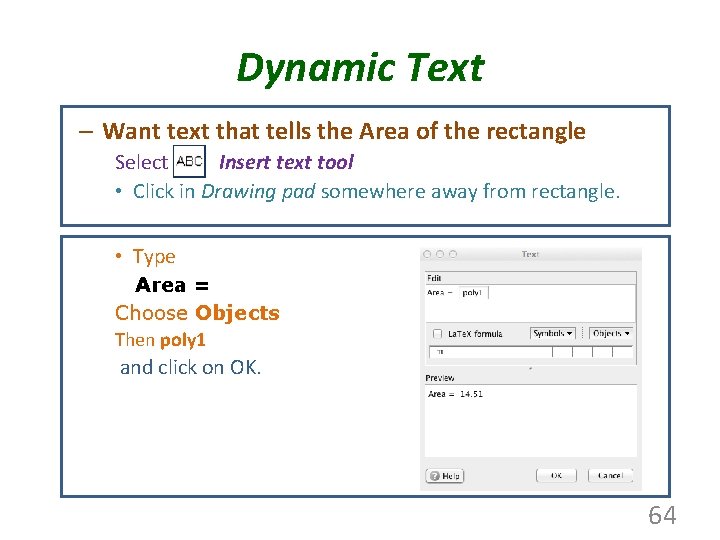
Dynamic Text – Want text that tells the Area of the rectangle Select Insert text tool • Click in Drawing pad somewhere away from rectangle. • Type Area = Choose Objects Then poly 1 and click on OK. 64
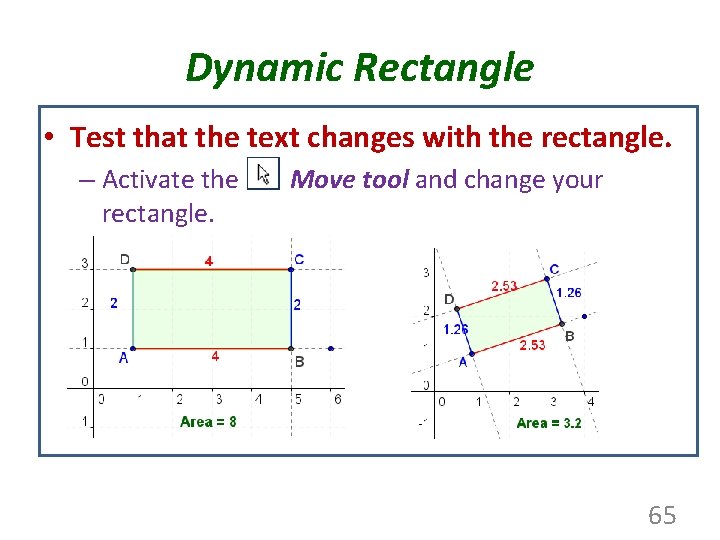
Dynamic Rectangle • Test that the text changes with the rectangle. – Activate the rectangle. Move tool and change your 65
Save File – What’s next? • Save your geometry exploration files – Filenames: whatever you like • New Goal: Create a Function & Spreadsheet – Use Input bar to create a function – Use function to create a spreadsheet. 66
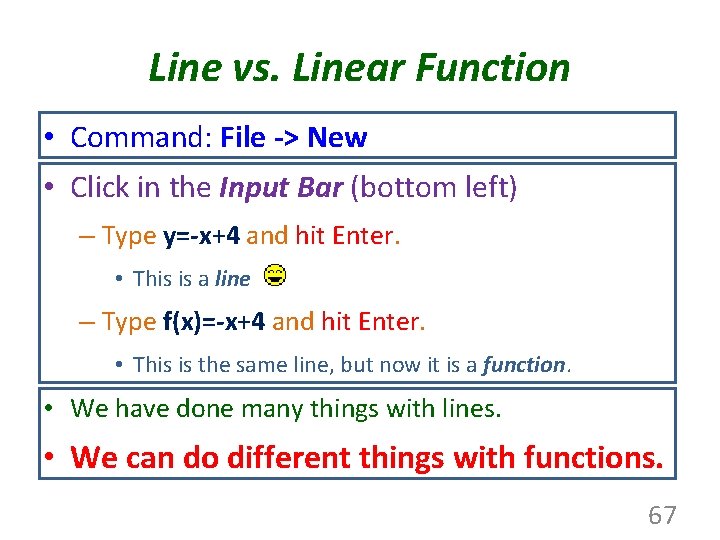
Line vs. Linear Function • Command: File -> New • Click in the Input Bar (bottom left) – Type y=-x+4 and hit Enter. • This is a line – Type f(x)=-x+4 and hit Enter. • This is the same line, but now it is a function. • We have done many things with lines. • We can do different things with functions. 67
Linear Function • Want a table of values for this function • We will make a table for 6 x-values x = 0, 1, 2, 3, 4, 5 • Open the Spreadsheet – Command: View -> Spreadsheet VERY IMPORTANT: Spreadsheet cells are ALWAYS a capital letter (case-sensitive)! 68
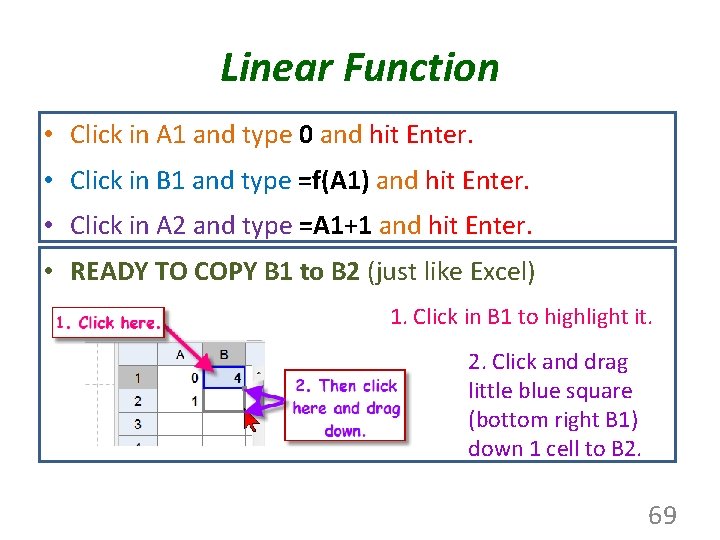
Linear Function • Click in A 1 and type 0 and hit Enter. • Click in B 1 and type =f(A 1) and hit Enter. • Click in A 2 and type =A 1+1 and hit Enter. • READY TO COPY B 1 to B 2 (just like Excel) 1. Click in B 1 to highlight it. 2. Click and drag little blue square (bottom right B 1) down 1 cell to B 2. 69
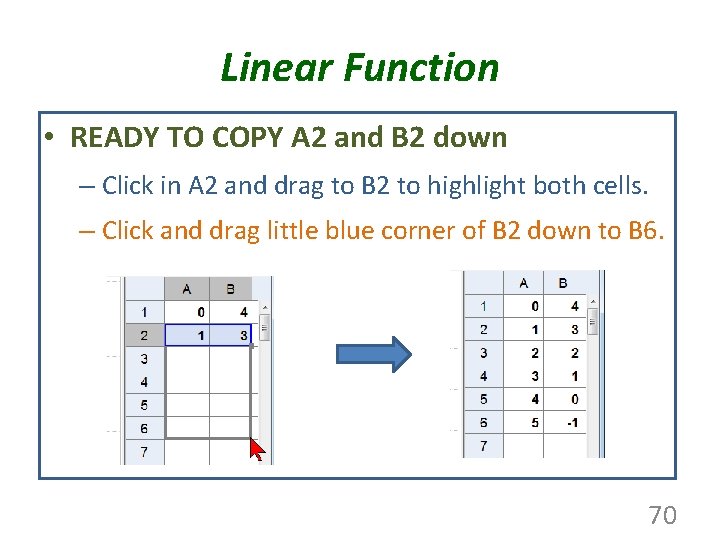
Linear Function • READY TO COPY A 2 and B 2 down – Click in A 2 and drag to B 2 to highlight both cells. – Click and drag little blue corner of B 2 down to B 6. 70
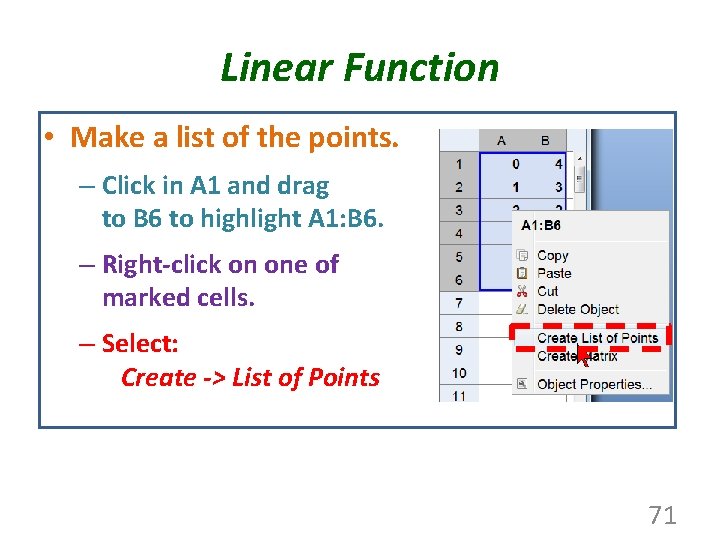
Linear Function • Make a list of the points. – Click in A 1 and drag to B 6 to highlight A 1: B 6. – Right-click on one of marked cells. – Select: Create -> List of Points 71
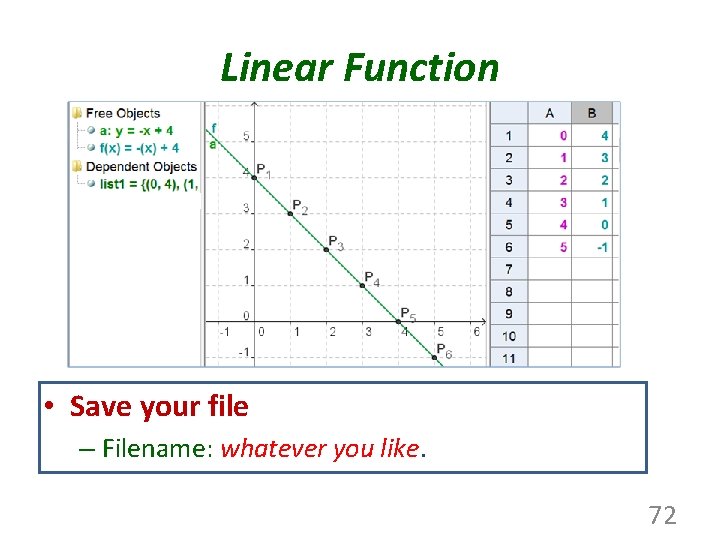
Linear Function • Save your file – Filename: whatever you like. 72
Geo. Gebra. Tube is the official repository of Geo. Gebra constructions and Geo. Gebra related resources. • http: //www. geogebratube. org/ 73
- Slides: 73