
Getting Started with Formulas This tutorial will teach
- Slides: 6
Getting Started with Formulas This tutorial will teach you how to enter formulas and math operators for calculations in Excel 2007 Next
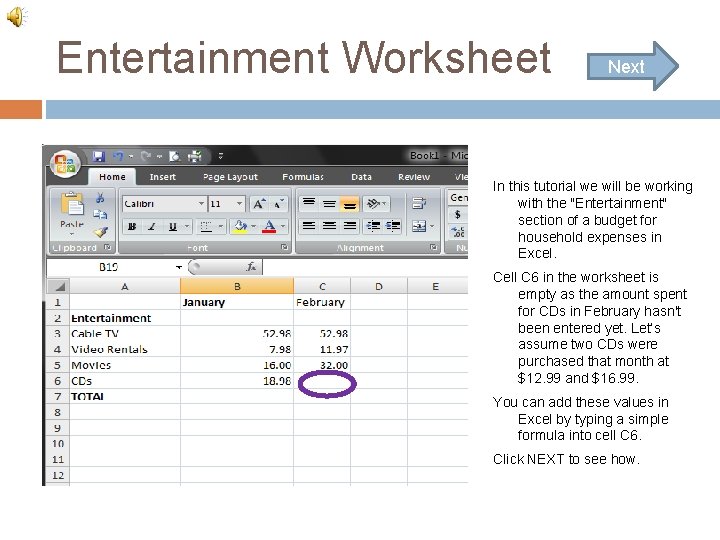
Entertainment Worksheet Next In this tutorial we will be working with the "Entertainment" section of a budget for household expenses in Excel. Cell C 6 in the worksheet is empty as the amount spent for CDs in February hasn't been entered yet. Let’s assume two CDs were purchased that month at $12. 99 and $16. 99. You can add these values in Excel by typing a simple formula into cell C 6. Click NEXT to see how.
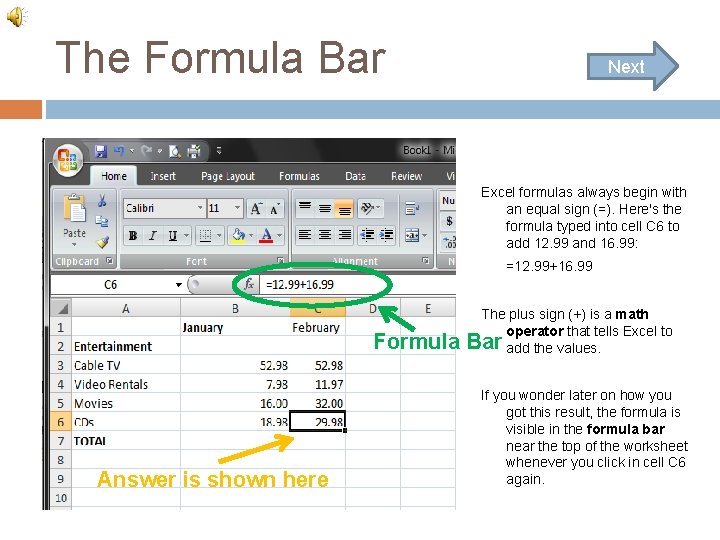
The Formula Bar Next Excel formulas always begin with an equal sign (=). Here's the formula typed into cell C 6 to add 12. 99 and 16. 99: =12. 99+16. 99 Formula Answer is shown here The plus sign (+) is a math operator that tells Excel to Bar add the values. If you wonder later on how you got this result, the formula is visible in the formula bar near the top of the worksheet whenever you click in cell C 6 again.
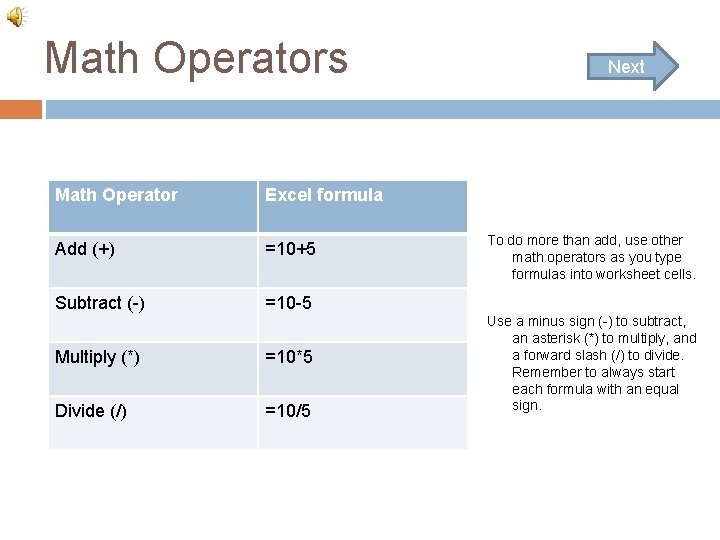
Math Operators Math Operator Excel formula Add (+) =10+5 Subtract (-) =10 -5 Multiply (*) =10*5 Divide (/) =10/5 Next To do more than add, use other math operators as you type formulas into worksheet cells. Use a minus sign (-) to subtract, an asterisk (*) to multiply, and a forward slash (/) to divide. Remember to always start each formula with an equal sign.
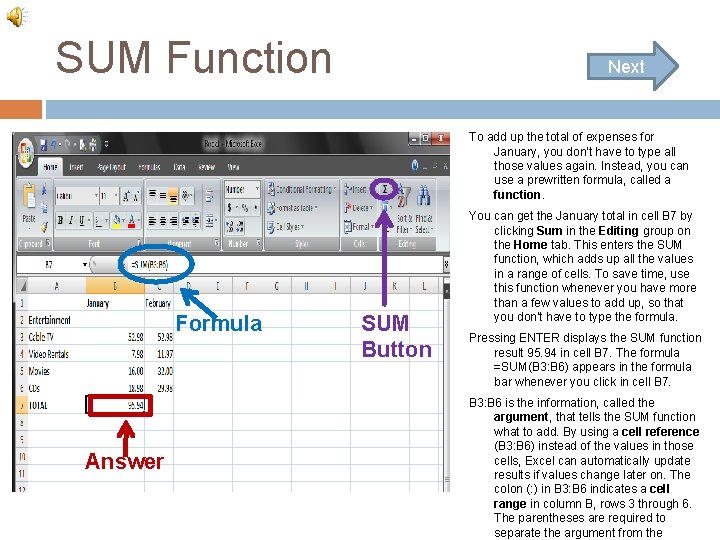
SUM Function Next To add up the total of expenses for January, you don't have to type all those values again. Instead, you can use a prewritten formula, called a function. Formula Answer SUM Button You can get the January total in cell B 7 by clicking Sum in the Editing group on the Home tab. This enters the SUM function, which adds up all the values in a range of cells. To save time, use this function whenever you have more than a few values to add up, so that you don't have to type the formula. Pressing ENTER displays the SUM function result 95. 94 in cell B 7. The formula =SUM(B 3: B 6) appears in the formula bar whenever you click in cell B 7. B 3: B 6 is the information, called the argument, that tells the SUM function what to add. By using a cell reference (B 3: B 6) instead of the values in those cells, Excel can automatically update results if values change later on. The colon (: ) in B 3: B 6 indicates a cell range in column B, rows 3 through 6. The parentheses are required to separate the argument from the
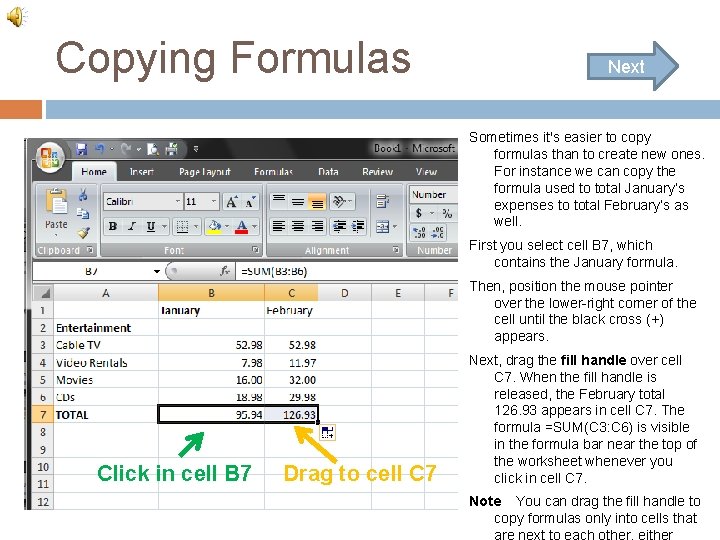
Copying Formulas Next Sometimes it's easier to copy formulas than to create new ones. For instance we can copy the formula used to total January’s expenses to total February’s as well. First you select cell B 7, which contains the January formula. Then, position the mouse pointer over the lower-right corner of the cell until the black cross (+) appears. Click in cell B 7 Drag to cell C 7 Next, drag the fill handle over cell C 7. When the fill handle is released, the February total 126. 93 appears in cell C 7. The formula =SUM(C 3: C 6) is visible in the formula bar near the top of the worksheet whenever you click in cell C 7. Note You can drag the fill handle to copy formulas only into cells that are next to each other, either