
Getting Started with Adobe Illustrator CS 6 Objectives
Getting Started with Adobe Illustrator CS 6
Objectives Define illustration software Start Adobe Illustrator CS 6 and change preference settings View the workspace Create and save a document Change the artboard size and close a document Open a document and change views Get help Work with ruler guides Work with Smart Guides and exit Illustrator
Defining Illustration Software Vector graphics Ø Graphics created in Adobe Illustrator • Created with lines and curves • Defined by mathematical objects (i. e. , vectors) Ø Consist of anchor points and line segments • Together referred to as paths Ø Render bold graphics with crisp lines • Can be scaled to various sizes
Defining Illustration Software With Illustrator, you can: Ø Create simple or complex illustrations • Variety of simple shape and drawing tools Ø Apply process and spot colors • Many swatch libraries Ø Create type • Large blocks of text, large bold headlines, type on a path, or type that fills an object Ø Create gradient fills • Multicolor blend that fills objects or outlines

Defining Illustration Software Ø Transform and distort objects • Scale, Rotate, Reflect, Shear Ø Export documents • Flash movies (*. swf), Photoshop documents (*. psd), and JPEGs (*. jpg) Ø Work with Multiple Artboards • Work on front and back of a design in one document • Design differently-sized components of a project
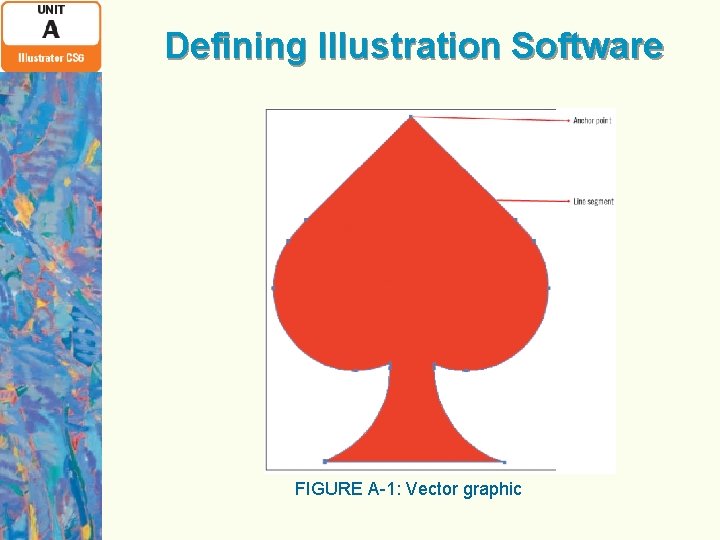
Defining Illustration Software FIGURE A-1: Vector graphic
Starting Adobe Illustrator CS 6 and Changing Preference Settings Illustrator can be started by: Ø Selecting the program application icon or by double-clicking it • Depends on operating system Ø In Windows: • Click the Start button and navigate to Adobe Illustrator CS 6 Ø In Mac: • Open Finder, click hard drive icon, click Applications, navigate to Adobe Illustrator CS 6
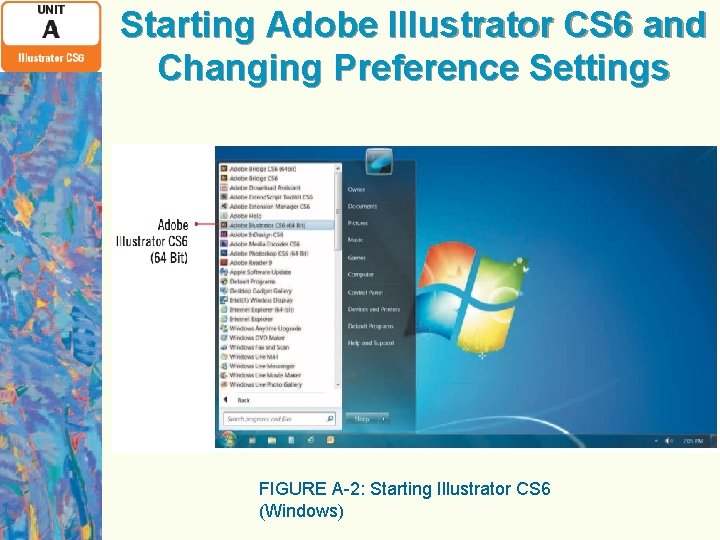
Starting Adobe Illustrator CS 6 and Changing Preference Settings FIGURE A-2: Starting Illustrator CS 6 (Windows)
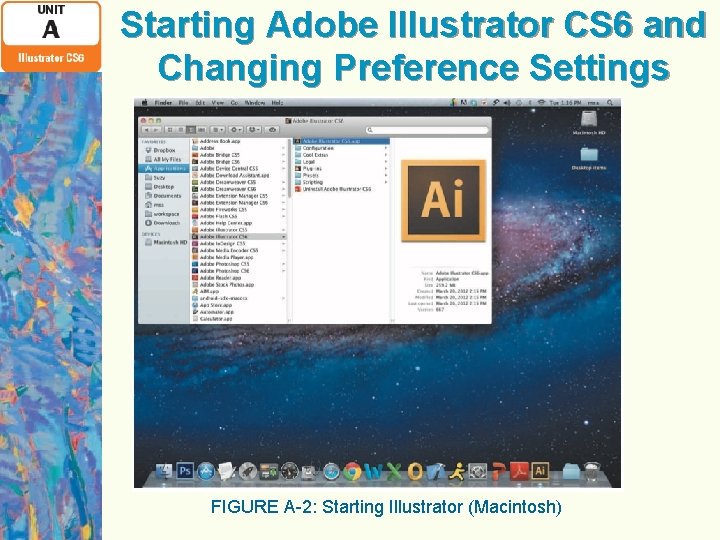
Starting Adobe Illustrator CS 6 and Changing Preference Settings FIGURE A-2: Starting Illustrator (Macintosh)
Starting Adobe Illustrator CS 6 and Changing Preference Settings Setting preferences Ø You can make changes to Illustrator based on your personal preferences • For example, you can change the color of guides and Smart Guides, and specify whether documents are opened as tabbed or not Ø To open the Preferences dialog box, click Edit (Win) or Illustrator (Mac) on the Menu bar, point to Preferences, then click a preference category
Viewing the Workspace includes: Ø Tools panel Ø Status bar Ø Menu bar Ø Control panel Ø Additional panels Essentials Ø Default workspace Ø Includes basic tools and panels
Viewing the Workspace New workspace Ø Click Workspace switcher in Menu bar Ø Click Essentials Ø Modify using Control panel Custom workspaces Ø Used for specific types of projects • Click Window on Menu bar • Point to Workspace • Click one of the nine workspace names
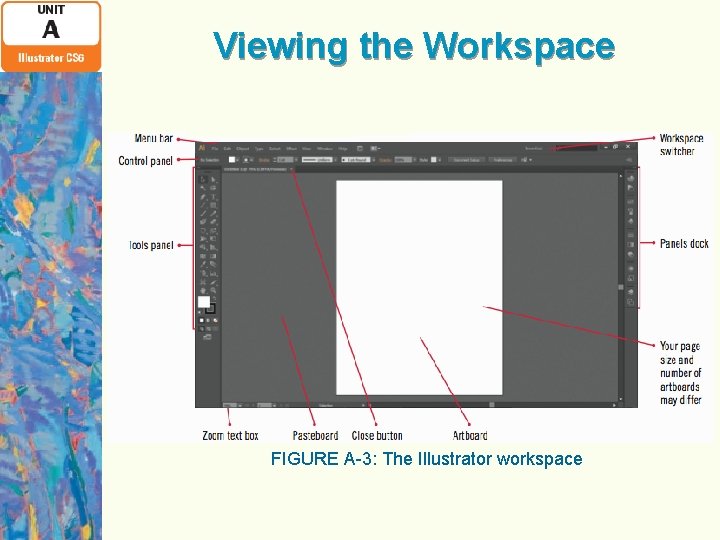
Viewing the Workspace FIGURE A-3: The Illustrator workspace
Creating and Saving a Document Creating a new document Ø Start by making choices in New Document dialog box • Artboard name, size, and number Save As command Ø Save a document with a new name Ø Save recent changes New Document Profile menu Ø Specifies type of document needed
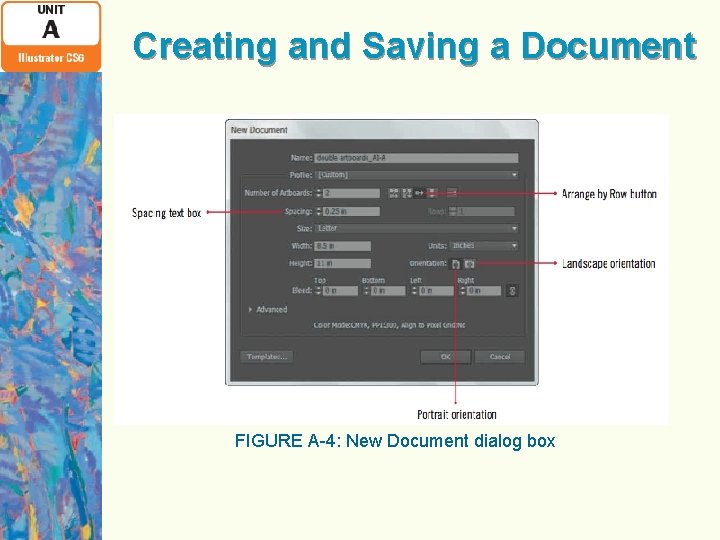
Creating and Saving a Document FIGURE A-4: New Document dialog box
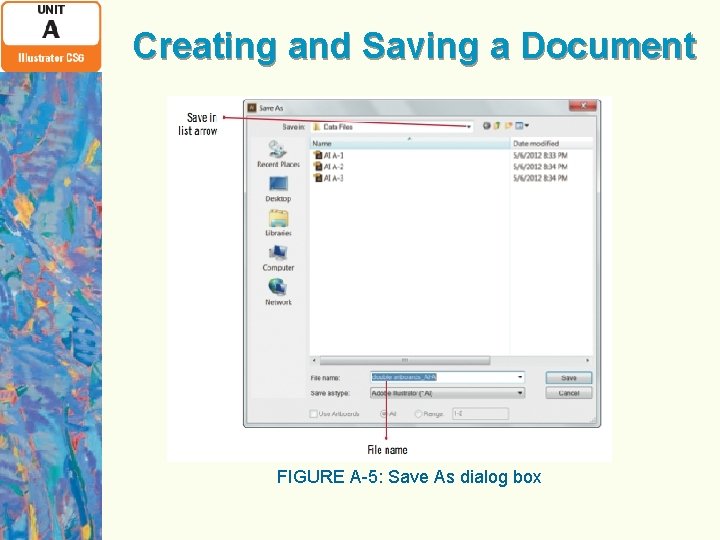
Creating and Saving a Document FIGURE A-5: Save As dialog box
Changing the Artboard Size and Closing a Document Changing artboard size Ø Click Artboard tool on Tools panel Ø Dotted lines appear around selected artboard Ø Drag an edge or change width and height values on Control panel Exit artboard mode Ø Click any tool on Tools panel
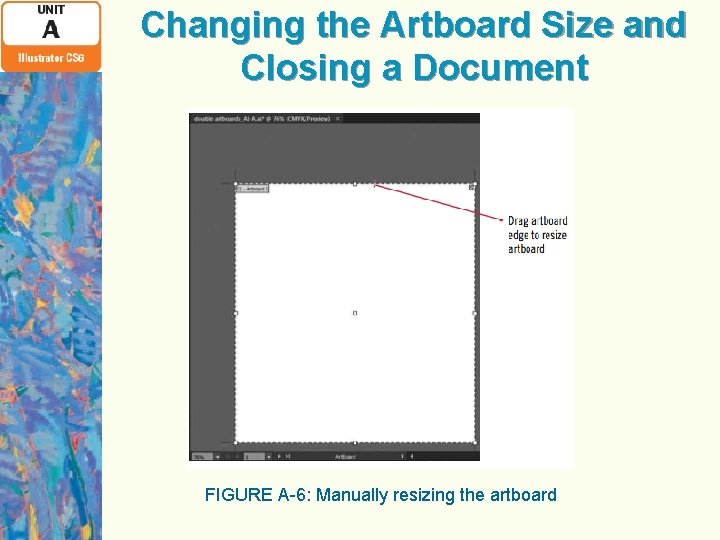
Changing the Artboard Size and Closing a Document FIGURE A-6: Manually resizing the artboard
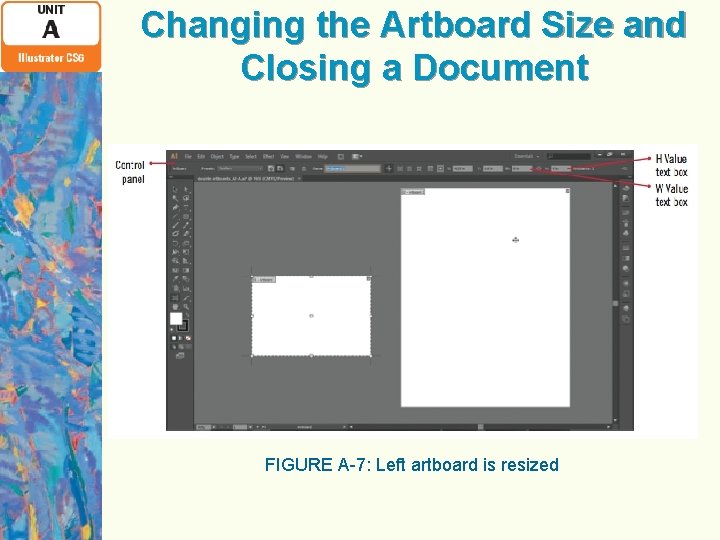
Changing the Artboard Size and Closing a Document FIGURE A-7: Left artboard is resized
Changing the Artboard Size and Closing a Document Close a document Ø Click Close button on document title or document tab Working in artboard mode Ø Many ways to work with multiple artboards Ø Click Artboard tool on Tools panel to enter artboard mode
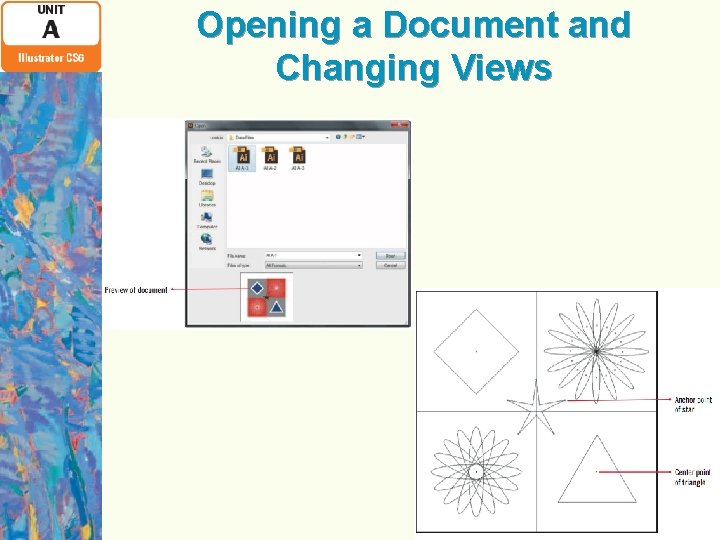
Opening a Document and Changing Views Opening Illustrator documents Ø Preview mode • Shows fill and stroke colors • Shows how each object is layered Ø Outline mode • Shows only the vector outline Bounding box Ø Selection box that appears when object is selected an object Ø Contains resize handles
Opening a Document and Changing Views Creating new views Ø Artboard area can be defined and saved as named view • Can be selected from View menu Ø New View feature • Allows creation of window views of specific sections of the artboard
Opening a Document and Changing Views
Getting Help feature Ø Can be accessed while working in Illustrator Ø Provides articles on specific Illustrator topics, videos, and tutorials • Click Help on Menu bar • Click Illustrator Help • Illustrator Help page of Adobe. com website opens
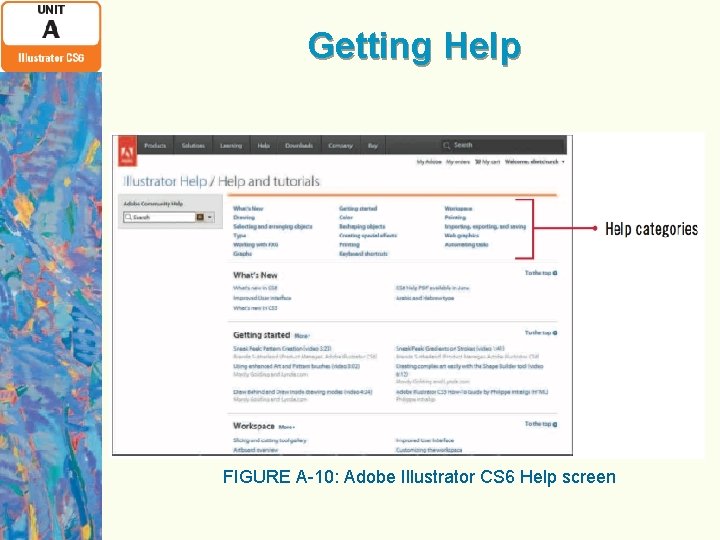
Getting Help FIGURE A-10: Adobe Illustrator CS 6 Help screen
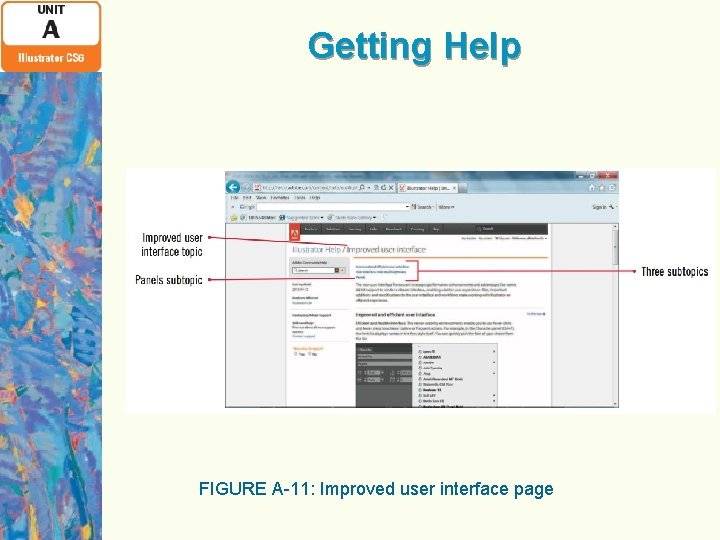
Getting Help FIGURE A-11: Improved user interface page
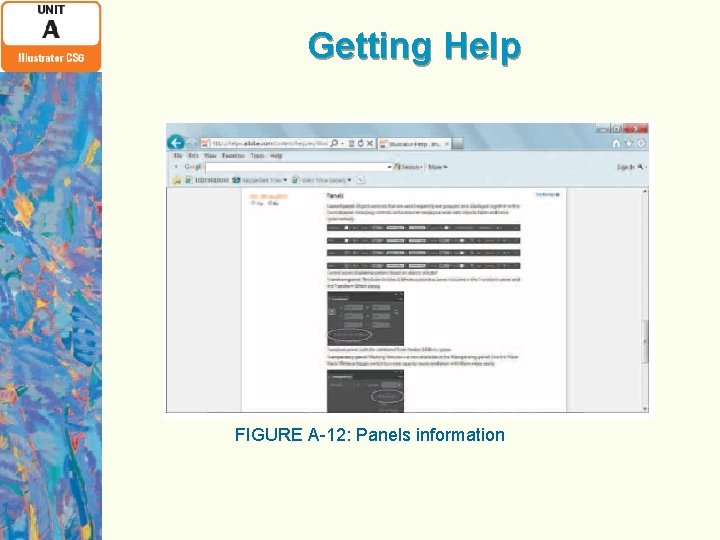
Getting Help FIGURE A-12: Panels information
Working with Ruler Guides Ruler guides Ø Vertical and horizontal lines useful for aligning objects on the artboard Ø Created using the horizontal and vertical rulers in the workspace Ø Can be locked or unlocked Ø Can be moved, deleted, and hidden
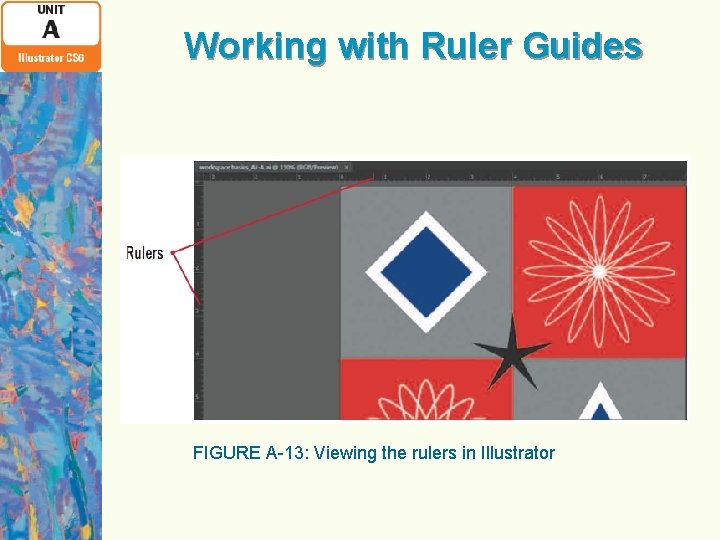
Working with Ruler Guides FIGURE A-13: Viewing the rulers in Illustrator
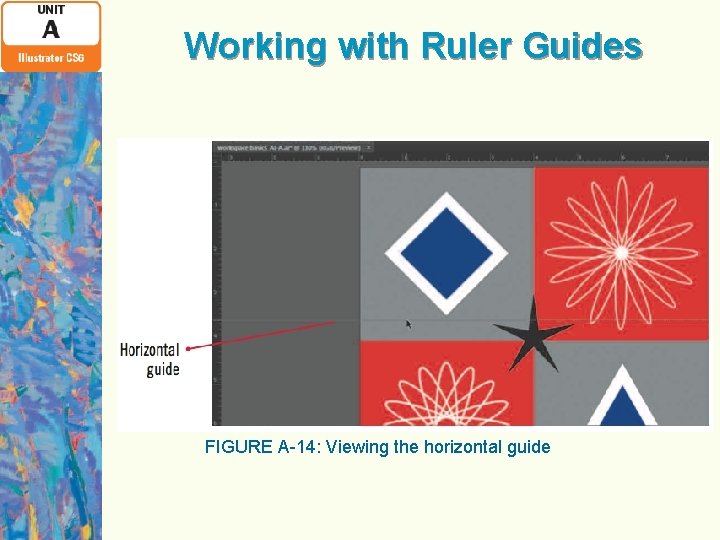
Working with Ruler Guides FIGURE A-14: Viewing the horizontal guide
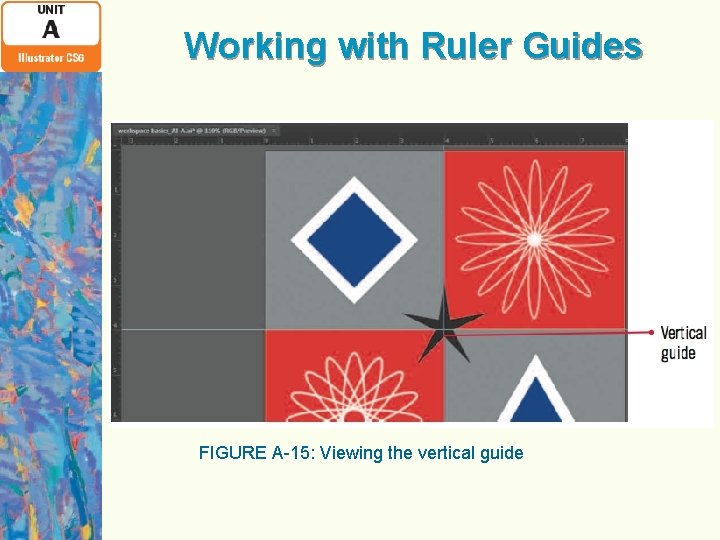
Working with Ruler Guides FIGURE A-15: Viewing the vertical guide
Working with Smart Guides and Exiting Illustrator Smart Guides Ø Visual aids that work alongside ruler guides Ø Useful when you need to be precise about alignment of objects and for moving objects Ø Appear as you drag the mouse pointer over the artboard
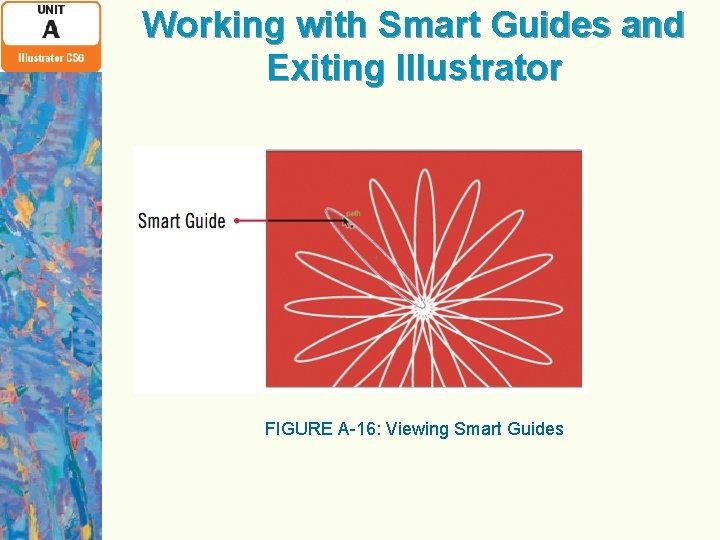
Working with Smart Guides and Exiting Illustrator FIGURE A-16: Viewing Smart Guides
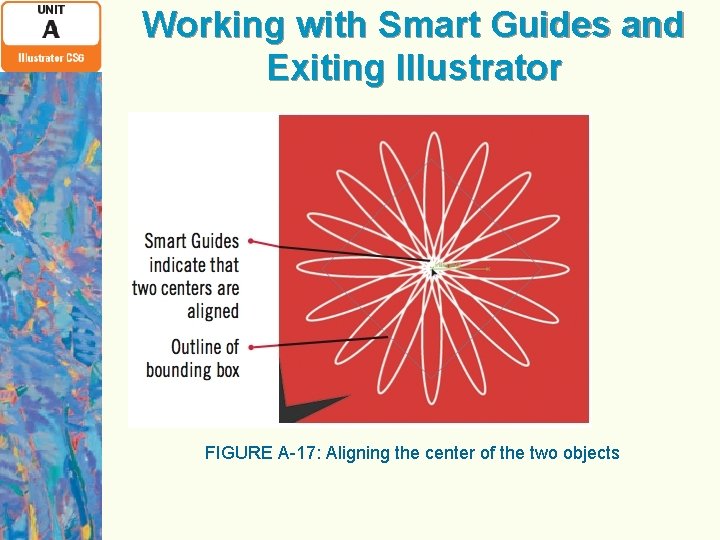
Working with Smart Guides and Exiting Illustrator FIGURE A-17: Aligning the center of the two objects
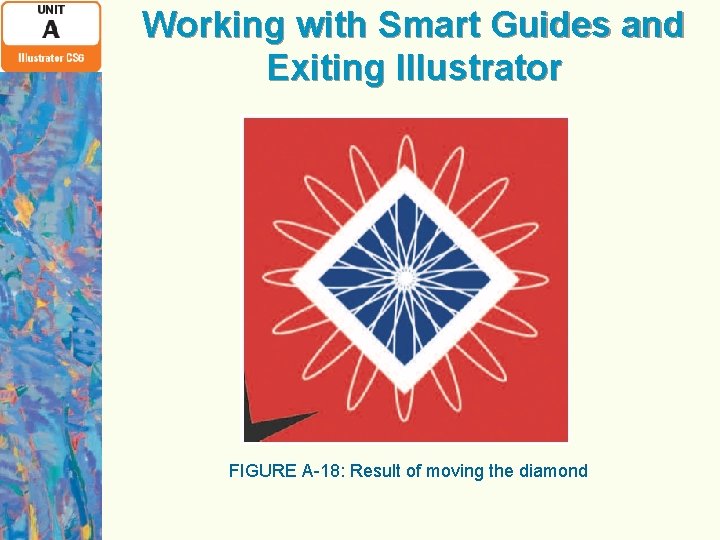
Working with Smart Guides and Exiting Illustrator FIGURE A-18: Result of moving the diamond
Summary Define illustration software Start Adobe Illustrator CS 6 and change preference settings View the workspace Create and save a document Change the artboard size and close a document Open a document and change views Get help Work with ruler guides Work with Smart Guides and exit Illustrator
- Slides: 36