
Getting Started with Accessioning Create New Requisition Step
![Step 2: Open the Add New Requisition wizard. Click the [+] button in the](https://slidetodoc.com/presentation_image_h2/a7f55d64196401d5f7dc19a88afc853c/image-3.jpg "Step 2: Open the Add New Requisition wizard. Click the [+] button in the")
- Slides: 13
Getting Started with Accessioning
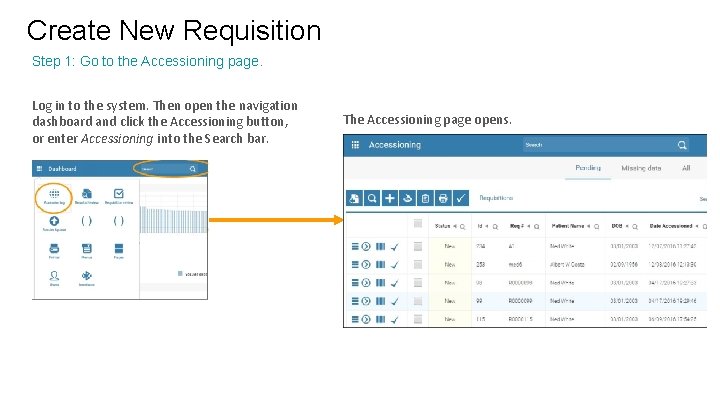
Create New Requisition Step 1: Go to the Accessioning page. Log in to the system. Then open the navigation dashboard and click the Accessioning button, or enter Accessioning into the Search bar. The Accessioning page opens.
Step 2: Open the Add New Requisition wizard. Click the [+] button in the action bar of the Accessioning page to open the Add New Requisition wizard.
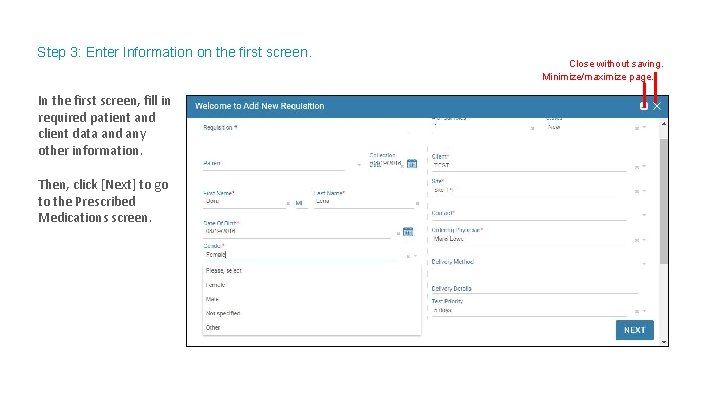
Step 3: Enter Information on the first screen. In the first screen, fill in required patient and client data and any other information. Then, click [Next] to go to the Prescribed Medications screen. Close without saving. Minimize/maximize page.
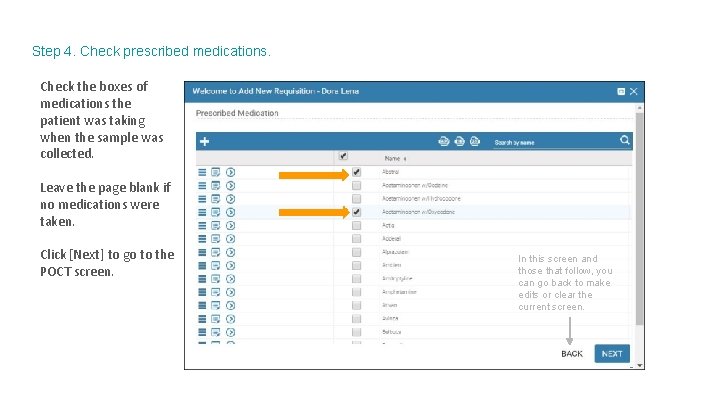
Step 4. Check prescribed medications. Check the boxes of medications the patient was taking when the sample was collected. Leave the page blank if no medications were taken. Click [Next] to go to the POCT screen. In this screen and those that follow, you can go back to make edits or clear the current screen.
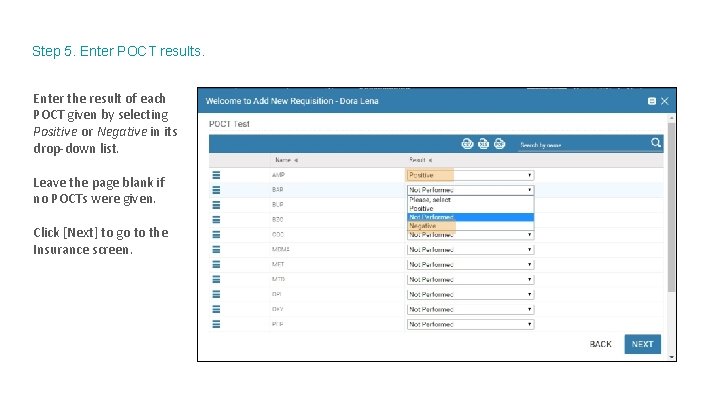
Step 5. Enter POCT results. Enter the result of each POCT given by selecting Positive or Negative in its drop-down list. Leave the page blank if no POCTs were given. Click [Next] to go to the Insurance screen.
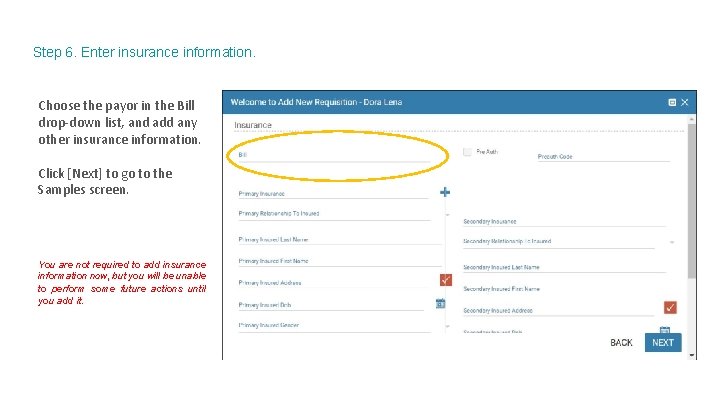
Step 6. Enter insurance information. Choose the payor in the Bill drop-down list, and add any other insurance information. Click [Next] to go to the Samples screen. You are not required to add insurance information now, but you will be unable to perform some future actions until you add it.
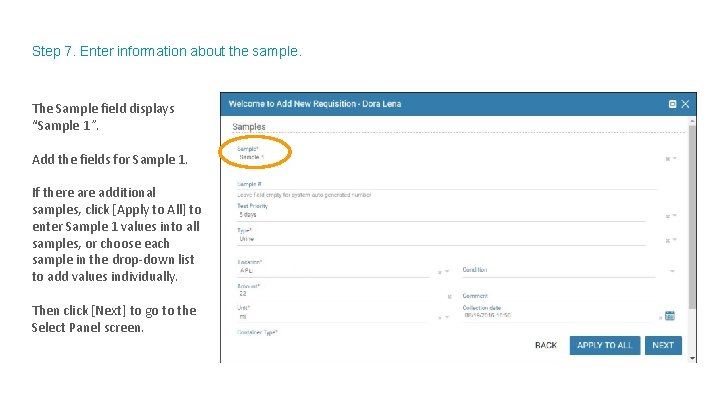
Step 7. Enter information about the sample. The Sample field displays “Sample 1”. Add the fields for Sample 1. If there additional samples, click [Apply to All] to enter Sample 1 values into all samples, or choose each sample in the drop-down list to add values individually. Then click [Next] to go to the Select Panel screen.
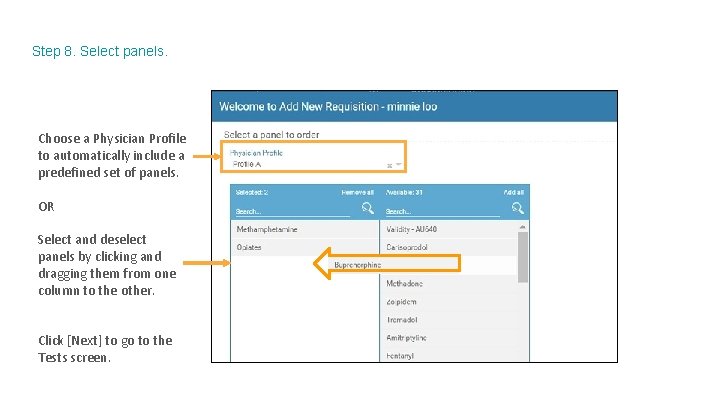
Step 8. Select panels. Choose a Physician Profile to automatically include a predefined set of panels. OR Select and deselect panels by clicking and dragging them from one column to the other. Click [Next] to go to the Tests screen.
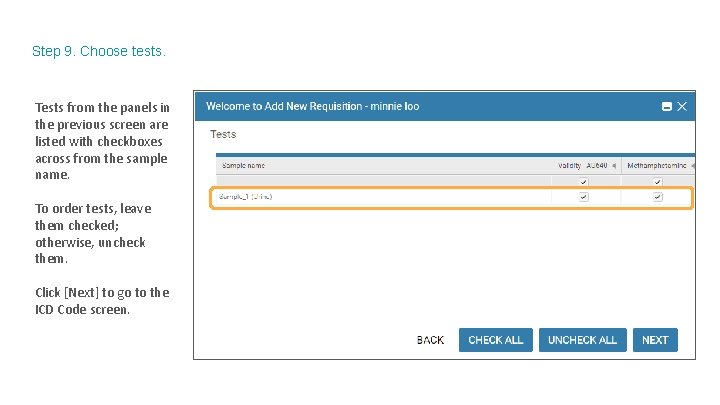
Step 9. Choose tests. Tests from the panels in the previous screen are listed with checkboxes across from the sample name. To order tests, leave them checked; otherwise, uncheck them. Click [Next] to go to the ICD Code screen.
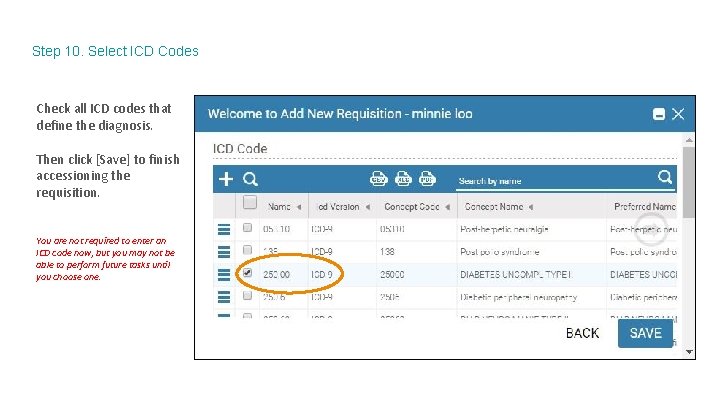
Step 10. Select ICD Codes Check all ICD codes that define the diagnosis. Then click [Save] to finish accessioning the requisition. You are not required to enter an ICD code now, but you may not be able to perform future tasks until you choose one.
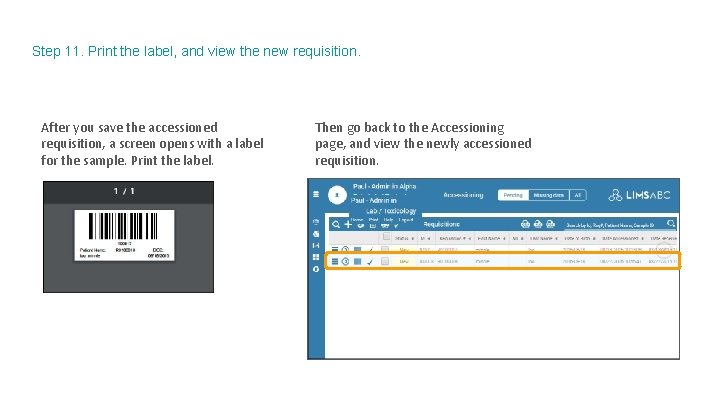
Step 11. Print the label, and view the new requisition. After you save the accessioned requisition, a screen opens with a label for the sample. Print the label. Then go back to the Accessioning page, and view the newly accessioned requisition.
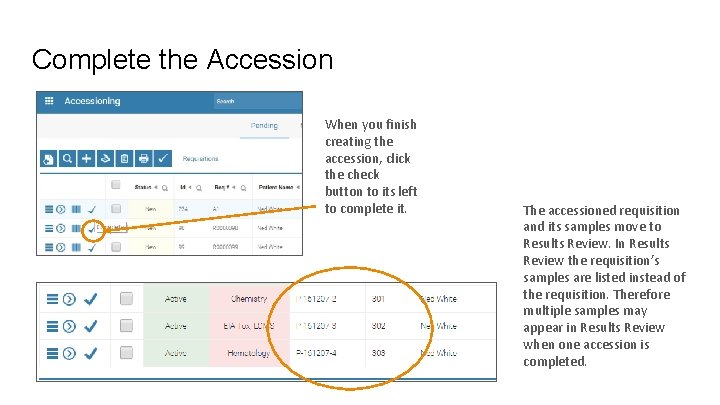
Complete the Accession When you finish creating the accession, click the check button to its left to complete it. The accessioned requisition and its samples move to Results Review. In Results Review the requisition’s samples are listed instead of the requisition. Therefore multiple samples may appear in Results Review when one accession is completed.