
Getting Started on The Scholars Programme Dear Teachers




- Slides: 23
Getting Started on The Scholars Programme
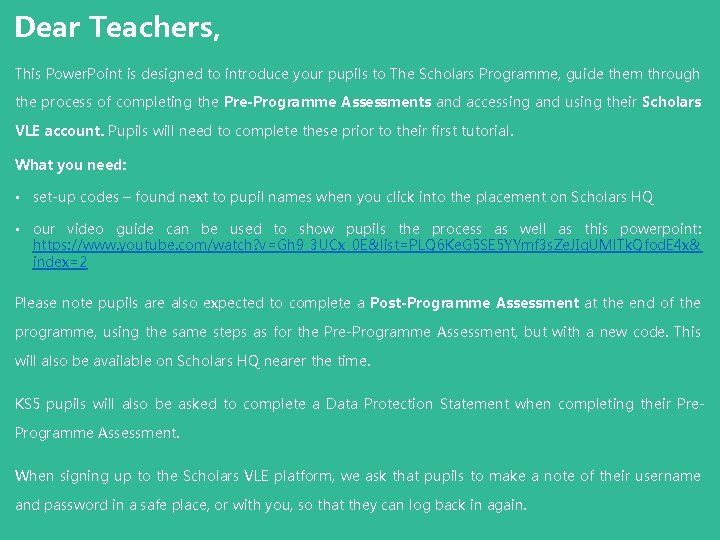
Dear Teachers, This Power. Point is designed to introduce your pupils to The Scholars Programme, guide them through the process of completing the Pre-Programme Assessments and accessing and using their Scholars VLE account. Pupils will need to complete these prior to their first tutorial. What you need: • set-up codes – found next to pupil names when you click into the placement on Scholars HQ • our video guide can be used to show pupils the process as well as this powerpoint: https: //www. youtube. com/watch? v=Gh 9_3 UCx_0 E&list=PLQ 6 Ke. G 5 SE 5 YYmf 3 s. Ze. JIq. UMl. Tk. Qfod. E 4 x& index=2 Please note pupils are also expected to complete a Post-Programme Assessment at the end of the programme, using the same steps as for the Pre-Programme Assessment, but with a new code. This will also be available on Scholars HQ nearer the time. KS 5 pupils will also be asked to complete a Data Protection Statement when completing their Pre. Programme Assessment. When signing up to the Scholars VLE platform, we ask that pupils to make a note of their username and password in a safe place, or with you, so that they can log back in again.
Dear Teachers, Slides 6 to 9 introduce pupils to what The Scholars Programme is and why they have been selected to take part. If you are showing the pupils this Power. Point at the same time as the In-School Launch, these points should all be covered in the Welcome videos, so you do not need to show them.
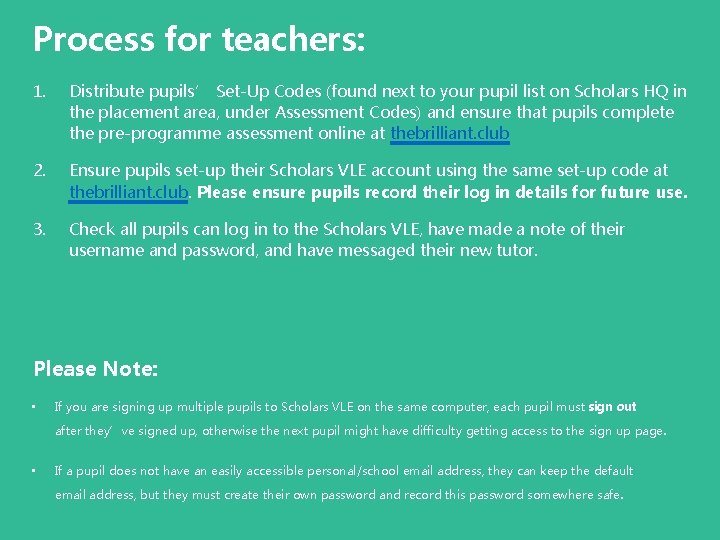
Process for teachers: 1. Distribute pupils’ Set-Up Codes (found next to your pupil list on Scholars HQ in the placement area, under Assessment Codes) and ensure that pupils complete the pre-programme assessment online at thebrilliant. club 2. Ensure pupils set-up their Scholars VLE account using the same set-up code at thebrilliant. club. Please ensure pupils record their log in details for future use. 3. Check all pupils can log in to the Scholars VLE, have made a note of their username and password, and have messaged their new tutor. Please Note: • If you are signing up multiple pupils to Scholars VLE on the same computer, each pupil must sign out after they’ve signed up, otherwise the next pupil might have difficulty getting access to the sign up page. • If a pupil does not have an easily accessible personal/school email address, they can keep the default email address, but they must create their own password and record this password somewhere safe.
The Scholars Programme
What is it and why am I taking part? Your teachers have identified you as someone who has the potential to attend a highly selective university. Although university may not be for everyone, The Scholars Programme aims to give you an experience of university learning to help you make an informed decision about your future. The Programme will not only widen your understanding of university, it will also develop a range of valuable, transferable skills which will help you no matter what you do after leaving school. The experience you gain on The Scholars Programme will help you stand out in the future and put you one step ahead of many other people your age.
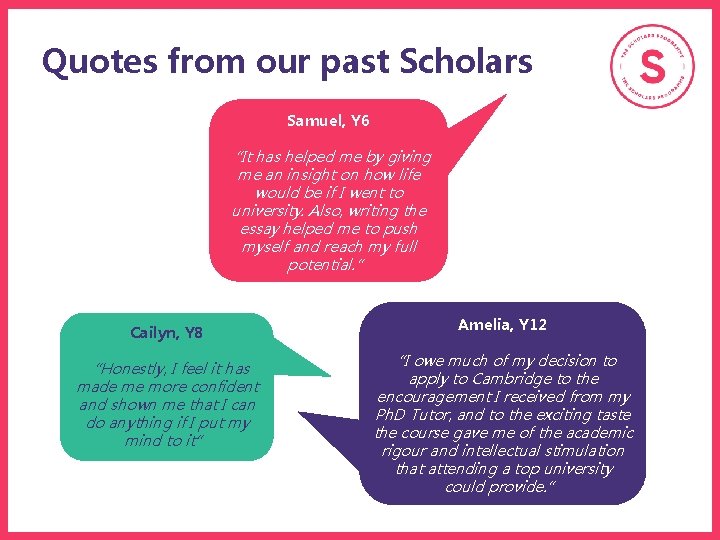
Quotes from our past Scholars Samuel, Y 6 “It has helped me by giving me an insight on how life would be if I went to university. Also, writing the essay helped me to push myself and reach my full potential. ” Cailyn, Y 8 “Honestly, I feel it has made me more confident and shown me that I can do anything if I put my mind to it” Amelia, Y 12 “I owe much of my decision to apply to Cambridge to the encouragement I received from my Ph. D Tutor, and to the exciting taste the course gave me of the academic rigour and intellectual stimulation that attending a top university could provide. ”
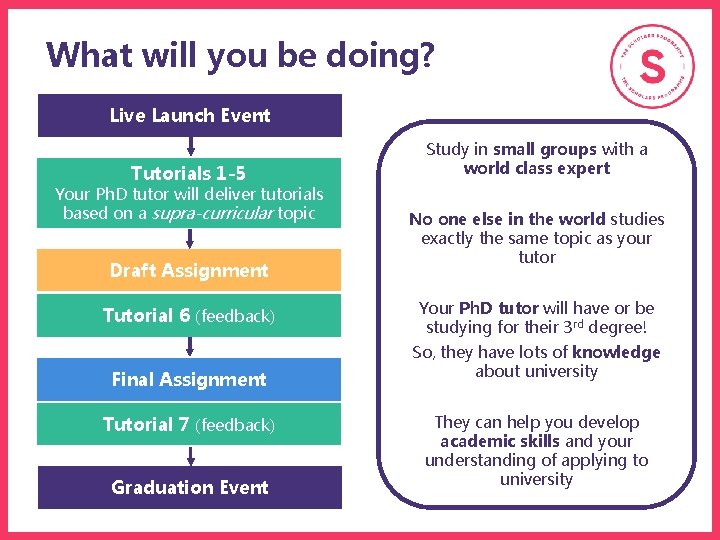
What will you be doing? Live Launch Event Tutorials 1 -5 Your Ph. D tutor will deliver tutorials based on a supra-curricular topic Draft Assignment Tutorial 6 (feedback) Final Assignment Tutorial 7 (feedback) Graduation Event Study in small groups with a world class expert No one else in the world studies exactly the same topic as your tutor Your Ph. D tutor will have or be studying for their 3 rd degree! So, they have lots of knowledge about university They can help you develop academic skills and your understanding of applying to university
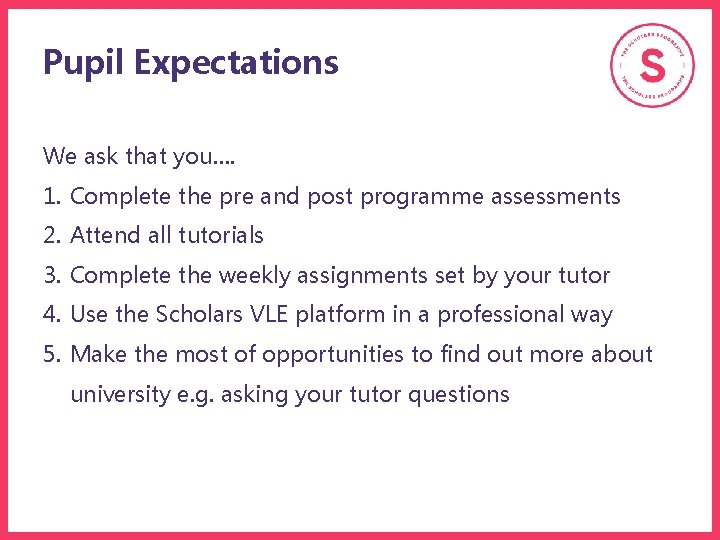
Pupil Expectations We ask that you…. 1. Complete the pre and post programme assessments 2. Attend all tutorials 3. Complete the weekly assignments set by your tutor 4. Use the Scholars VLE platform in a professional way 5. Make the most of opportunities to find out more about 100! university e. g. asking your tutor questions
Completing the Pre. Programme Assessment
What is the Pre-Programme Assessment? The pre-programme assessment aims to show us how you learn and feel about university and academic life. At the end of the programme, you will get to revisit these questions. These questions just ask you to rate your views and will only take about 15 minutes to complete. NOTE FOR YEAR 12 s: There will be a Data Protection Statement that appears for Year 12 pupils to complete as well.
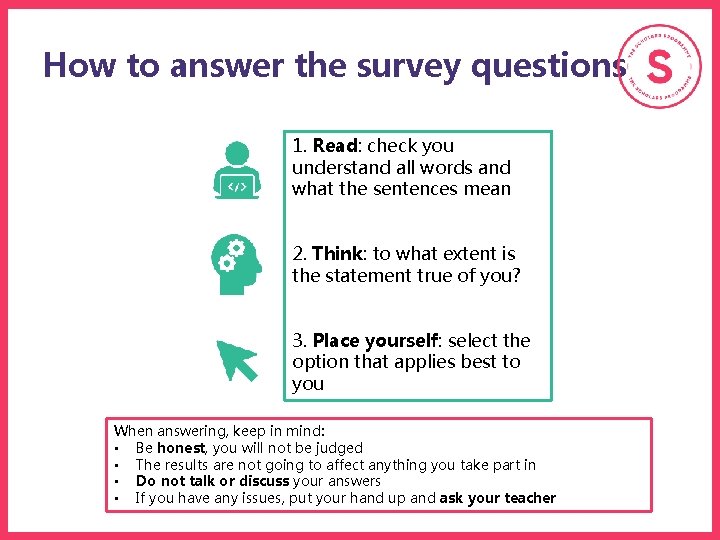
How to answer the survey questions 1. Read: check you understand all words and what the sentences mean 2. Think: to what extent is the statement true of you? 3. Place yourself: select the option that applies best to you When answering, keep in mind: • Be honest, you will not be judged • The results are not going to affect anything you take part in • Do not talk or discuss your answers • If you have any issues, put your hand up and ask your teacher
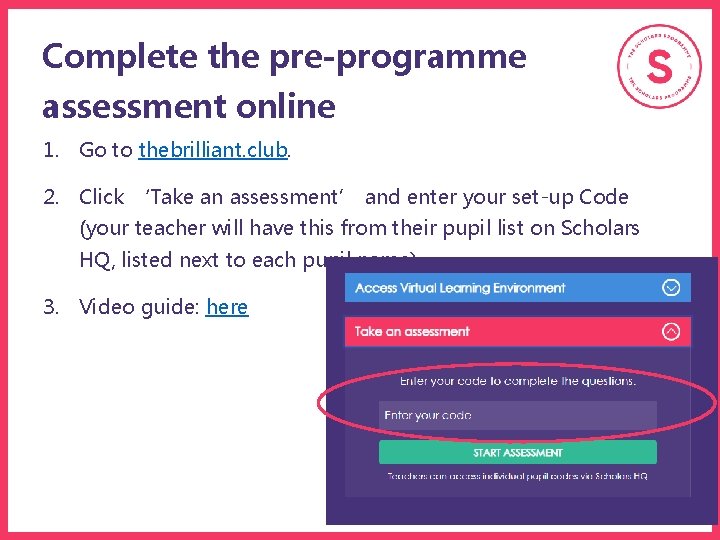
Complete the pre-programme assessment online 1. Go to thebrilliant. club. 2. Click ‘Take an assessment’ and enter your set-up Code (your teacher will have this from their pupil list on Scholars HQ, listed next to each pupil name) 3. Video guide: here
Final Page: Scholars VLE Login Once you have completed the questions on the pre-programme assessment, you will be directed back to thebrilliant. club to set-up your VLE account. You should make a note of your VLE email address, checking the spelling carefully, and then click the link to return to thebrilliant. club. The next slides explain the process for setting up your account and what the Scholars VLE is used for during the programme.
Scholars VLE (Virtual Learning Environment)
What is the Scholars VLE? You can find a video introducing you to the VLE here: https: //youtu. be/wztvg. UABz 1 I You will use it to: 1. Ask your tutor questions about your work throughout the week 2. Receive feedback and support from your tutor 3. Submit your baseline assignment, homework and final assignment You should be using this regularly throughout the placement.
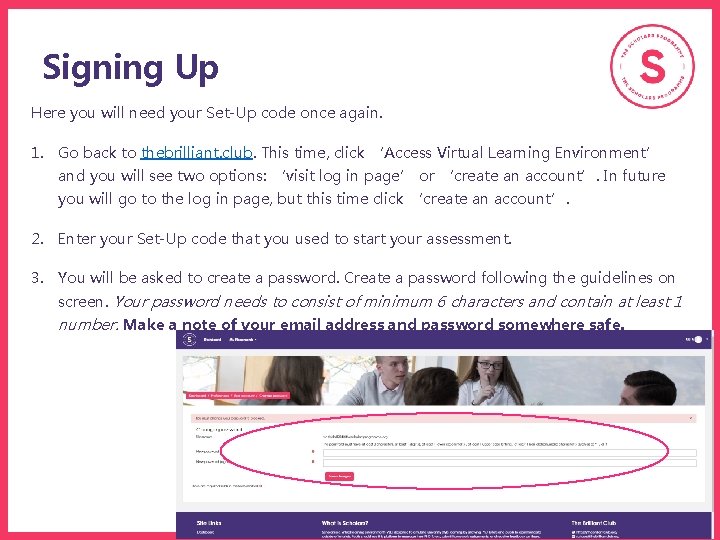
Signing Up Here you will need your Set-Up code once again. 1. Go back to thebrilliant. club. This time, click ‘Access Virtual Learning Environment’ and you will see two options: ‘visit log in page’ or ‘create an account’. In future you will go to the log in page, but this time click ‘create an account’. 2. Enter your Set-Up code that you used to start your assessment. 3. You will be asked to create a password. Create a password following the guidelines on screen. Your password needs to consist of minimum 6 characters and contain at least 1 number. Make a note of your email address and password somewhere safe.
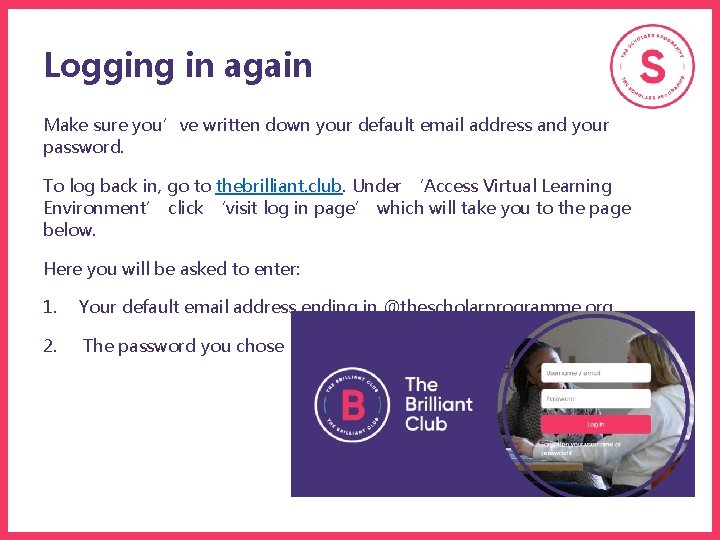
Logging in again Make sure you’ve written down your default email address and your password. To log back in, go to thebrilliant. club. Under ‘Access Virtual Learning Environment’ click ‘visit log in page’ which will take you to the page below. Here you will be asked to enter: 1. Your default email address ending in @thescholarprogramme. org 2. The password you chose
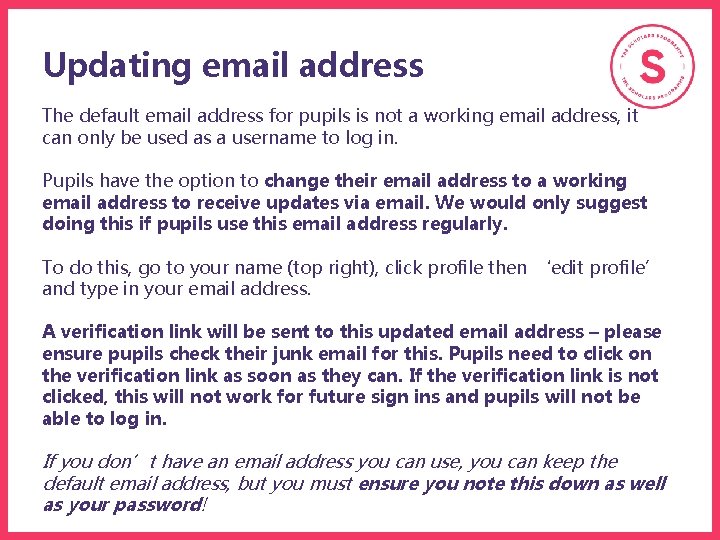
Updating email address The default email address for pupils is not a working email address, it can only be used as a username to log in. Pupils have the option to change their email address to a working email address to receive updates via email. We would only suggest doing this if pupils use this email address regularly. To do this, go to your name (top right), click profile then ‘edit profile’ and type in your email address. A verification link will be sent to this updated email address – please ensure pupils check their junk email for this. Pupils need to click on the verification link as soon as they can. If the verification link is not clicked, this will not work for future sign ins and pupils will not be able to log in. If you don’t have an email address you can use, you can keep the default email address, but you must ensure you note this down as well as your password!
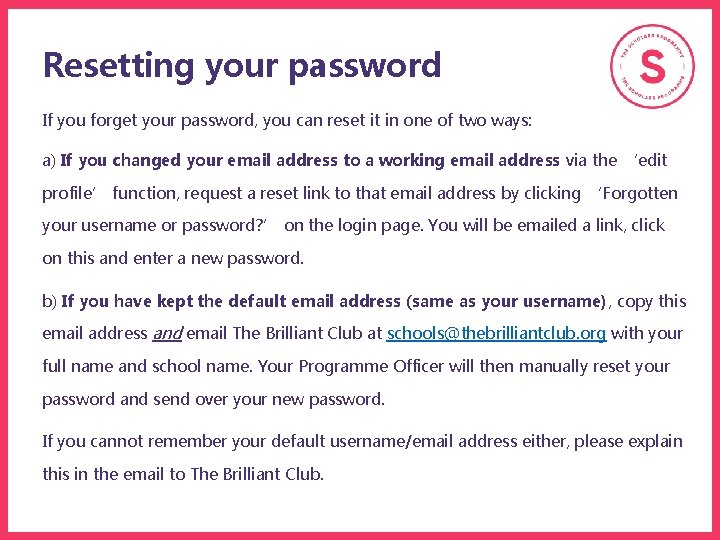
Resetting your password If you forget your password, you can reset it in one of two ways: a) If you changed your email address to a working email address via the ‘edit profile’ function, request a reset link to that email address by clicking ‘Forgotten your username or password? ’ on the login page. You will be emailed a link, click on this and enter a new password. b) If you have kept the default email address (same as your username), copy this email address and email The Brilliant Club at schools@thebrilliantclub. org with your full name and school name. Your Programme Officer will then manually reset your password and send over your new password. If you cannot remember your default username/email address either, please explain this in the email to The Brilliant Club.
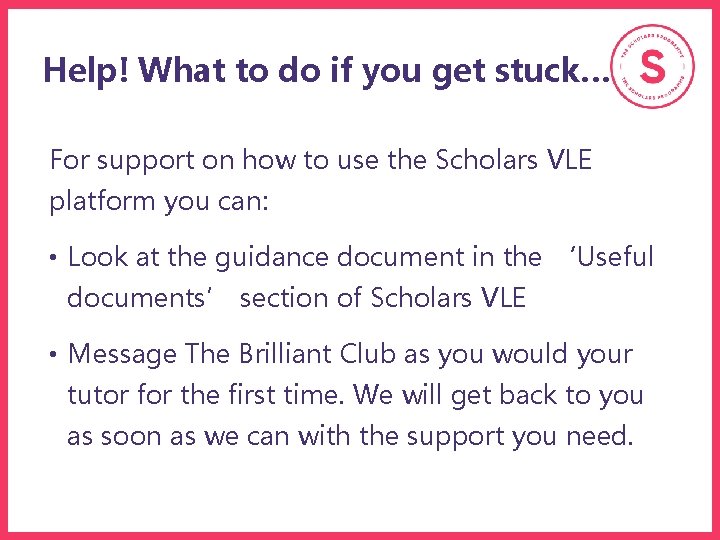
Help! What to do if you get stuck… For support on how to use the Scholars VLE platform you can: • Look at the guidance document in the ‘Useful documents’ section of Scholars VLE • Message The Brilliant Club as you would your tutor for the first time. We will get back to you as soon as we can with the support you need.
Video Guides Your next steps should be to send a message to your tutor and familiarise yourself with the VLE. We are delighted to share video guides for pupils on how to use different aspects of the VLE. The full playlist of videos can be found here or please click the links below to watch: • How to message your tutor on the VLE: https: //youtu. be/hhcx. Cgb. JLC 0 • How to submit assignments and see your feedback: https: //youtu. be/PDzd. FQ 8 bo. Sw • How to find useful documents on the VLE and what these are: https: //youtu. be/A 6 MHw. WIJ_F 8 • How to join online tutorials via the VLE (if applicable) – • Zoom: https: //youtu. be/MX 5 xtn. PLsi. M • Teams: https: //youtu. be/Jcl. G 1 r 4 Ka. Xo
www. brilliantclub. org