
Getting Access to GEMSMARS 1 GEMSMARS Access Welcome
- Slides: 12
Getting Access to GEMS/MARS 1
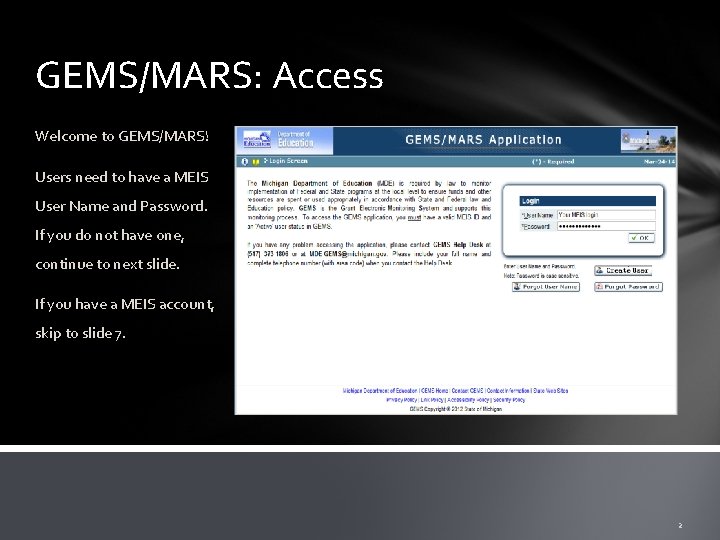
GEMS/MARS: Access Welcome to GEMS/MARS! Users need to have a MEIS User Name and Password. If you do not have one, continue to next slide. If you have a MEIS account, skip to slide 7. 2
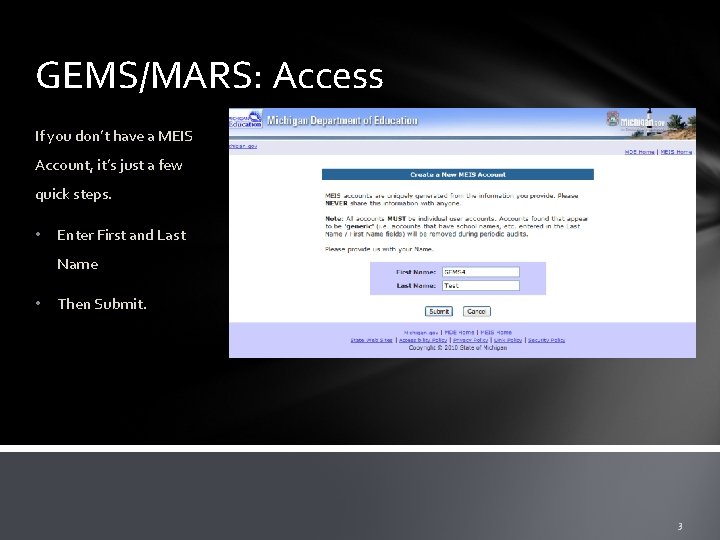
GEMS/MARS: Access If you don’t have a MEIS Account, it’s just a few quick steps. • Enter First and Last Name • Then Submit. 3
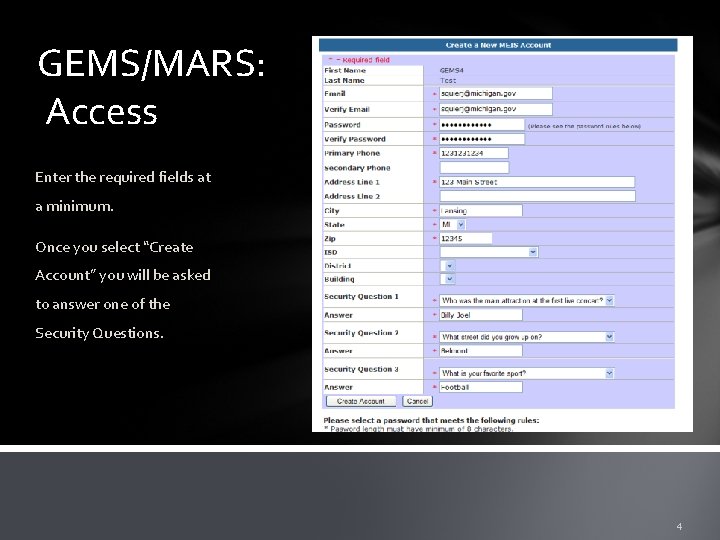
GEMS/MARS: Access Enter the required fields at a minimum. Once you select “Create Account” you will be asked to answer one of the Security Questions. 4
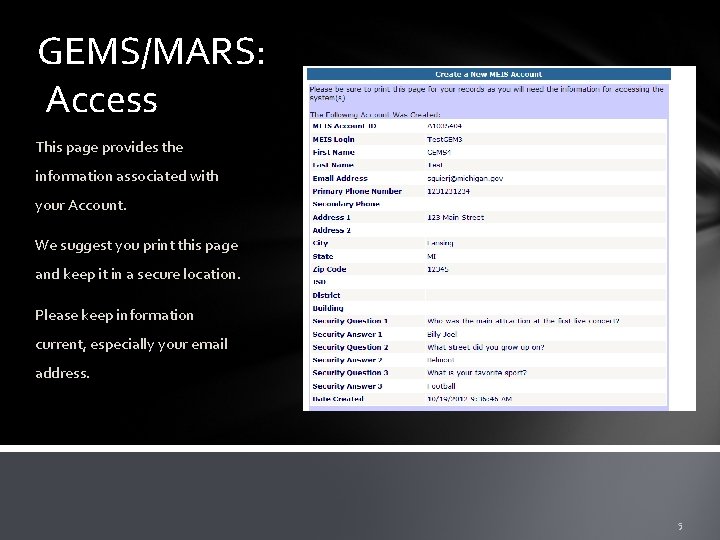
GEMS/MARS: Access This page provides the information associated with your Account. We suggest you print this page and keep it in a secure location. Please keep information current, especially your email address. 5
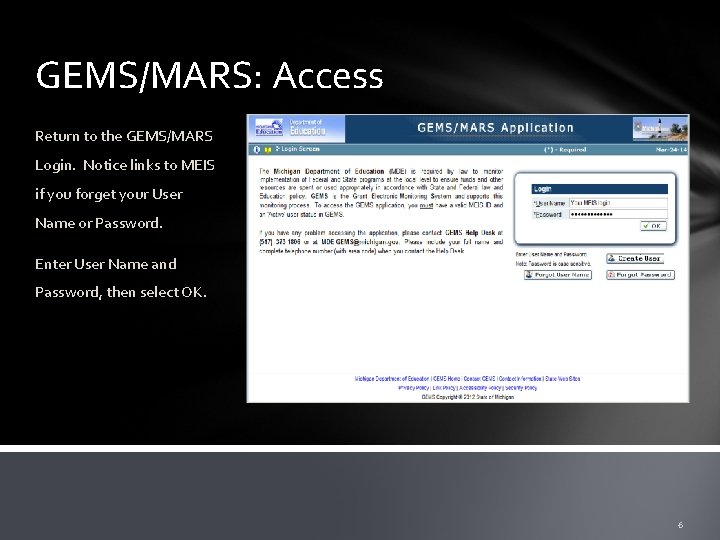
GEMS/MARS: Access Return to the GEMS/MARS Login. Notice links to MEIS if you forget your User Name or Password. Enter User Name and Password, then select OK. 6
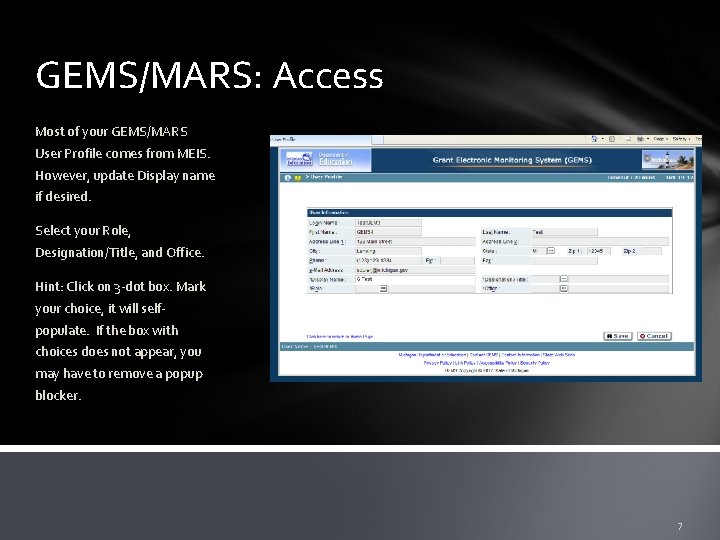
GEMS/MARS: Access Most of your GEMS/MARS User Profile comes from MEIS. However, update Display name if desired. Select your Role, Designation/Title, and Office. Hint: Click on 3 -dot box. Mark your choice, it will selfpopulate. If the box with choices does not appear, you may have to remove a popup blocker. 7
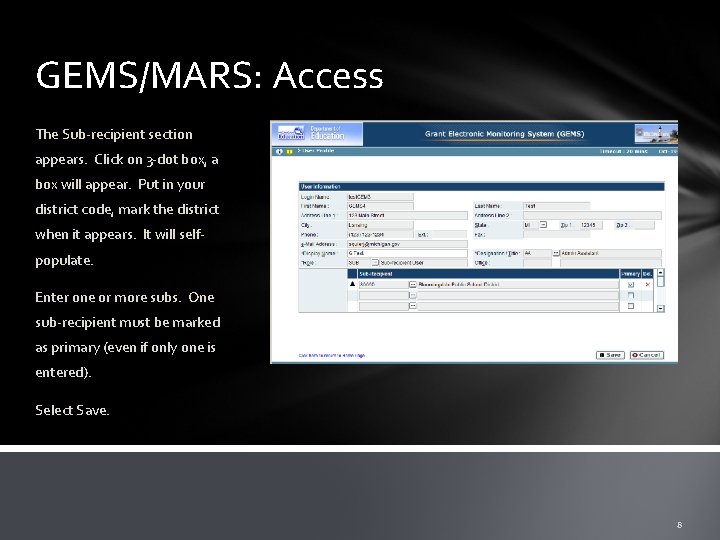
GEMS/MARS: Access The Sub-recipient section appears. Click on 3 -dot box, a box will appear. Put in your district code, mark the district when it appears. It will selfpopulate. Enter one or more subs. One sub-recipient must be marked as primary (even if only one is entered). Select Save. 8
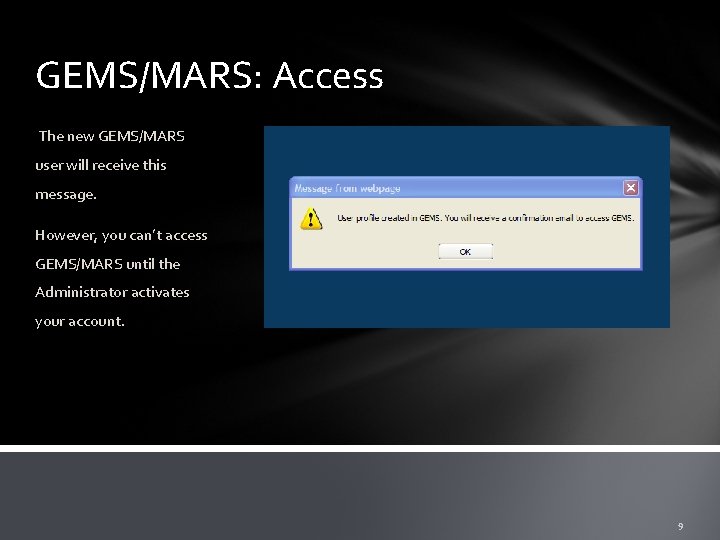
GEMS/MARS: Access The new GEMS/MARS user will receive this message. However, you can’t access GEMS/MARS until the Administrator activates your account. 9
GEMS/MARS: Access If you are to be given security to be a Sub-Recipient Administrator, fill out the Security Authorization Form for Sub-Recipient Administrators at www. michigan. gov/GEMS/MARS. The form must be signed by the district superintendent or Chief Operating Officer, and your profile must be completed for access. Fax your form to 517 -241 -0496. If you are to be given security to be a Sub-Recipient User, please contact your district’s Sub. Recipient Administrator for access. Two Sub-Recipient Administrators are allowed by MDE per district. 10
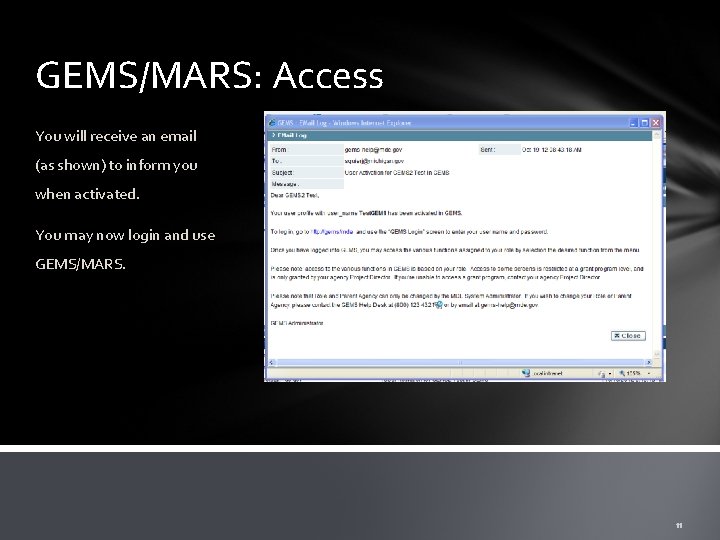
GEMS/MARS: Access You will receive an email (as shown) to inform you when activated. You may now login and use GEMS/MARS. 11
GEMS/MARS: Access Ø Links To GEMS/MARS login screen: • • https: //mdoe. state. mi. us/GEMS/ To GEMS/MARS website: • • http: //michigan. gov/gems-mars To MEIS login screen: • https: //cepi. state. mi. us/MEIS/login. aspx Ø Contact Us • By Email: MDE-GEMS@michigan. gov • By phone: (517) 373 -1806 12