
Get Virtual Box Setup 1 Go to www
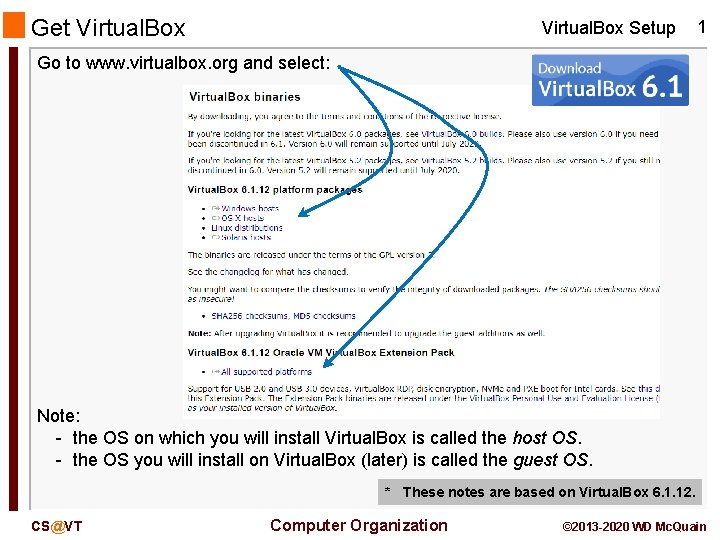
Get Virtual. Box Setup 1 Go to www. virtualbox. org and select: Note: - the OS on which you will install Virtual. Box is called the host OS. - the OS you will install on Virtual. Box (later) is called the guest OS. * These notes are based on Virtual. Box 6. 1. 12. CS@VT Computer Organization © 2013 -2020 WD Mc. Quain
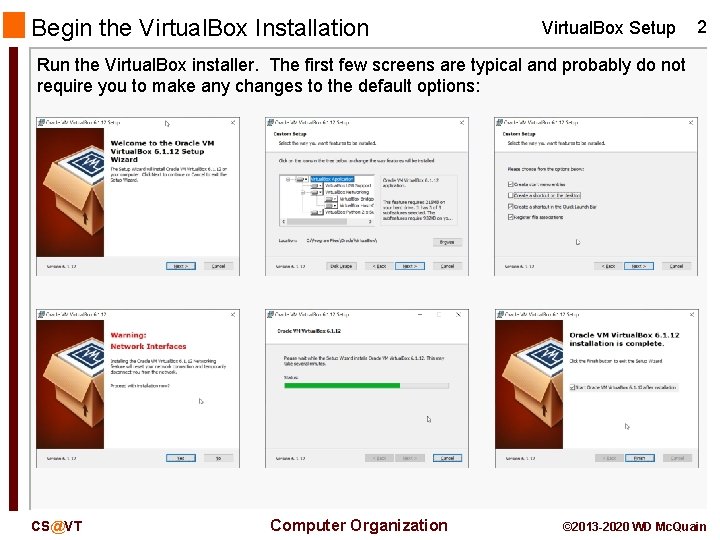
Begin the Virtual. Box Installation Virtual. Box Setup 2 Run the Virtual. Box installer. The first few screens are typical and probably do not require you to make any changes to the default options: CS@VT Computer Organization © 2013 -2020 WD Mc. Quain
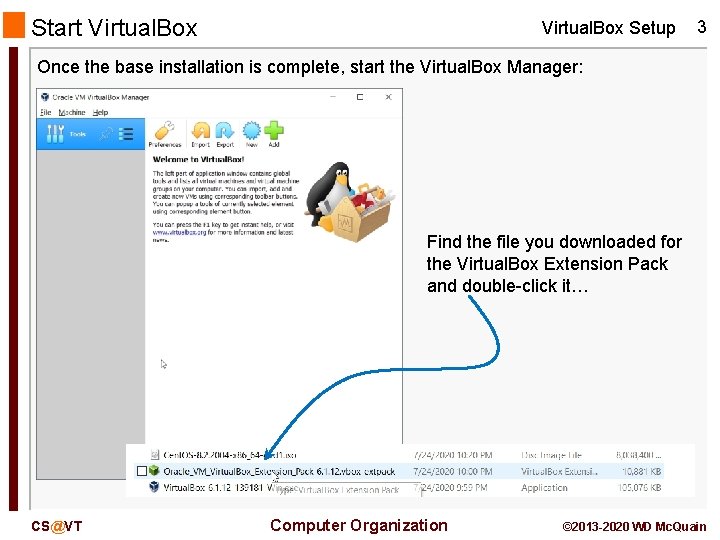
Start Virtual. Box Setup 3 Once the base installation is complete, start the Virtual. Box Manager: Find the file you downloaded for the Virtual. Box Extension Pack and double-click it… CS@VT Computer Organization © 2013 -2020 WD Mc. Quain

Install the Virtual. Box Extensions Virtual. Box Setup 4 Authorize the installation… … accept the license … CS@VT . . . and wait for … Computer Organization © 2013 -2020 WD Mc. Quain
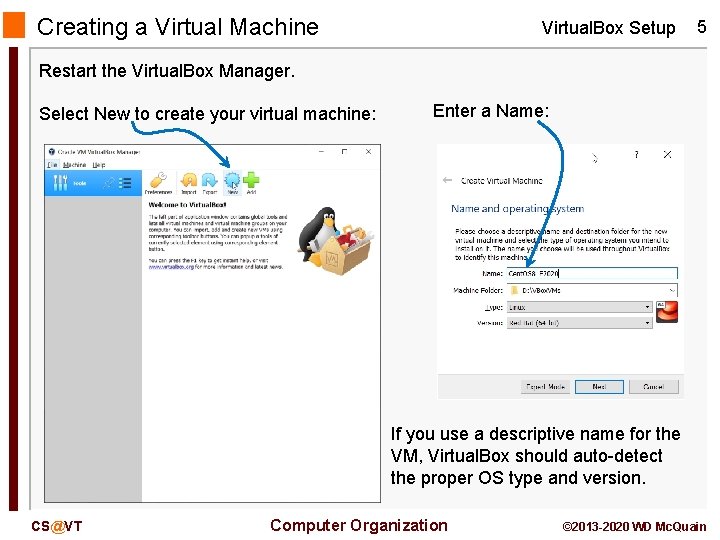
Creating a Virtual Machine Virtual. Box Setup 5 Restart the Virtual. Box Manager. Select New to create your virtual machine: Enter a Name: If you use a descriptive name for the VM, Virtual. Box should auto-detect the proper OS type and version. CS@VT Computer Organization © 2013 -2020 WD Mc. Quain
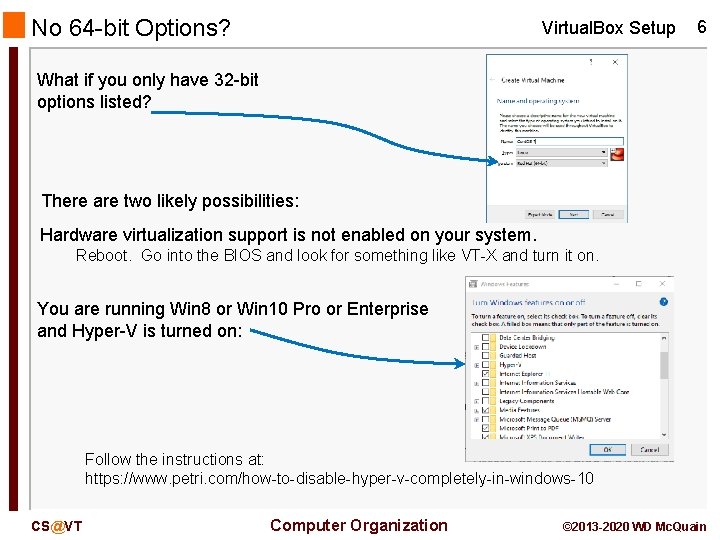
No 64 -bit Options? Virtual. Box Setup 6 What if you only have 32 -bit options listed? There are two likely possibilities: Hardware virtualization support is not enabled on your system. Reboot. Go into the BIOS and look for something like VT-X and turn it on. You are running Win 8 or Win 10 Pro or Enterprise and Hyper-V is turned on: Follow the instructions at: https: //www. petri. com/how-to-disable-hyper-v-completely-in-windows-10 CS@VT Computer Organization © 2013 -2020 WD Mc. Quain
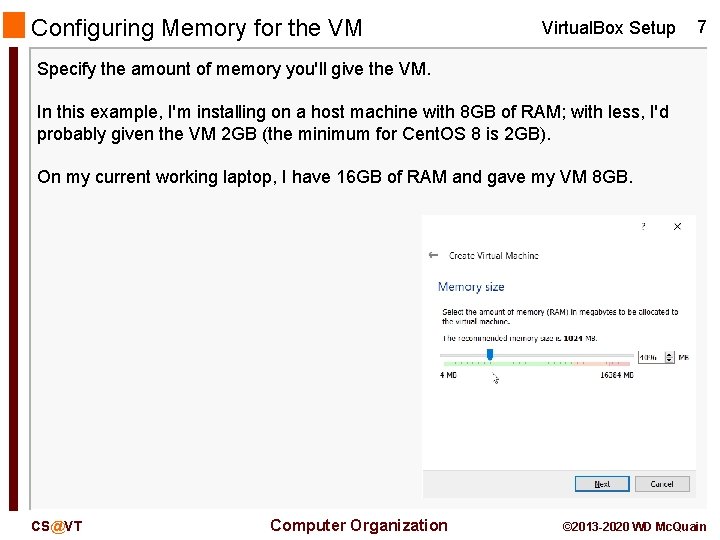
Configuring Memory for the VM Virtual. Box Setup 7 Specify the amount of memory you'll give the VM. In this example, I'm installing on a host machine with 8 GB of RAM; with less, I'd probably given the VM 2 GB (the minimum for Cent. OS 8 is 2 GB). On my current working laptop, I have 16 GB of RAM and gave my VM 8 GB. CS@VT Computer Organization © 2013 -2020 WD Mc. Quain
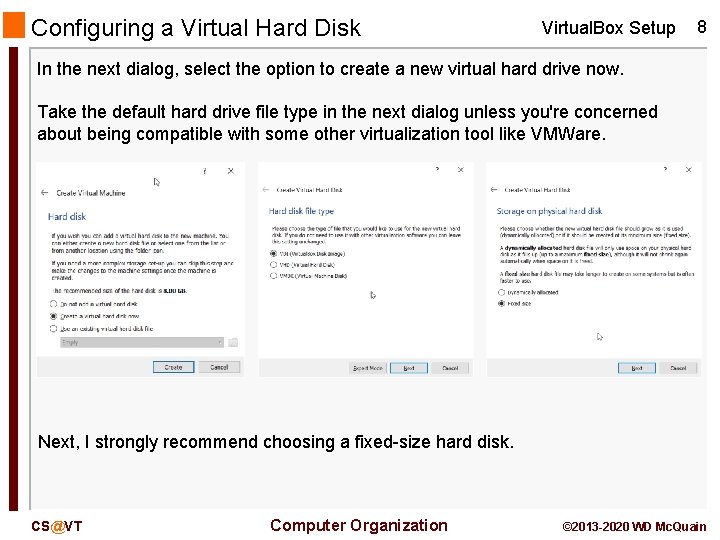
Configuring a Virtual Hard Disk Virtual. Box Setup 8 In the next dialog, select the option to create a new virtual hard drive now. Take the default hard drive file type in the next dialog unless you're concerned about being compatible with some other virtualization tool like VMWare. Next, I strongly recommend choosing a fixed-size hard disk. CS@VT Computer Organization © 2013 -2020 WD Mc. Quain
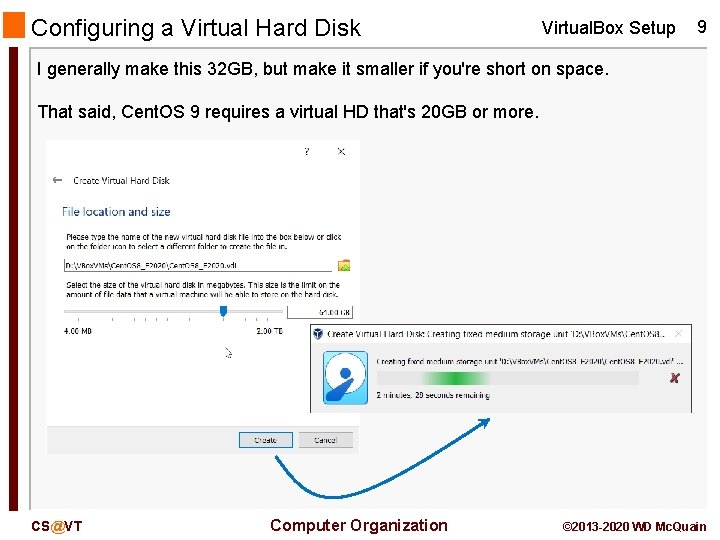
Configuring a Virtual Hard Disk Virtual. Box Setup 9 I generally make this 32 GB, but make it smaller if you're short on space. That said, Cent. OS 9 requires a virtual HD that's 20 GB or more. CS@VT Computer Organization © 2013 -2020 WD Mc. Quain
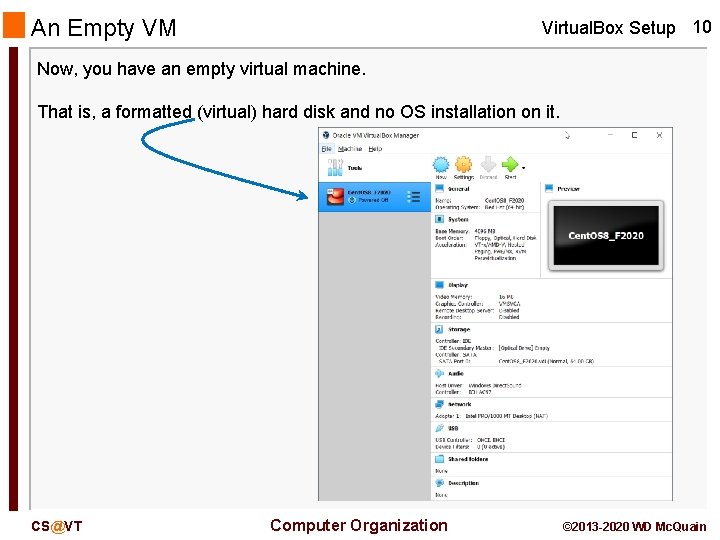
An Empty VM Virtual. Box Setup 10 Now, you have an empty virtual machine. That is, a formatted (virtual) hard disk and no OS installation on it. CS@VT Computer Organization © 2013 -2020 WD Mc. Quain
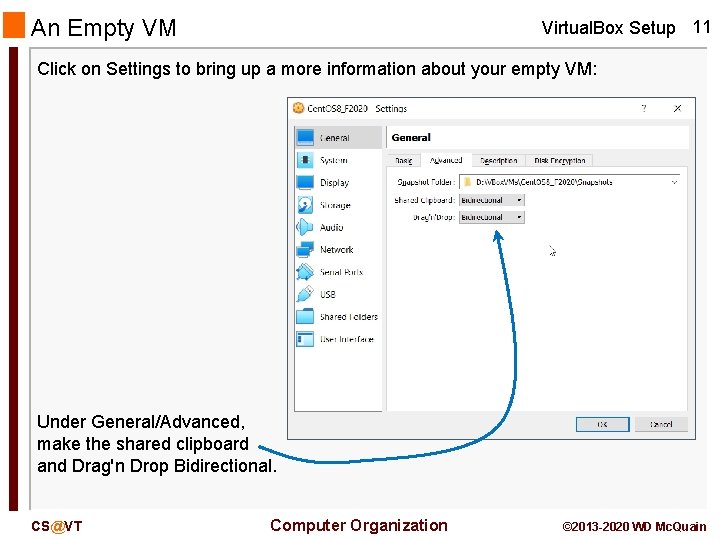
An Empty VM Virtual. Box Setup 11 Click on Settings to bring up a more information about your empty VM: Under General/Advanced, make the shared clipboard and Drag'n Drop Bidirectional. CS@VT Computer Organization © 2013 -2020 WD Mc. Quain
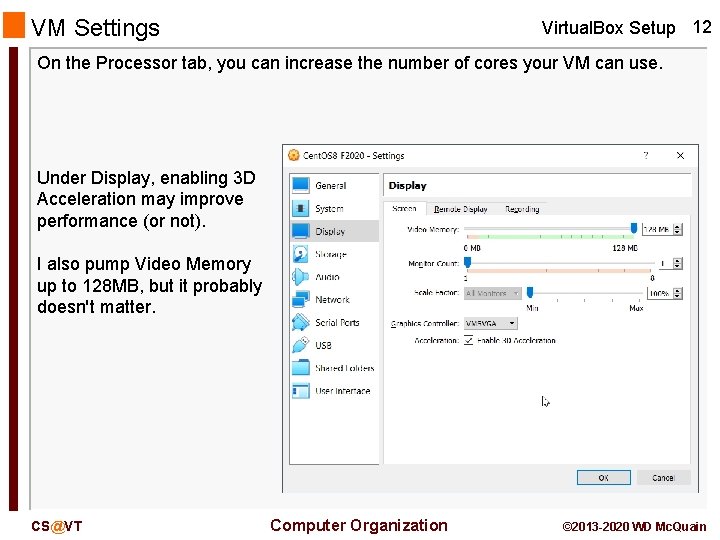
VM Settings Virtual. Box Setup 12 On the Processor tab, you can increase the number of cores your VM can use. Under Display, enabling 3 D Acceleration may improve performance (or not). I also pump Video Memory up to 128 MB, but it probably doesn't matter. CS@VT Computer Organization © 2013 -2020 WD Mc. Quain
Halfway There… Virtual. Box Setup 13 So… You've got an empty VM, but sensibly configured. Now you need to install a Cent. OS into your empty VM… CS@VT Computer Organization © 2013 -2020 WD Mc. Quain
- Slides: 13