
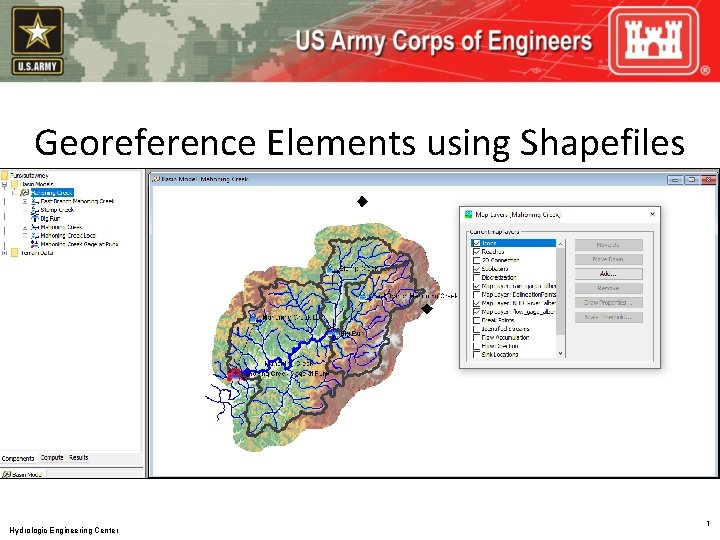
Georeference Elements using Shapefiles Hydrologic Engineering Center 1
- Slides: 11
Georeference Elements using Shapefiles Hydrologic Engineering Center 1
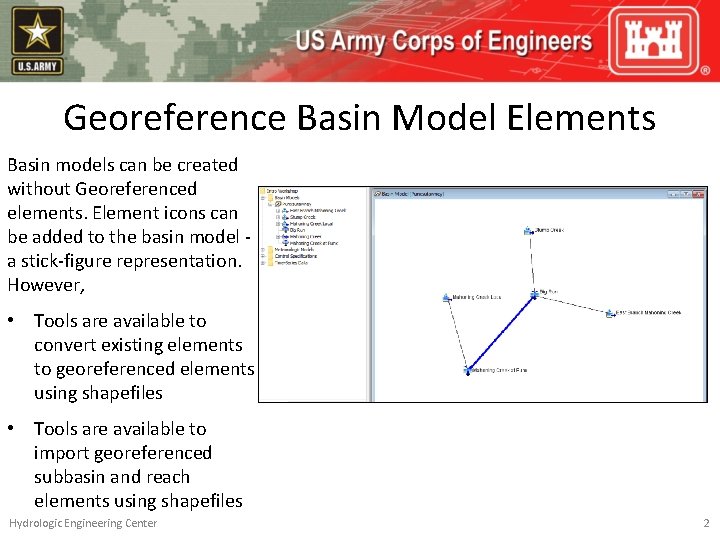
Georeference Basin Model Elements Basin models can be created without Georeferenced elements. Element icons can be added to the basin model a stick-figure representation. However, • Tools are available to convert existing elements to georeferenced elements using shapefiles • Tools are available to import georeferenced subbasin and reach elements using shapefiles Hydrologic Engineering Center 2
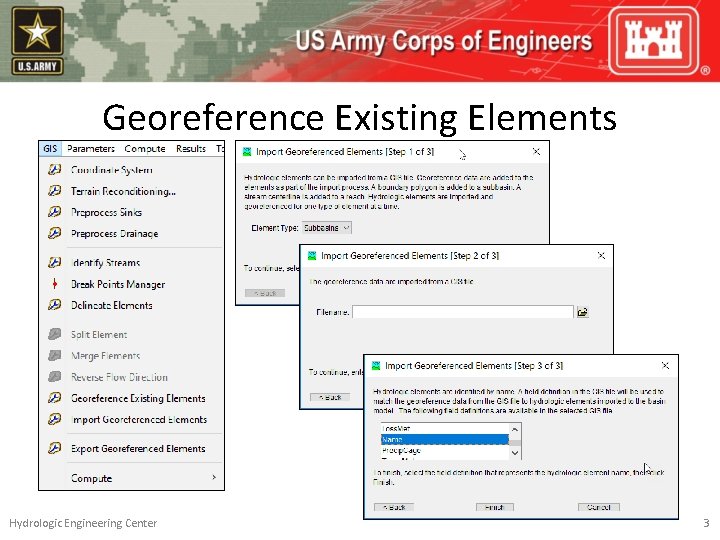
Georeference Existing Elements Hydrologic Engineering Center 3
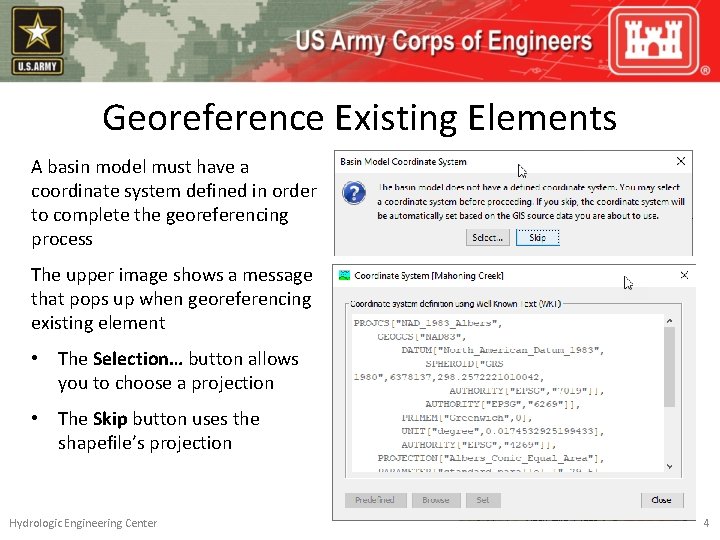
Georeference Existing Elements A basin model must have a coordinate system defined in order to complete the georeferencing process The upper image shows a message that pops up when georeferencing existing element • The Selection… button allows you to choose a projection • The Skip button uses the shapefile’s projection Hydrologic Engineering Center 4
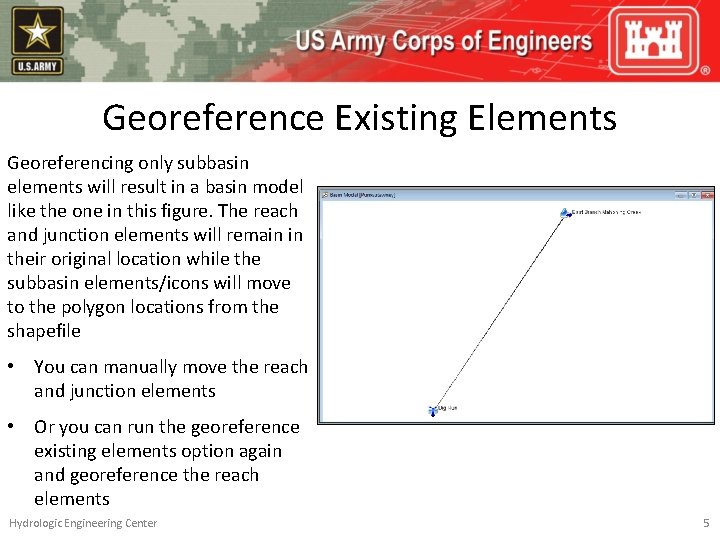
Georeference Existing Elements Georeferencing only subbasin elements will result in a basin model like the one in this figure. The reach and junction elements will remain in their original location while the subbasin elements/icons will move to the polygon locations from the shapefile • You can manually move the reach and junction elements • Or you can run the georeference existing elements option again and georeference the reach elements Hydrologic Engineering Center 5
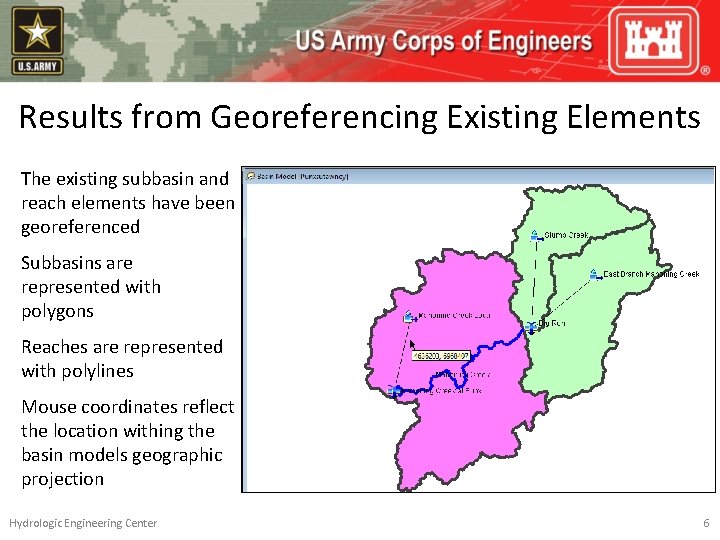
Results from Georeferencing Existing Elements The existing subbasin and reach elements have been georeferenced Subbasins are represented with polygons Reaches are represented with polylines Mouse coordinates reflect the location withing the basin models geographic projection Hydrologic Engineering Center 6
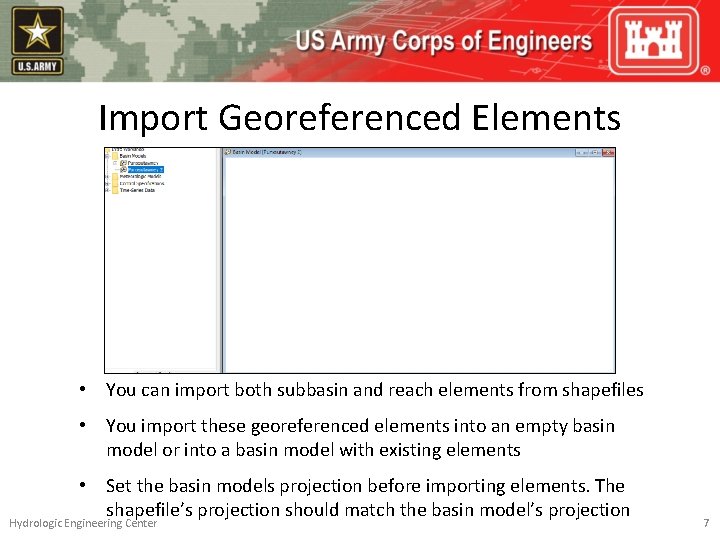
Import Georeferenced Elements • You can import both subbasin and reach elements from shapefiles • You import these georeferenced elements into an empty basin model or into a basin model with existing elements • Set the basin models projection before importing elements. The shapefile’s projection should match the basin model’s projection Hydrologic Engineering Center 7
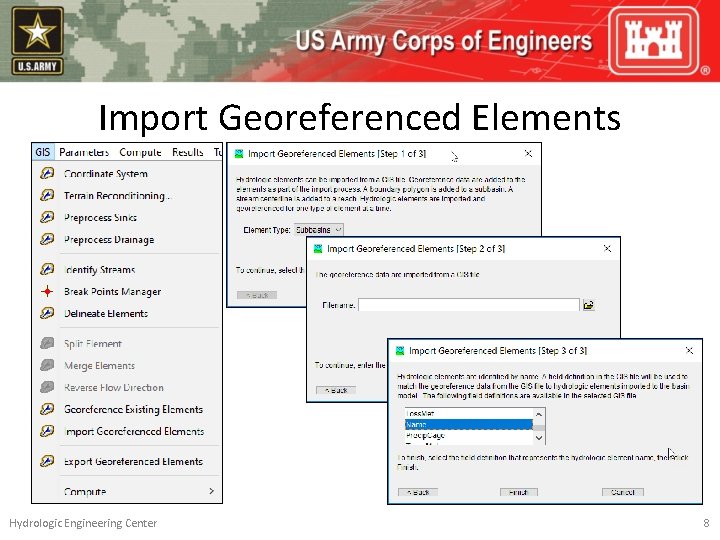
Import Georeferenced Elements Hydrologic Engineering Center 8
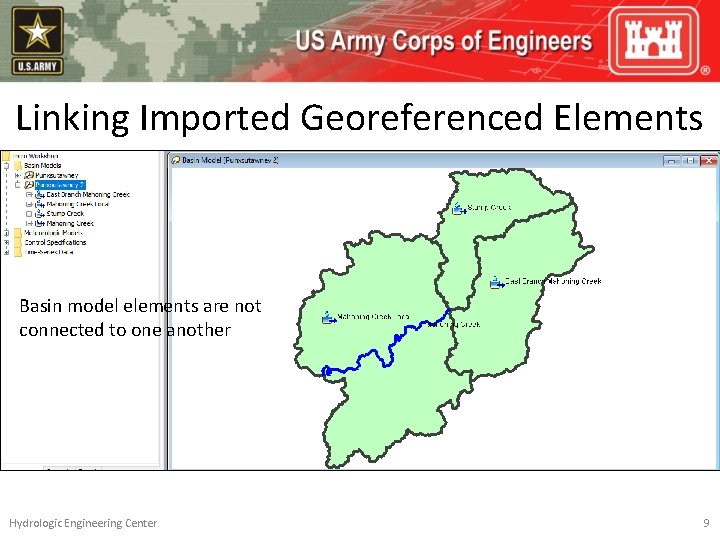
Linking Imported Georeferenced Elements Basin model elements are not connected to one another Hydrologic Engineering Center 9
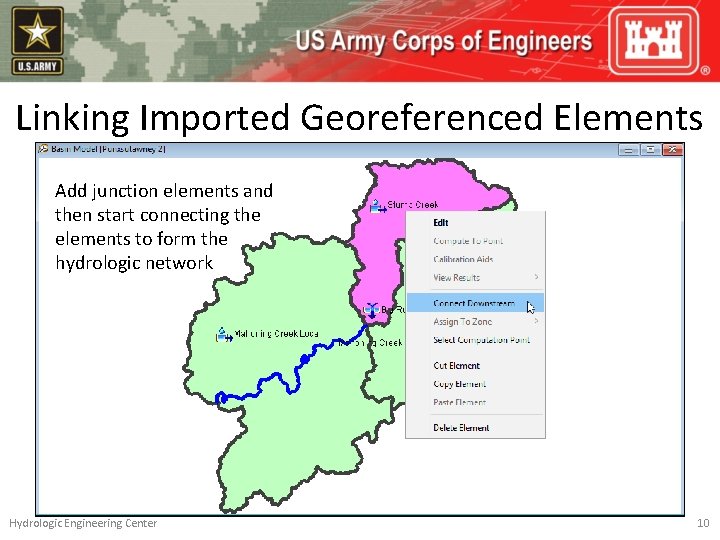
Linking Imported Georeferenced Elements Add junction elements and then start connecting the elements to form the hydrologic network Hydrologic Engineering Center 10
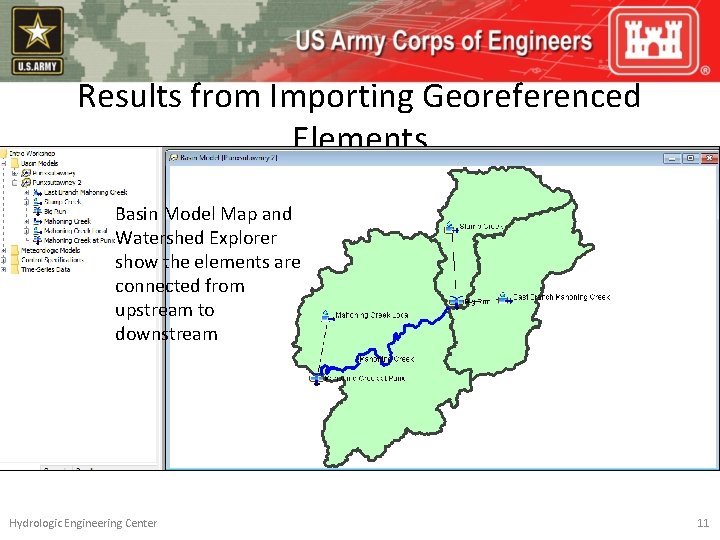
Results from Importing Georeferenced Elements Basin Model Map and Watershed Explorer show the elements are connected from upstream to downstream Hydrologic Engineering Center 11