
Geographic Information Systems Applications in Natural Resource Management
- Slides: 24
Geographic Information Systems Applications in Natural Resource Management Chapter 9 Associating Spatial and Non-spatial Databases Michael G. Wing & Pete Bettinger
Chapter 9 Objectives n n How two or more databases can be temporarily combined without creating a new database, modifying a database table, or modifying landscape features; What types of GIS processes are available when there is a need to associate data from different sources; How non-spatial data can be associated with spatial databases, and how data from one spatial database can be associated with data of another spatial database; and What it means to relate (link) two tables, and how this process is different than joining databases.
Join and relate processes n n n Processes introduced in chapters 6 -8 introduced operations (e. g erase, clip, buffer, combine) that led to the creation of a new and permanent database Join and relate brings spatial and nonspatial databases together in a temporary manner that doesn’t alter the original structures of the databases involved The goal of both join and relate is to illustrate the data from two databases from the perspective of a single database ¨ Data from two sources is being brought together
Join and relate definitions n n n The join and relate processes both require that a common attribute be present in both databases, or in the case of a spatial join, that a spatial relationship is identifiable between spatial features When two databases are joined, the visual affect is as if the databases are physically joined (they appear as one database) When two databases are related, no physical link appears to exist yet records selected in one of the databases (either through attribute or spatial queries) will also selected in the linked database
Join and relate definitions n n n The source database represents the database that will be associated with another database (the data that will be joined) The destination or target database is the data location where a source database will be associated (the data that will have something added) The join item or join field is the common attribute between databases that will guide record or spatial entity matching
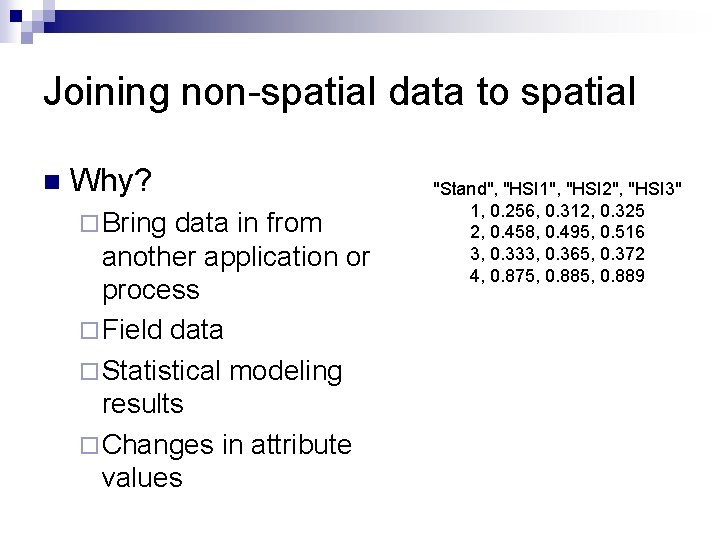
Joining non-spatial data to spatial n Why? ¨ Bring data in from another application or process ¨ Field data ¨ Statistical modeling results ¨ Changes in attribute values "Stand", "HSI 1", "HSI 2", "HSI 3" 1, 0. 256, 0. 312, 0. 325 2, 0. 458, 0. 495, 0. 516 3, 0. 333, 0. 365, 0. 372 4, 0. 875, 0. 889
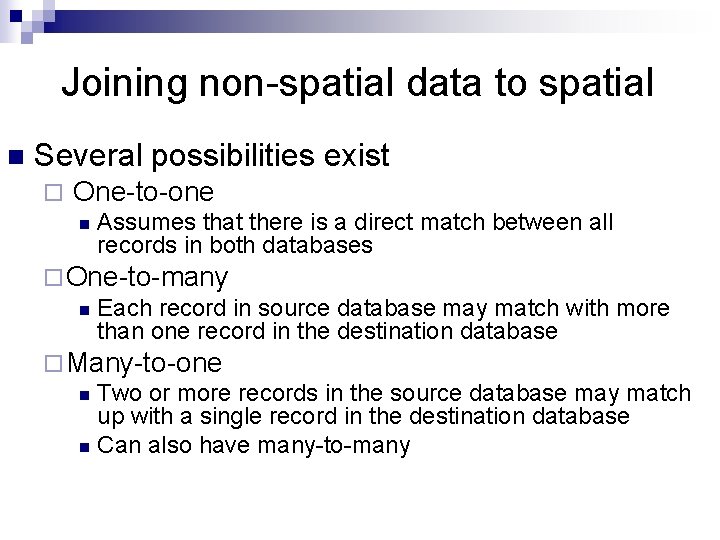
Joining non-spatial data to spatial n Several possibilities exist ¨ One-to-one n Assumes that there is a direct match between all records in both databases ¨ One-to-many n Each record in source database may match with more than one record in the destination database ¨ Many-to-one n Two or more records in the source database may match up with a single record in the destination database n Can also have many-to-many
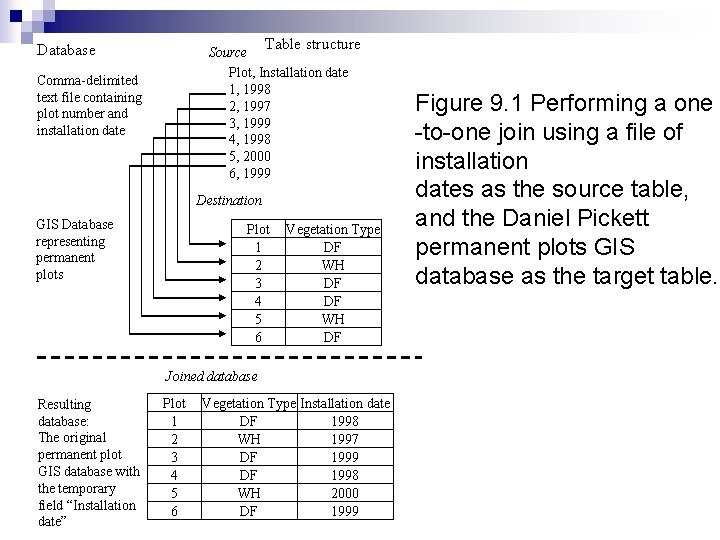
Table structure Database Source Plot, Installation date 1, 1998 2, 1997 3, 1999 4, 1998 5, 2000 6, 1999 Comma-delimited text file containing plot number and installation date Destination GIS Database representing permanent plots Plot 1 2 3 4 5 6 Vegetation Type DF WH DF Joined database Resulting database: The original permanent plot GIS database with the temporary field “Installation date” Plot 1 2 3 4 5 6 Vegetation Type Installation date DF 1998 WH 1997 DF 1999 DF 1998 WH 2000 DF 1999 Figure 9. 1 Performing a one -to-one join using a file of installation dates as the source table, and the Daniel Pickett permanent plots GIS database as the target table.
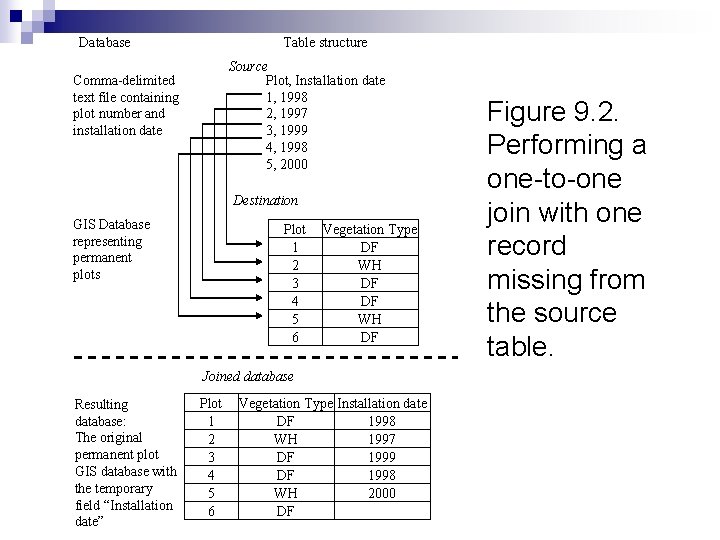
Database Table structure Source Plot, Installation date 1, 1998 2, 1997 3, 1999 4, 1998 5, 2000 Comma-delimited text file containing plot number and installation date Destination GIS Database representing permanent plots Plot 1 2 3 4 5 6 Vegetation Type DF WH DF Joined database Resulting database: The original permanent plot GIS database with the temporary field “Installation date” Plot 1 2 3 4 5 6 Vegetation Type Installation date DF 1998 WH 1997 DF 1999 DF 1998 WH 2000 DF Figure 9. 2. Performing a one-to-one join with one record missing from the source table.
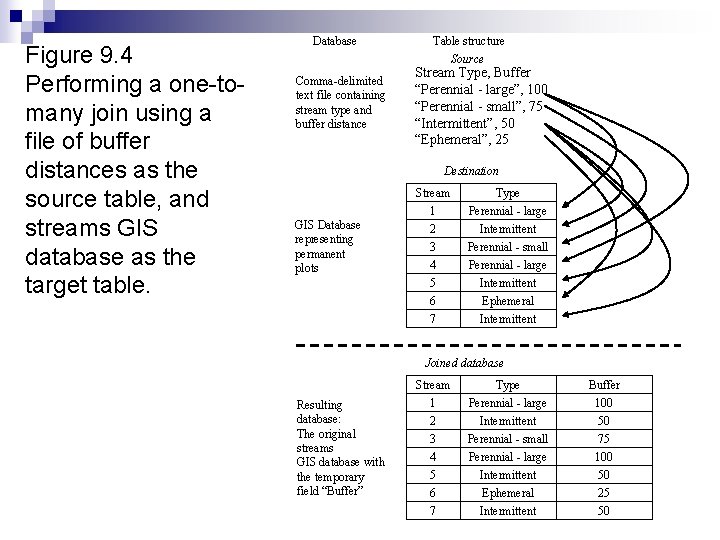
Figure 9. 4 Performing a one-tomany join using a file of buffer distances as the source table, and streams GIS database as the target table. Database Comma-delimited text file containing stream type and buffer distance Table structure Source Stream Type, Buffer “Perennial - large”, 100 “Perennial - small”, 75 “Intermittent”, 50 “Ephemeral”, 25 Destination GIS Database representing permanent plots Stream 1 2 3 4 5 6 7 Type Perennial - large Intermittent Perennial - small Perennial - large Intermittent Ephemeral Intermittent Joined database Resulting database: The original streams GIS database with the temporary field “Buffer” Stream 1 2 3 4 5 6 7 Type Perennial - large Intermittent Perennial - small Perennial - large Intermittent Ephemeral Intermittent Buffer 100 50 75 100 50 25 50
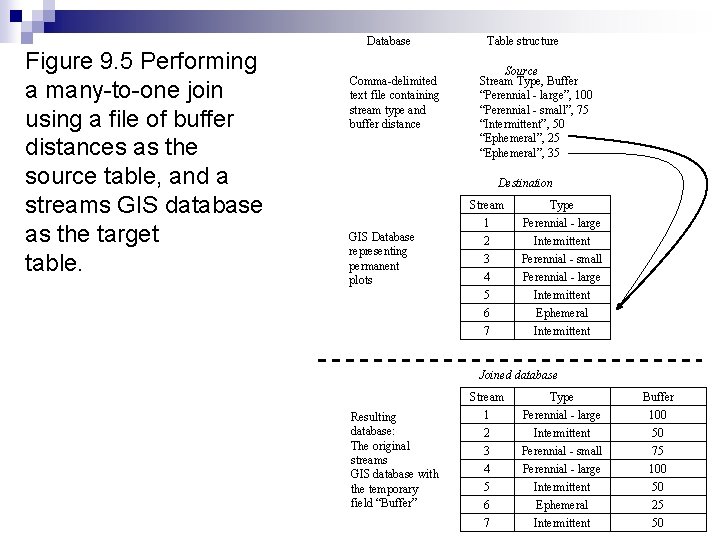
Figure 9. 5 Performing a many-to-one join using a file of buffer distances as the source table, and a streams GIS database as the target table. Database Comma-delimited text file containing stream type and buffer distance Table structure Source Stream Type, Buffer “Perennial - large”, 100 “Perennial - small”, 75 “Intermittent”, 50 “Ephemeral”, 25 “Ephemeral”, 35 Destination GIS Database representing permanent plots Stream 1 2 3 4 5 6 7 Type Perennial - large Intermittent Perennial - small Perennial - large Intermittent Ephemeral Intermittent Joined database Resulting database: The original streams GIS database with the temporary field “Buffer” Stream 1 2 3 4 5 6 7 Type Perennial - large Intermittent Perennial - small Perennial - large Intermittent Ephemeral Intermittent Buffer 100 50 75 100 50 25 50
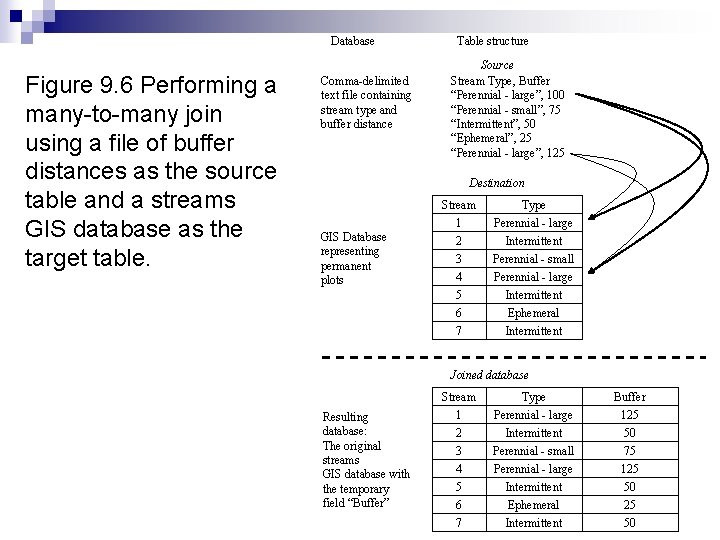
Database Figure 9. 6 Performing a many-to-many join using a file of buffer distances as the source table and a streams GIS database as the target table. Comma-delimited text file containing stream type and buffer distance Table structure Source Stream Type, Buffer “Perennial - large”, 100 “Perennial - small”, 75 “Intermittent”, 50 “Ephemeral”, 25 “Perennial - large”, 125 Destination GIS Database representing permanent plots Stream 1 2 3 4 5 6 7 Type Perennial - large Intermittent Perennial - small Perennial - large Intermittent Ephemeral Intermittent Joined database Resulting database: The original streams GIS database with the temporary field “Buffer” Stream 1 2 3 4 5 6 7 Type Perennial - large Intermittent Perennial - small Perennial - large Intermittent Ephemeral Intermittent Buffer 125 50 75 125 50
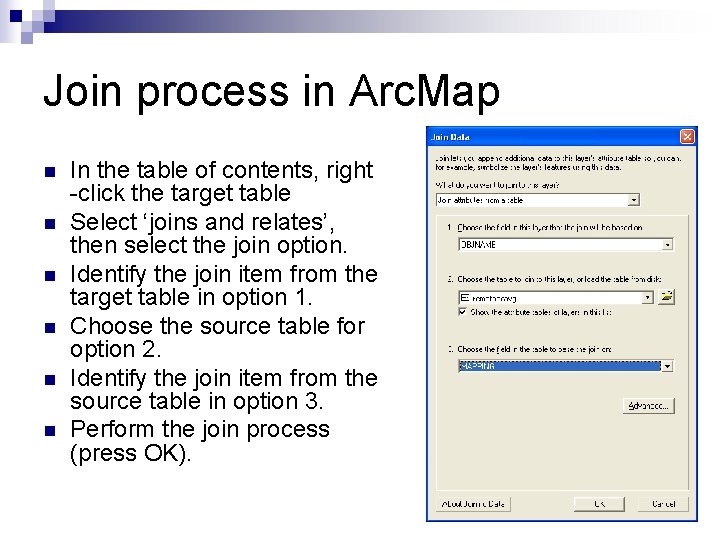
Join process in Arc. Map n n n In the table of contents, right -click the target table Select ‘joins and relates’, then select the join option. Identify the join item from the target table in option 1. Choose the source table for option 2. Identify the join item from the source table in option 3. Perform the join process (press OK).
Joining two GIS databases spatially n n With spatial joins, the objective is to use the spatial locations of database features to guide database associations This is a powerful GIS capability that typically goes unused In some packages (Arc. Map), a new layer is created from a spatial join Some limitations for the type of features (point, line, or polygon) that can be spatially joined ¨ Can’t perform a nearest feature operation on two polygon databases ¨ See table 9. 2 for a full description of possibilities
Spatial join possibilities Finding the nearest feature n Finding what’s inside a polygon n Finding what intersects a feature n
Nearest feature n Sometimes called nearest neighbor ¨ Euclidean n distance is used A distance calculation is usually added to the destination (output) database Typically, the destination database must have point or linear features while the source table can be points, lines, or polygons Can identify the nearest road (line) or forest stand (polygon) to each house (point) in a database
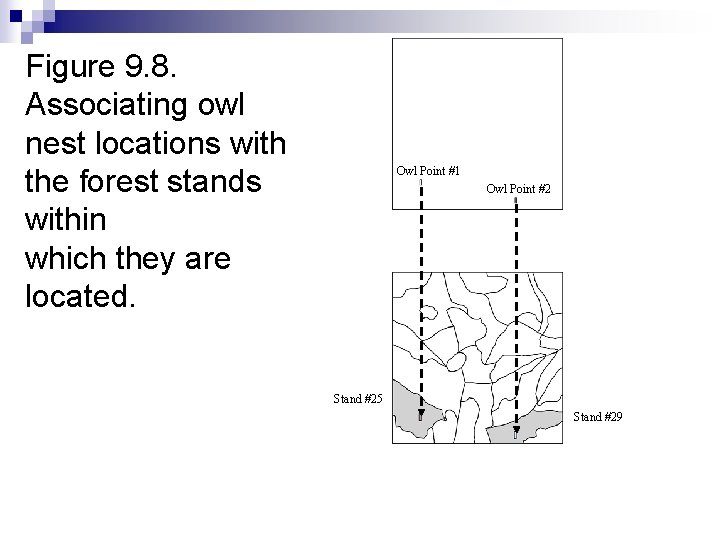
Finding what’s inside a polygon Sometimes called a point-in-polygon or line-in-polygon process n Typically, a polygon source table and a point or line target table is required n The result will be the identification of the polygon within each point or line resides; the attributes of the polygon should also be included in the destination or output file n
Figure 9. 8. Associating owl nest locations with the forest stands within which they are located. Owl Point #1 Owl Point #2 Stand #25 Stand #29
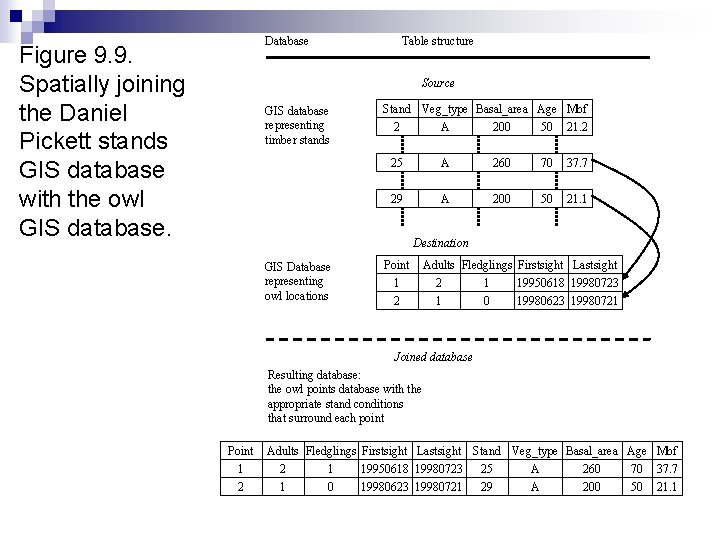
Database Figure 9. 9. Spatially joining the Daniel Pickett stands GIS database with the owl GIS database. Table structure Source GIS database representing timber stands Stand Veg_type Basal_area Age Mbf 2 A 200 50 21. 2 25 A 260 70 37. 7 29 A 200 50 21. 1 Destination GIS Database representing owl locations Point 1 2 Adults Fledglings Firstsight Lastsight 2 1 19950618 19980723 1 0 19980623 19980721 Joined database Resulting database: the owl points database with the appropriate stand conditions that surround each point Point 1 2 Adults Fledglings Firstsight Lastsight Stand Veg_type Basal_area Age Mbf 2 1 19950618 19980723 25 A 260 70 37. 7 1 0 19980623 19980721 29 A 200 50 21. 1
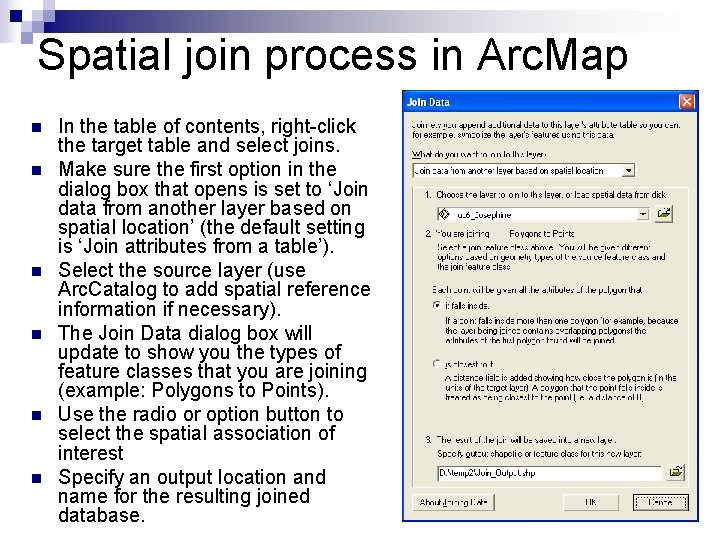
Spatial join process in Arc. Map n n n In the table of contents, right-click the target table and select joins. Make sure the first option in the dialog box that opens is set to ‘Join data from another layer based on spatial location’ (the default setting is ‘Join attributes from a table’). Select the source layer (use Arc. Catalog to add spatial reference information if necessary). The Join Data dialog box will update to show you the types of feature classes that you are joining (example: Polygons to Points). Use the radio or option button to select the spatial association of interest Specify an output location and name for the resulting joined database.
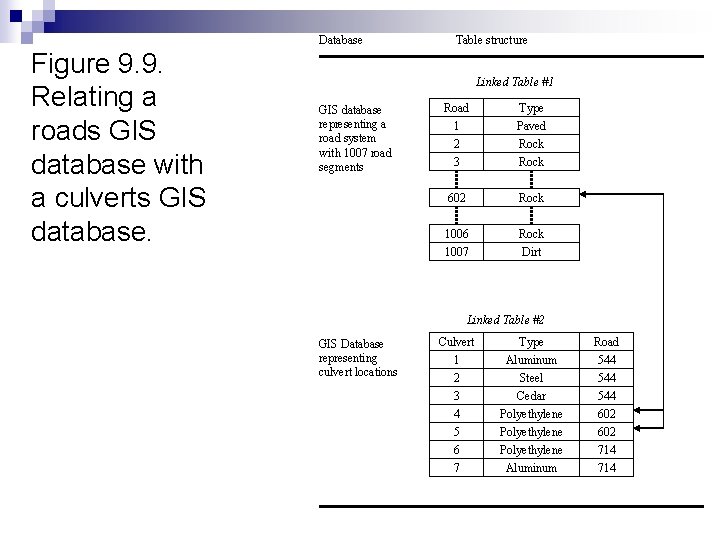
Relating (linking) databases Relating allows you to view databases as separate physical entities yet still enjoy the benefits of associating two databases: a record selected in one database will also be selected in the linked database n This may help you by reducing the visual size and dimensions of associated databases that result from joins n
Database Figure 9. 9. Relating a roads GIS database with a culverts GIS database. Table structure Linked Table #1 GIS database representing a road system with 1007 road segments Road 1 Type Paved 2 3 Rock 602 Rock 1006 1007 Rock Dirt Linked Table #2 GIS Database representing culvert locations Culvert 1 2 3 4 5 6 7 Type Aluminum Steel Cedar Polyethylene Aluminum Road 544 544 602 714
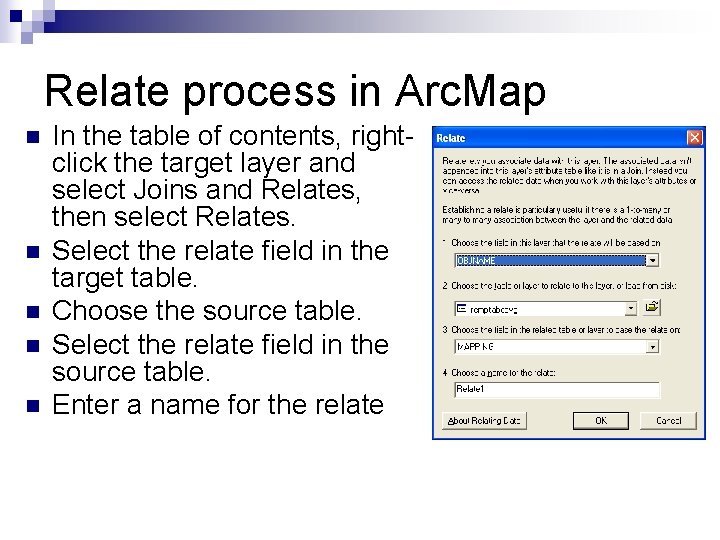
Relate process in Arc. Map n n n In the table of contents, rightclick the target layer and select Joins and Relates, then select Relates. Select the relate field in the target table. Choose the source table. Select the relate field in the source table. Enter a name for the relate
Joining and relating n GIS operators need to make sure that they are using the right order of operations and correct join field to reach their objectives ¨ Although these examples were limited in database size, many join or relate processes may involve considerably larger databases n n Sometimes limitations are present ¨ n n Can’t join databases that already have joins to other databases Can usually reverse join or relate process ¨ ¨ n More difficult to visually check results Remove all joins Remove all relates Arc. GIS refers to links as relates May have to export layer to get a permanent database of joined information