
Geodatabase Reprojection using Arc Map Distributed Geodatabase Method
Geodatabase Reprojection using Arc. Map Distributed Geodatabase Method
Geo. Data. Base Reprojection - Arc. Map Method Data is projected from a Geographic coordinate system to a projection (Albers in this example) so that the NHDGeo. Edit. Tools can perform functions such as calculating length or area. The data is then projected from Albers back to Geographic to create an XML document containing Geographic coordinates that can be loaded to a copy of the original Geographic data for qc purposes (XML 2 Pgdb). This XML document can also be loaded to the National Geodatabase. Verify your Network, all Topology layers, and tables created in NHD_Flow_Check (con. Arc, con. Node, NHDErrors, and NHDError. State) have been deleted before proceeding!! You must open Arc. Catalog to verify this properly! If you do not do this, your projection might not reproject all feature classes!
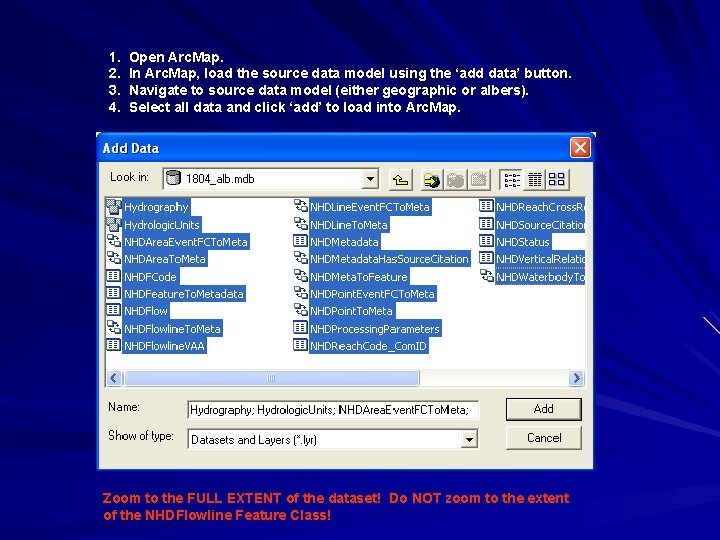
1. 2. 3. 4. Open Arc. Map. In Arc. Map, load the source data model using the ‘add data’ button. Navigate to source data model (either geographic or albers). Select all data and click ‘add’ to load into Arc. Map. Zoom to the FULL EXTENT of the dataset! Do NOT zoom to the extent of the NHDFlowline Feature Class!
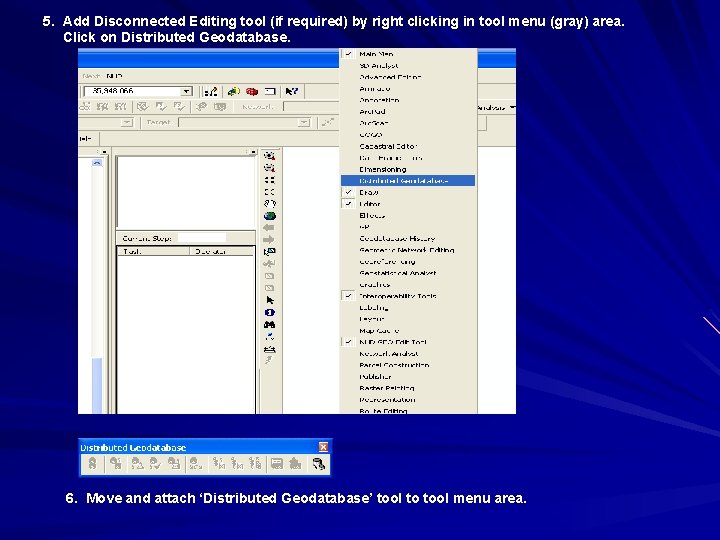
5. Add Disconnected Editing tool (if required) by right clicking in tool menu (gray) area. Click on Distributed Geodatabase. 6. Move and attach ‘Distributed Geodatabase’ tool to tool menu area.
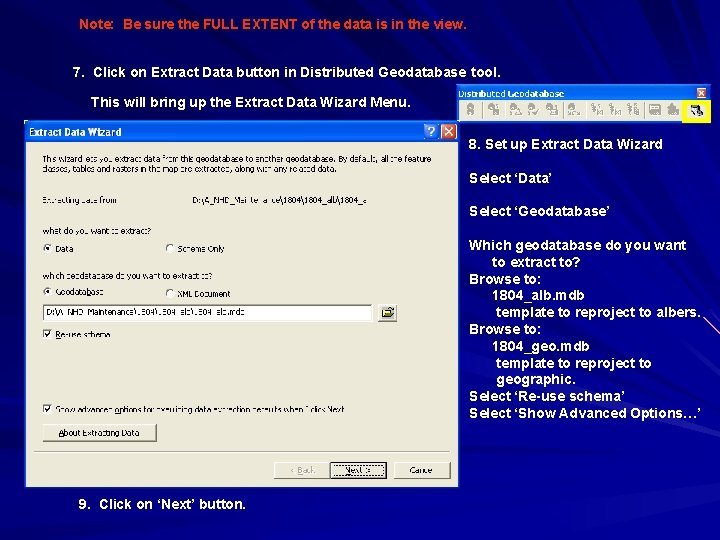
Note: Be sure the FULL EXTENT of the data is in the view. 7. Click on Extract Data button in Distributed Geodatabase tool. This will bring up the Extract Data Wizard Menu. 8. Set up Extract Data Wizard Select ‘Data’ Select ‘Geodatabase’ Which geodatabase do you want to extract to? Browse to: 1804_alb. mdb template to reproject to albers. Browse to: 1804_geo. mdb template to reproject to geographic. Select ‘Re-use schema’ Select ‘Show Advanced Options…’ 9. Click on ‘Next’ button.
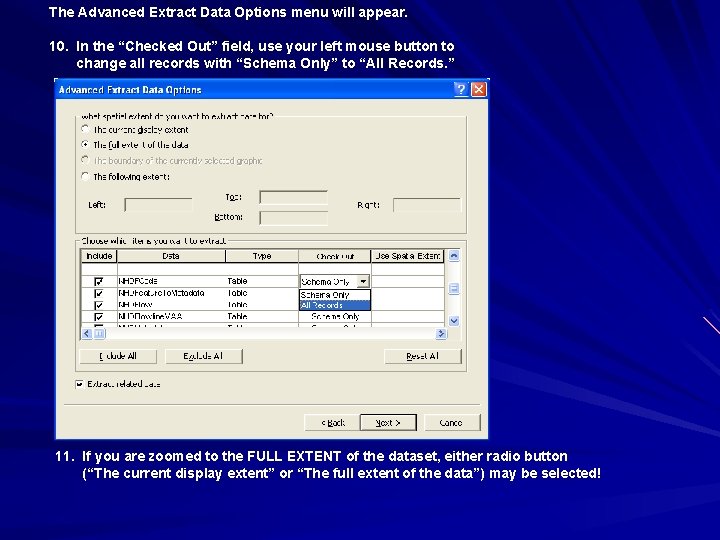
The Advanced Extract Data Options menu will appear. 10. In the “Checked Out” field, use your left mouse button to change all records with “Schema Only” to “All Records. ” 11. If you are zoomed to the FULL EXTENT of the dataset, either radio button (“The current display extent” or “The full extent of the data”) may be selected!
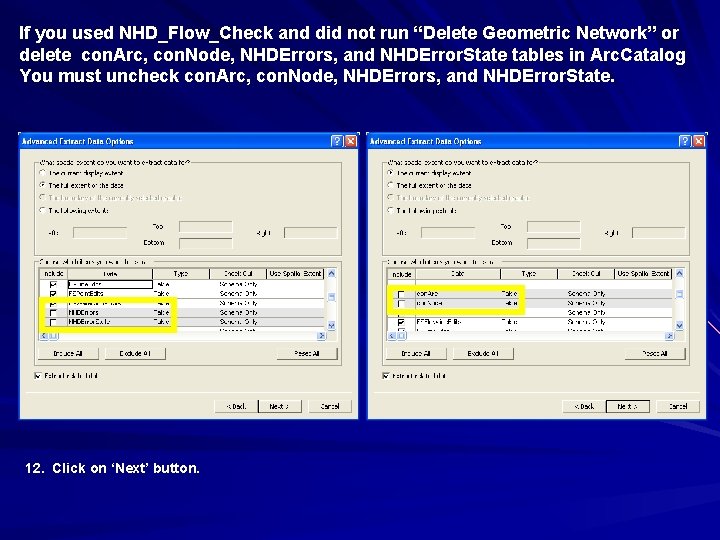
If you used NHD_Flow_Check and did not run “Delete Geometric Network” or delete con. Arc, con. Node, NHDErrors, and NHDError. State tables in Arc. Catalog You must uncheck con. Arc, con. Node, NHDErrors, and NHDError. State. 12. Click on ‘Next’ button.
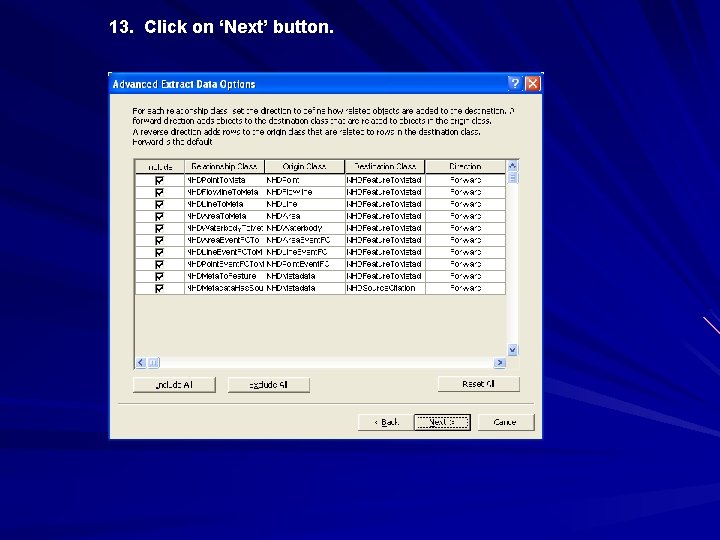
13. Click on ‘Next’ button.
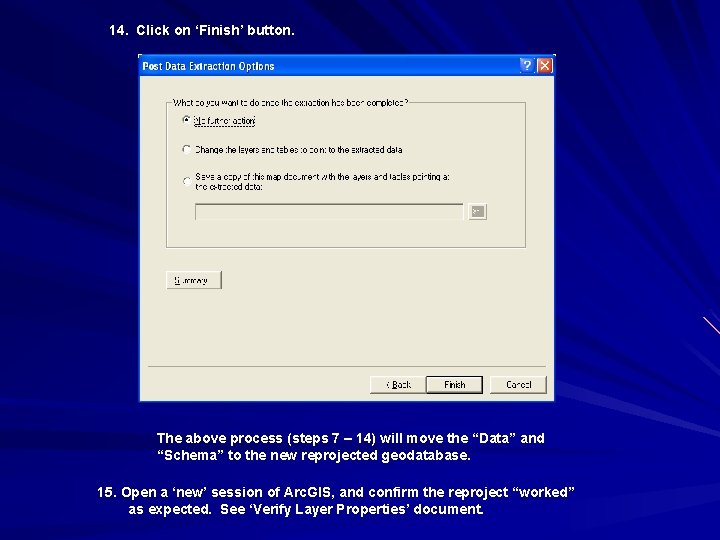
14. Click on ‘Finish’ button. The above process (steps 7 – 14) will move the “Data” and “Schema” to the new reprojected geodatabase. 15. Open a ‘new’ session of Arc. GIS, and confirm the reproject “worked” as expected. See ‘Verify Layer Properties’ document.
- Slides: 9