
Genetec CCTV EndUser Training Viewing Live Video Overview
- Slides: 15
Genetec CCTV End-User Training Viewing Live Video Overview Presented by:
Table of Contents Genetec CCTV End-User Training Viewing Live Video Overview How do I view live video? Slide 3 What is the video timeline? Slide 4 What are the basic video control commands? Slides 5 - 6 How do I zoom in while viewing video? Slide 7 How do I view video from a 360 camera? Slides 8 - 9 How do I use Bookmarks? Slide 10 How do I view Bookmarks? Slides 11 - 12 How do I take a snapshot of a video? Slide 13 How do I view or print a snapshot? Slide 14 Additional Resources Slide 15 July 2019 / 5. 7 version / 2
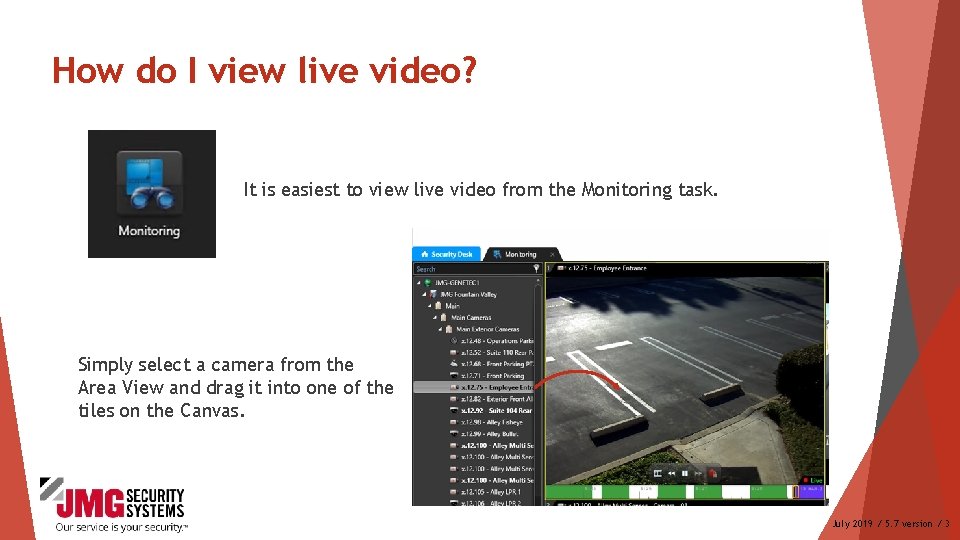
How do I view live video? It is easiest to view live video from the Monitoring task. Simply select a camera from the Area View and drag it into one of the tiles on the Canvas. July 2019 / 5. 7 version / 3
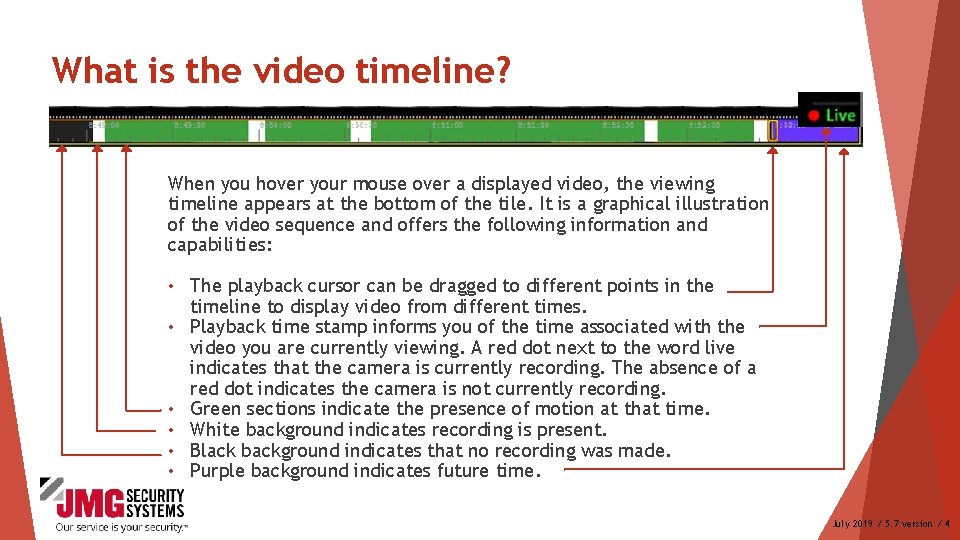
What is the video timeline? When you hover your mouse over a displayed video, the viewing timeline appears at the bottom of the tile. It is a graphical illustration of the video sequence and offers the following information and capabilities: • • • The playback cursor can be dragged to different points in the timeline to display video from different times. Playback time stamp informs you of the time associated with the video you are currently viewing. A red dot next to the word live indicates that the camera is currently recording. The absence of a red dot indicates the camera is not currently recording. Green sections indicate the presence of motion at that time. White background indicates recording is present. Black background indicates that no recording was made. Purple background indicates future time. July 2019 / 5. 7 version / 4
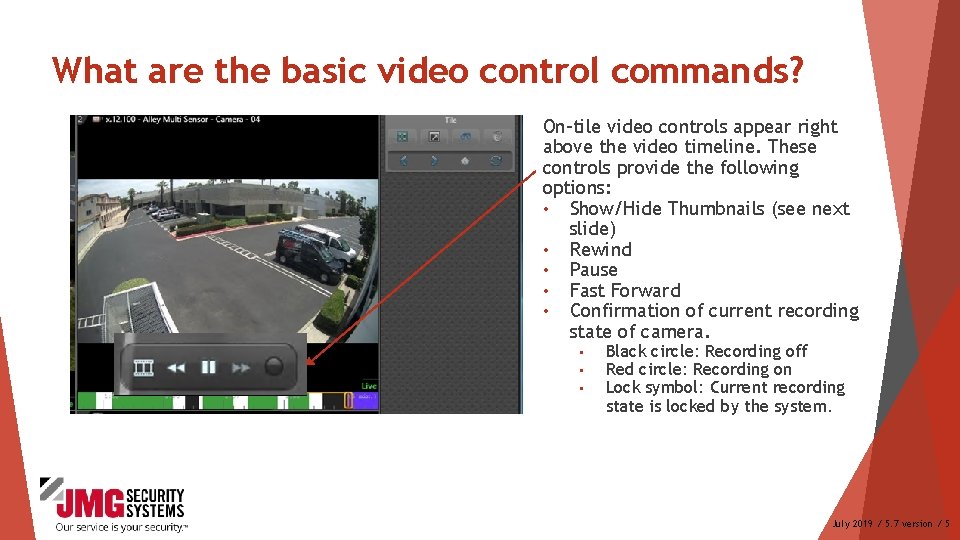
What are the basic video control commands? On-tile video controls appear right above the video timeline. These controls provide the following options: • Show/Hide Thumbnails (see next slide) • Rewind • Pause • Fast Forward • Confirmation of current recording state of camera. • • • Black circle: Recording off Red circle: Recording on Lock symbol: Current recording state is locked by the system. July 2019 / 5. 7 version / 5
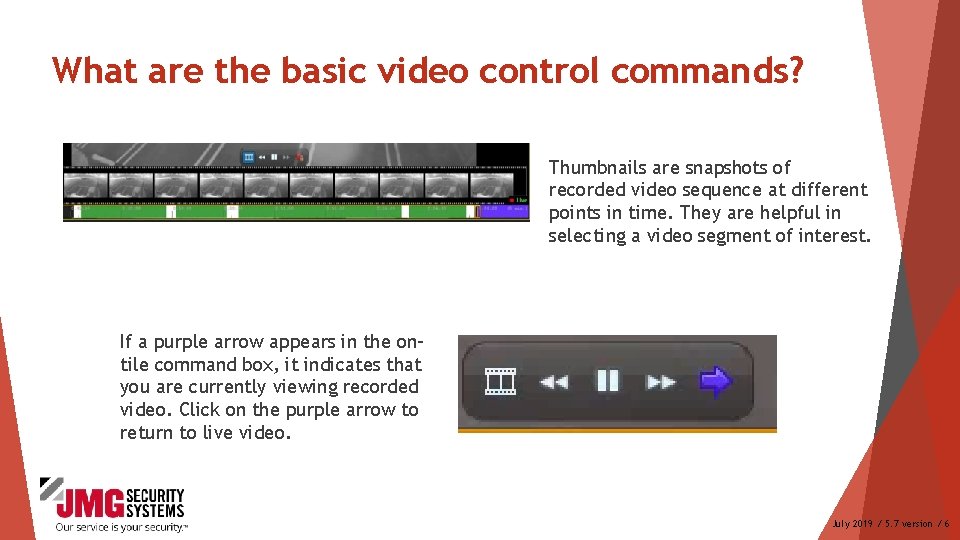
What are the basic video control commands? Thumbnails are snapshots of recorded video sequence at different points in time. They are helpful in selecting a video segment of interest. If a purple arrow appears in the ontile command box, it indicates that you are currently viewing recorded video. Click on the purple arrow to return to live video. July 2019 / 5. 7 version / 6
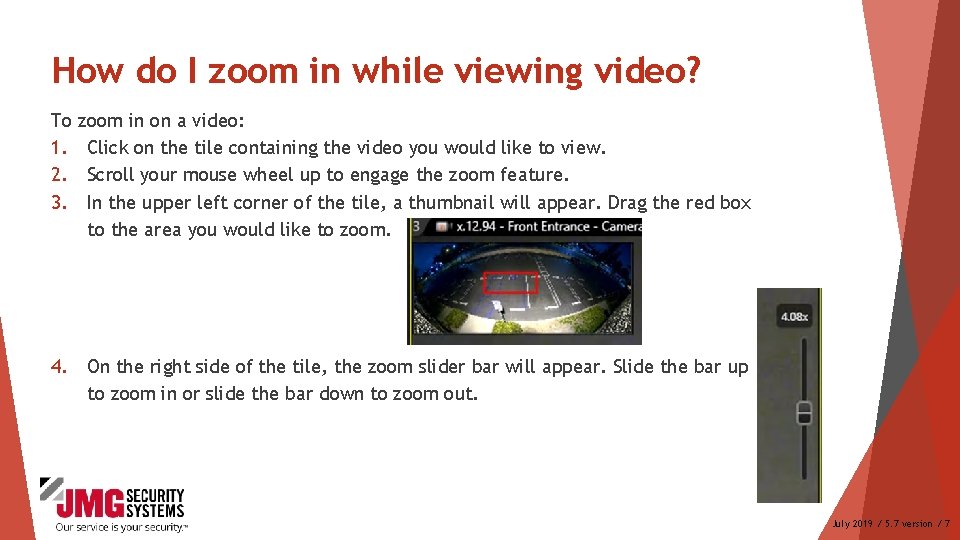
How do I zoom in while viewing video? To 1. 2. 3. zoom in on a video: Click on the tile containing the video you would like to view. Scroll your mouse wheel up to engage the zoom feature. In the upper left corner of the tile, a thumbnail will appear. Drag the red box to the area you would like to zoom. 4. On the right side of the tile, the zoom slider bar will appear. Slide the bar up to zoom in or slide the bar down to zoom out. July 2019 / 5. 7 version / 7
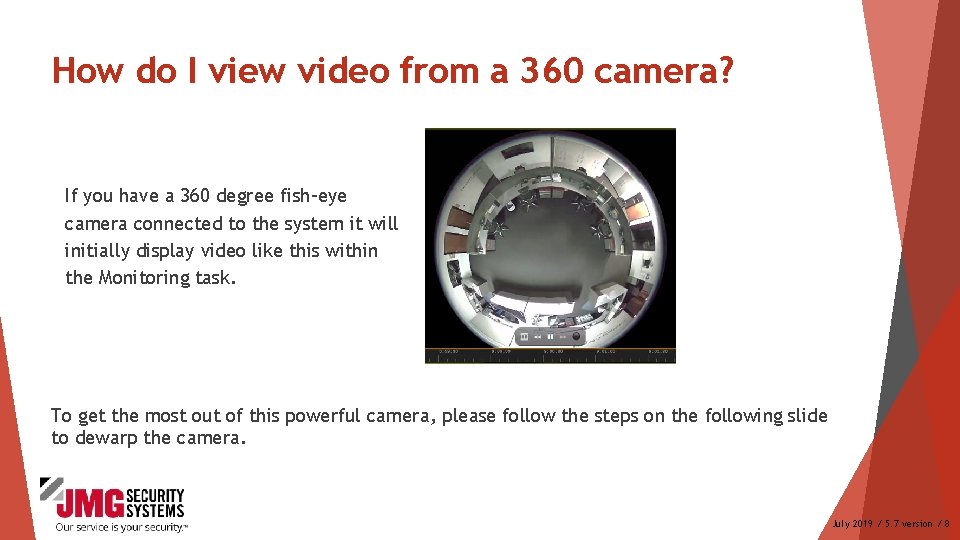
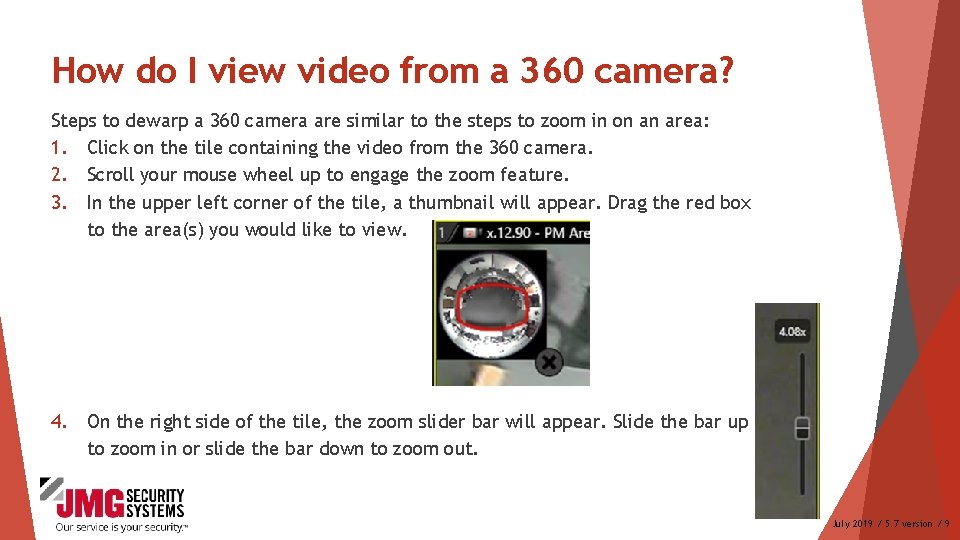
How do I view video from a 360 camera? If you have a 360 degree fish-eye camera connected to the system it will initially display video like this within the Monitoring task. To get the most out of this powerful camera, please follow the steps on the following slide to dewarp the camera. July 2019 / 5. 7 version / 8
How do I view video from a 360 camera? Steps to dewarp a 360 camera are similar to the steps to zoom in on an area: 1. Click on the tile containing the video from the 360 camera. 2. Scroll your mouse wheel up to engage the zoom feature. 3. In the upper left corner of the tile, a thumbnail will appear. Drag the red box to the area(s) you would like to view. 4. On the right side of the tile, the zoom slider bar will appear. Slide the bar up to zoom in or slide the bar down to zoom out. July 2019 / 5. 7 version / 9
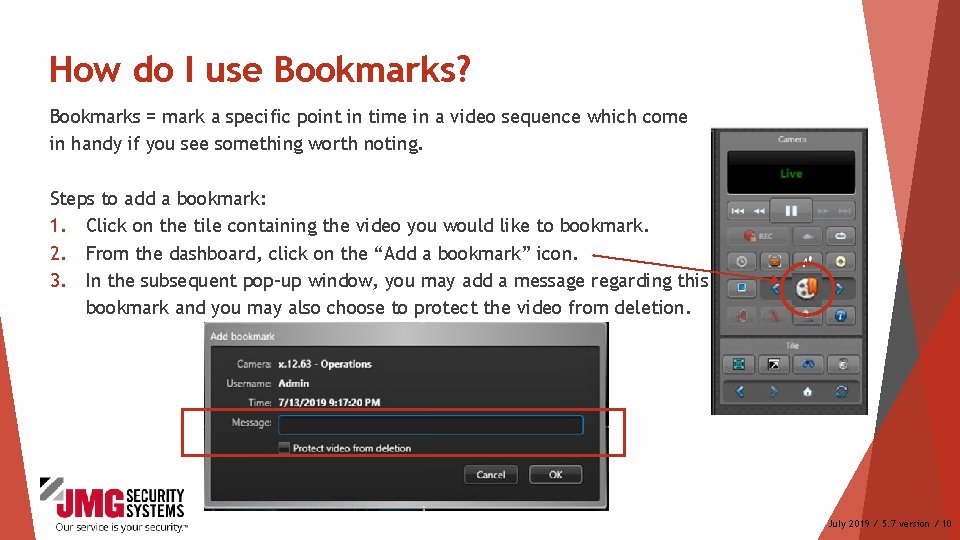
How do I use Bookmarks? Bookmarks = mark a specific point in time in a video sequence which come in handy if you see something worth noting. Steps to add a bookmark: 1. Click on the tile containing the video you would like to bookmark. 2. From the dashboard, click on the “Add a bookmark” icon. 3. In the subsequent pop-up window, you may add a message regarding this bookmark and you may also choose to protect the video from deletion. July 2019 / 5. 7 version / 10
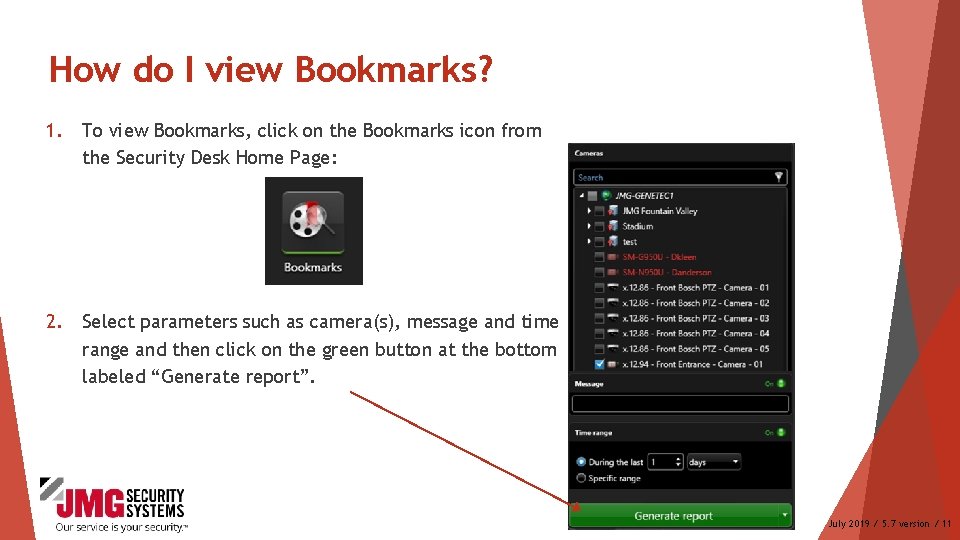
How do I view Bookmarks? 1. To view Bookmarks, click on the Bookmarks icon from the Security Desk Home Page: 2. Select parameters such as camera(s), message and time range and then click on the green button at the bottom labeled “Generate report”. July 2019 / 5. 7 version / 11
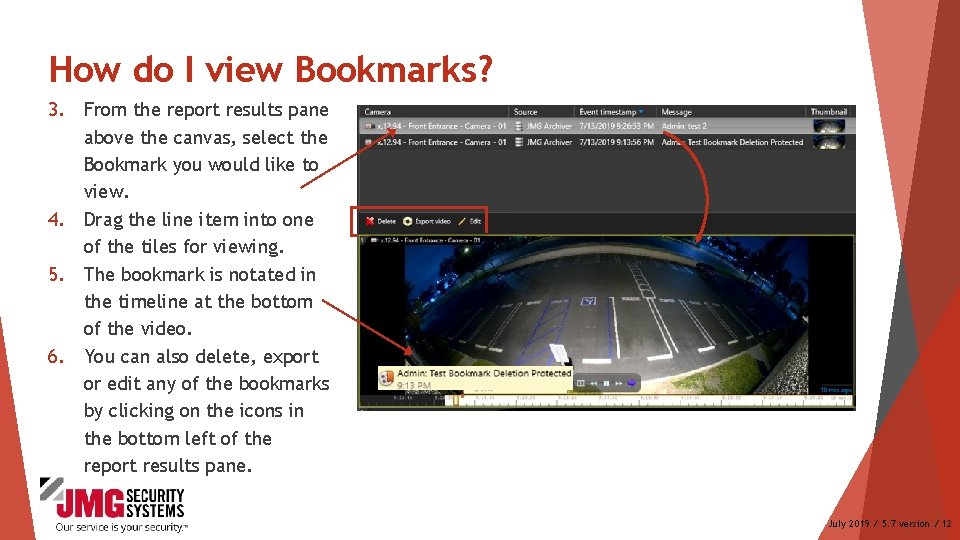
How do I view Bookmarks? 3. From the report results pane above the canvas, select the Bookmark you would like to view. 4. Drag the line item into one of the tiles for viewing. 5. The bookmark is notated in the timeline at the bottom of the video. 6. You can also delete, export or edit any of the bookmarks by clicking on the icons in the bottom left of the report results pane. July 2019 / 5. 7 version / 12
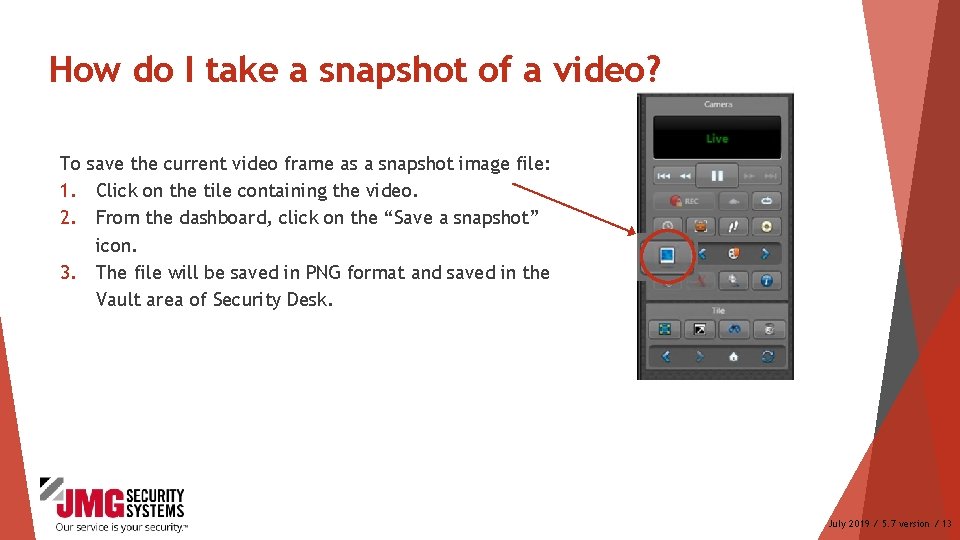
How do I take a snapshot of a video? To save the current video frame as a snapshot image file: 1. Click on the tile containing the video. 2. From the dashboard, click on the “Save a snapshot” icon. 3. The file will be saved in PNG format and saved in the Vault area of Security Desk. July 2019 / 5. 7 version / 13
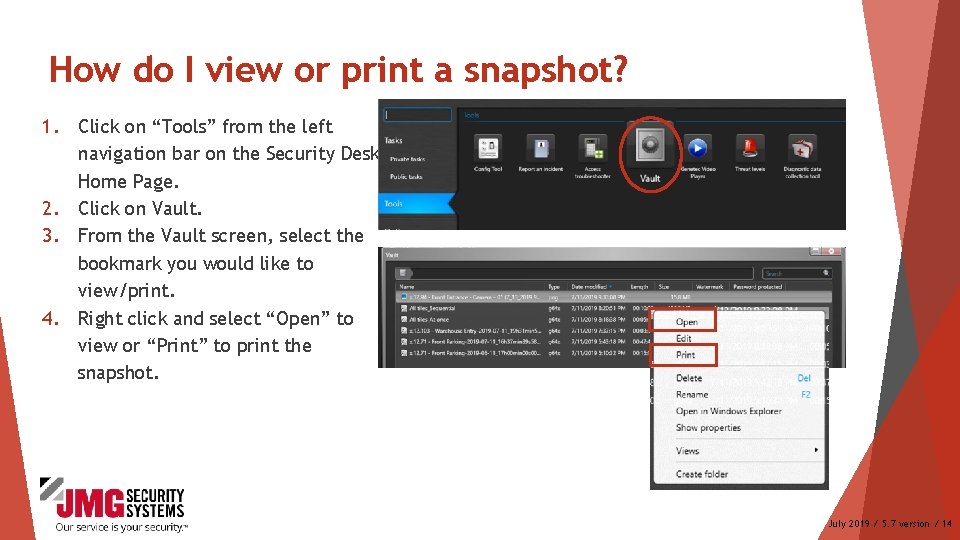
How do I view or print a snapshot? 1. Click on “Tools” from the left navigation bar on the Security Desk Home Page. 2. Click on Vault. 3. From the Vault screen, select the bookmark you would like to view/print. 4. Right click and select “Open” to view or “Print” to print the snapshot. July 2019 / 5. 7 version / 14
Additional Resources For additional resources on how to get the most out of your security system, please visit our website at: www. jmgsecurity. com Additional Power. Point training guides are available from JMG on topics such as overview of Security Desk, viewing live video and searching recorded video. To request any of these, please contact JMG at 800 -900 -4564. July 2019 / 5. 7 version / 15