
Generating Bankruptcy Forms Tutorial on creating bankruptcy forms
Generating Bankruptcy Forms Tutorial on creating bankruptcy forms in Bk. Assist®
Scope of Tutorial • This tutorial describes how to create PDF documents from within Bk. Assist. – Remember that Bk. Assist is primarily oriented toward people and things rather than forms, so you should generate printed forms only near the end of the preparation phase of a case. • Who should view this tutorial: anyone who will be generating bankruptcy documents for review by clients or filing with the court. • View this presentation as a slide show. • A voice narration accompanies this tutorial. You will hear it as you move from slide to slide. (Restart the tutorial in order to hear the narration of this slide, which has important additional information. )
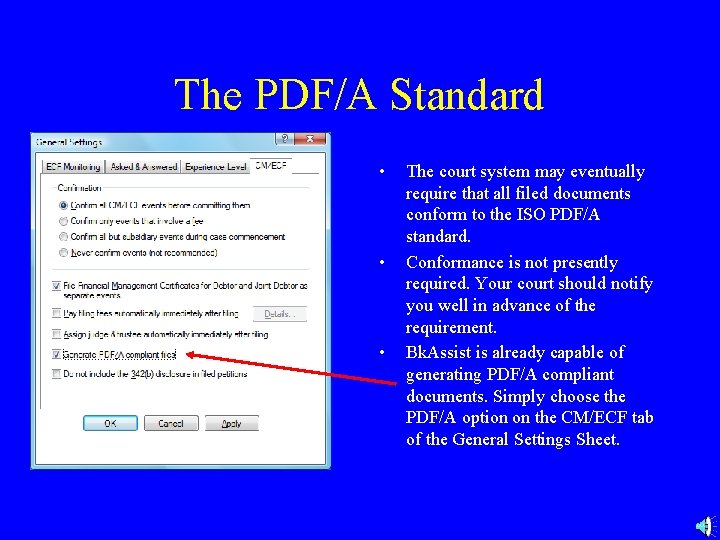
The PDF/A Standard • • • The court system may eventually require that all filed documents conform to the ISO PDF/A standard. Conformance is not presently required. Your court should notify you well in advance of the requirement. Bk. Assist is already capable of generating PDF/A compliant documents. Simply choose the PDF/A option on the CM/ECF tab of the General Settings Sheet.
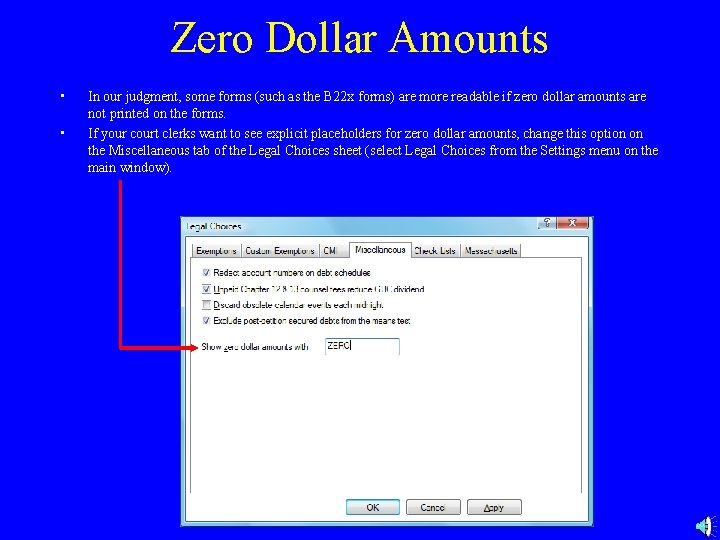
Zero Dollar Amounts • • In our judgment, some forms (such as the B 22 x forms) are more readable if zero dollar amounts are not printed on the forms. If your court clerks want to see explicit placeholders for zero dollar amounts, change this option on the Miscellaneous tab of the Legal Choices sheet (select Legal Choices from the Settings menu on the main window).
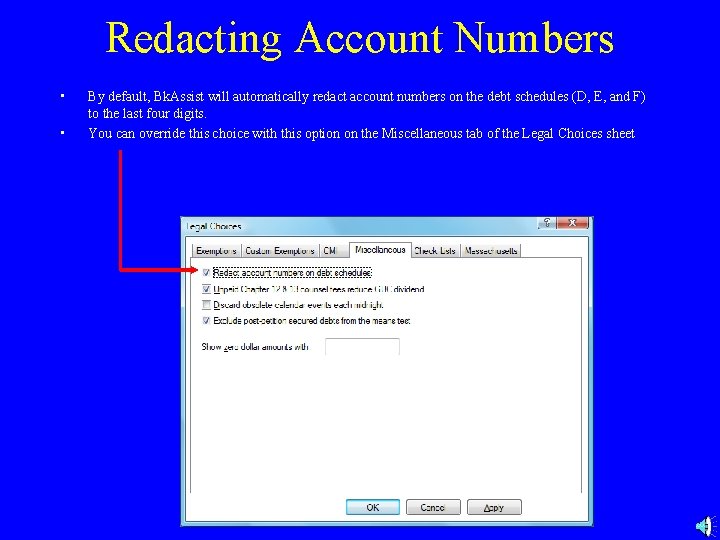
Redacting Account Numbers • • By default, Bk. Assist will automatically redact account numbers on the debt schedules (D, E, and F) to the last four digits. You can override this choice with this option on the Miscellaneous tab of the Legal Choices sheet
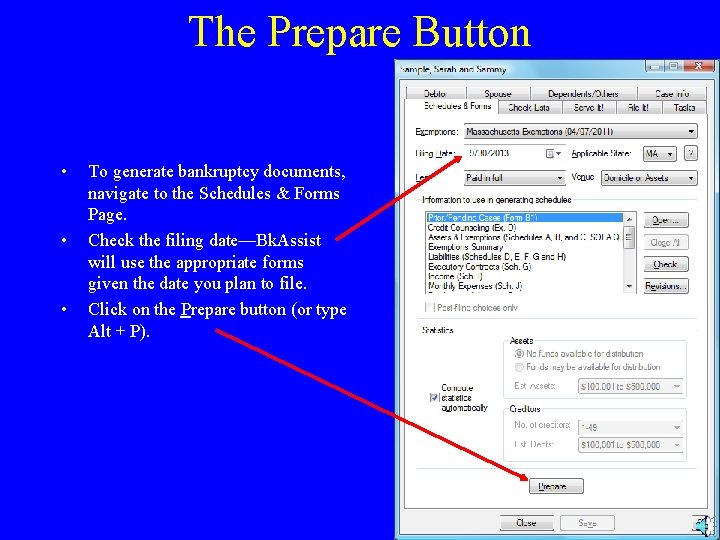
The Prepare Button • • • To generate bankruptcy documents, navigate to the Schedules & Forms Page. Check the filing date—Bk. Assist will use the appropriate forms given the date you plan to file. Click on the Prepare button (or type Alt + P).
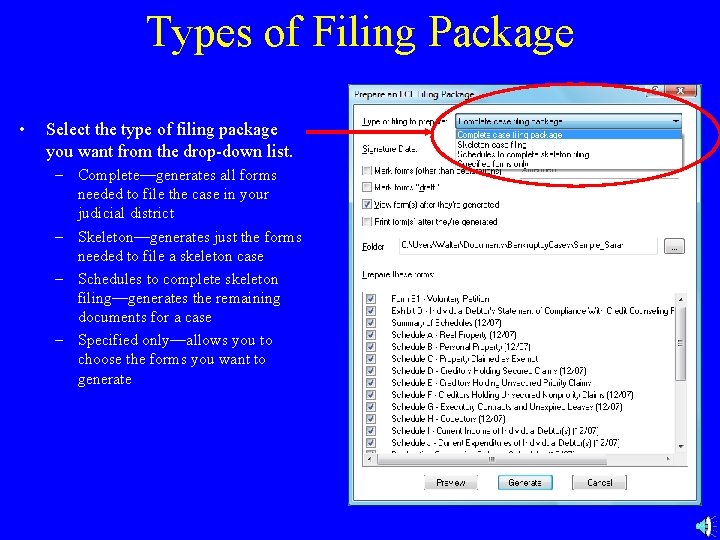
Types of Filing Package • Select the type of filing package you want from the drop-down list. – Complete—generates all forms needed to file the case in your judicial district – Skeleton—generates just the forms needed to file a skeleton case – Schedules to complete skeleton filing—generates the remaining documents for a case – Specified only—allows you to choose the forms you want to generate
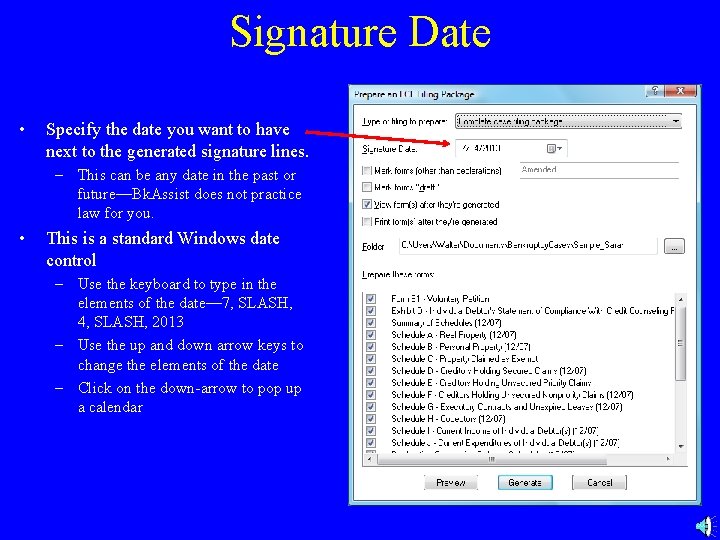
Signature Date • Specify the date you want to have next to the generated signature lines. – This can be any date in the past or future—Bk. Assist does not practice law for you. • This is a standard Windows date control – Use the keyboard to type in the elements of the date— 7, SLASH, 4, SLASH, 2013 – Use the up and down arrow keys to change the elements of the date – Click on the down-arrow to pop up a calendar
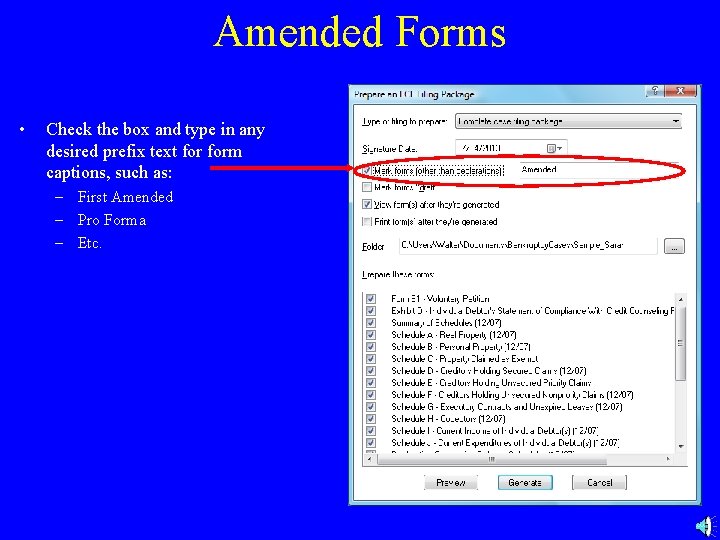
Amended Forms • Check the box and type in any desired prefix text form captions, such as: – First Amended – Pro Forma – Etc.
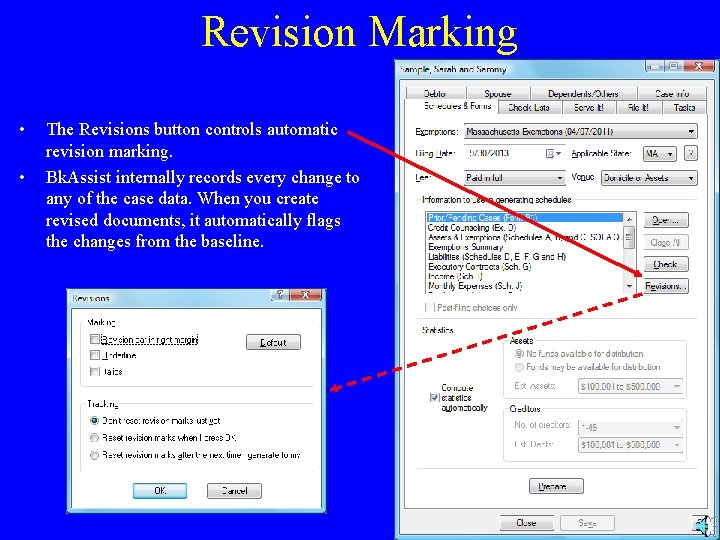
Revision Marking • • The Revisions button controls automatic revision marking. Bk. Assist internally records every change to any of the case data. When you create revised documents, it automatically flags the changes from the baseline.
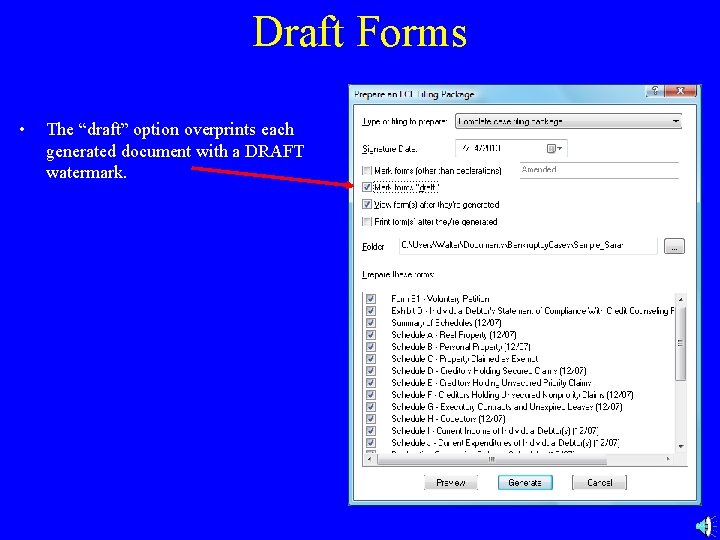
Draft Forms • The “draft” option overprints each generated document with a DRAFT watermark.
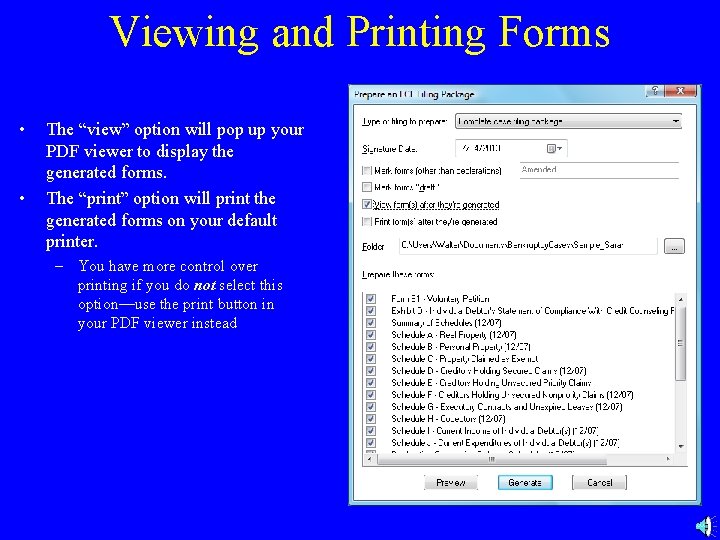
Viewing and Printing Forms • • The “view” option will pop up your PDF viewer to display the generated forms. The “print” option will print the generated forms on your default printer. – You have more control over printing if you do not select this option—use the print button in your PDF viewer instead
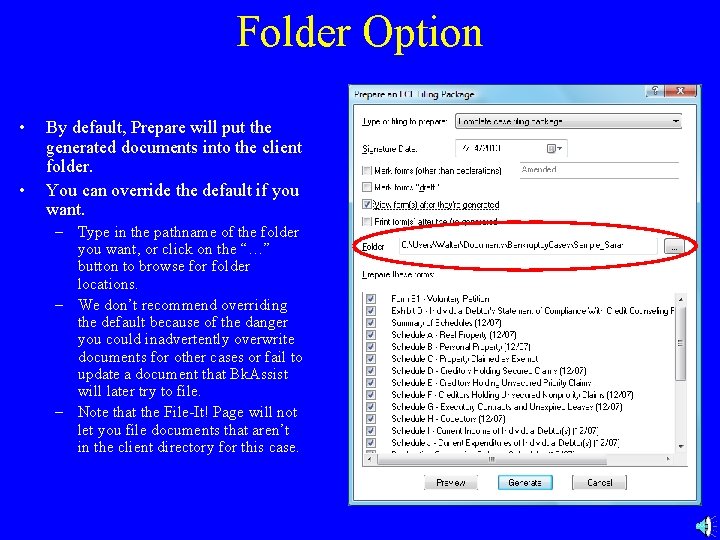
Folder Option • • By default, Prepare will put the generated documents into the client folder. You can override the default if you want. – Type in the pathname of the folder you want, or click on the “…” button to browse for folder locations. – We don’t recommend overriding the default because of the danger you could inadvertently overwrite documents for other cases or fail to update a document that Bk. Assist will later try to file. – Note that the File-It! Page will not let you file documents that aren’t in the client directory for this case.
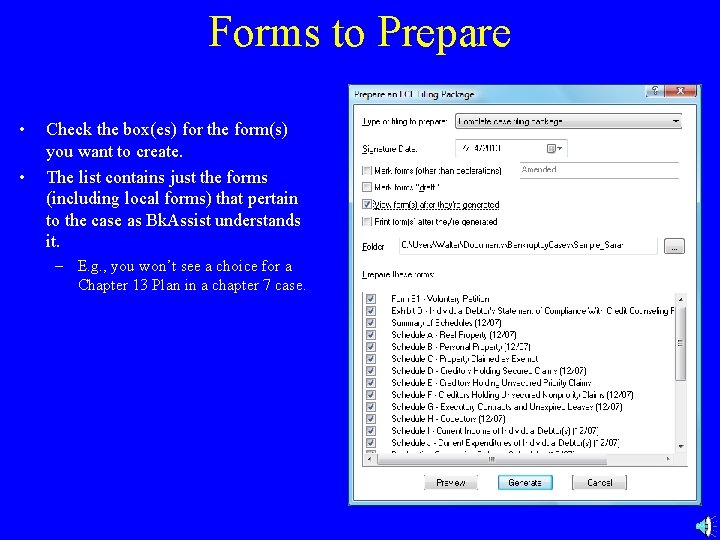
Forms to Prepare • • Check the box(es) for the form(s) you want to create. The list contains just the forms (including local forms) that pertain to the case as Bk. Assist understands it. – E. g. , you won’t see a choice for a Chapter 13 Plan in a chapter 7 case.
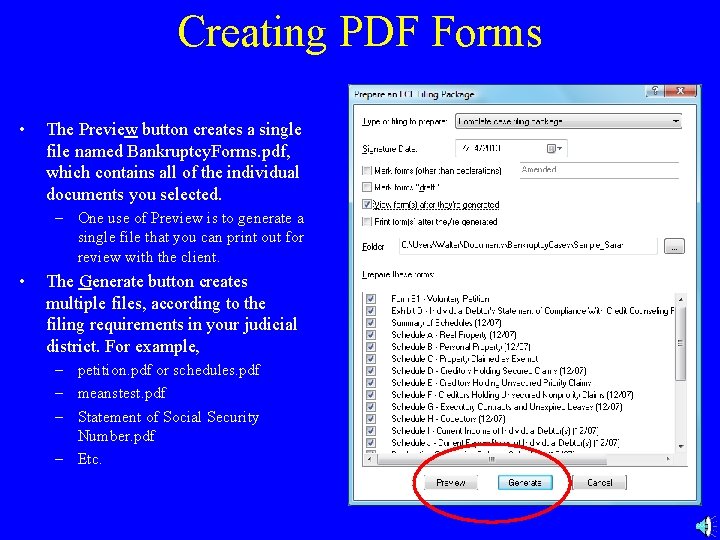
Creating PDF Forms • The Preview button creates a single file named Bankruptcy. Forms. pdf, which contains all of the individual documents you selected. – One use of Preview is to generate a single file that you can print out for review with the client. • The Generate button creates multiple files, according to the filing requirements in your judicial district. For example, – petition. pdf or schedules. pdf – meanstest. pdf – Statement of Social Security Number. pdf – Etc.
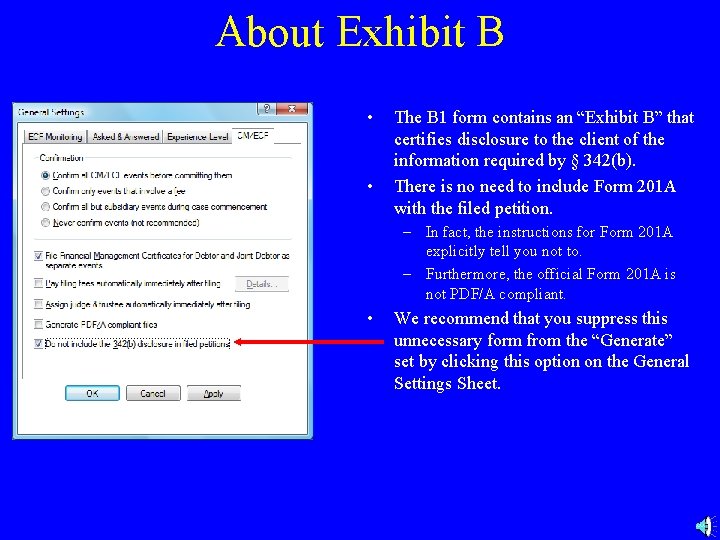
About Exhibit B • • The B 1 form contains an “Exhibit B” that certifies disclosure to the client of the information required by § 342(b). There is no need to include Form 201 A with the filed petition. – In fact, the instructions for Form 201 A explicitly tell you not to. – Furthermore, the official Form 201 A is not PDF/A compliant. • We recommend that you suppress this unnecessary form from the “Generate” set by clicking this option on the General Settings Sheet.
More About File Names • The Generate button will put basic forms into a single file named either petition. pdf or schedules. pdf depending solely on the filing type you specify: – Complete—the file will be called petition. pdf – Anything else—the file will be called schedules. pdf • This file (petition. pdf or schedules. pdf) will contain – – – • The B 1 (voluntary petition) or B 5 (involuntary petition) form Most exhibits (including Exhibit D) The schedules, summaries, and declaration page The statement of financial affairs Many other documents Bk. Assist understands your local rules, so it will: – Order the documents according to local requirements – Generate separate files for documents that must be filed as such • Trap for the unwary: if you have already done a Generate for the full case and then try to create just some of the documents that belong in petition. pdf by selecting the “Specified forms only” type of filing, you will create a schedules. pdf that contains just the new documents. You could then very easily file the case using a petition. pdf that contains partially stale data. To avoid this problem, read the next slide.
Quality Control • To ensure that you don’t inadvertently file the wrong documents, adhere to these rules: – Always put documents for a case into that case’s client folder. – Always do a “check” just before opening a case. Fix all the problems that “check” flags. – Always do a “generate” to complete regenerate the filing documents just after the “check” and just before opening the case.
- Slides: 18