
GE TransportationWabtec i Supplier Portal i SP Training
GE Transportation/Wabtec i. Supplier Portal (i. SP) Training
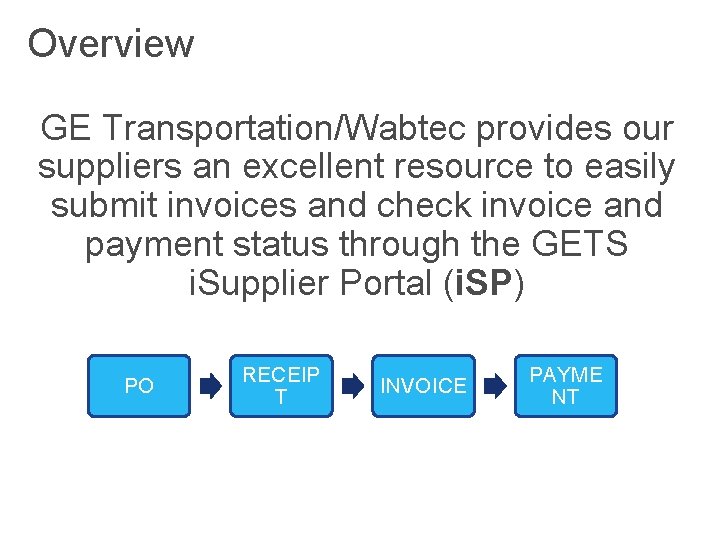
Overview GE Transportation/Wabtec provides our suppliers an excellent resource to easily submit invoices and check invoice and payment status through the GETS i. Supplier Portal (i. SP) PO RECEIP T INVOICE PAYME NT
Getting registered to use i. SP Please request i. SP registration by sending an email to e. Business. helpdesk@Wabtec. com with the following required information: • • First and last name Email address Phone number Your GE Transportation supplier code OR a recently issued GETS purchase order number
Getting registered to use i. SP Please note, that on the 5 th of every month a notice is sent out to ALL users that have NOT signed in to ISP in 365 days. If you receive this notice, you will have 10 days to log into your account or your account will be deactivated.
Getting registered to use i. SP Please send your request to: GETWabtec_Supplier_Onboarding@wabtec. com We will reply with a user name and password for you. You will receive a password reset the first time you log in. Later in Aug or early Sept the logins will change: New Tool OKTA Wabtec authentication system. Notification will be sent in advance of this change, and you will have 7 days to activate your new access, once our ERP has been moved into the Wabtec Data center.
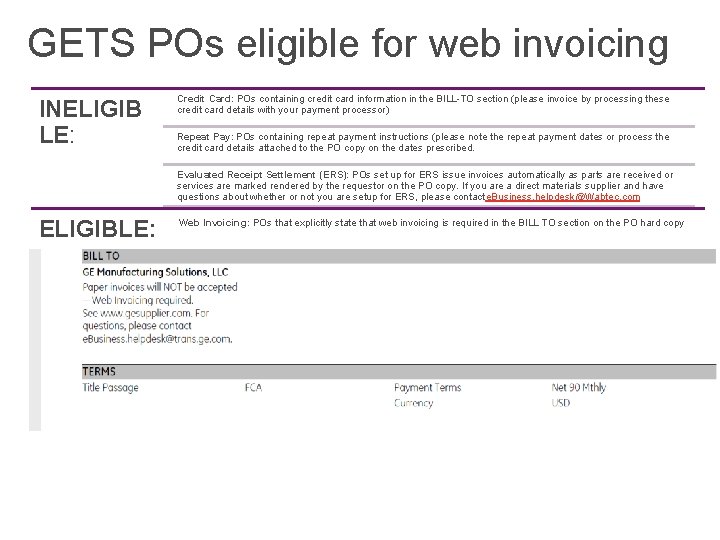
GETS POs eligible for web invoicing INELIGIB LE: Credit Card: POs containing credit card information in the BILL-TO section (please invoice by processing these credit card details with your payment processor) Repeat Pay: POs containing repeat payment instructions (please note the repeat payment dates or process the credit card details attached to the PO copy on the dates prescribed. Evaluated Receipt Settlement (ERS): POs set up for ERS issue invoices automatically as parts are received or services are marked rendered by the requestor on the PO copy. If you are a direct materials supplier and have questions about whether or not you are setup for ERS, please contact e. Business. helpdesk@Wabtec. com ELIGIBLE: Web Invoicing: POs that explicitly state that web invoicing is required in the BILL TO section on the PO hard copy
Creating invoices on ISP Begin by logging in @ WWW. Wabtec. com/i. Supplier. com
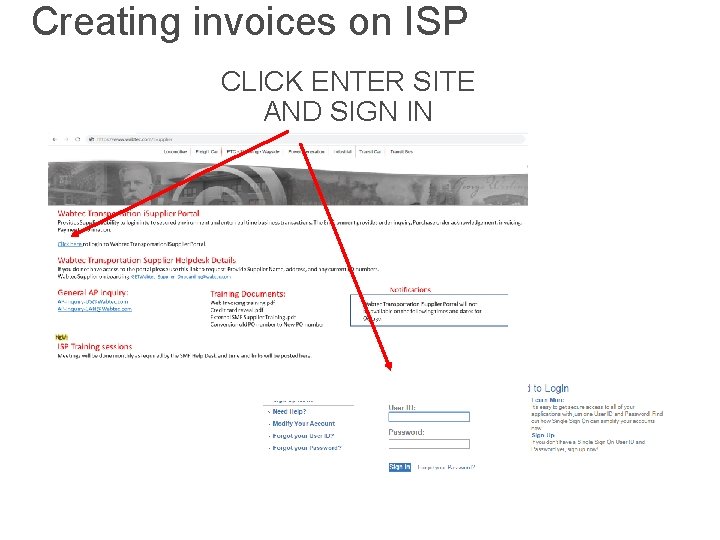
Creating invoices on ISP CLICK ENTER SITE AND SIGN IN
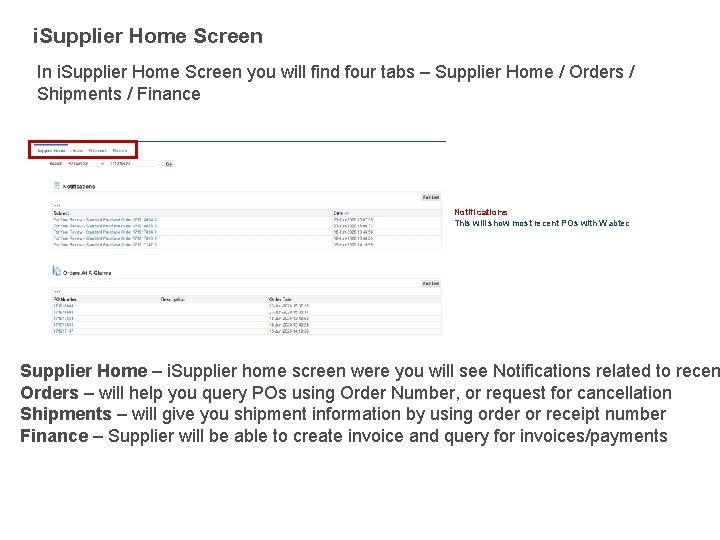
i. Supplier Home Screen In i. Supplier Home Screen you will find four tabs – Supplier Home / Orders / Shipments / Finance Notifications This will show most recent POs with Wabtec Supplier Home – i. Supplier home screen were you will see Notifications related to recen Orders – will help you query POs using Order Number, or request for cancellation Shipments – will give you shipment information by using order or receipt number Finance – Supplier will be able to create invoice and query for invoices/payments
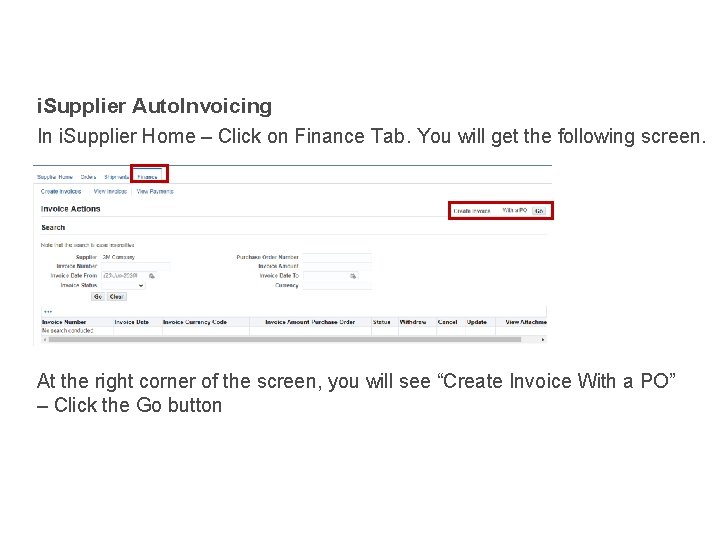
i. Supplier Auto. Invoicing In i. Supplier Home – Click on Finance Tab. You will get the following screen. At the right corner of the screen, you will see “Create Invoice With a PO” – Click the Go button
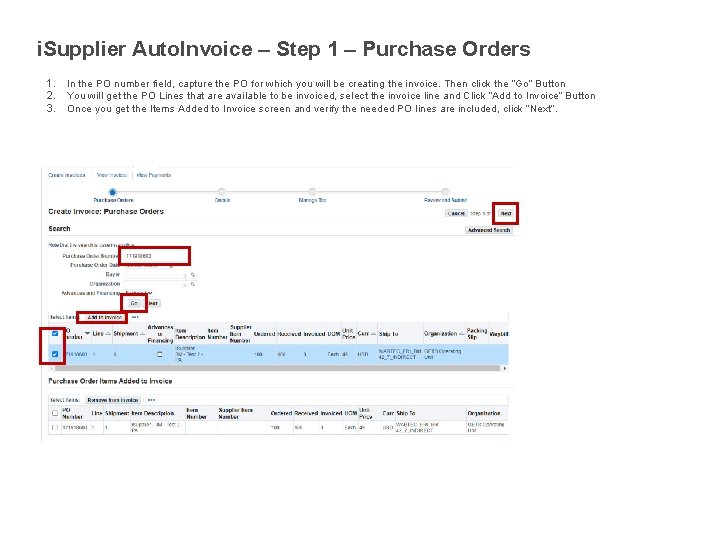
i. Supplier Auto. Invoice – Step 1 – Purchase Orders 1. 2. 3. In the PO number field, capture the PO for which you will be creating the invoice. Then click the “Go” Button You will get the PO Lines that are available to be invoiced, select the invoice line and Click “Add to Invoice” Button Once you get the Items Added to Invoice screen and verify the needed PO lines are included, click “Next”.
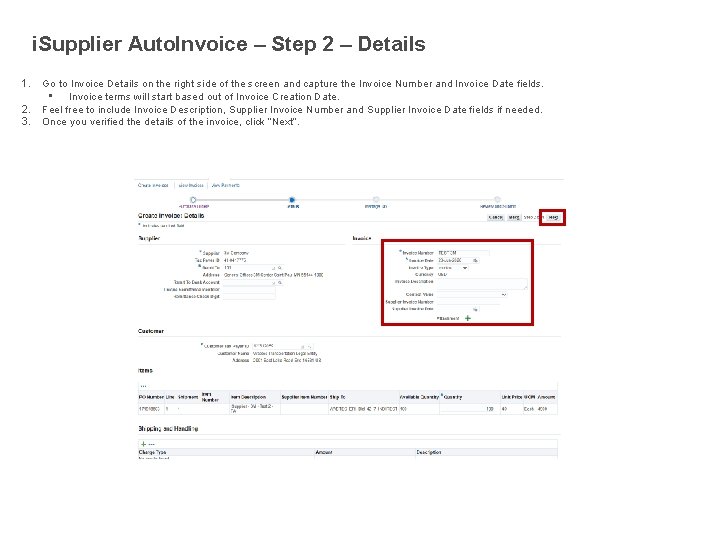
i. Supplier Auto. Invoice – Step 2 – Details 1. 2. 3. Go to Invoice Details on the right side of the screen and capture the Invoice Number and Invoice Date fields. • Invoice terms will start based out of Invoice Creation Date. Feel free to include Invoice Description, Supplier Invoice Number and Supplier Invoice Date fields if needed. Once you verified the details of the invoice, click “Next”.
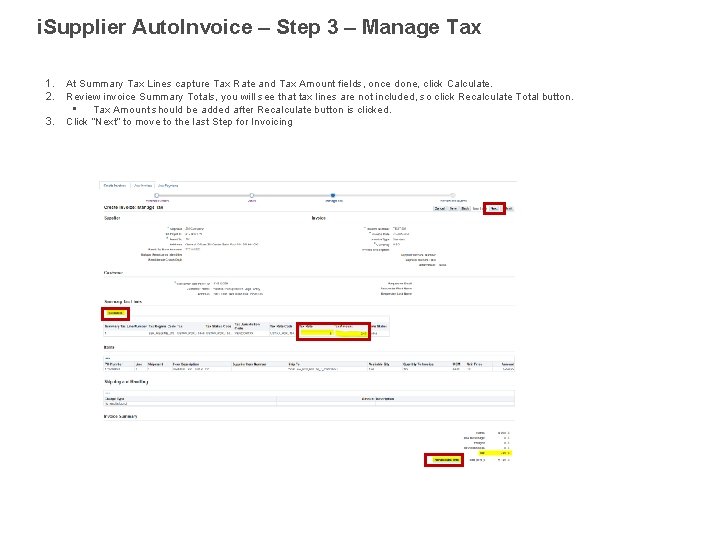
i. Supplier Auto. Invoice – Step 3 – Manage Tax 1. 2. 3. At Summary Tax Lines capture Tax Rate and Tax Amount fields, once done, click Calculate. Review invoice Summary Totals, you will see that tax lines are not included, so click Recalculate Total button. • Tax Amount should be added after Recalculate button is clicked. Click “Next” to move to the last Step for Invoicing
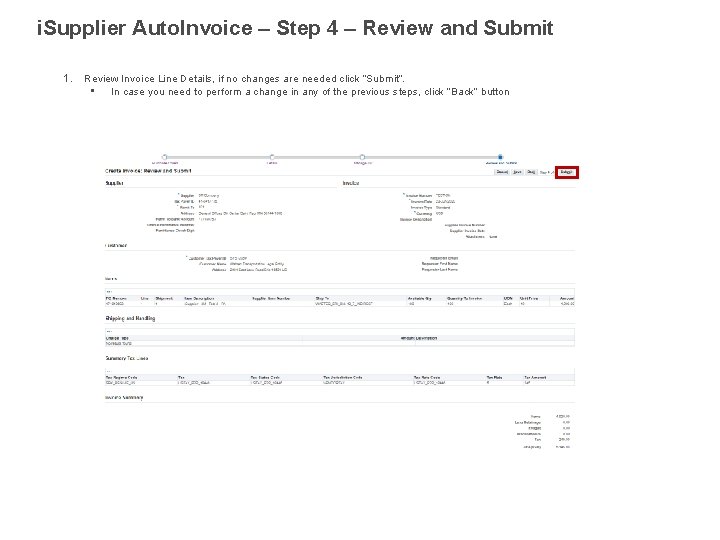
i. Supplier Auto. Invoice – Step 4 – Review and Submit 1. Review Invoice Line Details, if no changes are needed click “Submit”. • In case you need to perform a change in any of the previous steps, click “Back” button
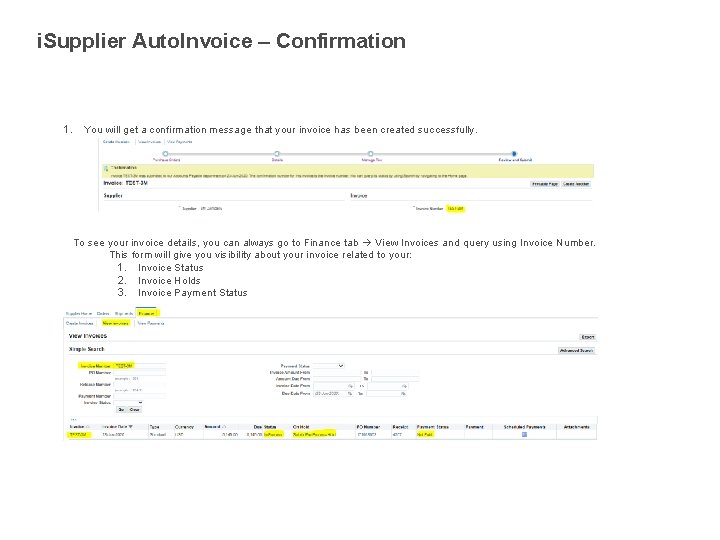
i. Supplier Auto. Invoice – Confirmation 1. You will get a confirmation message that your invoice has been created successfully. To see your invoice details, you can always go to Finance tab View Invoices and query using Invoice Number. This form will give you visibility about your invoice related to your: 1. Invoice Status 2. Invoice Holds 3. Invoice Payment Status
FAQ – Invoice/Payment Why is my invoice on hold? If your invoice is in HOLD status, please contact the requestor on the PO copy so they may work to resolve this hold. When will my invoice pay? Invoices pay per agreed-upon payment terms. You can check your payment date within the portal by referencing the discount date or due date. What are my payment terms? Your terms may vary based on your contractual obligations with us. Please note the terms listed on the hard copy of the purchase order and for further clarification contact your GETS buyer. Why can’t I find my invoice in the portal? Please note that it takes one business day for invoices to be searchable in i. SP after submission. If you cannot find your invoice within the portal, please contact e. Business. helpdesk@Wabtec. com so we may investigate. I input my invoice number in the Supplier Collaboration Portal (SCP) but can’t find it on the i. Supplier Portal. Invoice numbers input from SCP by our direct material suppliers should be searched between two percentage signs, ex. “%123456 A%” as this number is often contained within an ERS invoice number.
- Slides: 16