
GCSE COMPUTER SCIENCE Communication HTML and CSS The

- Slides: 29
GCSE COMPUTER SCIENCE Communication HTML and CSS
The Importance of HTML
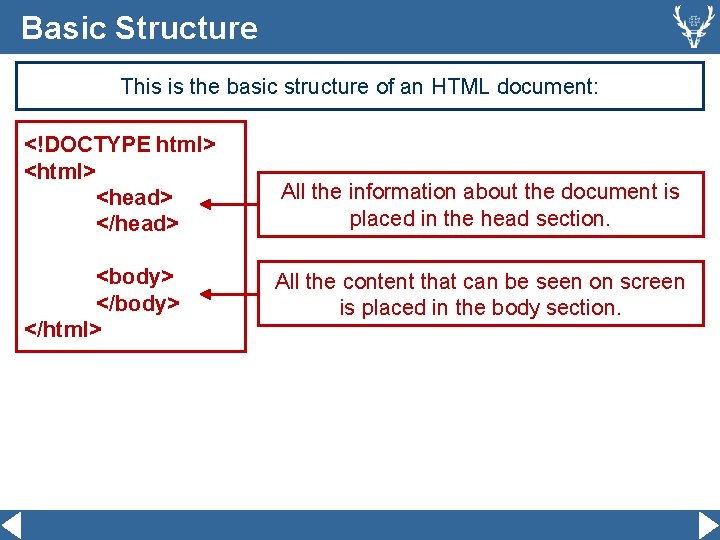
Basic Structure This is the basic structure of an HTML document: <!DOCTYPE html> <head> </head> <body> </html> All the information about the document is placed in the head section. All the content that can be seen on screen is placed in the body section.
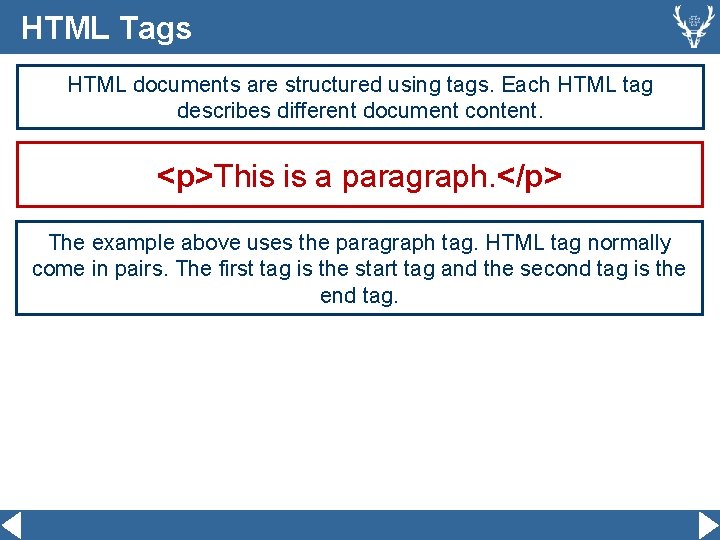
HTML Tags HTML documents are structured using tags. Each HTML tag describes different document content. <p>This is a paragraph. </p> The example above uses the paragraph tag. HTML tag normally come in pairs. The first tag is the start tag and the second tag is the end tag.
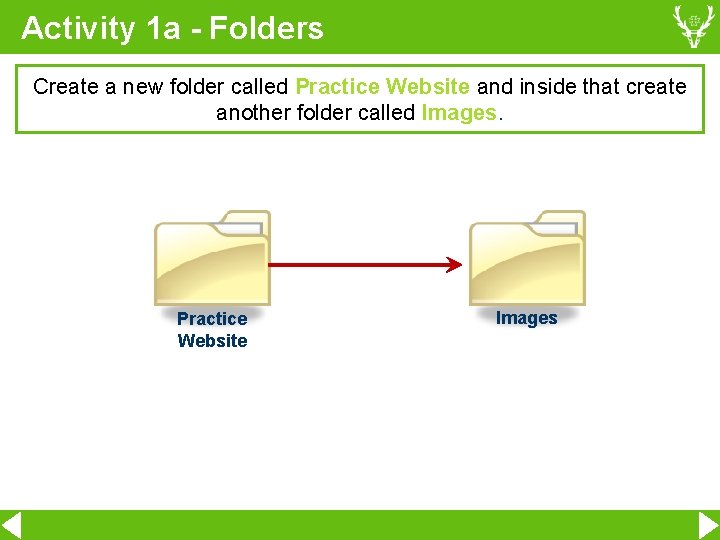
Activity 1 a - Folders Create a new folder called Practice Website and inside that create another folder called Images. Practice Website Images
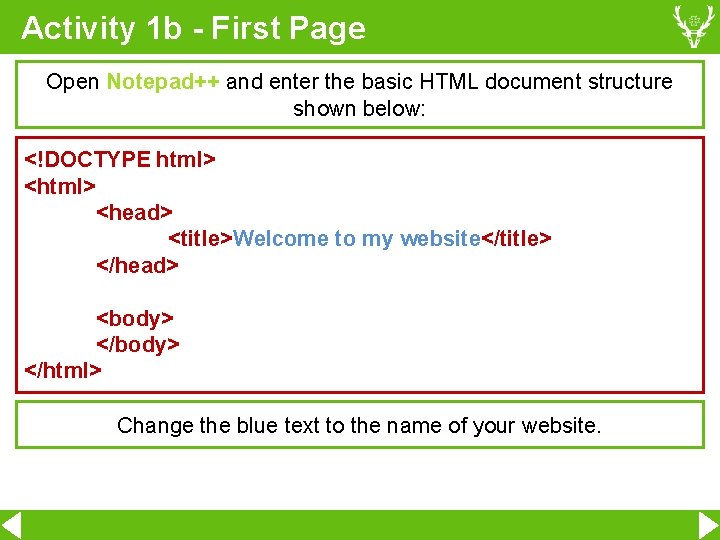
Activity 1 b - First Page Open Notepad++ and enter the basic HTML document structure shown below: <!DOCTYPE html> <head> <title>Welcome to my website</title> </head> <body> </html> Change the blue text to the name of your website.
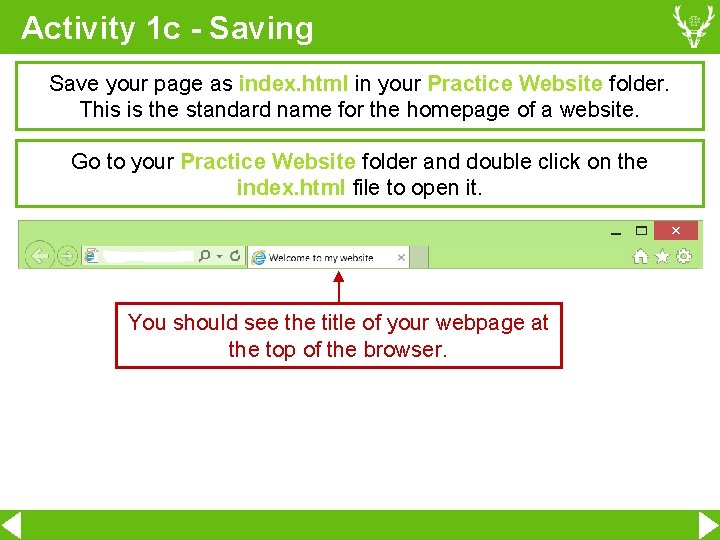
Activity 1 c - Saving Save your page as index. html in your Practice Website folder. This is the standard name for the homepage of a website. Go to your Practice Website folder and double click on the index. html file to open it. You should see the title of your webpage at the top of the browser.
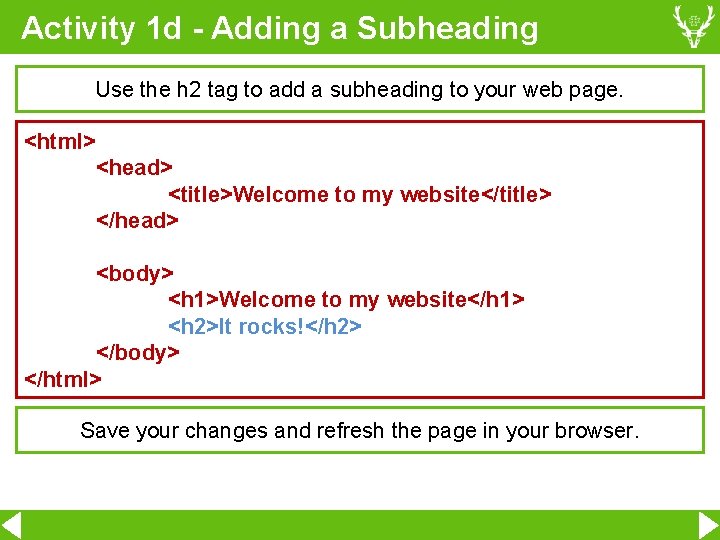
Activity 1 d - Adding a Subheading Use the h 2 tag to add a subheading to your web page. <html> <head> <title>Welcome to my website</title> </head> <body> <h 1>Welcome to my website</h 1> <h 2>It rocks!</h 2> </body> </html> Save your changes and refresh the page in your browser.
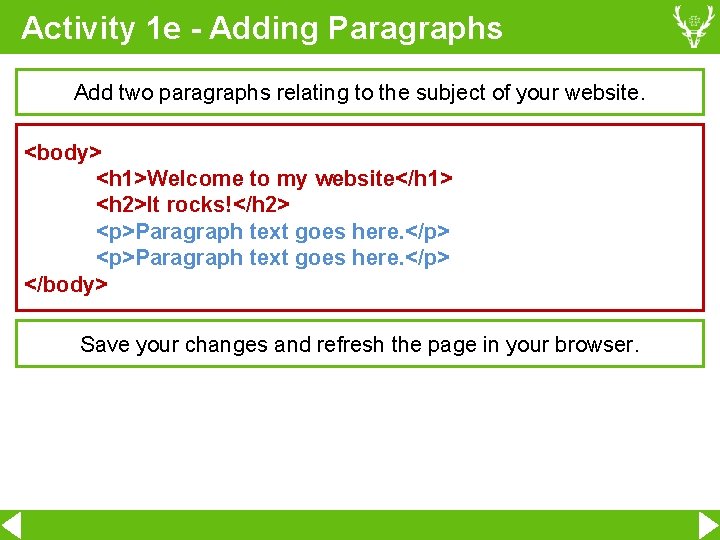
Activity 1 e - Adding Paragraphs Add two paragraphs relating to the subject of your website. <body> <h 1>Welcome to my website</h 1> <h 2>It rocks!</h 2> <p>Paragraph text goes here. </p> </body> Save your changes and refresh the page in your browser.
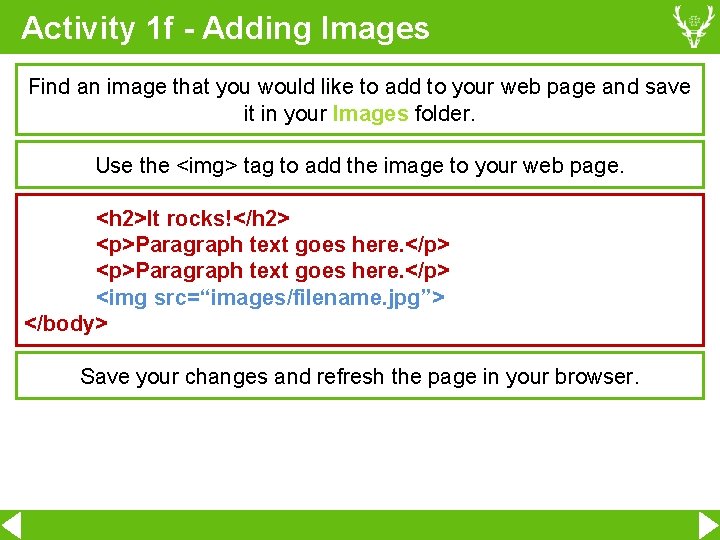
Activity 1 f - Adding Images Find an image that you would like to add to your web page and save it in your Images folder. Use the <img> tag to add the image to your web page. <h 2>It rocks!</h 2> <p>Paragraph text goes here. </p> <img src=“images/filename. jpg”> </body> Save your changes and refresh the page in your browser.
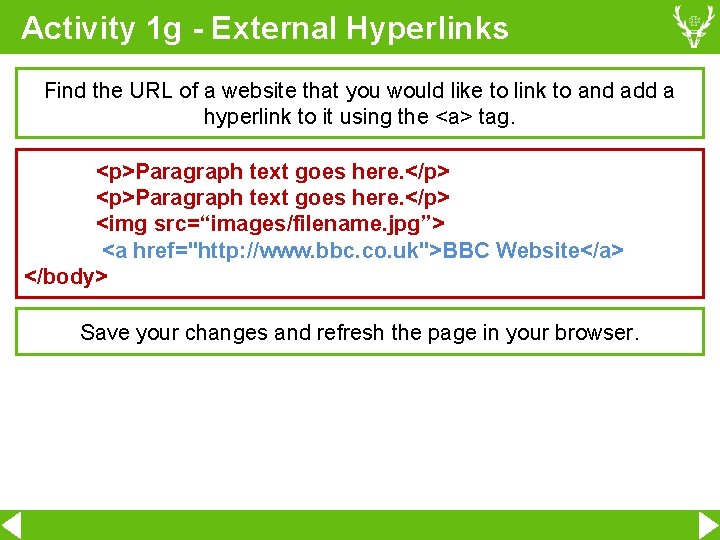
Activity 1 g - External Hyperlinks Find the URL of a website that you would like to link to and add a hyperlink to it using the <a> tag. <p>Paragraph text goes here. </p> <img src=“images/filename. jpg”> <a href="http: //www. bbc. co. uk">BBC Website</a> </body> Save your changes and refresh the page in your browser.
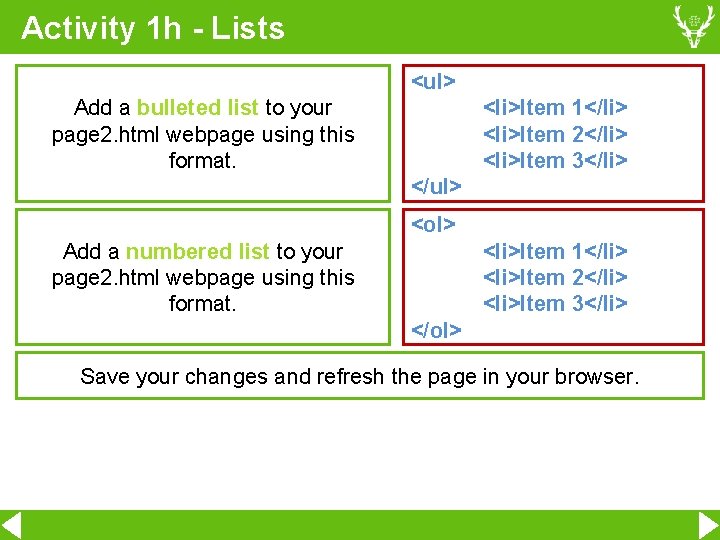
Activity 1 h - Lists <ul> Add a bulleted list to your page 2. html webpage using this format. <li>Item 1</li> <li>Item 2</li> <li>Item 3</li> </ul> <ol> Add a numbered list to your page 2. html webpage using this format. <li>Item 1</li> <li>Item 2</li> <li>Item 3</li> </ol> Save your changes and refresh the page in your browser.
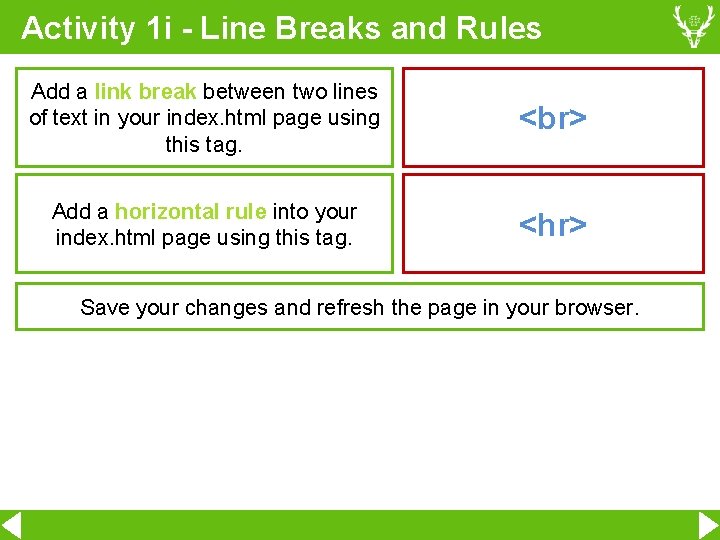
Activity 1 i - Line Breaks and Rules Add a link break between two lines of text in your index. html page using this tag. Add a horizontal rule into your index. html page using this tag. <hr> Save your changes and refresh the page in your browser.
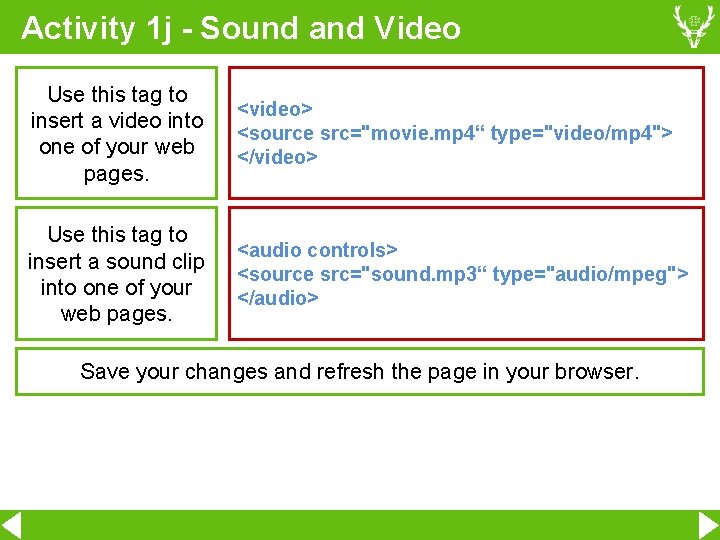
Activity 1 j - Sound and Video Use this tag to insert a video into one of your web pages. <video> <source src="movie. mp 4“ type="video/mp 4"> </video> Use this tag to insert a sound clip into one of your web pages. <audio controls> <source src="sound. mp 3“ type="audio/mpeg"> </audio> Save your changes and refresh the page in your browser.
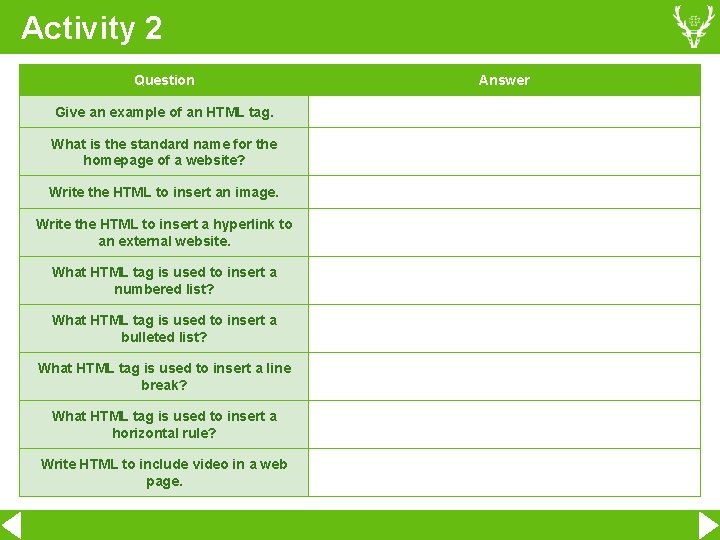
Activity 2 Question Give an example of an HTML tag. What is the standard name for the homepage of a website? Write the HTML to insert an image. Write the HTML to insert a hyperlink to an external website. What HTML tag is used to insert a numbered list? What HTML tag is used to insert a bulleted list? What HTML tag is used to insert a line break? What HTML tag is used to insert a horizontal rule? Write HTML to include video in a web page. Answer
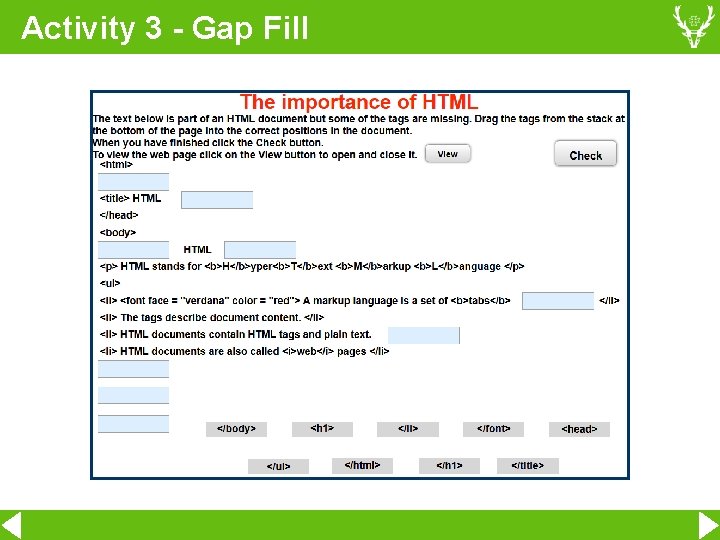
Activity 3 - Gap Fill
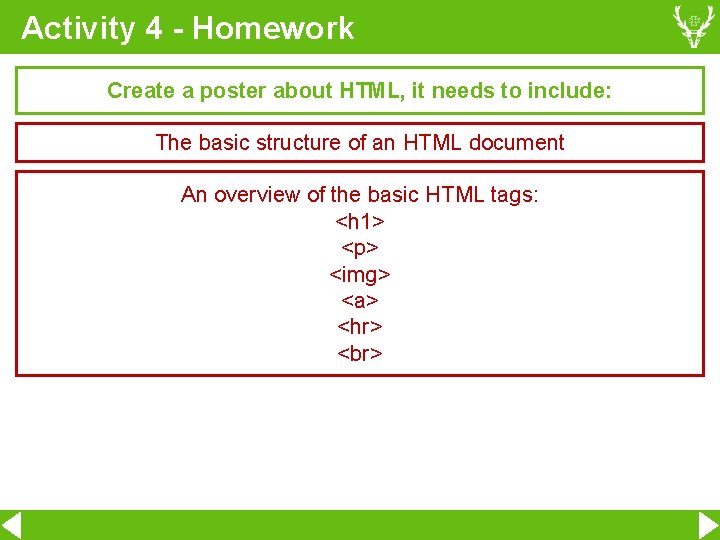
Activity 4 - Homework Create a poster about HTML, it needs to include: The basic structure of an HTML document An overview of the basic HTML tags: <h 1> <p> <img> <a> <hr>
Cascading Style Sheets Cascading style sheets (CSS) are used to save work and improve consistency by controlling the formatting of multiple web pages. They are separate files that contain a series of rules that control the formatting of multiple web pages.
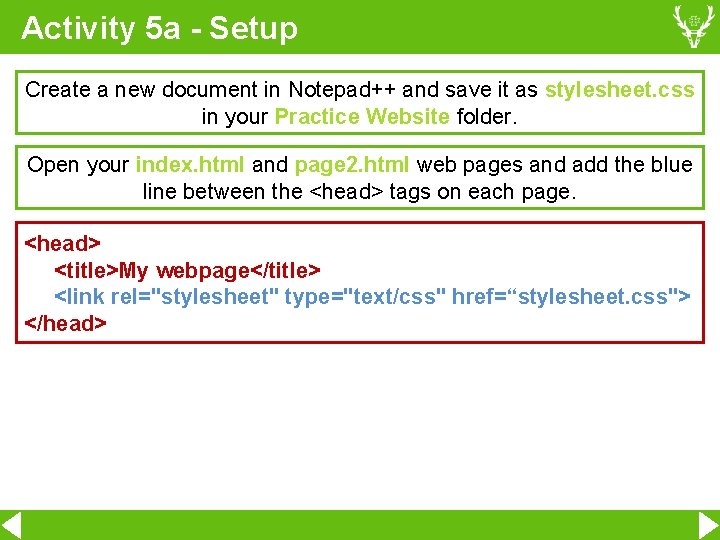
Activity 5 a - Setup Create a new document in Notepad++ and save it as stylesheet. css in your Practice Website folder. Open your index. html and page 2. html web pages and add the blue line between the <head> tags on each page. <head> <title>My webpage</title> <link rel="stylesheet" type="text/css" href=“stylesheet. css"> </head>
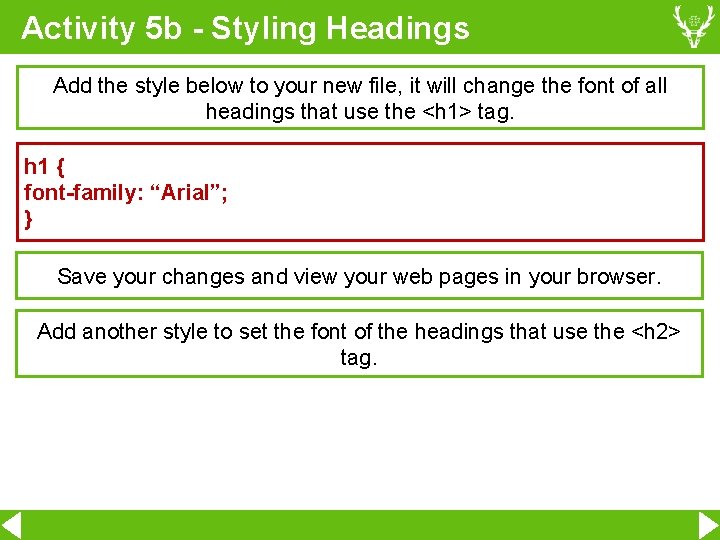
Activity 5 b - Styling Headings Add the style below to your new file, it will change the font of all headings that use the <h 1> tag. h 1 { font-family: “Arial”; } Save your changes and view your web pages in your browser. Add another style to set the font of the headings that use the <h 2> tag.
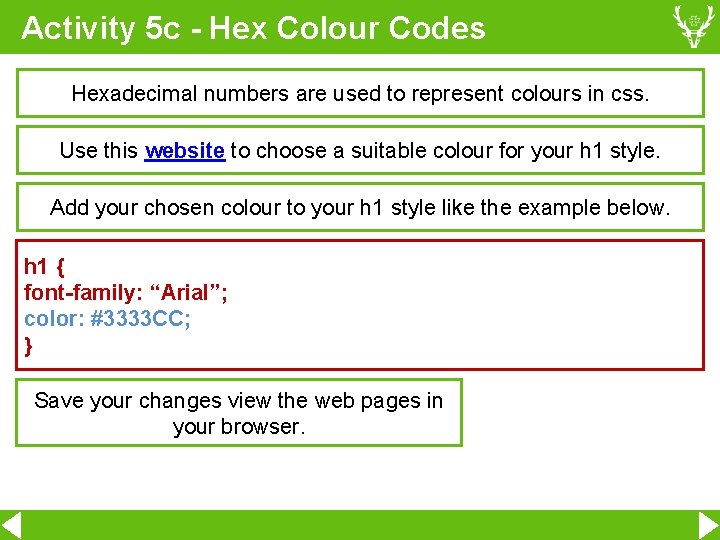
Activity 5 c - Hex Colour Codes Hexadecimal numbers are used to represent colours in css. Use this website to choose a suitable colour for your h 1 style. Add your chosen colour to your h 1 style like the example below. h 1 { font-family: “Arial”; color: #3333 CC; } Save your changes view the web pages in your browser.
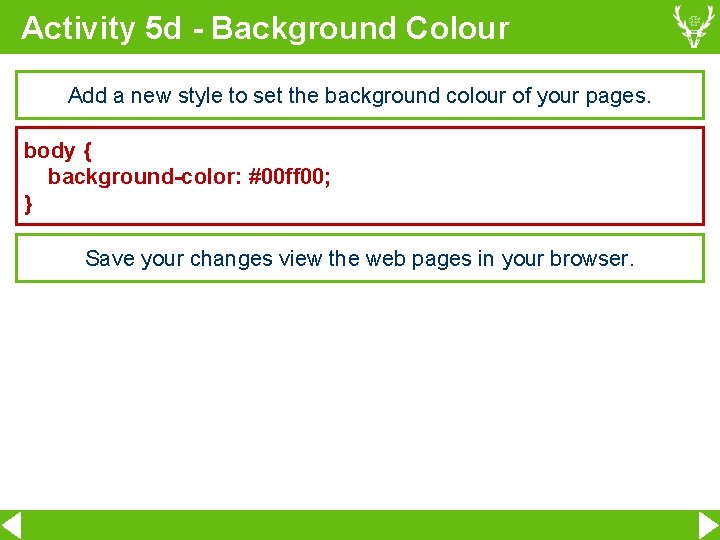
Activity 5 d - Background Colour Add a new style to set the background colour of your pages. body { background-color: #00 ff 00; } Save your changes view the web pages in your browser.
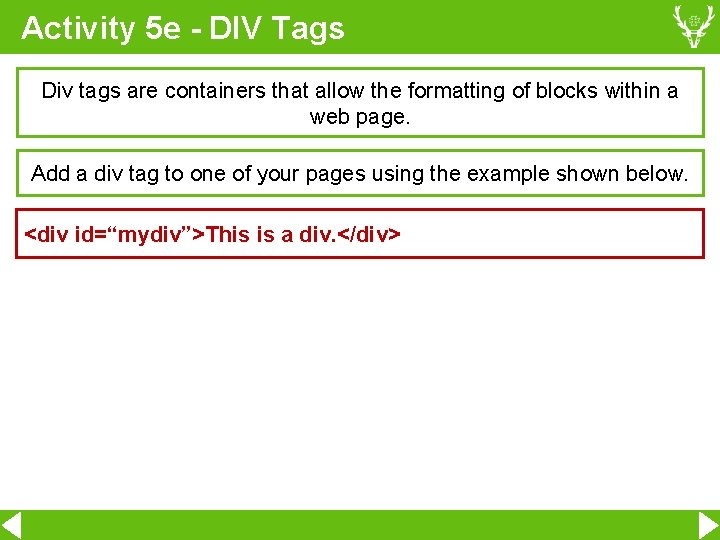
Activity 5 e - DIV Tags Div tags are containers that allow the formatting of blocks within a web page. Add a div tag to one of your pages using the example shown below. <div id=“mydiv”>This is a div. </div>
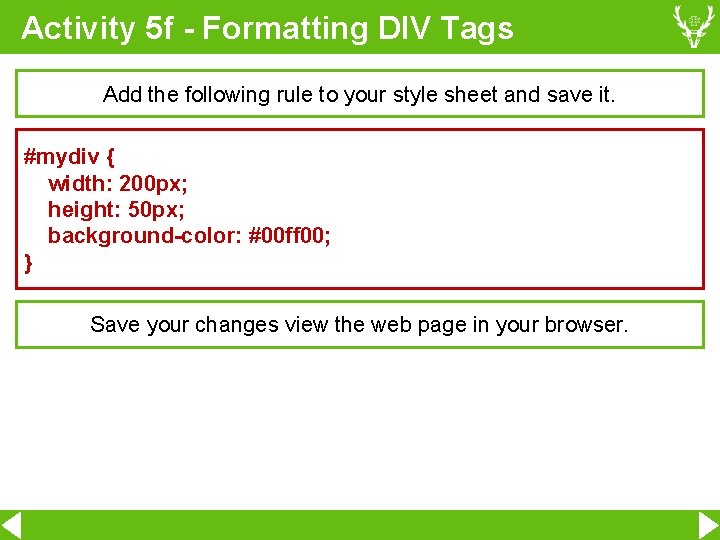
Activity 5 f - Formatting DIV Tags Add the following rule to your style sheet and save it. #mydiv { width: 200 px; height: 50 px; background-color: #00 ff 00; } Save your changes view the web page in your browser.
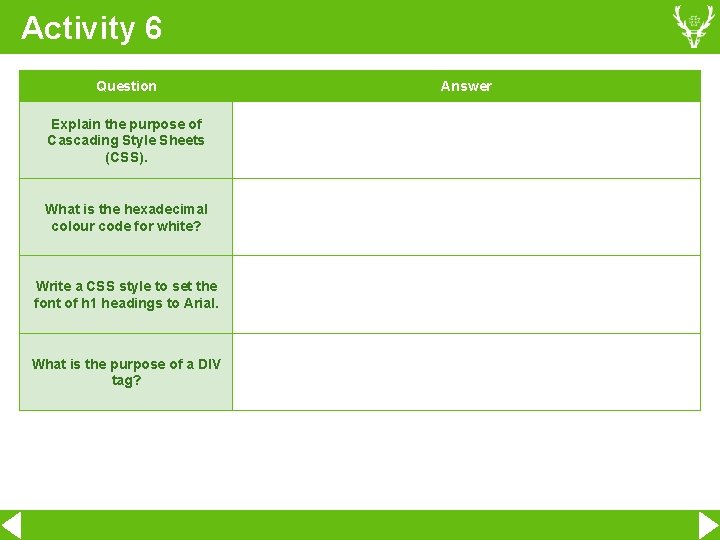
Activity 6 Question Explain the purpose of Cascading Style Sheets (CSS). What is the hexadecimal colour code for white? Write a CSS style to set the font of h 1 headings to Arial. What is the purpose of a DIV tag? Answer
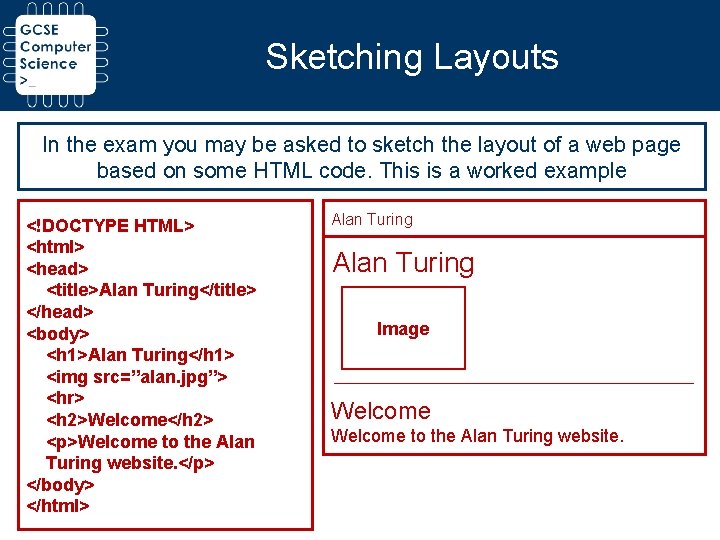
Sketching Layouts In the exam you may be asked to sketch the layout of a web page based on some HTML code. This is a worked example <!DOCTYPE HTML> <html> <head> <title>Alan Turing</title> </head> <body> <h 1>Alan Turing</h 1> <img src=”alan. jpg”> <hr> <h 2>Welcome</h 2> <p>Welcome to the Alan Turing website. </p> </body> </html> Alan Turing Image Welcome to the Alan Turing website.
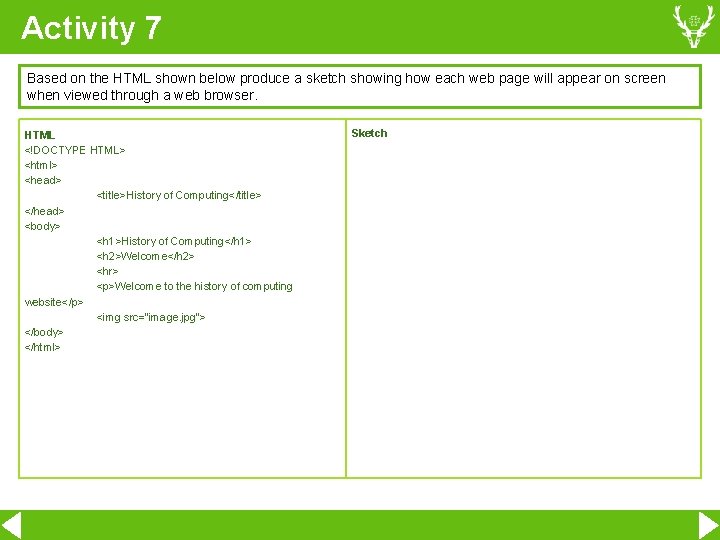
Activity 7 Based on the HTML shown below produce a sketch showing how each web page will appear on screen when viewed through a web browser. HTML <!DOCTYPE HTML> <html> <head> <title>History of Computing</title> </head> <body> <h 1>History of Computing</h 1> <h 2>Welcome</h 2> <hr> <p>Welcome to the history of computing website</p> <img src=”image. jpg”> </body> </html> Sketch
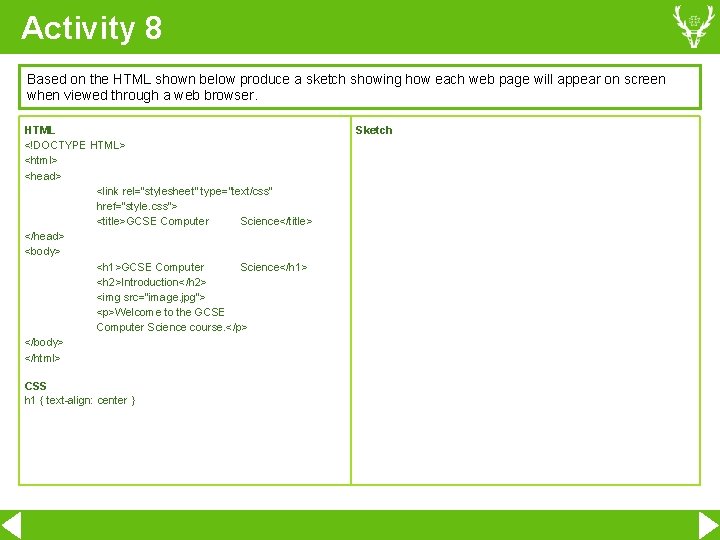
Activity 8 Based on the HTML shown below produce a sketch showing how each web page will appear on screen when viewed through a web browser. HTML <!DOCTYPE HTML> <html> <head> <link rel=”stylesheet” type=”text/css” href=”style. css”> <title>GCSE Computer Science</title> </head> <body> <h 1>GCSE Computer Science</h 1> <h 2>Introduction</h 2> <img src=”image. jpg”> <p>Welcome to the GCSE Computer Science course. </p> </body> </html> CSS h 1 { text-align: center } Sketch
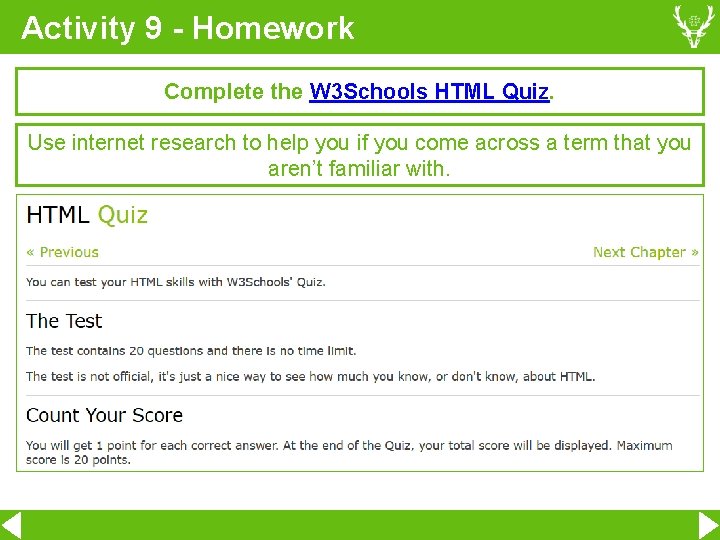
Activity 9 - Homework Complete the W 3 Schools HTML Quiz. Use internet research to help you if you come across a term that you aren’t familiar with.