
FY 2019 LESO ANNUAL INVENTORY CERTIFICATION MISSOURI DEPARTMENT
- Slides: 22
FY 2019 LESO ANNUAL INVENTORY CERTIFICATION MISSOURI DEPARTMENT OF PUBLIC SAFETY CRIMINAL JUSTICE/LAW ENFORCEMENT UNIT (MISSOURI LESO PROGRAM STAFF) Heather Haslag CJ/LE Program Manager LESO State Coordinator Email: heather. haslag@dps. mo. gov Office: 573 -751 -1318 Tim Kempker CJ/LE Program Specialist LESO State Point of Contact Email: tim. kempker@dps. mo. gov Office: 573 -751 -5428 Logan Hitt CJ/LE Program Representative LESO State Point of Contact Email: logan. hitt@dps. mo. gov Office: 573 -751 -2184 1
FY 2019 LESO ANNUAL INVENTORY CERTIFICATION • LESO Certification & Inventory started on October 1, 2019. • Law Enforcement Agencies have until November 30, 2019 to complete the LESO Certification & Inventory. • Law Enforcement Agencies will need to certify their agency information. • Law Enforcement Agencies will verify their State Plan of Operation is uploaded and correct. • Law Enforcement Agencies will conduct a physical inventory of all assigned LESO property and certify its existence. 2
FY 2019 LESO ANNUAL INVENTORY CERTIFICATION • DO NOT certify your agency if your Chief Law Enforcement Official (CLEO) (e. g. Sheriff, Chief, Marshal, Director) is incorrectly listed. • DO NOT certify your agency if your Officer Count is incorrectly listed. • DO NOT certify your agency if your State Plan of Operation is incorrect (e. g. signed by the wrong signatories). • DO NOT certify your property if you are missing one or more items. • DO NOT certify your property if you have incorrect serial numbers, NSNs, or photos that are not current or are hard to read. 3
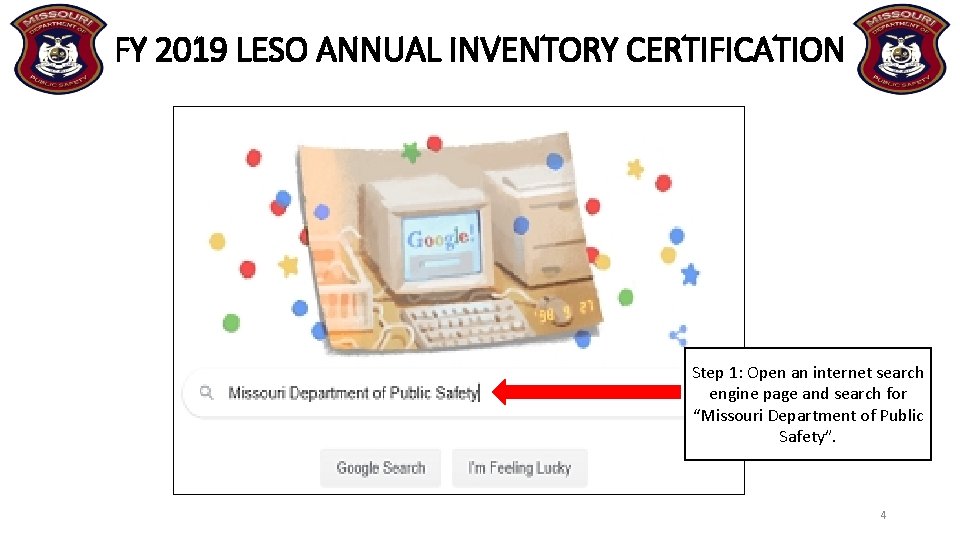
FY 2019 LESO ANNUAL INVENTORY CERTIFICATION Step 1: Open an internet search engine page and search for “Missouri Department of Public Safety”. 4
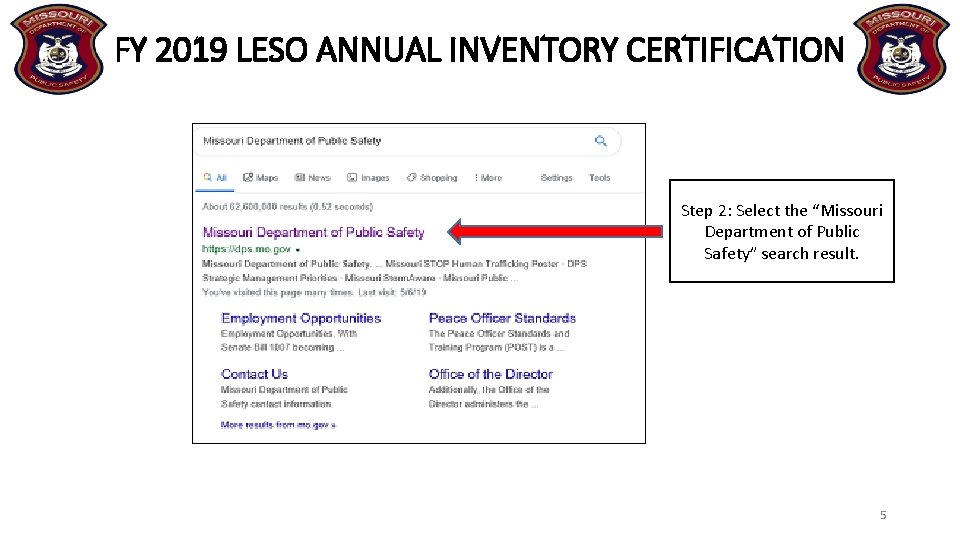
FY 2019 LESO ANNUAL INVENTORY CERTIFICATION Step 2: Select the “Missouri Department of Public Safety” search result. 5
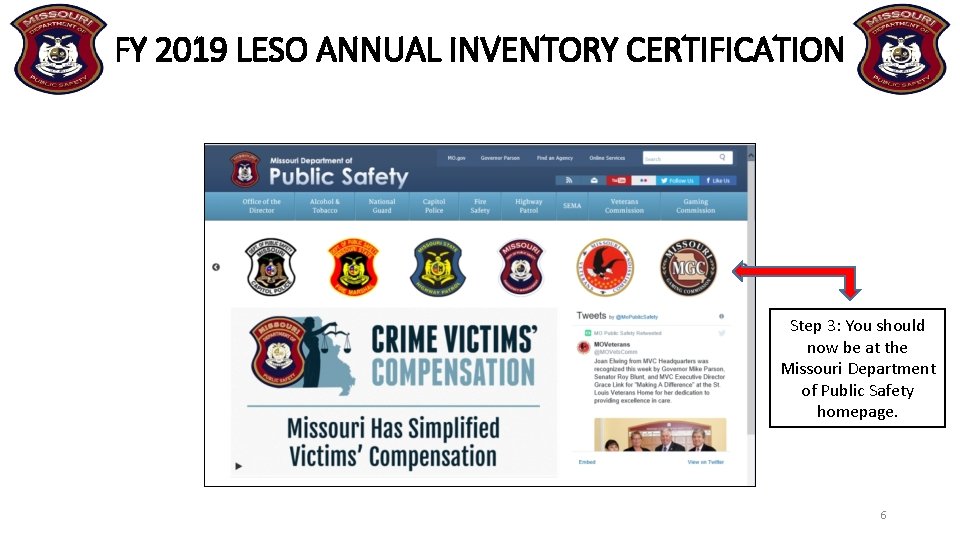
FY 2019 LESO ANNUAL INVENTORY CERTIFICATION Step 3: You should now be at the Missouri Department of Public Safety homepage. 6
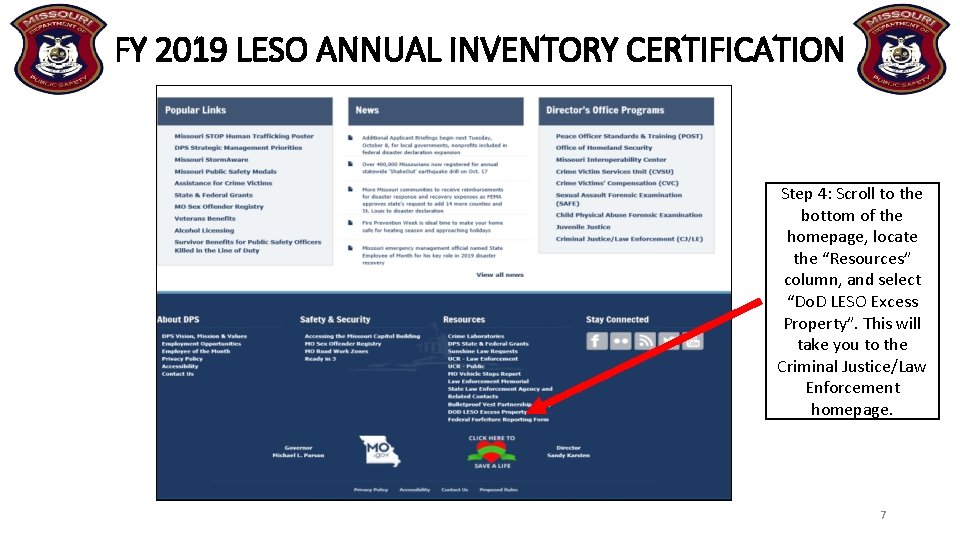
FY 2019 LESO ANNUAL INVENTORY CERTIFICATION Step 4: Scroll to the bottom of the homepage, locate the “Resources” column, and select “Do. D LESO Excess Property”. This will take you to the Criminal Justice/Law Enforcement homepage. 7
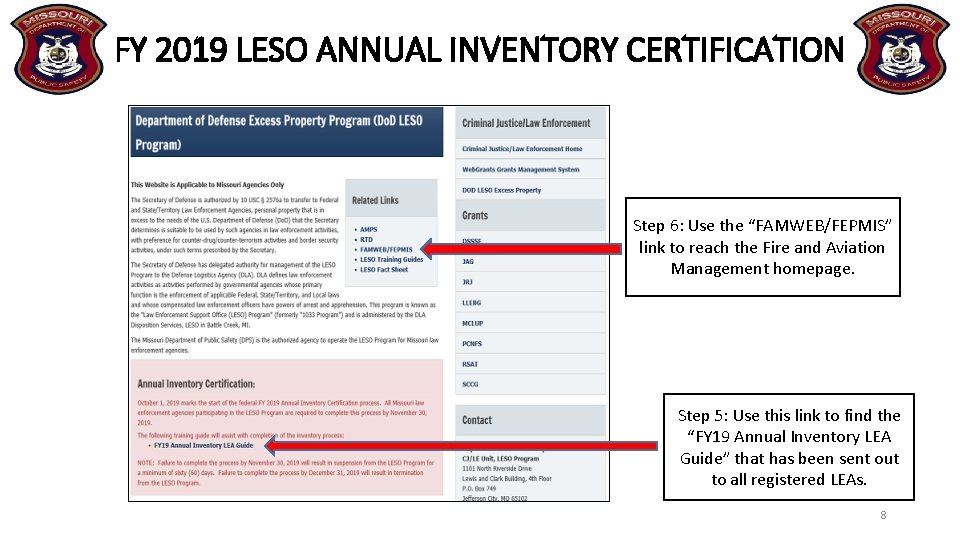
FY 2019 LESO ANNUAL INVENTORY CERTIFICATION Step 6: Use the “FAMWEB/FEPMIS” link to reach the Fire and Aviation Management homepage. Step 5: Use this link to find the “FY 19 Annual Inventory LEA Guide” that has been sent out to all registered LEAs. 8
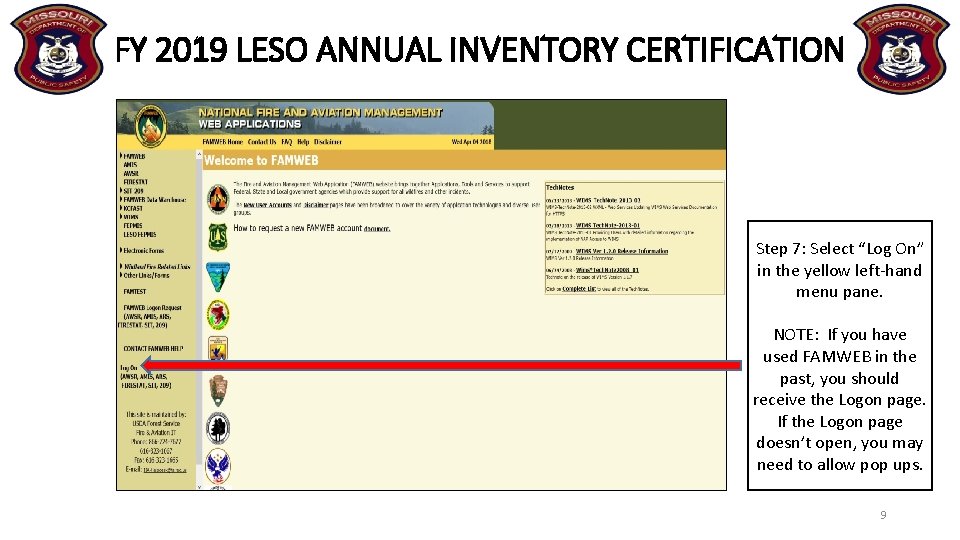
FY 2019 LESO ANNUAL INVENTORY CERTIFICATION Step 7: Select “Log On” in the yellow left-hand menu pane. NOTE: If you have used FAMWEB in the past, you should receive the Logon page. If the Logon page doesn’t open, you may need to allow pop ups. 9
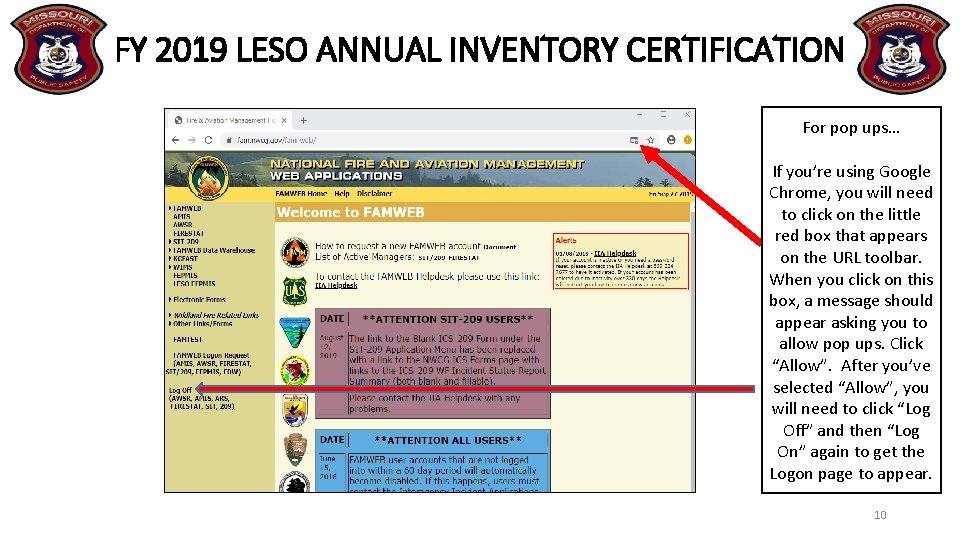
FY 2019 LESO ANNUAL INVENTORY CERTIFICATION For pop ups… If you’re using Google Chrome, you will need to click on the little red box that appears on the URL toolbar. When you click on this box, a message should appear asking you to allow pop ups. Click “Allow”. After you’ve selected “Allow”, you will need to click “Log Off” and then “Log On” again to get the Logon page to appear. 10
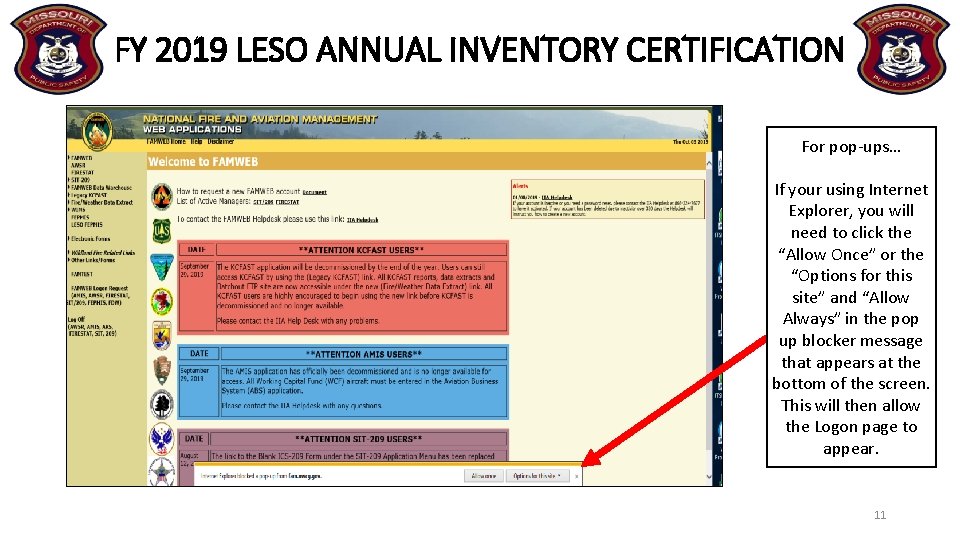
FY 2019 LESO ANNUAL INVENTORY CERTIFICATION For pop-ups… If your using Internet Explorer, you will need to click the “Allow Once” or the “Options for this site” and “Allow Always” in the pop up blocker message that appears at the bottom of the screen. This will then allow the Logon page to appear. 11
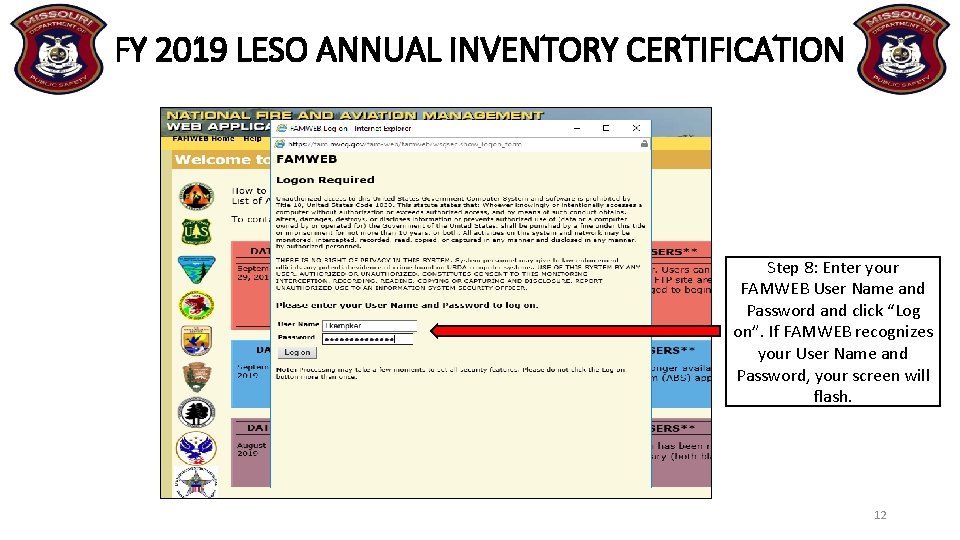
FY 2019 LESO ANNUAL INVENTORY CERTIFICATION Step 8: Enter your FAMWEB User Name and Password and click “Log on”. If FAMWEB recognizes your User Name and Password, your screen will flash. 12
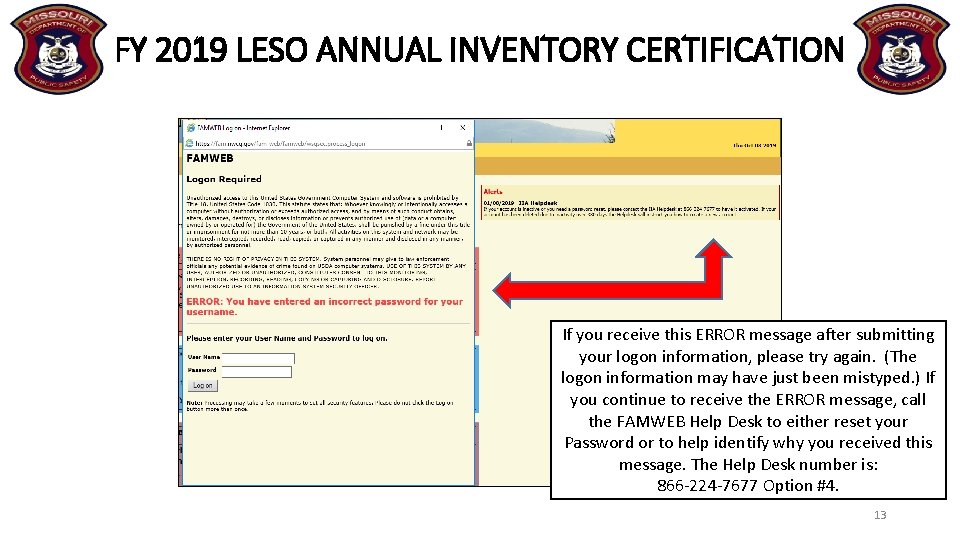
FY 2019 LESO ANNUAL INVENTORY CERTIFICATION If you receive this ERROR message after submitting your logon information, please try again. (The logon information may have just been mistyped. ) If you continue to receive the ERROR message, call the FAMWEB Help Desk to either reset your Password or to help identify why you received this message. The Help Desk number is: 866 -224 -7677 Option #4. 13
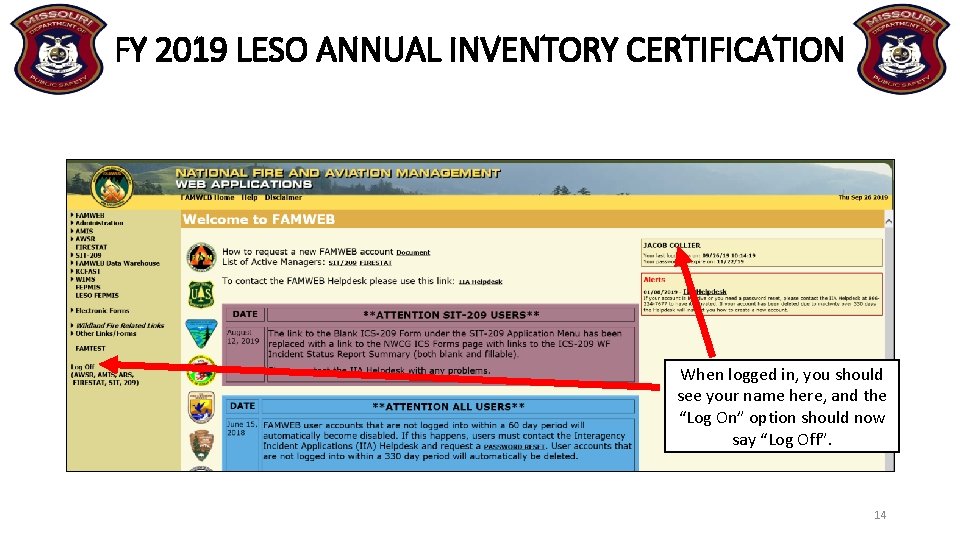
FY 2019 LESO ANNUAL INVENTORY CERTIFICATION When logged in, you should see your name here, and the “Log On” option should now say “Log Off”. 14
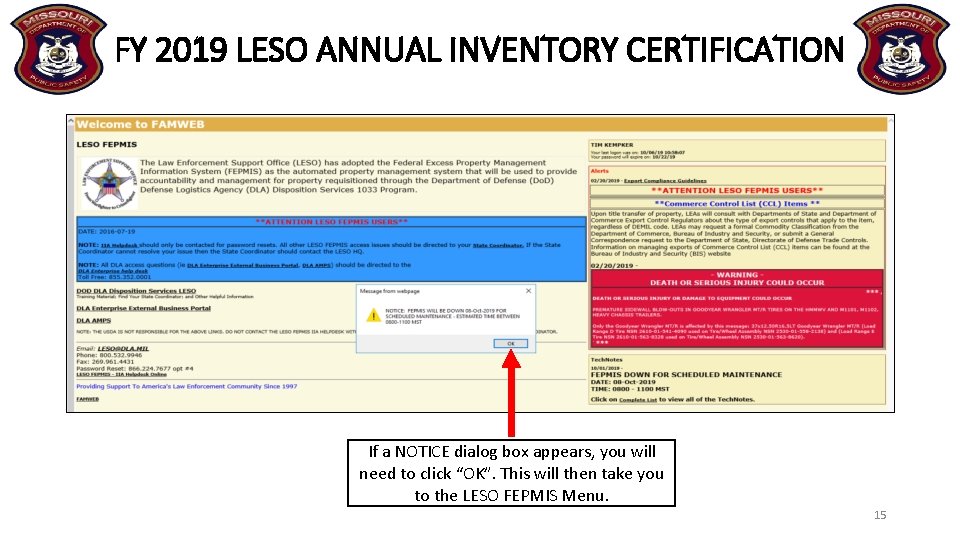
FY 2019 LESO ANNUAL INVENTORY CERTIFICATION If a NOTICE dialog box appears, you will need to click “OK”. This will then take you to the LESO FEPMIS Menu. 15
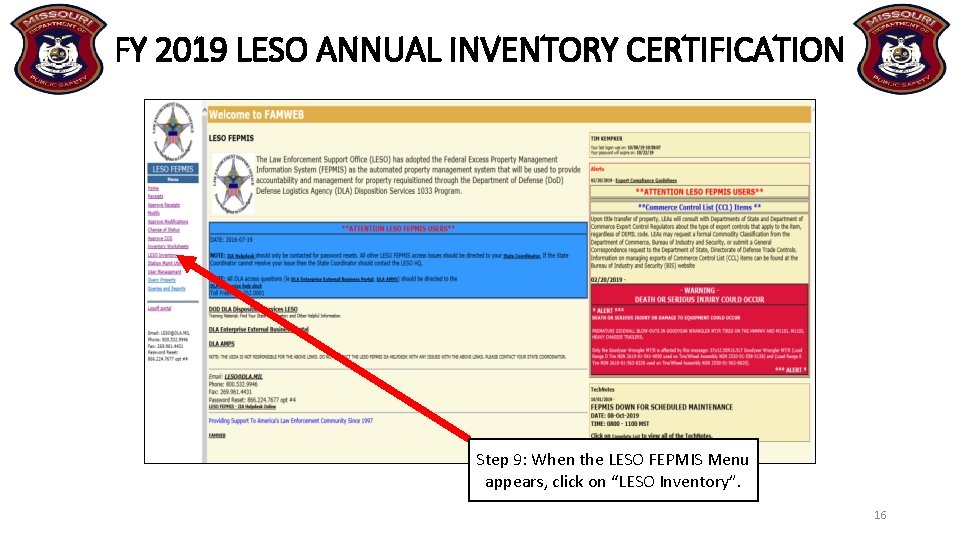
FY 2019 LESO ANNUAL INVENTORY CERTIFICATION Step 9: When the LESO FEPMIS Menu appears, click on “LESO Inventory”. 16
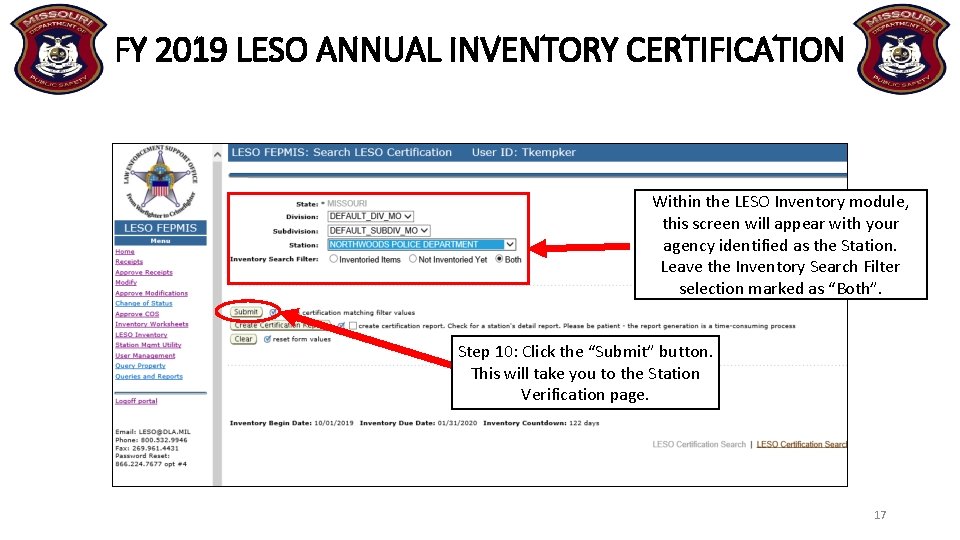
FY 2019 LESO ANNUAL INVENTORY CERTIFICATION Within the LESO Inventory module, this screen will appear with your agency identified as the Station. Leave the Inventory Search Filter selection marked as “Both”. Step 10: Click the “Submit” button. This will take you to the Station Verification page. 17
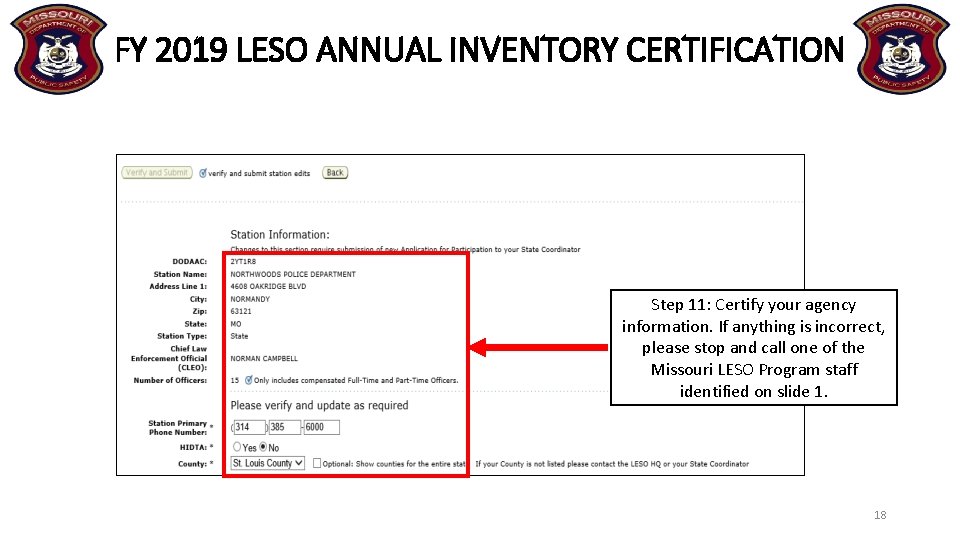
FY 2019 LESO ANNUAL INVENTORY CERTIFICATION Step 11: Certify your agency information. If anything is incorrect, please stop and call one of the Missouri LESO Program staff identified on slide 1. 18
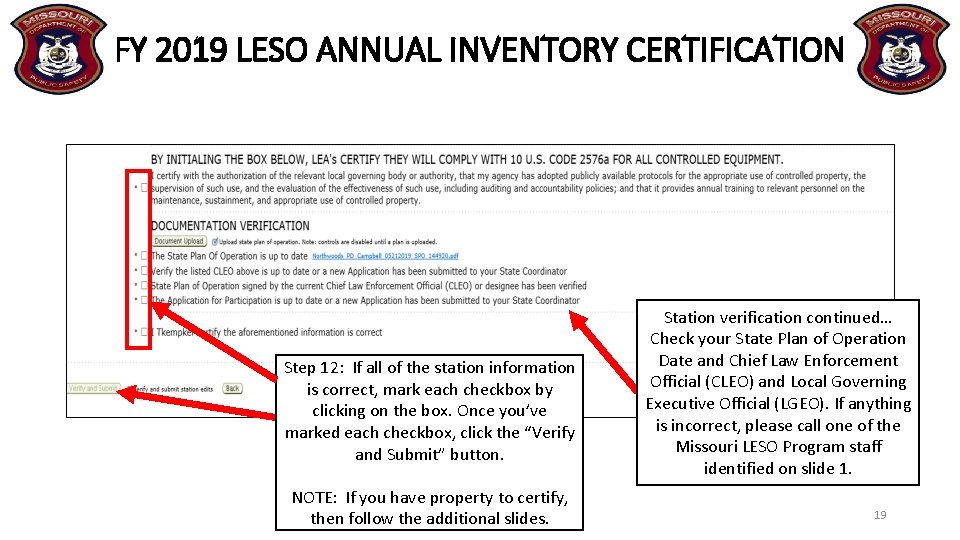
FY 2019 LESO ANNUAL INVENTORY CERTIFICATION Step 12: If all of the station information is correct, mark each checkbox by clicking on the box. Once you’ve marked each checkbox, click the “Verify and Submit” button. NOTE: If you have property to certify, then follow the additional slides. Station verification continued… Check your State Plan of Operation Date and Chief Law Enforcement Official (CLEO) and Local Governing Executive Official (LGEO). If anything is incorrect, please call one of the Missouri LESO Program staff identified on slide 1. 19
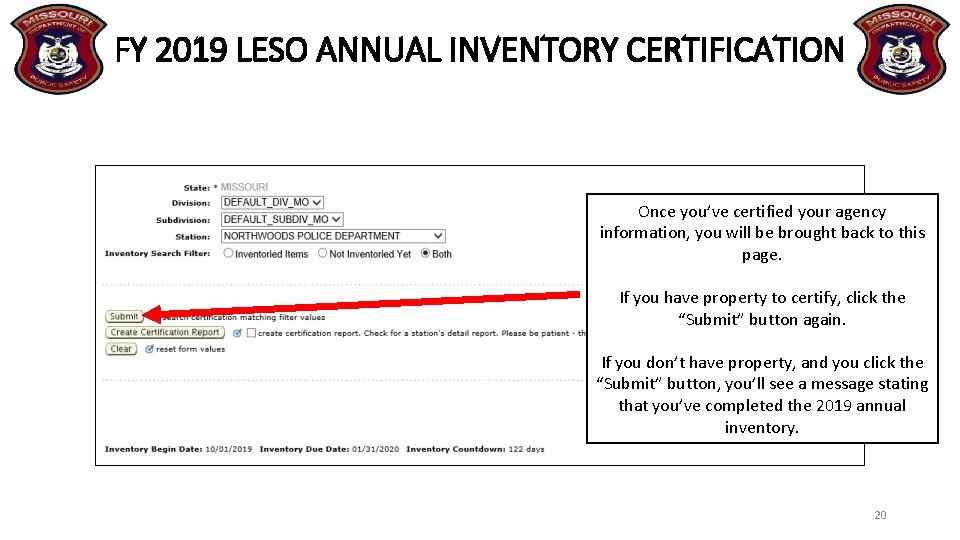
FY 2019 LESO ANNUAL INVENTORY CERTIFICATION Once you’ve certified your agency information, you will be brought back to this page. If you have property to certify, click the “Submit” button again. If you don’t have property, and you click the “Submit” button, you’ll see a message stating that you’ve completed the 2019 annual inventory. 20
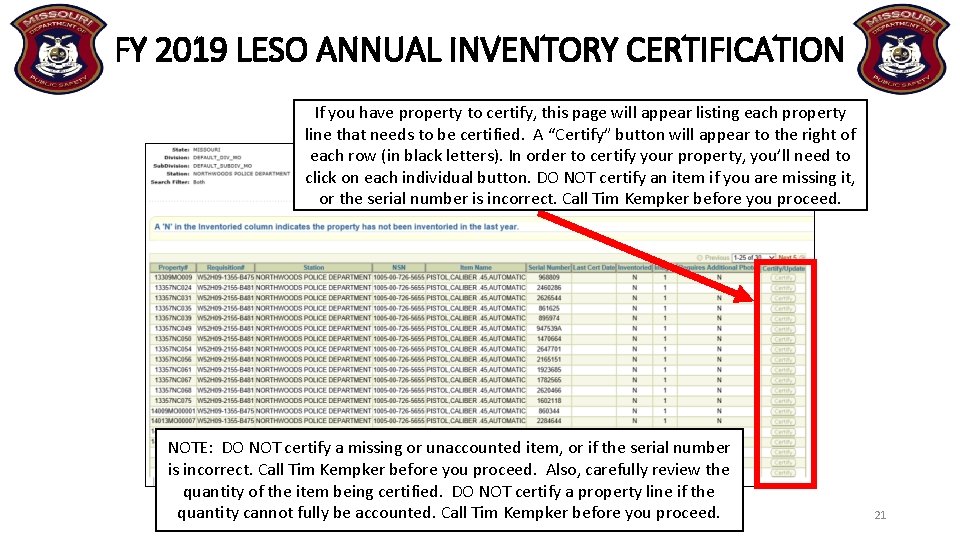
FY 2019 LESO ANNUAL INVENTORY CERTIFICATION If you have property to certify, this page will appear listing each property line that needs to be certified. A “Certify” button will appear to the right of each row (in black letters). In order to certify your property, you’ll need to click on each individual button. DO NOT certify an item if you are missing it, or the serial number is incorrect. Call Tim Kempker before you proceed. NOTE: DO NOT certify a missing or unaccounted item, or if the serial number is incorrect. Call Tim Kempker before you proceed. Also, carefully review the quantity of the item being certified. DO NOT certify a property line if the quantity cannot fully be accounted. Call Tim Kempker before you proceed. 21
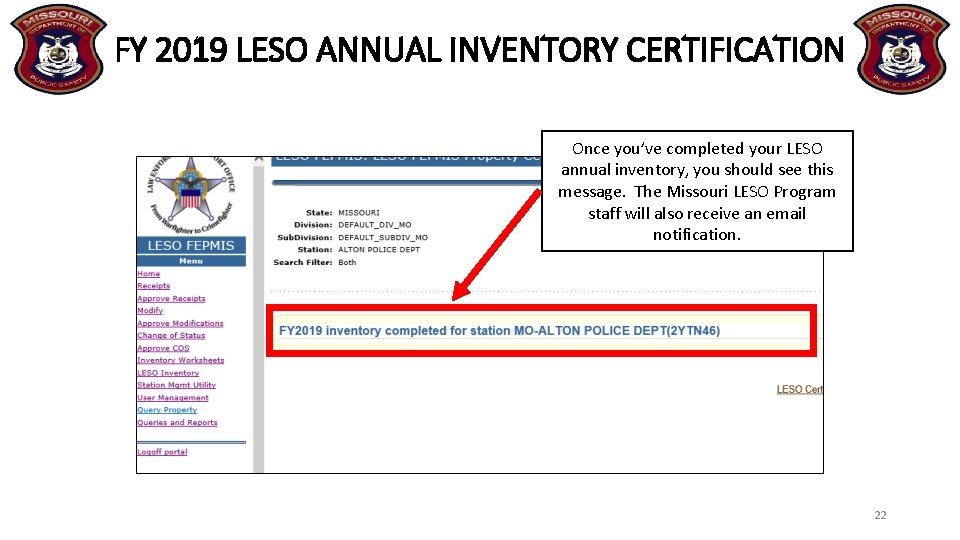
FY 2019 LESO ANNUAL INVENTORY CERTIFICATION Once you’ve completed your LESO annual inventory, you should see this message. The Missouri LESO Program staff will also receive an email notification. 22