
FY 18 Budget Entry FY 18 Budget Timeline
FY 18 Budget Entry
FY 18 Budget Timeline • May 1 st -May 5 th: Salary Planner/Budget Development Training • May 8 th-June 7 th: Salary Planner/Budget Development Open for Entry • May 29 th -June 7 th: Salary Planner/Budget Development Help Sessions • June 7 th: Salary Planner/Budget Development will be closed for budgeting § No exceptions to this date will be allowed so please plan accordingly
Process Overview • Which indexes to review and budget • Overall budget report • Reviewing/updating position budgets • Reviewing/updating operating budgets
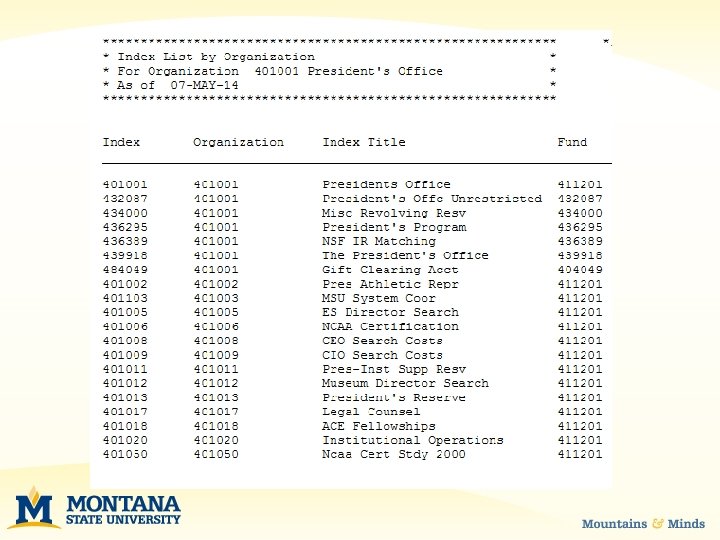
How do I Know Which Indexes to Budget? • You can run a report! • Log into the Banner SAIS Report Web – https: //sais. montana. edu/cgi-bin/msu_sb_v 3. pl • Go to Report Type: “Finance Reports” • Run the report named Index Listing (by Org) • Enter your Org number as a parameter (i. e. 415001, 437500, etc. ) • Run!
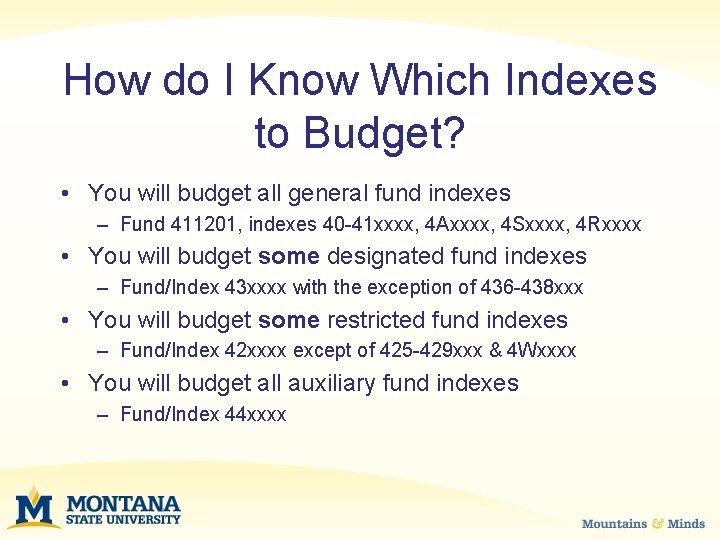
How do I Know Which Indexes to Budget? • You will budget all general fund indexes – Fund 411201, indexes 40 -41 xxxx, 4 Axxxx, 4 Sxxxx, 4 Rxxxx • You will budget some designated fund indexes – Fund/Index 43 xxxx with the exception of 436 -438 xxx • You will budget some restricted fund indexes – Fund/Index 42 xxxx except of 425 -429 xxx & 4 Wxxxx • You will budget all auxiliary fund indexes – Fund/Index 44 xxxx
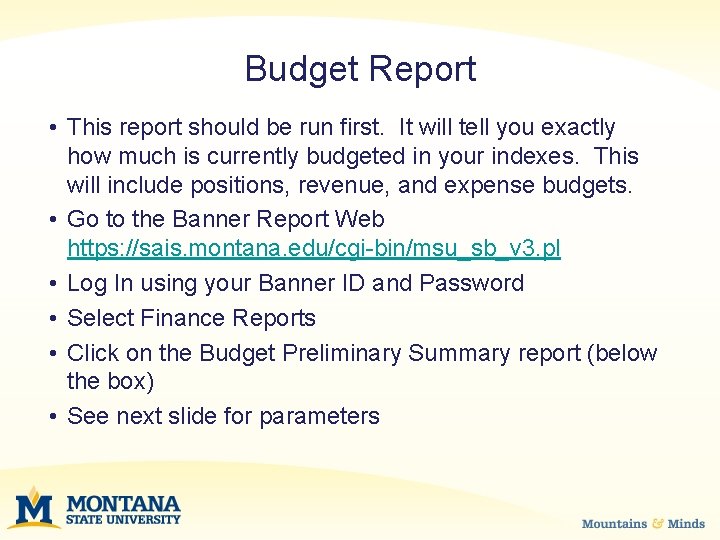
Budget Report • This report should be run first. It will tell you exactly how much is currently budgeted in your indexes. This will include positions, revenue, and expense budgets. • Go to the Banner Report Web https: //sais. montana. edu/cgi-bin/msu_sb_v 3. pl • Log In using your Banner ID and Password • Select Finance Reports • Click on the Budget Preliminary Summary report (below the box) • See next slide for parameters
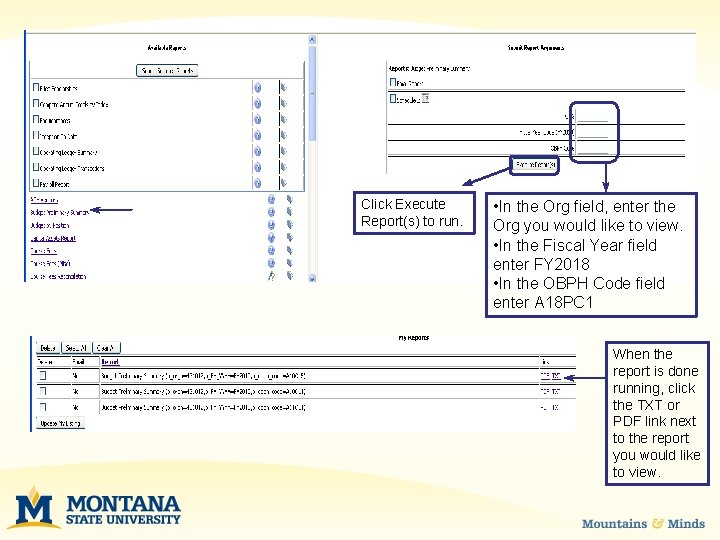
Click Execute Report(s) to run. • In the Org field, enter the Org you would like to view. • In the Fiscal Year field enter FY 2018 • In the OBPH Code field enter A 18 PC 1 When the report is done running, click the TXT or PDF link next to the report you would like to view.
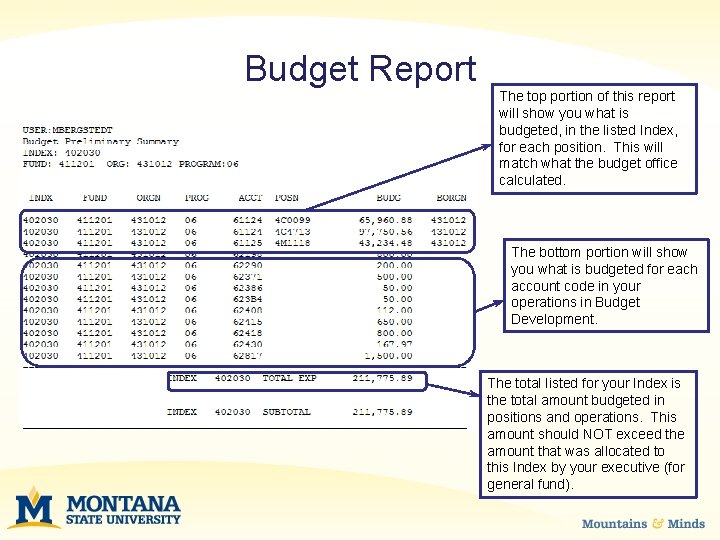
Budget Report The top portion of this report will show you what is budgeted, in the listed Index, for each position. This will match what the budget office calculated. The bottom portion will show you what is budgeted for each account code in your operations in Budget Development. The total listed for your Index is the total amount budgeted in positions and operations. This amount should NOT exceed the amount that was allocated to this Index by your executive (for general fund).
Steps to Analyze/Update Budgets Step 1: Verify Positon Budgets • Verify the position budget are correct for the new year. Budgets should match what the budget office calculated for each position based upon current information. See next slide for details. • If different than projected FY 18 budget, you will submit necessary changes to the Budget Office.
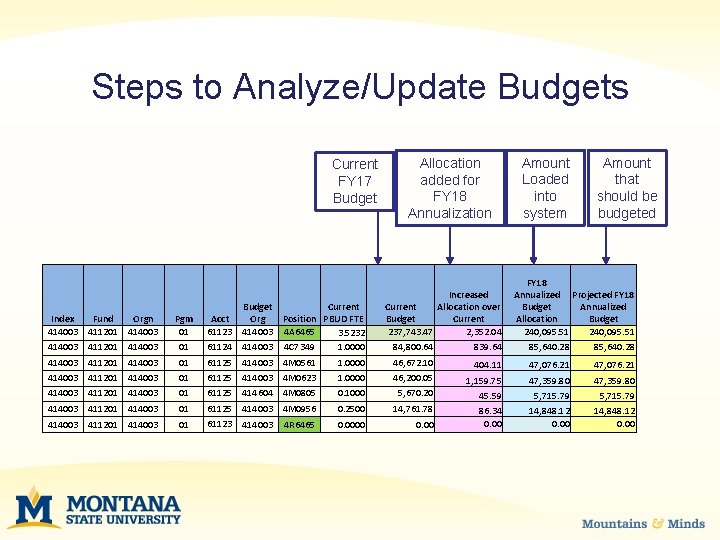
Steps to Analyze/Update Budgets Current FY 17 Budget Index Fund Orgn 414003 411201 414003 Pgm 01 414003 411201 414003 01 Budget Current Acct Org Position PBUD FTE 61123 414003 4 A 6465 3. 5232 61124 414003 4 C 7349 1. 0000 414003 411201 414003 01 61125 414003 4 M 0561 1. 0000 414003 411201 414003 01 61125 414003 4 M 0623 1. 0000 414003 411201 414003 01 61125 414604 4 M 0805 414003 411201 414003 01 61125 414003 4 M 0956 01 61123 414003 411201 414003 4 R 6465 Allocation added for FY 18 Annualization Increased Current Allocation over Budget Current 237, 743. 47 2, 352. 04 84, 800. 64 Amount Loaded into system Amount that should be budgeted FY 18 Annualized Projected FY 18 Budget Annualized Allocation Budget 240, 095. 51 839. 64 85, 640. 28 46, 672. 10 404. 11 47, 076. 21 46, 200. 05 1, 159. 75 47, 359. 80 0. 1000 5, 670. 20 45. 59 5, 715. 79 0. 2500 14, 761. 78 0. 0000 0. 00 86. 34 0. 00 14, 848. 12 0. 00
Steps to Analyze/Update Budgets Making Changes to Position Budgets For areas under Academic Affairs, Extension, and MAES send an email to Megan Bergstedt (mbergstedt@montana. edu). For areas under the President, VP for Student Success, and VP for Admin & Finance, VP Research, and Auxiliaries send an email to Mackenzie Seeley (mackenzie. seeley@montana. edu). Please Include: • Position Number • Current Budget, Index, and Split in the system • New Budget, Index, and Split
Steps to Analyze/Update Budgets Step 2: Update Operations • Look at your operating budgets and make notes of where you want to make adjustments based on actual revenue/expenditures and allocations. • If not correct, you will make the changes in Budget Development for your revenue account codes and operating account codes only.
Steps to Review/Update Budgets Step 3: Confirm Total Budgets • For general fund indexes, look at total expense to see if it matches your budget allocation. If not, adjustments will need to be made. • For non general fund indexes, look to ensure that revenue and expense net to zero or a positive number. • Re-run report as necessary to verify changes to overall budget
BUDGET DEVELOPMENT Budgeting for Operations
Key Points • Budget Development is found in My. Info • Use A 18 PC 1 as the Budget Phase and FY 2018 as the Budget ID when entering your budget information (case sensitive) • A maximum budget of $5, 000 is allowed in 62899 • All accounts that have $0 budget need to be deleted. • Budget 6% (of expenses) for the admin fee in designated (43 xxxx) indexes in account code 62889 A • DO NOT budget personnel account codes in Budget Development. You will see them in budget development in summary but pull over from Salary Planner (61123, 61124, 61125, 61126, 61127, 61128, 61224, 61225, 61226, 61227, 61228)
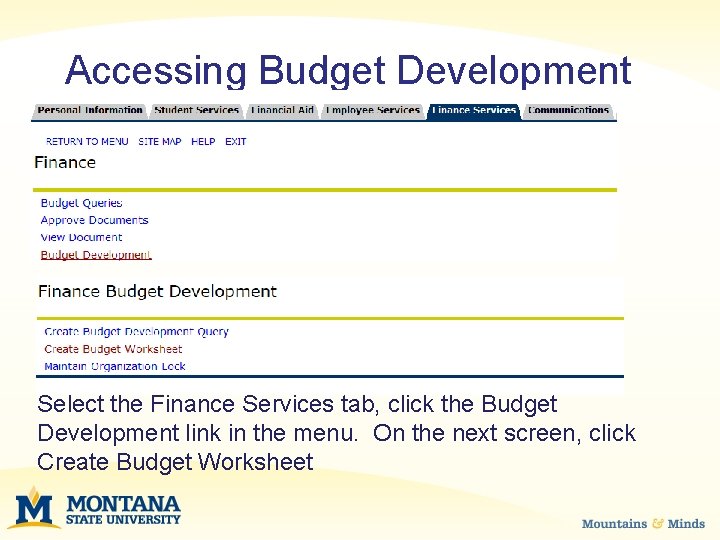
Accessing Budget Development Select the Finance Services tab, click the Budget Development link in the menu. On the next screen, click Create Budget Worksheet
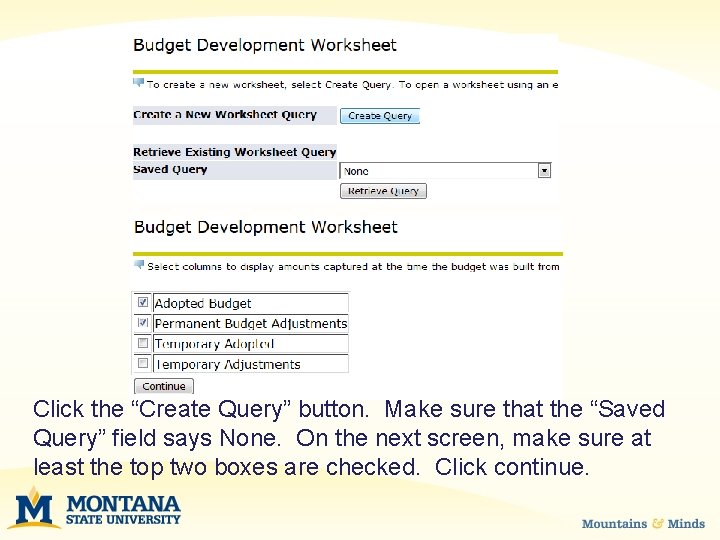
Click the “Create Query” button. Make sure that the “Saved Query” field says None. On the next screen, make sure at least the top two boxes are checked. Click continue.
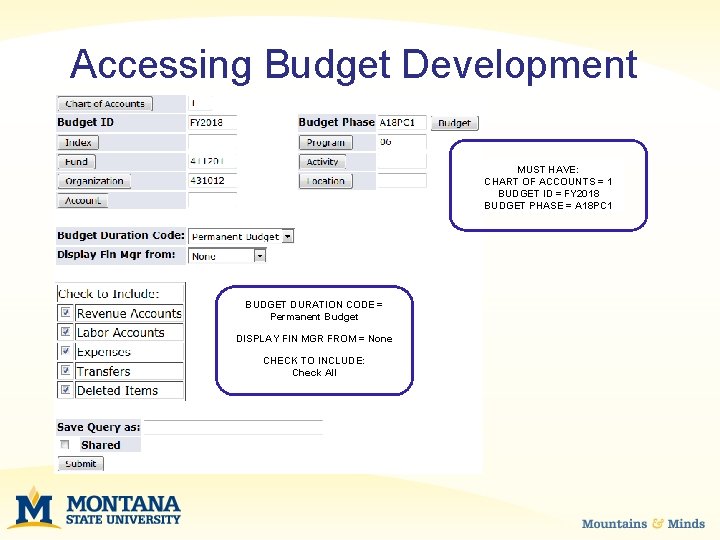
Accessing Budget Development MUST HAVE: CHART OF ACCOUNTS = 1 BUDGET ID = FY 2018 BUDGET PHASE = A 18 PC 1 BUDGET DURATION CODE = Permanent Budget DISPLAY FIN MGR FROM = None CHECK TO INCLUDE: Check All
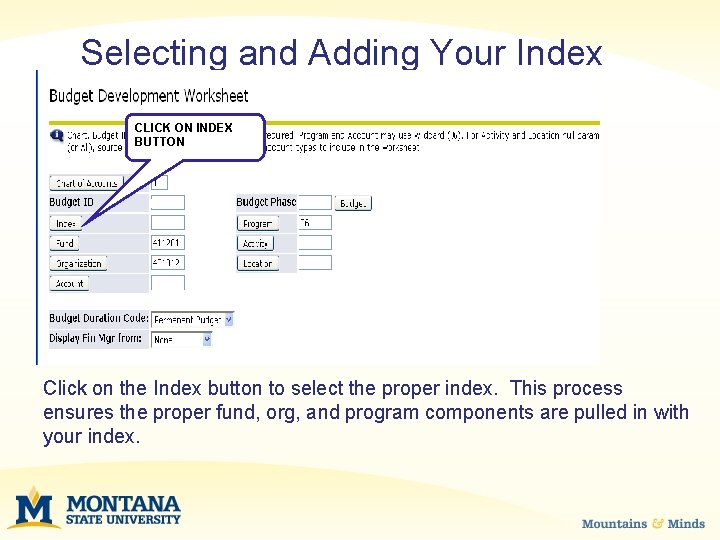
Selecting and Adding Your Index CLICK ON INDEX BUTTON Click on the Index button to select the proper index. This process ensures the proper fund, org, and program components are pulled in with your index.
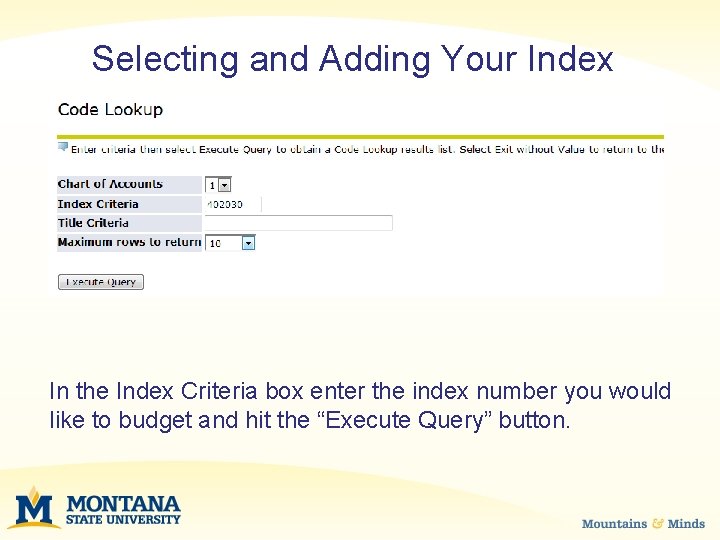
Selecting and Adding Your Index In the Index Criteria box enter the index number you would like to budget and hit the “Execute Query” button.
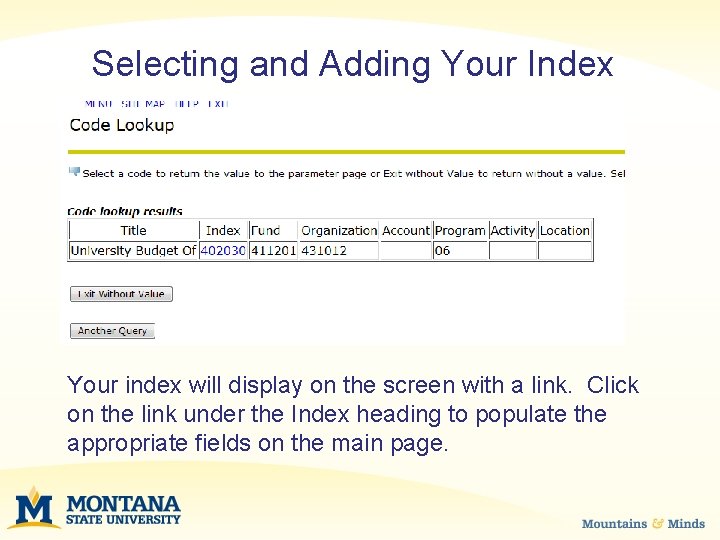
Selecting and Adding Your Index Your index will display on the screen with a link. Click on the link under the Index heading to populate the appropriate fields on the main page.
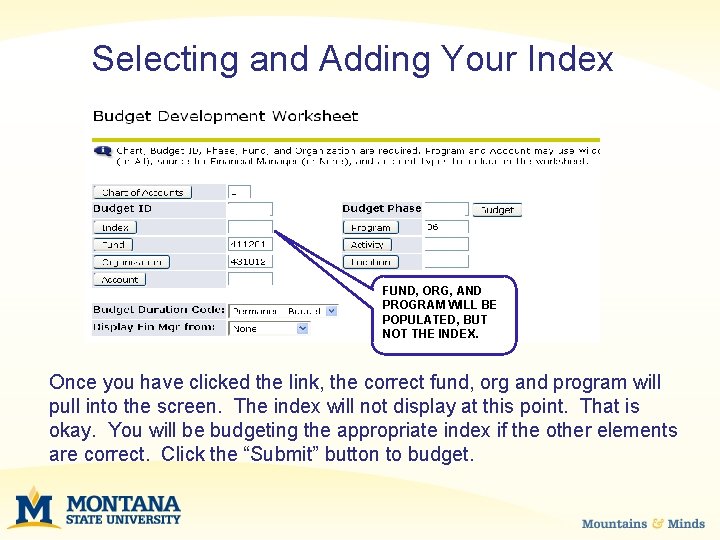
Selecting and Adding Your Index FUND, ORG, AND PROGRAM WILL BE POPULATED, BUT NOT THE INDEX. Once you have clicked the link, the correct fund, org and program will pull into the screen. The index will not display at this point. That is okay. You will be budgeting the appropriate index if the other elements are correct. Click the “Submit” button to budget.
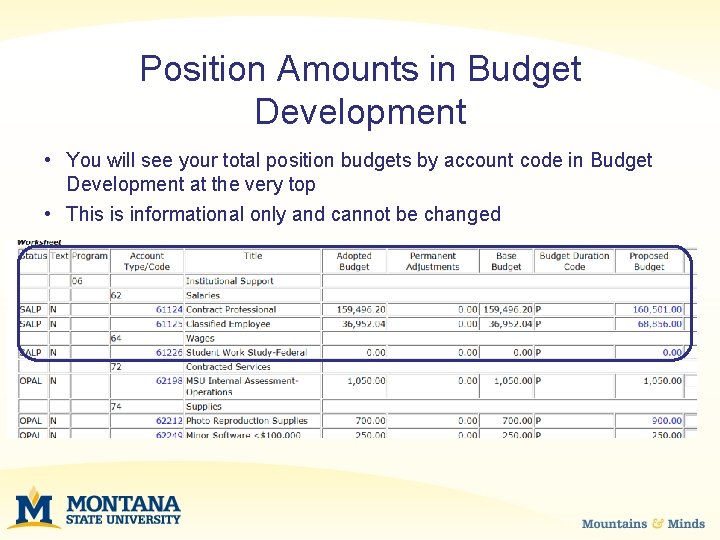
Position Amounts in Budget Development • You will see your total position budgets by account code in Budget Development at the very top • This is informational only and cannot be changed
Making Changes to Your Budgets • 4 Options for Making Changes: § Decreasing the current budget amount § Increasing the current budget amount § Creating budgets for additional account codes § Deleting account codes in zero budget lines
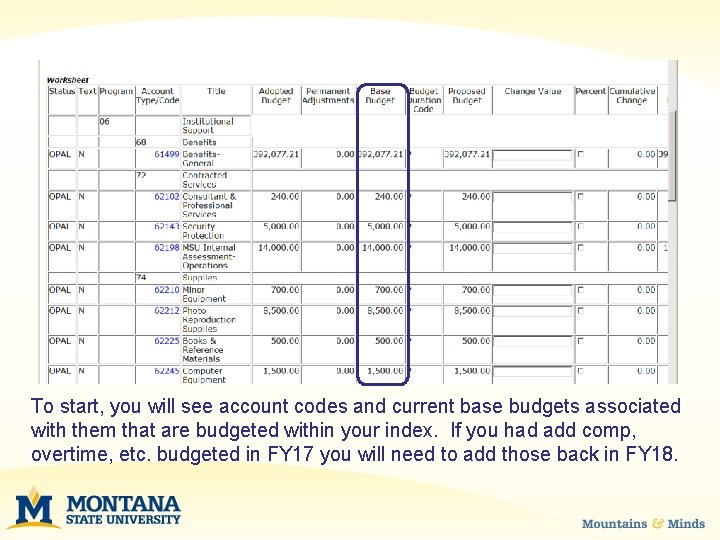
To start, you will see account codes and current base budgets associated with them that are budgeted within your index. If you had add comp, overtime, etc. budgeted in FY 17 you will need to add those back in FY 18.
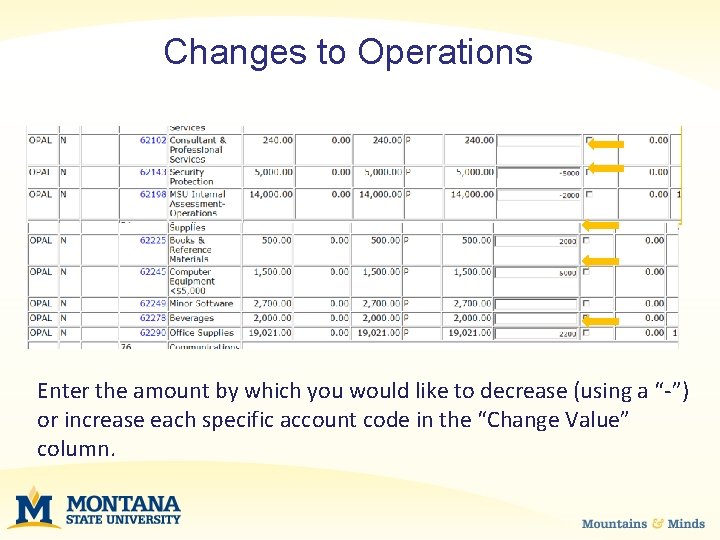
Changes to Operations Enter the amount by which you would like to decrease (using a “-”) or increase each specific account code in the “Change Value” column.
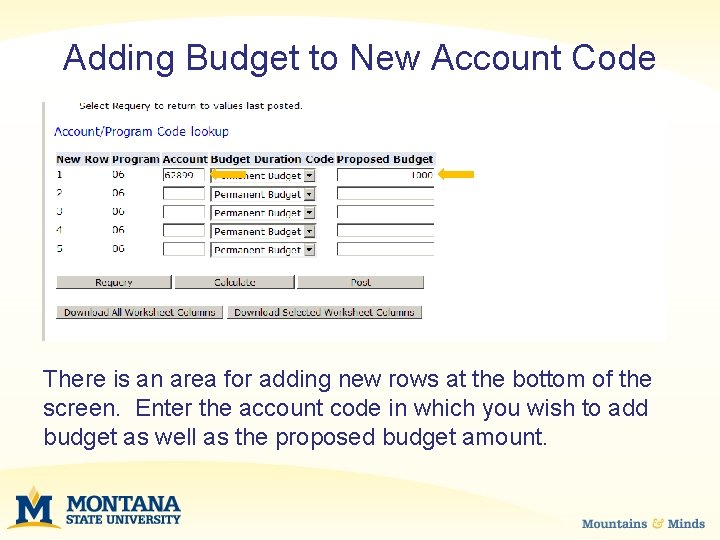
Adding Budget to New Account Code There is an area for adding new rows at the bottom of the screen. Enter the account code in which you wish to add budget as well as the proposed budget amount.
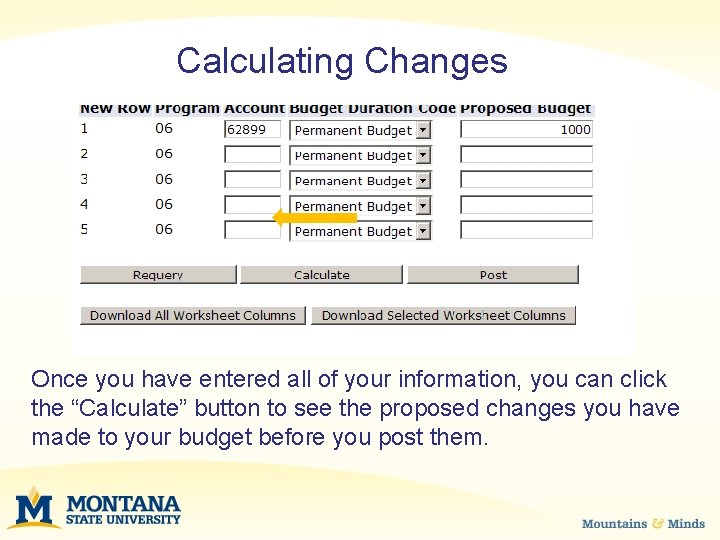
Calculating Changes Once you have entered all of your information, you can click the “Calculate” button to see the proposed changes you have made to your budget before you post them.
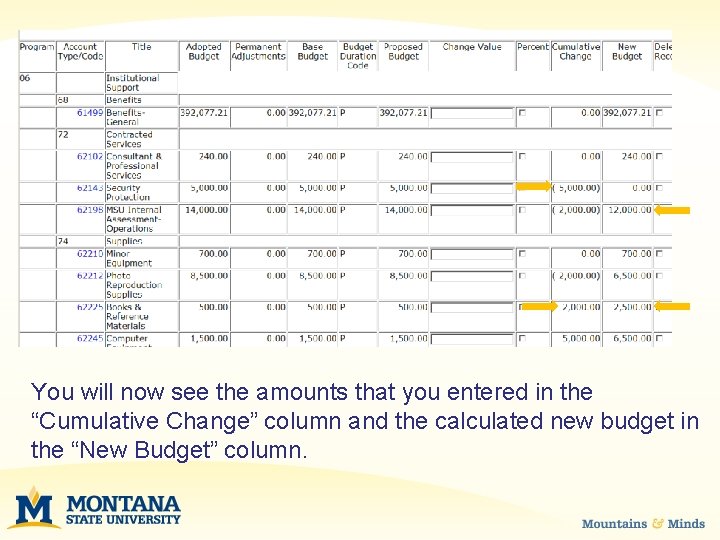
You will now see the amounts that you entered in the “Cumulative Change” column and the calculated new budget in the “New Budget” column.
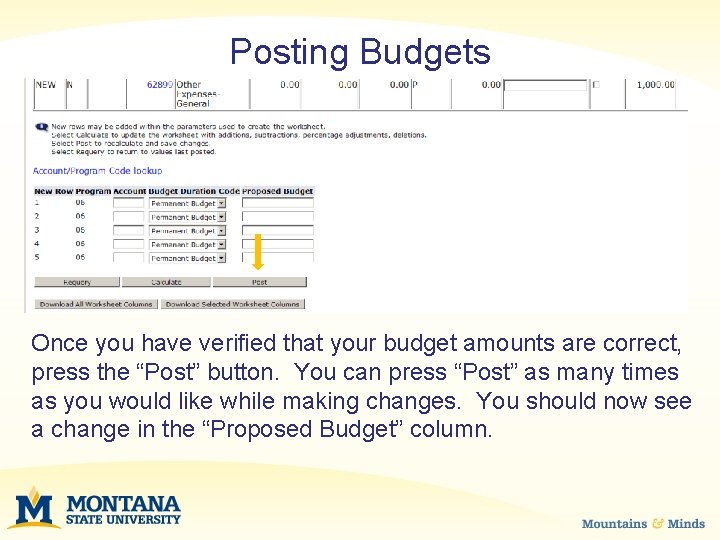
Posting Budgets Once you have verified that your budget amounts are correct, press the “Post” button. You can press “Post” as many times as you would like while making changes. You should now see a change in the “Proposed Budget” column.
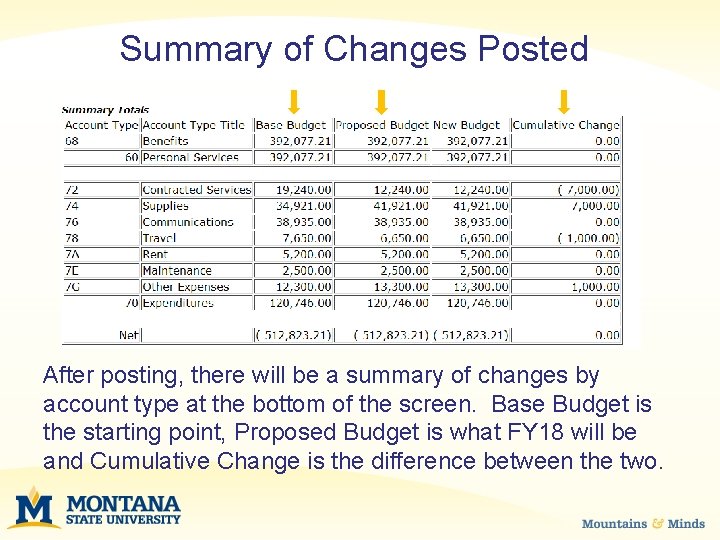
Summary of Changes Posted After posting, there will be a summary of changes by account type at the bottom of the screen. Base Budget is the starting point, Proposed Budget is what FY 18 will be and Cumulative Change is the difference between the two.
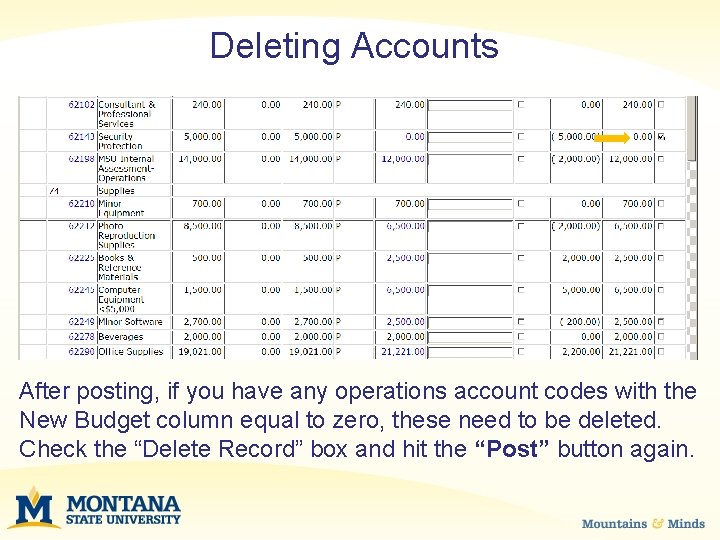
Deleting Accounts After posting, if you have any operations account codes with the New Budget column equal to zero, these need to be deleted. Check the “Delete Record” box and hit the “Post” button again.
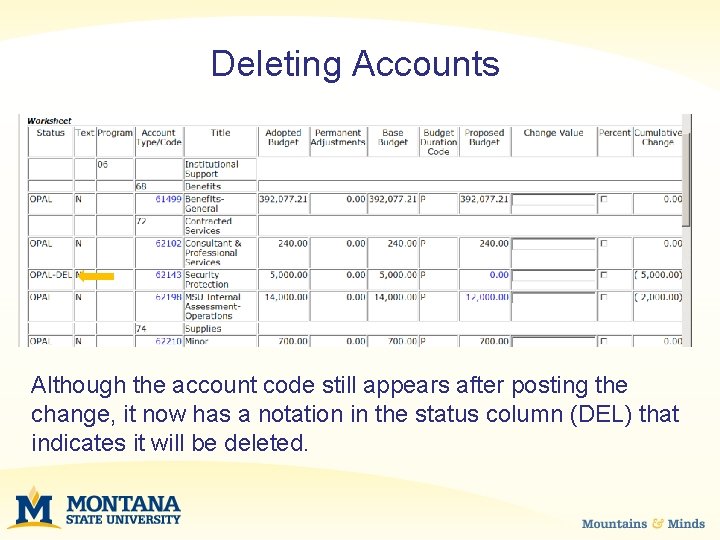
Deleting Accounts Although the account code still appears after posting the change, it now has a notation in the status column (DEL) that indicates it will be deleted.
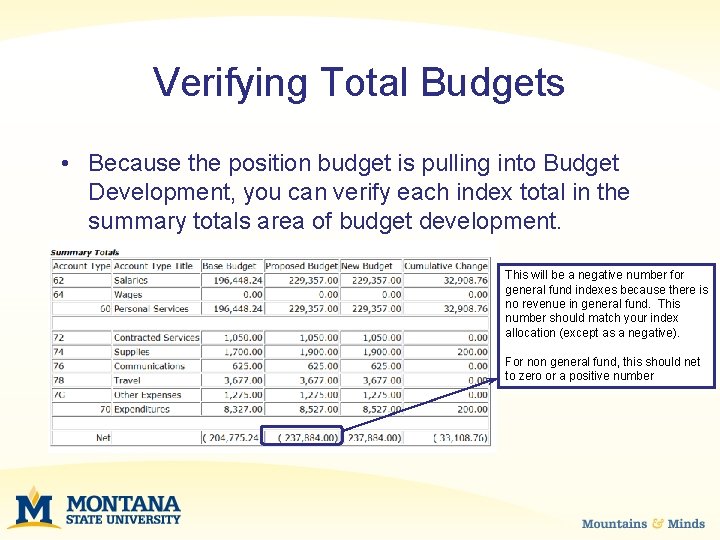
Verifying Total Budgets • Because the position budget is pulling into Budget Development, you can verify each index total in the summary totals area of budget development. This will be a negative number for general fund indexes because there is no revenue in general fund. This number should match your index allocation (except as a negative). For non general fund, this should net to zero or a positive number
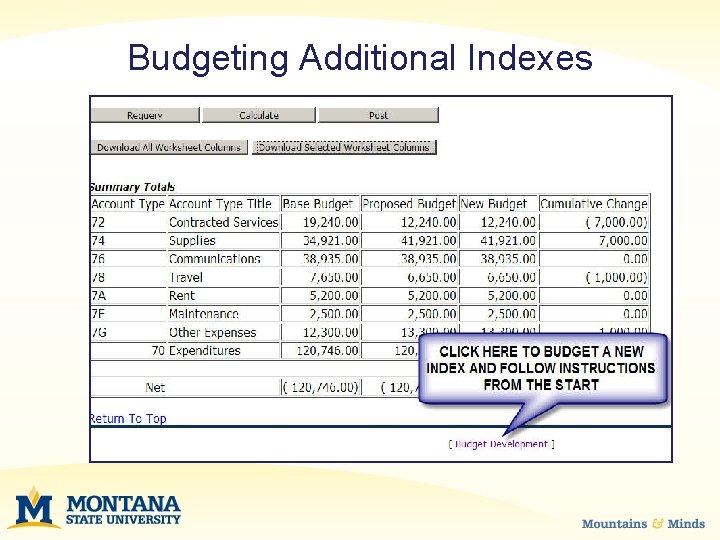
Budgeting Additional Indexes
Frequently Asked Questions • If I have a position that is currently vacant, but will be hired how do I budget the position? – If the hire is going to be made prior to close of the system, wait to see the rate – If the hire is not going to be made prior to close, budget at entry rate or advertised rate
Frequently Asked Questions • If someone’s rate has changed since the positions were calculated, how do I know what to budget? – In the spreadsheets provided by the budget office, there is a tab for calculating classified amounts. Use that tab to ensure inclusion of any longevity. – For other employee types, the budget should be the annual salary on July 1
Frequently Asked Questions • Where do I get the budget for general fund if I have given an employee a pay increase or hired at a higher rate? – The funds will need to be found within your FY 18 allocation – Additional funds will not be provided by the university
Frequently Asked Questions • If I am trying to spend down a non general fund index, can I budget a net negative number? – You can, but the budget office will check for available fund balance – You will also be contacted by the budget office to ensure this was your intention
Frequently Asked Questions • For non general fund indexes, how do I determine the amount to budget for benefits? – The budget office provides a benefits computation template available here. – Ensure that you enter an appropriate FTE for the health care benefits – This should estimate benefit costs

Contact Information – Academic Affairs, Extension, MAES • Megan Bergstedt mbergstedt@montana. edu – VP Student Success, VP A&F, President, VP Research, Auxiliary Services • Mackenzie Seeley mackenzie. seeley@montana. edu

QUESTIONS?
- Slides: 43