
FRAMES Constituent Database Editor CDBE Create a New
FRAMES Constituent Database Editor (CDBE): Create a New Database FRAMES-2. 0 Workshop U. S. Nuclear Regulatory Commission Bethesda, Maryland November 15 -16, 2007 Pacific Northwest National Laboratory Richland, Washington
Purpose Develop a constituent database specific to user’s needs 2
Procedure Create a new constituent database l Start l All Programs l FRAMES l Launch Constituent Editor or run C: Frames. V 1Cont. Sel. exe Register the new database in FRAMES 3
Create a New Constituent Database (outside of FRAMES) Two Options (choose one): Use the Windows Start button l Start l All Programs l FRAMES l Launch Constituent Editor Run C: Frames. V 1Cont. Sel. exe 4
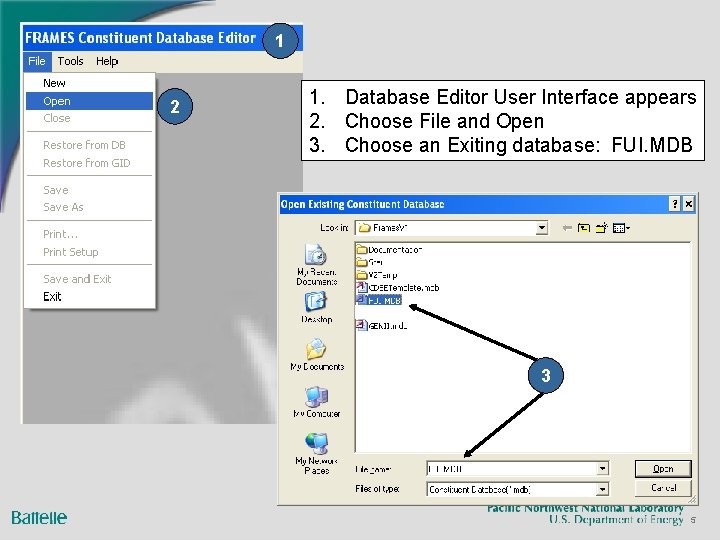
1 2 1. Database Editor User Interface appears 2. Choose File and Open 3. Choose an Exiting database: FUI. MDB 3 5
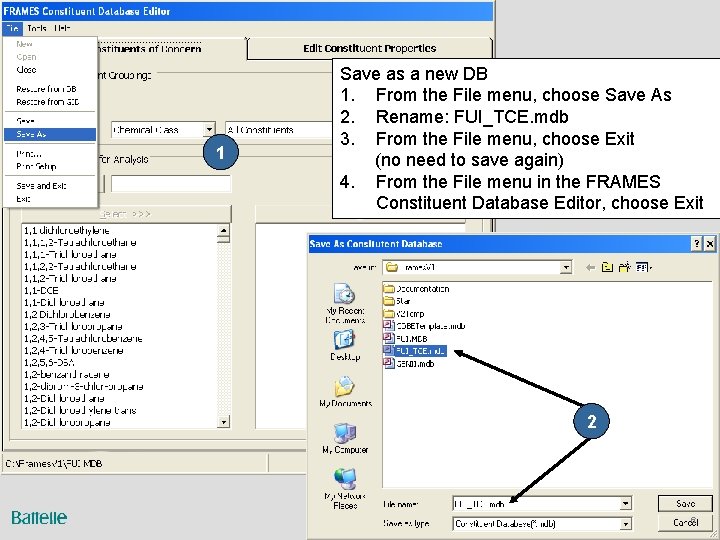
1 Save as a new DB 1. From the File menu, choose Save As 2. Rename: FUI_TCE. mdb 3. From the File menu, choose Exit (no need to save again) 4. From the File menu in the FRAMES Constituent Database Editor, choose Exit 2 6
Register the New Database (in FRAMES) Unlock the Domain Register the Module. Importer function in the Tools menu, if Module. Importer is not already registered. This tool allows the user to automatically register a function in the Tools menu. 7
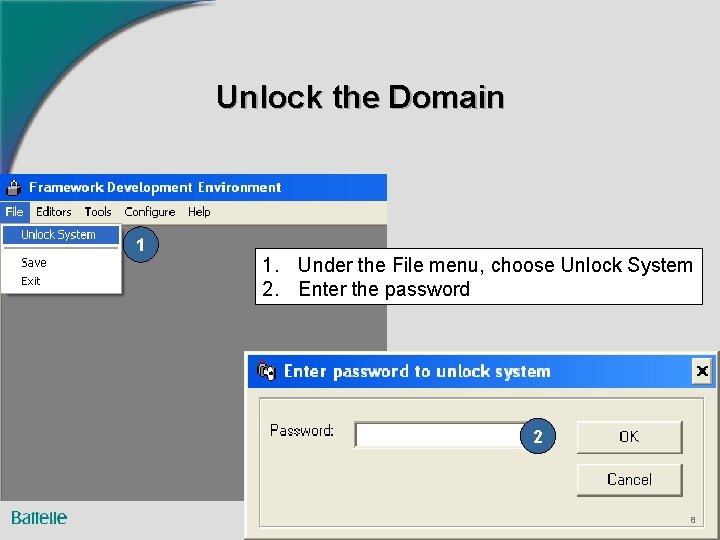
Unlock the Domain 1 1. Under the File menu, choose Unlock System 2. Enter the password 2 8
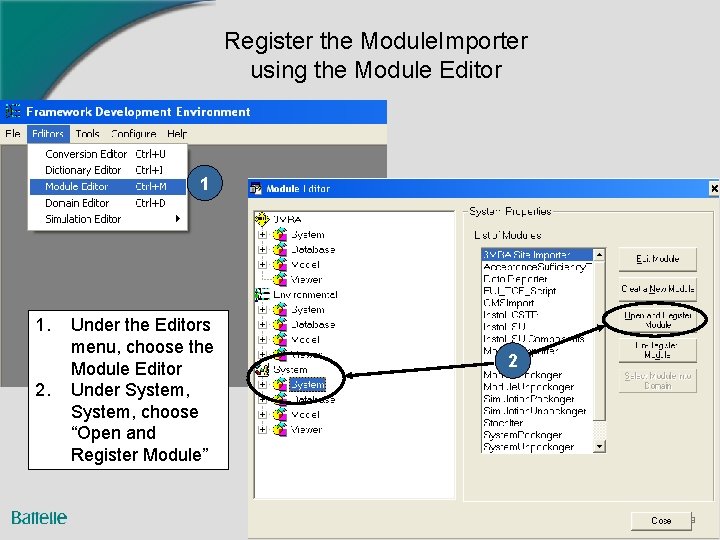
Register the Module. Importer using the Module Editor 1 1. 2. Under the Editors menu, choose the Module Editor Under System, choose “Open and Register Module” 2 9
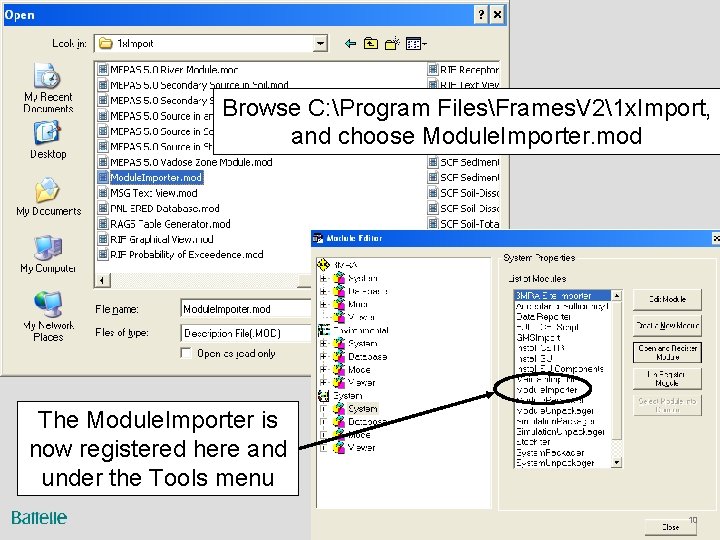
Browse C: Program FilesFrames. V 21 x. Import, and choose Module. Importer. mod The Module. Importer is now registered here and under the Tools menu 10
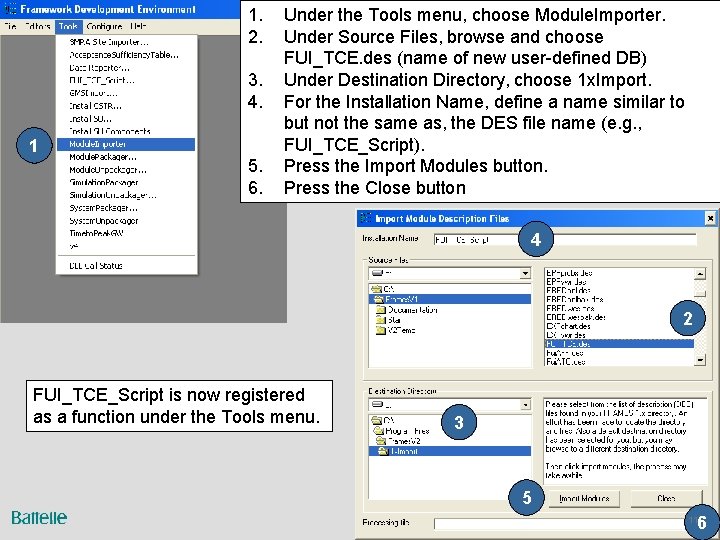
1. 2. 3. 4. 1 5. 6. Under the Tools menu, choose Module. Importer. Under Source Files, browse and choose FUI_TCE. des (name of new user-defined DB) Under Destination Directory, choose 1 x. Import. For the Installation Name, define a name similar to but not the same as, the DES file name (e. g. , FUI_TCE_Script). Press the Import Modules button. Press the Close button 4 2 FUI_TCE_Script is now registered as a function under the Tools menu. 3 5 6 11
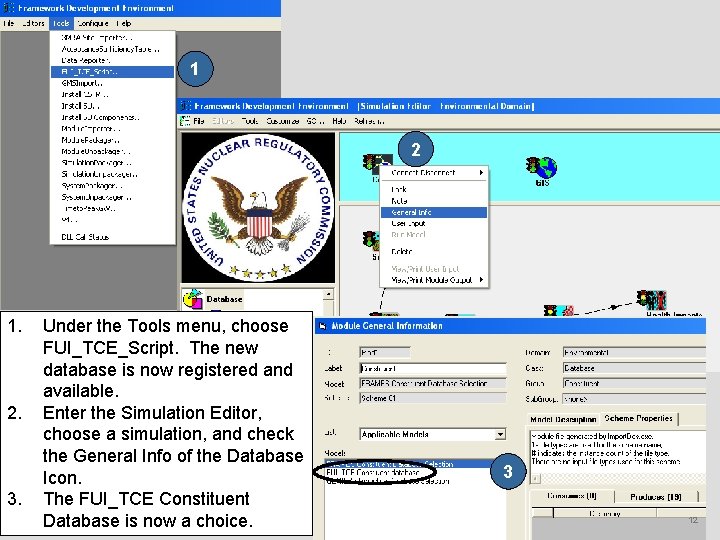
1 2 1. 2. 3. Under the Tools menu, choose FUI_TCE_Script. The new database is now registered and available. Enter the Simulation Editor, choose a simulation, and check the General Info of the Database Icon. The FUI_TCE Constituent Database is now a choice. 3 12
Summary A user can set up and register a database specific to an Agency’s or site’s needs. The data within the new database can be modified without impacting the original database. Other Agencies have developed their own databases with data specific to their Agency’s needs [e. g. , military relevant compounds (MRCs), unexploded ordinances (UXOs), etc. ] 13
- Slides: 13