
Formatting a Worksheet 2016 Cengage Learning May not
- Slides: 32
Formatting a Worksheet © 2016 Cengage Learning®. May not be scanned, copied or duplicated, or posted to a publicly accessible website, in whole or in part.
Objectives • • • Format values Change font and font size Change font styles and alignment Adjust column width Insert and delete rows and columns Enhanced Microsoft Office 2013 -Illustrated © 2016 Cengage Learning®. May not be scanned, copied or duplicated, or posted to a publicly accessible website, in whole or in part.
Objectives • • Apply colors, patterns, and borders Apply conditional formatting Rename and move a worksheet Check spelling Enhanced Microsoft Office 2013 -Illustrated © 2016 Cengage Learning®. May not be scanned, copied or duplicated, or posted to a publicly accessible website, in whole or in part.
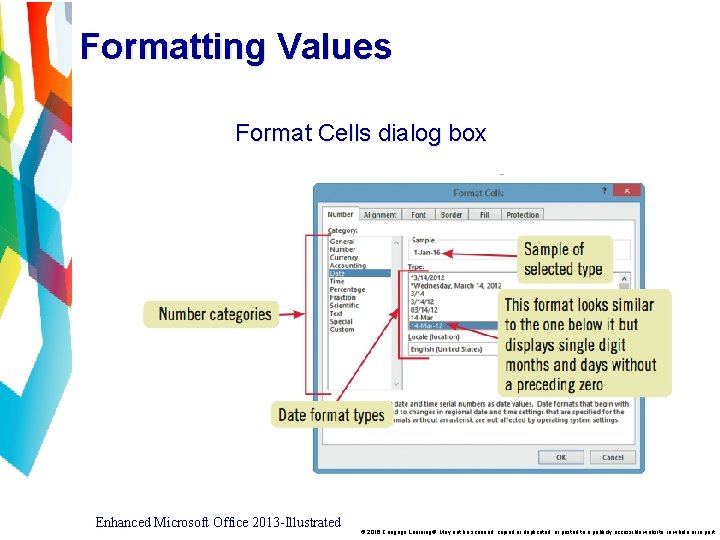
Format Values • The format of a cell determines how the labels and values look • Bold, italic, dollar signs, commas, etc. • Formatting does not change the data only its appearance • Select a cell or a range, then apply formatting Enhanced Microsoft Office 2013 -Illustrated © 2016 Cengage Learning®. May not be scanned, copied or duplicated, or posted to a publicly accessible website, in whole or in part.
Formatting Values Format Cells dialog box Enhanced Microsoft Office 2013 -Illustrated © 2016 Cengage Learning®. May not be scanned, copied or duplicated, or posted to a publicly accessible website, in whole or in part.
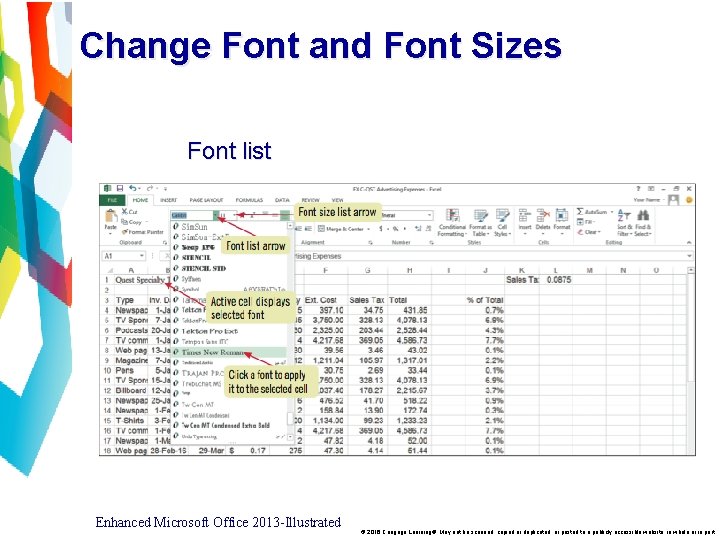
Change Font and Font Sizes • A font is the name for a collection of characters with a similar, specific design • Font size is the physical size of text • Measured in points • 1 point = 1/72 of an inch • The default font in Excel is 11 -point Calibri Enhanced Microsoft Office 2013 -Illustrated © 2016 Cengage Learning®. May not be scanned, copied or duplicated, or posted to a publicly accessible website, in whole or in part.
Change Font and Font Sizes Font list Enhanced Microsoft Office 2013 -Illustrated © 2016 Cengage Learning®. May not be scanned, copied or duplicated, or posted to a publicly accessible website, in whole or in part.
Change Font Styles and Alignment • Attributes are styling formats such as bold, italics, and underlining • Alignment determines the position of data in a cell • Left, right, or center Enhanced Microsoft Office 2013 -Illustrated © 2016 Cengage Learning®. May not be scanned, copied or duplicated, or posted to a publicly accessible website, in whole or in part.
Change Font Styles and Alignment • The Format Painter allows you to copy all formatting attributes of selected cells and apply them to other cells • Use to copy multiple format settings or individual ones Enhanced Microsoft Office 2013 -Illustrated © 2016 Cengage Learning®. May not be scanned, copied or duplicated, or posted to a publicly accessible website, in whole or in part.
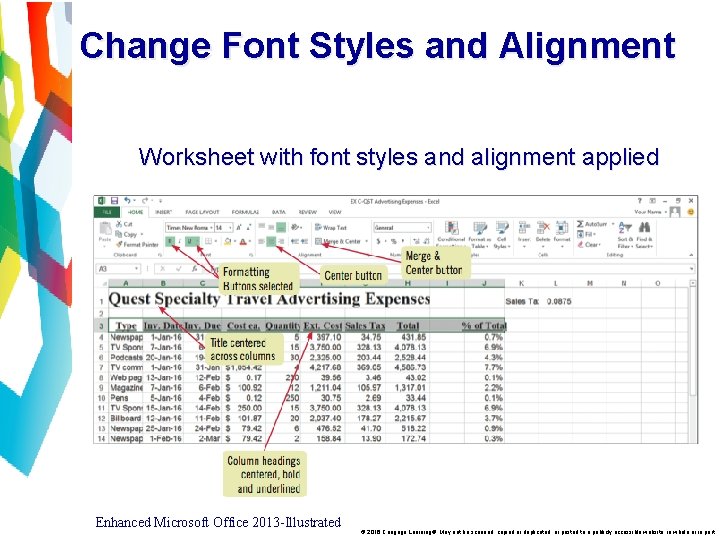
Change Font Styles and Alignment Worksheet with font styles and alignment applied Enhanced Microsoft Office 2013 -Illustrated © 2016 Cengage Learning®. May not be scanned, copied or duplicated, or posted to a publicly accessible website, in whole or in part.
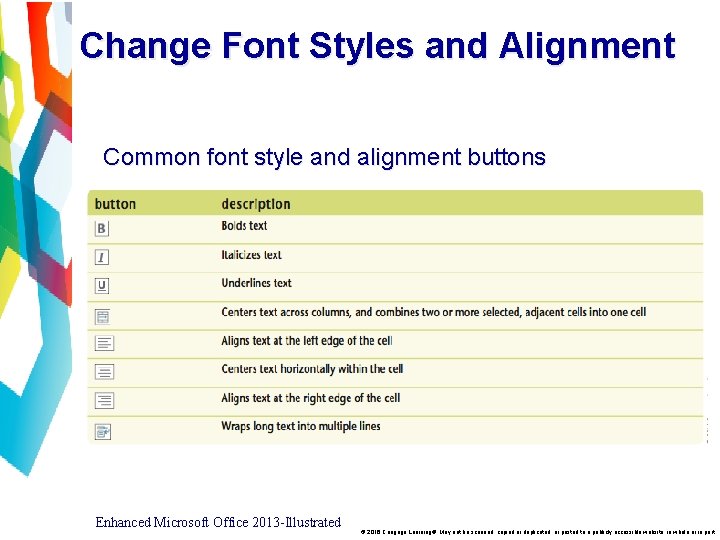
Change Font Styles and Alignment Common font style and alignment buttons Enhanced Microsoft Office 2013 -Illustrated © 2016 Cengage Learning®. May not be scanned, copied or duplicated, or posted to a publicly accessible website, in whole or in part.
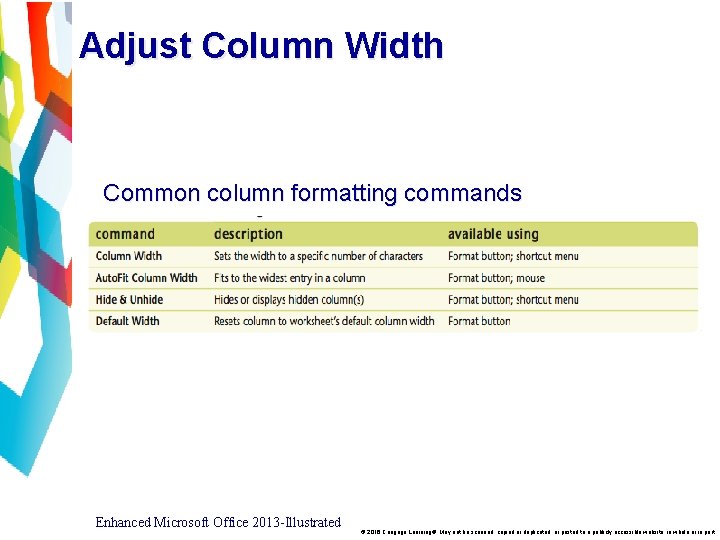
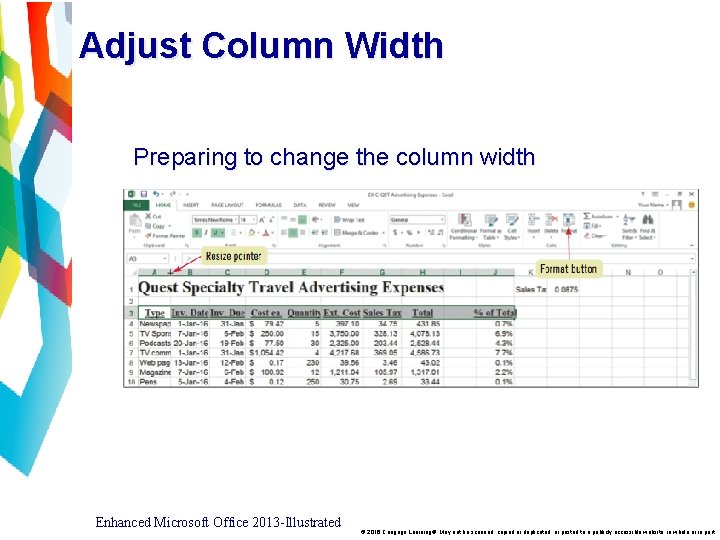
Adjust the Column Width • Adjust column widths to accommodate data • Default column width is 8. 43 characters wide (a little less than one inch) • One or more columns can be adjusted using the Ribbon, the shortcut menu, or the mouse Enhanced Microsoft Office 2013 -Illustrated © 2016 Cengage Learning®. May not be scanned, copied or duplicated, or posted to a publicly accessible website, in whole or in part.
Adjust Column Width Common column formatting commands Enhanced Microsoft Office 2013 -Illustrated © 2016 Cengage Learning®. May not be scanned, copied or duplicated, or posted to a publicly accessible website, in whole or in part.
Adjust Column Width Preparing to change the column width Enhanced Microsoft Office 2013 -Illustrated © 2016 Cengage Learning®. May not be scanned, copied or duplicated, or posted to a publicly accessible website, in whole or in part.
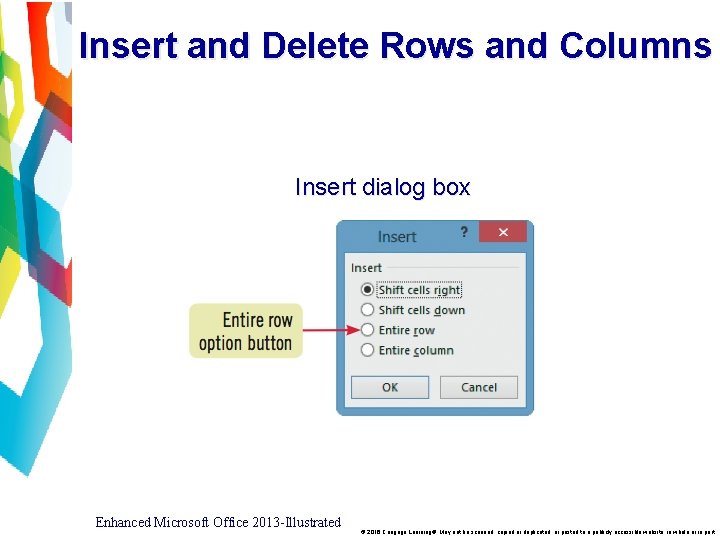
Insert and Delete Rows and Columns • When you insert a new row, the contents of the worksheet shift down from the newly inserted row • When you insert a new column, the contents of the worksheet shift to the right of the new column Enhanced Microsoft Office 2013 -Illustrated © 2016 Cengage Learning®. May not be scanned, copied or duplicated, or posted to a publicly accessible website, in whole or in part.
Insert and Delete Rows and Columns • Excel inserts rows above the cell pointer and columns to the left • Insert multiple rows or columns by selecting the same number of row or column headings to be inserted Enhanced Microsoft Office 2013 -Illustrated © 2016 Cengage Learning®. May not be scanned, copied or duplicated, or posted to a publicly accessible website, in whole or in part.
Insert and Delete Rows and Columns Insert dialog box Enhanced Microsoft Office 2013 -Illustrated © 2016 Cengage Learning®. May not be scanned, copied or duplicated, or posted to a publicly accessible website, in whole or in part.
Insert and Delete Rows and Columns • When you delete a row, the contents of the worksheet shift up • When you delete a column, the contents of the worksheet shift to the left • Delete multiple rows or columns by selecting all of the row or column headings to be deleted Enhanced Microsoft Office 2013 -Illustrated © 2016 Cengage Learning®. May not be scanned, copied or duplicated, or posted to a publicly accessible website, in whole or in part.
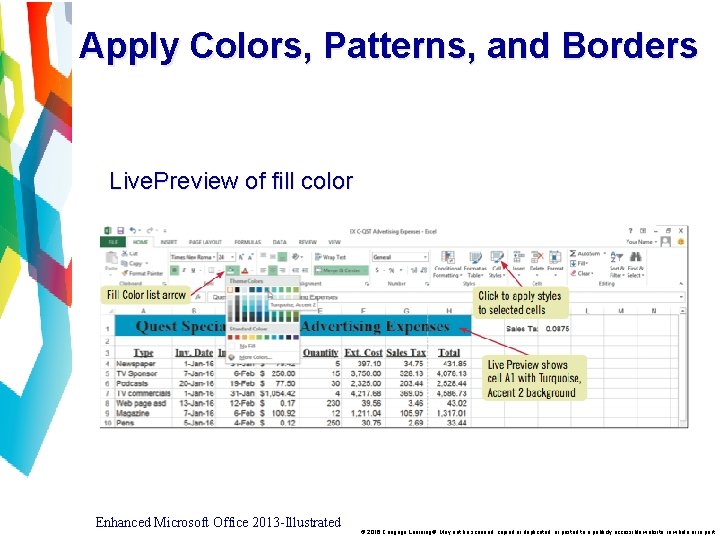
Apply Colors, Patterns, and Borders • You can add enhancements such as colors, patterns, and borders by using: • Border and Fill Color buttons in the Font group on the Home tab of the Ribbon and on the Mini toolbar, or • Fill tab and Border tab in the Format Cells dialog box Enhanced Microsoft Office 2013 -Illustrated © 2016 Cengage Learning®. May not be scanned, copied or duplicated, or posted to a publicly accessible website, in whole or in part.
Apply Colors, Patterns, and Borders • Cell styles are pre-designed combinations of formatting attributes • Use the Cell Styles button in the Styles group on the Home tab Enhanced Microsoft Office 2013 -Illustrated © 2016 Cengage Learning®. May not be scanned, copied or duplicated, or posted to a publicly accessible website, in whole or in part.
Apply Colors, Patterns, and Borders Live. Preview of fill color Enhanced Microsoft Office 2013 -Illustrated © 2016 Cengage Learning®. May not be scanned, copied or duplicated, or posted to a publicly accessible website, in whole or in part.
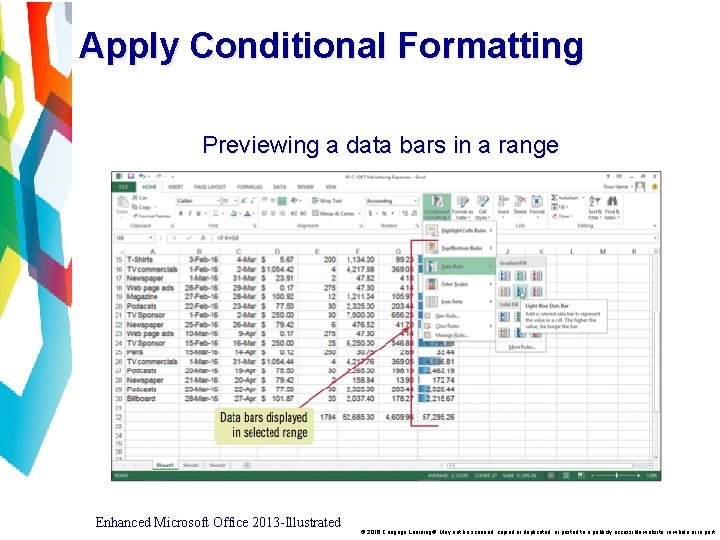
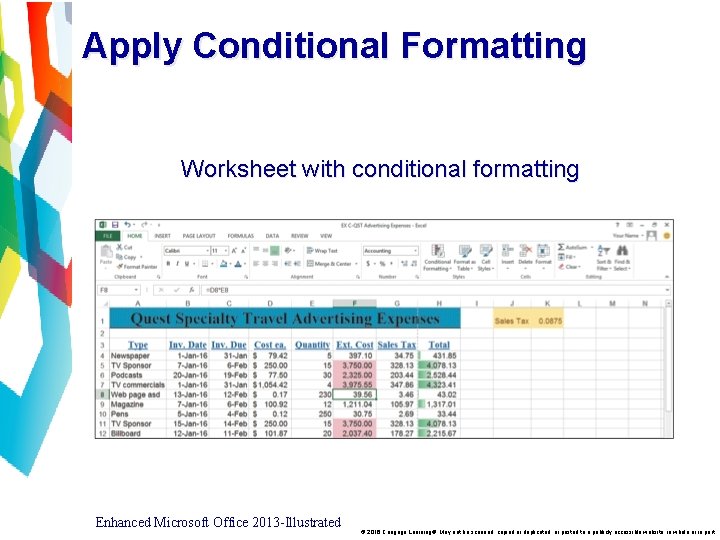
Apply Conditional Formatting • Excel can format cells based on specific results • Automatic application of formatting attributes on cell values is called conditional formatting • Different formats are automatically applied if the data meets conditions you specify • Data bars are a type of conditional formatting that visually illustrate differences among values Enhanced Microsoft Office 2013 -Illustrated © 2016 Cengage Learning®. May not be scanned, copied or duplicated, or posted to a publicly accessible website, in whole or in part.
Apply Conditional Formatting Previewing a data bars in a range Enhanced Microsoft Office 2013 -Illustrated © 2016 Cengage Learning®. May not be scanned, copied or duplicated, or posted to a publicly accessible website, in whole or in part.
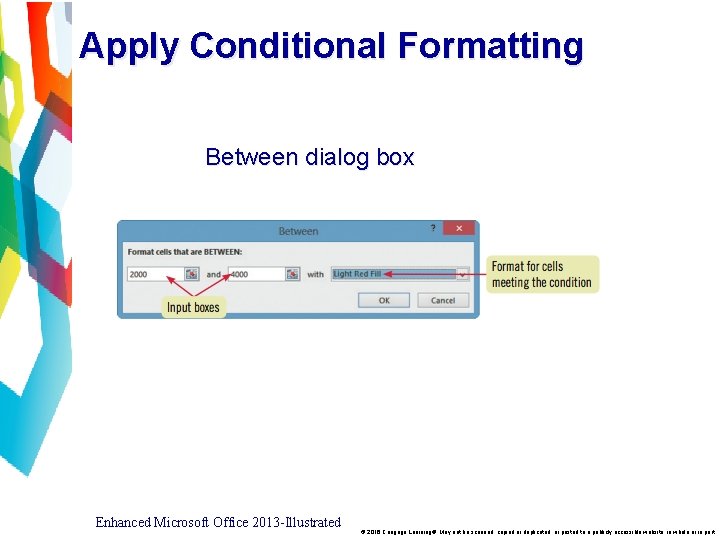
Apply Conditional Formatting Between dialog box Enhanced Microsoft Office 2013 -Illustrated © 2016 Cengage Learning®. May not be scanned, copied or duplicated, or posted to a publicly accessible website, in whole or in part.
Apply Conditional Formatting Worksheet with conditional formatting Enhanced Microsoft Office 2013 -Illustrated © 2016 Cengage Learning®. May not be scanned, copied or duplicated, or posted to a publicly accessible website, in whole or in part.
Rename and Move a Worksheet • By default, an Excel workbook initially contains three worksheets, named Sheet 1, Sheet 2, and Sheet 3 • To move to another sheet, click its sheet tab Enhanced Microsoft Office 2013 -Illustrated © 2016 Cengage Learning®. May not be scanned, copied or duplicated, or posted to a publicly accessible website, in whole or in part.
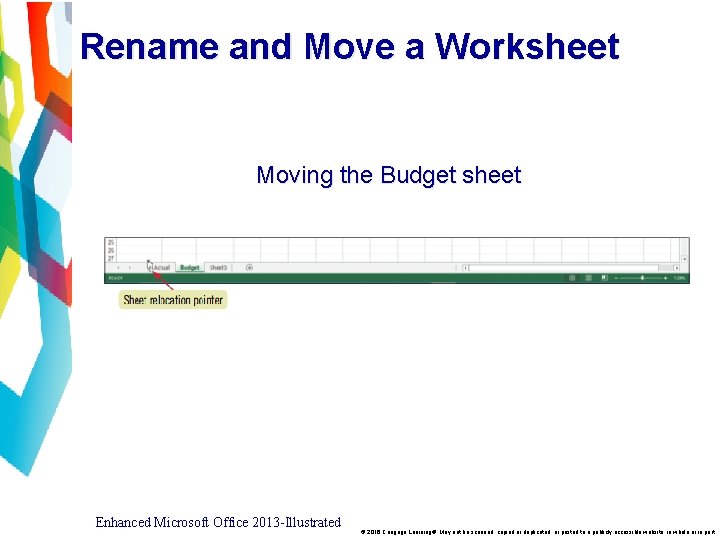
Rename and Move a Worksheet • To make it easier to identify the sheets, you can rename each sheet and add color to the tabs • You can change the order of sheets by dragging the sheet tabs Enhanced Microsoft Office 2013 -Illustrated © 2016 Cengage Learning®. May not be scanned, copied or duplicated, or posted to a publicly accessible website, in whole or in part.
Rename and Move a Worksheet Moving the Budget sheet Enhanced Microsoft Office 2013 -Illustrated © 2016 Cengage Learning®. May not be scanned, copied or duplicated, or posted to a publicly accessible website, in whole or in part.
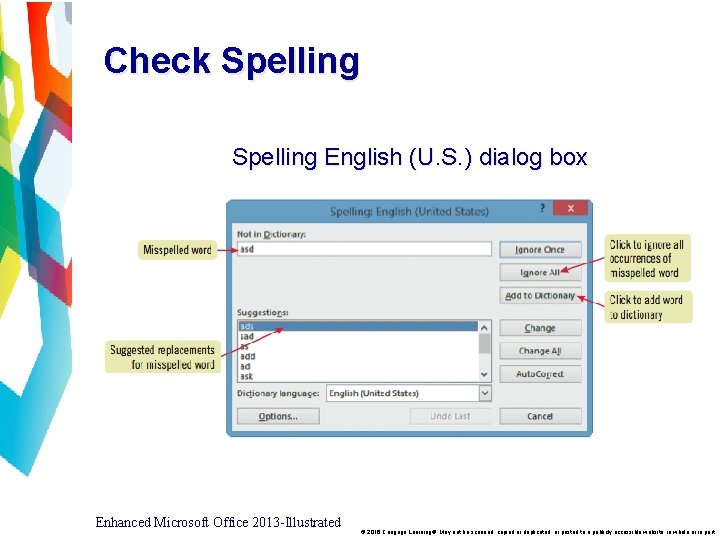
Check Spelling • Spelling checker scans the worksheet and flags possible mistakes and suggests corrections • To check other worksheets in a workbook, display the worksheet and run the spelling checker again • Add words that are spelled correctly but are not recognized by the spelling checker Enhanced Microsoft Office 2013 -Illustrated © 2016 Cengage Learning®. May not be scanned, copied or duplicated, or posted to a publicly accessible website, in whole or in part.
Check Spelling English (U. S. ) dialog box Enhanced Microsoft Office 2013 -Illustrated © 2016 Cengage Learning®. May not be scanned, copied or duplicated, or posted to a publicly accessible website, in whole or in part.
Summary • • • Format values Change font and font size Change font styles and alignment Adjust column width Insert and delete rows and columns Enhanced Microsoft Office 2013 -Illustrated © 2016 Cengage Learning®. May not be scanned, copied or duplicated, or posted to a publicly accessible website, in whole or in part.
Summary • • Apply colors, patterns, and borders Apply conditional formatting Rename and move a worksheet Check spelling Enhanced Microsoft Office 2013 -Illustrated © 2016 Cengage Learning®. May not be scanned, copied or duplicated, or posted to a publicly accessible website, in whole or in part.