
Format a Workbook Lesson 2 Microsoft Excel 2010
Format a Workbook Lesson 2 – Microsoft Excel 2010
�The goal of this lesson is for students to successfully apply formatting to a worksheet that was created in Microsoft Excel 2010. The student will learn to edit a worksheet and apply formatting attributes to enhance the appearance of the worksheet. Learning Goals
�On completion of this lesson, students will be able to do the following: ◦ ◦ ◦ ◦ ◦ Format text Format numeric data Format numbers as currency Use Format Painter Add borders to cells Add shading to cells Use Auto. Format Apply conditional formats Create and apply styles Merge cells Learning Objectives
�Formatting is changing the way that something looks. �Proper formatting should enhance the readability and presentation of data. �What could you do to make text or data easier to read? Formatting: What is it and Why?
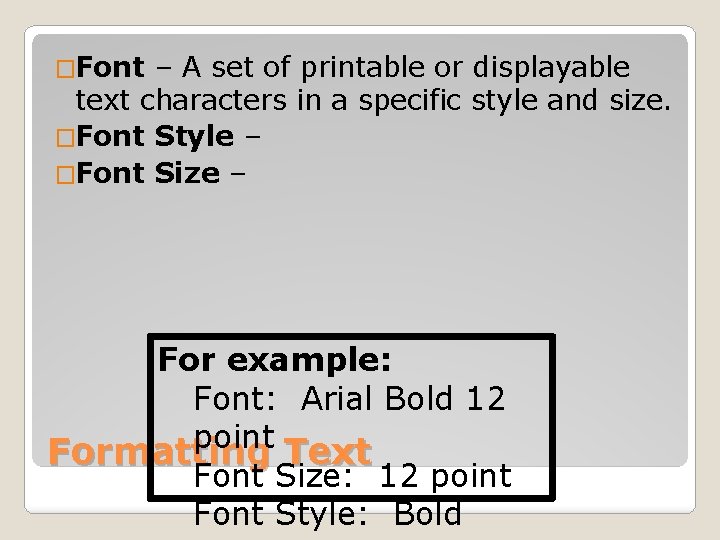
�Font – A set of printable or displayable text characters in a specific style and size. �Font Style – �Font Size – For example: Font: Arial Bold 12 point Formatting Text Font Size: 12 point Font Style: Bold
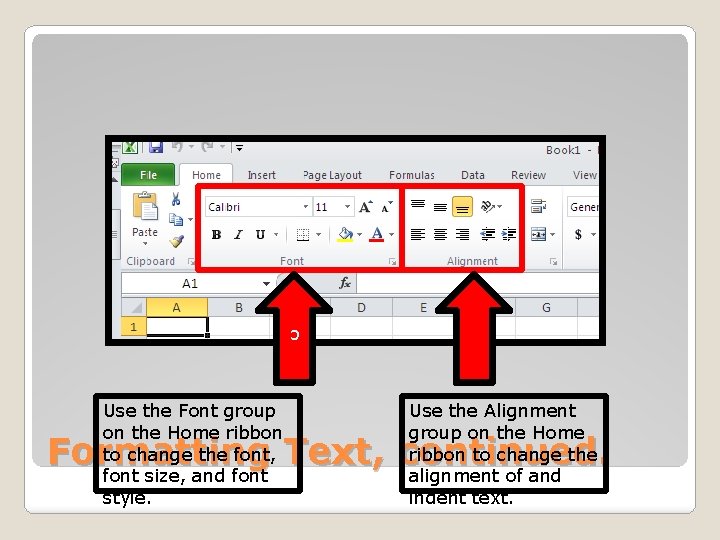
c Use the Font group on the Home ribbon to change the font, font size, and font style. Use the Alignment group on the Home ribbon to change the alignment of and indent text. Formatting Text, continued.

�Numeric data is any number that will be used in calculations. �Formatting a numeric entry as text allows the entry to be treated as text even when a number is present in the cell. Formatting Numeric Data

By default, numbers use the “General” format. Applying currency style applies a dollar sign, commas, and two decimal Applying comma style inserts commas between groups of thousands. Use the increase/decre ase decimal buttons to add or remove decimal places. (Decimal places can be used in numbers other than currency. Applying percent style multiples the number by 100 and adds a percent Formatting Numeric Data, Cont.
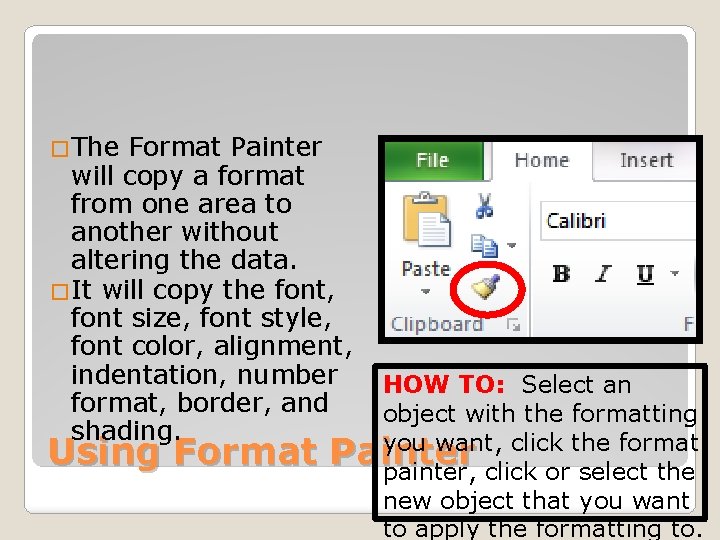
�The Format Painter will copy a format from one area to another without altering the data. �It will copy the font, font size, font style, font color, alignment, indentation, number format, border, and shading. Using Format HOW TO: Select an object with the formatting you want, click the format Painter painter, click or select the new object that you want to apply the formatting to.
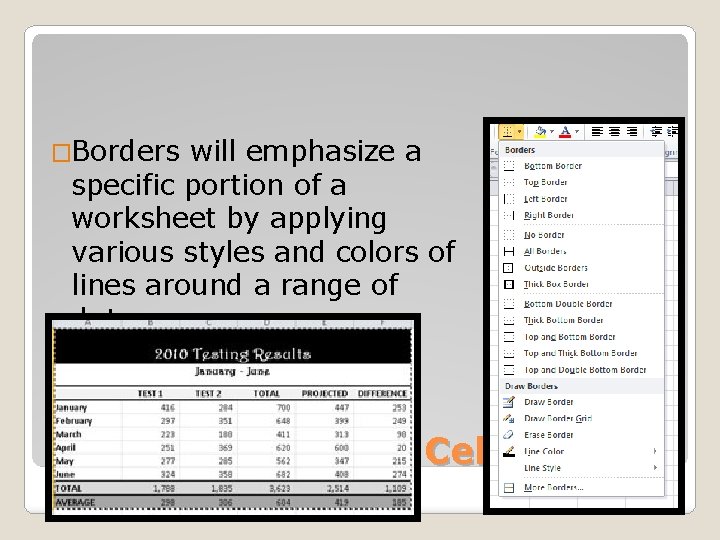
�Borders will emphasize a specific portion of a worksheet by applying various styles and colors of lines around a range of data. Adding Borders to Cells
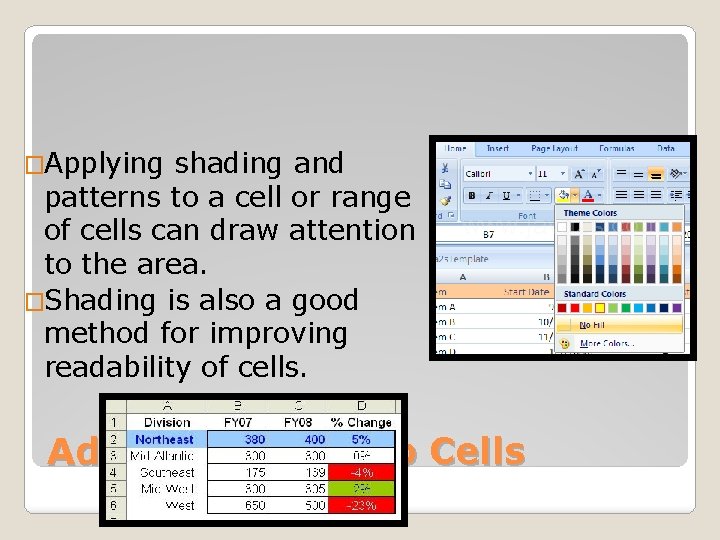
�Applying shading and patterns to a cell or range of cells can draw attention to the area. �Shading is also a good method for improving readability of cells. Adding Shading to Cells
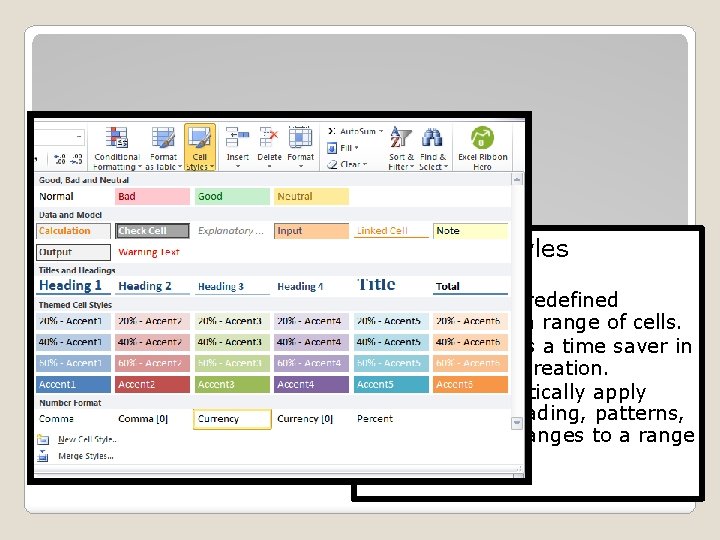
� The Cell Styles Command Using Cell Styles ◦ will apply predefined formats to a range of cells. ◦ will serve as a time saver in worksheet creation. ◦ will automatically apply borders, shading, patterns, and font changes to a range of cells.
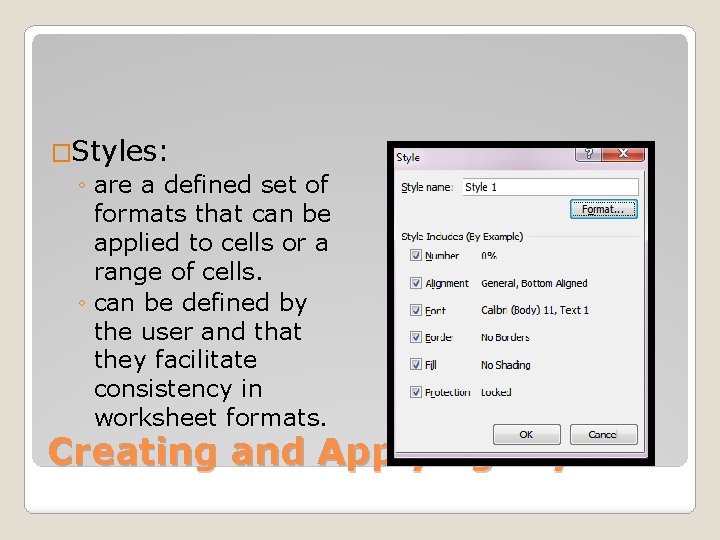
�Styles: ◦ are a defined set of formats that can be applied to cells or a range of cells. ◦ can be defined by the user and that they facilitate consistency in worksheet formats. Creating and Applying Styles
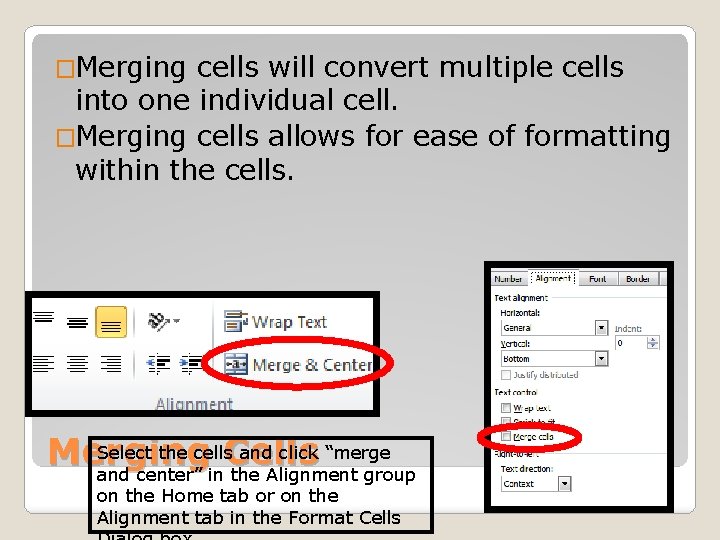
�Merging cells will convert multiple cells into one individual cell. �Merging cells allows for ease of formatting within the cells. Select the cells and click “merge Merging Cells and center” in the Alignment group on the Home tab or on the Alignment tab in the Format Cells
Advanced Formatting Techniques— Numeric formatting options
- Slides: 15