
Form Trap Design Tutorial Group Header and Footer

- Slides: 10
Form. Trap Design Tutorial Group Header and Footer Prerequisite: The main detail line must already be defined
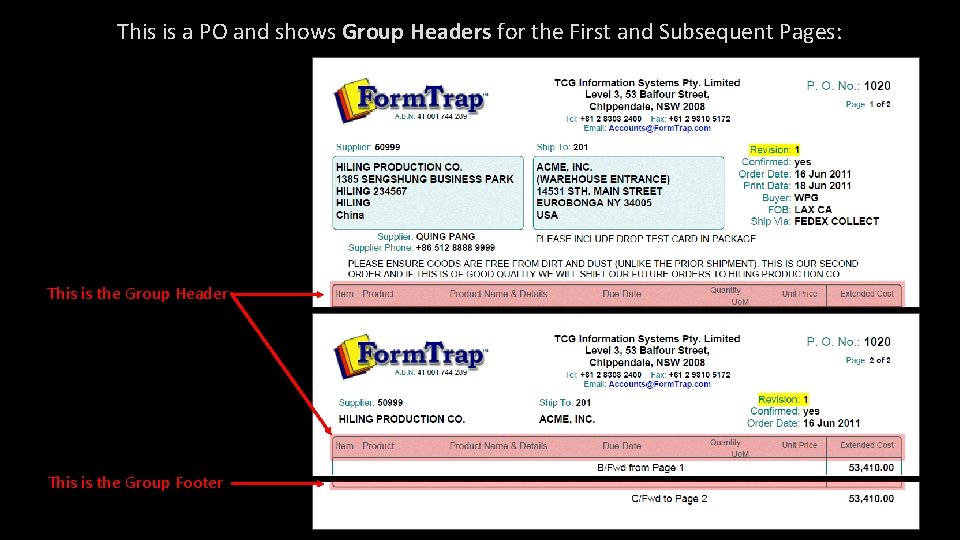
This is a PO and shows Group Headers for the First and Subsequent Pages: This is the Group Header This is the Group Footer
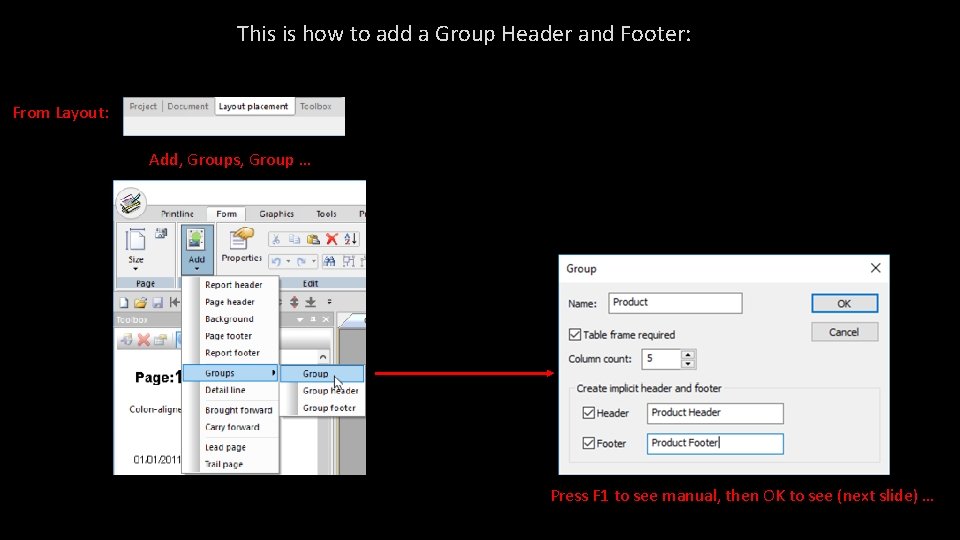
This is how to add a Group Header and Footer: From Layout: Add, Groups, Group … Press F 1 to see manual, then OK to see (next slide) …
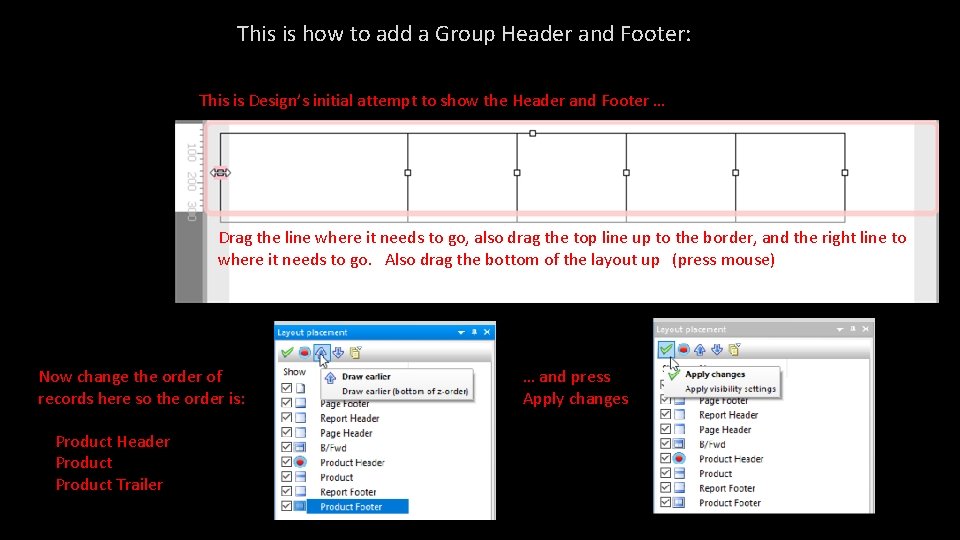
This is how to add a Group Header and Footer: This is Design’s initial attempt to show the Header and Footer … Drag theis line where it needs go, alsoequal drag width, the topfirst lineand up to border, and thethe right line to Layout 1” high, black lines, to columns lastthe lines well in from edges. Theitfirst linetohas “active” be dragged where needs go. a pink Alsosquare, drag themeaning bottomitofisthe layoutand up can (press mouse) … (press mouse) Click on any line to show white squares (press mouse to see this). Now change the order of records here so the order is: Product Header Product Trailer … and press Apply changes
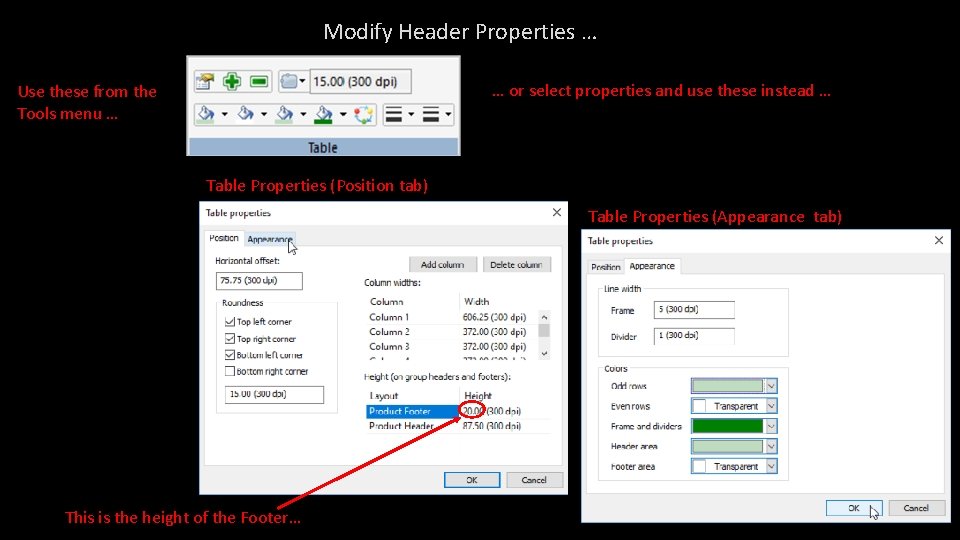
Modify Header Properties … … or select properties and use these instead … Use these from the Tools menu … Table Properties (Position tab) Table Properties (Appearance tab) This is the height of the Footer…
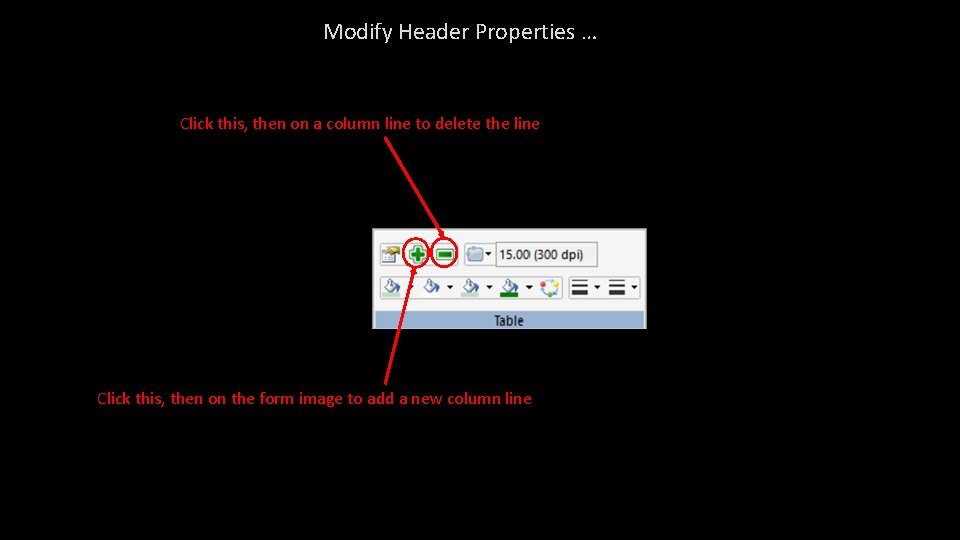
Modify Header Properties … Click this, then on a column line to delete the line Click this, then on the form image to add a new column line
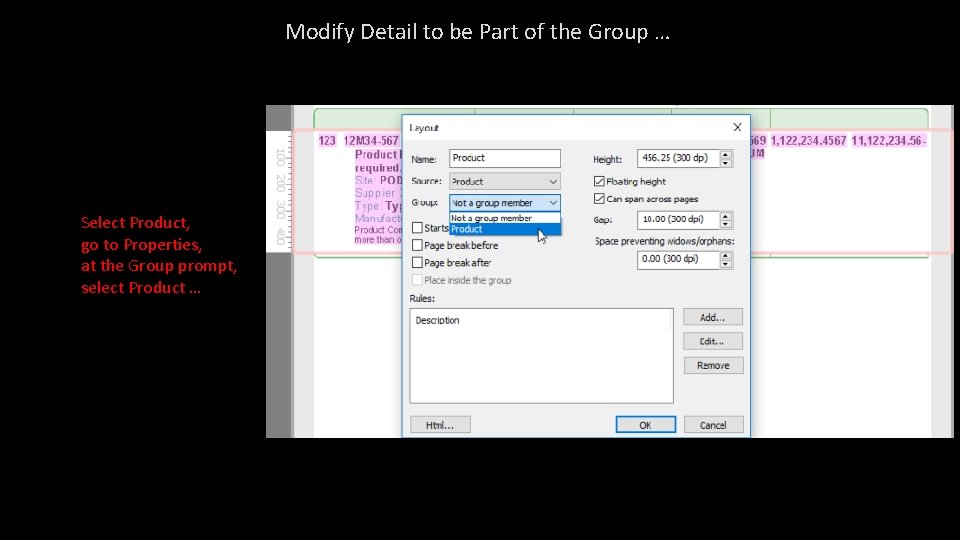
Modify Detail to be Part of the Group … Select Product, go to Properties, at the Group prompt, select Product …
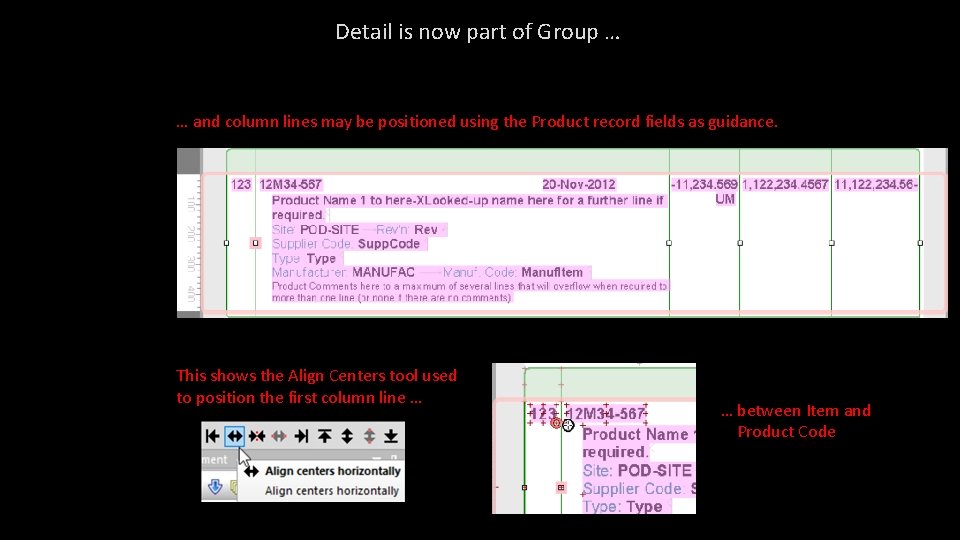
Detail is now part of Group … … and column lines may be positioned using the Product record fields as guidance. This shows the Align Centers tool used to position the first column line … … between Item and Product Code
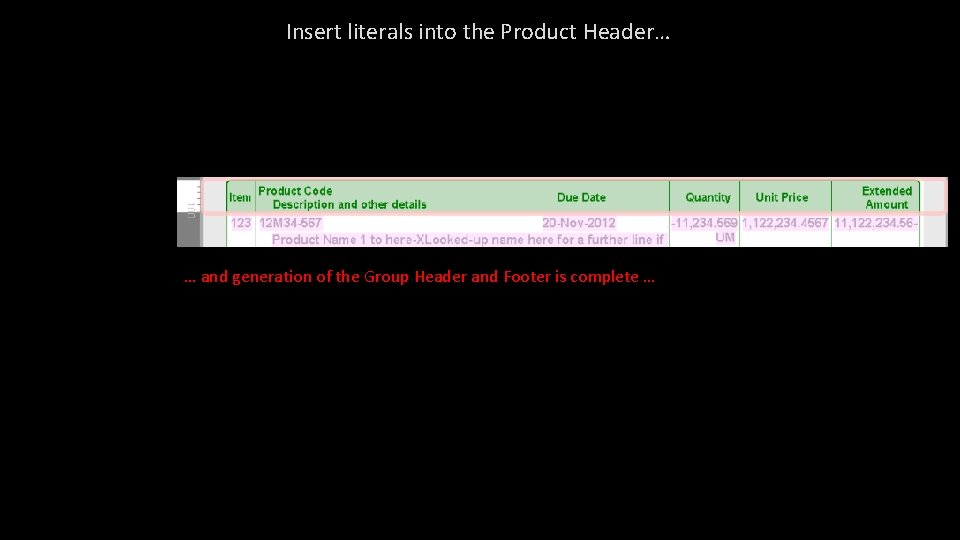
Insert literals into the Product Header… … and generation of the Group Header and Footer is complete …
Let us know if you did not understand the example, and we’ll try again … Support@Form. Trap. com