
For Staff Accessing Metrix in Work In Texas



- Slides: 7
For Staff: Accessing Metrix in Work. In. Texas. com Updated December 16, 2020
Metrix Learning For All Now that TWC has outreached UI claimants about Metrix, we have opened it up to all Texans. Anyone in Texas (based on their zip code) can access the Metrix site and take courses for free.
How to access Metrix data for an individual in Work. In. Texas. com (1 of 2) 1. Log in to WIT with your staff account. 2. Find the individual you want to assist. 3. Click on: • “My Individual Plans” and • “Training Plan Profile” and • “Online Training”
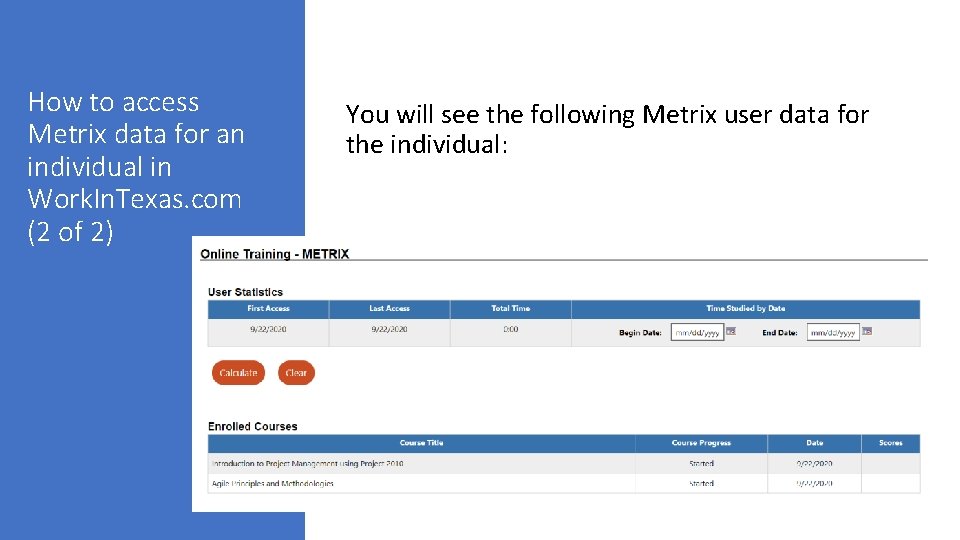
How to access Metrix data for an individual in Work. In. Texas. com (2 of 2) You will see the following Metrix user data for the individual:
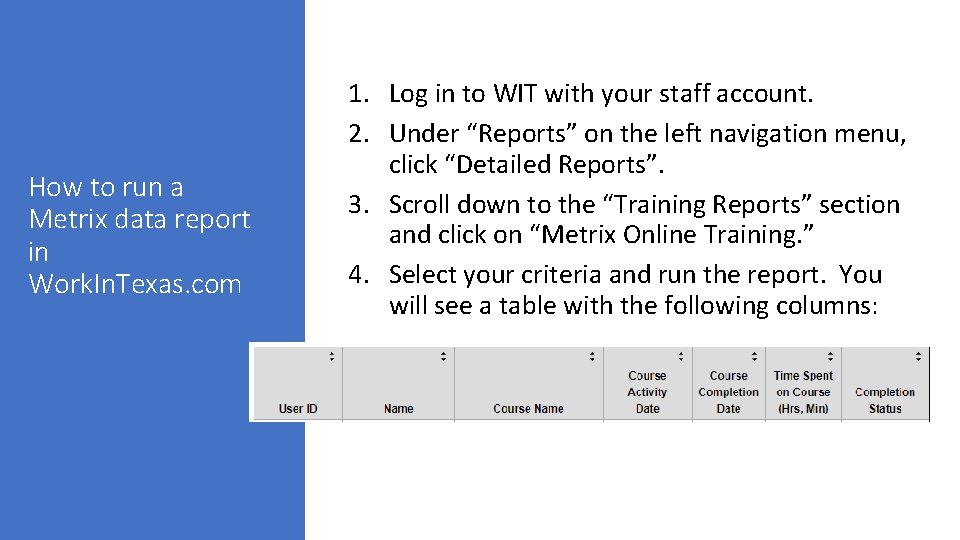
How to run a Metrix data report in Work. In. Texas. com 1. Log in to WIT with your staff account. 2. Under “Reports” on the left navigation menu, click “Detailed Reports”. 3. Scroll down to the “Training Reports” section and click on “Metrix Online Training. ” 4. Select your criteria and run the report. You will see a table with the following columns:
Metrix Portal is Still Available Metrix administrators in each board area and individuals can continue to access Metrix through the Metrix portal at https: //tx. metrixlearning. com/. Metrix administrators in each board area can continue to run reports, assign specialized licenses, and add/edit users in the Metrix portal at https: //tx. metrixlearning. com/.
How to link a Metrix user to their WIT account. If you have a customer who registered for Metrix through the Metrix portal and is also registered in WIT, follow these instructions to make sure their Metrix data is added to their WIT profile. 1. Log in to WIT with your staff account. 2. Find the individual you want to assist. 3. Click on “Staff Profiles” and “General Profile”. 4. Under the “Individual Information Panel”, look for the “User ID” and make a note of the number. 5. Log in to Metrix with your administrator account. 6. In the blue bar at the top, click on “Administration” and “Users and Groups”. 7. Click “Edit Users”. 8. Search for the individual and click on their username. 9. On the “Basic Information” tab, add the individual’s User ID from WIT to the “Internal ID” field and save.