
Focused Ion Beam FIB Seeing and Processing at

Focused Ion Beam (FIB): “Seeing” and “Processing” at the Nano-Scale www. nano 4 me. org © 2018 The Pennsylvania State University Focused Ion Beam 1
Outline • FIB Overview • FIB Operation • FIB Applications www. nano 4 me. org © 2018 The Pennsylvania State University Focused Ion Beam 2

FIB overview www. nano 4 me. org © 2018 The Pennsylvania State University Focused Ion Beam 3
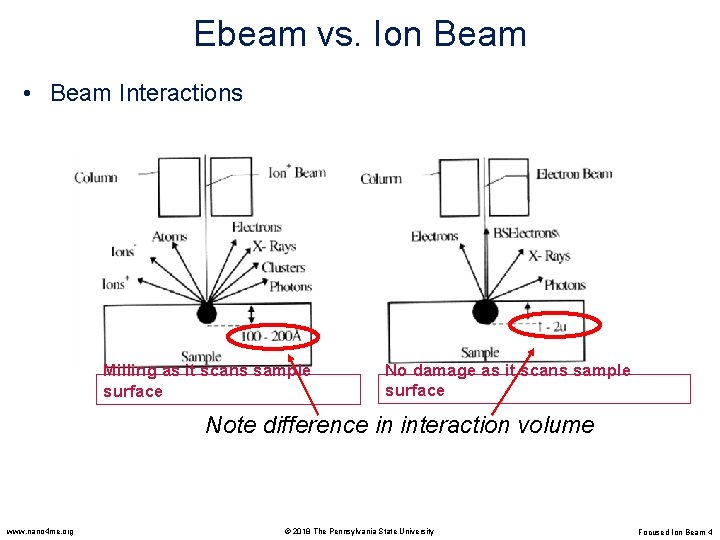
Ebeam vs. Ion Beam • Beam Interactions Milling as it scans sample surface No damage as it scans sample surface Note difference in interaction volume www. nano 4 me. org © 2018 The Pennsylvania State University Focused Ion Beam 4

Applications of Focused Ion Beam (FIB) 1. Ion beam lithography 2. Image Analysis 3. Film Deposition 4. Ion Milling (Dry Etching) www. nano 4 me. org © 2018 The Pennsylvania State University Focused Ion Beam 5
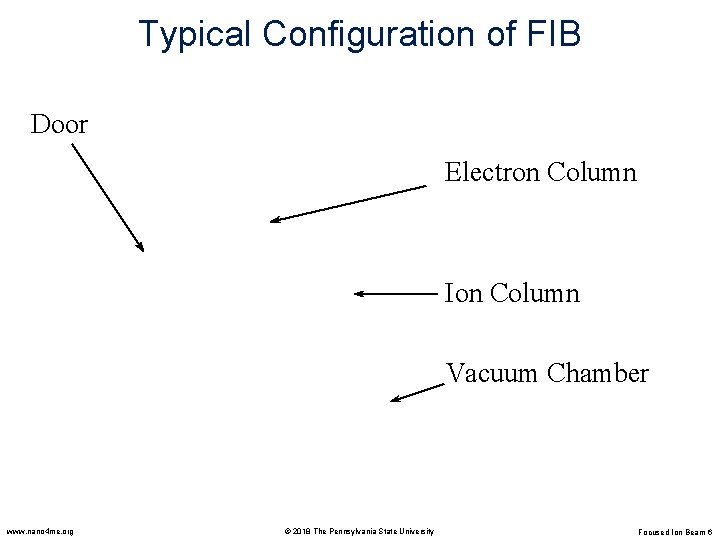
Typical Configuration of FIB Door Electron Column Ion Column Vacuum Chamber www. nano 4 me. org © 2018 The Pennsylvania State University Focused Ion Beam 6
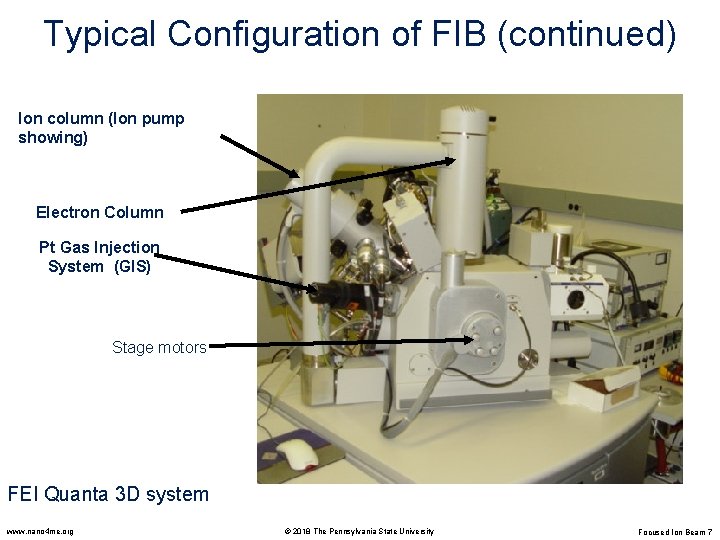
Typical Configuration of FIB (continued) Ion column (Ion pump showing) Electron Column Pt Gas Injection System (GIS) Stage motors FEI Quanta 3 D system www. nano 4 me. org © 2018 The Pennsylvania State University Focused Ion Beam 7
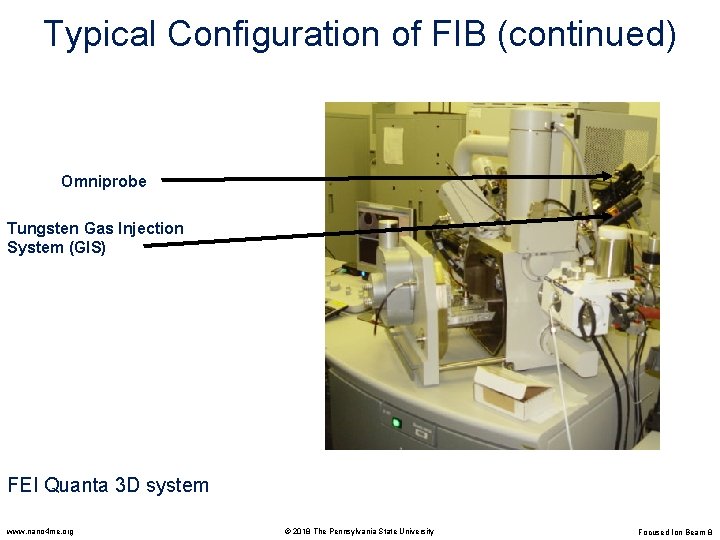
Typical Configuration of FIB (continued) Omniprobe Tungsten Gas Injection System (GIS) FEI Quanta 3 D system www. nano 4 me. org © 2018 The Pennsylvania State University Focused Ion Beam 8
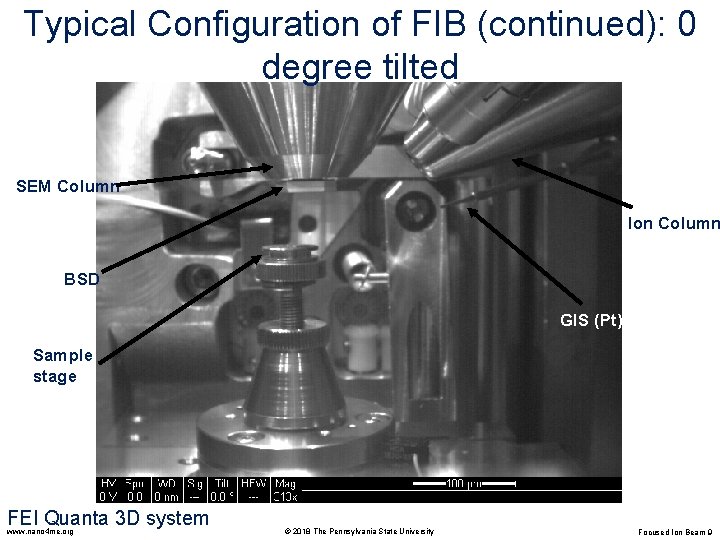
Typical Configuration of FIB (continued): 0 degree tilted SEM Column Ion Column BSD GIS (Pt) Sample stage FEI Quanta 3 D system www. nano 4 me. org © 2018 The Pennsylvania State University Focused Ion Beam 9
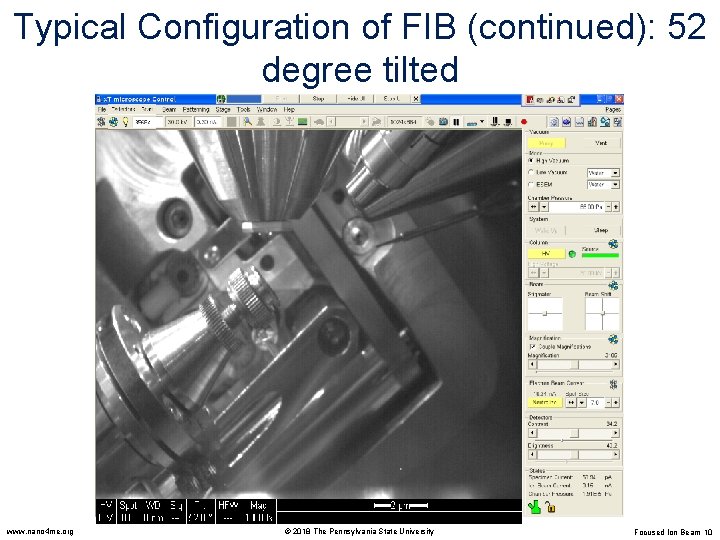
Typical Configuration of FIB (continued): 52 degree tilted www. nano 4 me. org © 2018 The Pennsylvania State University Focused Ion Beam 10
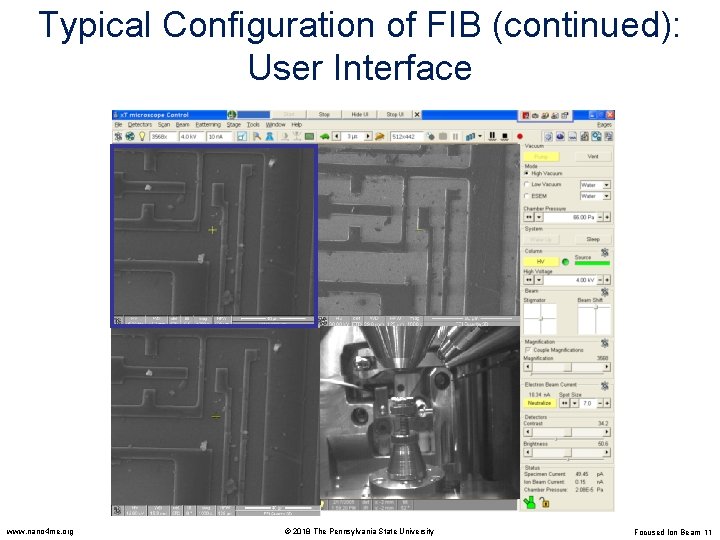
Typical Configuration of FIB (continued): User Interface www. nano 4 me. org © 2018 The Pennsylvania State University Focused Ion Beam 11

Typical Configuration of FIB (continued): User Interface www. nano 4 me. org © 2018 The Pennsylvania State University Focused Ion Beam 12

FIB operation www. nano 4 me. org © 2018 The Pennsylvania State University Focused Ion Beam 13

What is Eucentric Point ? Io n- be am GIS E-beam Eucentric height =15 mm WD below e-column pole piece and 30 mm from I column All equipment is pointed to one central spot !! www. nano 4 me. org © 2018 The Pennsylvania State University Focused Ion Beam 14
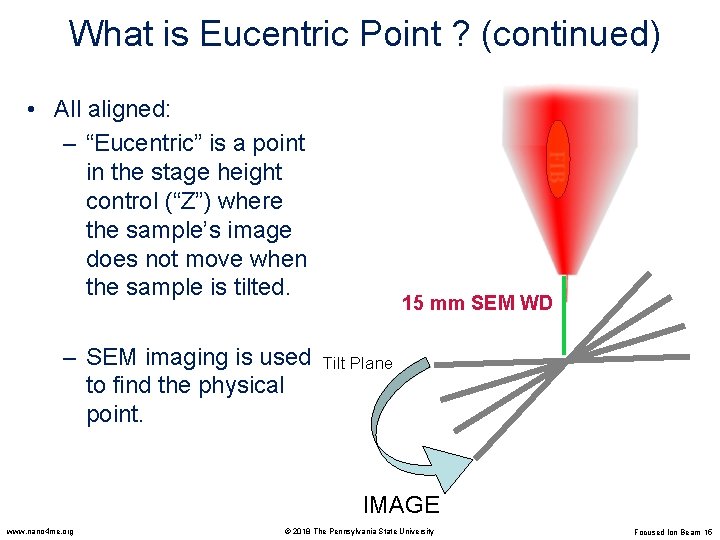
What is Eucentric Point ? (continued) • All aligned: – “Eucentric” is a point in the stage height control (“Z”) where the sample’s image does not move when the sample is tilted. – SEM imaging is used to find the physical point. 15 mm SEM WD Tilt Plane IMAGE www. nano 4 me. org © 2018 The Pennsylvania State University Focused Ion Beam 15
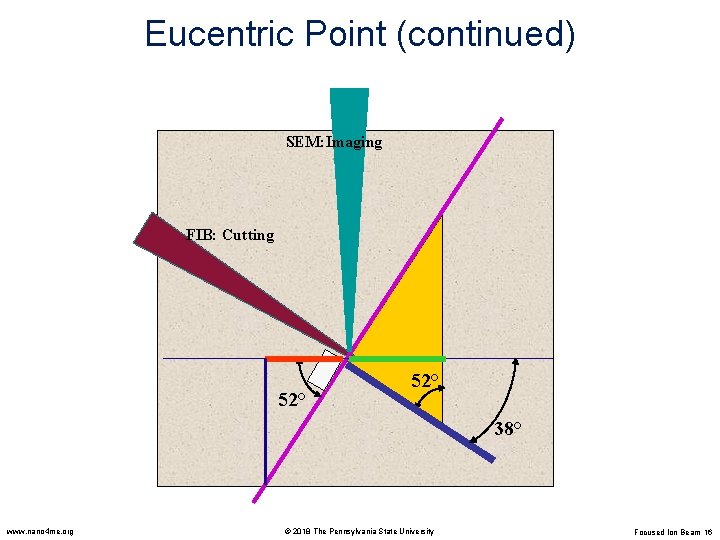
Eucentric Point (continued) SEM: Imaging FIB: Cutting 52° 38° www. nano 4 me. org © 2018 The Pennsylvania State University Focused Ion Beam 16
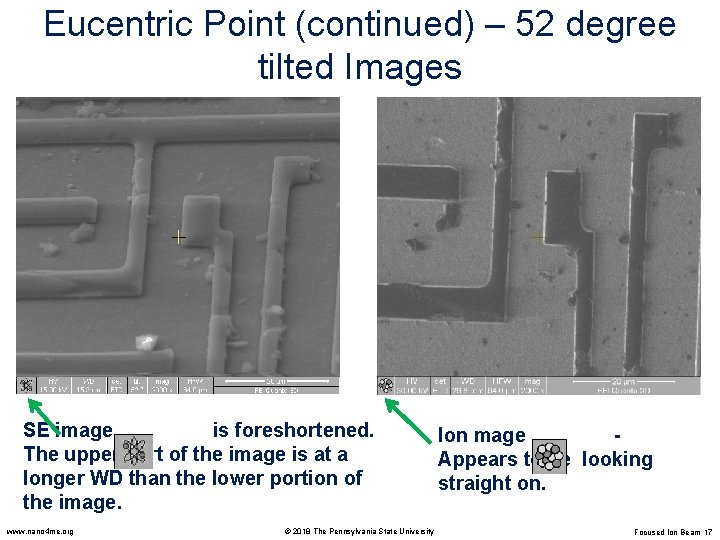
Eucentric Point (continued) – 52 degree tilted Images SE image is foreshortened. The upper part of the image is at a longer WD than the lower portion of the image. www. nano 4 me. org © 2018 The Pennsylvania State University Ion mage Appears to be looking straight on. Focused Ion Beam 17

Eucentric Point (continued) – 52 degree tilted Images SE image can look into the milled area. www. nano 4 me. org Ion image is doing the cutting and “looking” down in the sample. © 2018 The Pennsylvania State University Focused Ion Beam 18
Eucentric Point Finding Steps • “Eucentric” is the point on the height of the stage in which the sample stays centered as the stage is tilted. • It’s assumed you are at about 15 mm WD (having done a Z<>FWD and moved the stage previously) • Only after finding the eucentric point, you have coincidence alignment of the beams! www. nano 4 me. org © 2018 The Pennsylvania State University Focused Ion Beam 19
Eucentric Point Finding Steps (continued) • You will perform the following steps in the upcoming slides: – Start at ‘ 0’ degrees tilt – Note a feature of interest and bring to a feature of interest (e. g. , center of crosshairs) – Tilt the stage to a positive 52 degrees – Watch the image move either up or down on the screen – Adjust the “Z” height on the specimen door to bring feature back to the center of the screen – You may have to do this several times at higher and higher magnifications to get perfect eucentricity www. nano 4 me. org © 2018 The Pennsylvania State University Focused Ion Beam 20
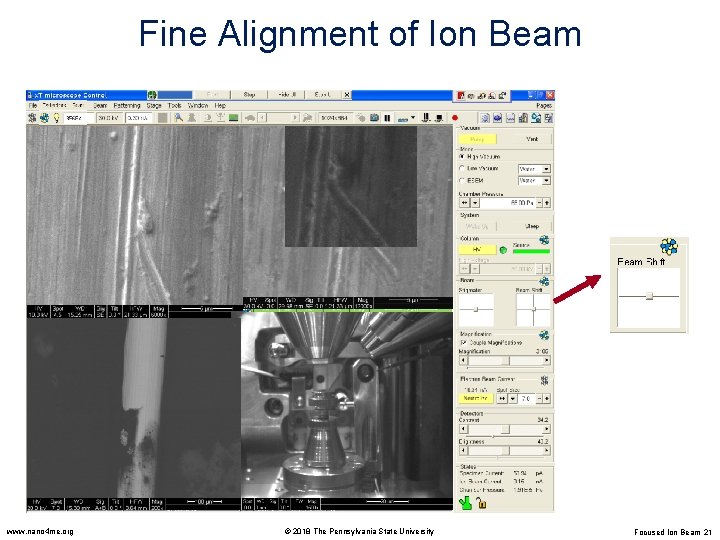
Fine Alignment of Ion Beam www. nano 4 me. org © 2018 The Pennsylvania State University Focused Ion Beam 21
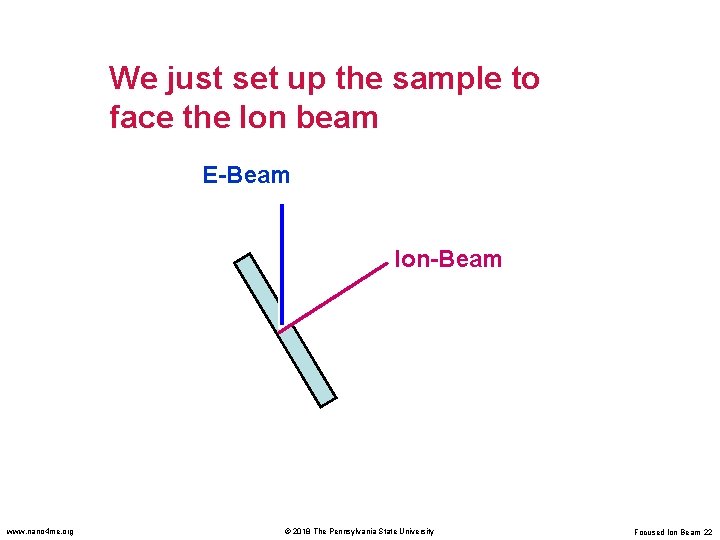
We just set up the sample to face the Ion beam E-Beam Ion-Beam www. nano 4 me. org © 2018 The Pennsylvania State University Focused Ion Beam 22
Ion Beam Operation • The ion beam will damage your sample when viewing. It is important to use a small beam size when imaging! • When getting ready to mill with a large beam current, you must focus quickly and in as few of scans as possible! • While milling or depositing a film, you can highlight Quad 1 (SE column) and take a photo (F 2) or click “snapshot. ” or. It will pause the Ion beam and grab a quick SE image to see status of the Ion milling operation. www. nano 4 me. org © 2018 The Pennsylvania State University Focused Ion Beam 23
Film Deposition (Pt) • Pt. deposition can be used for many applications. – adding a conductive layer to a non conductive sample – setting up a pattern, to prevent “curtaining” with the FIB – adhesive attachment for mechanical testing - This tutorial will cover the second point: making a protective shield for further processing www. nano 4 me. org © 2018 The Pennsylvania State University Focused Ion Beam 24
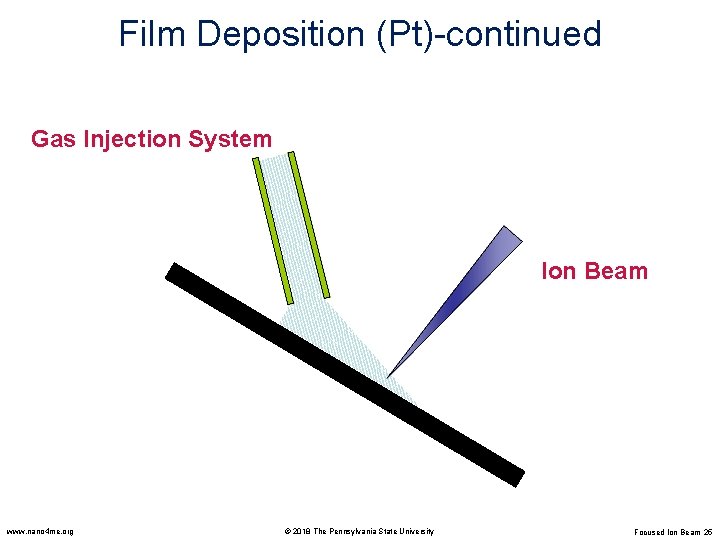
Film Deposition (Pt)-continued Gas Injection System Ion Beam www. nano 4 me. org © 2018 The Pennsylvania State University Focused Ion Beam 25
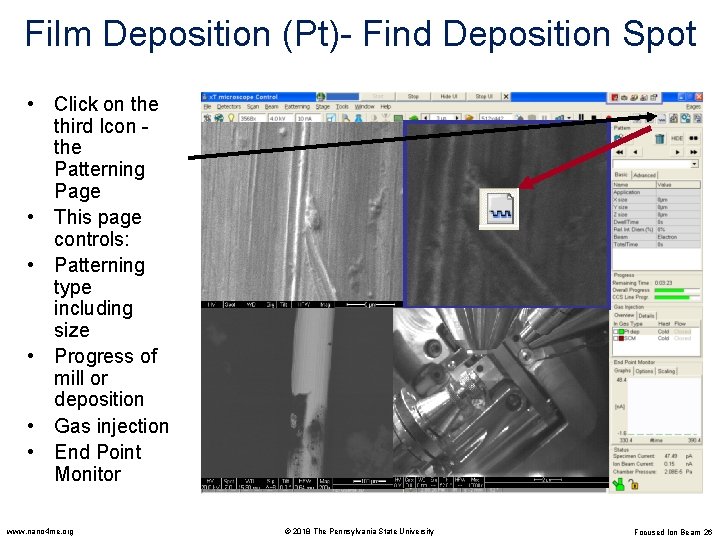
Film Deposition (Pt)- Find Deposition Spot • Click on the third Icon the Patterning Page • This page controls: • Patterning type including size • Progress of mill or deposition • Gas injection • End Point Monitor www. nano 4 me. org © 2018 The Pennsylvania State University Focused Ion Beam 26
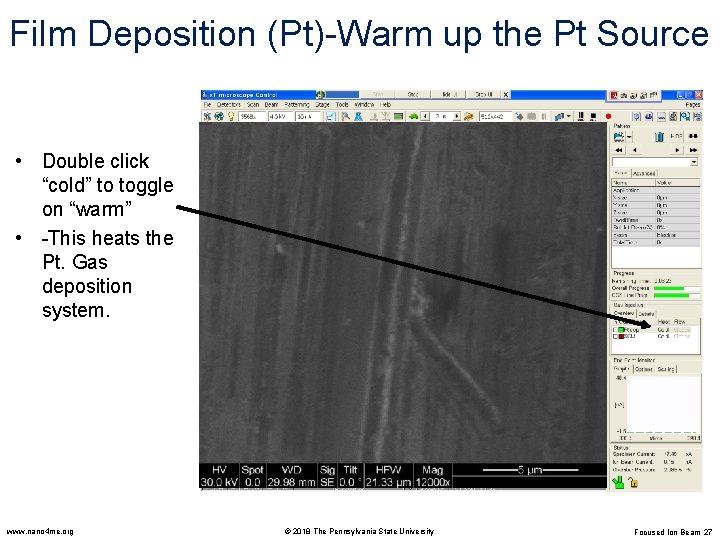
Film Deposition (Pt)-Warm up the Pt Source • Double click “cold” to toggle on “warm” • -This heats the Pt. Gas deposition system. www. nano 4 me. org © 2018 The Pennsylvania State University Focused Ion Beam 27
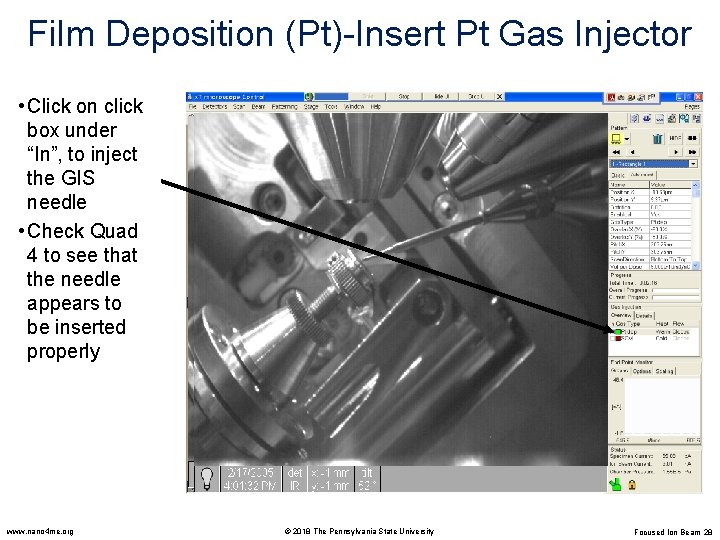
Film Deposition (Pt)-Insert Pt Gas Injector • Click on click box under “In”, to inject the GIS needle • Check Quad 4 to see that the needle appears to be inserted properly www. nano 4 me. org © 2018 The Pennsylvania State University Focused Ion Beam 28
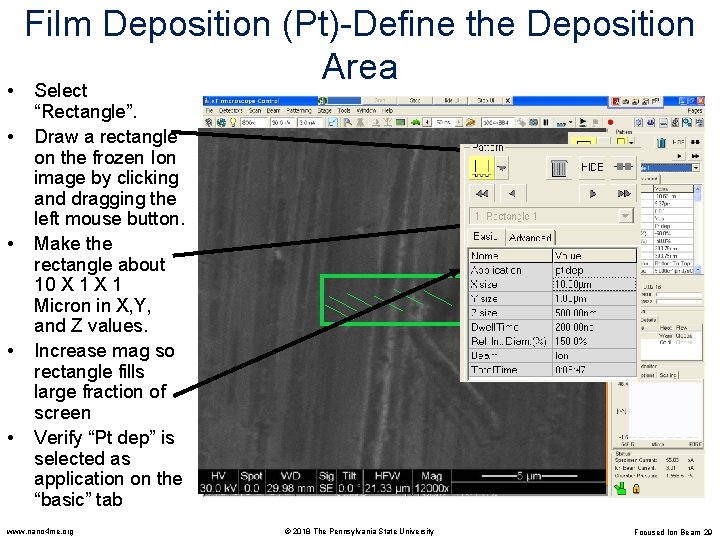
• • • Film Deposition (Pt)-Define the Deposition Area Select “Rectangle”. Draw a rectangle on the frozen Ion image by clicking and dragging the left mouse button. Make the rectangle about 10 X 1 Micron in X, Y, and Z values. Increase mag so rectangle fills large fraction of screen Verify “Pt dep” is selected as application on the “basic” tab www. nano 4 me. org © 2018 The Pennsylvania State University Focused Ion Beam 29
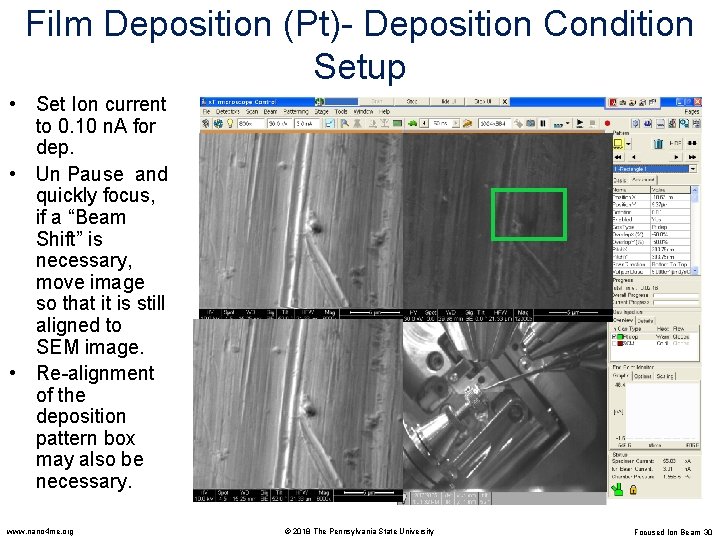
Film Deposition (Pt)- Deposition Condition Setup • Set Ion current to 0. 10 n. A for dep. • Un Pause and quickly focus, if a “Beam Shift” is necessary, move image so that it is still aligned to SEM image. • Re-alignment of the deposition pattern box may also be necessary. www. nano 4 me. org © 2018 The Pennsylvania State University Focused Ion Beam 30
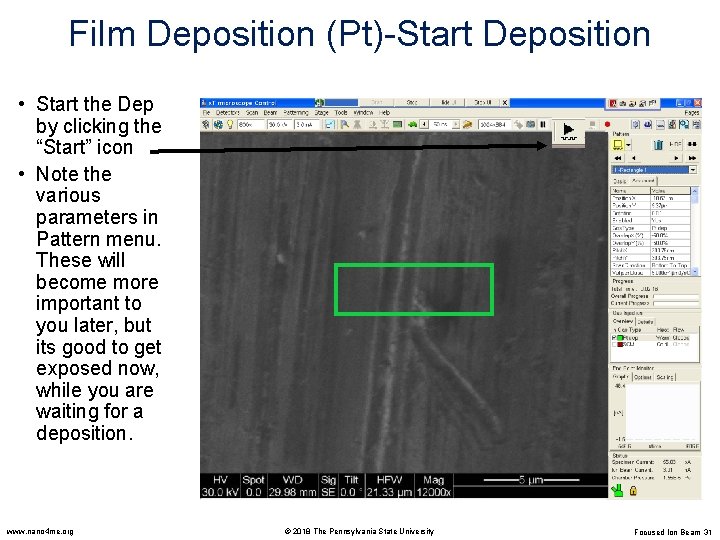
Film Deposition (Pt)-Start Deposition • Start the Dep by clicking the “Start” icon • Note the various parameters in Pattern menu. These will become more important to you later, but its good to get exposed now, while you are waiting for a deposition. www. nano 4 me. org © 2018 The Pennsylvania State University Focused Ion Beam 31
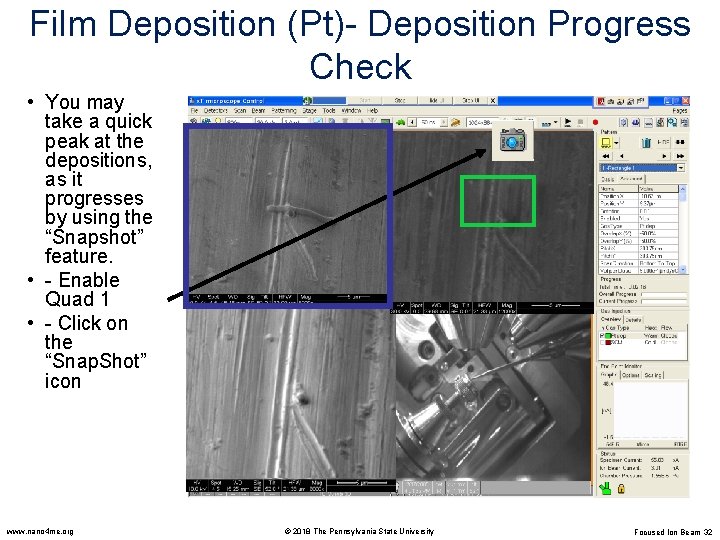
Film Deposition (Pt)- Deposition Progress Check • You may take a quick peak at the depositions, as it progresses by using the “Snapshot” feature. • - Enable Quad 1 • - Click on the “Snap. Shot” icon www. nano 4 me. org © 2018 The Pennsylvania State University Focused Ion Beam 32
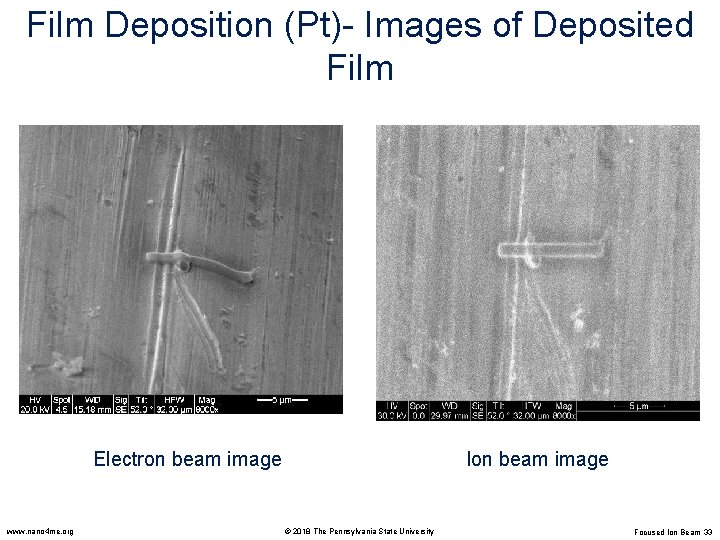
Film Deposition (Pt)- Images of Deposited Film Electron beam image www. nano 4 me. org Ion beam image © 2018 The Pennsylvania State University Focused Ion Beam 33
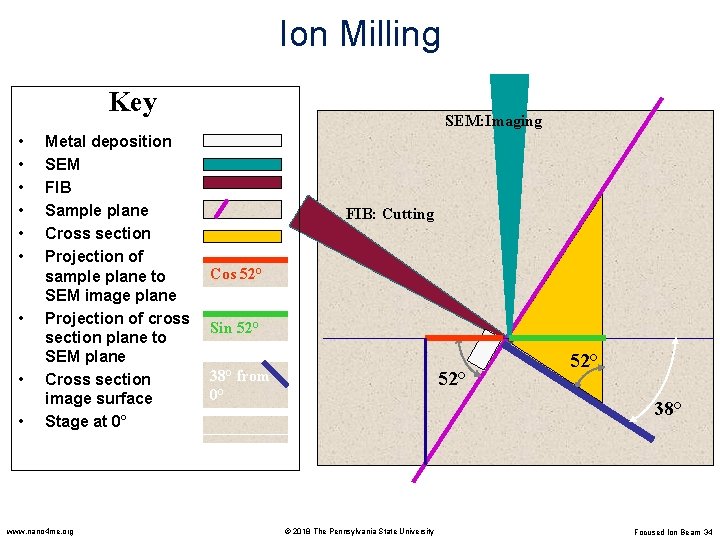
Ion Milling Key • • • Metal deposition SEM FIB Sample plane Cross section Projection of sample plane to SEM image plane Projection of cross section plane to SEM plane Cross section image surface Stage at 0° www. nano 4 me. org SEM: Imaging FIB: Cutting Cos 52° Sin 52° 38° from 0° 52° 38° © 2018 The Pennsylvania State University Focused Ion Beam 34
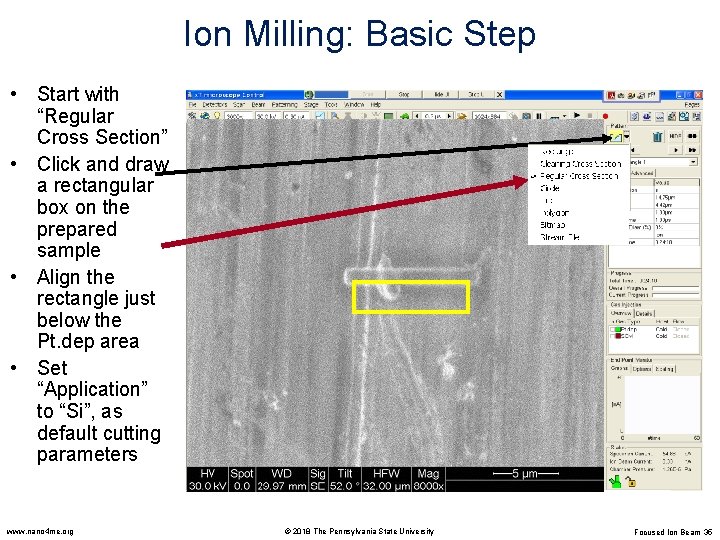
Ion Milling: Basic Step • Start with “Regular Cross Section” • Click and draw a rectangular box on the prepared sample • Align the rectangle just below the Pt. dep area • Set “Application” to “Si”, as default cutting parameters www. nano 4 me. org © 2018 The Pennsylvania State University Focused Ion Beam 35
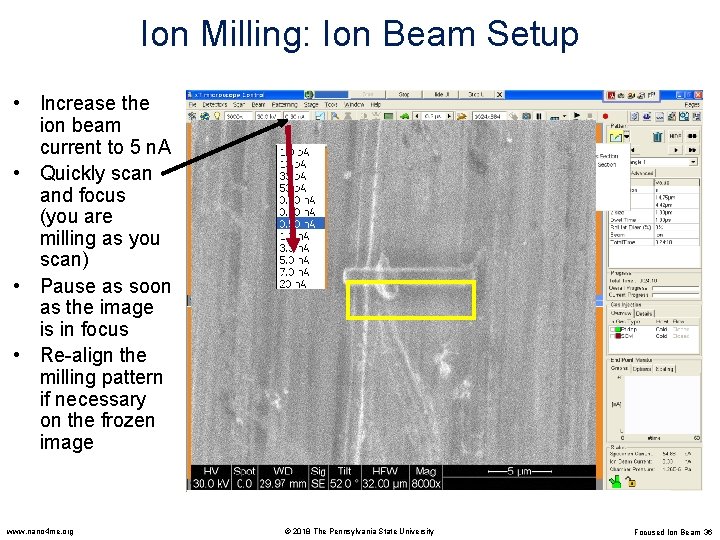
Ion Milling: Ion Beam Setup • Increase the ion beam current to 5 n. A • Quickly scan and focus (you are milling as you scan) • Pause as soon as the image is in focus • Re-align the milling pattern if necessary on the frozen image www. nano 4 me. org © 2018 The Pennsylvania State University Focused Ion Beam 36
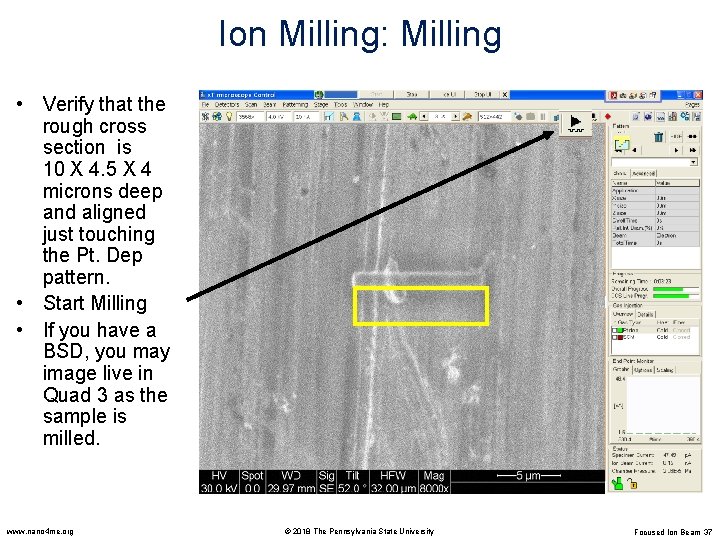
Ion Milling: Milling • Verify that the rough cross section is 10 X 4. 5 X 4 microns deep and aligned just touching the Pt. Dep pattern. • Start Milling • If you have a BSD, you may image live in Quad 3 as the sample is milled. www. nano 4 me. org © 2018 The Pennsylvania State University Focused Ion Beam 37
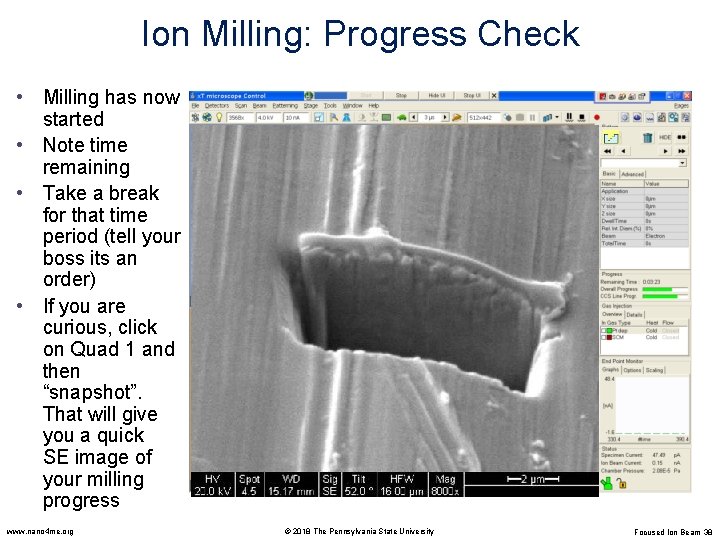
Ion Milling: Progress Check • Milling has now started • Note time remaining • Take a break for that time period (tell your boss its an order) • If you are curious, click on Quad 1 and then “snapshot”. That will give you a quick SE image of your milling progress www. nano 4 me. org © 2018 The Pennsylvania State University Focused Ion Beam 38
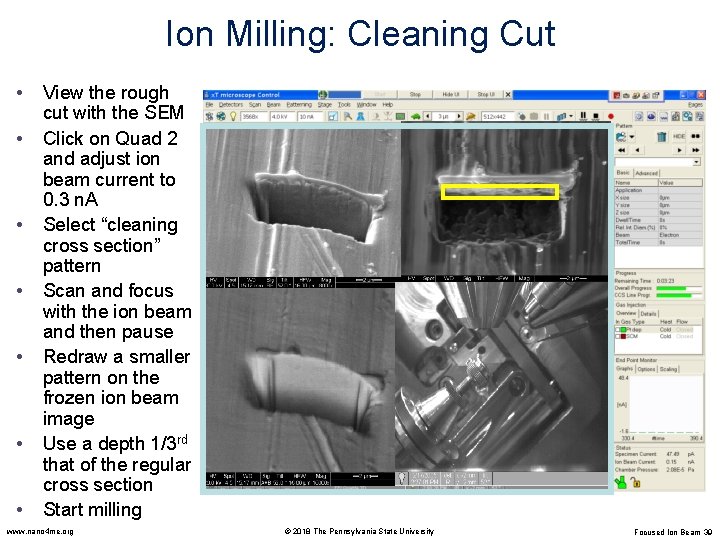
Ion Milling: Cleaning Cut • • View the rough cut with the SEM Click on Quad 2 and adjust ion beam current to 0. 3 n. A Select “cleaning cross section” pattern Scan and focus with the ion beam and then pause Redraw a smaller pattern on the frozen ion beam image Use a depth 1/3 rd that of the regular cross section Start milling www. nano 4 me. org © 2018 The Pennsylvania State University Focused Ion Beam 39
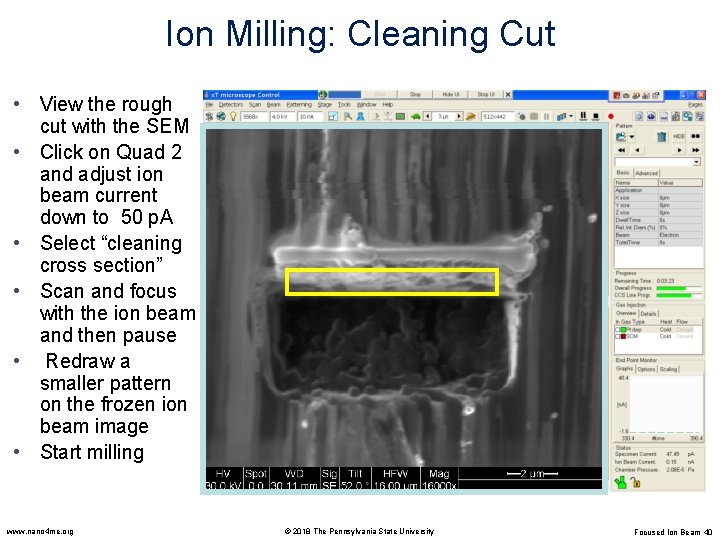
Ion Milling: Cleaning Cut • View the rough cut with the SEM • Click on Quad 2 and adjust ion beam current down to 50 p. A • Select “cleaning cross section” • Scan and focus with the ion beam and then pause • Redraw a smaller pattern on the frozen ion beam image • Start milling www. nano 4 me. org © 2018 The Pennsylvania State University Focused Ion Beam 40
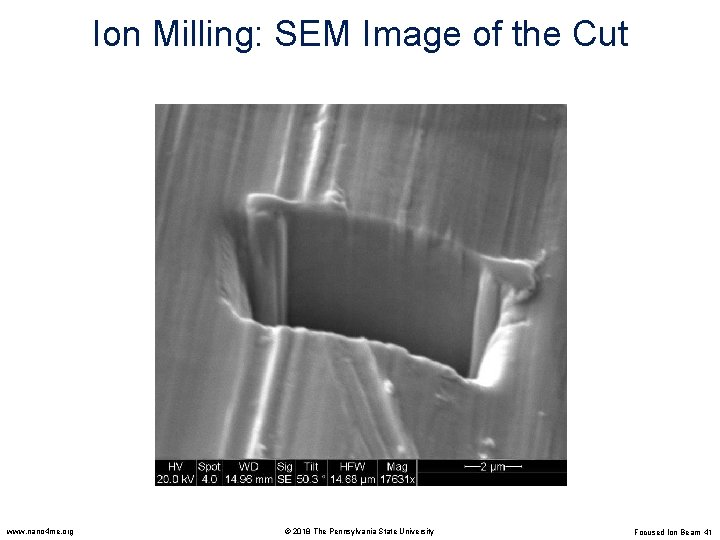
Ion Milling: SEM Image of the Cut www. nano 4 me. org © 2018 The Pennsylvania State University Focused Ion Beam 41
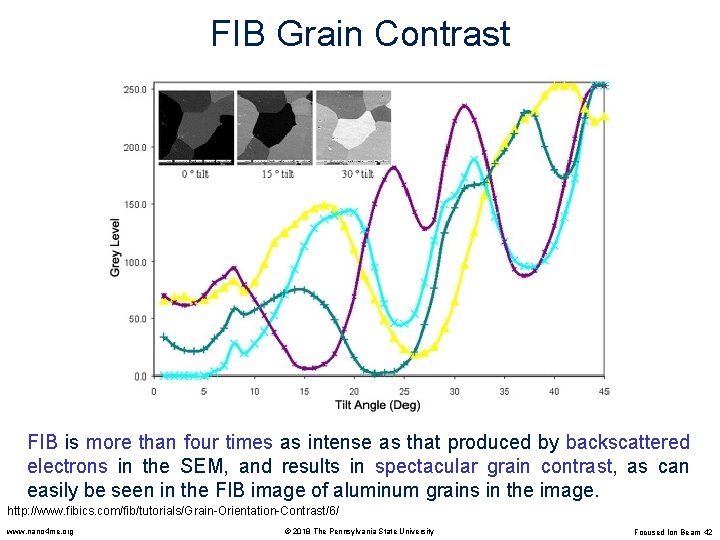
FIB Grain Contrast FIB is more than four times as intense as that produced by backscattered electrons in the SEM, and results in spectacular grain contrast, as can easily be seen in the FIB image of aluminum grains in the image. http: //www. fibics. com/fib/tutorials/Grain-Orientation-Contrast/6/ www. nano 4 me. org © 2018 The Pennsylvania State University Focused Ion Beam 42
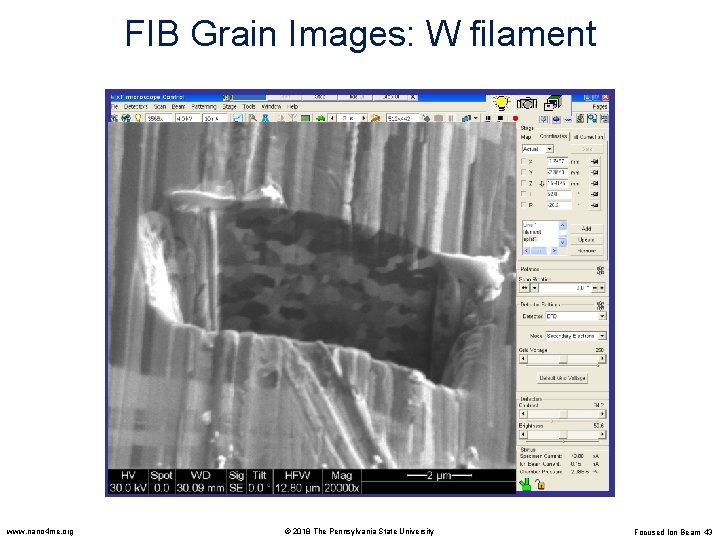
FIB Grain Images: W filament www. nano 4 me. org © 2018 The Pennsylvania State University Focused Ion Beam 43
FIB Applications www. nano 4 me. org © 2018 The Pennsylvania State University Focused Ion Beam 44
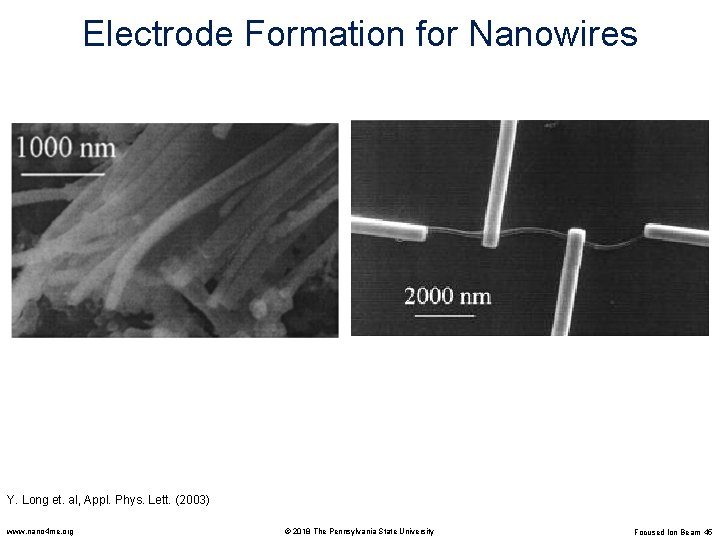
Electrode Formation for Nanowires Y. Long et. al, Appl. Phys. Lett. (2003) www. nano 4 me. org © 2018 The Pennsylvania State University Focused Ion Beam 45
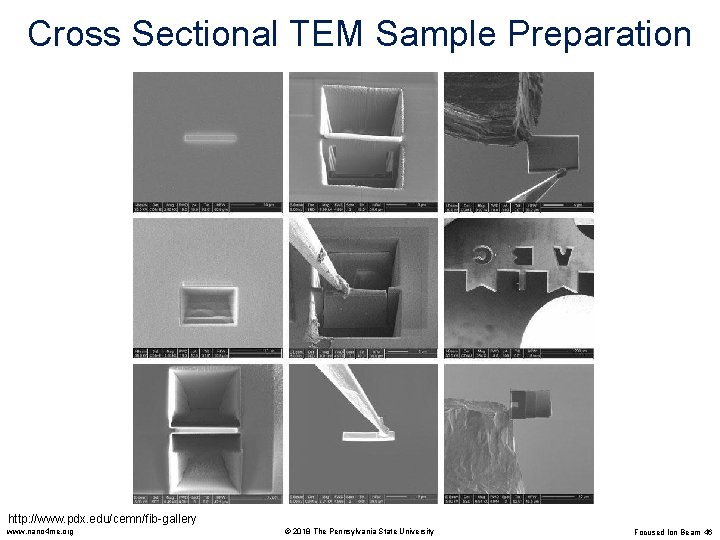
Cross Sectional TEM Sample Preparation http: //www. pdx. edu/cemn/fib-gallery www. nano 4 me. org © 2018 The Pennsylvania State University Focused Ion Beam 46
- Slides: 46