
Flexbox Layout By Sarah Rosseter Introduction to Flexbox
Flexbox Layout By: Sarah Rosseter
Introduction to Flexbox Layout • The CSS float property has been used in this class repeatedly for creating multi-column webpages. • The element of flexbox gives a webpage a one-dimensional flexible layout, which shapes the whole or only part of a webpage. This can either be viewed horizontally or vertically and the elements are able to be moved and be given any type of sizing. • It is commonly used to configure a website to a mobile device and should ultimately shift positioning depending on the device that is being used.

Configuring a Flexible Container • The flex container is the element that holds the area that is flexible. • • In order to form the flex container, the user must use the display property. The flex property specifies the flexbox container; this value is put after the display. Also, the inline-flex property shows the flexible inline-display container. Flex items: the items that are in the flex container. • The flex-direction Property • In order to organize the flex items, the user must start with the flex-direction property. • Depending on which direction the user wants their layout to appear, they must utilize the options of row (horizontal) or column (vertical). • For example, the CSS coding for an id that is called process that is vertical would appear as: #process { display: flex; flex-direction: column; }
• The flex-wrap Property • This property makes the flex items appear on multiple lines. • To organize this, the user must use the default option of nowrap, which ultimately makes the images appear single-lined. • Wrap makes the items appear multiple lined. This option is useful when the user wants their intended audience to navigate efficiently or to lead them to an image gallery. • For example, to include the flex-wrap property on multiple lines, the user has to use a nav ul feature: nav ul {flex-wrap: wrap; } • The justify-content Property • This property shows that the browser can display extra space in the container. • For example, “center” is used to center the items that have the same values of empty space before and after the process. • Also, the “space-between” option is used to distribute the items adequately and determines how much space is left over.
• To utilize the flex-direction and justify-content, the user needs to configure in the CSS code the following: nav ul {display: flex; flex-direction: column; justify-content: center; }
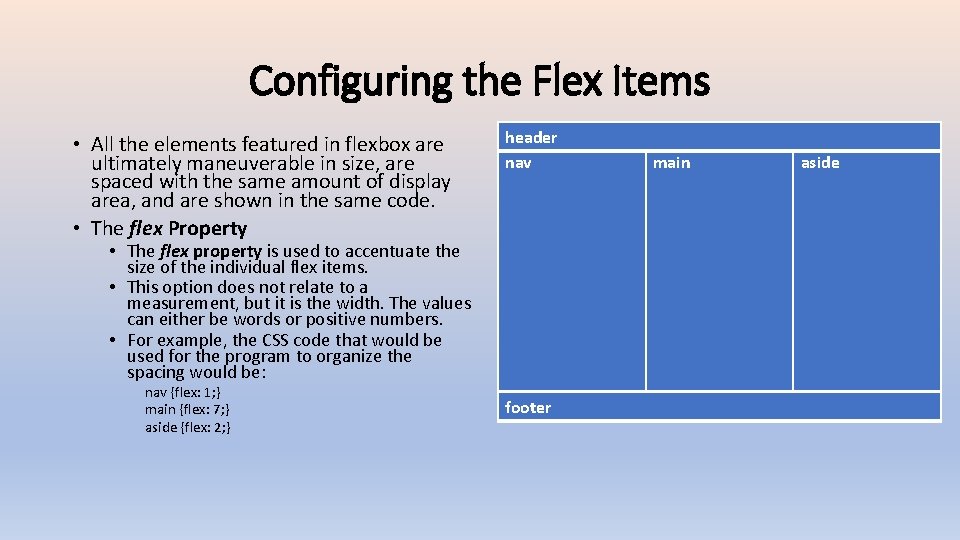
Configuring the Flex Items • All the elements featured in flexbox are ultimately maneuverable in size, are spaced with the same amount of display area, and are shown in the same code. • The flex Property header nav • The flex property is used to accentuate the size of the individual flex items. • This option does not relate to a measurement, but it is the width. The values can either be words or positive numbers. • For example, the CSS code that would be used for the program to organize the spacing would be: nav {flex: 1; } main {flex: 7; } aside {flex: 2; } footer main aside
• The order Property • This property is to show the items appear in a different order than they are coded. • For the order property, it will only allow numerical values. • For the default, the number to use is 0. • Depending on how the user wants the layout organized, they have to choose between -1 and 1. • For example, the way to input the order property within CSS would be to use a nav feature: nav {order: 1; }

Works Cited • Felke-Morris, Terry. Web Development & Design Foundations With HTML. Pearson. 2019. Pages 341 -345.
- Slides: 8