
Flash Develop Rich Internet Content and Applications Design

- Slides: 25
Flash Develop Rich Internet Content and Applications – Design motion graphics or build data-driven applications Flash Document = “. fla” filename extension – File > Save / Save As Publish Flash Document (. FLA) Flash Movie (. SWF) – Macromedia Flash file format (SWF) is the format for deploying Flash content Use Action. Script 3. 0 Object Drawing Mode Text = Static Text
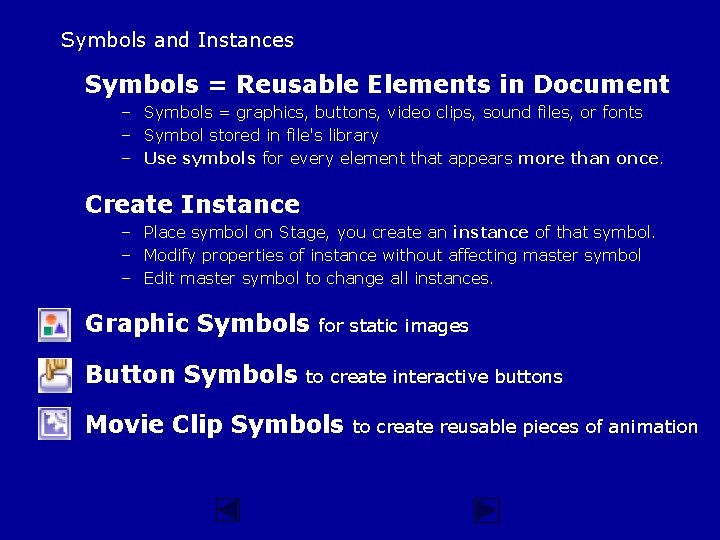
Symbols and Instances Symbols = Reusable Elements in Document – Symbols = graphics, buttons, video clips, sound files, or fonts – Symbol stored in file's library – Use symbols for every element that appears more than once. Create Instance – Place symbol on Stage, you create an instance of that symbol. – Modify properties of instance without affecting master symbol – Edit master symbol to change all instances. Graphic Symbols Button Symbols for static images to create interactive buttons Movie Clip Symbols to create reusable pieces of animation
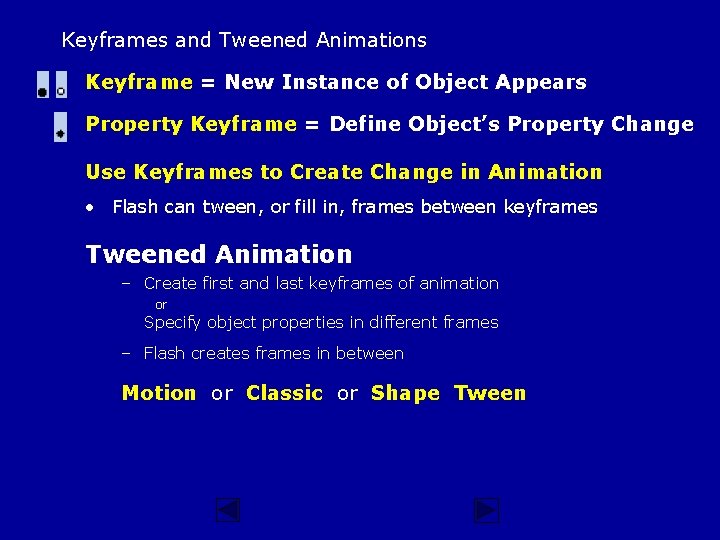
Keyframes and Tweened Animations Keyframe = New Instance of Object Appears Property Keyframe = Define Object’s Property Change Use Keyframes to Create Change in Animation • Flash can tween, or fill in, frames between keyframes Tweened Animation – Create first and last keyframes of animation or Specify object properties in different frames – Flash creates frames in between Motion or Classic or Shape Tween
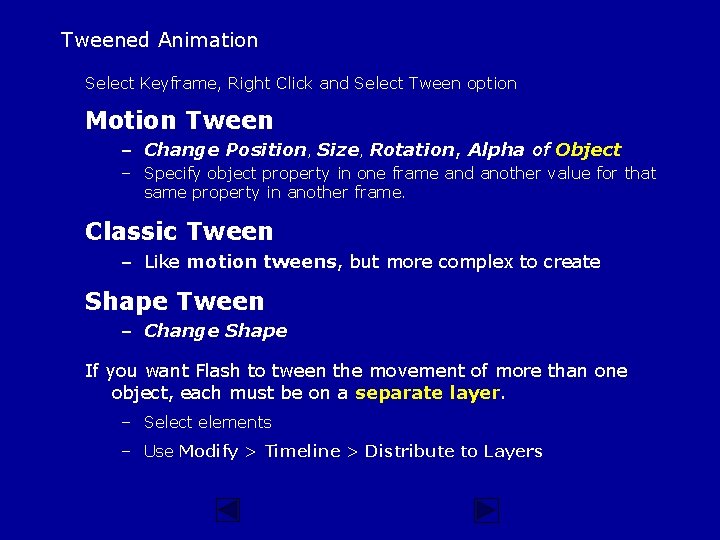
Tweened Animation Select Keyframe, Right Click and Select Tween option Motion Tween – Change Position, Size, Rotation, Alpha of Object – Specify object property in one frame and another value for that same property in another frame. Classic Tween – Like motion tweens, but more complex to create Shape Tween – Change Shape If you want Flash to tween the movement of more than one object, each must be on a separate layer. – Select elements – Use Modify > Timeline > Distribute to Layers
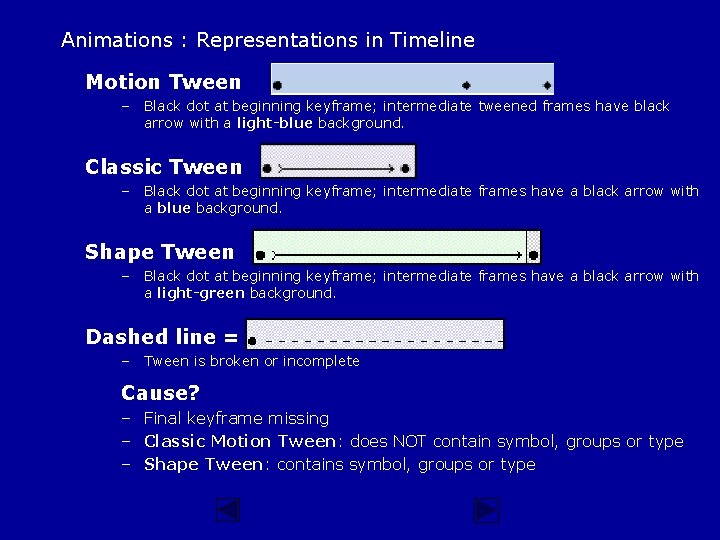
Animations : Representations in Timeline Motion Tween – Black dot at beginning keyframe; intermediate tweened frames have black arrow with a light-blue background. Classic Tween – Black dot at beginning keyframe; intermediate frames have a black arrow with a blue background. Shape Tween – Black dot at beginning keyframe; intermediate frames have a black arrow with a light-green background. Dashed line = – Tween is broken or incomplete Cause? – Final keyframe missing – Classic Motion Tween: does NOT contain symbol, groups or type – Shape Tween: contains symbol, groups or type
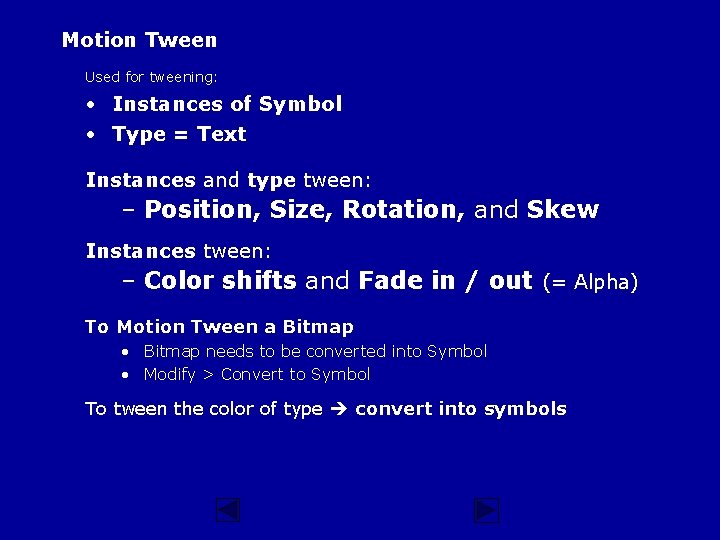
Motion Tween Used for tweening: • Instances of Symbol • Type = Text Instances and type tween: – Position, Size, Rotation, and Skew Instances tween: – Color shifts and Fade in / out (= Alpha) To Motion Tween a Bitmap • Bitmap needs to be converted into Symbol • Modify > Convert to Symbol To tween the color of type convert into symbols
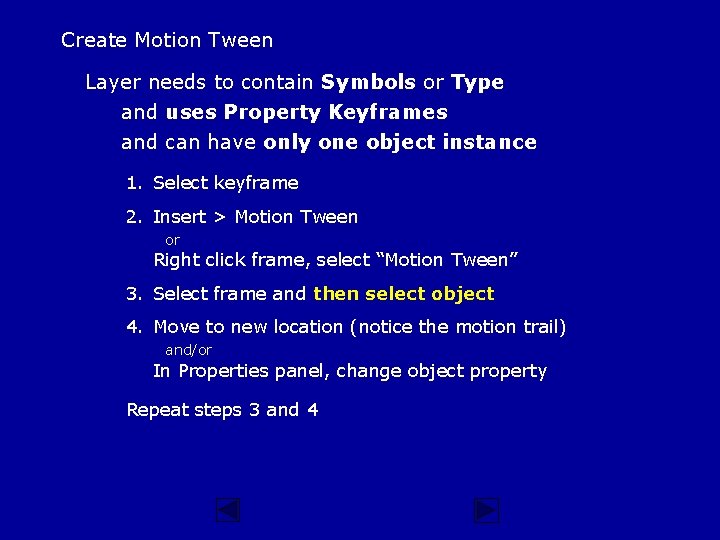
Create Motion Tween Layer needs to contain Symbols or Type and uses Property Keyframes and can have only one object instance 1. Select keyframe 2. Insert > Motion Tween or Right click frame, select “Motion Tween” 3. Select frame and then select object 4. Move to new location (notice the motion trail) and/or In Properties panel, change object property Repeat steps 3 and 4
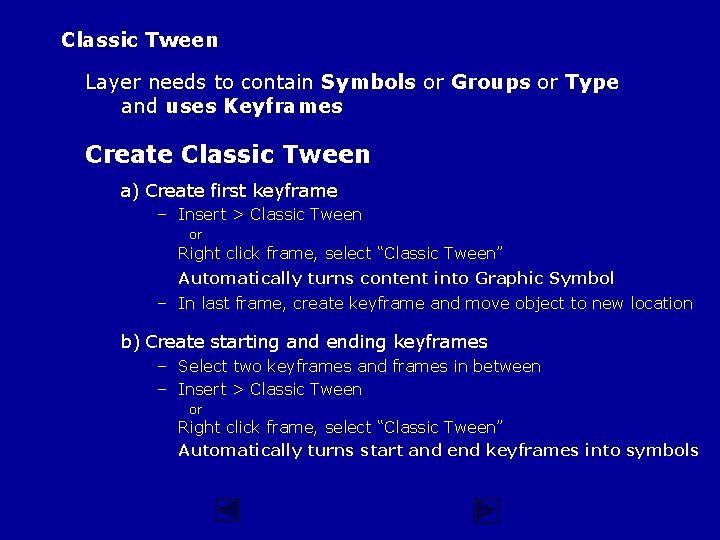
Classic Tween Layer needs to contain Symbols or Groups or Type and uses Keyframes Create Classic Tween a) Create first keyframe – Insert > Classic Tween or Right click frame, select “Classic Tween” Automatically turns content into Graphic Symbol – In last frame, create keyframe and move object to new location b) Create starting and ending keyframes – Select two keyframes and frames in between – Insert > Classic Tween or Right click frame, select “Classic Tween” Automatically turns start and end keyframes into symbols
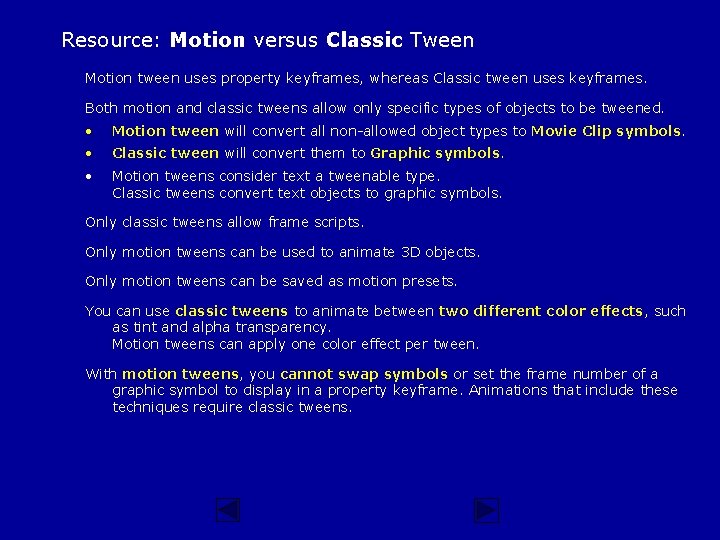
Resource: Motion versus Classic Tween Motion tween uses property keyframes, whereas Classic tween uses keyframes. Both motion and classic tweens allow only specific types of objects to be tweened. • Motion tween will convert all non-allowed object types to Movie Clip symbols. • Classic tween will convert them to Graphic symbols. • Motion tweens consider text a tweenable type. Classic tweens convert text objects to graphic symbols. Only classic tweens allow frame scripts. Only motion tweens can be used to animate 3 D objects. Only motion tweens can be saved as motion presets. You can use classic tweens to animate between two different color effects, such as tint and alpha transparency. Motion tweens can apply one color effect per tween. With motion tweens, you cannot swap symbols or set the frame number of a graphic symbol to display in a property keyframe. Animations that include these techniques require classic tweens.
Shape Tween Similar to Morphing – One shape appears to change into another shape over time Use Ungrouped Graphics to Tween Shapes 1. Create or select first keyframe 2. Create or place artwork in first keyframe 3. Create second keyframe and select it 1. Select artwork in second keyframe 2. Modify shape, color, or position of artwork (e. g. use “Free Transform” tool) 4. Select first keyframe in Timeline 1. Insert > Shape Tween or Right click frame, select “Shape Tween” 2. Properties panel: select option from “Blend” menu: a) Distributive: intermediate shapes smoother and more irregular. b) Angular: preserves apparent corners and straight lines.
Imported Artwork and Video Bitmap – – Can apply compression and anti-aliasing Place directly in Flash document Use as a fill Convert to vector artwork Video – Import video in MOV, AVI, or MPEG format – Importing video clips as embedded files – Video clip becomes part of the movie, like an imported bitmap or vector artwork file. You can publish a movie with embedded video as a Flash movie. Fireworks PNG – Can import files as editable objects that you can modify in Flash, or as flattened files that you can edit and update in Fireworks. – File > Import Fireworks PNG Import Settings dialog box – If you import a PNG file from Fireworks by cutting and pasting, the file is converted to a bitmap.
Previewing Movies Authoring environment – Control > Play – Window > Toolbars > Controller and click Play Test Movie command – Control > Test Movie or Control > Test Scene Web Browser – File > Publish Preview > HTML
Exporting File > Export Movie or File > Export Image Flash Movie – Export entire document as a Flash movie, to place the movie in another application, such as Dreamweaver. Windows AVI (Windows) – Exports a movie as Windows video, but discards any interactivity Export a movie directly into a single format: GIF, JPEG, PNG, AVI – Animated GIF, GIF Sequence, and GIF Image
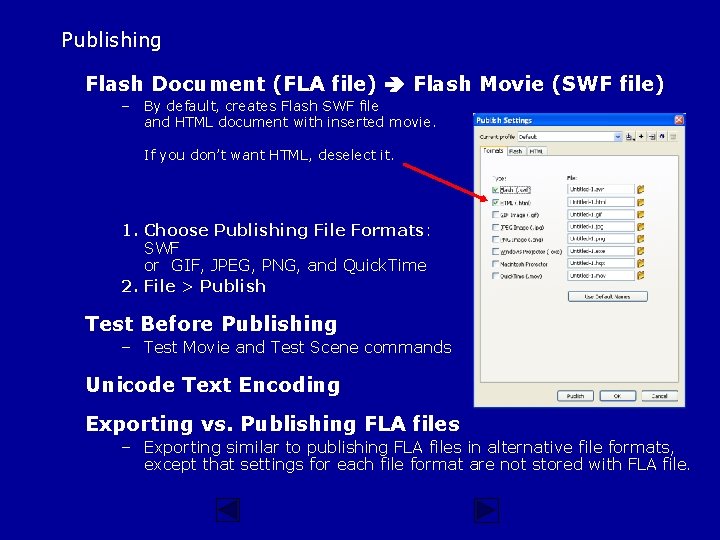
Publishing Flash Document (FLA file) Flash Movie (SWF file) – By default, creates Flash SWF file and HTML document with inserted movie. If you don’t want HTML, deselect it. 1. Choose Publishing File Formats: SWF or GIF, JPEG, PNG, and Quick. Time 2. File > Publish Test Before Publishing – Test Movie and Test Scene commands Unicode Text Encoding Exporting vs. Publishing FLA files – Exporting similar to publishing FLA files in alternative file formats, except that settings for each file format are not stored with FLA file.
Flash Demonstration – Unit 1 Creating Tweened Animations – Shape Tween – Motion Tween – Classic Tween Working with Text – – Adding & Editing Text Animating Individual Letters Morphing Text Animating Bitmaps – Import Bitmap – Bitmap Symbol – Animate and Distort Bitmap – Modify Color and Transparency of Bitmap Animating along Motion Path Creating Mask Effect
Step 0 – Download files, Launch Flash, Create Document Download Files – Unit 1 http: //comminfo. rutgers. edu/~aspoerri/Teaching/Info. Vis_ITI/videodemos. Flash. html Launch Flash Create Flash Document and Set its Properties – – File > New : General: Flash File (Action. Script 3. 0 in CC; AS 2. 0 or 3. 0 in CS 6) Modify > Document or use Property Inspector – Frame Rate = 12 Dimensions = 600 x 400 Background color = White Using Grid, Rulers and Guides – – Rulers View > Rulers Guides – View > Guides > Show Guides – Drag horizontal (200) and vertical (300) guides from rulers onto Stage
Step 1 – Keyframes and Create Shapes 1. Select Layer 1 and name it “Shape Tween” 2. Select first keyframe in Timeline 3. Select Circle Tool and Draw Circle in the center of Stage – Select Arrow Tool to select Circle (both Line and Fill!) – In Property Inspector, set Width = 50 and Height = 50 – In Property Inspector, set Stroke and Fill properties of circle 4. Create second keyframe at frame = 30 – Select frame = 30 and use Insert > Timeline > Keyframe – Select circle using the Arrow tool in second keyframe – Modify position by moving circle – Modify size by using Free Transform – Select Arrow tool and deselect circle – Modify shape by using “Arrow” tool to change contour (notice how cursor changes)
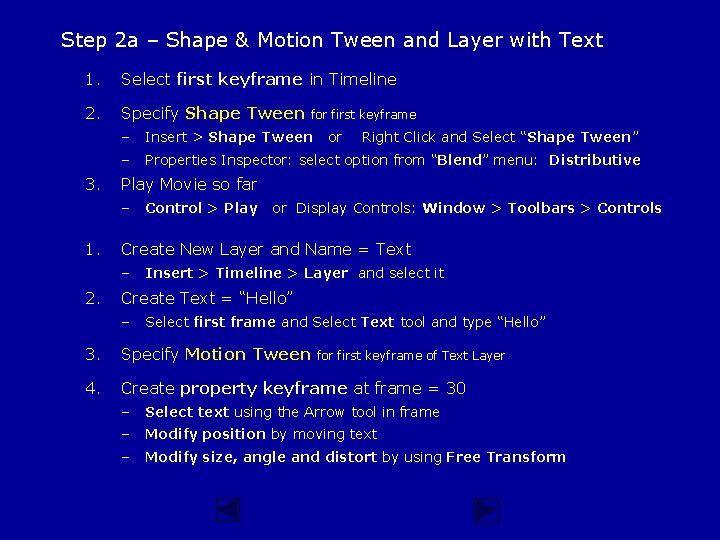
Step 2 a – Shape & Motion Tween and Layer with Text 1. Select first keyframe in Timeline 2. Specify Shape Tween 3. – Insert > Shape Tween – Properties Inspector: select option from “Blend” menu: Distributive Right Click and Select “Shape Tween” Control > Play or Display Controls: Window > Toolbars > Controls Create New Layer and Name = Text – 2. or Play Movie so far – 1. for first keyframe Insert > Timeline > Layer and select it Create Text = “Hello” – Select first frame and Select Text tool and type “Hello” 3. Specify Motion Tween 4. Create property keyframe at frame = 30 for first keyframe of Text Layer – Select text using the Arrow tool in frame – Modify position by moving text – Modify size, angle and distort by using Free Transform
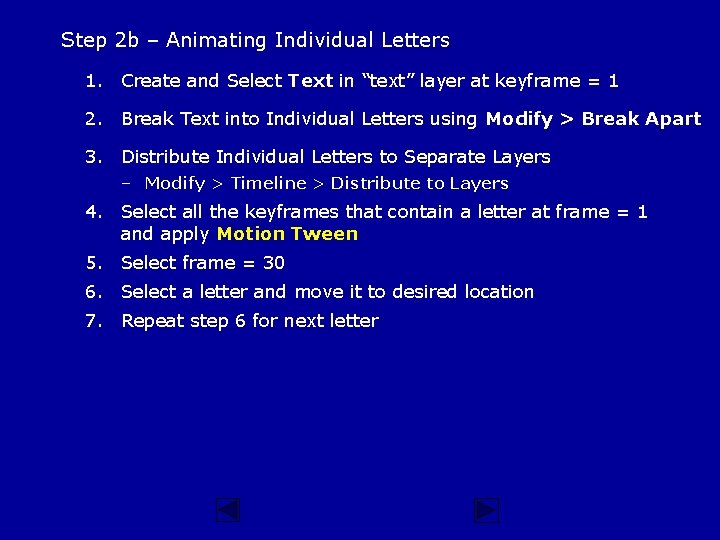
Step 2 b – Animating Individual Letters 1. Create and Select Text in “text” layer at keyframe = 1 2. Break Text into Individual Letters using Modify > Break Apart 3. Distribute Individual Letters to Separate Layers – Modify > Timeline > Distribute to Layers 4. Select all the keyframes that contain a letter at frame = 1 and apply Motion Tween 5. Select frame = 30 6. Select a letter and move it to desired location 7. Repeat step 6 for next letter
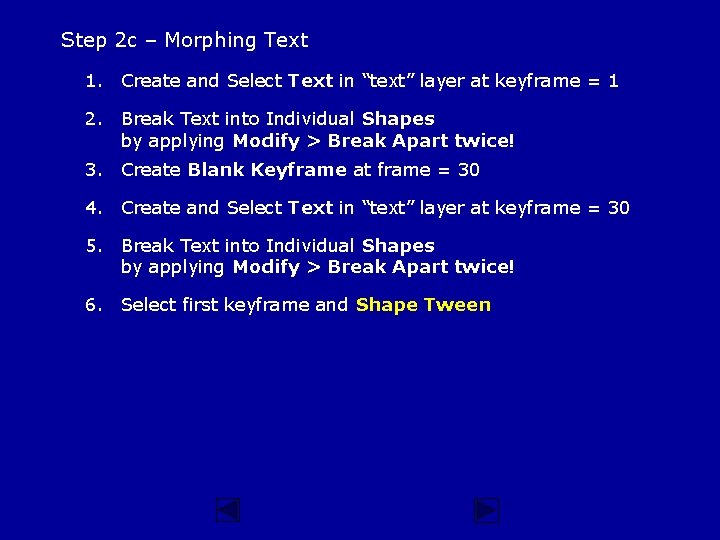
Step 2 c – Morphing Text 1. Create and Select Text in “text” layer at keyframe = 1 2. Break Text into Individual Shapes by applying Modify > Break Apart twice! 3. Create Blank Keyframe at frame = 30 4. Create and Select Text in “text” layer at keyframe = 30 5. Break Text into Individual Shapes by applying Modify > Break Apart twice! 6. Select first keyframe and Shape Tween
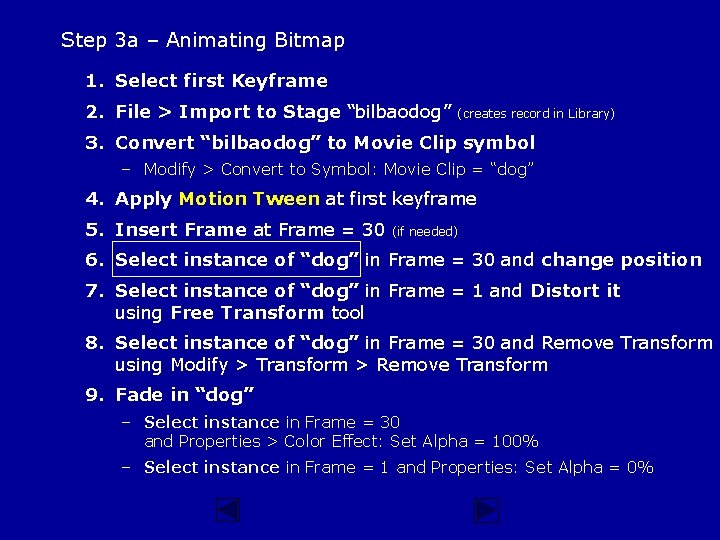
Step 3 a – Animating Bitmap 1. Select first Keyframe 2. File > Import to Stage “bilbaodog” (creates record in Library) 3. Convert “bilbaodog” to Movie Clip symbol – Modify > Convert to Symbol: Movie Clip = “dog” 4. Apply Motion Tween at first keyframe 5. Insert Frame at Frame = 30 (if needed) 6. Select instance of “dog” in Frame = 30 and change position 7. Select instance of “dog” in Frame = 1 and Distort it using Free Transform tool 8. Select instance of “dog” in Frame = 30 and Remove Transform using Modify > Transform > Remove Transform 9. Fade in “dog” – Select instance in Frame = 30 and Properties > Color Effect: Set Alpha = 100% – Select instance in Frame = 1 and Properties: Set Alpha = 0%
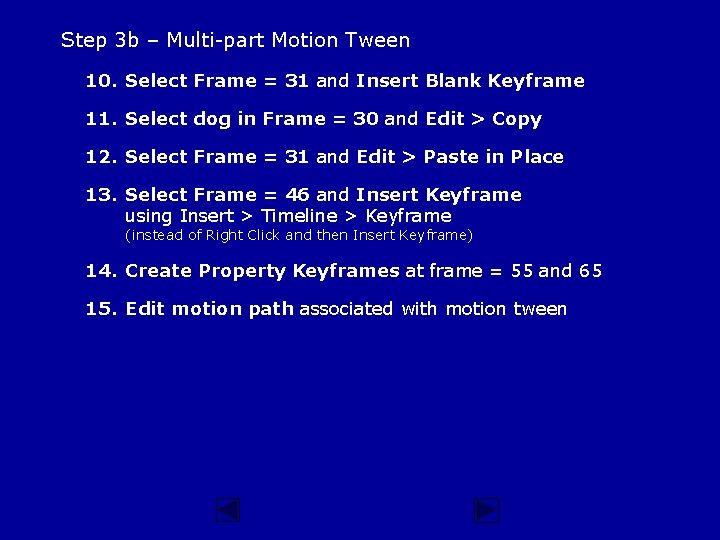
Step 3 b – Multi-part Motion Tween 10. Select Frame = 31 and Insert Blank Keyframe 11. Select dog in Frame = 30 and Edit > Copy 12. Select Frame = 31 and Edit > Paste in Place 13. Select Frame = 46 and Insert Keyframe using Insert > Timeline > Keyframe (instead of Right Click and then Insert Keyframe) 14. Create Property Keyframes at frame = 55 and 65 15. Edit motion path associated with motion tween
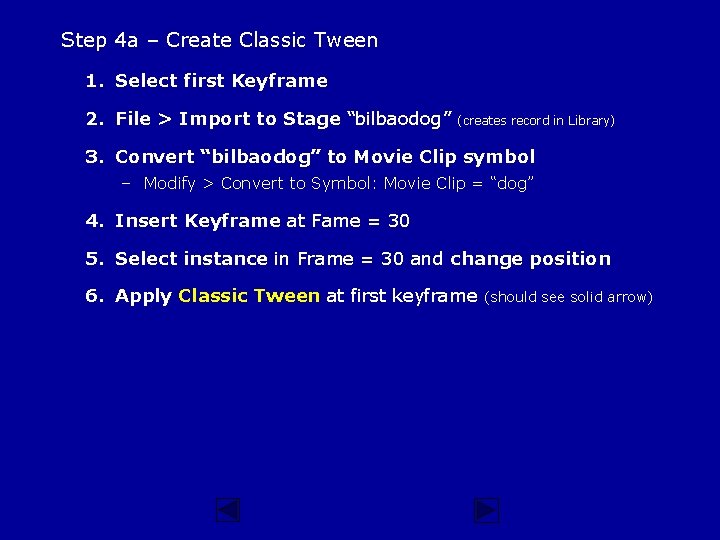
Step 4 a – Create Classic Tween 1. Select first Keyframe 2. File > Import to Stage “bilbaodog” (creates record in Library) 3. Convert “bilbaodog” to Movie Clip symbol – Modify > Convert to Symbol: Movie Clip = “dog” 4. Insert Keyframe at Fame = 30 5. Select instance in Frame = 30 and change position 6. Apply Classic Tween at first keyframe (should see solid arrow)
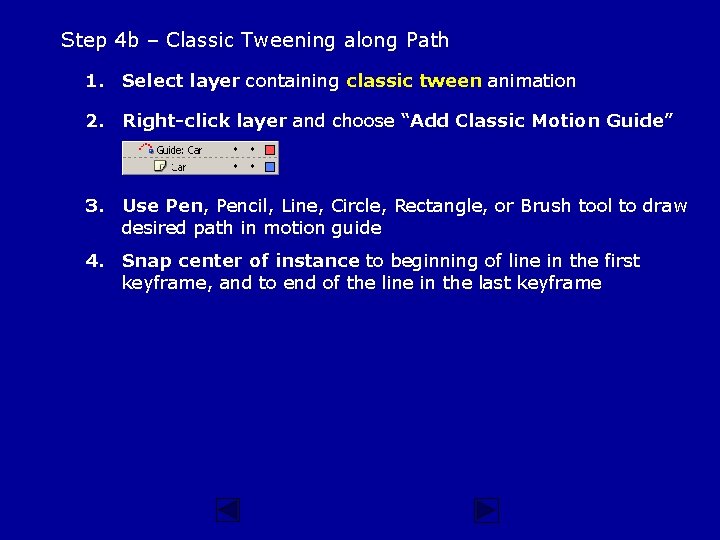
Step 4 b – Classic Tweening along Path 1. Select layer containing classic tween animation 2. Right-click layer and choose “Add Classic Motion Guide” 3. Use Pen, Pencil, Line, Circle, Rectangle, or Brush tool to draw desired path in motion guide 4. Snap center of instance to beginning of line in the first keyframe, and to end of the line in the last keyframe
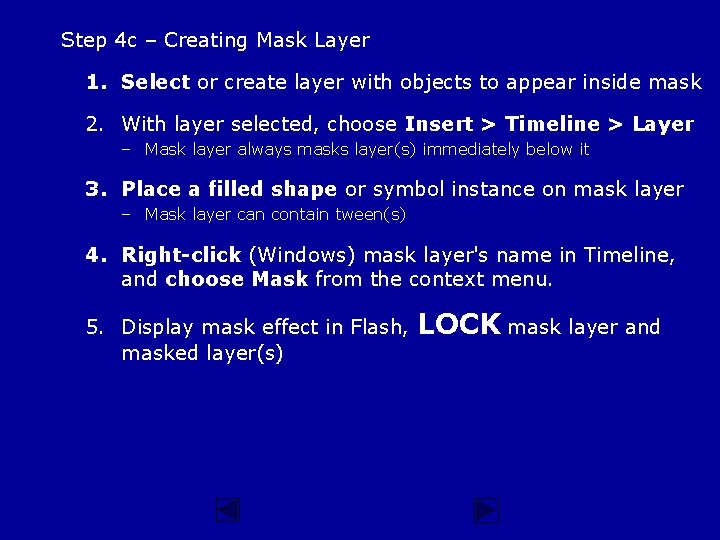
Step 4 c – Creating Mask Layer 1. Select or create layer with objects to appear inside mask 2. With layer selected, choose Insert > Timeline > Layer – Mask layer always masks layer(s) immediately below it 3. Place a filled shape or symbol instance on mask layer – Mask layer can contain tween(s) 4. Right-click (Windows) mask layer's name in Timeline, and choose Mask from the context menu. 5. Display mask effect in Flash, masked layer(s) LOCK mask layer and