
Fix Redundant Constraints With Revolute Spherical and Hooke
- Slides: 11
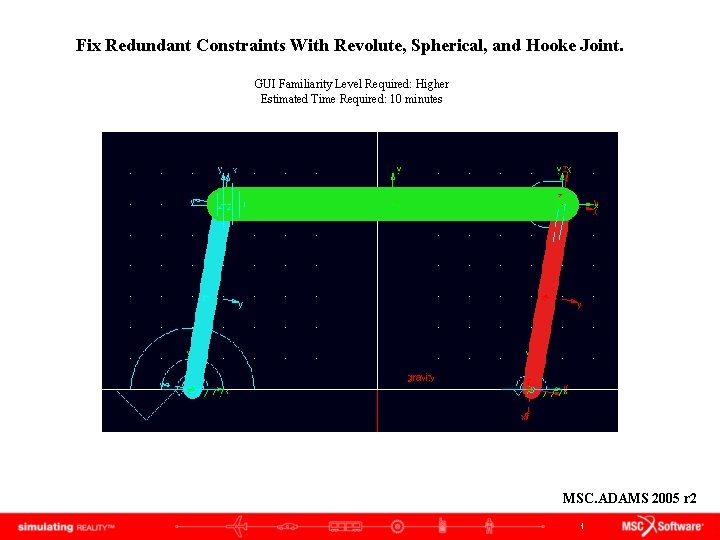
Fix Redundant Constraints With Revolute, Spherical, and Hooke Joint. GUI Familiarity Level Required: Higher Estimated Time Required: 10 minutes MSC. ADAMS 2005 r 2 1
Topics Covered In this tutorial you will learn how to: 1. Import. cmd file 2. Add spherical joint 3. Add hooke joint 4. Fix redundant constraints You will need to download the file “ 4 -bar_redundant_constraint. cmd“ to begin this tutorial If you have any difficulties, import the “ 4 -bar_redundant_constraint_complete. cmd” file and proceed from pg 8 2
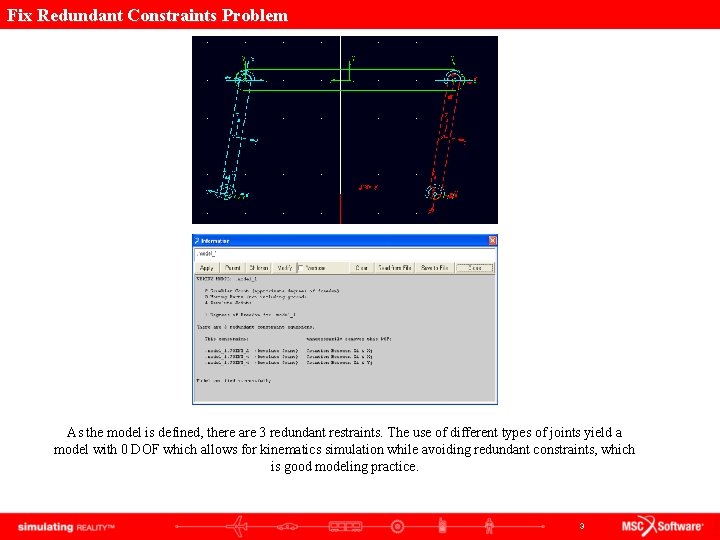
Fix Redundant Constraints Problem As the model is defined, there are 3 redundant restraints. The use of different types of joints yield a model with 0 DOF which allows for kinematics simulation while avoiding redundant constraints, which is good modeling practice. 3
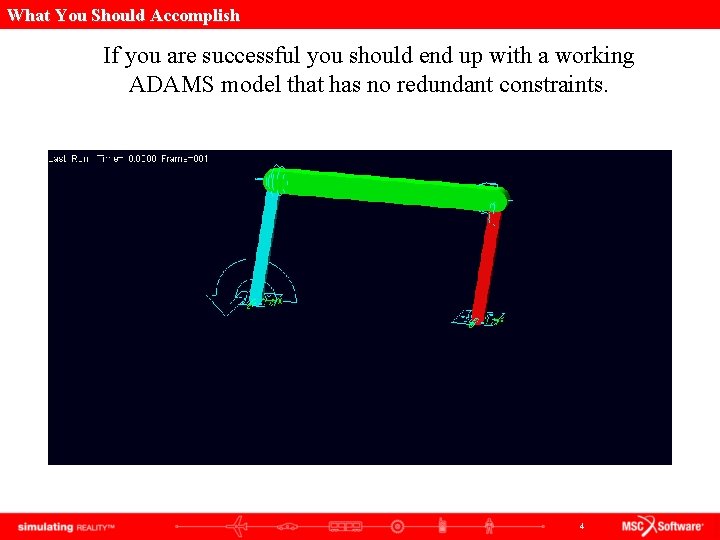
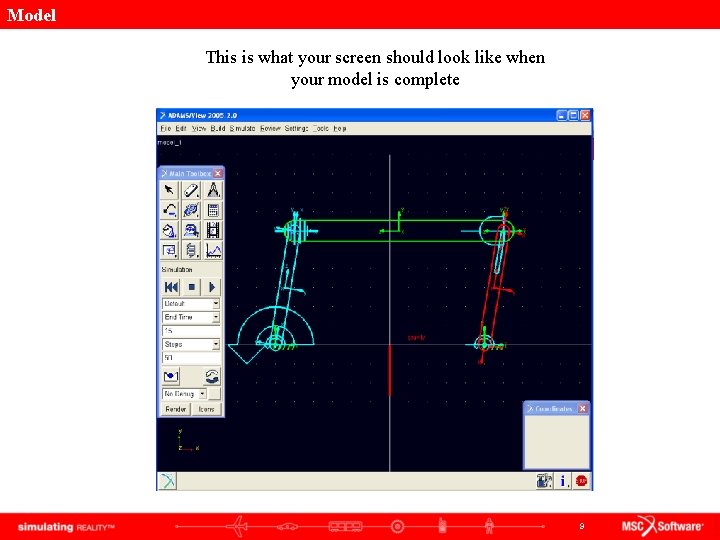
What You Should Accomplish If you are successful you should end up with a working ADAMS model that has no redundant constraints. 4
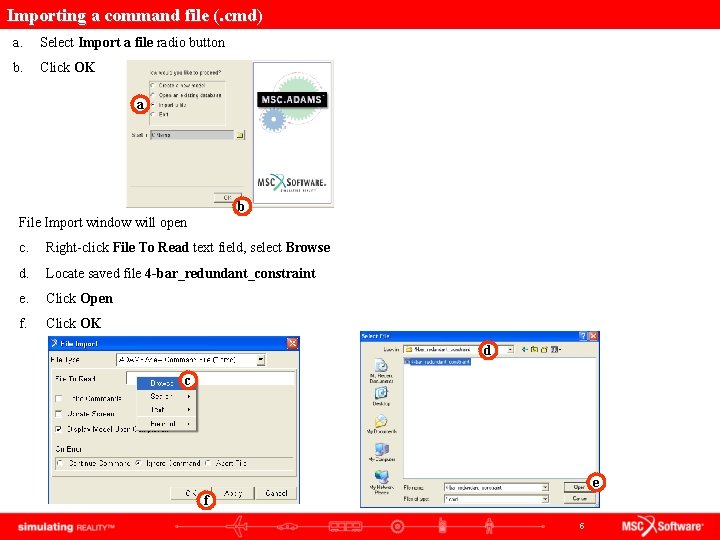
Importing a command file (. cmd) a. Select Import a file radio button b. Click OK a b File Import window will open c. Right-click File To Read text field, select Browse d. Locate saved file 4 -bar_redundant_constraint e. Click Open f. Click OK d c e f 5
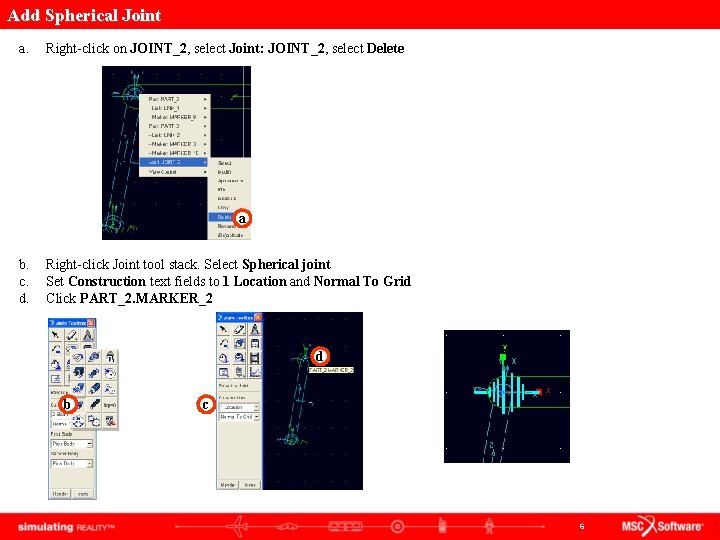
Add Spherical Joint a. Right-click on JOINT_2, select Joint: JOINT_2, select Delete a b. c. d. Right-click Joint tool stack. Select Spherical joint Set Construction text fields to 1 Location and Normal To Grid Click PART_2. MARKER_2 d b c 6
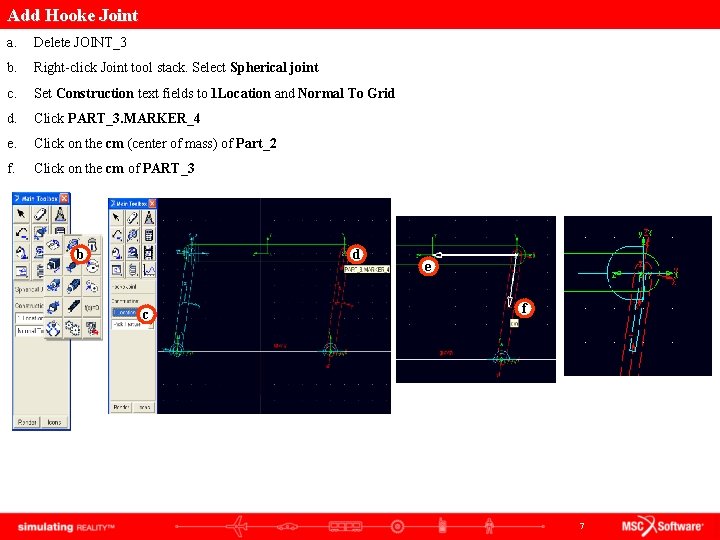
Add Hooke Joint a. Delete JOINT_3 b. Right-click Joint tool stack. Select Spherical joint c. Set Construction text fields to 1 Location and Normal To Grid d. Click PART_3. MARKER_4 e. Click on the cm (center of mass) of Part_2 f. Click on the cm of PART_3 b d c e f 7
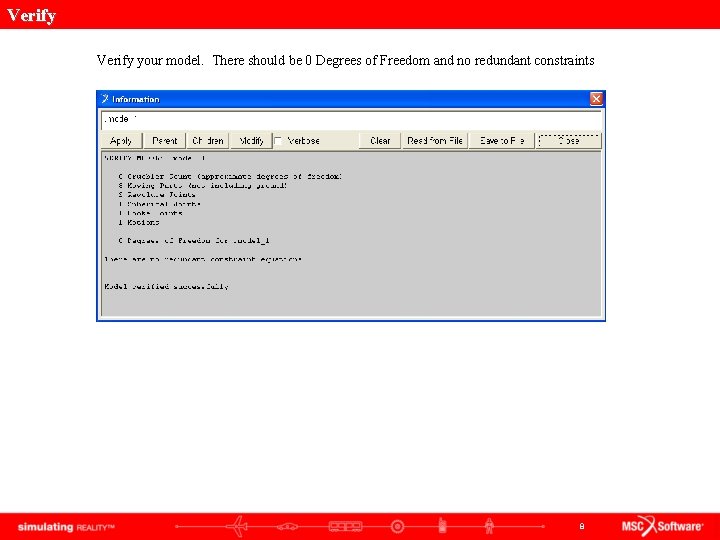
Verify your model. There should be 0 Degrees of Freedom and no redundant constraints 8
Model This is what your screen should look like when your model is complete 9
Topics Covered In this tutorial, you learned how to: 1. Import. cmd file 2. Add spherical joint 3. Add hooke joint 4. Fix redundant constraints 10
Best Practices • Check orientation of spherical joint • Check orientation of hooke joint, it should be along the cm of the two parts. • Remove unnecessary joints • Verify your model. 11