
First Piece Inspection Report e FPIR Users Guide
- Slides: 72
First Piece Inspection Report (e. FPIR) User’s Guide 1/ GE Title or job number / 11/23/2020
Index Title Page Index System Purpose System Workflow GETTING TO THE APPLICATION SSO Registration and Suppliernet Access Suppliernet homepage Opening the e. FPIR Application Always Save Changes! e. FPIR Homepage and Worklists e. FPIR Homepage and Functions The Worklist Transferring FPIRs to Different Contacts Site Coordinator Tab Search tab and Search functions Opened FPIR Navigating a FPIR serial numbers Create Tab Creating a FPIR Tool label requirements Tooling flowchart Searching for, entering and creating asset #s i ii, iii 2 3 4 -19 4 -14 15 16 17 18 -21 18 19 20, 21 22 23, 24 25 26 27 28 -38 28 -32 33 34 35 -38 2/ GE Title or job number / 11/23/2020
Index Completing a FPIR Posted to supplier Acknowledged by supplier Data entry requirements Dimension Screen Cut and paste Laboratory Screen Appearance Screen CTQ screen Tooling Data Entry Compression Mold Extrusion Die Injection Mold Metal Casting Die Other Prog. Stamping Die Remarks page Attaching documents Supplier Reply Waiting for Disposition Waiting for Approval 39 -71 39 40, 41 42 43 -45 46 47 48 49 50 51 52 53 54 55 56 57 - 59 60 -65 66 -67 68 -69 3/ GE Title or job number / 11/23/2020
E-First Piece Inspection Report System Purpose 1. Ensures part is properly qualified • dimension, laboratory, appearance, CTQ capability, regulatory 2. Ensures GE owned tools are properly tracked and labeled • Feeds data to tooling data warehouse • Data feed to financial system • Provides location of all tools 3. Provides central location for historical information on all FPIRs 4/ GE Title or job number / 11/23/2020
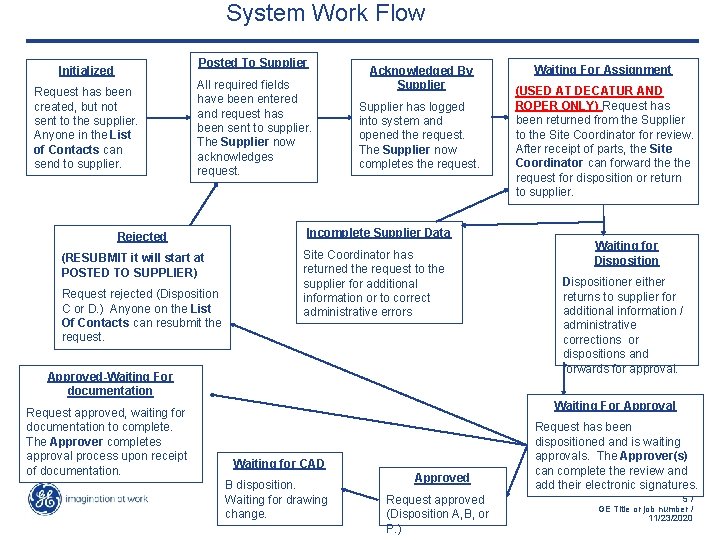
System Work Flow Posted To Supplier Initialized Request has been created, but not sent to the supplier. Anyone in the List of Contacts can send to supplier. All required fields have been entered and request has been sent to supplier. The Supplier now acknowledges request. Rejected (RESUBMIT it will start at POSTED TO SUPPLIER) Request rejected (Disposition C or D. ) Anyone on the List Of Contacts can resubmit the request. Acknowledged By Supplier has logged into system and opened the request. The Supplier now completes the request. Incomplete Supplier Data Site Coordinator has returned the request to the supplier for additional information or to correct administrative errors Approved-Waiting For documentation Request approved, waiting for documentation to complete. The Approver completes approval process upon receipt of documentation. Waiting For Assignment (USED AT DECATUR AND ROPER ONLY) Request has been returned from the Supplier to the Site Coordinator for review. After receipt of parts, the Site Coordinator can forward the request for disposition or return to supplier. Waiting for Dispositioner either returns to supplier for additional information / administrative corrections or dispositions and forwards for approval. Waiting For Approval Waiting for CAD B disposition. Waiting for drawing change. Approved Request approved (Disposition A, B, or P. ) Request has been dispositioned and is waiting approvals. The Approver(s) can complete the review and add their electronic signatures. 5/ GE Title or job number / 11/23/2020
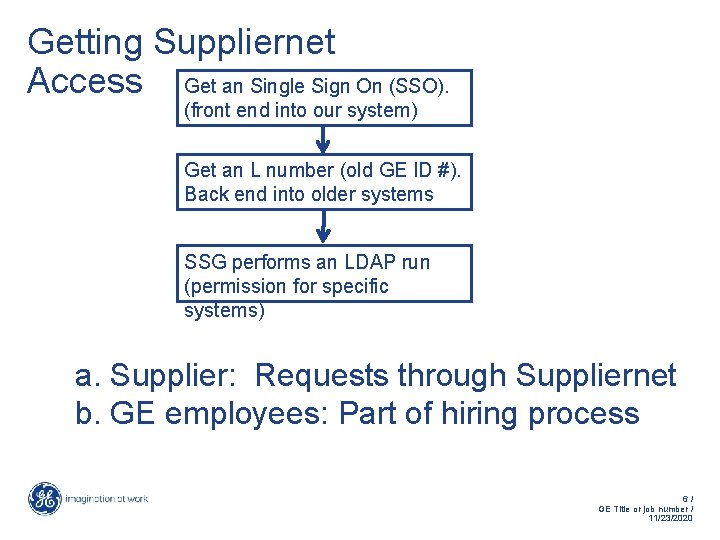
Getting Suppliernet Access Get an Single Sign On (SSO). (front end into our system) Get an L number (old GE ID #). Back end into older systems SSG performs an LDAP run (permission for specific systems) a. Supplier: Requests through Suppliernet b. GE employees: Part of hiring process 6/ GE Title or job number / 11/23/2020
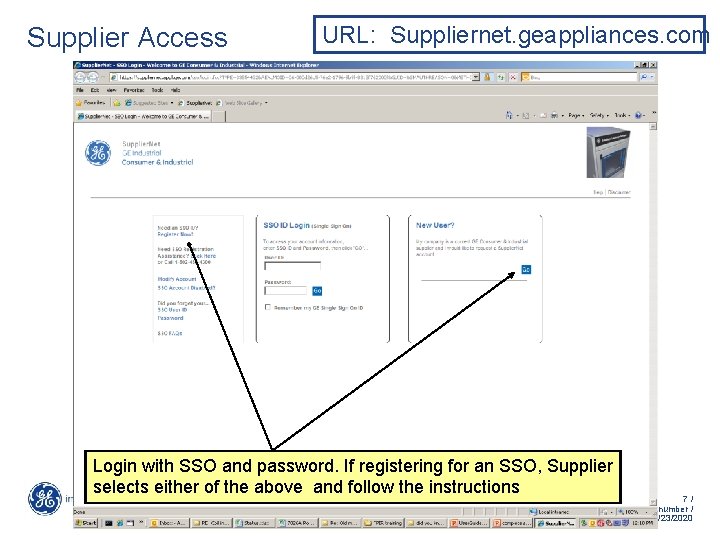
Supplier Access URL: Suppliernet. geappliances. com Login with SSO and password. If registering for an SSO, Supplier selects either of the above and follow the instructions 7/ GE Title or job number / 11/23/2020
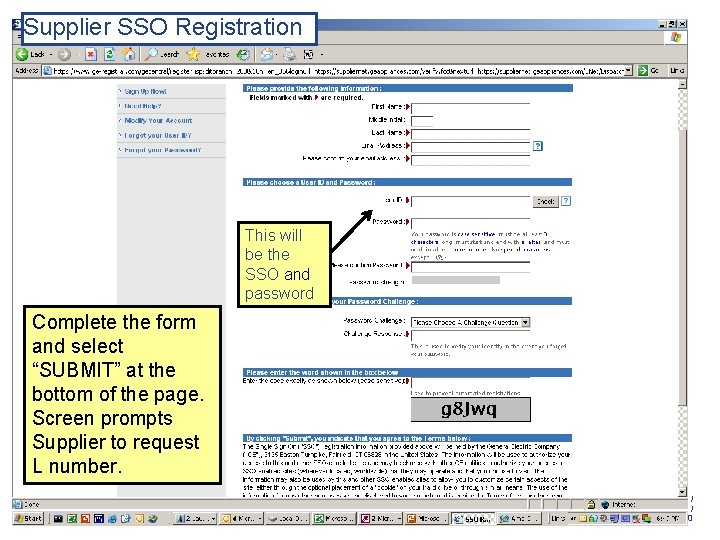
Supplier SSO Registration This will be the SSO and password Complete the form and select “SUBMIT” at the bottom of the page. Screen prompts Supplier to request L number. 8/ GE Title or job number / 11/23/2020
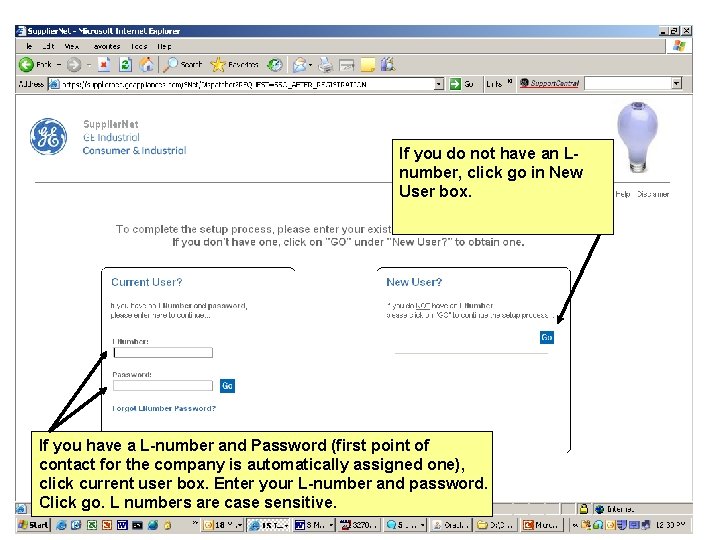
If you do not have an Lnumber, click go in New User box. If you have a L-number and Password (first point of contact for the company is automatically assigned one), click current user box. Enter your L-number and password. Click go. L numbers are case sensitive. 9/ GE Title or job number / 11/23/2020
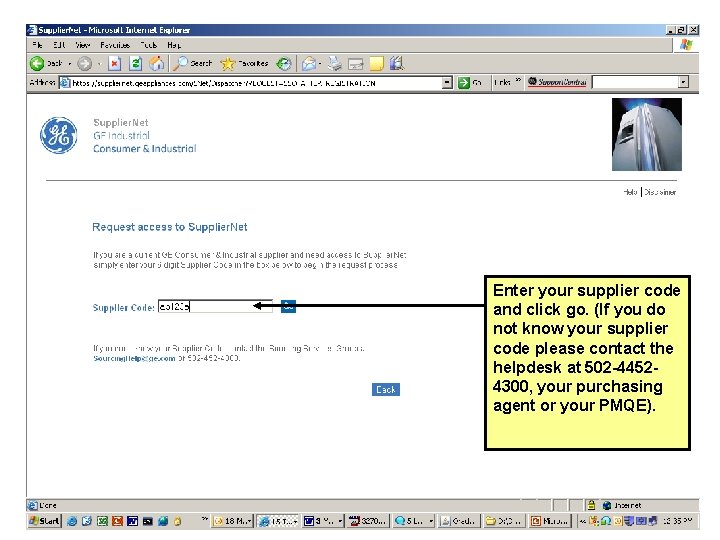
Enter your supplier code and click go. (If you do not know your supplier code please contact the helpdesk at 502 -44524300, your purchasing agent or your PMQE). 10 / GE Title or job number / 11/23/2020
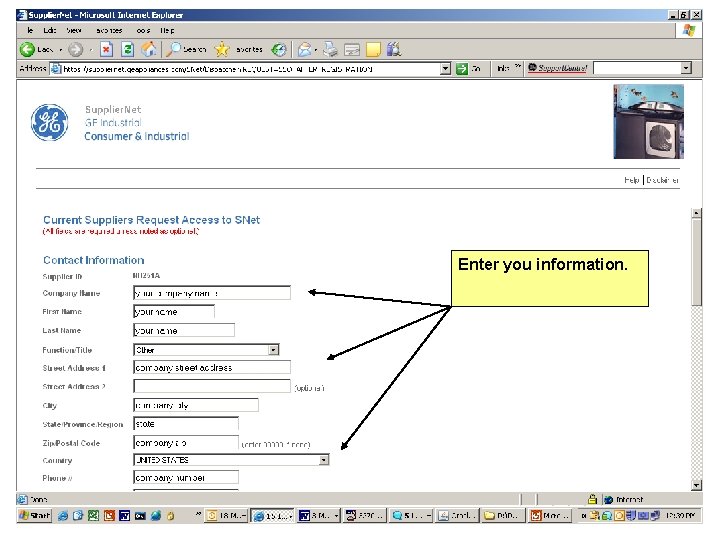
Enter you information. 11 / GE Title or job number / 11/23/2020
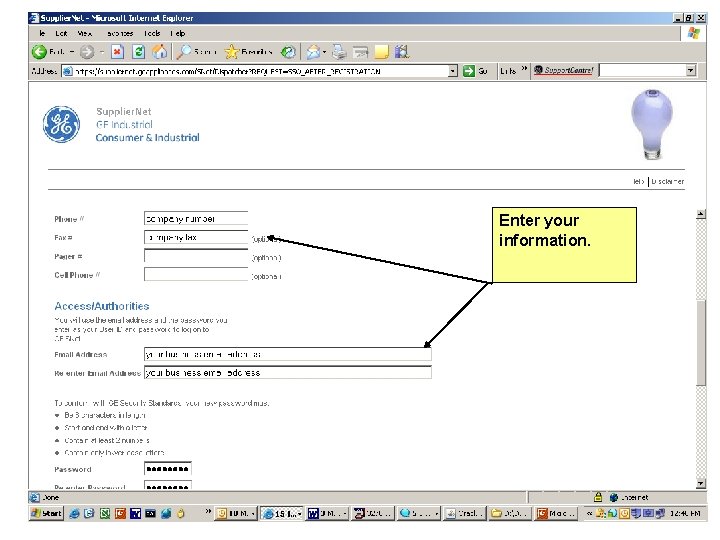
Enter your information. 12 / GE Title or job number / 11/23/2020
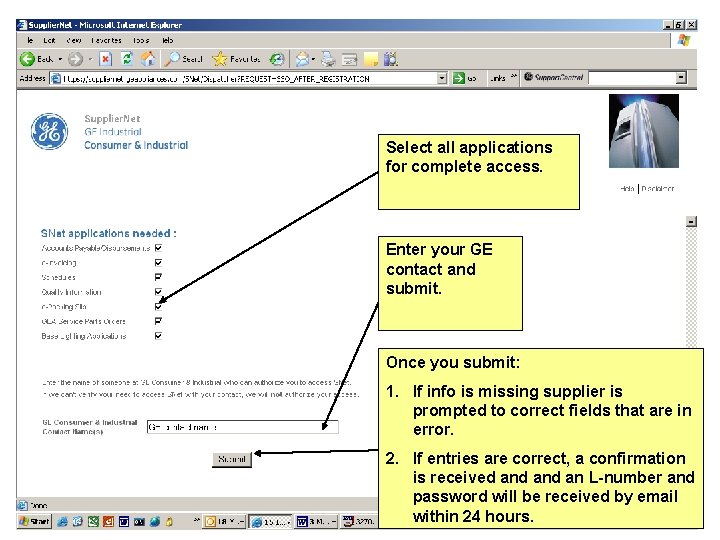
Select all applications for complete access. Enter your GE contact and submit. Once you submit: 1. If info is missing supplier is prompted to correct fields that are in error. 2. If entries are correct, a confirmation is received and an L-number and password will be received by email 13 / GE Title or job number / 11/23/2020 within 24 hours.
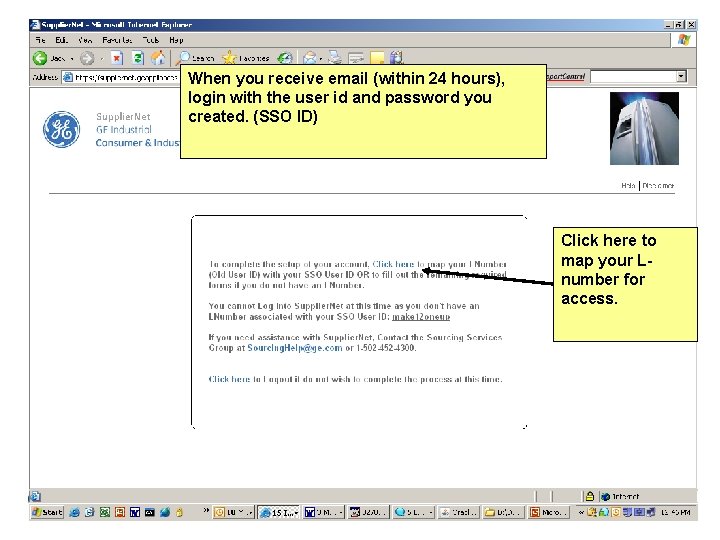
When you receive email (within 24 hours), login with the user id and password you created. (SSO ID) Click here to map your Lnumber for access. 14 / GE Title or job number / 11/23/2020
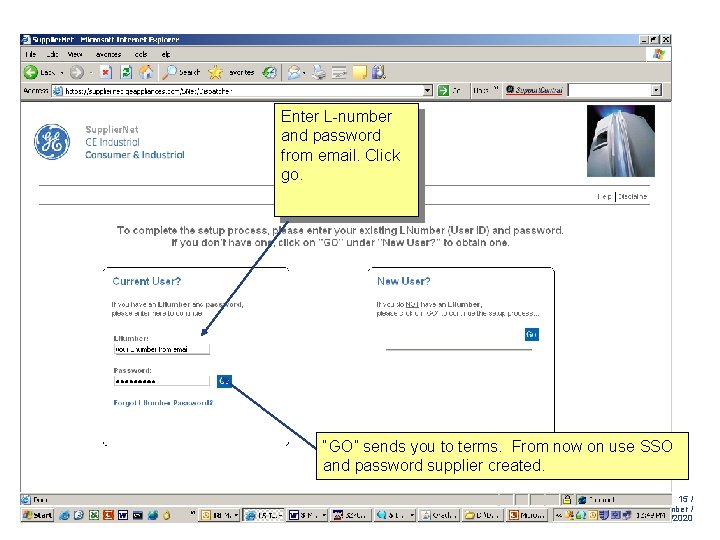
Enter L-number and password from email. Click go. “GO” sends you to terms. From now on use SSO and password supplier created. 15 / GE Title or job number / 11/23/2020
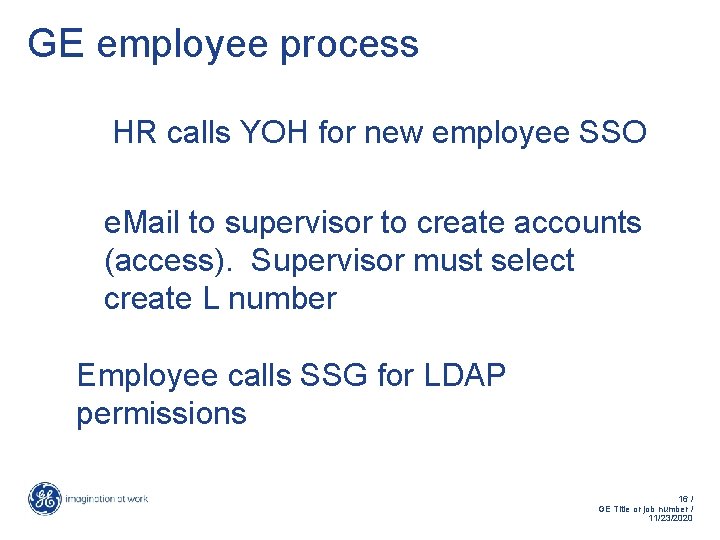
GE employee process HR calls YOH for new employee SSO e. Mail to supervisor to create accounts (access). Supervisor must select create L number Employee calls SSG for LDAP permissions 16 / GE Title or job number / 11/23/2020
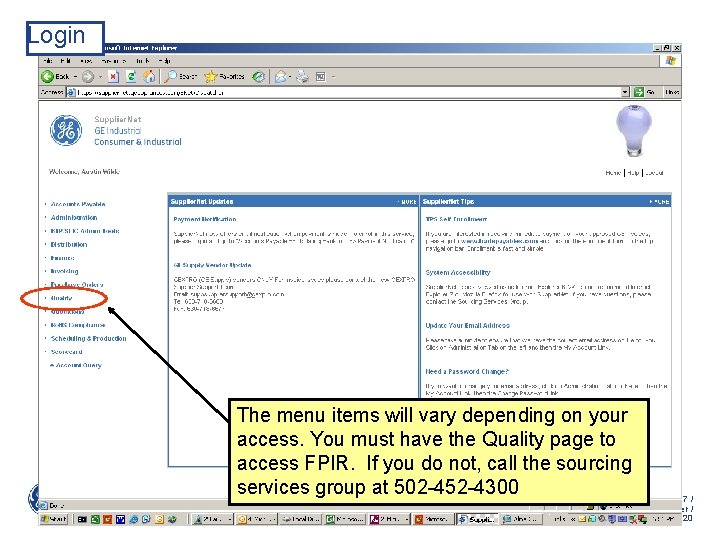
Login The menu items will vary depending on your access. You must have the Quality page to access FPIR. If you do not, call the sourcing services group at 502 -452 -4300 17 / GE Title or job number / 11/23/2020
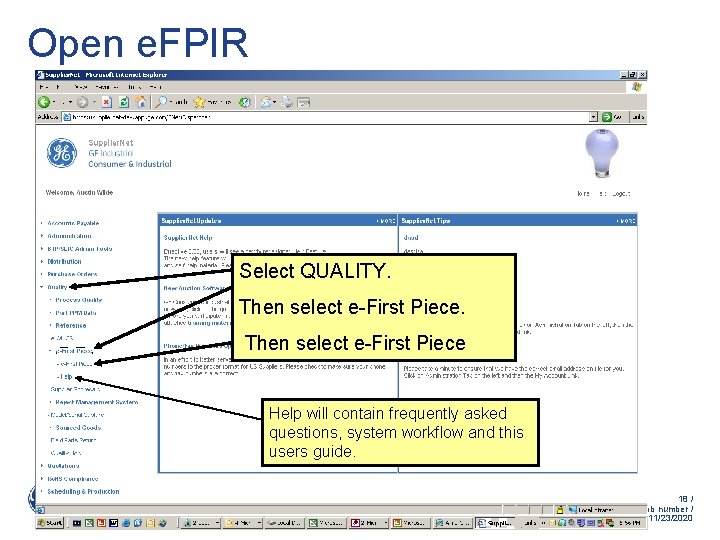
Open e. FPIR Select QUALITY. Then select e-First Piece Help will contain frequently asked questions, system workflow and this users guide. 18 / GE Title or job number / 11/23/2020
Saving changes WARNING: If you make a change to a page, you MUST “save changes”. If you do not, ALL CHANGES WILL BE LOST when you navigate away from the page 19 / GE Title or job number / 11/23/2020
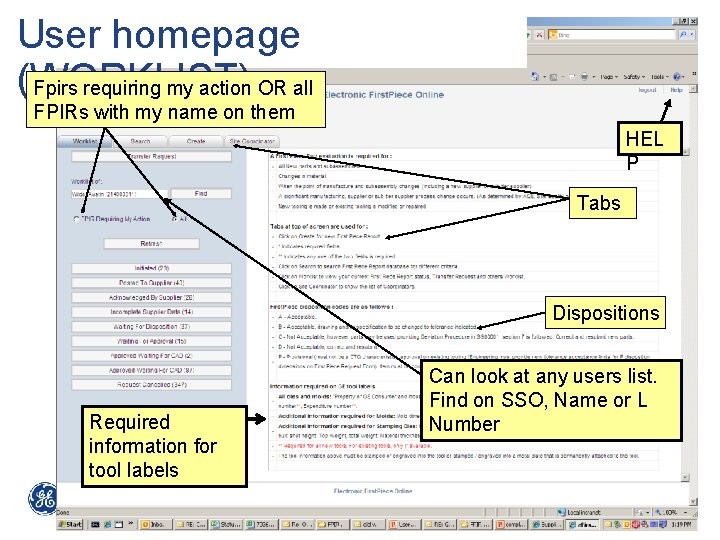
User homepage (WORKLIST) Fpirs requiring my action OR all FPIRs with my name on them HEL P Tabs Dispositions Required information for tool labels Can look at any users list. Find on SSO, Name or L Number 20 / GE Title or job number / 11/23/2020
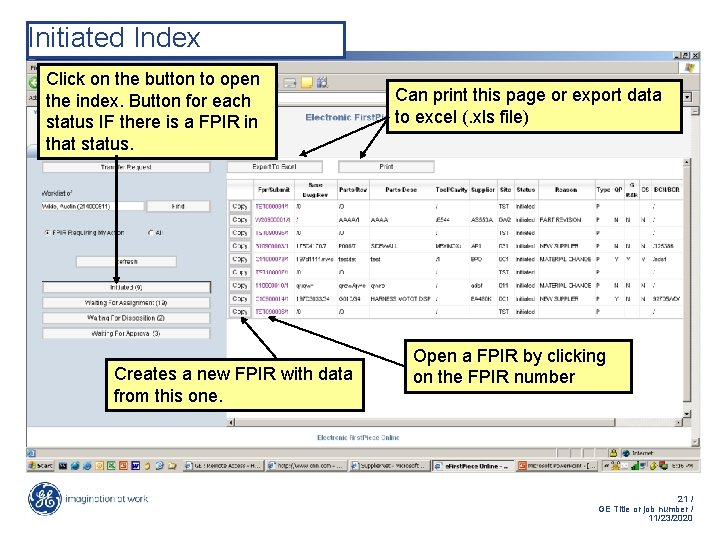
Initiated Index Click on the button to open the index. Button for each status IF there is a FPIR in that status. Creates a new FPIR with data from this one. Can print this page or export data to excel (. xls file) Open a FPIR by clicking on the FPIR number 21 / GE Title or job number / 11/23/2020
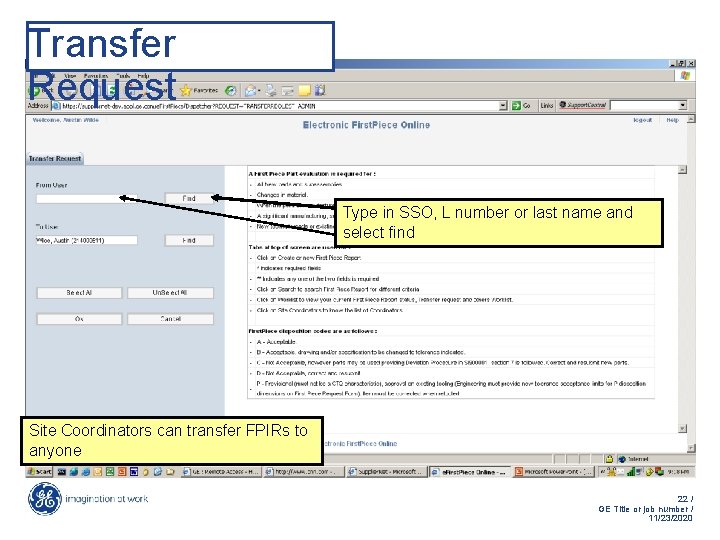
Transfer Request Type in SSO, L number or last name and select find Site Coordinators can transfer FPIRs to anyone 22 / GE Title or job number / 11/23/2020
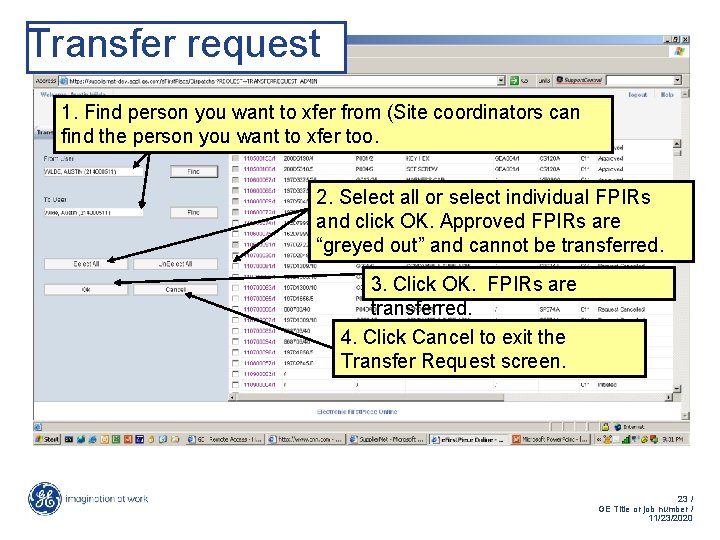
Transfer request 1. Find person you want to xfer from (Site coordinators can find the person you want to xfer too. 2. Select all or select individual FPIRs and click OK. Approved FPIRs are “greyed out” and cannot be transferred. 3. Click OK. FPIRs are transferred. 4. Click Cancel to exit the Transfer Request screen. 23 / GE Title or job number / 11/23/2020
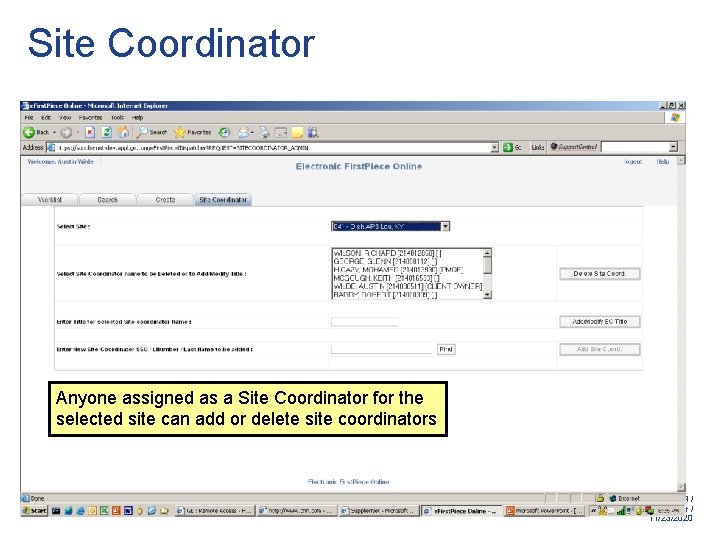
Site Coordinator Anyone assigned as a Site Coordinator for the selected site can add or delete site coordinators 24 / GE Title or job number / 11/23/2020
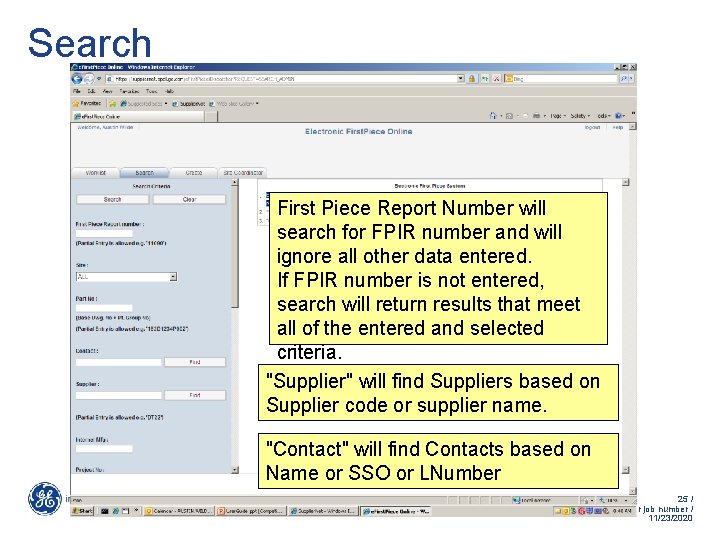
Search First Piece Report Number will search for FPIR number and will ignore all other data entered. If FPIR number is not entered, search will return results that meet all of the entered and selected criteria. "Supplier" will find Suppliers based on Supplier code or supplier name. "Contact" will find Contacts based on Name or SSO or LNumber 25 / GE Title or job number / 11/23/2020
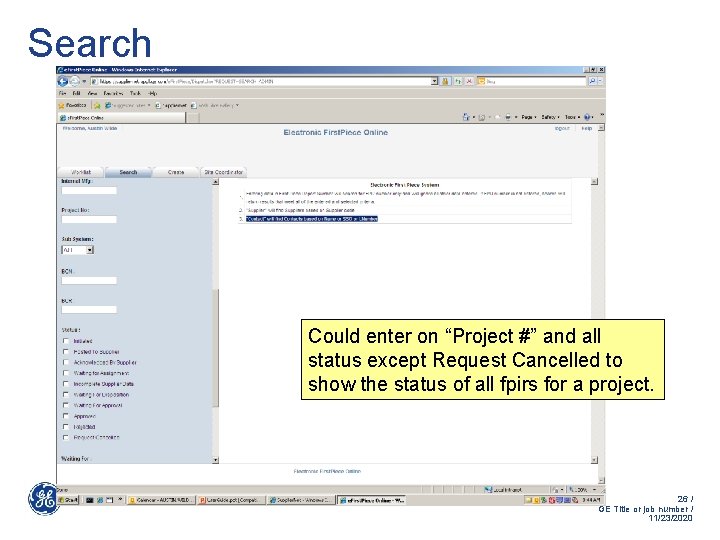
Search Could enter on “Project #” and all status except Request Cancelled to show the status of all fpirs for a project. 26 / GE Title or job number / 11/23/2020
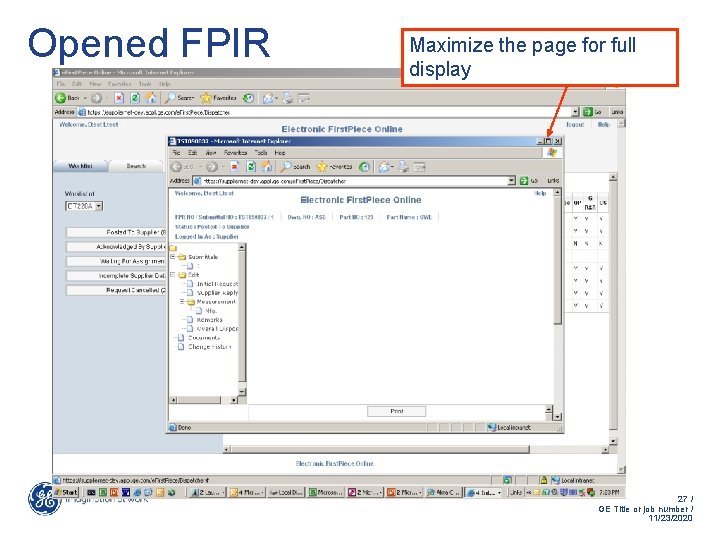
Opened FPIR Maximize the page for full display 27 / GE Title or job number / 11/23/2020
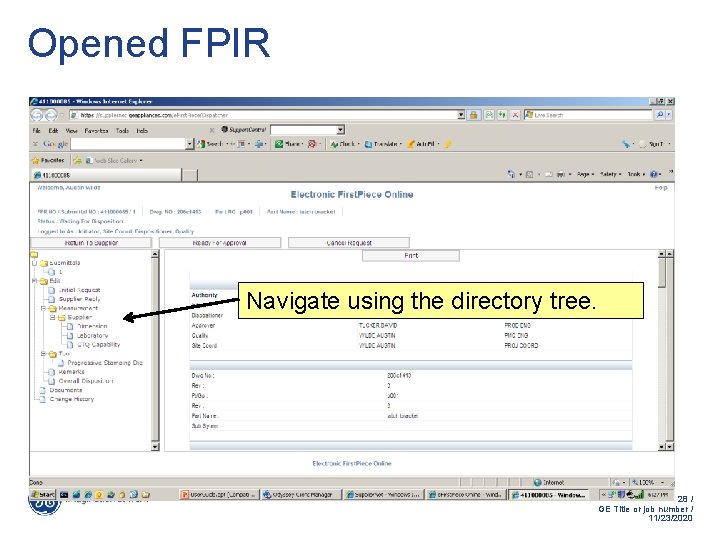
Opened FPIR Navigate using the directory tree. 28 / GE Title or job number / 11/23/2020
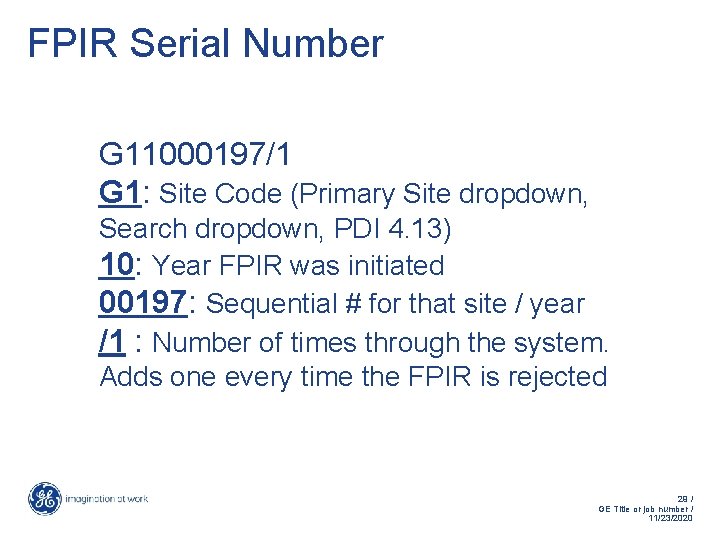
FPIR Serial Number G 11000197/1 G 1: Site Code (Primary Site dropdown, Search dropdown, PDI 4. 13) 10: Year FPIR was initiated 00197: Sequential # for that site / year /1 : Number of times through the system. Adds one every time the FPIR is rejected 29 / GE Title or job number / 11/23/2020
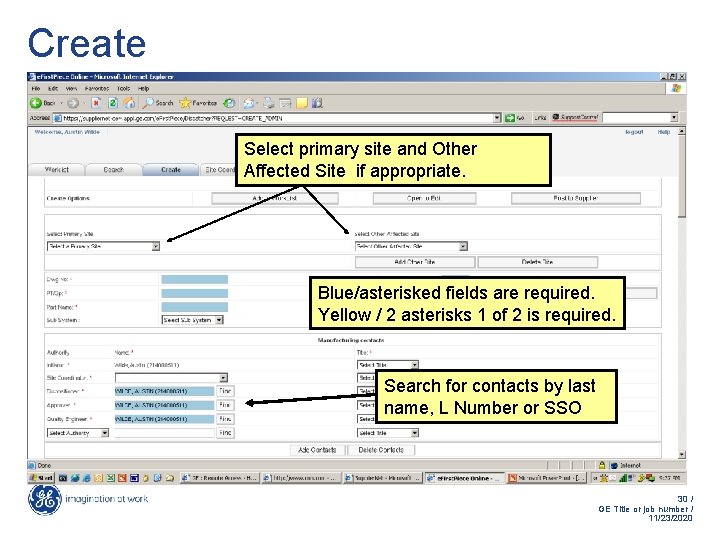
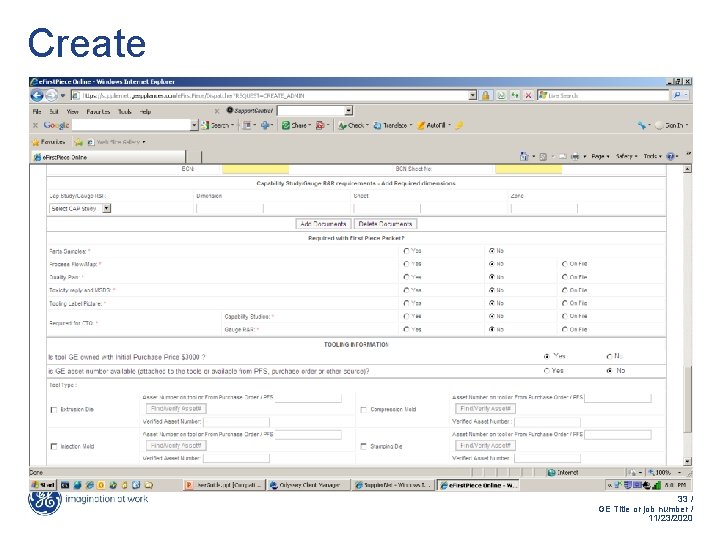
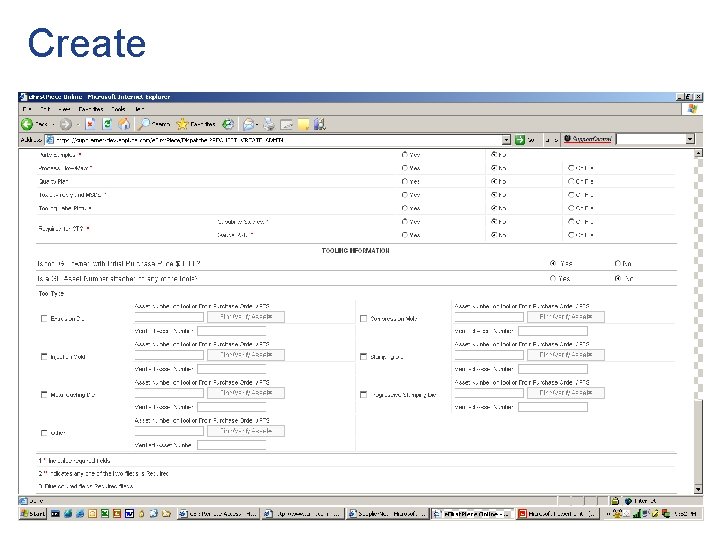
Create Select primary site and Other Affected Site if appropriate. Blue/asterisked fields are required. Yellow / 2 asterisks 1 of 2 is required. Search for contacts by last name, L Number or SSO 30 / GE Title or job number / 11/23/2020
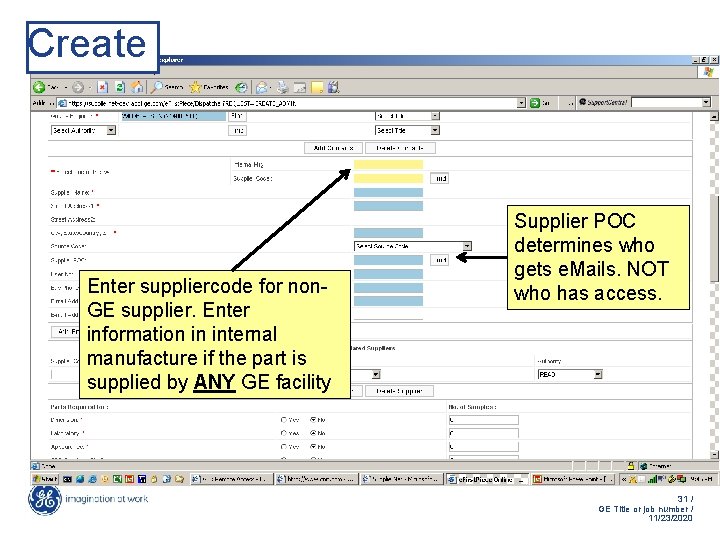
Create Enter suppliercode for non. GE supplier. Enter information in internal manufacture if the part is supplied by ANY GE facility Supplier POC determines who gets e. Mails. NOT who has access. 31 / GE Title or job number / 11/23/2020
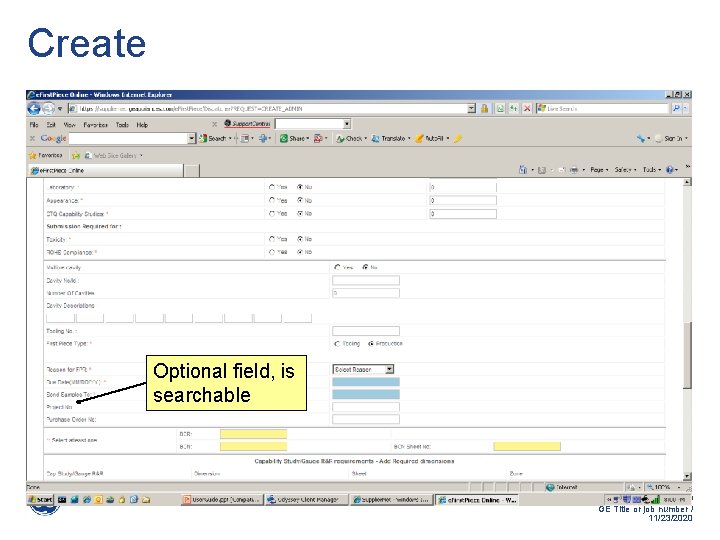
Create Optional field, is searchable 32 / GE Title or job number / 11/23/2020
Create 33 / GE Title or job number / 11/23/2020
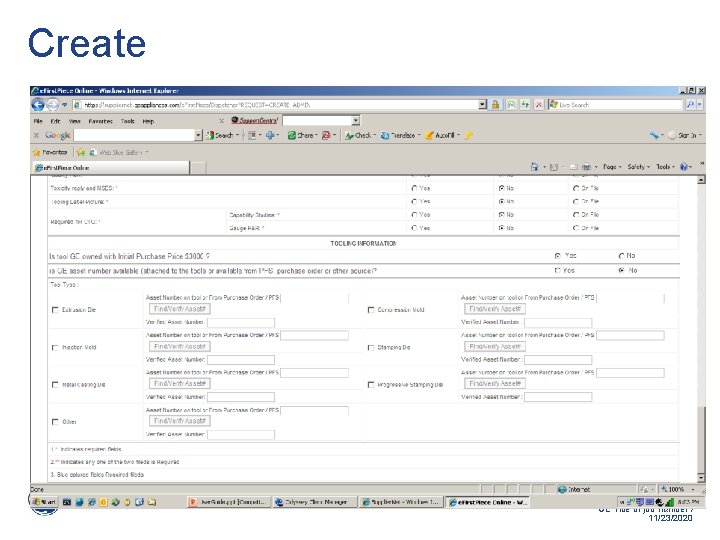
Create 34 / GE Title or job number / 11/23/2020
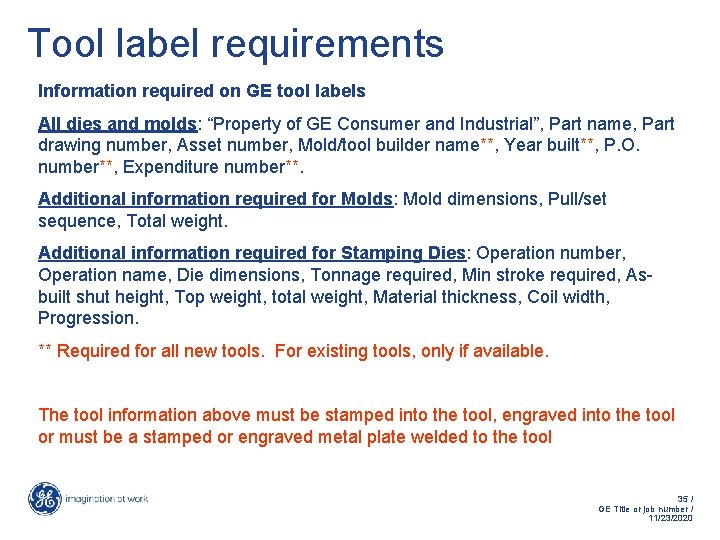
Tool label requirements Information required on GE tool labels All dies and molds: “Property of GE Consumer and Industrial”, Part name, Part drawing number, Asset number, Mold/tool builder name**, Year built**, P. O. number**, Expenditure number**. Additional information required for Molds: Mold dimensions, Pull/set sequence, Total weight. Additional information required for Stamping Dies: Operation number, Operation name, Die dimensions, Tonnage required, Min stroke required, Asbuilt shut height, Top weight, total weight, Material thickness, Coil width, Progression. ** Required for all new tools. For existing tools, only if available. The tool information above must be stamped into the tool, engraved into the tool or must be a stamped or engraved metal plate welded to the tool 35 / GE Title or job number / 11/23/2020
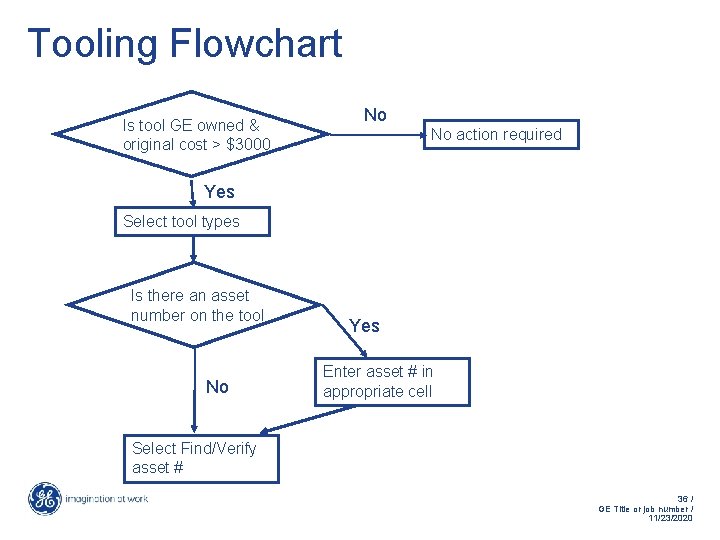
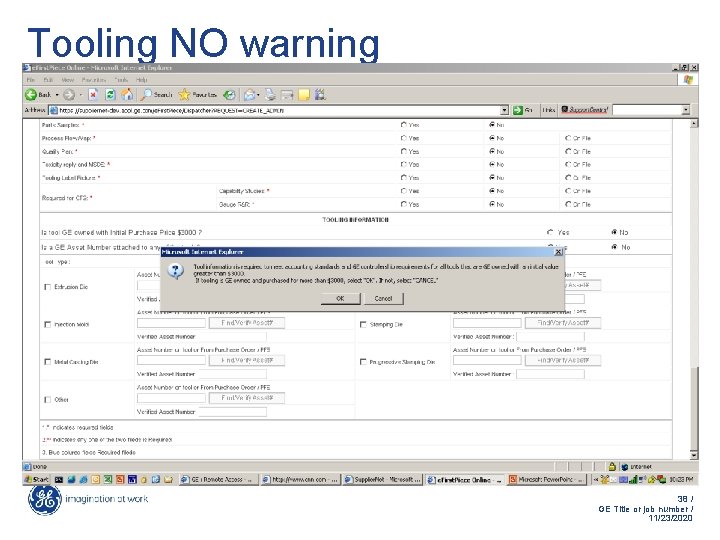
Tooling Flowchart Is tool GE owned & original cost > $3000 No No action required Yes Select tool types Is there an asset number on the tool No Yes Enter asset # in appropriate cell Select Find/Verify asset # 36 / GE Title or job number / 11/23/2020
Create 37 / GE Title or job number / 11/23/2020
Tooling NO warning 38 / GE Title or job number / 11/23/2020
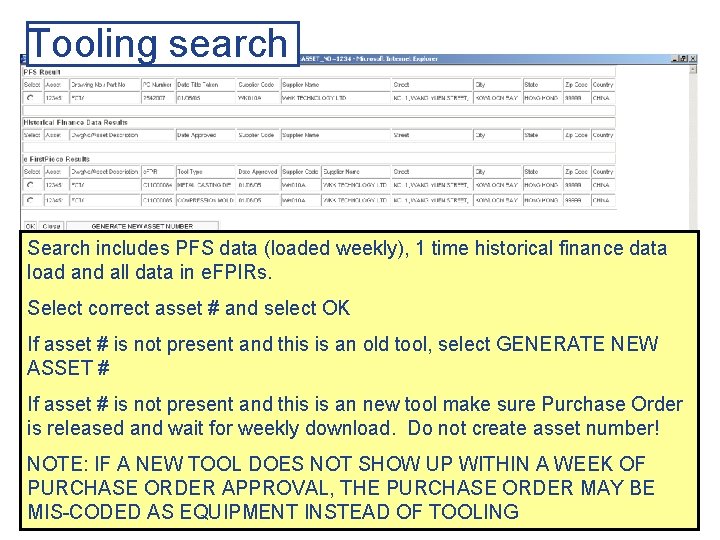
Tooling search Search includes PFS data (loaded weekly), 1 time historical finance data load and all data in e. FPIRs. Select correct asset # and select OK If asset # is not present and this is an old tool, select GENERATE NEW ASSET # If asset # is not present and this is an new tool make sure Purchase Order is released and wait for weekly download. Do not create asset number! NOTE: IF A NEW TOOL DOES NOT SHOW UP WITHIN A WEEK OF PURCHASE ORDER APPROVAL, THE PURCHASE ORDER MAY BE 39 / GE Title or job number / MIS-CODED AS EQUIPMENT INSTEAD OF TOOLING 11/23/2020
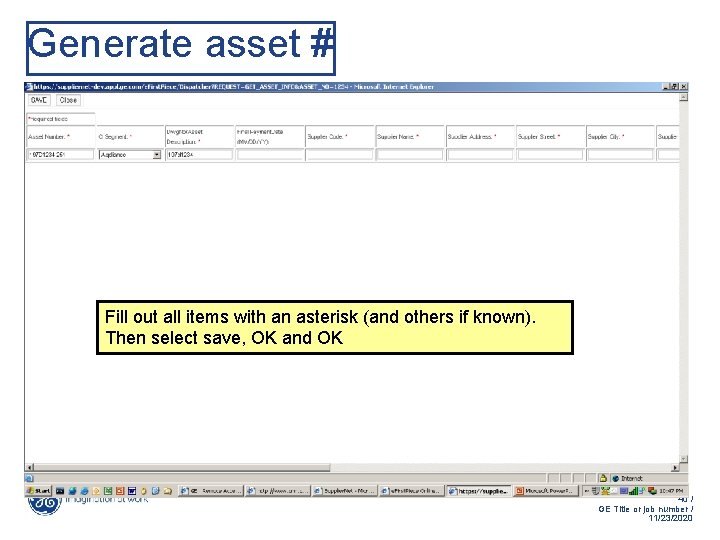
Generate asset # Fill out all items with an asterisk (and others if known). Then select save, OK and OK 40 / GE Title or job number / 11/23/2020
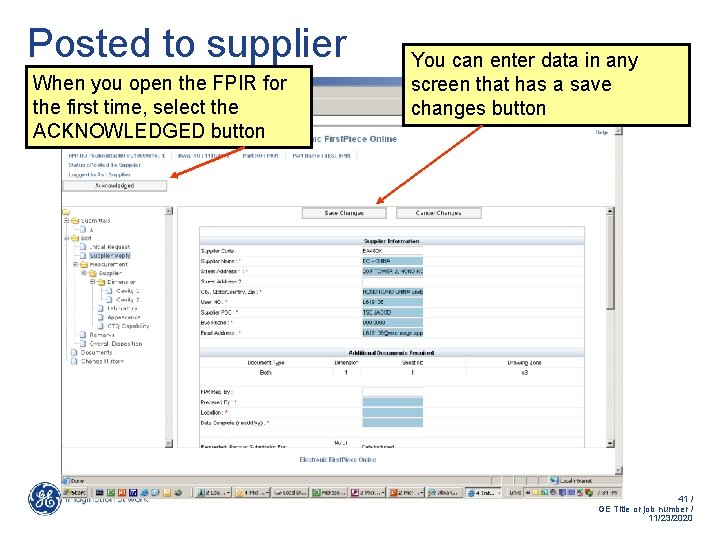
Posted to supplier When you open the FPIR for the first time, select the ACKNOWLEDGED button You can enter data in any screen that has a save changes button 41 / GE Title or job number / 11/23/2020
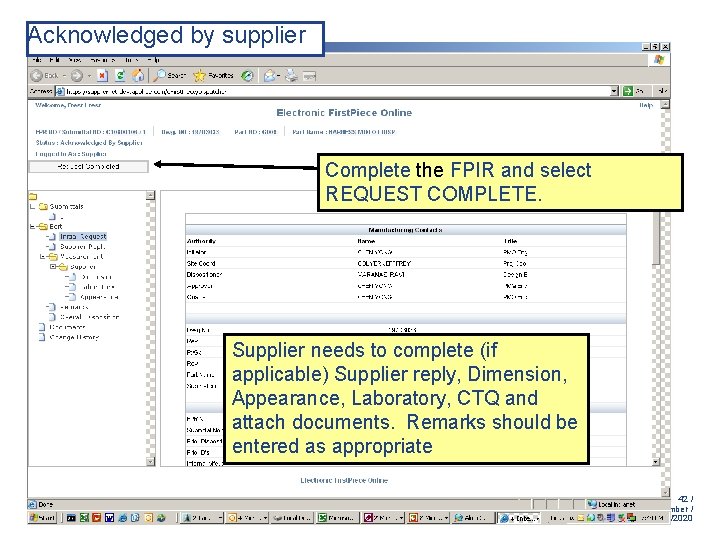
Acknowledged by supplier Complete the FPIR and select REQUEST COMPLETE. Supplier needs to complete (if applicable) Supplier reply, Dimension, Appearance, Laboratory, CTQ and attach documents. Remarks should be entered as appropriate 42 / GE Title or job number / 11/23/2020
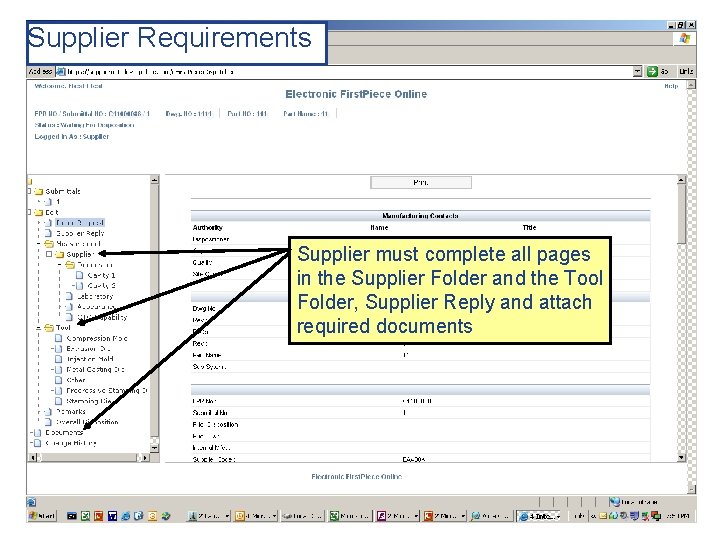
Supplier Requirements Supplier must complete all pages in the Supplier Folder and the Tool Folder, Supplier Reply and attach required documents 43 / GE Title or job number / 11/23/2020
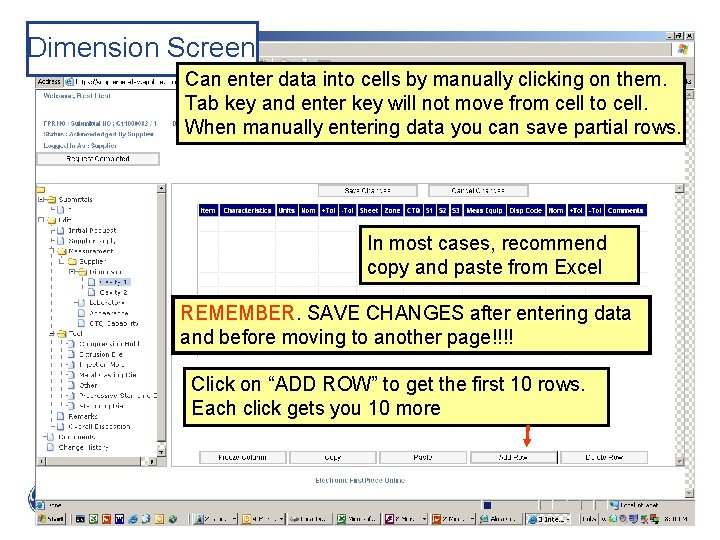
Dimension Screen Can enter data into cells by manually clicking on them. Tab key and enter key will not move from cell to cell. When manually entering data you can save partial rows. In most cases, recommend copy and paste from Excel REMEMBER. SAVE CHANGES after entering data and before moving to another page!!!! Click on “ADD ROW” to get the first 10 rows. Each click gets you 10 more 44 / GE Title or job number / 11/23/2020
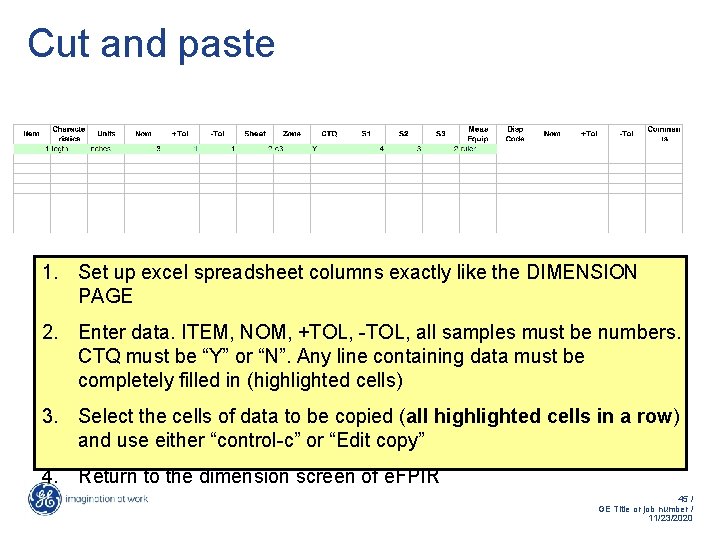
Cut and paste 1. Set up excel spreadsheet columns exactly like the DIMENSION PAGE 2. Enter data. ITEM, NOM, +TOL, -TOL, all samples must be numbers. CTQ must be “Y” or “N”. Any line containing data must be completely filled in (highlighted cells) 3. Select the cells of data to be copied (all highlighted cells in a row) and use either “control-c” or “Edit copy” 4. Return to the dimension screen of e. FPIR 45 / GE Title or job number / 11/23/2020
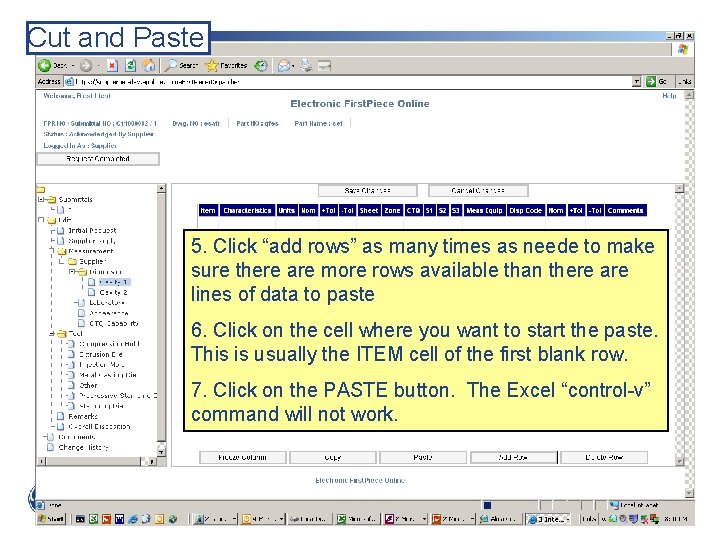
Cut and Paste 5. Click “add rows” as many times as neede to make sure there are more rows available than there are lines of data to paste 6. Click on the cell where you want to start the paste. This is usually the ITEM cell of the first blank row. 7. Click on the PASTE button. The Excel “control-v” command will not work. 46 / GE Title or job number / 11/23/2020
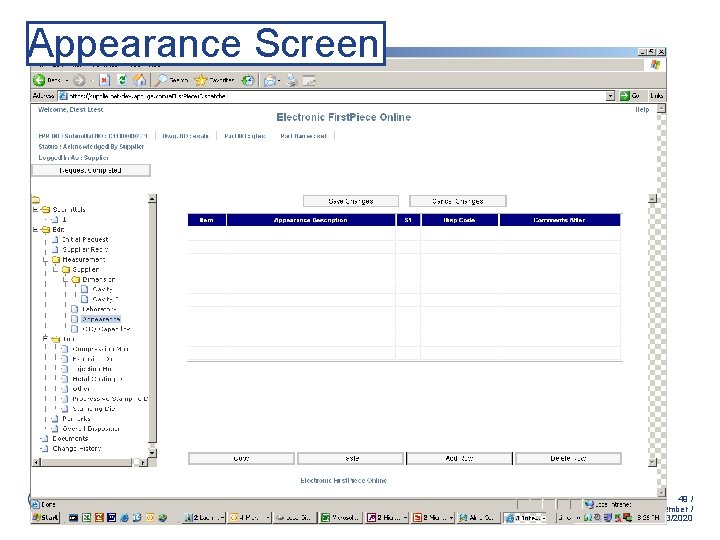
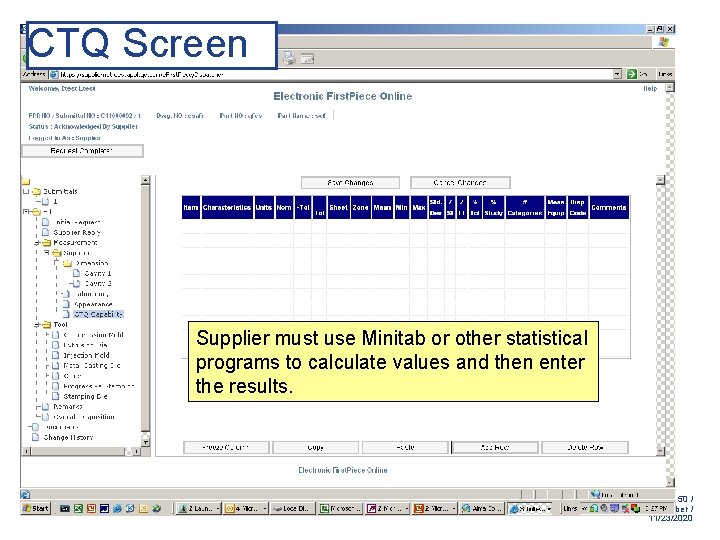
Cut and Paste To cut and paste to the Appearance, Laboratory or CTQ pages, follow the same procedure as for the Dimension page EXCEPT Set up the columns of the Excel sheet to match the page you are copying to. These pages are usually manually entered due to the relatively small amount of data. If cut and paste is not working, cut and paste a line or two at a time to find which line is causing the problem. 47 / GE Title or job number / 11/23/2020
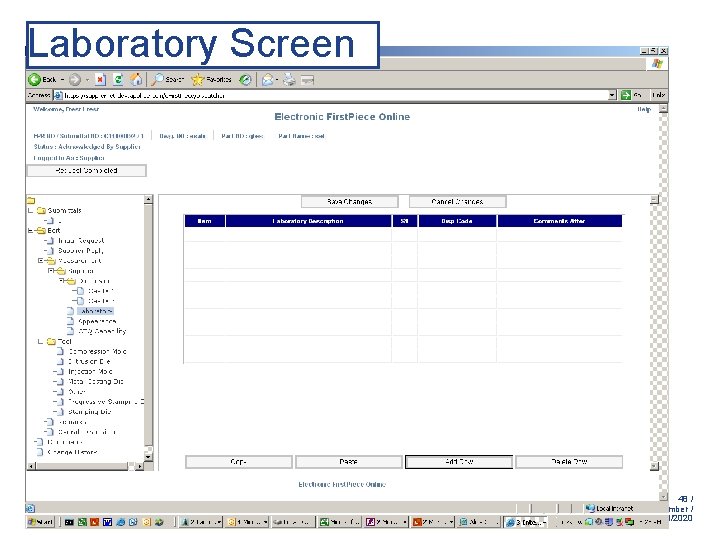
Laboratory Screen 48 / GE Title or job number / 11/23/2020
Appearance Screen 49 / GE Title or job number / 11/23/2020
CTQ Screen Supplier must use Minitab or other statistical programs to calculate values and then enter the results. 50 / GE Title or job number / 11/23/2020
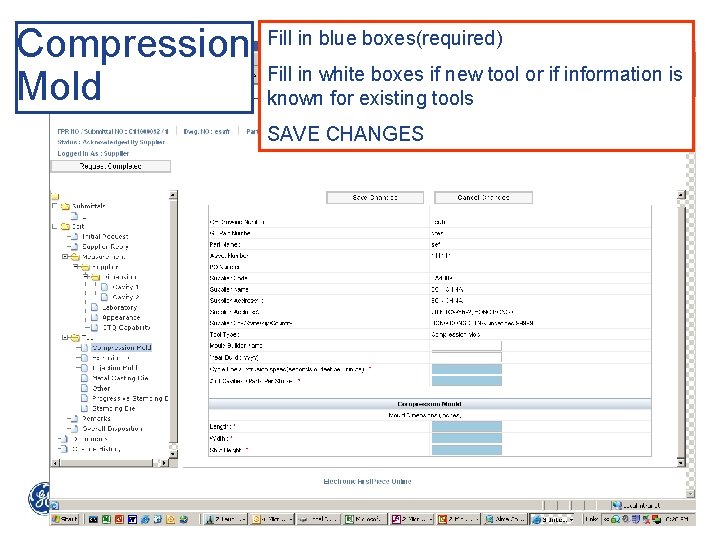
Compression Mold Fill in blue boxes(required) Fill in white boxes if new tool or if information is known for existing tools SAVE CHANGES 51 / GE Title or job number / 11/23/2020
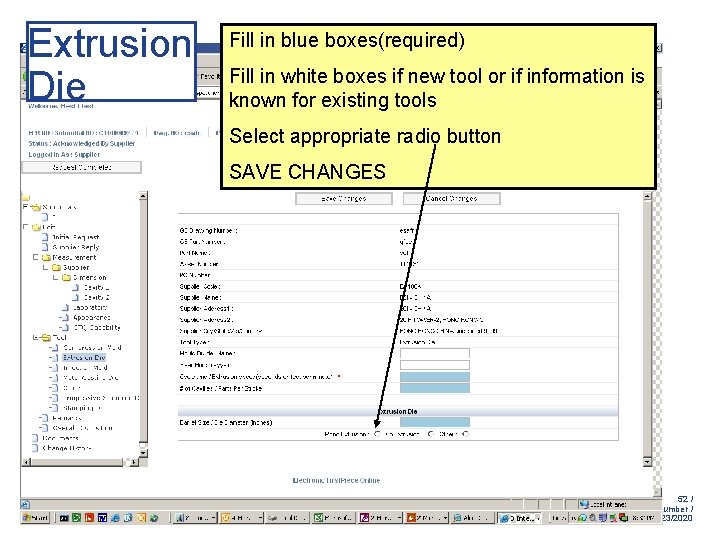
Extrusion Die Fill in blue boxes(required) Fill in white boxes if new tool or if information is known for existing tools Select appropriate radio button SAVE CHANGES 52 / GE Title or job number / 11/23/2020
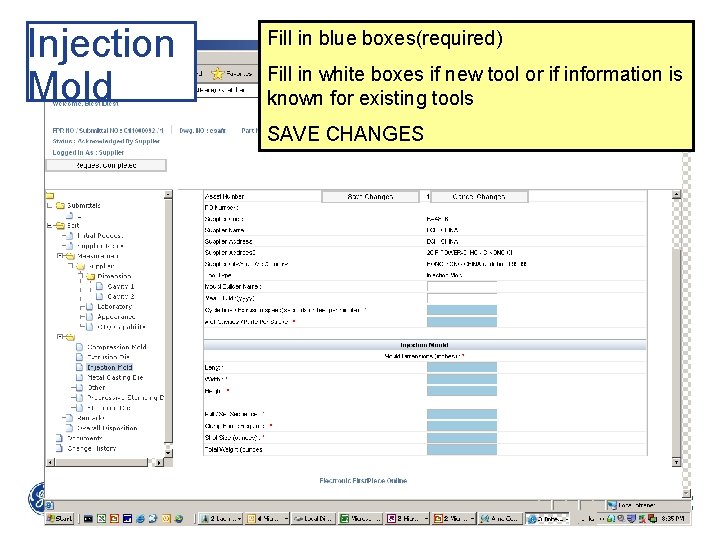
Injection Mold Fill in blue boxes(required) Fill in white boxes if new tool or if information is known for existing tools SAVE CHANGES 53 / GE Title or job number / 11/23/2020
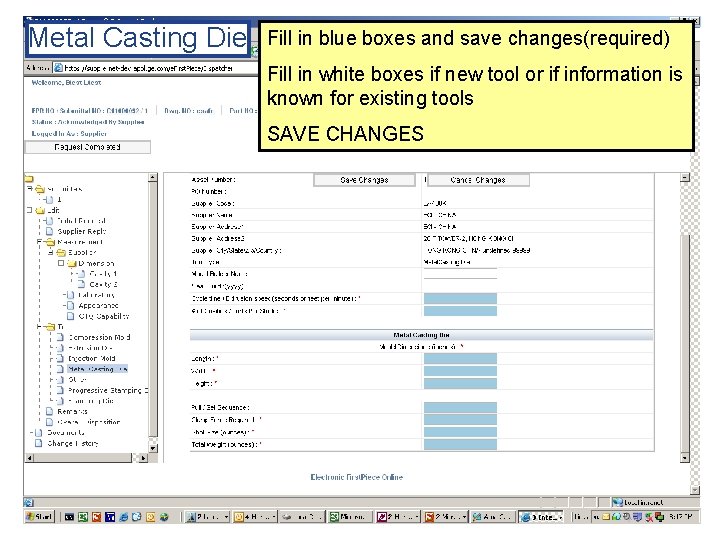
Metal Casting Die Fill in blue boxes and save changes(required) Fill in white boxes if new tool or if information is known for existing tools SAVE CHANGES 54 / GE Title or job number / 11/23/2020
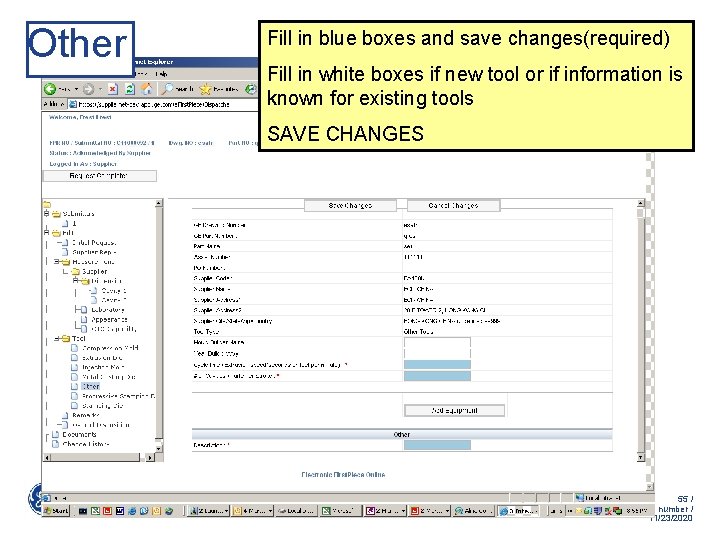
Other Fill in blue boxes and save changes(required) Fill in white boxes if new tool or if information is known for existing tools SAVE CHANGES 55 / GE Title or job number / 11/23/2020
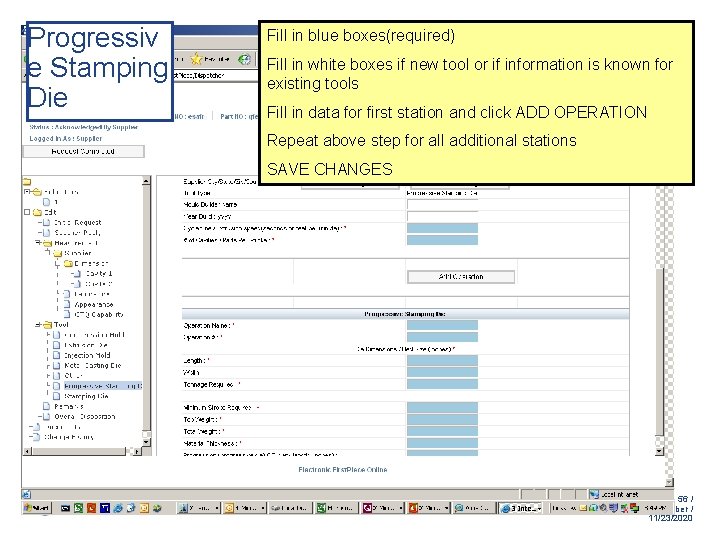
Progressiv e Stamping Die Fill in blue boxes(required) Fill in white boxes if new tool or if information is known for existing tools Fill in data for first station and click ADD OPERATION Repeat above step for all additional stations SAVE CHANGES 56 / GE Title or job number / 11/23/2020
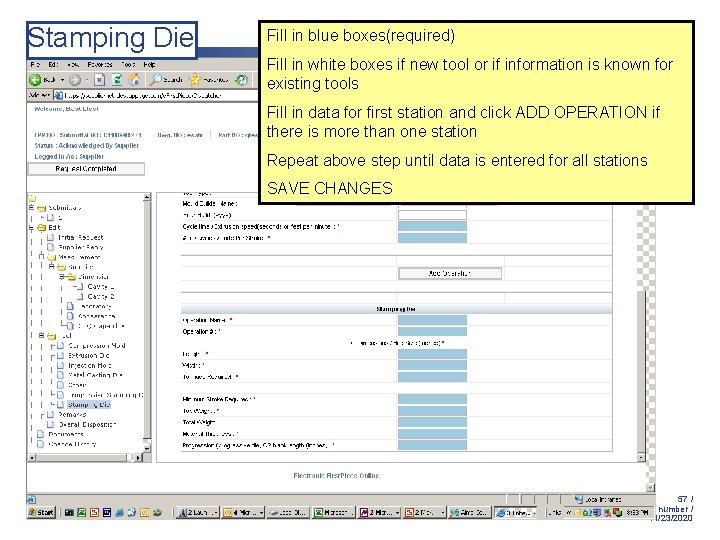
Stamping Die Fill in blue boxes(required) Fill in white boxes if new tool or if information is known for existing tools Fill in data for first station and click ADD OPERATION if there is more than one station Repeat above step until data is entered for all stations SAVE CHANGES 57 / GE Title or job number / 11/23/2020
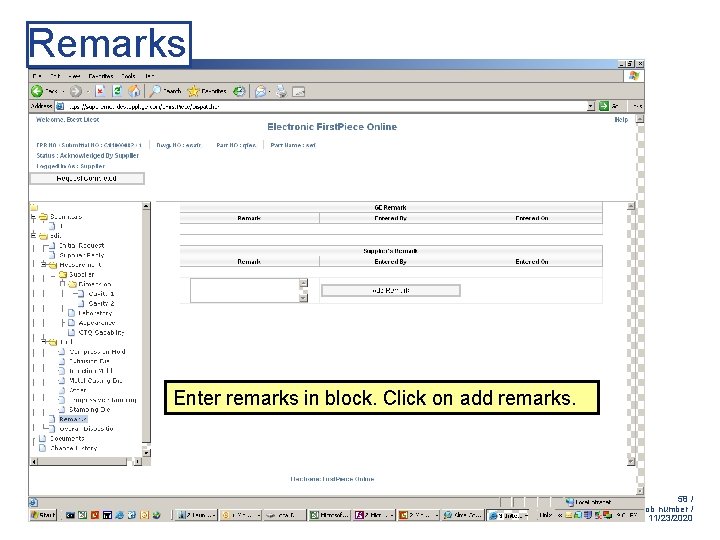
Remarks Enter remarks in block. Click on add remarks. 58 / GE Title or job number / 11/23/2020
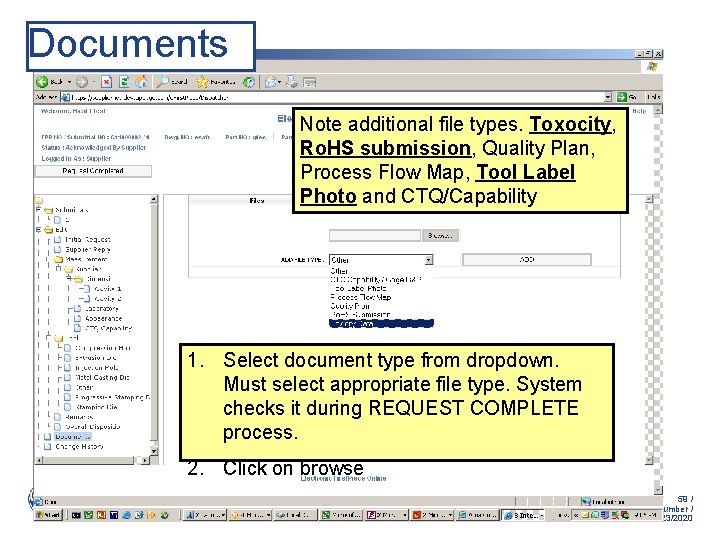
Documents Note additional file types. Toxocity, Ro. HS submission, Quality Plan, Process Flow Map, Tool Label Photo and CTQ/Capability 1. Select document type from dropdown. Must select appropriate file type. System checks it during REQUEST COMPLETE process. 2. Click on browse 59 / GE Title or job number / 11/23/2020
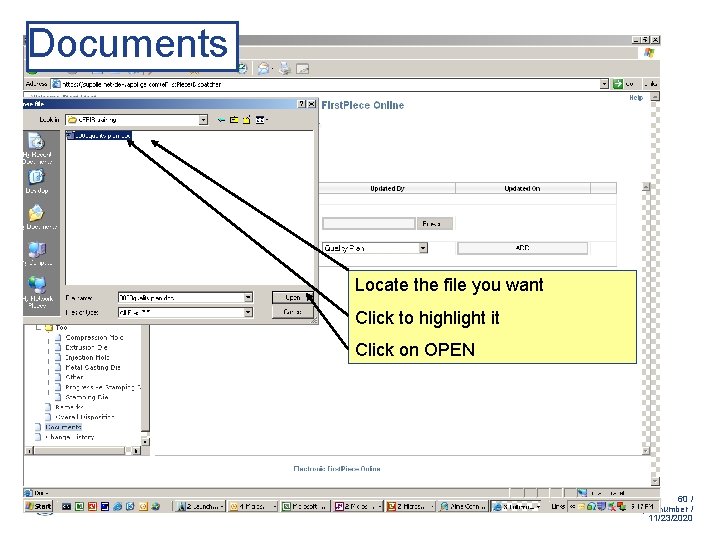
Documents Locate the file you want Click to highlight it Click on OPEN 60 / GE Title or job number / 11/23/2020
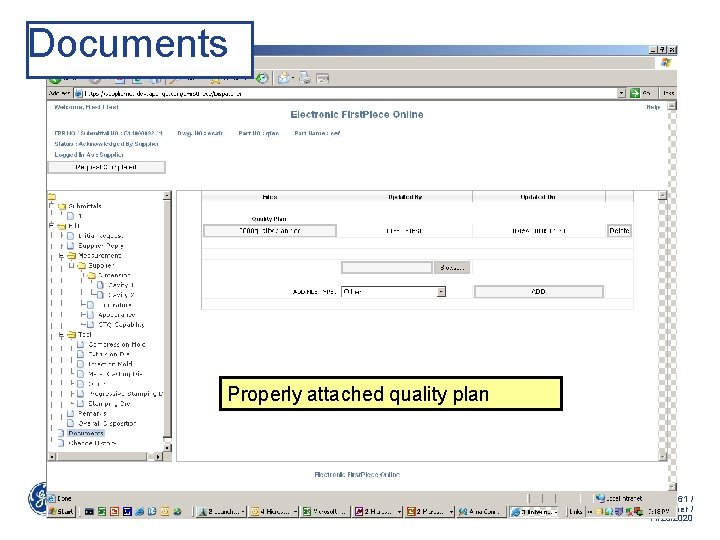
Documents Properly attached quality plan 61 / GE Title or job number / 11/23/2020
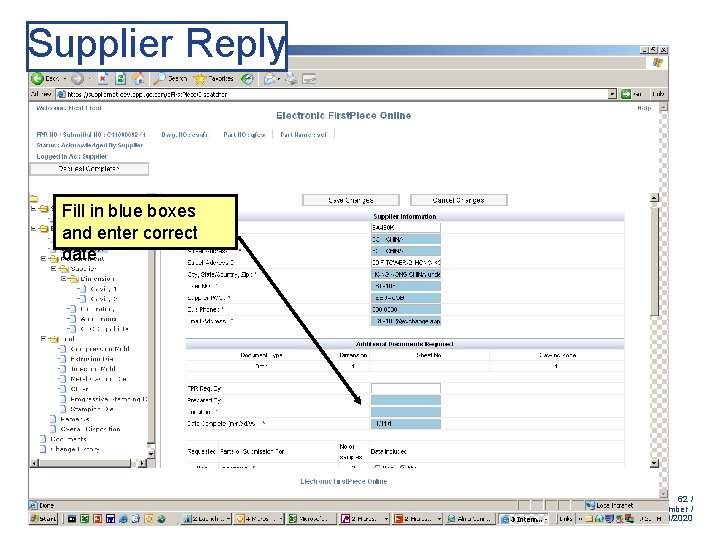
Supplier Reply Fill in blue boxes and enter correct date 62 / GE Title or job number / 11/23/2020
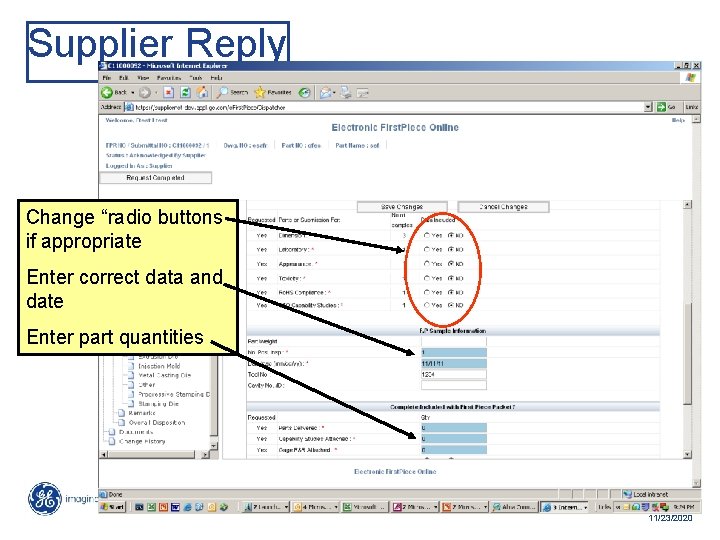
Supplier Reply Change “radio buttons if appropriate Enter correct data and date Enter part quantities 63 / GE Title or job number / 11/23/2020
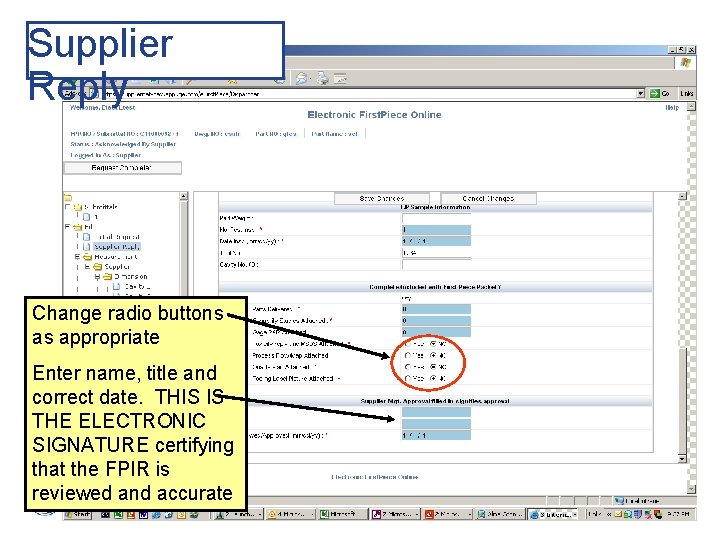
Supplier Reply Change radio buttons as appropriate Enter name, title and correct date. THIS IS THE ELECTRONIC SIGNATURE certifying that the FPIR is reviewed and accurate 64 / GE Title or job number / 11/23/2020
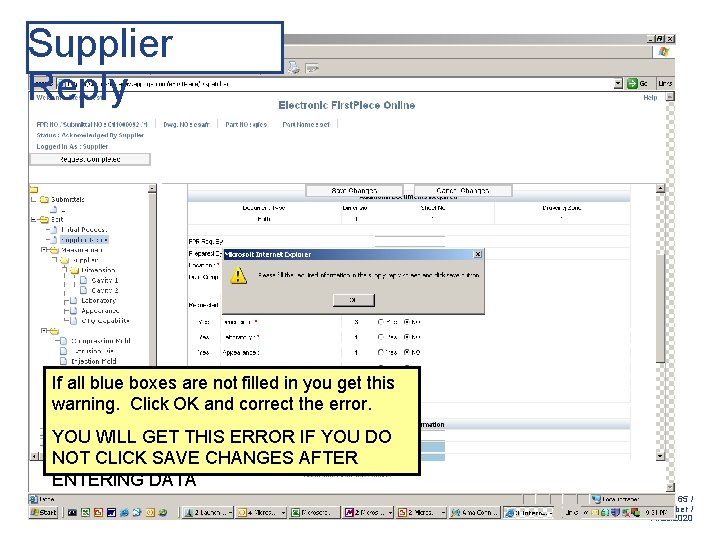
Supplier Reply If all blue boxes are not filled in you get this warning. Click OK and correct the error. YOU WILL GET THIS ERROR IF YOU DO NOT CLICK SAVE CHANGES AFTER ENTERING DATA 65 / GE Title or job number / 11/23/2020
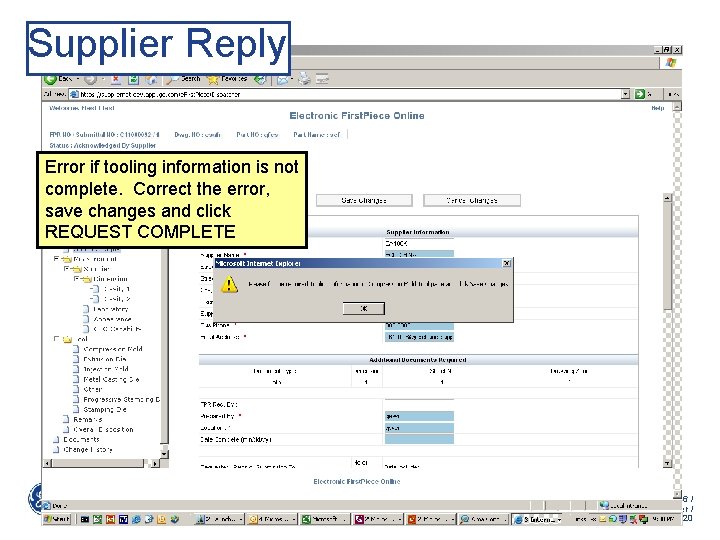
Supplier Reply Error if tooling information is not complete. Correct the error, save changes and click REQUEST COMPLETE 66 / GE Title or job number / 11/23/2020
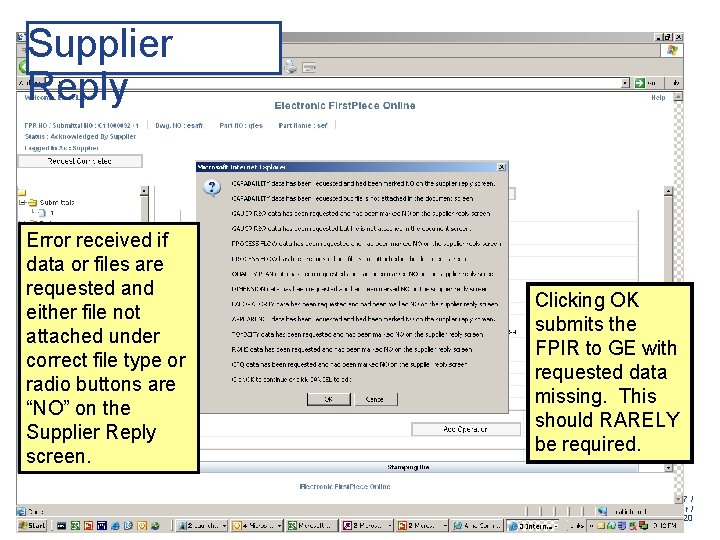
Supplier Reply Error received if data or files are requested and either file not attached under correct file type or radio buttons are “NO” on the Supplier Reply screen. Clicking OK submits the FPIR to GE with requested data missing. This should RARELY be required. 67 / GE Title or job number / 11/23/2020
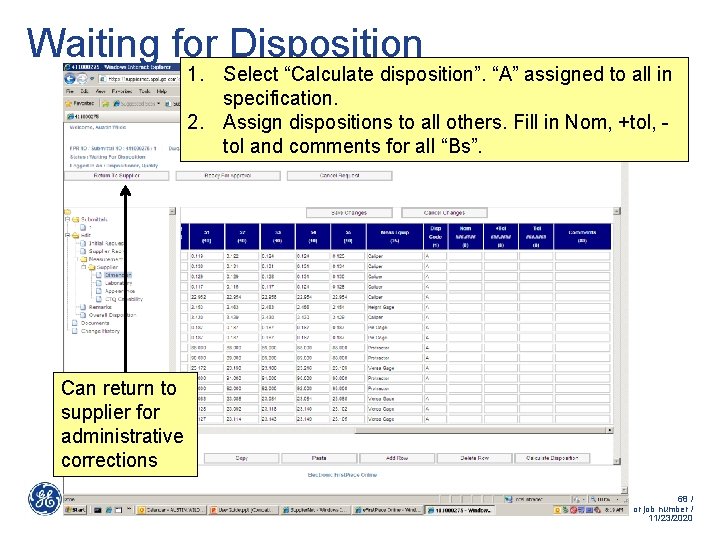
Waiting for Disposition 1. Select “Calculate disposition”. “A” assigned to all in specification. 2. Assign dispositions to all others. Fill in Nom, +tol, tol and comments for all “Bs”. Can return to supplier for administrative corrections 68 / GE Title or job number / 11/23/2020
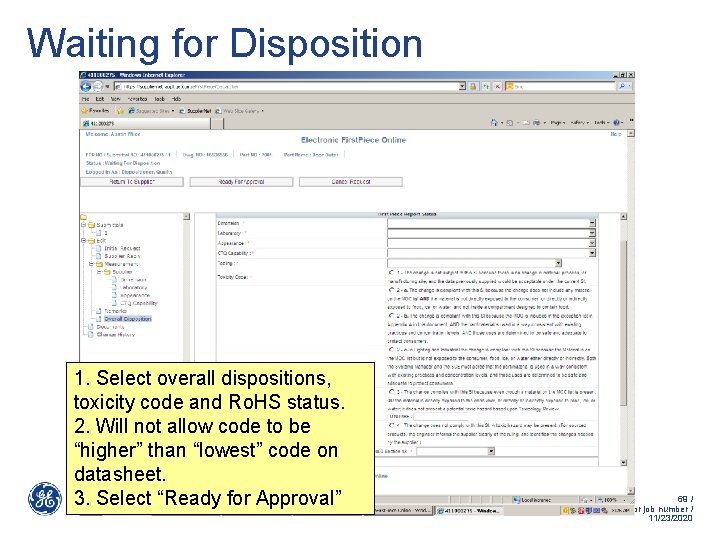
Waiting for Disposition 1. Select overall dispositions, toxicity code and Ro. HS status. 2. Will not allow code to be “higher” than “lowest” code on datasheet. 3. Select “Ready for Approval” 69 / GE Title or job number / 11/23/2020
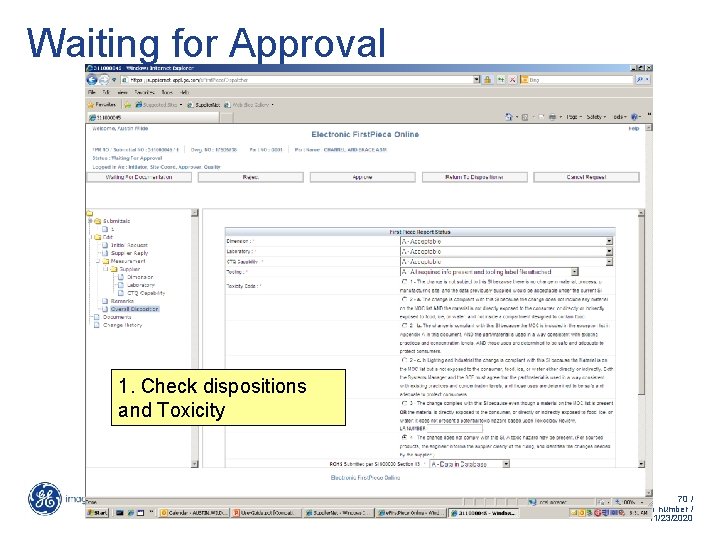
Waiting for Approval 1. Check dispositions and Toxicity 70 / GE Title or job number / 11/23/2020
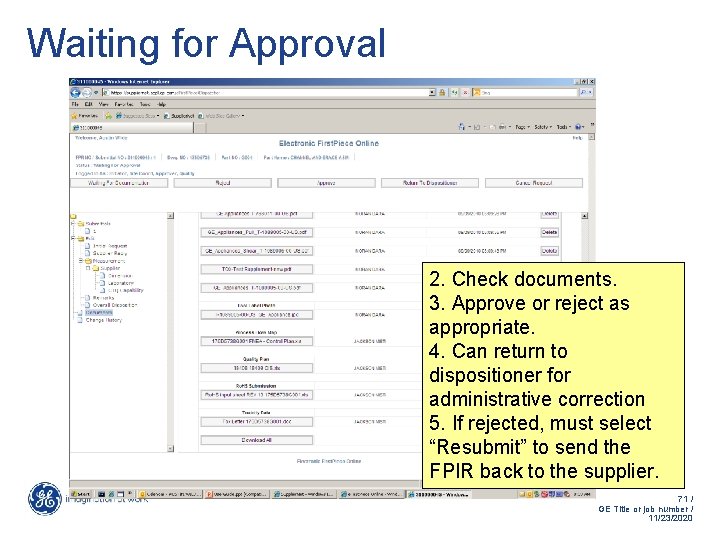
Waiting for Approval 2. Check documents. 3. Approve or reject as appropriate. 4. Can return to dispositioner for administrative correction 5. If rejected, must select “Resubmit” to send the FPIR back to the supplier. 71 / GE Title or job number / 11/23/2020
Questions? REMEMBER, ALWAYS SAVE CHANGES before moving to a different screen or trying to select “request complete” 72 / GE Title or job number / 11/23/2020