
First Java Program with Net Beans Computing Department
First Java Program with Net. Beans Computing Department University of Surrey Amir r Razavi
Contents • • Introduction Setting Up a Project • Creating and Editing Java Source Code • Compiling and Running a Project • Modifying for Image Processing – Creating a new Java class library – Creating a new Java application – Configuring the compilation classpath – Creating a Java package and class file – Editing a Java file – Finding all usages of a class name – Setting the main class and execution arguments – Running the main project
Introduction • Using Net. Beans IDE • Following the standard Java by Net. Beans • Image Processing by Net. Beans • Free Full Software and Proper Documentations and support http: //www. netbeans. org/
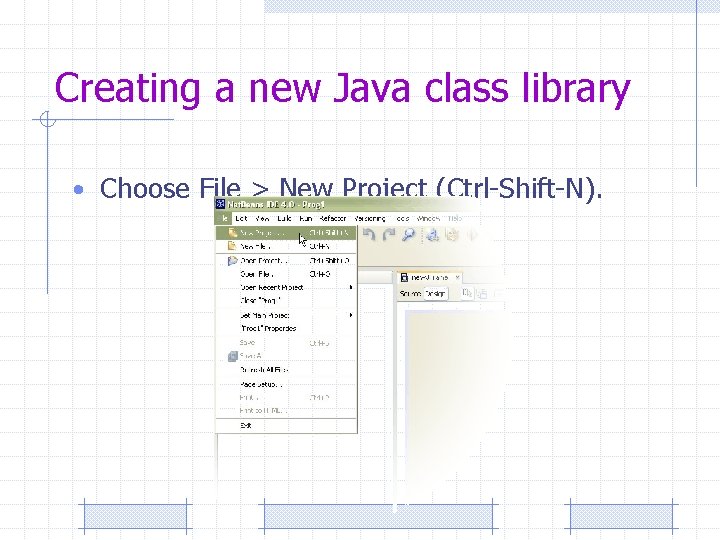
Creating a new Java class library • Choose File > New Project (Ctrl-Shift-N).
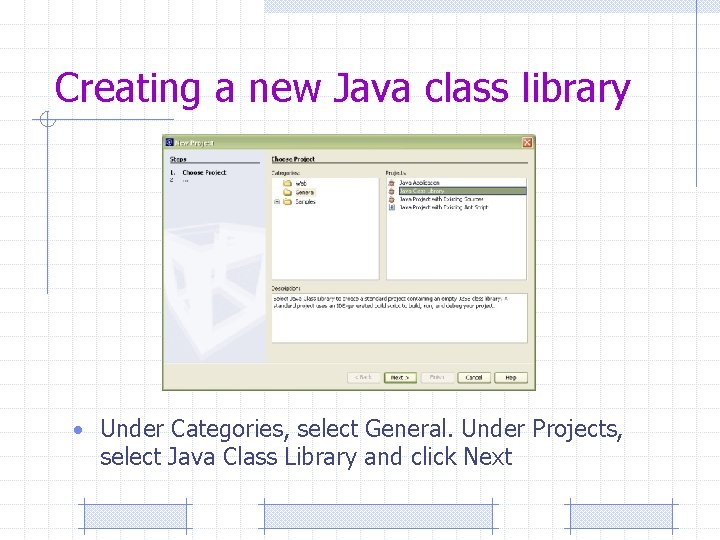
Creating a new Java class library • Under Categories, select General. Under Projects, select Java Class Library and click Next
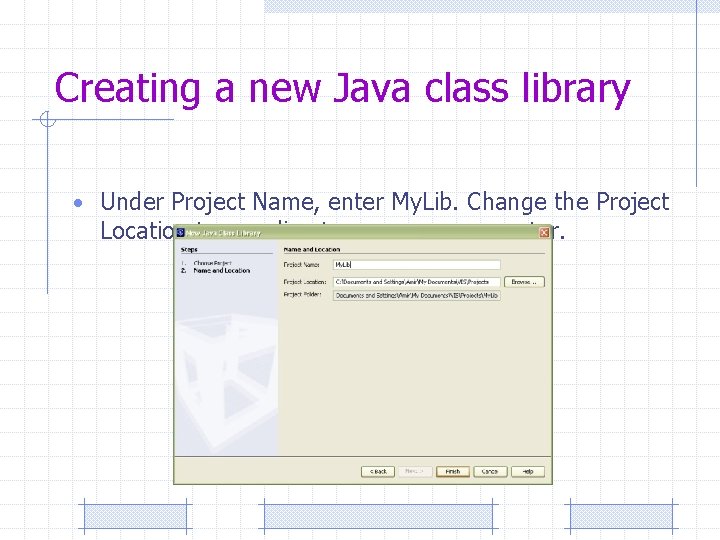
Creating a new Java class library • Under Project Name, enter My. Lib. Change the Project Location to any directory on your computer.
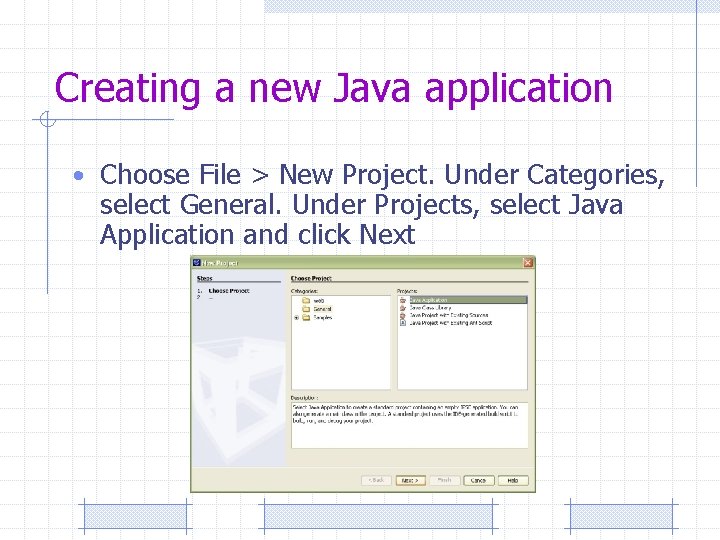
Creating a new Java application • Choose File > New Project. Under Categories, select General. Under Projects, select Java Application and click Next
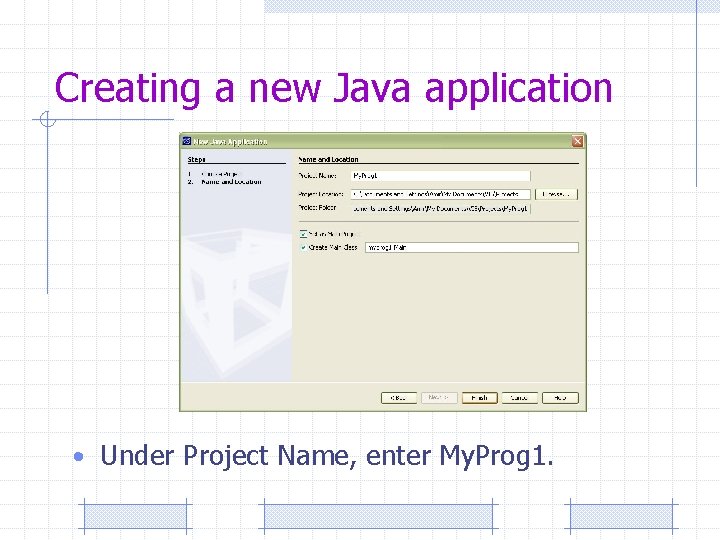
Creating a new Java application • Under Project Name, enter My. Prog 1.
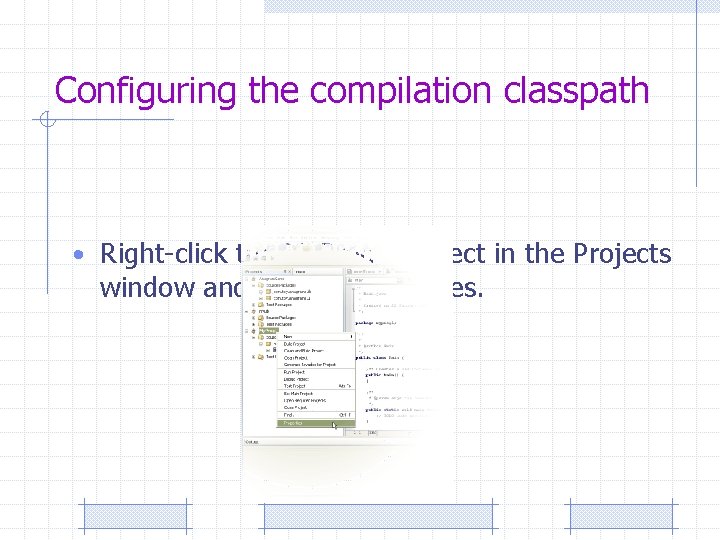
Configuring the compilation classpath • Right-click the My. Prog 1 project in the Projects window and choose Properties.
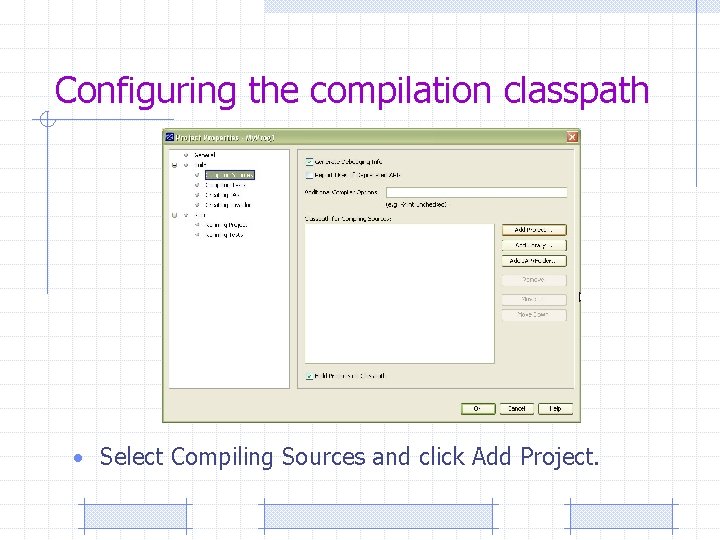
Configuring the compilation classpath • Select Compiling Sources and click Add Project.
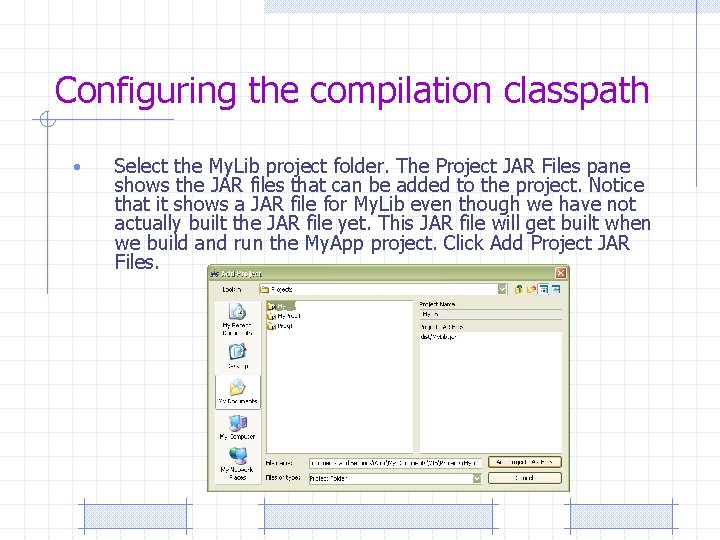
Configuring the compilation classpath • Select the My. Lib project folder. The Project JAR Files pane shows the JAR files that can be added to the project. Notice that it shows a JAR file for My. Lib even though we have not actually built the JAR file yet. This JAR file will get built when we build and run the My. App project. Click Add Project JAR Files.
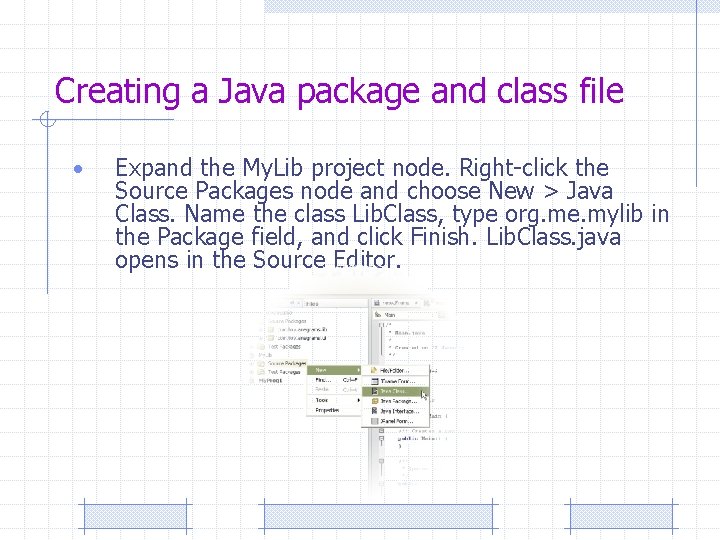
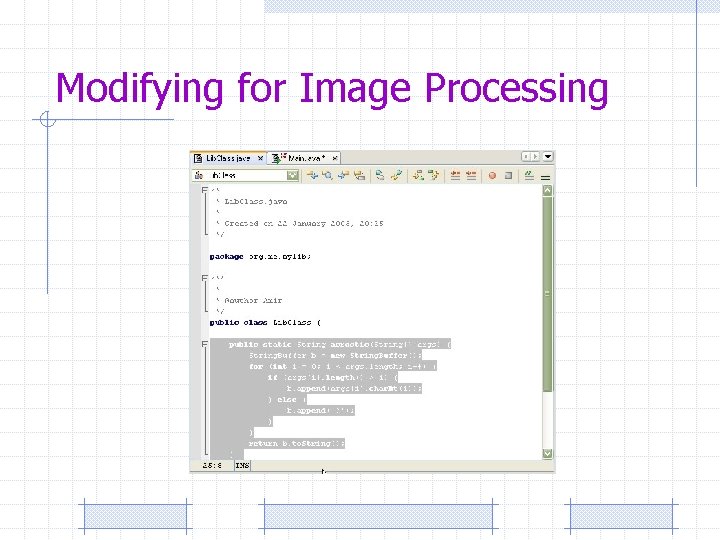
Creating a Java package and class file • Expand the My. Lib project node. Right-click the Source Packages node and choose New > Java Class. Name the class Lib. Class, type org. me. mylib in the Package field, and click Finish. Lib. Class. java opens in the Source Editor.
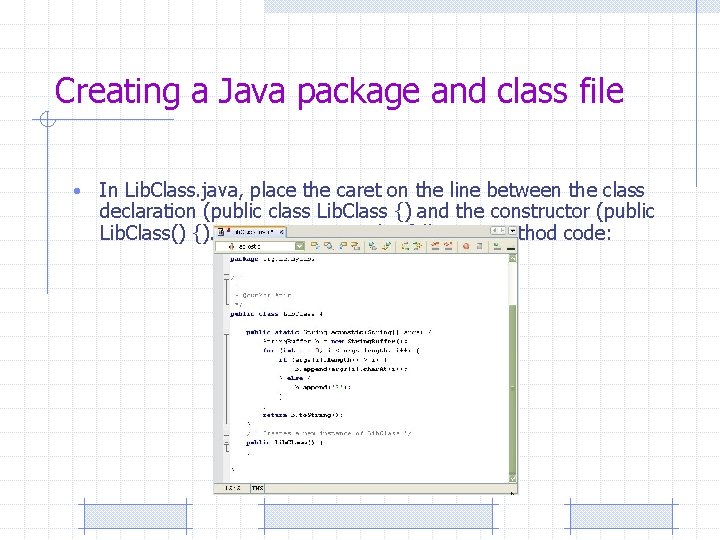
Creating a Java package and class file • In Lib. Class. java, place the caret on the line between the class declaration (public class Lib. Class {) and the constructor (public Lib. Class() {). Type or paste in the following method code:
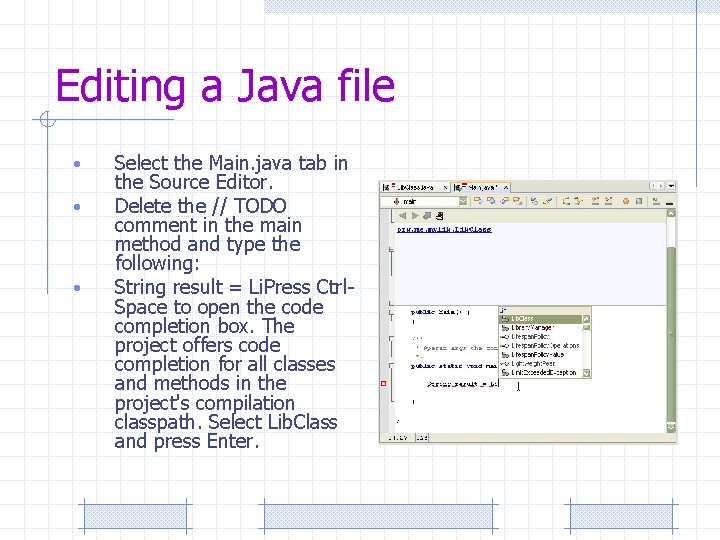
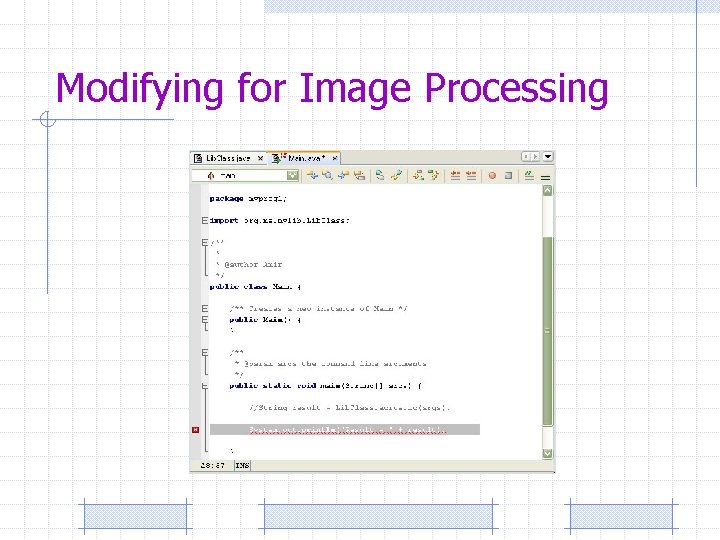
Editing a Java file • • • Select the Main. java tab in the Source Editor. Delete the // TODO comment in the main method and type the following: String result = Li. Press Ctrl. Space to open the code completion box. The project offers code completion for all classes and methods in the project's compilation classpath. Select Lib. Class and press Enter.
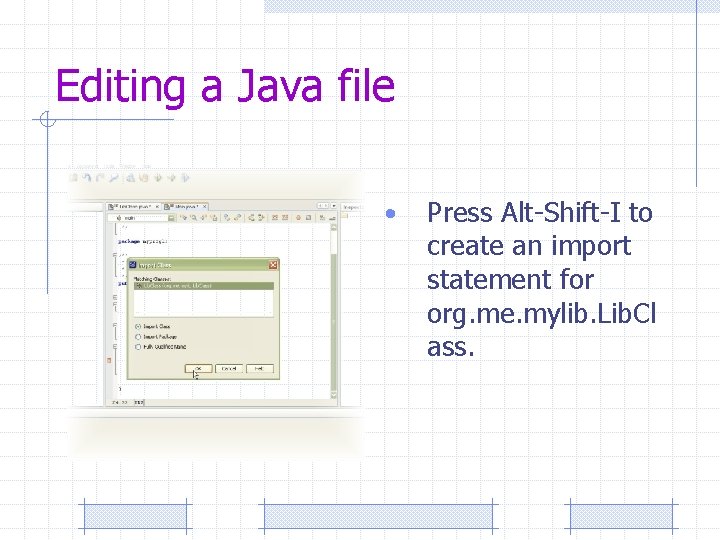
Editing a Java file • Press Alt-Shift-I to create an import statement for org. me. mylib. Lib. Cl ass.
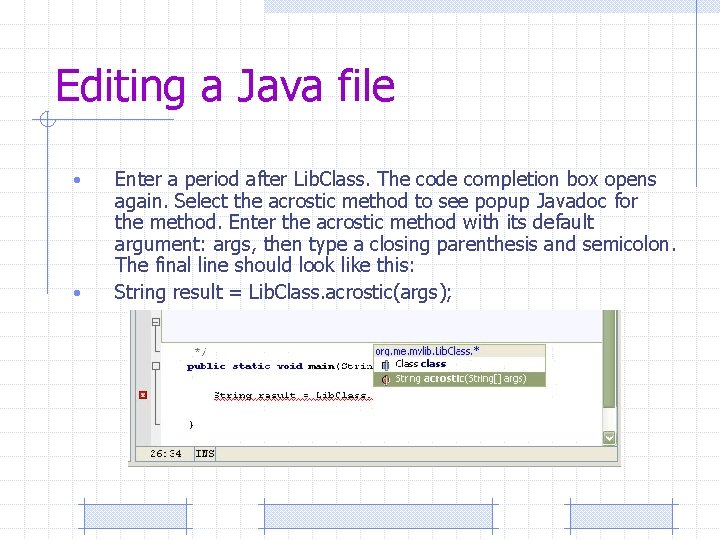
Editing a Java file • • Enter a period after Lib. Class. The code completion box opens again. Select the acrostic method to see popup Javadoc for the method. Enter the acrostic method with its default argument: args, then type a closing parenthesis and semicolon. The final line should look like this: String result = Lib. Class. acrostic(args);
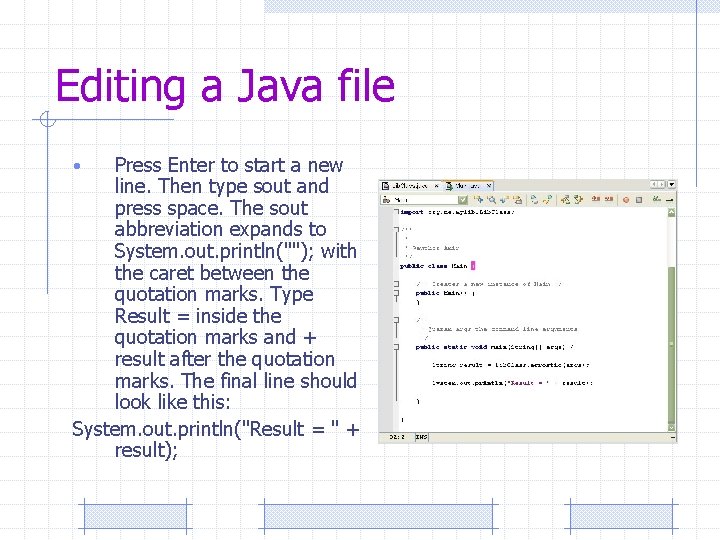
Editing a Java file Press Enter to start a new line. Then type sout and press space. The sout abbreviation expands to System. out. println(""); with the caret between the quotation marks. Type Result = inside the quotation marks and + result after the quotation marks. The final line should look like this: System. out. println("Result = " + result); •
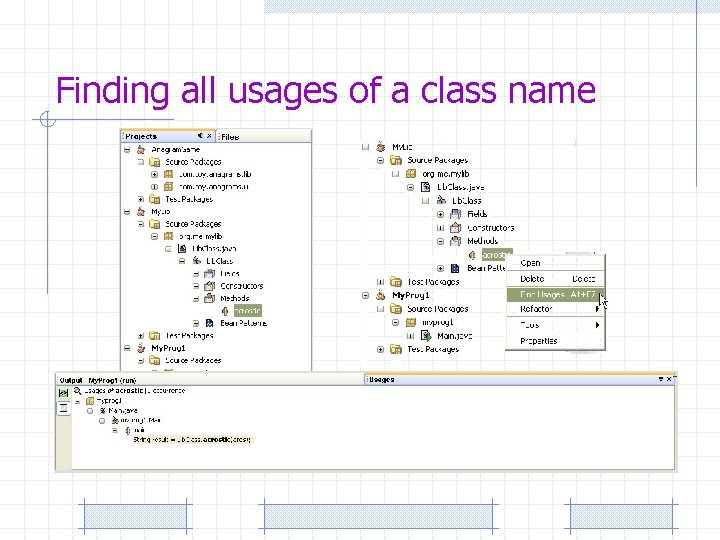
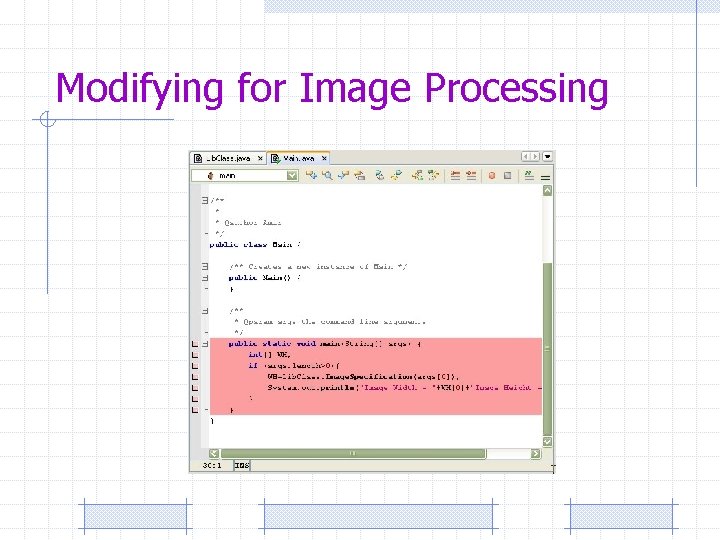
Finding all usages of a class name
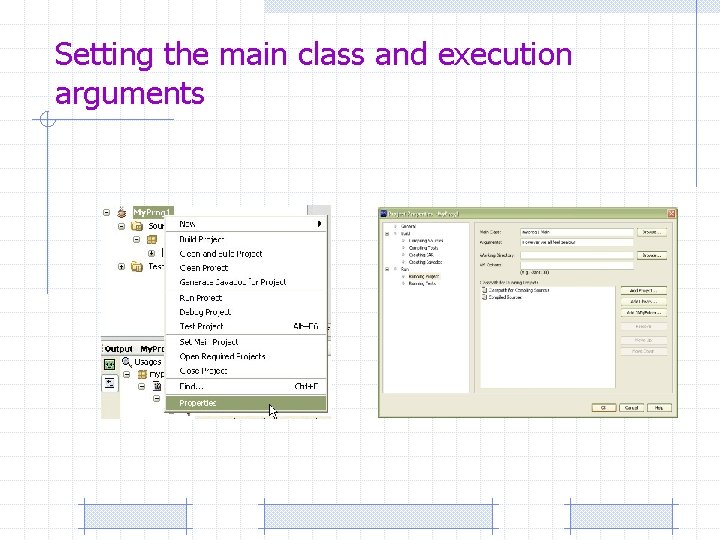
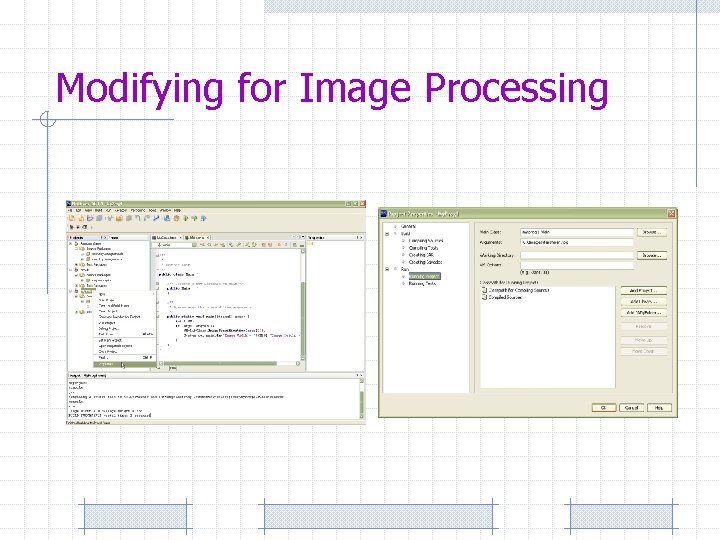
Setting the main class and execution arguments
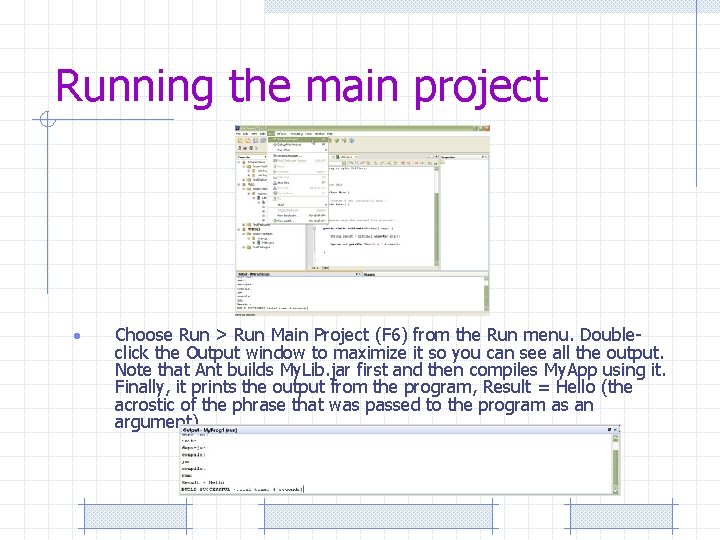
Running the main project • Choose Run > Run Main Project (F 6) from the Run menu. Doubleclick the Output window to maximize it so you can see all the output. Note that Ant builds My. Lib. jar first and then compiles My. App using it. Finally, it prints the output from the program, Result = Hello (the acrostic of the phrase that was passed to the program as an argument).
Modifying for Image Processing
Modifying for Image Processing

Modifying for Image Processing
Modifying for Image Processing
Modifying for Image Processing
- Slides: 25