
Finesse Training Supervisor User Interface and Tools EIT
- Slides: 31
Finesse Training: Supervisor User Interface and Tools EIT ENCS Voice and Video Team
Goals for the Training session • Finesse Supervisor User interface overview • Supervisor Sign In/Sign Out • Supervisor State Control • Supervisor Phone controls • Supervisor Tools
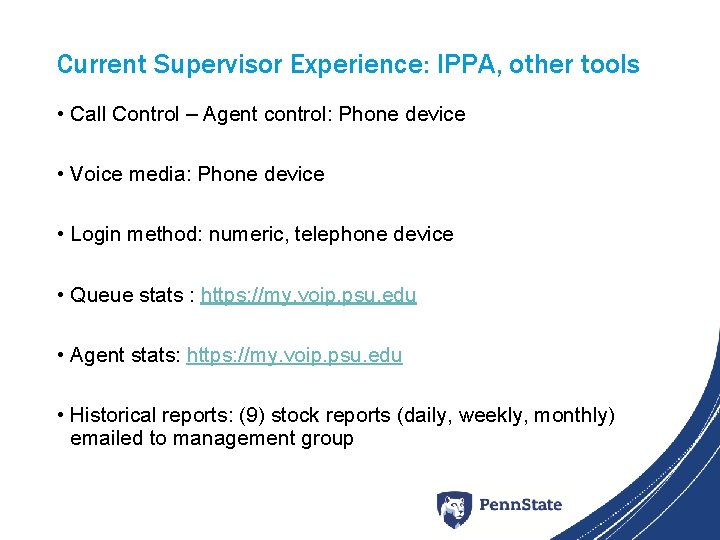
Current Supervisor Experience: IPPA, other tools • Call Control – Agent control: Phone device • Voice media: Phone device • Login method: numeric, telephone device • Queue stats : https: //my. voip. psu. edu • Agent stats: https: //my. voip. psu. edu • Historical reports: (9) stock reports (daily, weekly, monthly) emailed to management group
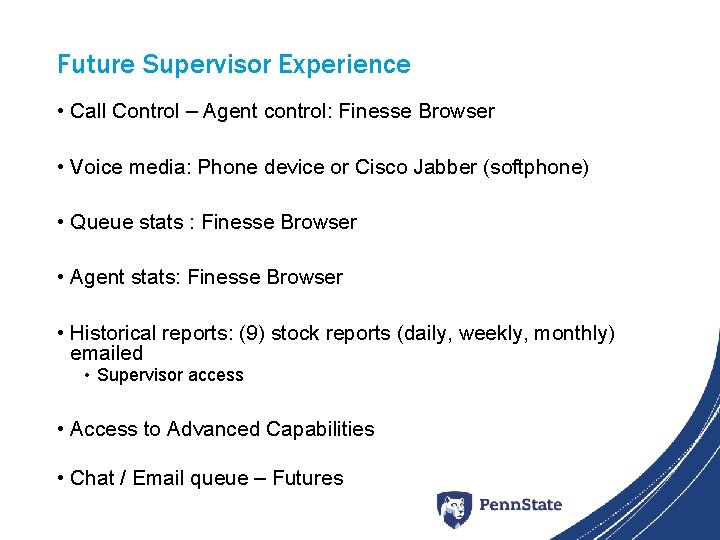
Future Supervisor Experience • Call Control – Agent control: Finesse Browser • Voice media: Phone device or Cisco Jabber (softphone) • Queue stats : Finesse Browser • Agent stats: Finesse Browser • Historical reports: (9) stock reports (daily, weekly, monthly) emailed • Supervisor access • Access to Advanced Capabilities • Chat / Email queue – Futures
Future Supervisor Tools • Enhanced Supervisor Desktop • Access to ACD Administrative Interface • Access to Cisco Unified Intelligence Center (CUIC) • Access to Mobile Skills Manager (Skills-based queues)
Cisco Finesse Overview Video • https: //video. cisco. com/detail/video/5989311041001/ciscofinesse-12. 0 -agent-desktop-for-uccx
Accessing Finesse • Log into Cisco Jabber • Log into Finesse and associate with your proper extension number • The Athletics ACD queues will use the Finesse client for call control and the Cisco hard phones for voice media delivery. • Open a web browser • Supported Browsers • IE 11 Native Mode • Firefox 52 ESR (Extended Support Release) • Chrome 60 and higher • Finesse URL • https: //cuccxwhite 1 p. phone. psu. edu: 8445 • Logging In • • • Web Access / SSO ID: “abc 123” or “abc 1234” Password Extension: 4 xxxx (non-DID ACD extension) Click button “Sign In”
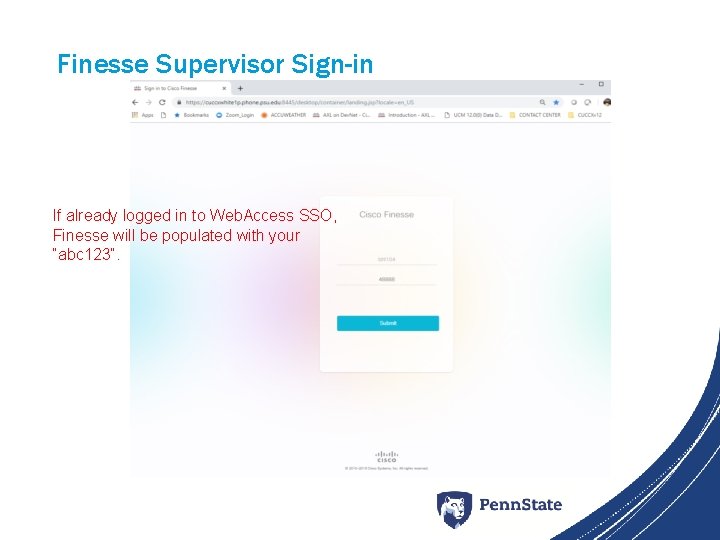
Finesse Supervisor Sign-in If already logged in to Web. Access SSO, Finesse will be populated with your “abc 123”.
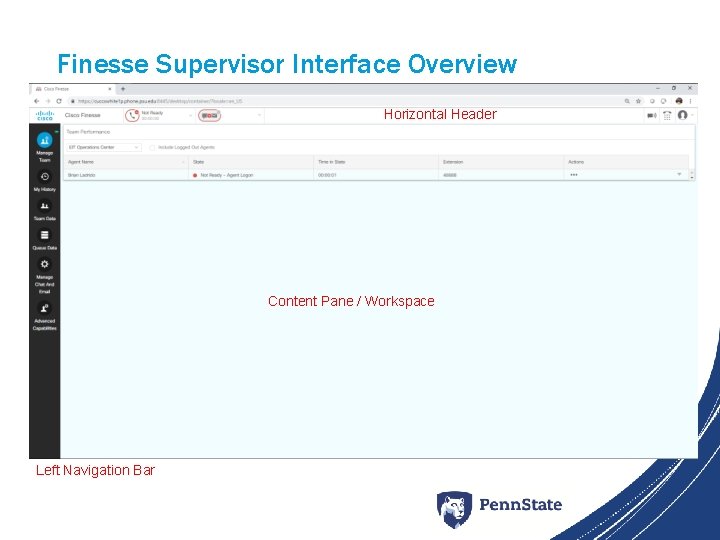
Finesse Supervisor Interface Overview Horizontal Header Content Pane / Workspace Left Navigation Bar
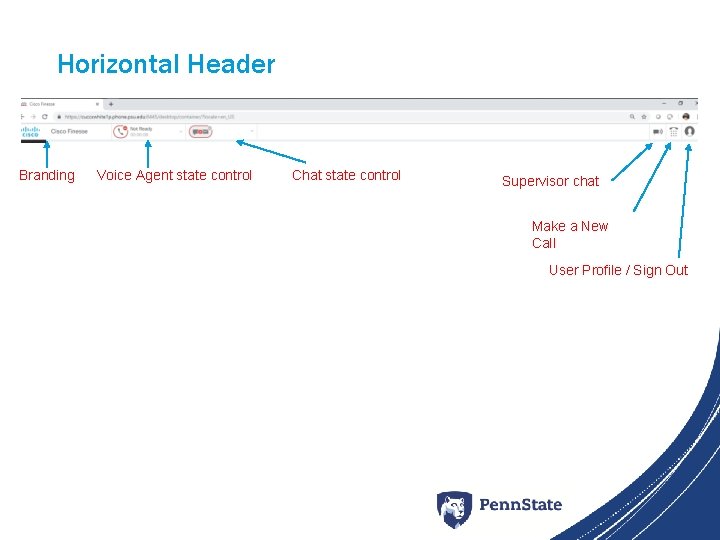
Horizontal Header Branding Voice Agent state control Chat state control Supervisor chat Make a New Call User Profile / Sign Out
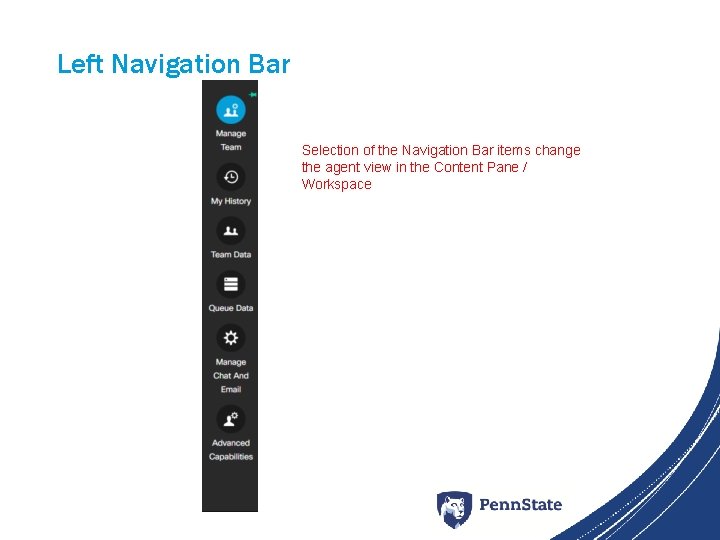
Left Navigation Bar Selection of the Navigation Bar items change the agent view in the Content Pane / Workspace
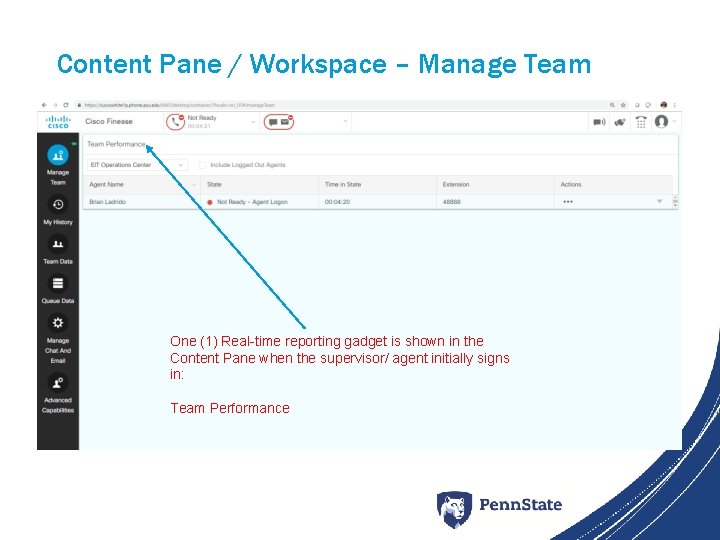
Content Pane / Workspace – Manage Team One (1) Real-time reporting gadget is shown in the Content Pane when the supervisor/ agent initially signs in: Team Performance
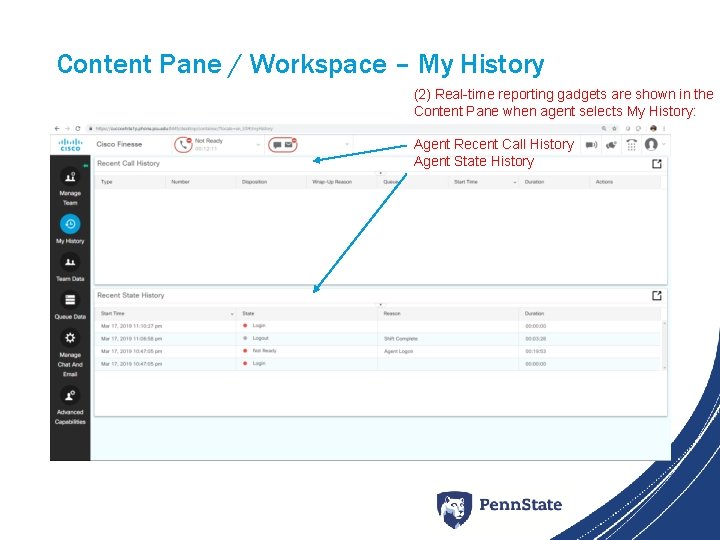
Content Pane / Workspace – My History (2) Real-time reporting gadgets are shown in the Content Pane when agent selects My History: Agent Recent Call History Agent State History
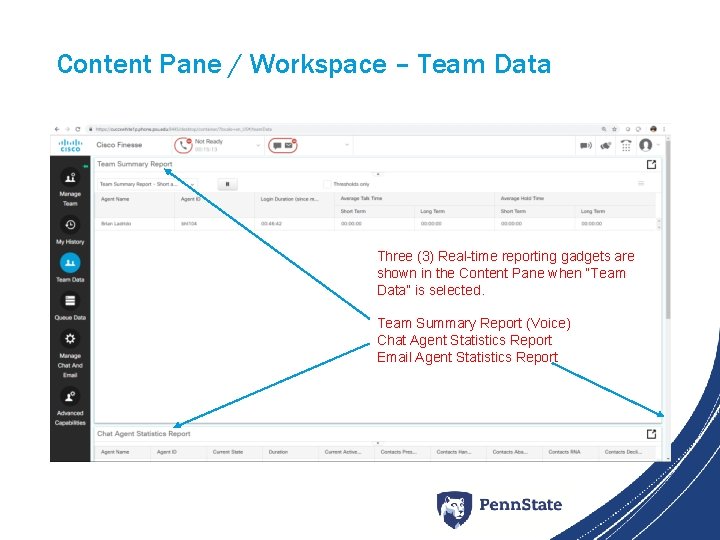
Content Pane / Workspace – Team Data Three (3) Real-time reporting gadgets are shown in the Content Pane when “Team Data” is selected. Team Summary Report (Voice) Chat Agent Statistics Report Email Agent Statistics Report
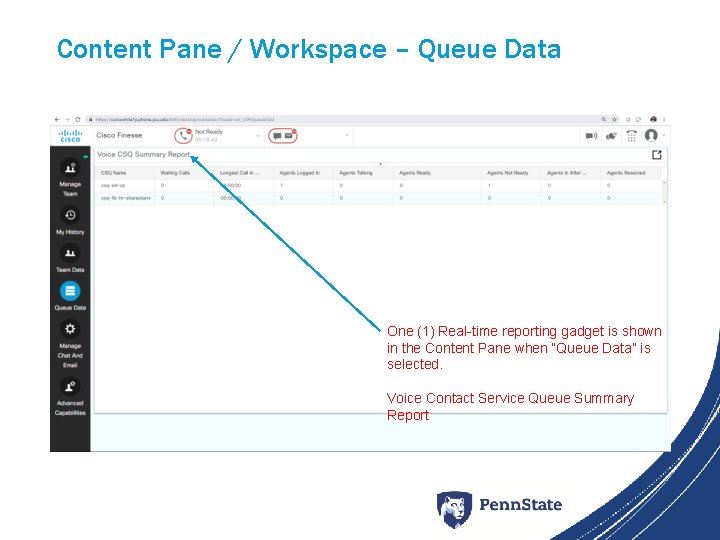
Content Pane / Workspace – Queue Data One (1) Real-time reporting gadget is shown in the Content Pane when “Queue Data” is selected. Voice Contact Service Queue Summary Report
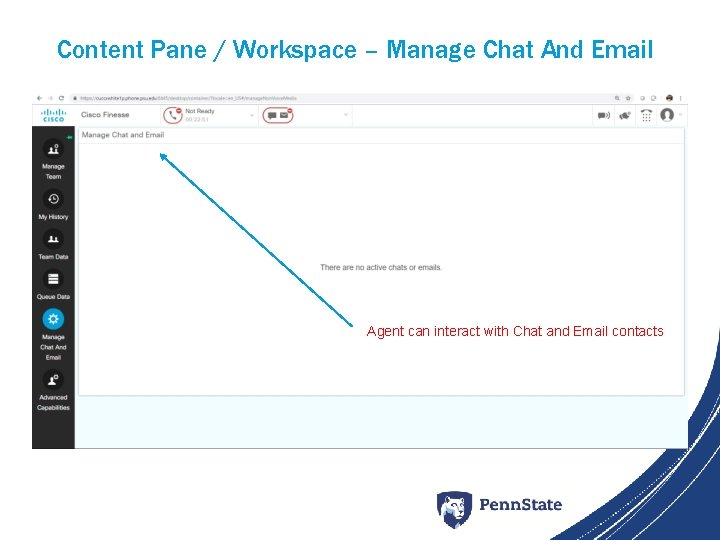
Content Pane / Workspace – Manage Chat And Email Agent can interact with Chat and Email contacts
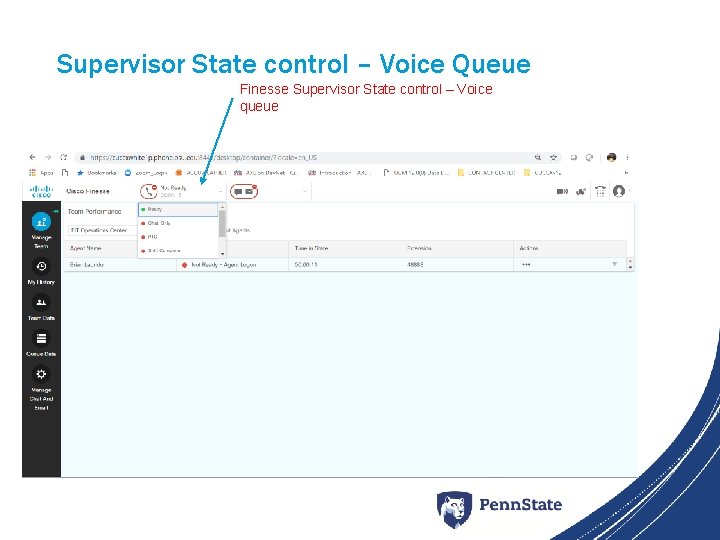
Supervisor State control – Voice Queue Finesse Supervisor State control – Voice queue
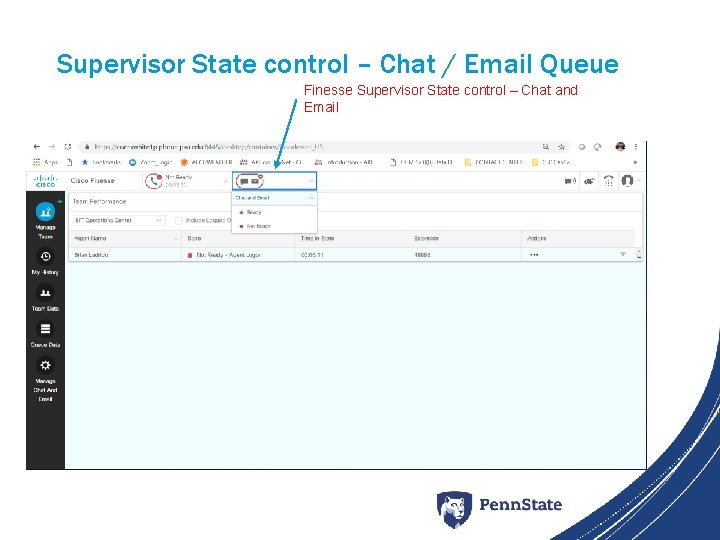
Supervisor State control – Chat / Email Queue Finesse Supervisor State control – Chat and Email
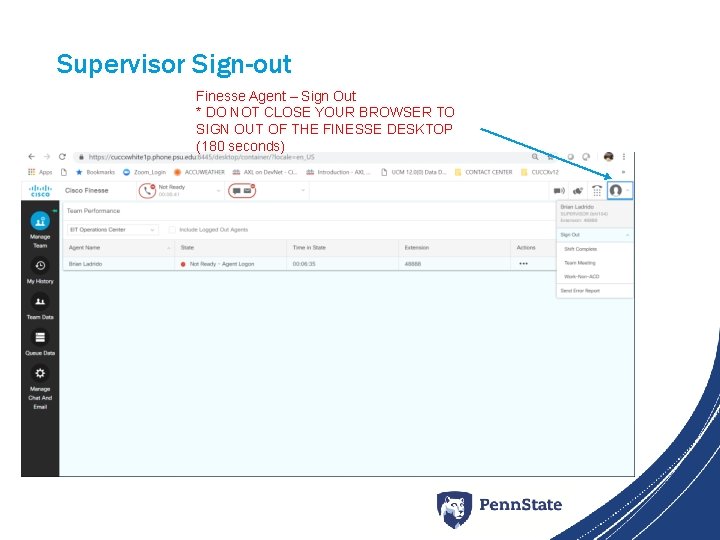
Supervisor Sign-out Finesse Agent – Sign Out * DO NOT CLOSE YOUR BROWSER TO SIGN OUT OF THE FINESSE DESKTOP (180 seconds)
Supervisor Tasks Phase 1 • View Team Performance • View Active Call Details • View Recent Call History • View Recent State History • Change State of Agent • Send Team Message Phase 2 • Monitor a Call • Barge In on a Call • Intercept a Call
Supervisor Tasks • Finesse Supervisor Desktop • Advanced Capabilities • UCCX Application Administration Web Page: Supervisor View • UCCX Application Administration Web Page: Reporting View for Cisco Unified Intelligence Center (CUIC)
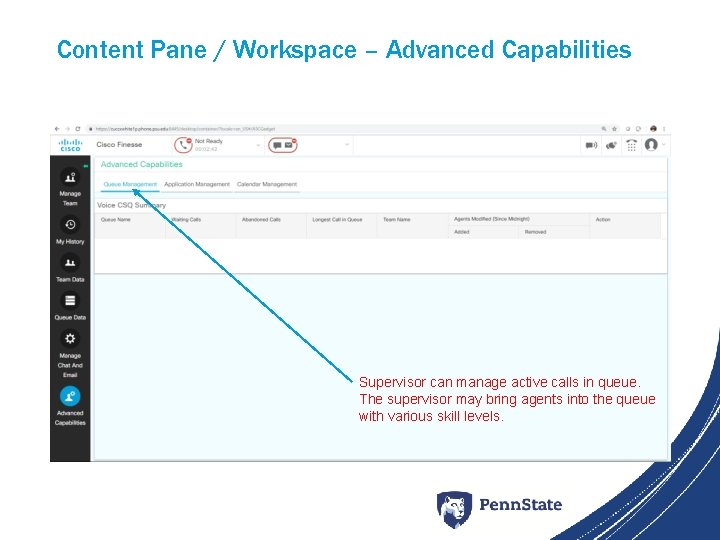
Content Pane / Workspace – Advanced Capabilities Supervisor can manage active calls in queue. The supervisor may bring agents into the queue with various skill levels.
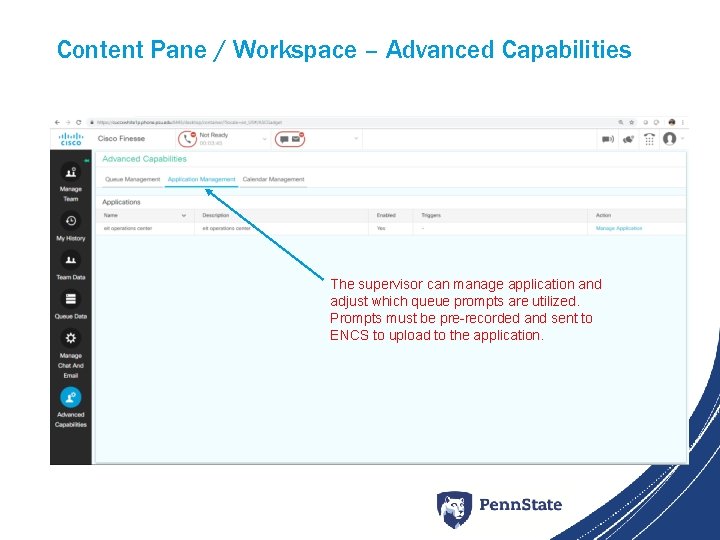
Content Pane / Workspace – Advanced Capabilities The supervisor can manage application and adjust which queue prompts are utilized. Prompts must be pre-recorded and sent to ENCS to upload to the application.
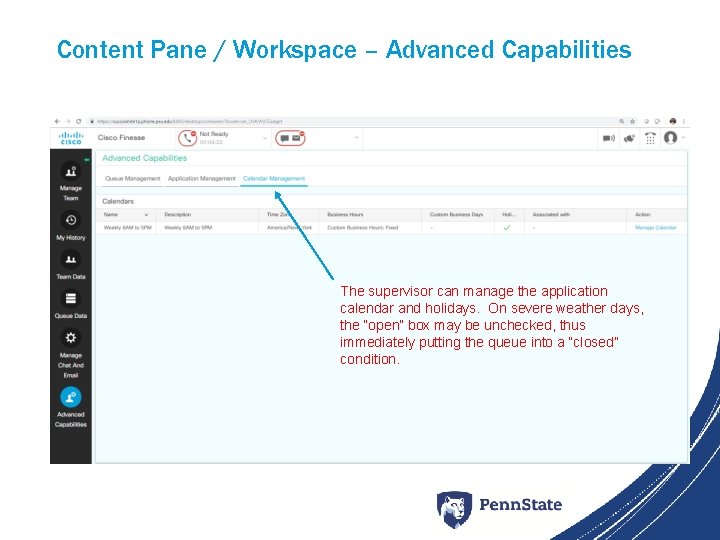
Content Pane / Workspace – Advanced Capabilities The supervisor can manage the application calendar and holidays. On severe weather days, the “open” box may be unchecked, thus immediately putting the queue into a “closed” condition.
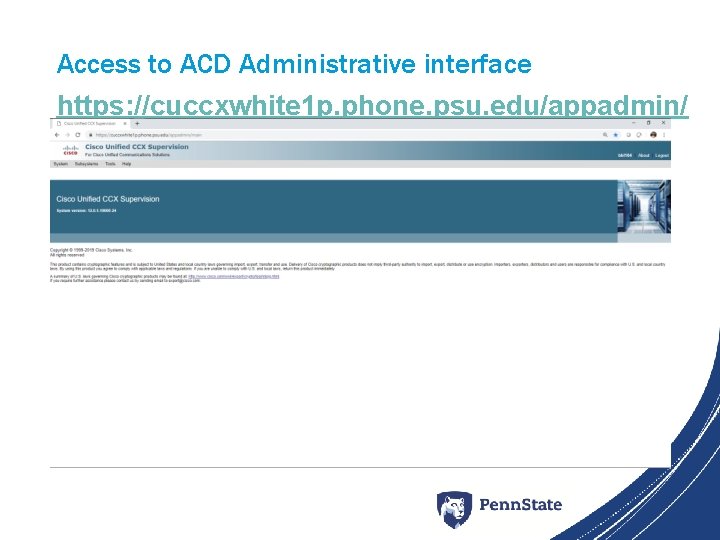
Access to ACD Administrative interface https: //cuccxwhite 1 p. phone. psu. edu/appadmin/
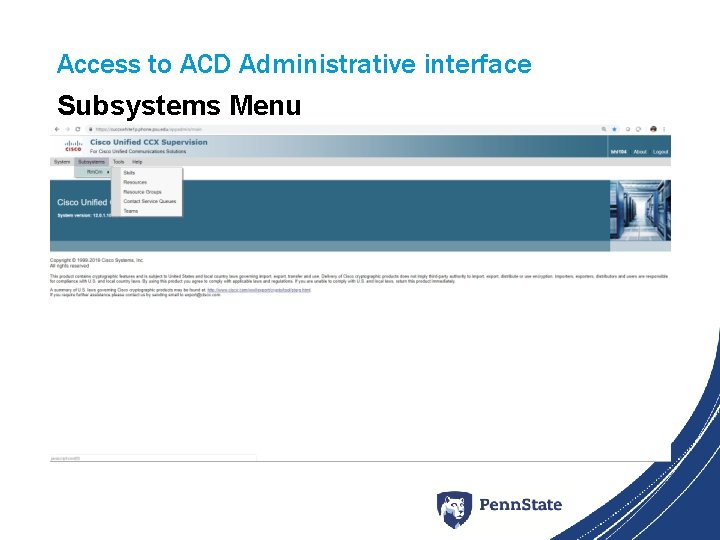
Access to ACD Administrative interface Subsystems Menu
Access to ACD Administrative interface • Read only access to skills and resource groups • Administrative control of Team resources • Administrative control of Contact Service queue
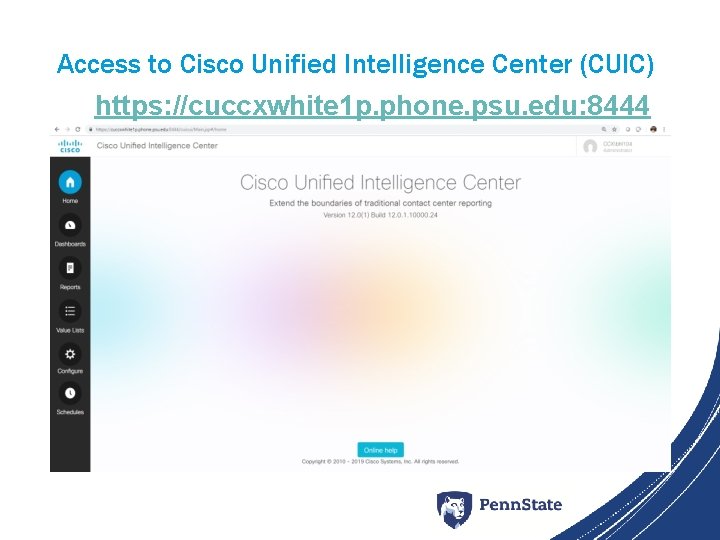
Access to Cisco Unified Intelligence Center (CUIC) https: //cuccxwhite 1 p. phone. psu. edu: 8444
Service Support • The Athletics ACD services are supported through the EIT Service Desk. Please open an incident via 5 -HELP, or via Service. Now. • All ACD incidents will be routed to ENCS Voice and Video Team for troubleshooting.
FAQs • Supervisor users require the use of a Cisco license. • Logged In Supervisors are considered “Logged. In” and will affect any ACD logic based on this real-time statistic. Script logic updates may be required.
Reference URLs • UCCX v 12 Finesse client • https: //video. cisco. com/detail/video/5989311041001/cisco-finesse-12. 0 -agent-desktop-for-uccx • Vendor Artifacts / Public artifacts • Cisco Finesse Agent and Supervisor Desktop User Guide for Cisco Unified Contact Center Express, Release 12. 0(1) • Cisco Unified Contact Center Express Reporting User Guide, Release 12. 0(1)