
find Command Characteristics Locate files descending from multiple
![Shell Script Decisions if [ condition ]; then <statements> fi if [ condition ];](https://slidetodoc.com/presentation_image_h2/c04bfd0be561671638eb6354c128b225/image-10.jpg "Shell Script Decisions if [ condition ]; then <statements> fi if [ condition ];")
![while and do Loops while [ condition ]; do command 1; command 2; command](https://slidetodoc.com/presentation_image_h2/c04bfd0be561671638eb6354c128b225/image-11.jpg "while and do Loops while [ condition ]; do command 1; command 2; command")
![Calculate the average in a script #!/bin/bash if [ $# -lt 1 ]; then](https://slidetodoc.com/presentation_image_h2/c04bfd0be561671638eb6354c128b225/image-13.jpg "Calculate the average in a script #!/bin/bash if [ $# -lt 1 ]; then")
- Slides: 16
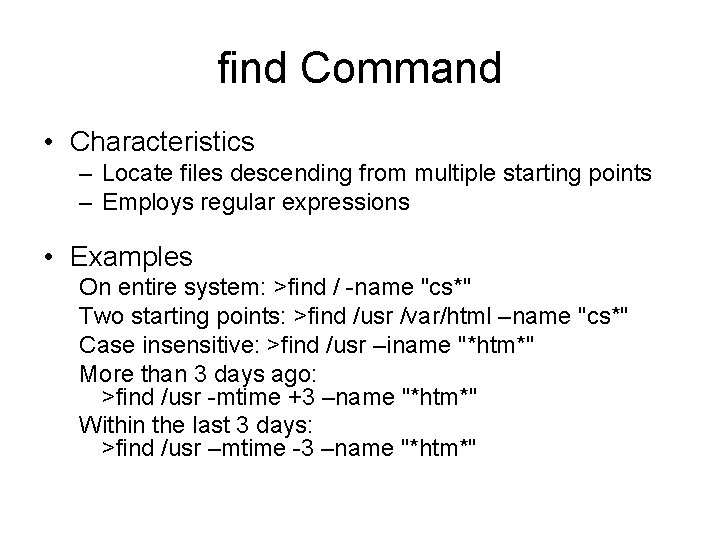
find Command • Characteristics – Locate files descending from multiple starting points – Employs regular expressions • Examples On entire system: >find / -name "cs*" Two starting points: >find /usr /var/html –name "cs*" Case insensitive: >find /usr –iname "*htm*" More than 3 days ago: >find /usr -mtime +3 –name "*htm*" Within the last 3 days: >find /usr –mtime -3 –name "*htm*"
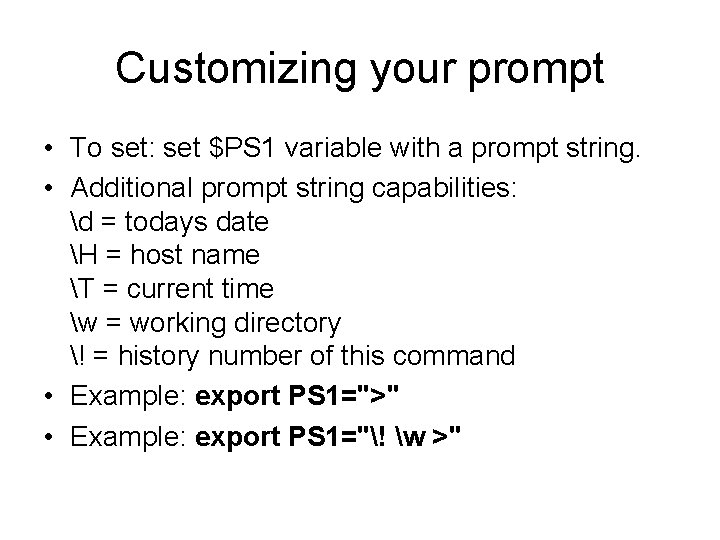
Customizing your prompt • To set: set $PS 1 variable with a prompt string. • Additional prompt string capabilities: d = todays date H = host name T = current time w = working directory ! = history number of this command • Example: export PS 1=">" • Example: export PS 1="! w >"
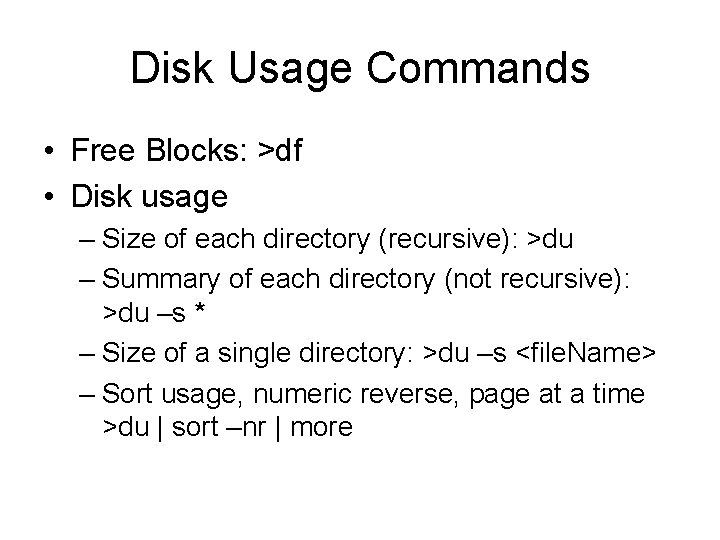
Disk Usage Commands • Free Blocks: >df • Disk usage – Size of each directory (recursive): >du – Summary of each directory (not recursive): >du –s * – Size of a single directory: >du –s <file. Name> – Sort usage, numeric reverse, page at a time >du | sort –nr | more
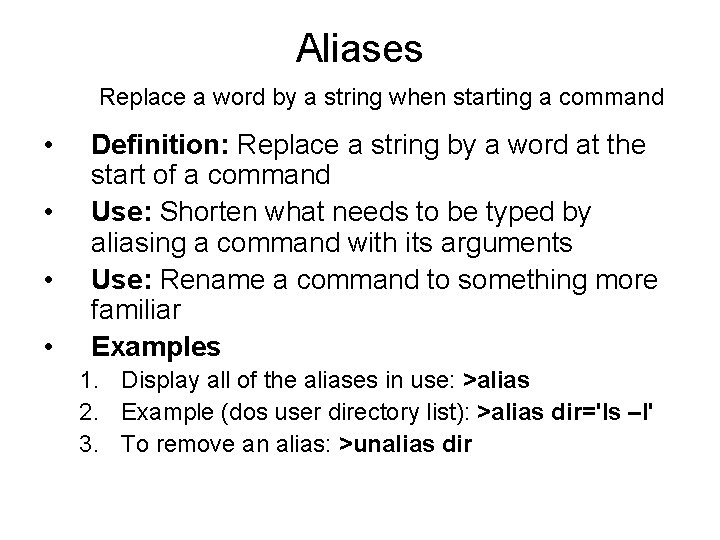
Aliases Replace a word by a string when starting a command • • Definition: Replace a string by a word at the start of a command Use: Shorten what needs to be typed by aliasing a command with its arguments Use: Rename a command to something more familiar Examples 1. Display all of the aliases in use: >alias 2. Example (dos user directory list): >alias dir='ls –l' 3. To remove an alias: >unalias dir
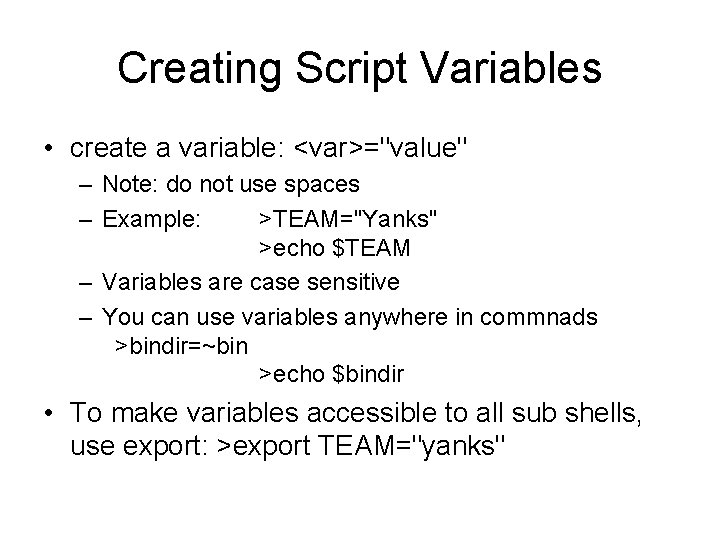
Creating Script Variables • create a variable: <var>="value" – Note: do not use spaces – Example: >TEAM="Yanks" >echo $TEAM – Variables are case sensitive – You can use variables anywhere in commnads >bindir=~bin >echo $bindir • To make variables accessible to all sub shells, use export: >export TEAM="yanks"
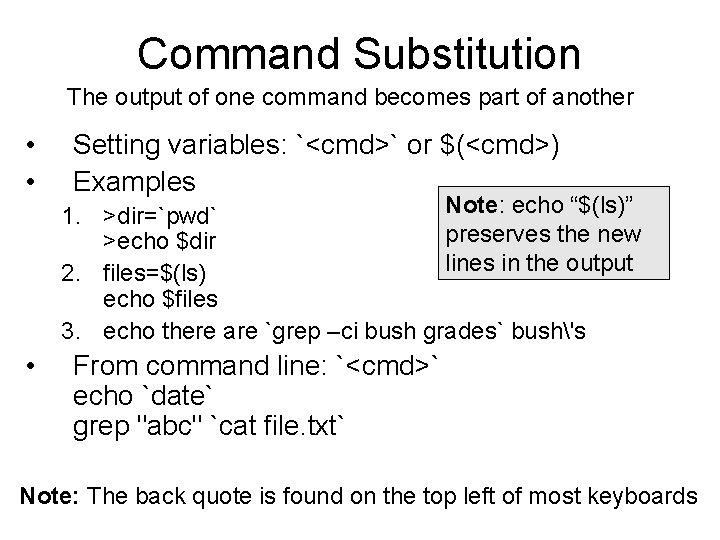
Command Substitution The output of one command becomes part of another • • • Setting variables: `<cmd>` or $(<cmd>) Examples Note: echo “$(ls)” 1. >dir=`pwd` preserves the new >echo $dir lines in the output 2. files=$(ls) echo $files 3. echo there are `grep –ci bush grades` bush's From command line: `<cmd>` echo `date` grep "abc" `cat file. txt` Note: The back quote is found on the top left of most keyboards
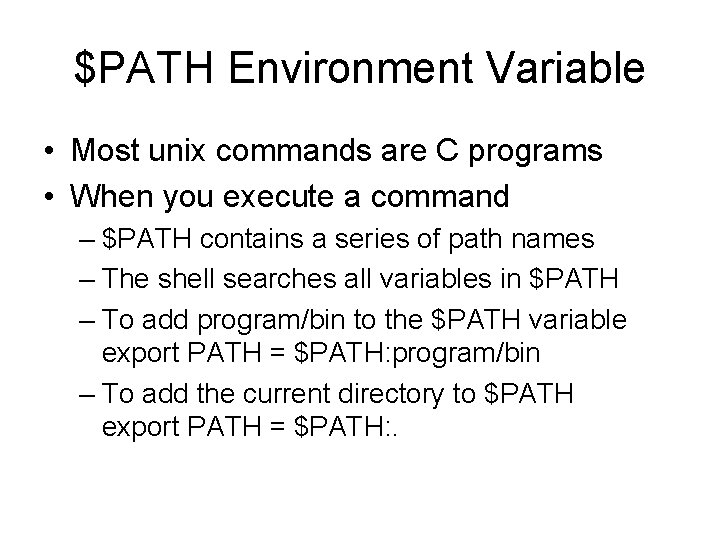
$PATH Environment Variable • Most unix commands are C programs • When you execute a command – $PATH contains a series of path names – The shell searches all variables in $PATH – To add program/bin to the $PATH variable export PATH = $PATH: program/bin – To add the current directory to $PATH export PATH = $PATH: .
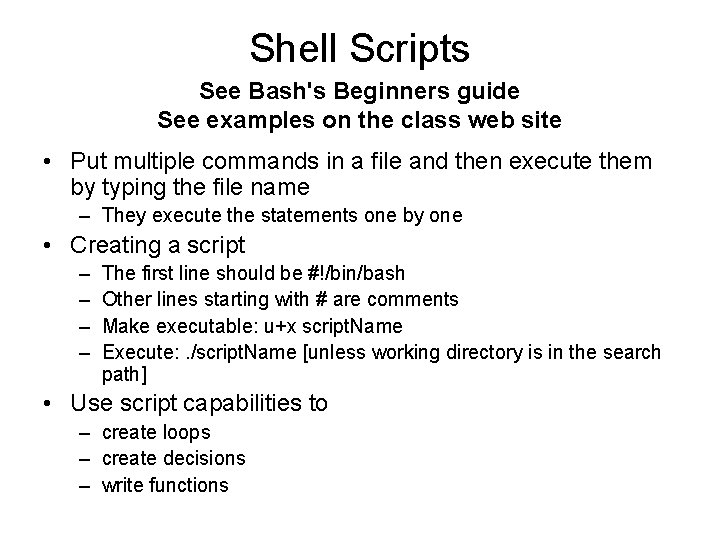
Shell Scripts See Bash's Beginners guide See examples on the class web site • Put multiple commands in a file and then execute them by typing the file name – They execute the statements one by one • Creating a script – – The first line should be #!/bin/bash Other lines starting with # are comments Make executable: u+x script. Name Execute: . /script. Name [unless working directory is in the search path] • Use script capabilities to – create loops – create decisions – write functions
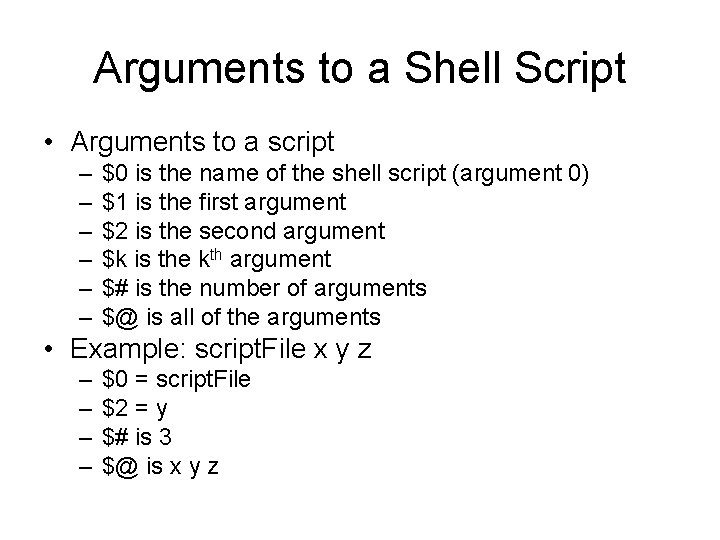
Arguments to a Shell Script • Arguments to a script – – – $0 is the name of the shell script (argument 0) $1 is the first argument $2 is the second argument $k is the kth argument $# is the number of arguments $@ is all of the arguments • Example: script. File x y z – – $0 = script. File $2 = y $# is 3 $@ is x y z
Shell Script Decisions if [ condition ]; then <statements> fi if [ condition ]; then <statements> else fi if [ $1 == 3 ] ; then echo "arg equals 3" else echo "arg not 3"; fi Note: space after [ and before ], semi colon after ] Comparators: ! -lt –le –gt –ge –f == -r where -f is file –r for readable file
while and do Loops while [ condition ]; do command 1; command 2; command 3 done i=0 while [ $i –lt 4 ]; do echo "Welcome $i"; i=$[$i+1]; done or i=0 do until [ $i == 4 ]; do echo "Welcome $i"; i=$[$i+1]; done or i=0 while [ $i –lt 4 ]; do echo "Welcome $i" i=$[$i+1] done Semicolons separate parts of the loop on the same line Boolean variables true or false are legal
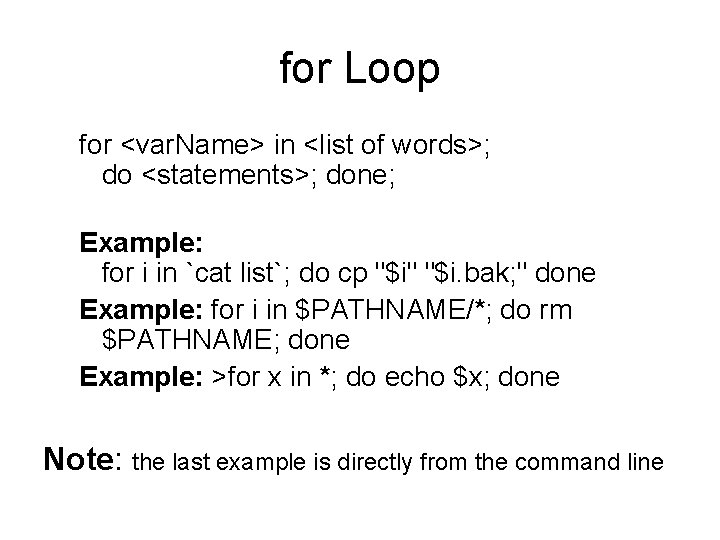
for Loop for <var. Name> in <list of words>; do <statements>; done; Example: for i in `cat list`; do cp "$i" "$i. bak; " done Example: for i in $PATHNAME/*; do rm $PATHNAME; done Example: >for x in *; do echo $x; done Note: the last example is directly from the command line
Calculate the average in a script #!/bin/bash if [ $# -lt 1 ]; then echo "usage: at least one argument needed" exit 1 fi value=0 count=0 average 1 outputs 1 for i in $@ average 1 2 3 outputs 2 do value=$[$value+$i] count=$[$count+1] done average=$((value/count)) echo $average
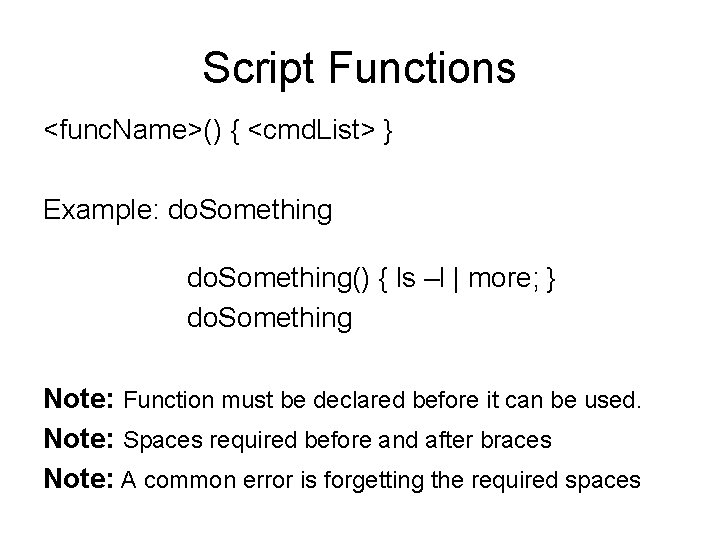
Script Functions <func. Name>() { <cmd. List> } Example: do. Something() { ls –l | more; } do. Something Note: Function must be declared before it can be used. Note: Spaces required before and after braces Note: A common error is forgetting the required spaces
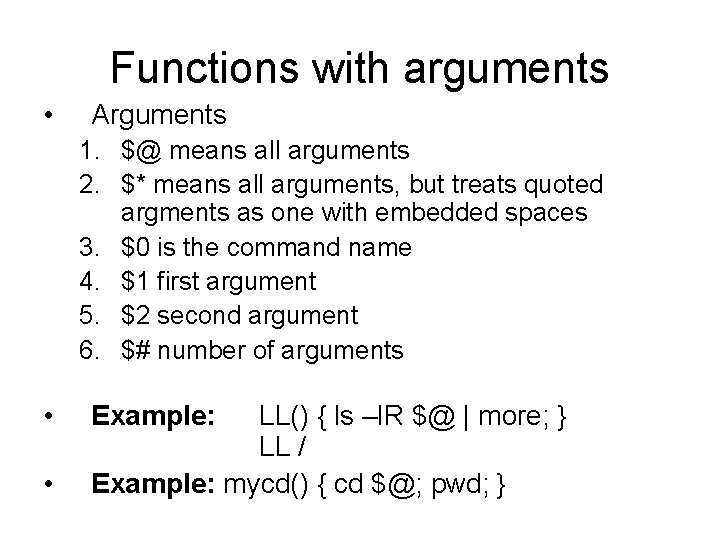
Functions with arguments • Arguments 1. $@ means all arguments 2. $* means all arguments, but treats quoted argments as one with embedded spaces 3. $0 is the command name 4. $1 first argument 5. $2 second argument 6. $# number of arguments • • Example: LL() { ls –l. R $@ | more; } LL / Example: mycd() { cd $@; pwd; }
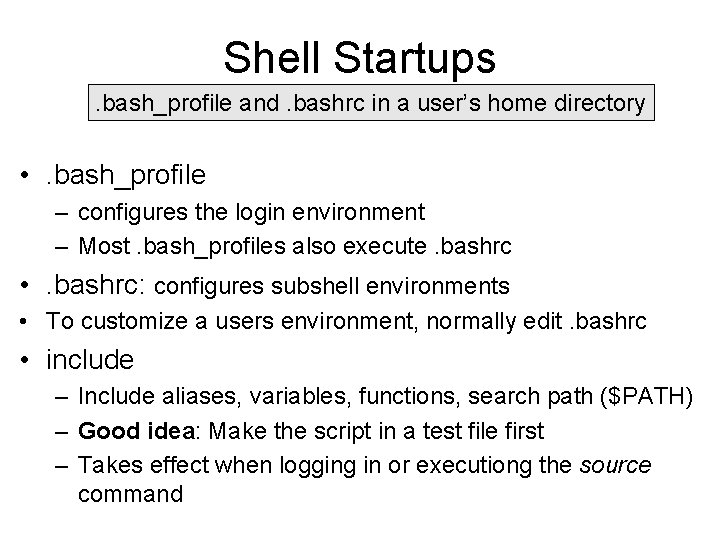
Shell Startups. bash_profile and. bashrc in a user’s home directory • . bash_profile – configures the login environment – Most. bash_profiles also execute. bashrc • . bashrc: configures subshell environments • To customize a users environment, normally edit. bashrc • include – Include aliases, variables, functions, search path ($PATH) – Good idea: Make the script in a test file first – Takes effect when logging in or executiong the source command