
Finalizing a Presentation Microsoft Power Point PYP 002
- Slides: 34
Finalizing a Presentation Microsoft Power. Point PYP 002 Intro. to Computer Science MS Power. Point Presentation 1
Objectives o The students should understand have hands on experience in n n Enhancing slide content Building an effective multimedia slide show PYP 002 Intro. to Computer Science MS Power. Point Presentation 2
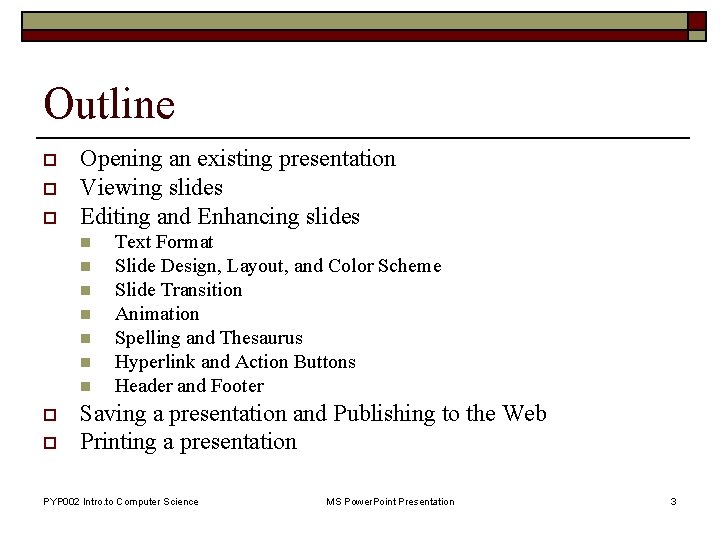
Outline o o o Opening an existing presentation Viewing slides Editing and Enhancing slides n n n n o o Text Format Slide Design, Layout, and Color Scheme Slide Transition Animation Spelling and Thesaurus Hyperlink and Action Buttons Header and Footer Saving a presentation and Publishing to the Web Printing a presentation PYP 002 Intro. to Computer Science MS Power. Point Presentation 3
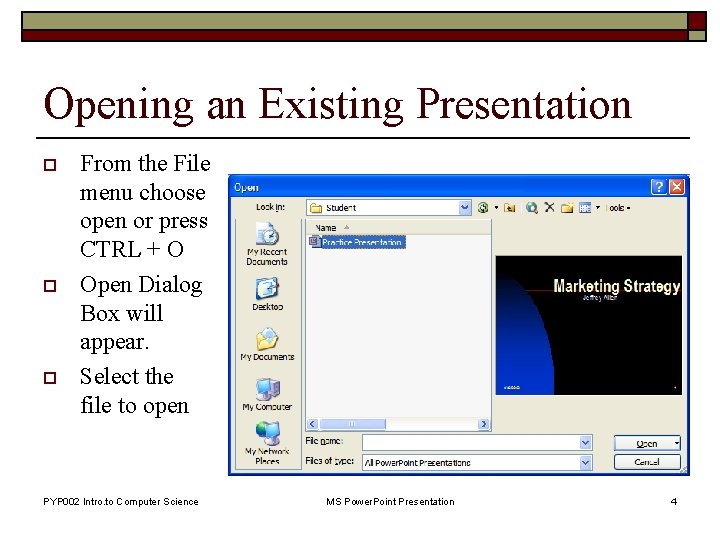
Opening an Existing Presentation o o o From the File menu choose open or press CTRL + O Open Dialog Box will appear. Select the file to open PYP 002 Intro. to Computer Science MS Power. Point Presentation 4
Viewing Slides o There are three ways of viewing slides: n n n Normal view Slide sorter Slide show PYP 002 Intro. to Computer Science MS Power. Point Presentation 5
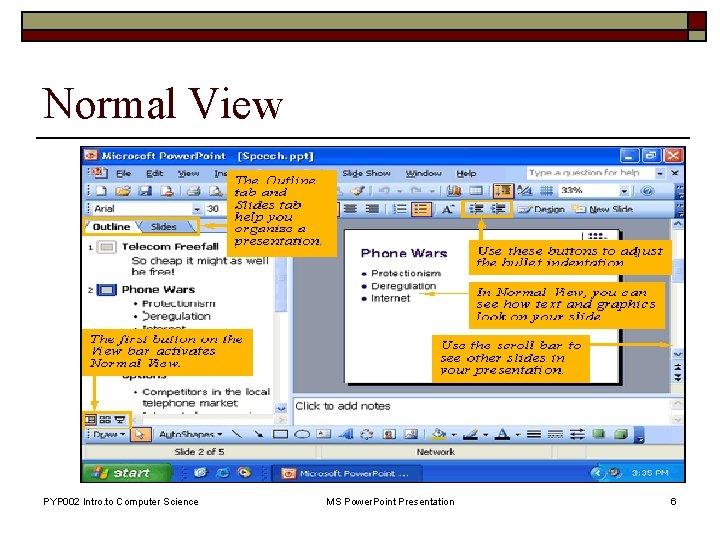
Normal View PYP 002 Intro. to Computer Science MS Power. Point Presentation 6
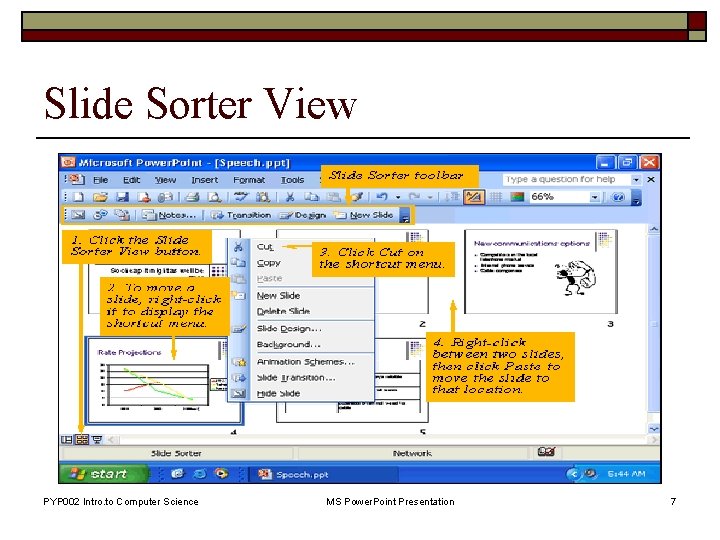
Slide Sorter View PYP 002 Intro. to Computer Science MS Power. Point Presentation 7
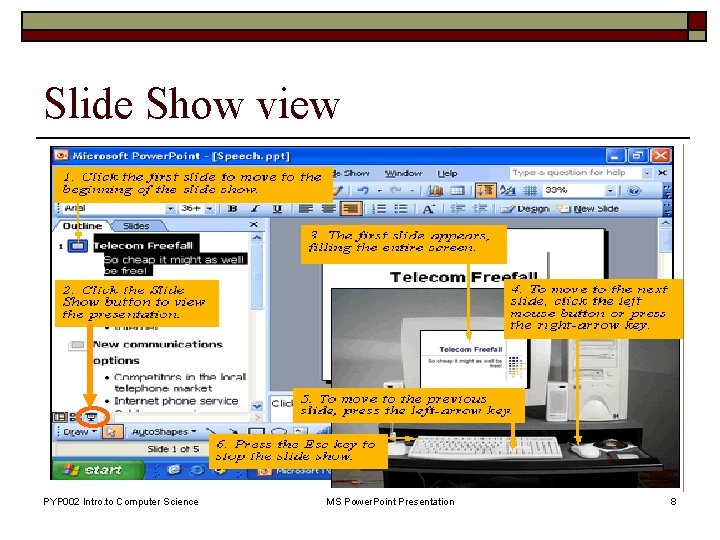
Slide Show view PYP 002 Intro. to Computer Science MS Power. Point Presentation 8
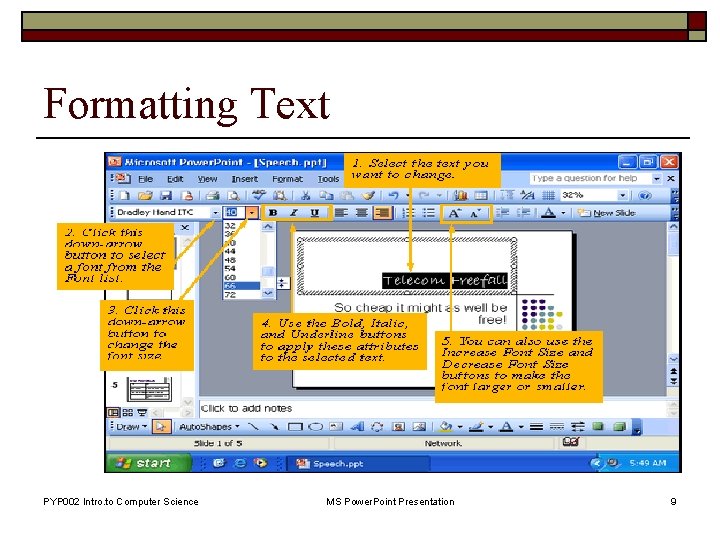
Formatting Text PYP 002 Intro. to Computer Science MS Power. Point Presentation 9
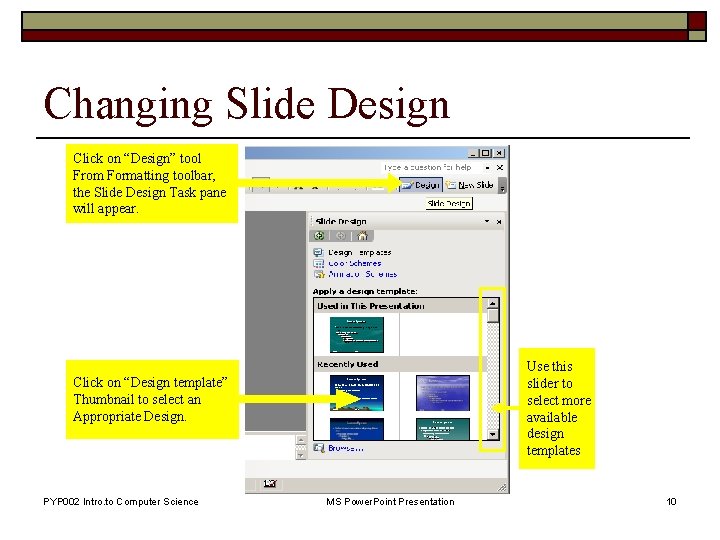
Changing Slide Design Click on “Design” tool From Formatting toolbar, the Slide Design Task pane will appear. Use this slider to select more available design templates Click on “Design template” Thumbnail to select an Appropriate Design. PYP 002 Intro. to Computer Science MS Power. Point Presentation 10
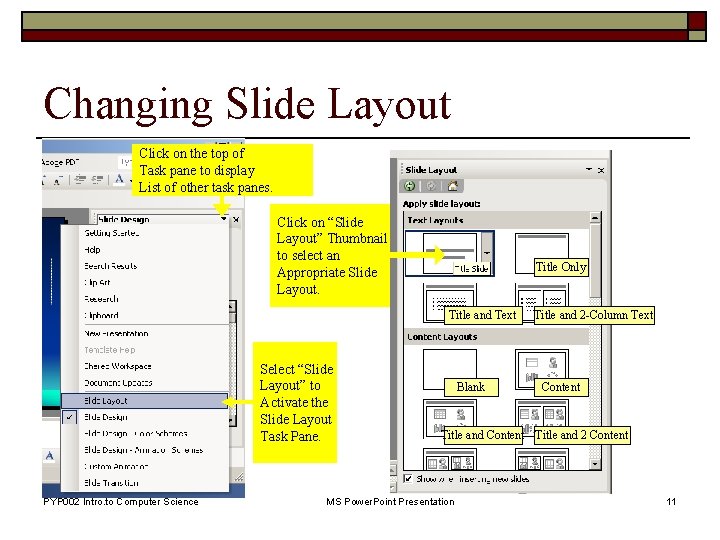
Changing Slide Layout Click on the top of Task pane to display List of other task panes. Click on “Slide Layout” Thumbnail to select an Appropriate Slide Layout. Title Only Title and Text Select “Slide Layout” to Activate the Slide Layout Task Pane. PYP 002 Intro. to Computer Science Blank Title and 2 -Column Text Content Title and 2 Content MS Power. Point Presentation 11
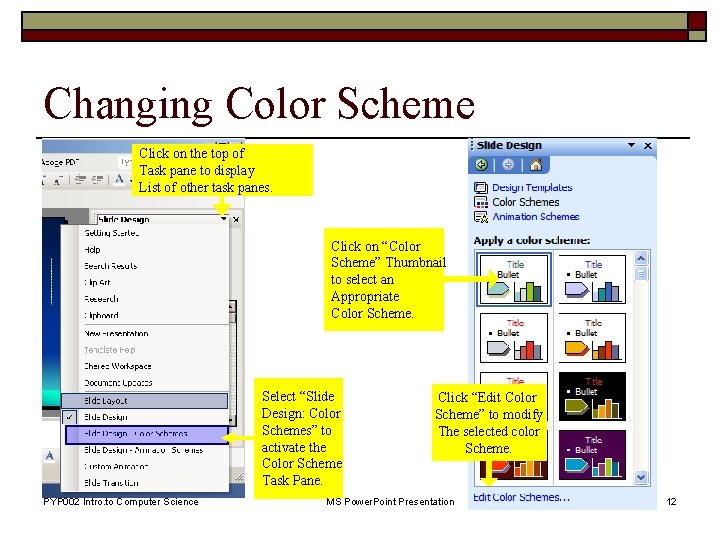
Changing Color Scheme Click on the top of Task pane to display List of other task panes. Click on “Color Scheme” Thumbnail to select an Appropriate Color Scheme. Select “Slide Design: Color Schemes” to activate the Color Scheme Task Pane. PYP 002 Intro. to Computer Science Click “Edit Color Scheme” to modify The selected color Scheme. MS Power. Point Presentation 12
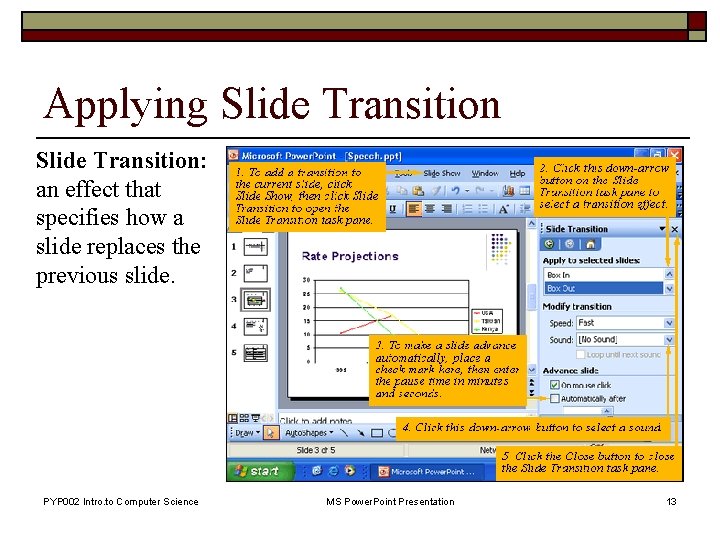
Applying Slide Transition: an effect that specifies how a slide replaces the previous slide. PYP 002 Intro. to Computer Science MS Power. Point Presentation 13
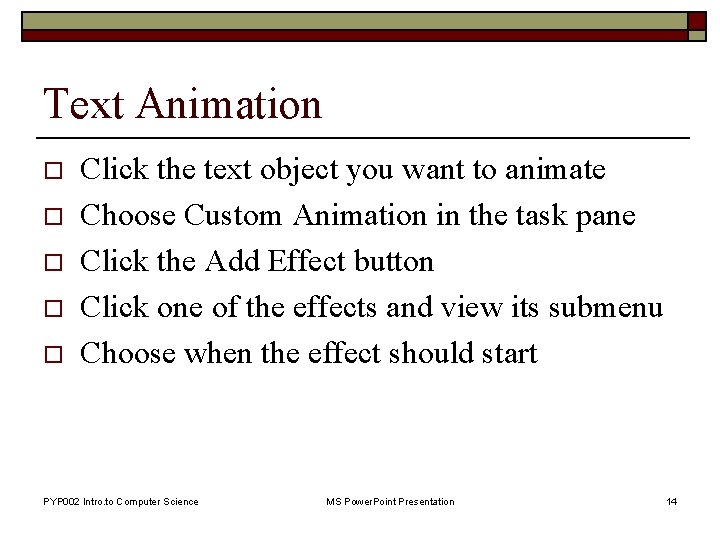
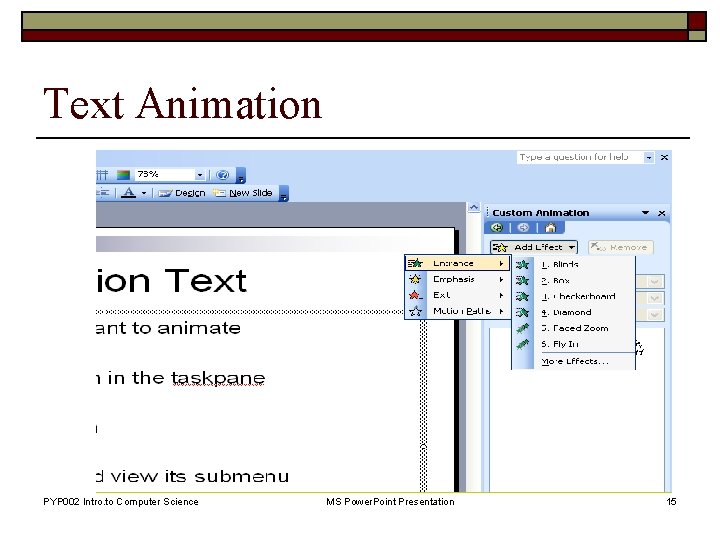
Text Animation o o o Click the text object you want to animate Choose Custom Animation in the task pane Click the Add Effect button Click one of the effects and view its submenu Choose when the effect should start PYP 002 Intro. to Computer Science MS Power. Point Presentation 14
Text Animation PYP 002 Intro. to Computer Science MS Power. Point Presentation 15
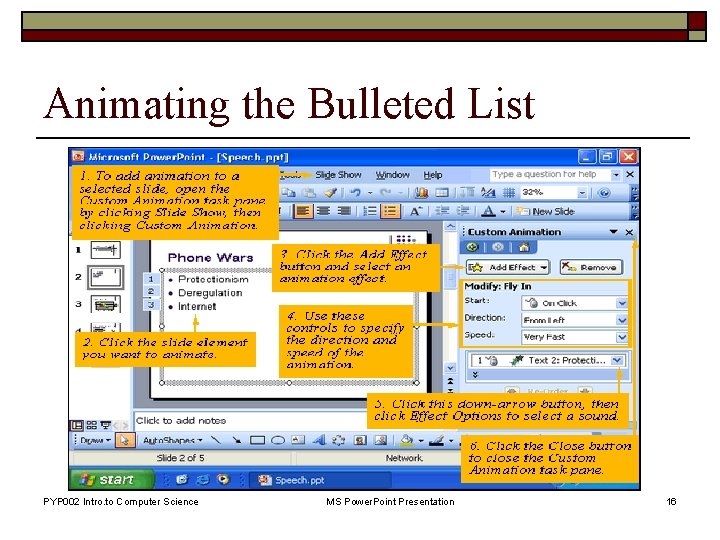
Animating the Bulleted List PYP 002 Intro. to Computer Science MS Power. Point Presentation 16
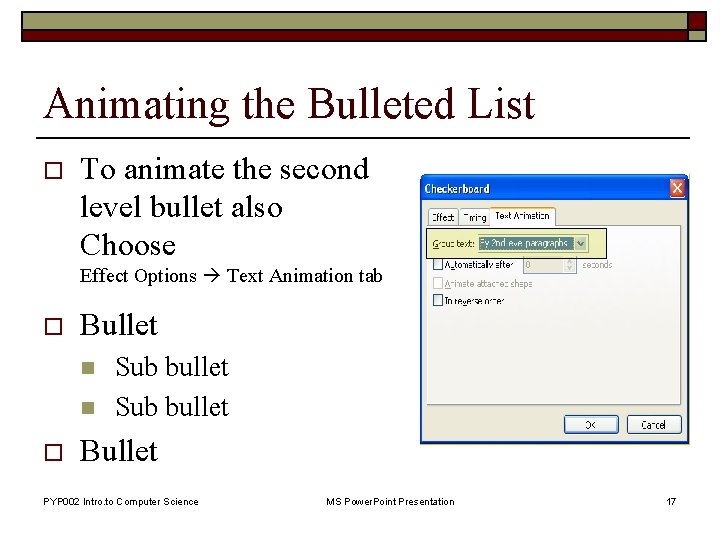
Animating the Bulleted List o To animate the second level bullet also Choose Effect Options Text Animation tab o Bullet n n o Sub bullet Bullet PYP 002 Intro. to Computer Science MS Power. Point Presentation 17
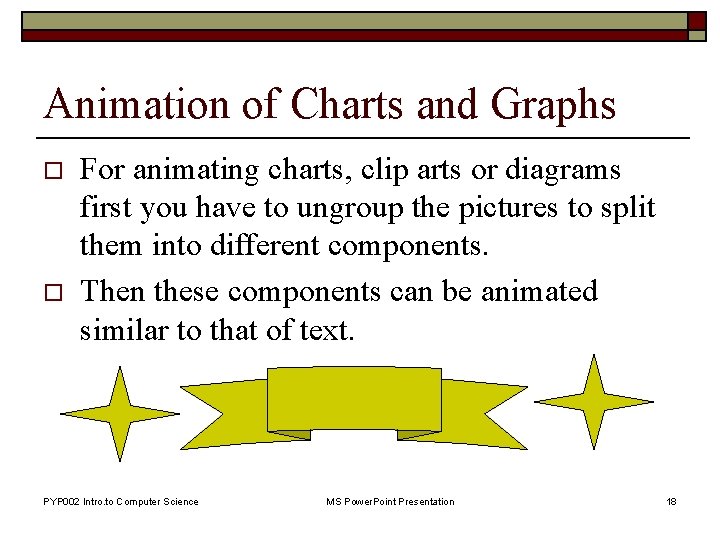
Animation of Charts and Graphs o o For animating charts, clip arts or diagrams first you have to ungroup the pictures to split them into different components. Then these components can be animated similar to that of text. PYP 002 Intro. to Computer Science MS Power. Point Presentation 18
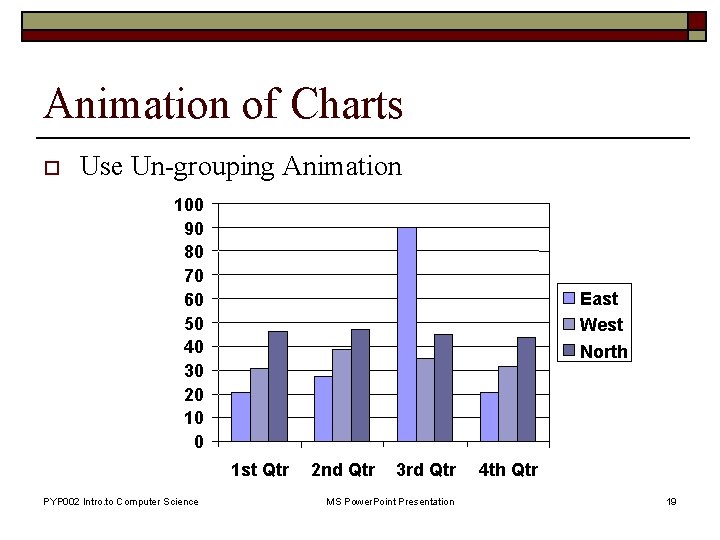
Animation of Charts o Use Un-grouping Animation 100 90 80 70 60 50 40 30 20 10 0 East West North 1 st Qtr PYP 002 Intro. to Computer Science 2 nd Qtr 3 rd Qtr MS Power. Point Presentation 4 th Qtr 19
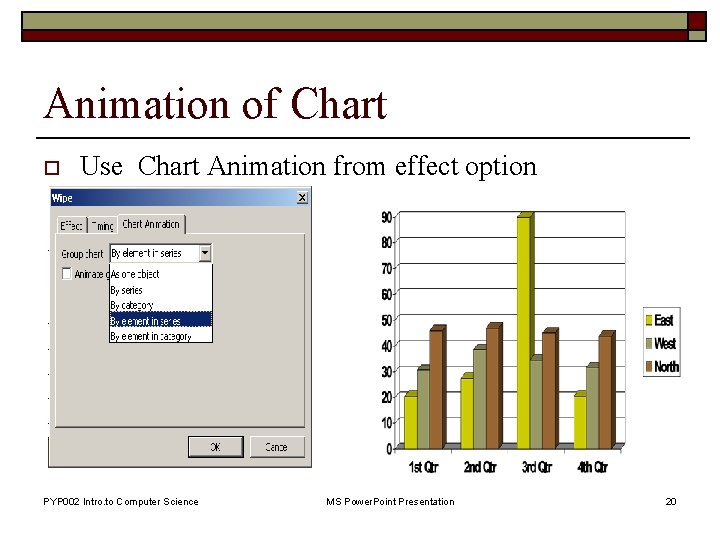
Animation of Chart o Use Chart Animation from effect option PYP 002 Intro. to Computer Science MS Power. Point Presentation 20
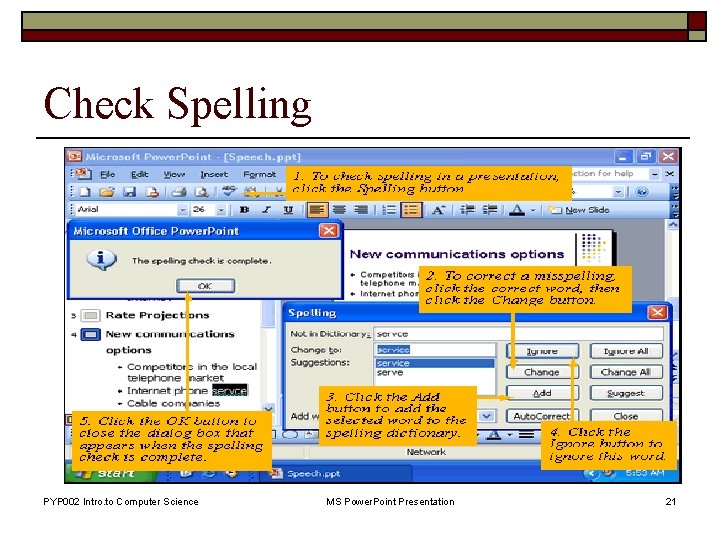
Check Spelling PYP 002 Intro. to Computer Science MS Power. Point Presentation 21
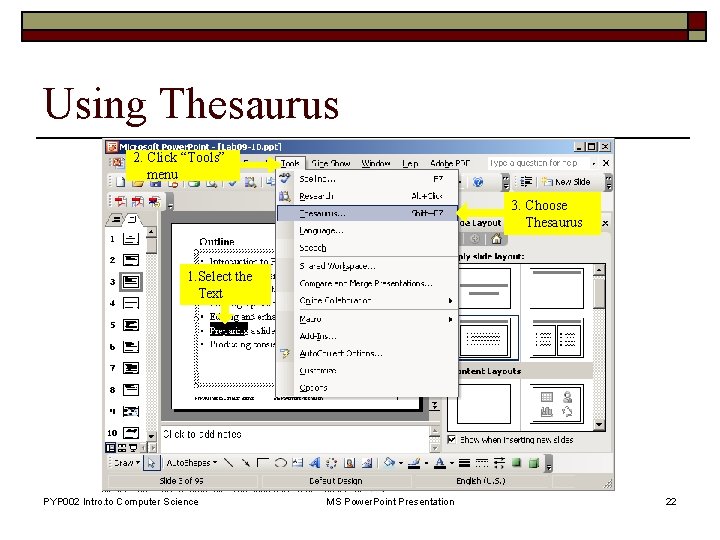
Using Thesaurus 2. Click “Tools” menu 3. Choose Thesaurus 1. Select the Text PYP 002 Intro. to Computer Science MS Power. Point Presentation 22
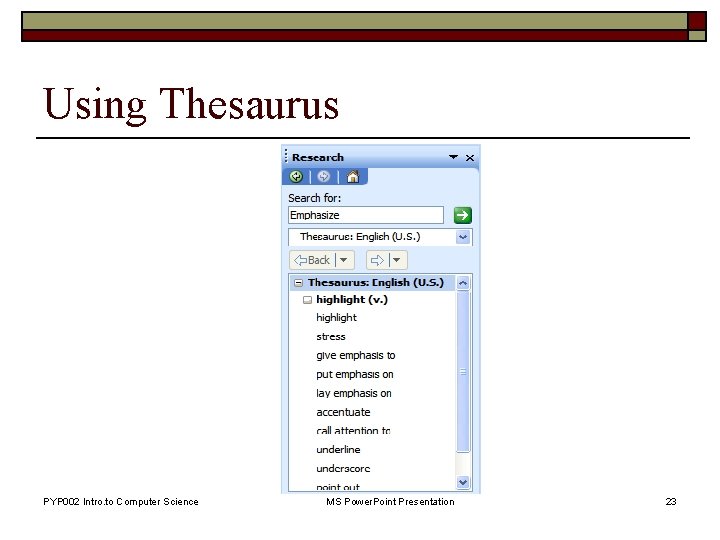
Using Thesaurus PYP 002 Intro. to Computer Science MS Power. Point Presentation 23
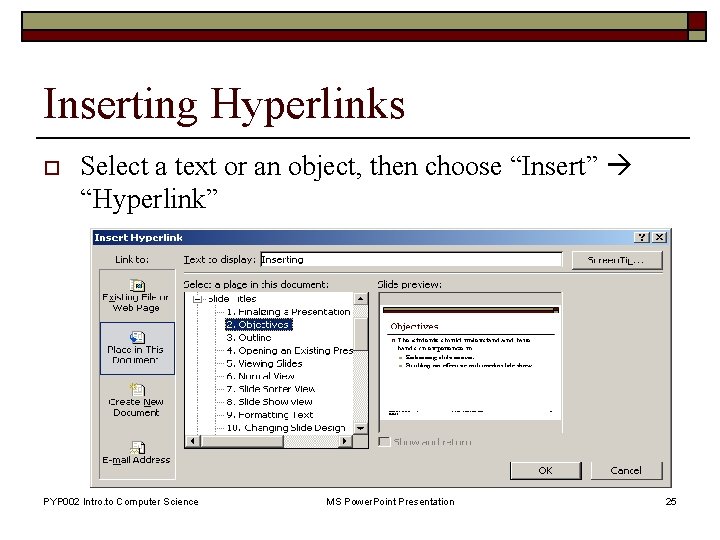
Inserting Hyperlinks o In your presentation the hyperlinks can be given to the following n n An existing File or Web page A place in the current presentation Create a new document Email Address PYP 002 Intro. to Computer Science MS Power. Point Presentation 24
Inserting Hyperlinks o Select a text or an object, then choose “Insert” “Hyperlink” PYP 002 Intro. to Computer Science MS Power. Point Presentation 25
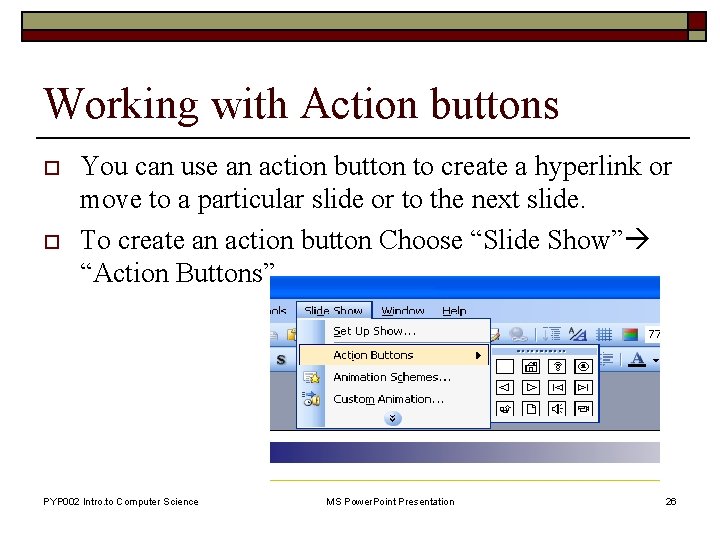
Working with Action buttons o o You can use an action button to create a hyperlink or move to a particular slide or to the next slide. To create an action button Choose “Slide Show” “Action Buttons” PYP 002 Intro. to Computer Science MS Power. Point Presentation 26
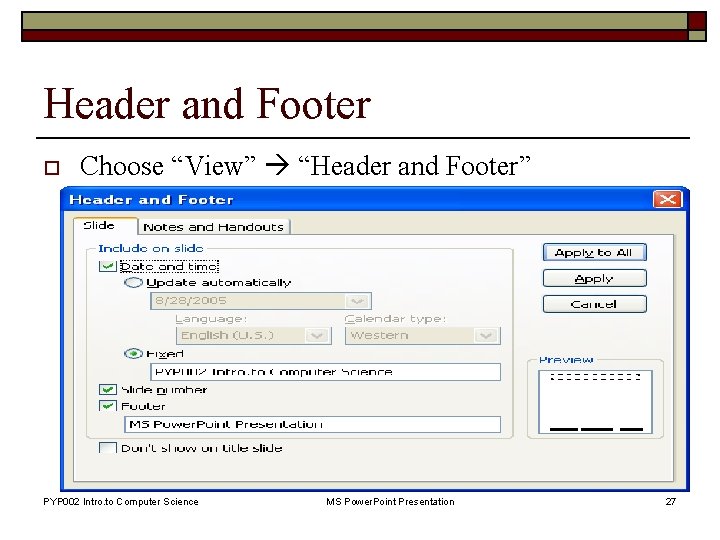
Header and Footer o Choose “View” “Header and Footer” PYP 002 Intro. to Computer Science MS Power. Point Presentation 27
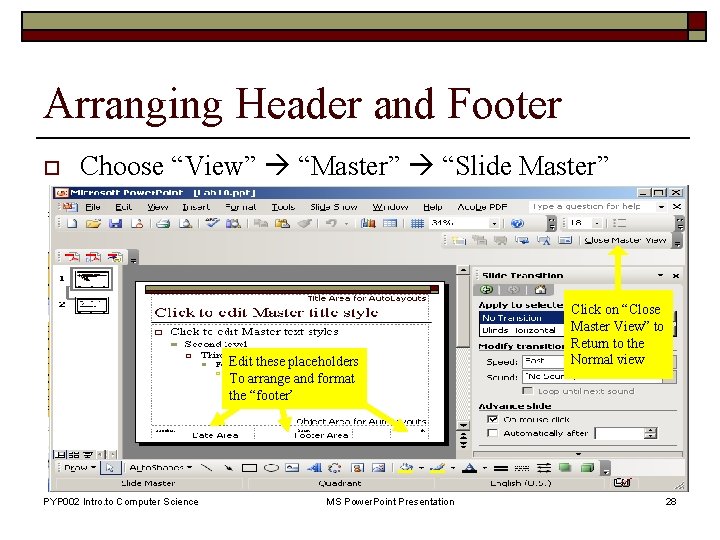
Arranging Header and Footer o Choose “View” “Master” “Slide Master” Edit these placeholders To arrange and format the “footer’ PYP 002 Intro. to Computer Science MS Power. Point Presentation Click on “Close Master View” to Return to the Normal view 28
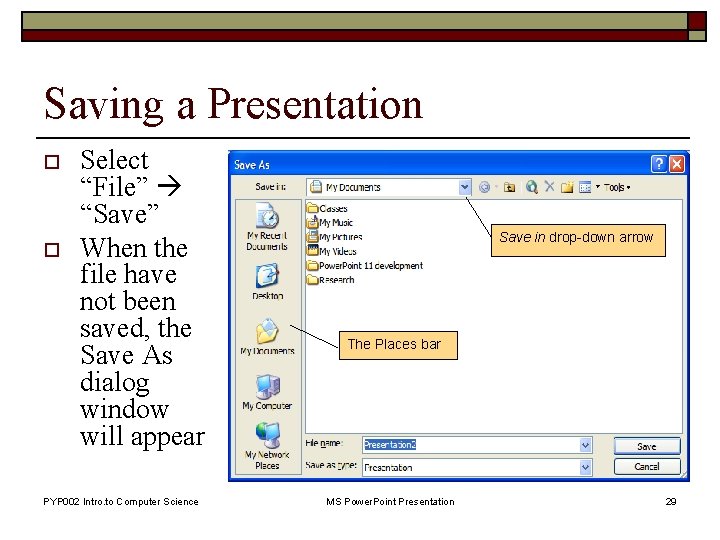
Saving a Presentation o o Select “File” “Save” When the file have not been saved, the Save As dialog window will appear PYP 002 Intro. to Computer Science Save in drop-down arrow The Places bar MS Power. Point Presentation 29
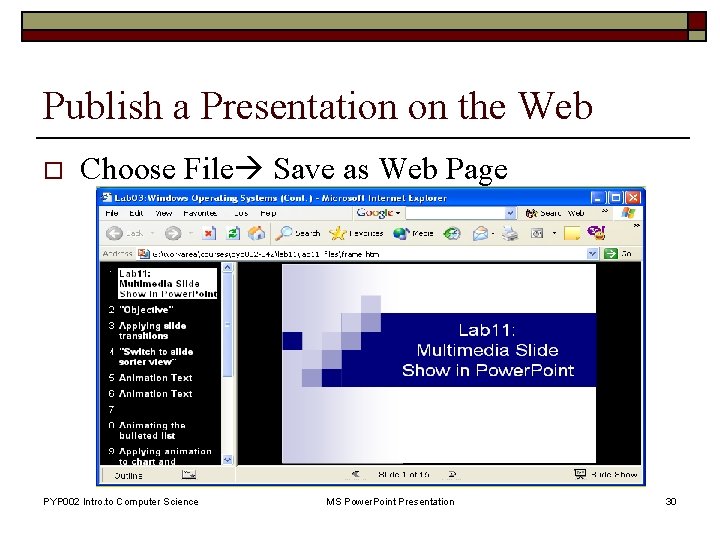
Publish a Presentation on the Web o Choose File Save as Web Page PYP 002 Intro. to Computer Science MS Power. Point Presentation 30
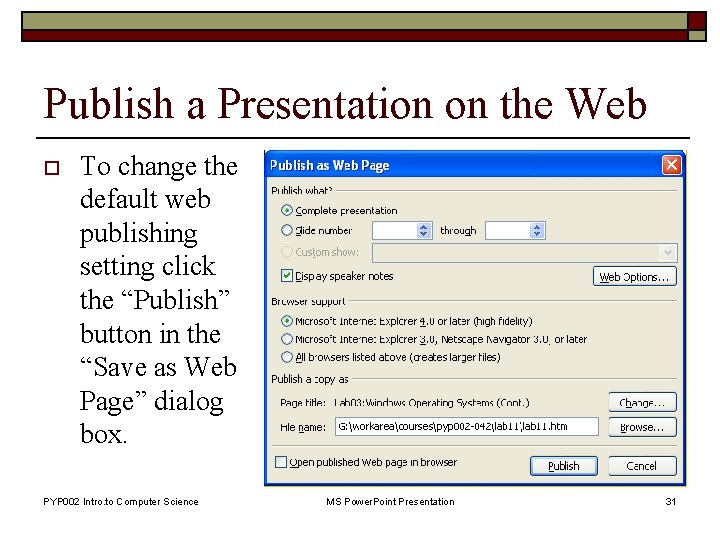
Publish a Presentation on the Web o To change the default web publishing setting click the “Publish” button in the “Save as Web Page” dialog box. PYP 002 Intro. to Computer Science MS Power. Point Presentation 31
Printing a Presentation o The slides and notes can be printed in the following format: n n Slides Handout Notes Pages Outline View PYP 002 Intro. to Computer Science MS Power. Point Presentation 32
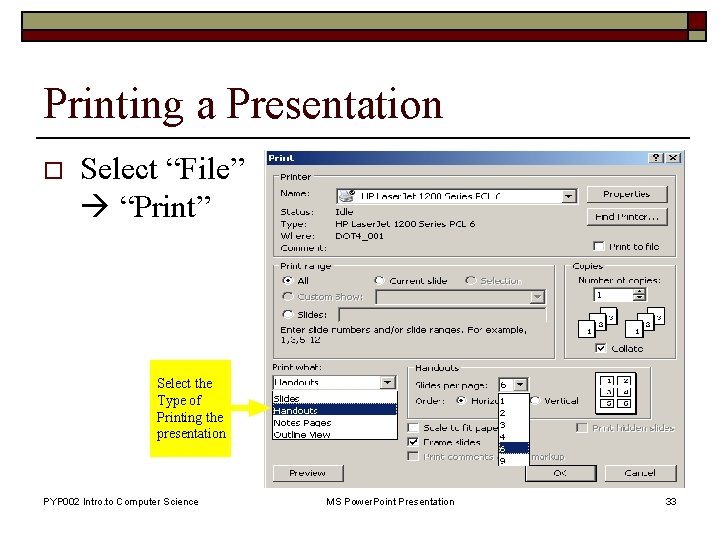
Printing a Presentation o Select “File” “Print” Select the Type of Printing the presentation PYP 002 Intro. to Computer Science MS Power. Point Presentation 33
Summary o We discussed 1. 2. 3. 4. 5. 6. Introduction to Power. Point Presentation Creating a presentation Editing and enhancing a presentation Preparing a slide show Saving a presentation Printing a presentation PYP 002 Intro. to Computer Science MS Power. Point Presentation 34