
File systems security Shared folders NTFS permissions EFS
- Slides: 21
File systems security: Shared folders & NTFS permissions, EFS (Week 6, Monday 2/12/2007) © Abdou Illia, Spring 2007 1
Learning Objective n Understand ¨ Shared n Folders Assign ¨ Shared Folder permissions ¨ NTFS Permissions n Understand EFS 2
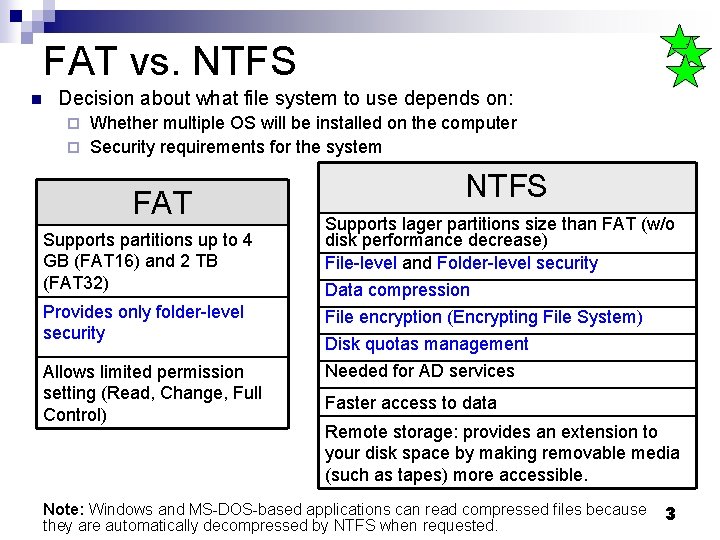
FAT vs. NTFS n Decision about what file system to use depends on: Whether multiple OS will be installed on the computer ¨ Security requirements for the system ¨ FAT Supports partitions up to 4 GB (FAT 16) and 2 TB (FAT 32) Provides only folder-level security Allows limited permission setting (Read, Change, Full Control) NTFS Supports lager partitions size than FAT (w/o disk performance decrease) File-level and Folder-level security Data compression File encryption (Encrypting File System) Disk quotas management Needed for AD services Faster access to data Remote storage: provides an extension to your disk space by making removable media (such as tapes) more accessible. Note: Windows and MS-DOS-based applications can read compressed files because they are automatically decompressed by NTFS when requested. 3
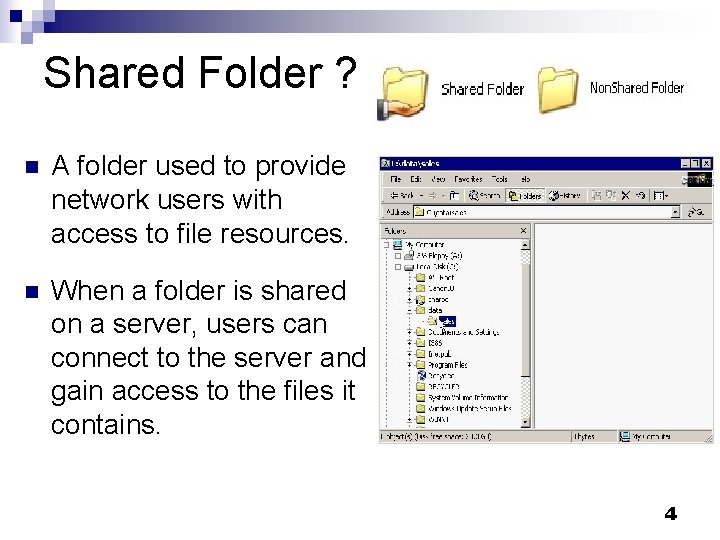
Shared Folder ? n A folder used to provide network users with access to file resources. n When a folder is shared on a server, users can connect to the server and gain access to the files it contains. 4
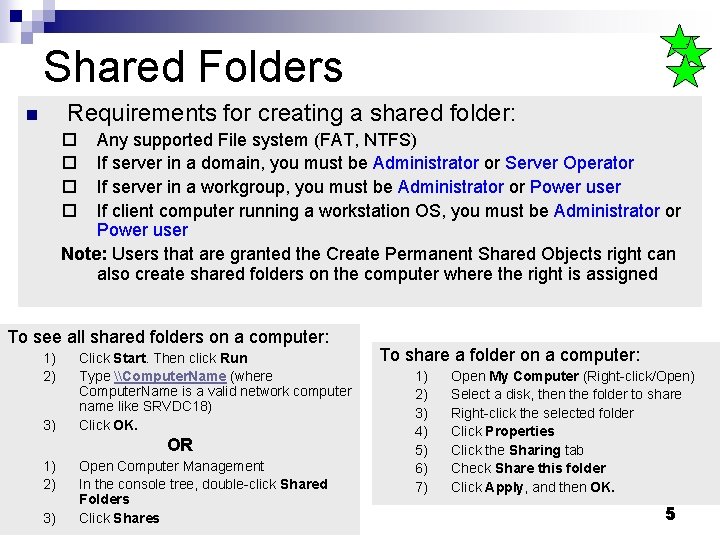
Shared Folders Requirements for creating a shared folder: n ¨ ¨ Any supported File system (FAT, NTFS) If server in a domain, you must be Administrator or Server Operator If server in a workgroup, you must be Administrator or Power user If client computer running a workstation OS, you must be Administrator or Power user Note: Users that are granted the Create Permanent Shared Objects right can also create shared folders on the computer where the right is assigned To see all shared folders on a computer: 1) 2) 3) Click Start. Then click Run Type \Computer. Name (where Computer. Name is a valid network computer name like SRVDC 18) Click OK. OR 1) 2) 3) Open Computer Management In the console tree, double-click Shared Folders Click Shares To share a folder on a computer: 1) 2) 3) 4) 5) 6) 7) Open My Computer (Right-click/Open) Select a disk, then the folder to share Right-click the selected folder Click Properties Click the Sharing tab Check Share this folder Click Apply, and then OK. 5
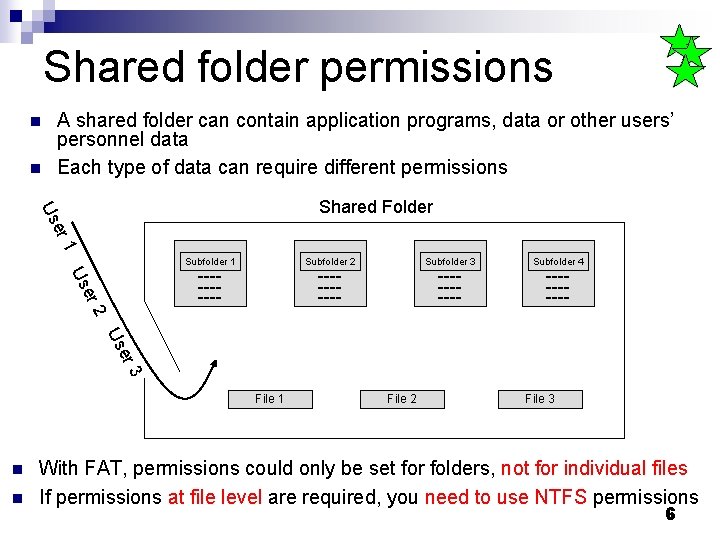
Shared folder permissions n n A shared folder can contain application programs, data or other users’ personnel data Each type of data can require different permissions er Us Shared Folder 1 Subfolder 2 er Us ----- Subfolder 3 ---------- Subfolder 4 ----- 2 er Us 3 File 1 n n File 2 File 3 With FAT, permissions could only be set for folders, not for individual files If permissions at file level are required, you need to use NTFS permissions 6
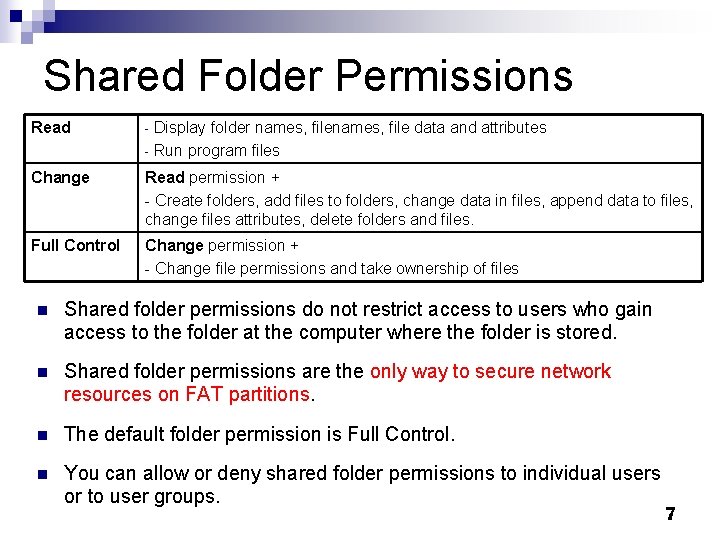
Shared Folder Permissions Read - Display folder names, file data and attributes - Run program files Change Read permission + - Create folders, add files to folders, change data in files, append data to files, change files attributes, delete folders and files. Full Control Change permission + - Change file permissions and take ownership of files n Shared folder permissions do not restrict access to users who gain access to the folder at the computer where the folder is stored. n Shared folder permissions are the only way to secure network resources on FAT partitions. n The default folder permission is Full Control. n You can allow or deny shared folder permissions to individual users or to user groups. 7
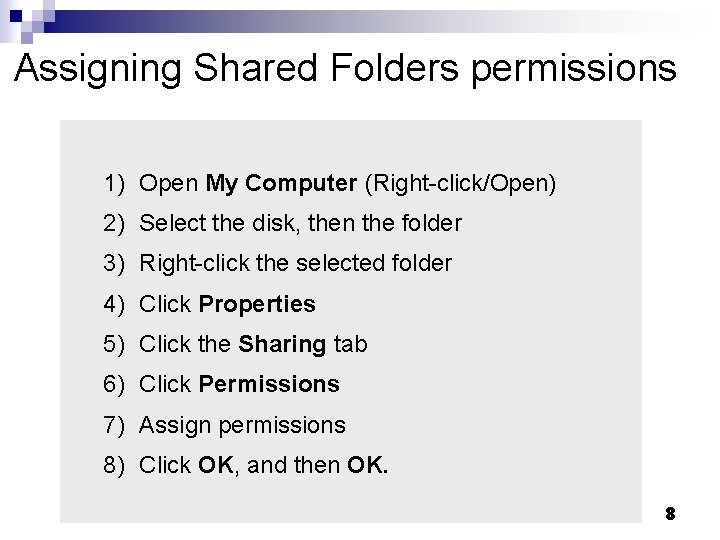
Assigning Shared Folders permissions 1) Open My Computer (Right-click/Open) 2) Select the disk, then the folder 3) Right-click the selected folder 4) Click Properties 5) Click the Sharing tab 6) Click Permissions 7) Assign permissions 8) Click OK, and then OK. 8
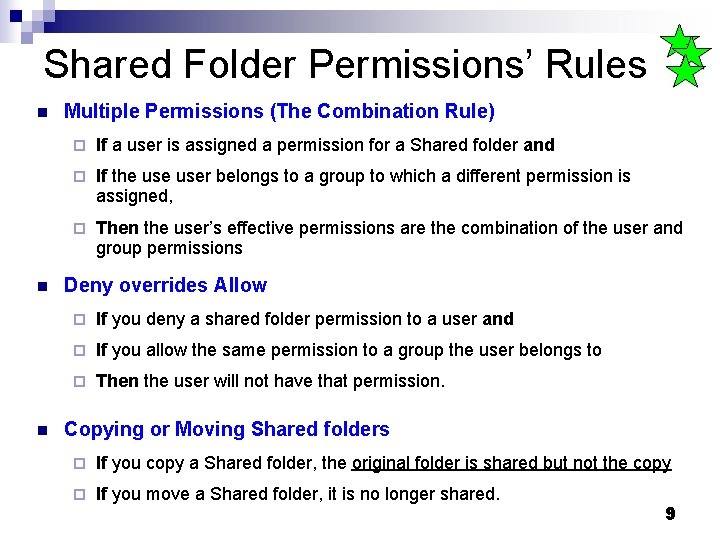
Shared Folder Permissions’ Rules n n n Multiple Permissions (The Combination Rule) ¨ If a user is assigned a permission for a Shared folder and ¨ If the user belongs to a group to which a different permission is assigned, ¨ Then the user’s effective permissions are the combination of the user and group permissions Deny overrides Allow ¨ If you deny a shared folder permission to a user and ¨ If you allow the same permission to a group the user belongs to ¨ Then the user will not have that permission. Copying or Moving Shared folders ¨ If you copy a Shared folder, the original folder is shared but not the copy ¨ If you move a Shared folder, it is no longer shared. 9
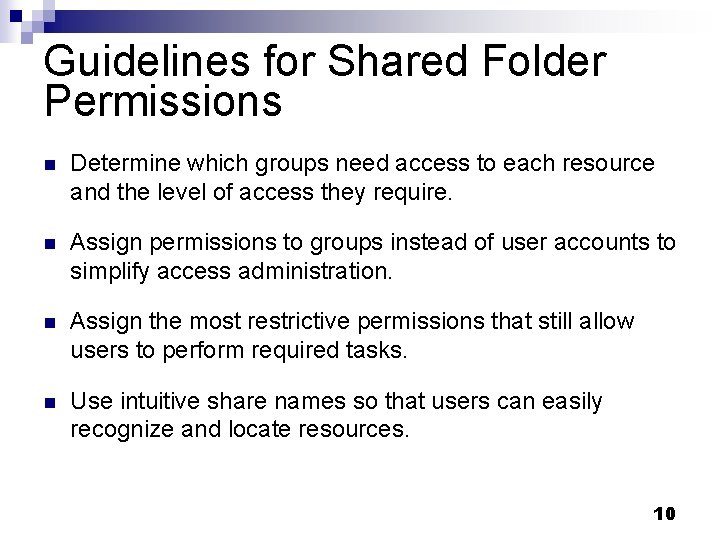
Guidelines for Shared Folder Permissions n Determine which groups need access to each resource and the level of access they require. n Assign permissions to groups instead of user accounts to simplify access administration. n Assign the most restrictive permissions that still allow users to perform required tasks. n Use intuitive share names so that users can easily recognize and locate resources. 10
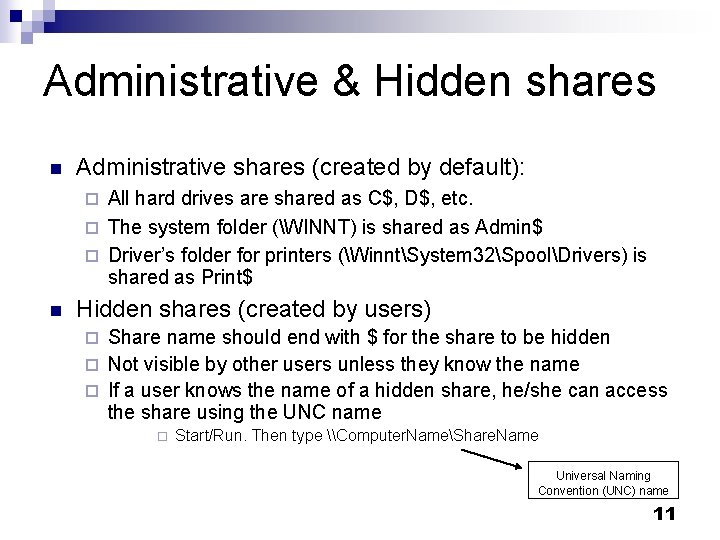
Administrative & Hidden shares n Administrative shares (created by default): All hard drives are shared as C$, D$, etc. ¨ The system folder (WINNT) is shared as Admin$ ¨ Driver’s folder for printers (WinntSystem 32SpoolDrivers) is shared as Print$ ¨ n Hidden shares (created by users) Share name should end with $ for the share to be hidden ¨ Not visible by other users unless they know the name ¨ If a user knows the name of a hidden share, he/she can access the share using the UNC name ¨ ¨ Start/Run. Then type \Computer. NameShare. Name Universal Naming Convention (UNC) name 11
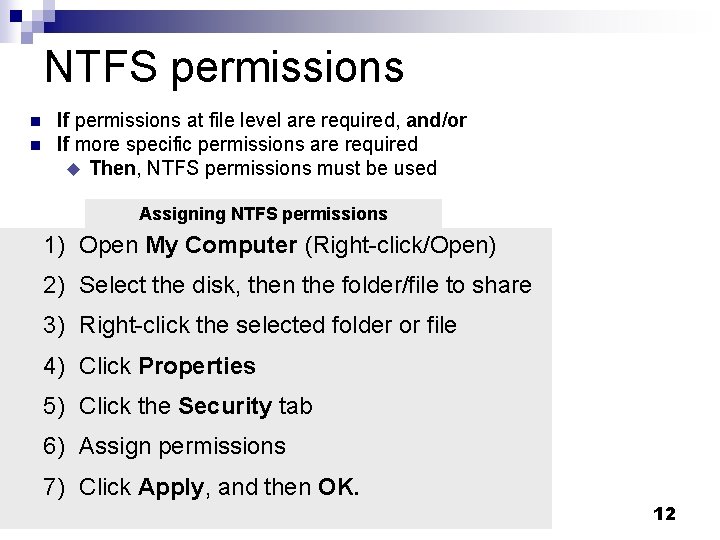
NTFS permissions n n If permissions at file level are required, and/or If more specific permissions are required u Then, NTFS permissions must be used Assigning NTFS permissions 1) Open My Computer (Right-click/Open) 2) Select the disk, then the folder/file to share 3) Right-click the selected folder or file 4) Click Properties 5) Click the Security tab 6) Assign permissions 7) Click Apply, and then OK. 12
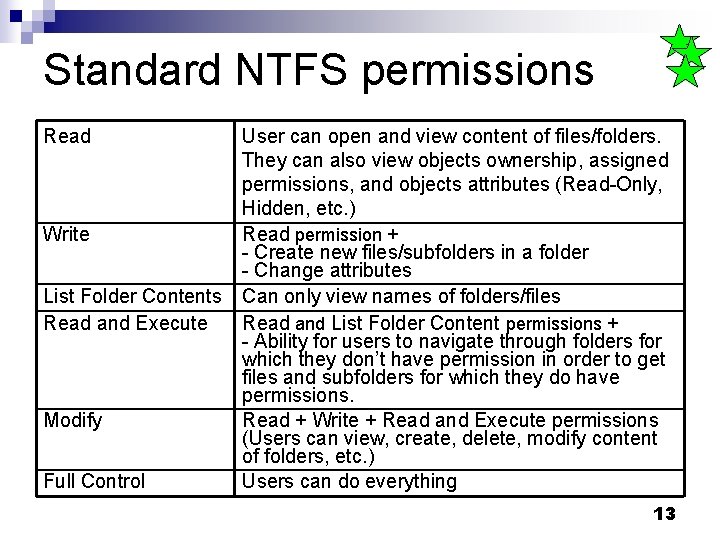
Standard NTFS permissions Read Write List Folder Contents Read and Execute Modify Full Control User can open and view content of files/folders. They can also view objects ownership, assigned permissions, and objects attributes (Read-Only, Hidden, etc. ) Read permission + - Create new files/subfolders in a folder - Change attributes Can only view names of folders/files Read and List Folder Content permissions + - Ability for users to navigate through folders for which they don’t have permission in order to get files and subfolders for which they do have permissions. Read + Write + Read and Execute permissions (Users can view, create, delete, modify content of folders, etc. ) Users can do everything 13
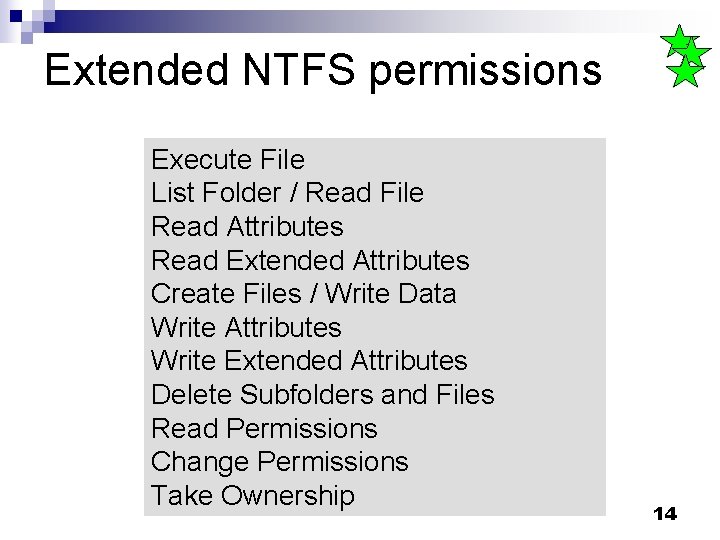
Extended NTFS permissions Execute File List Folder / Read File Read Attributes Read Extended Attributes Create Files / Write Data Write Attributes Write Extended Attributes Delete Subfolders and Files Read Permissions Change Permissions Take Ownership 14
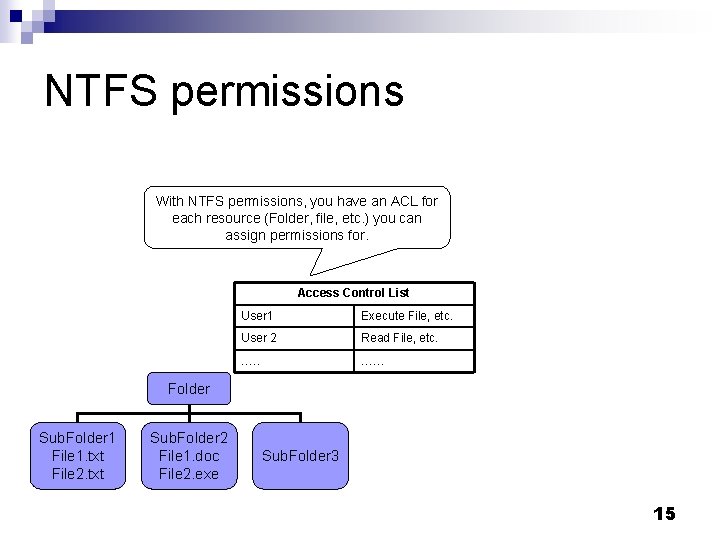
NTFS permissions With NTFS permissions, you have an ACL for each resource (Folder, file, etc. ) you can assign permissions for. Access Control List User 1 Execute File, etc. User 2 Read File, etc. …… Folder Sub. Folder 1 File 1. txt File 2. txt Sub. Folder 2 File 1. doc File 2. exe Sub. Folder 3 15
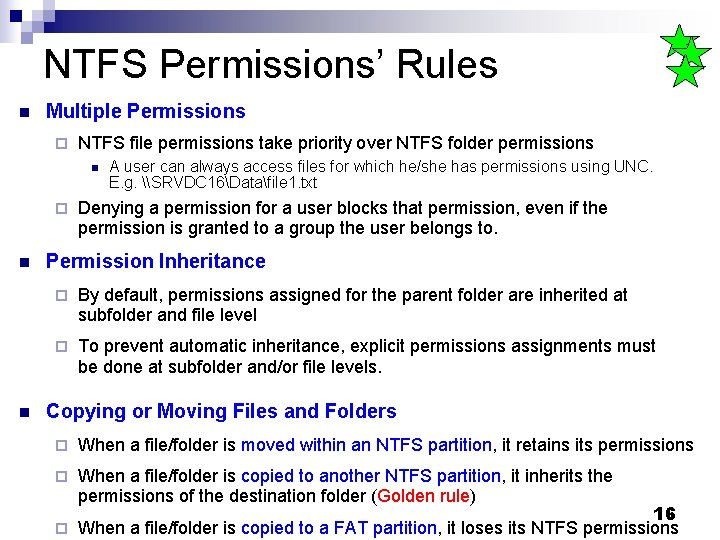
NTFS Permissions’ Rules n Multiple Permissions ¨ NTFS file permissions take priority over NTFS folder permissions n ¨ n n A user can always access files for which he/she has permissions using UNC. E. g. \SRVDC 16Datafile 1. txt Denying a permission for a user blocks that permission, even if the permission is granted to a group the user belongs to. Permission Inheritance ¨ By default, permissions assigned for the parent folder are inherited at subfolder and file level ¨ To prevent automatic inheritance, explicit permissions assignments must be done at subfolder and/or file levels. Copying or Moving Files and Folders ¨ When a file/folder is moved within an NTFS partition, it retains its permissions ¨ When a file/folder is copied to another NTFS partition, it inherits the permissions of the destination folder (Golden rule) 16 ¨ When a file/folder is copied to a FAT partition, it loses its NTFS permissions
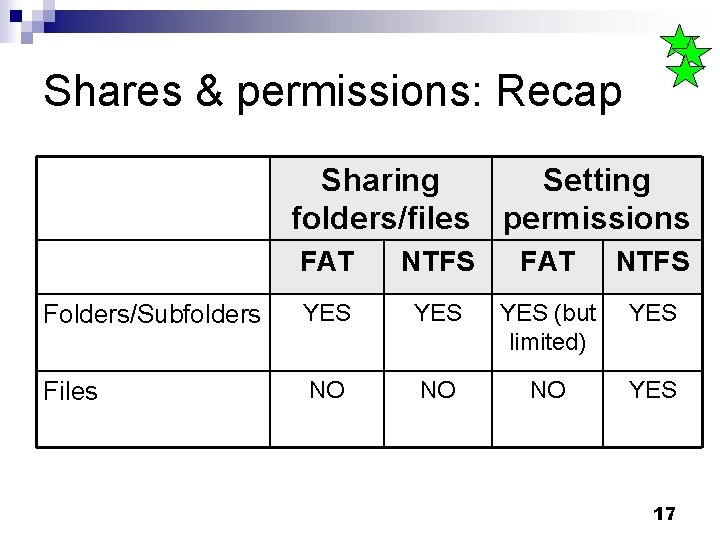
Shares & permissions: Recap Sharing folders/files Setting permissions FAT NTFS Folders/Subfolders YES YES (but limited) YES Files NO NO NO YES 17
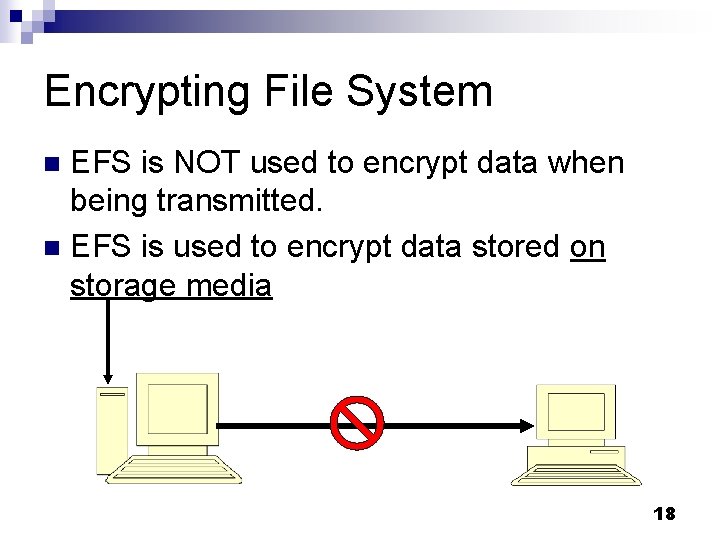
Encrypting File System EFS is NOT used to encrypt data when being transmitted. n EFS is used to encrypt data stored on storage media n 18
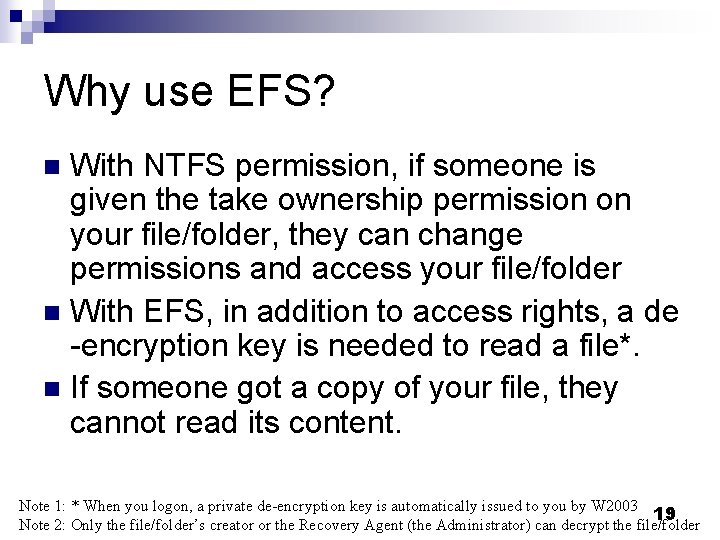
Why use EFS? With NTFS permission, if someone is given the take ownership permission on your file/folder, they can change permissions and access your file/folder n With EFS, in addition to access rights, a de -encryption key is needed to read a file*. n If someone got a copy of your file, they cannot read its content. n Note 1: * When you logon, a private de-encryption key is automatically issued to you by W 2003 19 Note 2: Only the file/folder’s creator or the Recovery Agent (the Administrator) can decrypt the file/folder
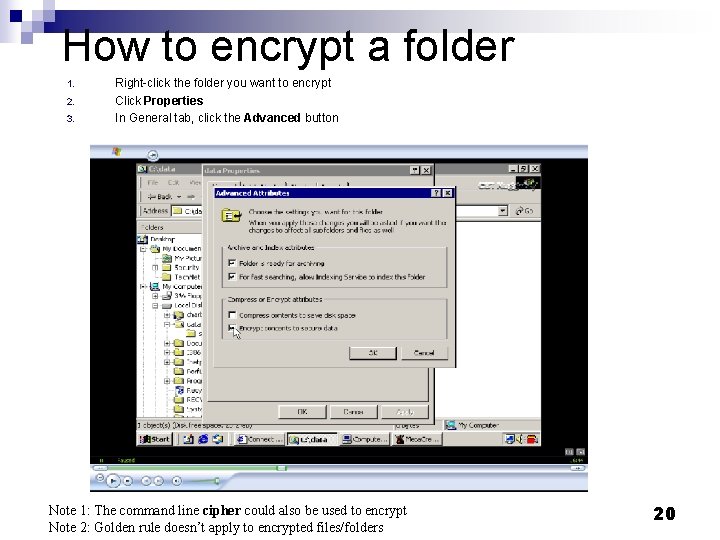
How to encrypt a folder 1. 2. 3. Right-click the folder you want to encrypt Click Properties In General tab, click the Advanced button Note 1: The command line cipher could also be used to encrypt Note 2: Golden rule doesn’t apply to encrypted files/folders 20
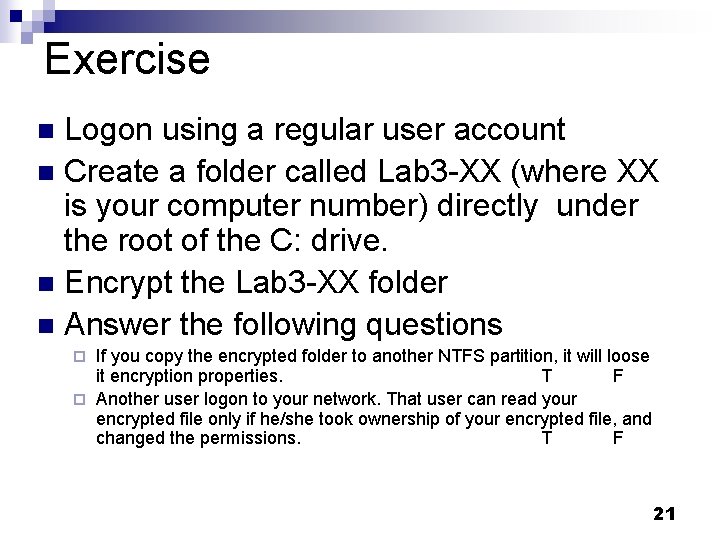
Exercise Logon using a regular user account n Create a folder called Lab 3 -XX (where XX is your computer number) directly under the root of the C: drive. n Encrypt the Lab 3 -XX folder n Answer the following questions n If you copy the encrypted folder to another NTFS partition, it will loose it encryption properties. T F ¨ Another user logon to your network. That user can read your encrypted file only if he/she took ownership of your encrypted file, and changed the permissions. T F ¨ 21