
File Server Consolidation and Capacity Planning Drew Mc

![90% 80% % Improvement over Explorer [Note: lower is better] Multi-threaded Robocopy 70% Legend](https://slidetodoc.com/presentation_image_h/011331c9be89c0415a7c63a568273628/image-26.jpg "90% 80% % Improvement over Explorer [Note: lower is better] Multi-threaded Robocopy 70% Legend")


- Slides: 53
File Server Consolidation and Capacity Planning Drew Mc. Daniel Lead Program Manager Microsoft Session Code: SVR 320
Agenda Advantages of Windows Server 2008 R 2 Capacity planning for File Server Migration to Windows Server 2008 R 2
Agenda Advantages of Windows Server 2008 R 2 Capacity planning for File Server Migration to Windows Server 2008 R 2
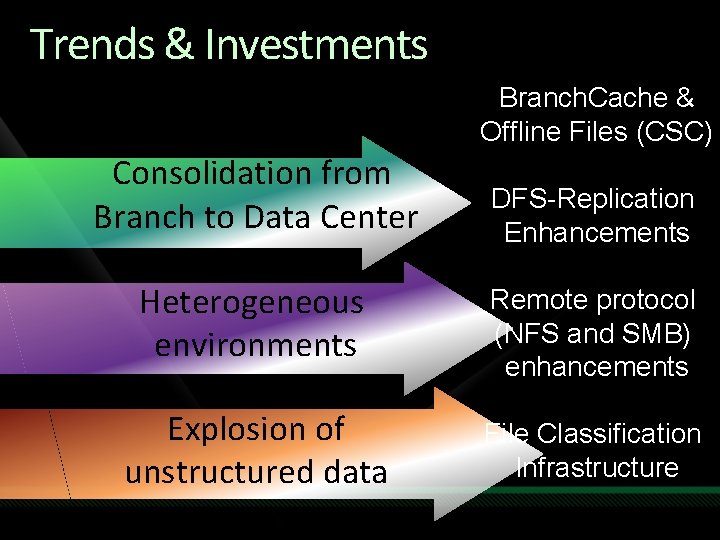
Trends & Investments Branch. Cache & Offline Files (CSC) Consolidation from Branch to Data Center DFS-Replication Enhancements Heterogeneous environments Remote protocol (NFS and SMB) enhancements Explosion of unstructured data File Classification Infrastructure
Offline Files & Folder Redirection Usually Offline Fast Folder Redirection Transparent Caching Branch. Cache 6
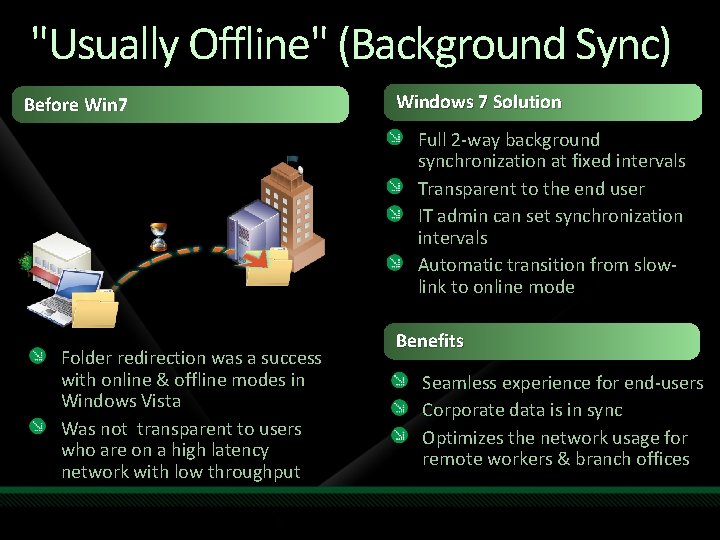
"Usually Offline" (Background Sync) Before Win 7 Windows 7 Solution Full 2 -way background synchronization at fixed intervals Transparent to the end user IT admin can set synchronization intervals Automatic transition from slowlink to online mode Folder redirection was a success with online & offline modes in Windows Vista Was not transparent to users who are on a high latency network with low throughput Benefits Seamless experience for end-users Corporate data is in sync Optimizes the network usage for remote workers & branch offices
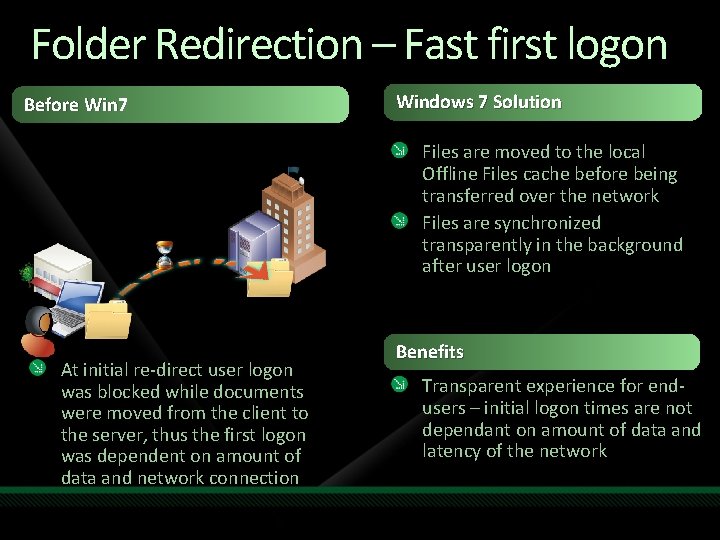
Folder Redirection – Fast first logon Before Win 7 Windows 7 Solution Files are moved to the local Offline Files cache before being transferred over the network Files are synchronized transparently in the background after user logon At initial re-direct user logon was blocked while documents were moved from the client to the server, thus the first logon was dependent on amount of data and network connection Benefits Transparent experience for endusers – initial logon times are not dependant on amount of data and latency of the network
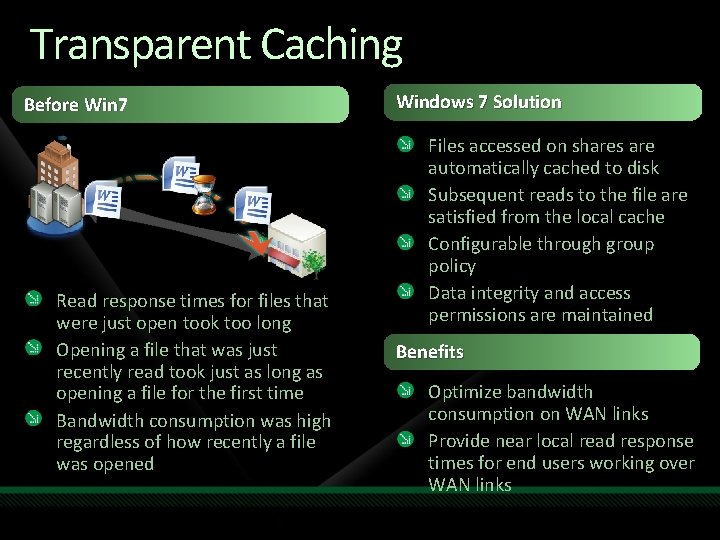
Transparent Caching Before Win 7 Read response times for files that were just open took too long Opening a file that was just recently read took just as long as opening a file for the first time Bandwidth consumption was high regardless of how recently a file was opened Windows 7 Solution Files accessed on shares are automatically cached to disk Subsequent reads to the file are satisfied from the local cache Configurable through group policy Data integrity and access permissions are maintained Benefits Optimize bandwidth consumption on WAN links Provide near local read response times for end users working over WAN links
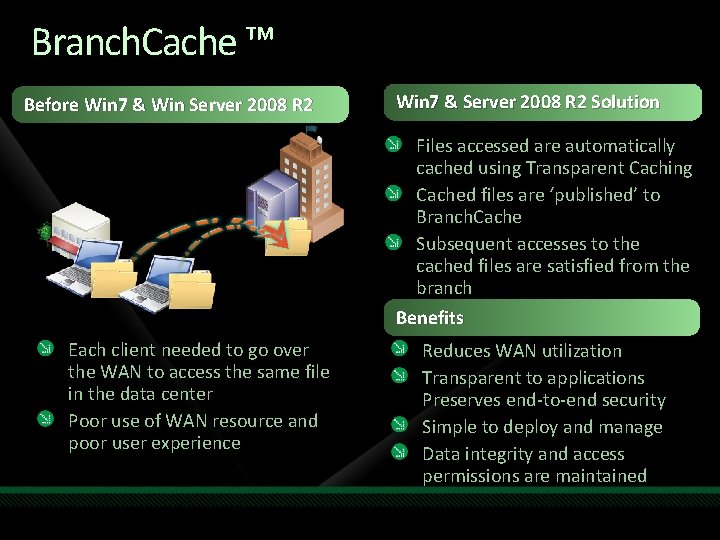
Branch. Cache ™ Before Win 7 & Win Server 2008 R 2 Win 7 & Server 2008 R 2 Solution Files accessed are automatically cached using Transparent Caching Cached files are ‘published’ to Branch. Cache Subsequent accesses to the cached files are satisfied from the branch Benefits Each client needed to go over the WAN to access the same file in the data center Poor use of WAN resource and poor user experience Reduces WAN utilization Transparent to applications Preserves end-to-end security Simple to deploy and manage Data integrity and access permissions are maintained
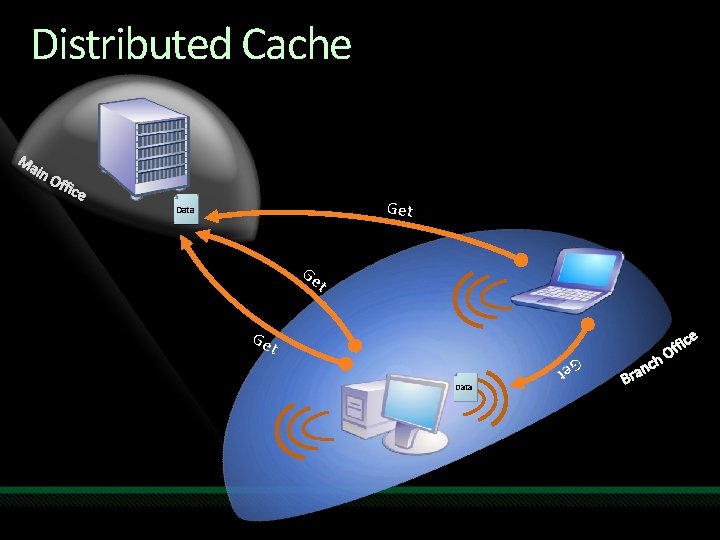
Distributed Cache Get ID Data Ge t t Data Ge Ge t
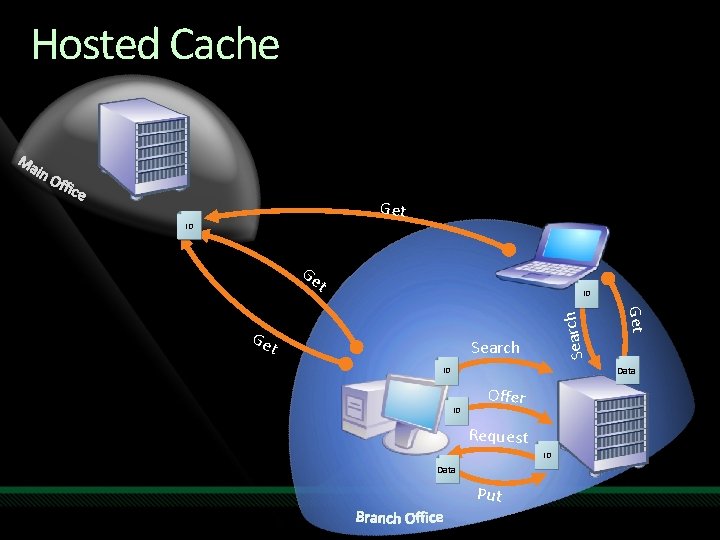
Hosted Cache Get ID Data Ge t Search Get Ge t Search ID Data ID ID Offer Request ID Data Put
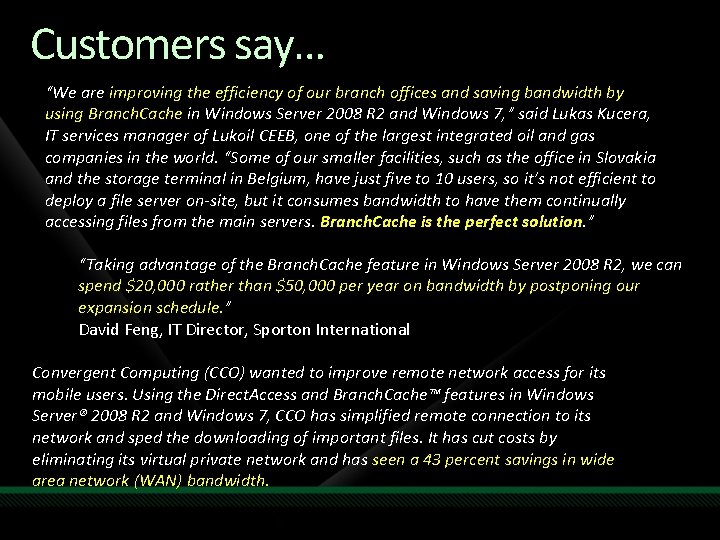
Customers say… “We are improving the efficiency of our branch offices and saving bandwidth by using Branch. Cache in Windows Server 2008 R 2 and Windows 7, ” said Lukas Kucera, IT services manager of Lukoil CEEB, one of the largest integrated oil and gas companies in the world. “Some of our smaller facilities, such as the office in Slovakia and the storage terminal in Belgium, have just five to 10 users, so it’s not efficient to deploy a file server on-site, but it consumes bandwidth to have them continually accessing files from the main servers. Branch. Cache is the perfect solution. ” “Taking advantage of the Branch. Cache feature in Windows Server 2008 R 2, we can spend $20, 000 rather than $50, 000 per year on bandwidth by postponing our expansion schedule. ” David Feng, IT Director, Sporton International Convergent Computing (CCO) wanted to improve remote network access for its mobile users. Using the Direct. Access and Branch. Cache™ features in Windows Server® 2008 R 2 and Windows 7, CCO has simplified remote connection to its network and sped the downloading of important files. It has cut costs by eliminating its virtual private network and has seen a 43 percent savings in wide area network (WAN) bandwidth.
DFS Replication Reduce bandwidth requirements Consistent user experience Easier deployment
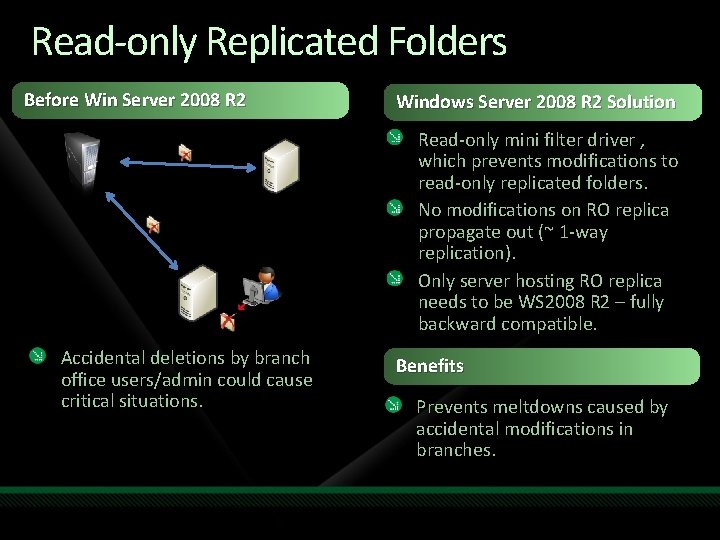
Read-only Replicated Folders Before Win Server 2008 R 2 Windows Server 2008 R 2 Solution Read-only mini filter driver , which prevents modifications to read-only replicated folders. No modifications on RO replica propagate out (~ 1 -way replication). Only server hosting RO replica needs to be WS 2008 R 2 – fully backward compatible. Accidental deletions by branch office users/admin could cause critical situations. Benefits Prevents meltdowns caused by accidental modifications in branches.
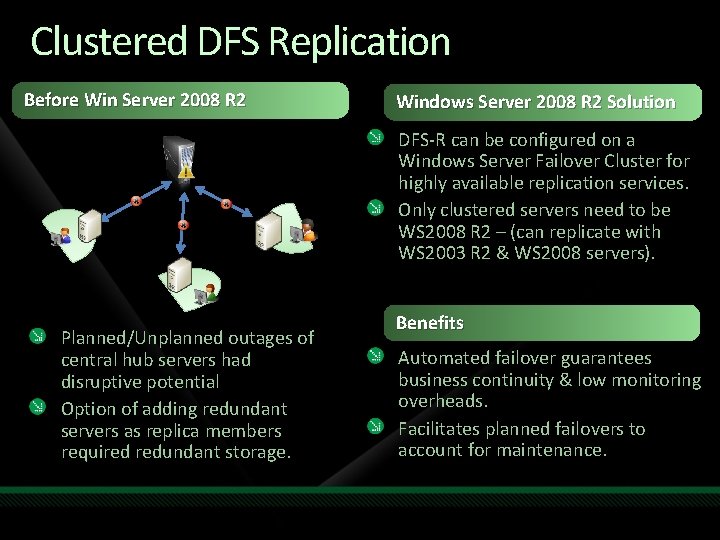
Clustered DFS Replication Before Win Server 2008 R 2 Windows Server 2008 R 2 Solution DFS-R can be configured on a Windows Server Failover Cluster for highly available replication services. Only clustered servers need to be WS 2008 R 2 – (can replicate with WS 2003 R 2 & WS 2008 servers). Planned/Unplanned outages of central hub servers had disruptive potential Option of adding redundant servers as replica members required redundant storage. Benefits Automated failover guarantees business continuity & low monitoring overheads. Facilitates planned failovers to account for maintenance.
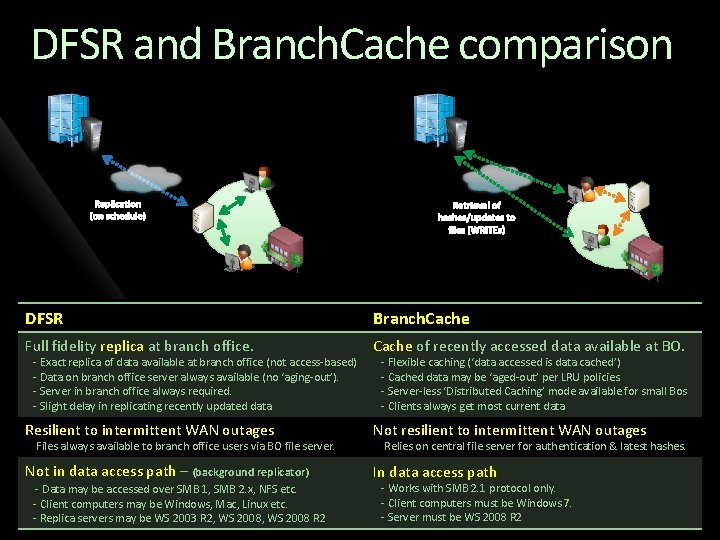
DFSR and Branch. Cache comparison DFSR Branch. Cache Full fidelity replica at branch office. Cache of recently accessed data available at BO. Resilient to intermittent WAN outages Not resilient to intermittent WAN outages Not in data access path – (background replicator) In data access path - Exact replica of data available at branch office (not access-based) - Data on branch office server always available (no ‘aging-out’). - Server in branch office always required. - Slight delay in replicating recently updated data Files always available to branch office users via BO file server. - Data may be accessed over SMB 1, SMB 2. x, NFS etc. - Client computers may be Windows, Mac, Linux etc. - Replica servers may be WS 2003 R 2, WS 2008 R 2 - Flexible caching (‘data accessed is data cached’) - Cached data may be ‘aged-out’ per LRU policies. - Server-less ‘Distributed Caching’ mode available for small Bos - Clients always get most current data Relies on central file server for authentication & latest hashes. - Works with SMB 2. 1 protocol only. - Client computers must be Windows 7. - Server must be WS 2008 R 2
SMB 2. 1 Leasing/oplock optimization Energy efficiency
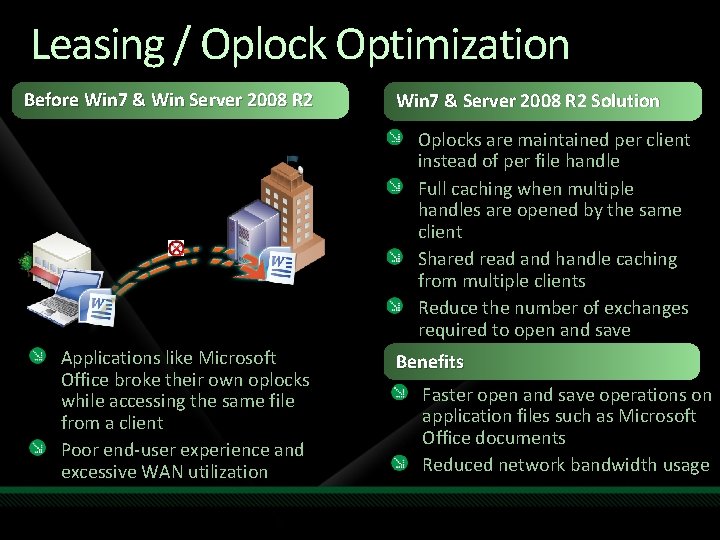
Leasing / Oplock Optimization Before Win 7 & Win Server 2008 R 2 Win 7 & Server 2008 R 2 Solution Windows 7 Solution Oplocks are maintained per client instead of per file handle Full caching when multiple handles are opened by the same client Shared read and handle caching from multiple clients Reduce the number of exchanges required to open and save Applications like Microsoft Office broke their own oplocks while accessing the same file from a client Poor end-user experience and excessive WAN utilization Benefits Faster open and save operations on application files such as Microsoft Office documents Reduced network bandwidth usage
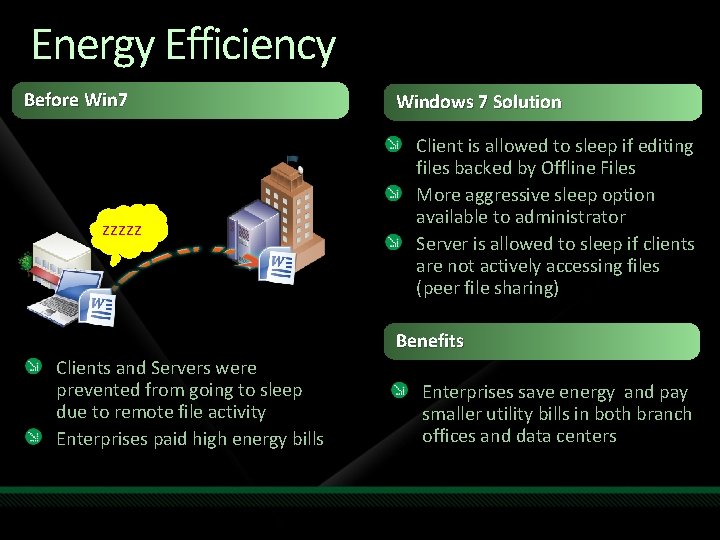
Energy Efficiency Before Win 7 zzzzz Windows 7 Solution Client is allowed to sleep if editing files backed by Offline Files More aggressive sleep option available to administrator Server is allowed to sleep if clients are not actively accessing files (peer file sharing) Benefits Clients and Servers were prevented from going to sleep due to remote file activity Enterprises paid high energy bills Enterprises save energy and pay smaller utility bills in both branch offices and data centers
NFS interoperability Kerberos support Unmapped Unix user access Net. ID/Netgroup support
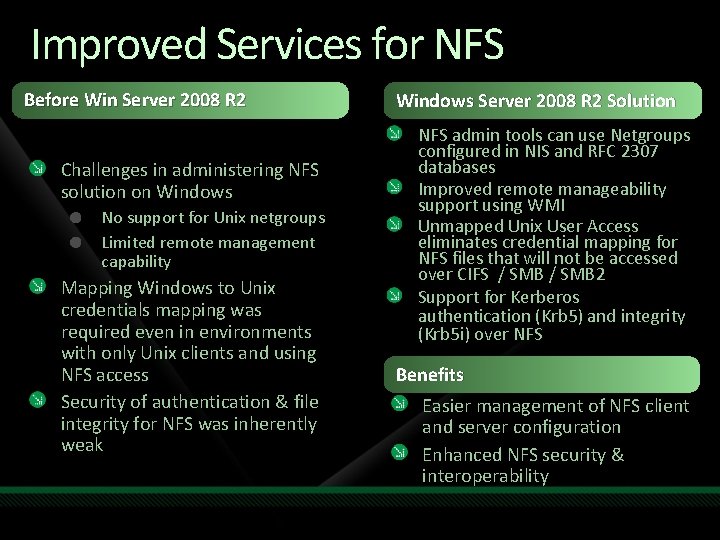
Improved Services for NFS Before Win Server 2008 R 2 Challenges in administering NFS solution on Windows No support for Unix netgroups Limited remote management capability Mapping Windows to Unix credentials mapping was required even in environments with only Unix clients and using NFS access Security of authentication & file integrity for NFS was inherently weak Windows Server 2008 R 2 Solution NFS admin tools can use Netgroups configured in NIS and RFC 2307 databases Improved remote manageability support using WMI Unmapped Unix User Access eliminates credential mapping for NFS files that will not be accessed over CIFS / SMB 2 Support for Kerberos authentication (Krb 5) and integrity (Krb 5 i) over NFS Benefits Easier management of NFS client and server configuration Enhanced NFS security & interoperability
File Classification Infrastructure Reduce cost of storage Manage business critical documents Extend adapt to your needs
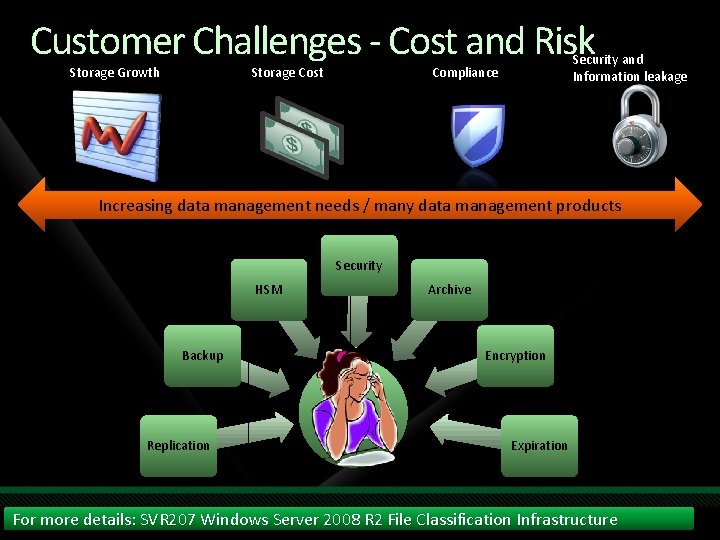
Customer Challenges - Cost and Risk Storage Growth Storage Cost Security and Information leakage Compliance Increasing data management needs / many data management products Security HSM Backup Replication Archive Encryption Expiration For more details: SVR 207 Windows Server 2008 R 2 File Classification Infrastructure
Performance & Scalability
90% 80% % Improvement over Explorer [Note: lower is better] Multi-threaded Robocopy 70% Legend file size: # files 60% 100 B: 200 50% 64 KB: 200 40% 256 KB: 200 30% 1 MB: 50 20% 10% 0% 1 2 4 8 Number of threads 16 128 With 128 threads, Robocopy is now 3 -22 times faster than Explorer on high-latency (WAN) connections Syntax: robocopy /mir /mt: 128 /log: nul
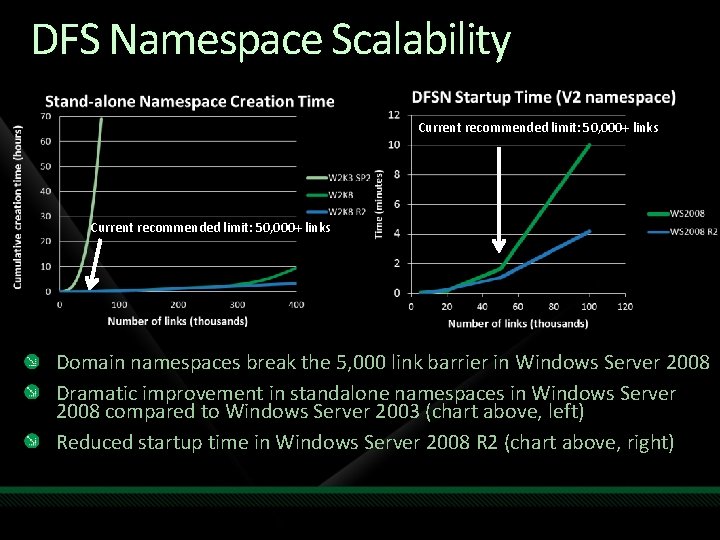
DFS Namespace Scalability Current recommended limit: 50, 000+ links Domain namespaces break the 5, 000 link barrier in Windows Server 2008 Dramatic improvement in standalone namespaces in Windows Server 2008 compared to Windows Server 2003 (chart above, left) Reduced startup time in Windows Server 2008 R 2 (chart above, right)
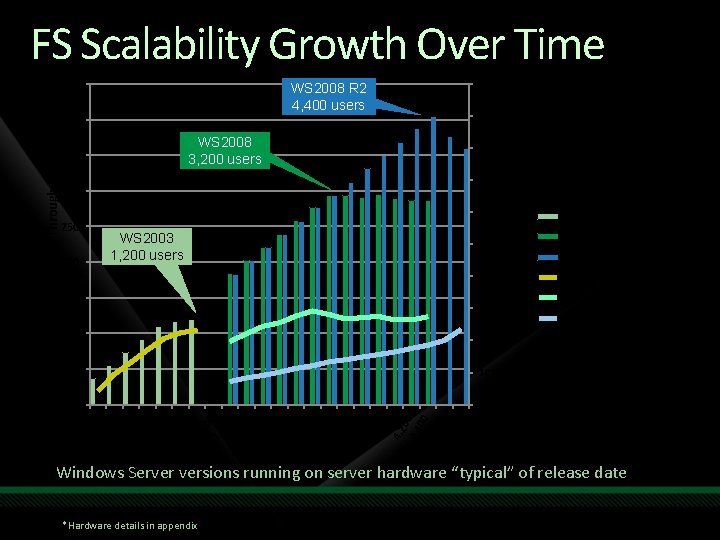
FS Scalability Growth Over Time 450 WS 2008 R 2 4, 400 users 400 WS 2008 3, 200 users 90% 80% 70% 300 60% 250 200 WS 2003 1, 200 users 50% 40% 150 30% 100 CPU utilization FSCT Scenario Throughput 350 100% Windows 2003 throughput Windows 2008 R 2 throughput Windows 2003 CPU Windows 2008 R 2 CPU 20% 10% 0 0% 40 0 60 0 80 1, 0 0 0 1, 2 0 0 1, 4 0 0 1, 6 0 0 1, 8 0 0 2, 0 0 0 2, 2 0 0 2, 4 0 0 2, 6 0 0 2, 8 0 0 3, 0 0 0 3, 2 0 0 3, 4 0 0 3, 6 0 0 3, 8 0 0 4, 0 0 0 4, 2 0 0 4, 4 0 0 4, 6 0 0 4, 8 0 00 50 Number of users Windows Server versions running on server hardware “typical” of release date *Hardware details in appendix
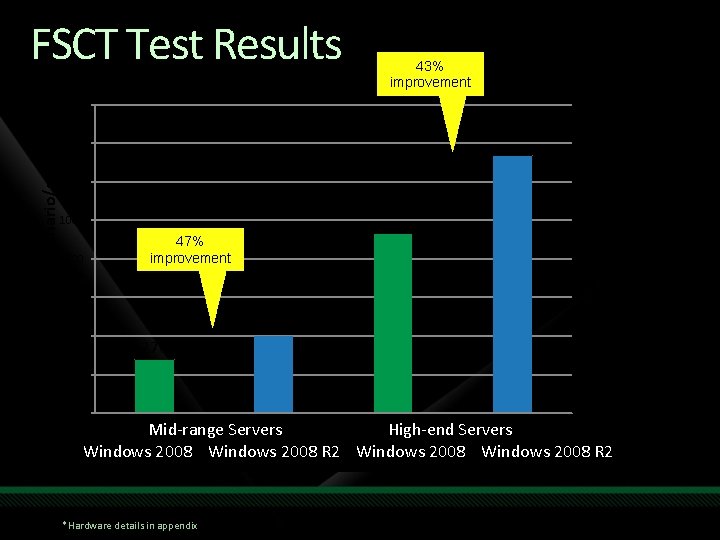
FSCT Test Results 43% improvement 1600 1335 Throughput Scenario/sec 1400 1200 932 1000 800 47% improvement 600 405 276 200 0 Windows. Mid-range 2008 (mid Windows 2008 R 2 (mid Servers range server) Windows. High-end 2008 (high Windows 2008 R 2 (high Servers end system) Windows 2008 R 2 *Hardware details in appendix
Agenda Advantages of Windows Server 2008 R 2 Capacity planning for File Server Migration to Windows Server 2008 R 2
File Server Capacity Tool
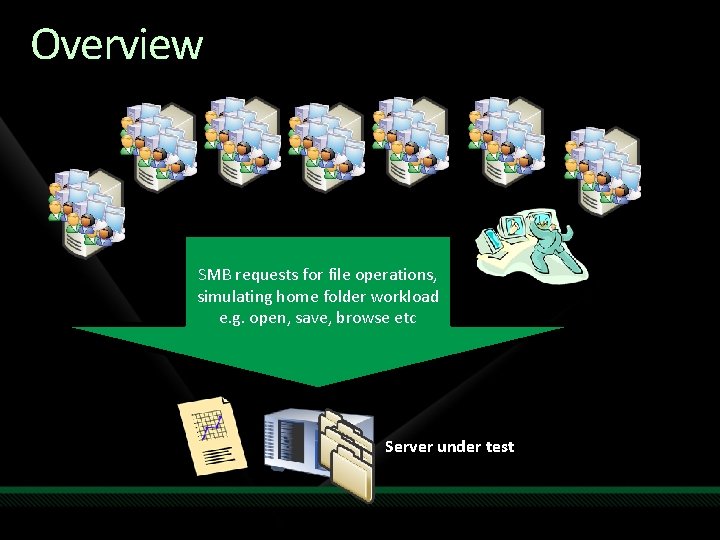
Overview SMB requests for file operations, simulating home folder workload e. g. open, save, browse etc Server under test
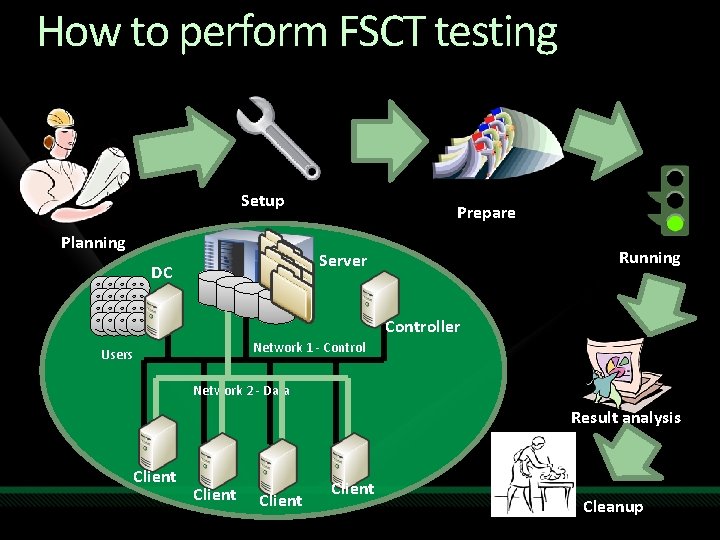
How to perform FSCT testing Setup Planning Prepare Running Server DC Controller Network 1 - Control Users Network 2 - Data Result analysis Client Cleanup
Home Directory Workload Goal Simulate actual workload of user home folders for typical knowledge worker Development method Used file servers hosting user directories at Microsoft Traces gathered for 5 minutes each hour over multiple days on multiple servers Results Frequency of operations: 34% read, 16% query path info, 14% write, 9% query info, 8% create/open, 6% close, 6% Find, 7% other Simulation of actual application behavior instead of only micro-operations
demo Running FSCT
Recap - FSCT Demo Command line execution Text file results 2 or 3 servers File server under test Controller Optional DC Multiple clients Warning: Not to be used on Production Servers
Agenda Advantages of Windows Server 2008 R 2 Capacity planning for File Server Migration to Windows Server 2008 R 2
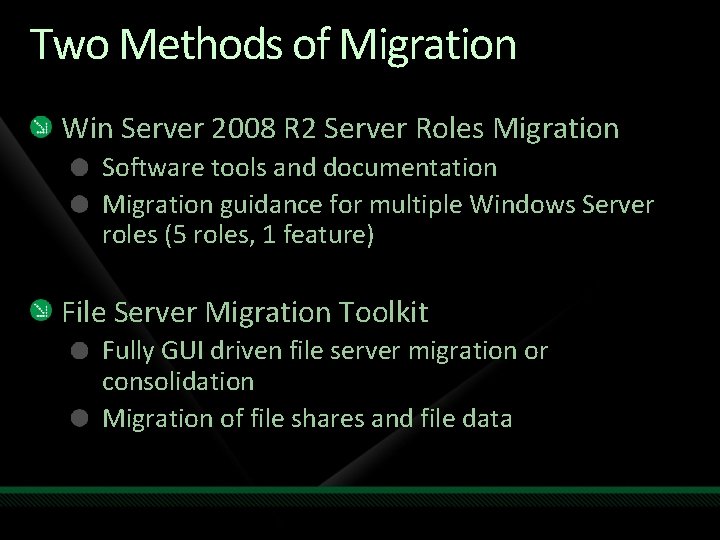
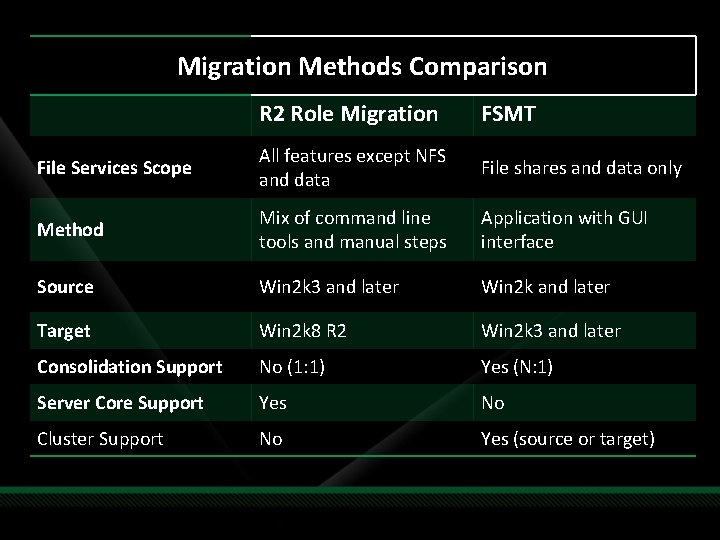
Two Methods of Migration Win Server 2008 R 2 Server Roles Migration Software tools and documentation Migration guidance for multiple Windows Server roles (5 roles, 1 feature) File Server Migration Toolkit Fully GUI driven file server migration or consolidation Migration of file shares and file data
Migration Methods Comparison R 2 Role Migration FSMT File Services Scope All features except NFS and data File shares and data only Method Mix of command line tools and manual steps Application with GUI interface Source Win 2 k 3 and later Win 2 k and later Target Win 2 k 8 R 2 Win 2 k 3 and later Consolidation Support No (1: 1) Yes (N: 1) Server Core Support Yes No Cluster Support No Yes (source or target)
File Server Migration Toolkit
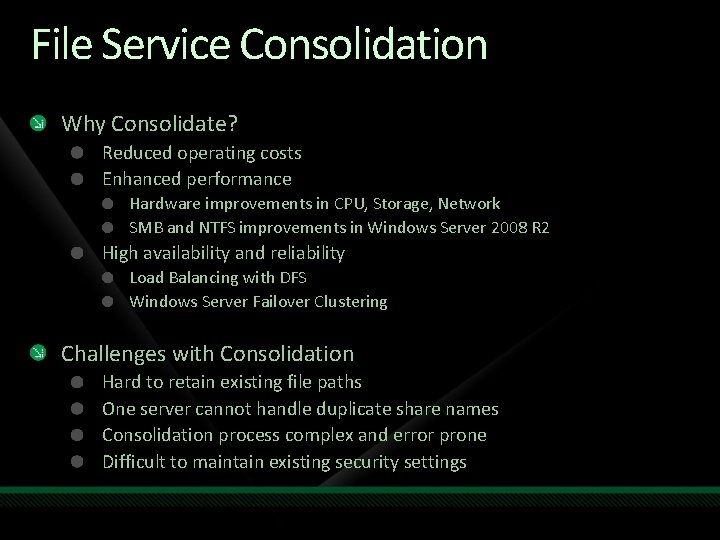
File Service Consolidation Why Consolidate? Reduced operating costs Enhanced performance Hardware improvements in CPU, Storage, Network SMB and NTFS improvements in Windows Server 2008 R 2 High availability and reliability Load Balancing with DFS Windows Server Failover Clustering Challenges with Consolidation Hard to retain existing file paths One server cannot handle duplicate share names Consolidation process complex and error prone Difficult to maintain existing security settings
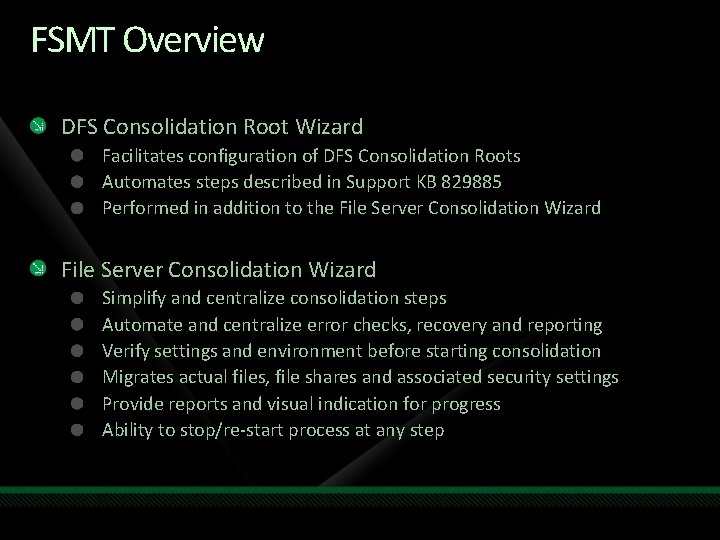
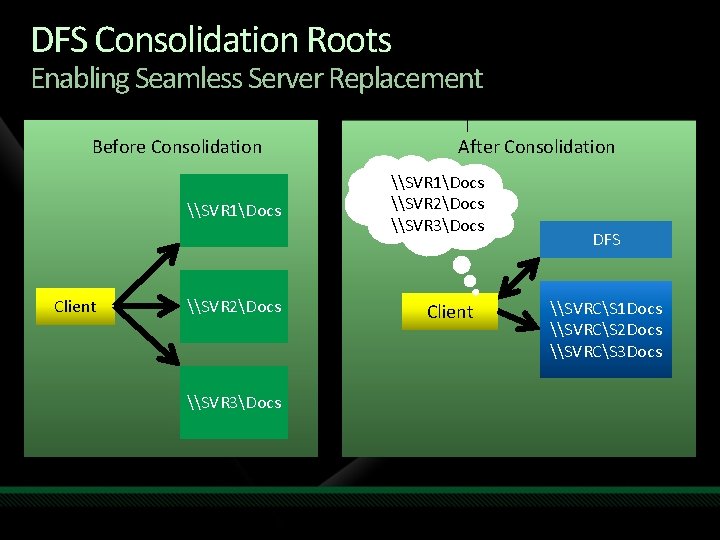
FSMT Overview DFS Consolidation Root Wizard Facilitates configuration of DFS Consolidation Roots Automates steps described in Support KB 829885 Performed in addition to the File Server Consolidation Wizard Simplify and centralize consolidation steps Automate and centralize error checks, recovery and reporting Verify settings and environment before starting consolidation Migrates actual files, file shares and associated security settings Provide reports and visual indication for progress Ability to stop/re-start process at any step
DFS Consolidation Roots Enabling Seamless Server Replacement Before Consolidation \SVR 1Docs Client \SVR 2Docs \SVR 3Docs After Consolidation \SVR 1Docs \SVR 2Docs \SVR 3Docs Client DFS \SVRCS 1 Docs \SVRCS 2 Docs \SVRCS 3 Docs
demo File Server Migration
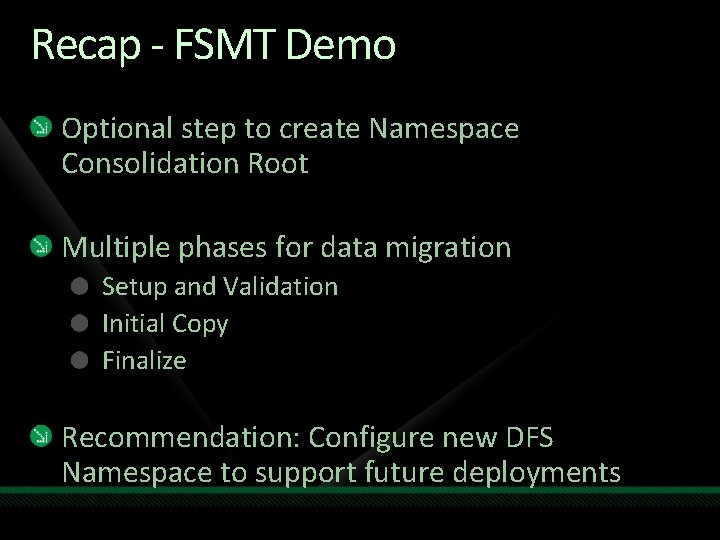
Recap - FSMT Demo Optional step to create Namespace Consolidation Root Multiple phases for data migration Setup and Validation Initial Copy Finalize Recommendation: Configure new DFS Namespace to support future deployments
Related Content SVR 207 Windows Server 2008 R 2 File Classification Infrastructure: Managing your file data more effectively SVR 306 Branch. Cache Deep Dive: An IT Administrator's Primer http: //download. microsoft. com - search for FSMT, FSCT or Folder Redirection File Services Team Blog – http: //blogs. technet. com/filecab Technical Learning Center – File Services Booth
question & answer
Resources www. microsoft. com/teched www. microsoft. com/learning Sessions On-Demand & Community Microsoft Certification & Training Resources http: //microsoft. com/technet http: //microsoft. com/msdn Resources for IT Professionals Resources for Developers
Complete an evaluation on Comm. Net and enter to win an Xbox 360 Elite!
© 2009 Microsoft Corporation. All rights reserved. Microsoft, Windows Vista and other product names are or may be registered trademarks and/or trademarks in the U. S. and/or other countries. The information herein is for informational purposes only and represents the current view of Microsoft Corporation as of the date of this presentation. Because Microsoft must respond to changing market conditions, it should not be interpreted to be a commitment on the part of Microsoft, and Microsoft cannot guarantee the accuracy of any information provided after the date of this presentation. MICROSOFT MAKES NO WARRANTIES, EXPRESS, IMPLIED OR STATUTORY, AS TO THE INFORMATION IN THIS PRESENTATION.
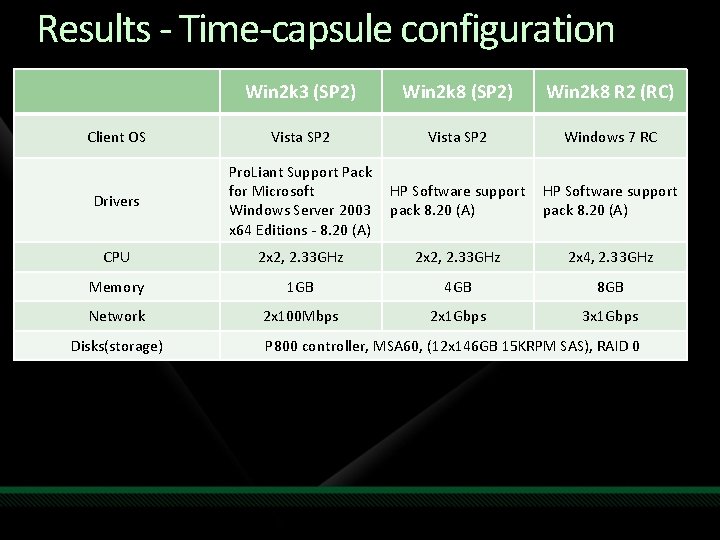
Results - Time-capsule configuration Win 2 k 3 (SP 2) Win 2 k 8 R 2 (RC) Client OS Vista SP 2 Windows 7 RC Drivers Pro. Liant Support Pack for Microsoft Windows Server 2003 x 64 Editions - 8. 20 (A) HP Software support pack 8. 20 (A) CPU 2 x 2, 2. 33 GHz 2 x 4, 2. 33 GHz Memory 1 GB 4 GB 8 GB Network 2 x 100 Mbps 2 x 1 Gbps 3 x 1 Gbps Disks(storage) P 800 controller, MSA 60, (12 x 146 GB 15 KRPM SAS), RAID 0
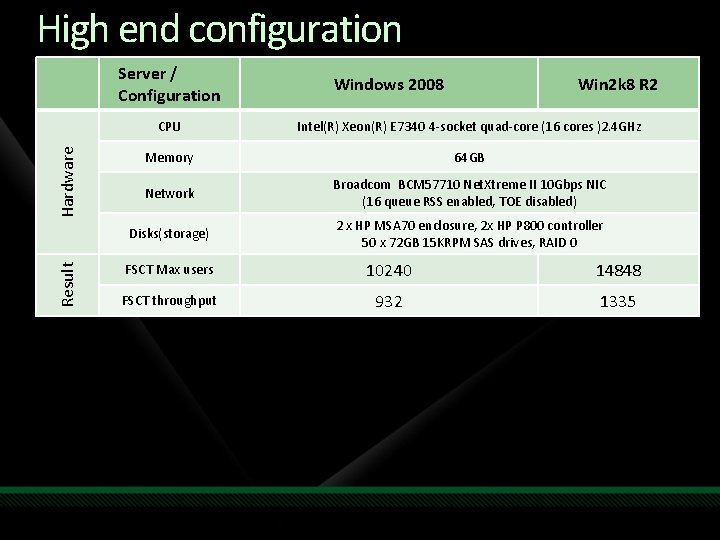
High end configuration Result Hardware Server / Configuration Windows 2008 Win 2 k 8 R 2 CPU Intel(R) Xeon(R) E 7340 4 -socket quad-core (16 cores )2. 4 GHz Memory 64 GB Network Broadcom BCM 57710 Net. Xtreme II 10 Gbps NIC (16 queue RSS enabled, TOE disabled) Disks(storage) 2 x HP MSA 70 enclosure, 2 x HP P 800 controller 50 x 72 GB 15 KRPM SAS drives, RAID 0 FSCT Max users 10240 14848 FSCT throughput 932 1335
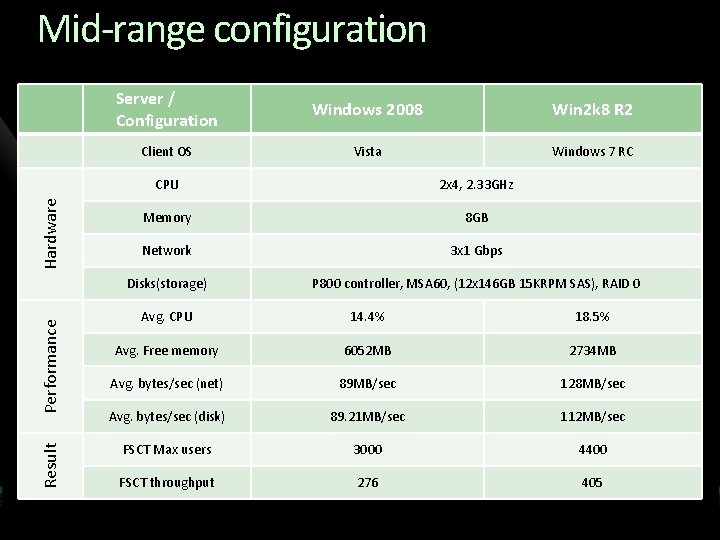
Result Performance Hardware Mid-range configuration Server / Configuration Windows 2008 Win 2 k 8 R 2 Client OS Vista Windows 7 RC CPU 2 x 4, 2. 33 GHz Memory 8 GB Network 3 x 1 Gbps Disks(storage) P 800 controller, MSA 60, (12 x 146 GB 15 KRPM SAS), RAID 0 Avg. CPU 14. 4% 18. 5% Avg. Free memory 6052 MB 2734 MB Avg. bytes/sec (net) 89 MB/sec 128 MB/sec Avg. bytes/sec (disk) 89. 21 MB/sec 112 MB/sec FSCT Max users 3000 4400 FSCT throughput 276 405