
File Management Tips T Meredith UWE Ed Tech

- Slides: 10
File Management Tips T. Meredith, UWE Ed Tech Specialist January 24, 2017
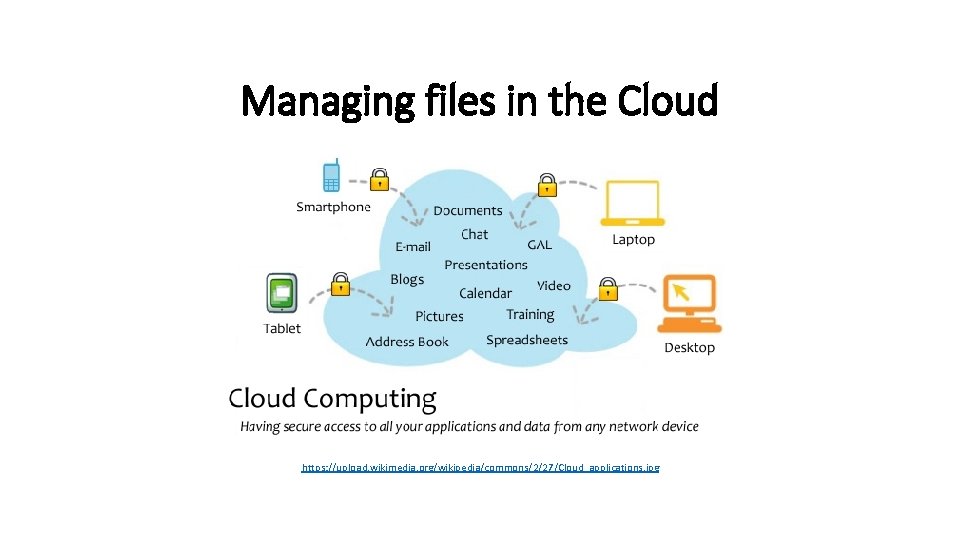
Managing files in the Cloud https: //upload. wikimedia. org/wikipedia/commons/2/27/Cloud_applications. jpg
Why use Cloud services for storage? • Can access your files from any computer/device with internet access • If your computer hard drive crashes, you still have all your files • You can share files and manage versions/drafts in one location • With some services, you can create and edit documents “in the Cloud” without needing to install software • Price – most services have a “free” version
To sync or not to sync? • Most Cloud services have several file management/storage options: • Store everything in the Cloud ONLY, or • Store everything in the Cloud AND sync all files to your computer’s hard drive, or • Store everything in the Cloud AND sync all files to multiple computers/devices Pros: • Syncing files to your computer/device means you can access and edit them without internet access • All changes made to a document (online or offline) are automatically saved to ALL versions of that file Cons: • Syncing all your files can fill up your computer/device storage VERY quickly • Deleting/changing a file in one location will delete/change it in ALL locations
Other considerations • Security • When deciding where to sync your files, consider how easy it is to access them. Your work computer requires a username/password, but does your tablet? Your phone? If you sync your files to those devices, who might be able to access them? • Privacy • No Cloud service is 100% secure, and each has its own “Terms of Service” that defines what it can and cannot do with your data. If you will be storing sensitive data (personal information, health or financial documents, etc. ) choose your Cloud service carefully.
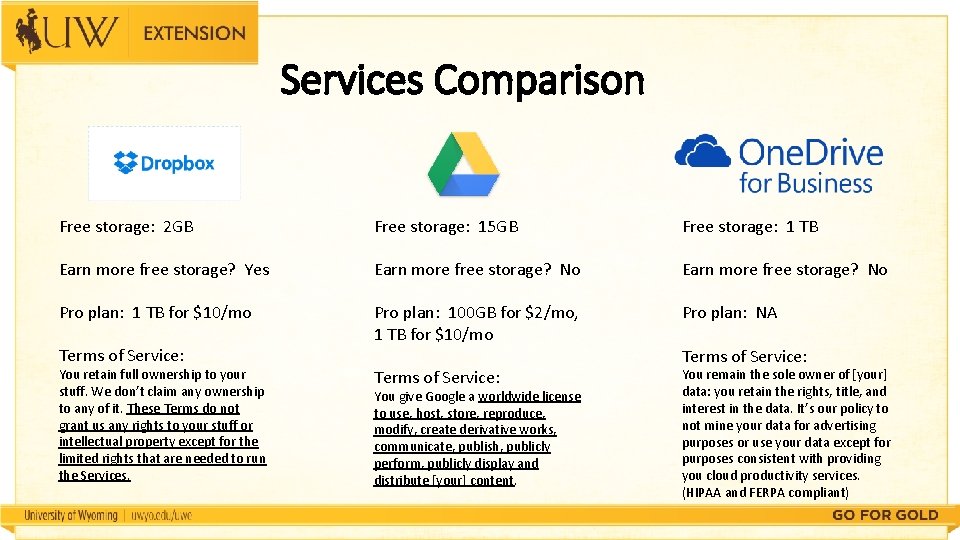
Services Comparison Free storage: 2 GB Free storage: 15 GB Free storage: 1 TB Earn more free storage? Yes Earn more free storage? No Pro plan: 1 TB for $10/mo Pro plan: 100 GB for $2/mo, 1 TB for $10/mo Pro plan: NA Terms of Service: You remain the sole owner of [your] data: you retain the rights, title, and interest in the data. It’s our policy to not mine your data for advertising purposes or use your data except for purposes consistent with providing you cloud productivity services. (HIPAA and FERPA compliant) Terms of Service: You retain full ownership to your stuff. We don’t claim any ownership to any of it. These Terms do not grant us any rights to your stuff or intellectual property except for the limited rights that are needed to run the Services. You give Google a worldwide license to use, host, store, reproduce, modify, create derivative works, communicate, publish, publicly perform, publicly display and distribute [your] content. Terms of Service:
File Management – Best Practices • Sharing – use work/professional email when creating and sharing • Naming – be clear, concise, use DATE, no spaces, etc. • Ex: 20170115 -Ten. Things. PPT-draft-TM. pptx • http: //guides. lib. purdue. edu/c. php? g=353013&p=2378293 • Version/Draft – use version # and/or date on documents • If you do NOT want to invite editing, PDF the document before saving and sharing it
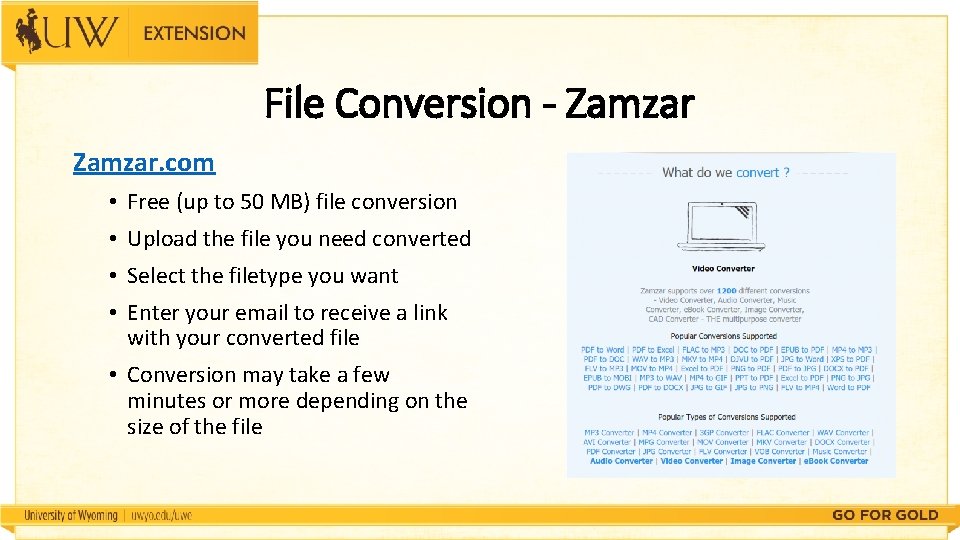
File Conversion - Zamzar. com • Free (up to 50 MB) file conversion • Upload the file you need converted • Select the filetype you want • Enter your email to receive a link with your converted file • Conversion may take a few minutes or more depending on the size of the file
Activity Get credit toward your “Tech-spert” badge! Ø Create a well-named file (no spaces, include date, etc. ) and share it via Dropbox or Google Drive with someone in your office OR Ø Convert a document or picture to another format using Zamzar (www. zamzar. com) When you have finished, go to this Google form and fill it out to receive credit: http: //tinyurl. com/10 things. January
Questions? Tamara Meredith, tamara. meredith@uwyo. edu