
File Management and Computer Maintenance Management Information Systems
- Slides: 31
File Management and Computer Maintenance Management Information Systems I Mr. Greg Vogl Uganda Martyrs University 20 February 2003 Management Information Systems I: File Management
Overview 1. 2. 3. 4. Operating Systems File Management File Maintenance Tools Control Panels 20 February 2003 Management Information Systems I: File Management 2
1. Operating Systems w Operating System Functions w Common Operating Systems w Command Prompt 20 February 2003 Management Information Systems I: File Management 3
Operating System Functions w Coordinates all computer components w Organises and manages files w Manages tasks and processes w Manages user accounts and security w Allows the user(s) to run and use programs w Displays a Graphical User Interface (GUI) 20 February 2003 Management Information Systems I: File Management 4
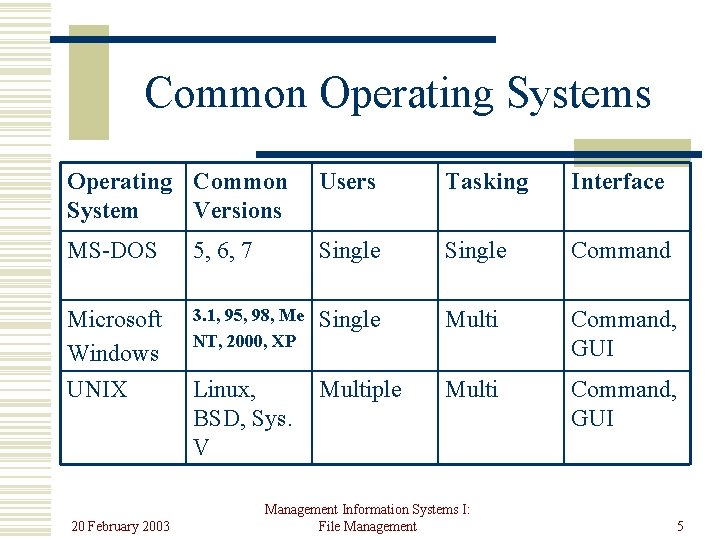
Common Operating Systems Operating Common System Versions Users Tasking Interface MS-DOS 5, 6, 7 Single Command Microsoft Windows UNIX 3. 1, 95, 98, Me NT, 2000, XP Single Multi Command, GUI Linux, BSD, Sys. V Multiple Multi Command, GUI 20 February 2003 Management Information Systems I: File Management 5
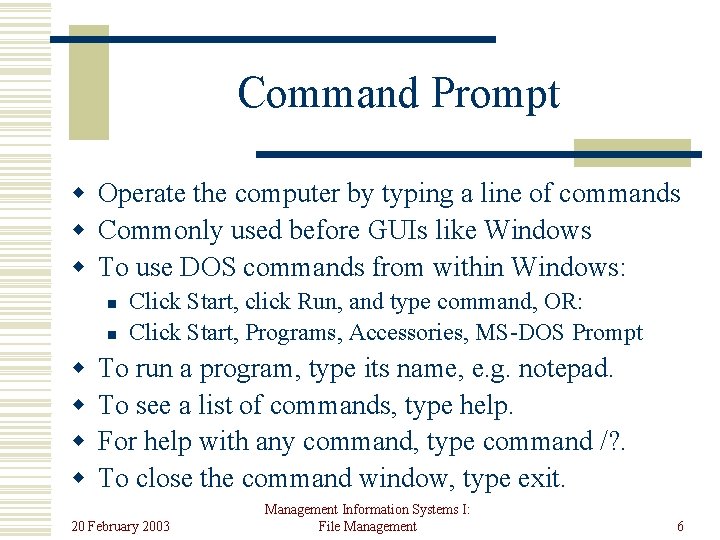
Command Prompt w Operate the computer by typing a line of commands w Commonly used before GUIs like Windows w To use DOS commands from within Windows: n n w w Click Start, click Run, and type command, OR: Click Start, Programs, Accessories, MS-DOS Prompt To run a program, type its name, e. g. notepad. To see a list of commands, type help. For help with any command, type command /? . To close the command window, type exit. 20 February 2003 Management Information Systems I: File Management 6
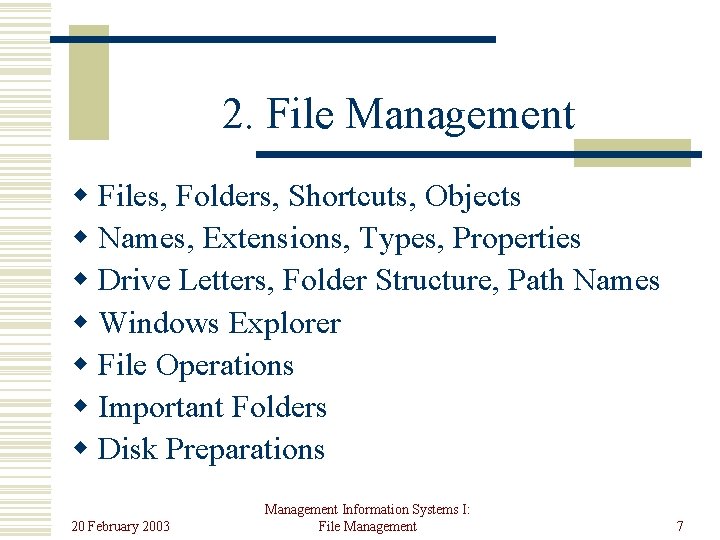
2. File Management w Files, Folders, Shortcuts, Objects w Names, Extensions, Types, Properties w Drive Letters, Folder Structure, Path Names w Windows Explorer w File Operations w Important Folders w Disk Preparations 20 February 2003 Management Information Systems I: File Management 7
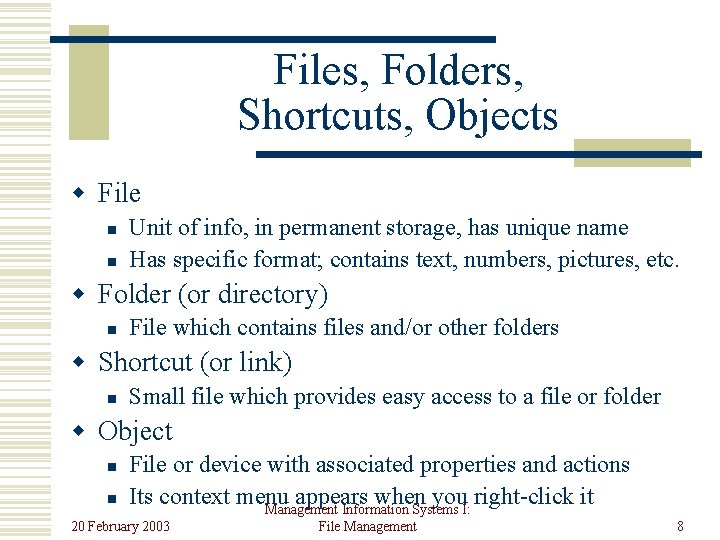
Files, Folders, Shortcuts, Objects w File n n Unit of info, in permanent storage, has unique name Has specific format; contains text, numbers, pictures, etc. w Folder (or directory) n File which contains files and/or other folders w Shortcut (or link) n Small file which provides easy access to a file or folder w Object n n File or device with associated properties and actions Its context menu appears when you right-click it Management Information Systems I: 20 February 2003 File Management 8
File Names w DOS or Windows files: filename. extension w The extension determines the type of file w DOS filenames can only have 8 characters w DOS extensions can only have 3 characters w Windows filenames can have 255 characters w Several characters have restricted uses 20 February 2003 Management Information Systems I: File Management 9
Some Document Extensions w w w w TXT – plain text file RTF – Rich Text File (formatted text) DOC – Microsoft Word document XLS – Microsoft Excel spreadsheet PPT – Microsoft Power. Point presentation BMP, GIF, JPG – graphics (picture) files WAV, AU, MP 3 – audio (sound) files AVI, WMV, MPEG – video files 20 February 2003 Management Information Systems I: File Management 10
Some System File Extensions w EXE – program executable files w DAT – data files used by programs w HLP – help files w SYS – system files w TMP – temporary files used by programs 20 February 2003 Management Information Systems I: File Management 11
File Properties w Select a file and click File, Properties w File size, type, location, and dates are shown w Other attributes include whether the file is n n Read-only – can be changed Archived – has been backed up Hidden – invisible to users by default System – to be used by operating system only 20 February 2003 Management Information Systems I: File Management 12
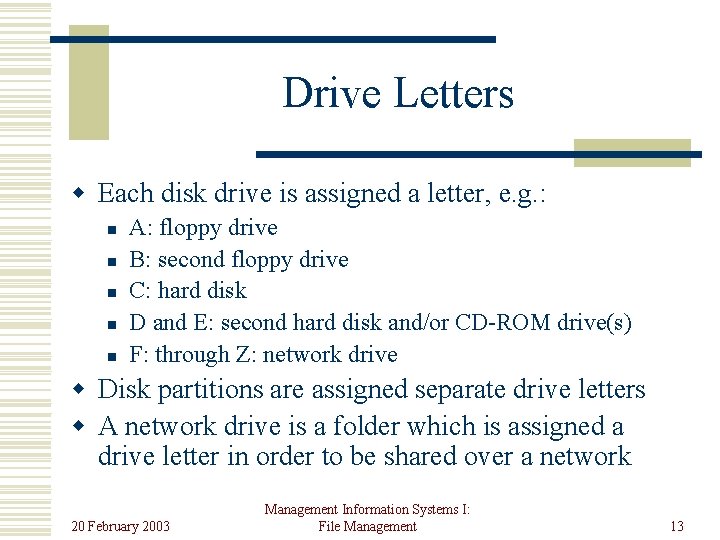
Drive Letters w Each disk drive is assigned a letter, e. g. : n n n A: floppy drive B: second floppy drive C: hard disk D and E: second hard disk and/or CD-ROM drive(s) F: through Z: network drive w Disk partitions are assigned separate drive letters w A network drive is a folder which is assigned a drive letter in order to be shared over a network 20 February 2003 Management Information Systems I: File Management 13
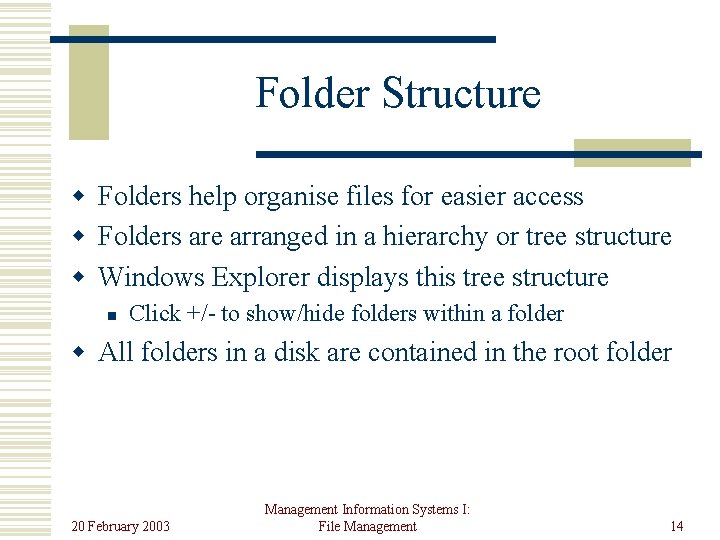
Folder Structure w Folders help organise files for easier access w Folders are arranged in a hierarchy or tree structure w Windows Explorer displays this tree structure n Click +/- to show/hide folders within a folder w All folders in a disk are contained in the root folder 20 February 2003 Management Information Systems I: File Management 14
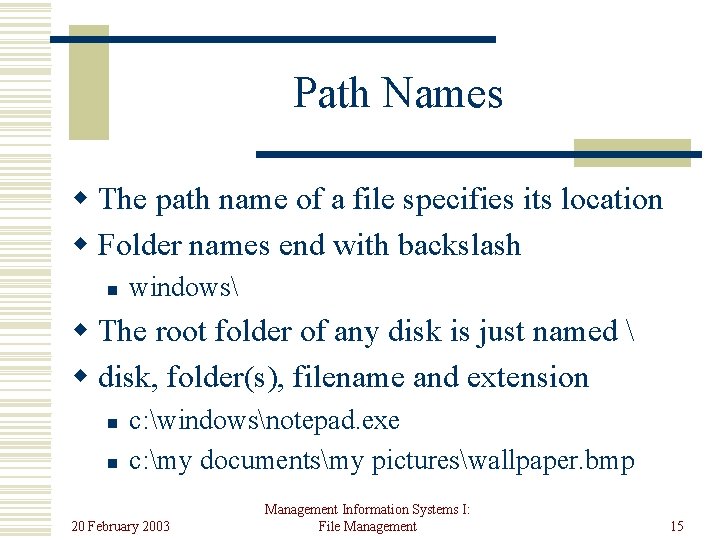
Path Names w The path name of a file specifies its location w Folder names end with backslash n windows w The root folder of any disk is just named w disk, folder(s), filename and extension n n c: windowsnotepad. exe c: my documentsmy pictureswallpaper. bmp 20 February 2003 Management Information Systems I: File Management 15
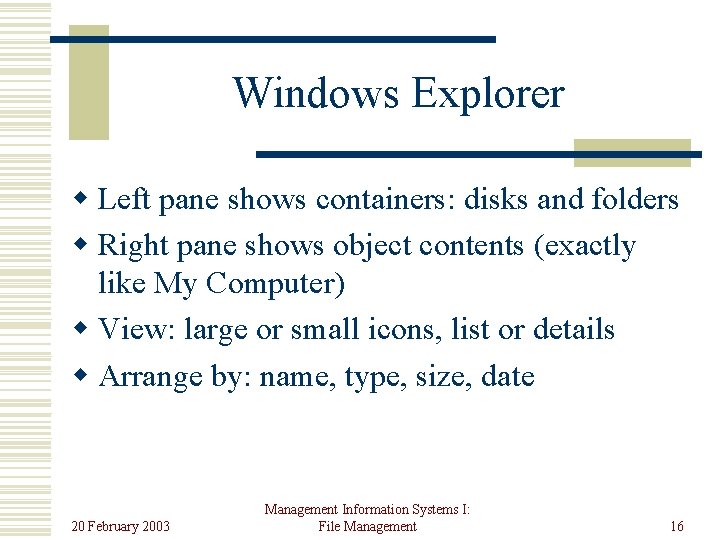
Windows Explorer w Left pane shows containers: disks and folders w Right pane shows object contents (exactly like My Computer) w View: large or small icons, list or details w Arrange by: name, type, size, date 20 February 2003 Management Information Systems I: File Management 16
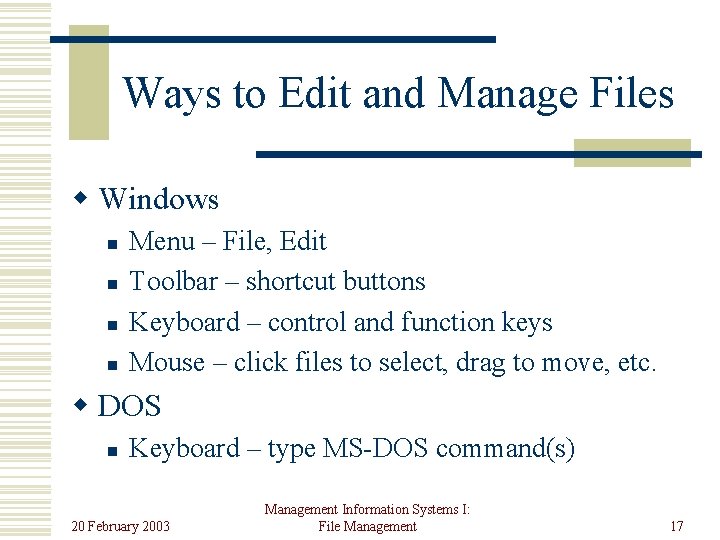
Ways to Edit and Manage Files w Windows n n Menu – File, Edit Toolbar – shortcut buttons Keyboard – control and function keys Mouse – click files to select, drag to move, etc. w DOS n Keyboard – type MS-DOS command(s) 20 February 2003 Management Information Systems I: File Management 17
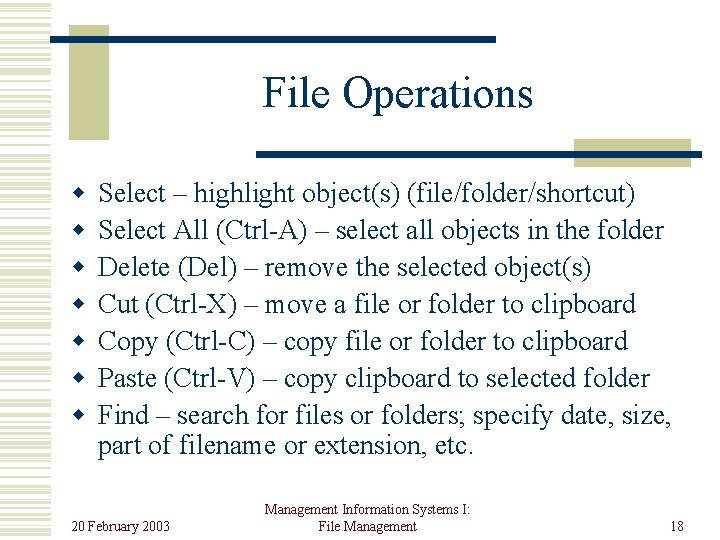
File Operations w w w w Select – highlight object(s) (file/folder/shortcut) Select All (Ctrl-A) – select all objects in the folder Delete (Del) – remove the selected object(s) Cut (Ctrl-X) – move a file or folder to clipboard Copy (Ctrl-C) – copy file or folder to clipboard Paste (Ctrl-V) – copy clipboard to selected folder Find – search for files or folders; specify date, size, part of filename or extension, etc. 20 February 2003 Management Information Systems I: File Management 18
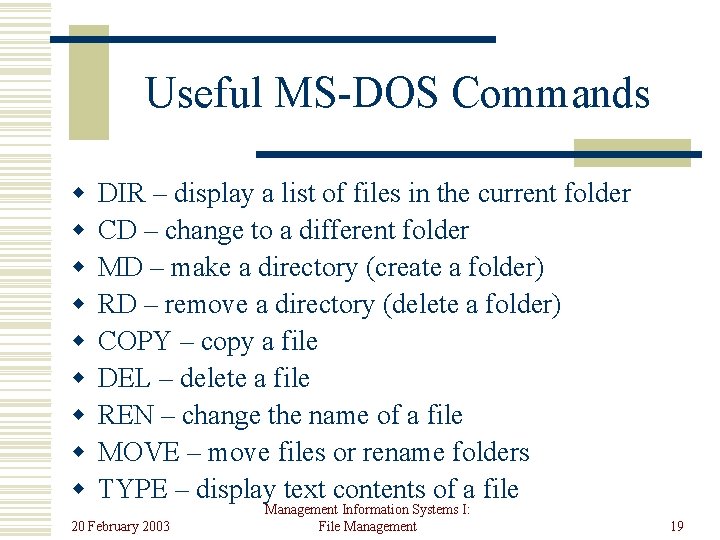
Useful MS-DOS Commands w w w w w DIR – display a list of files in the current folder CD – change to a different folder MD – make a directory (create a folder) RD – remove a directory (delete a folder) COPY – copy a file DEL – delete a file REN – change the name of a file MOVE – move files or rename folders TYPE – display text contents of a file 20 February 2003 Management Information Systems I: File Management 19
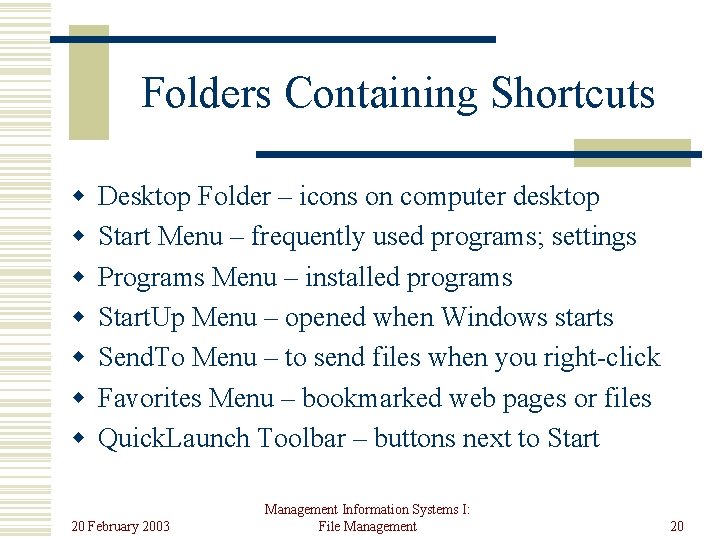
Folders Containing Shortcuts w w w w Desktop Folder – icons on computer desktop Start Menu – frequently used programs; settings Programs Menu – installed programs Start. Up Menu – opened when Windows starts Send. To Menu – to send files when you right-click Favorites Menu – bookmarked web pages or files Quick. Launch Toolbar – buttons next to Start 20 February 2003 Management Information Systems I: File Management 20
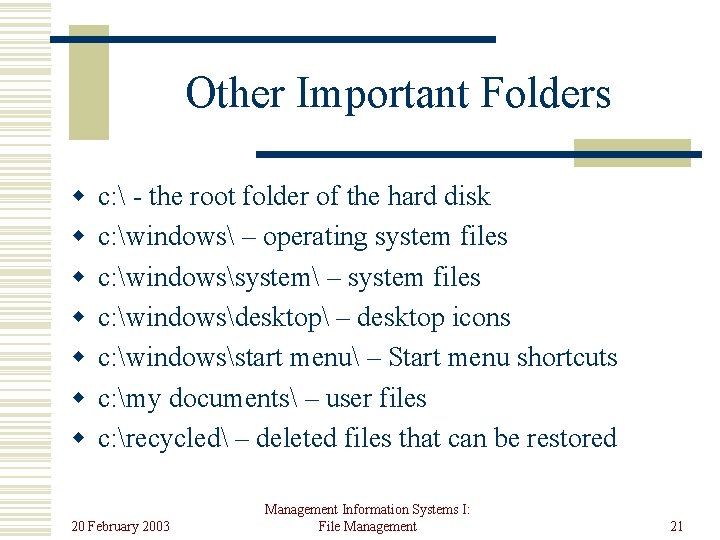
Other Important Folders w w w w c: - the root folder of the hard disk c: windows – operating system files c: windowssystem – system files c: windowsdesktop – desktop icons c: windowsstart menu – Start menu shortcuts c: my documents – user files c: recycled – deleted files that can be restored 20 February 2003 Management Information Systems I: File Management 21
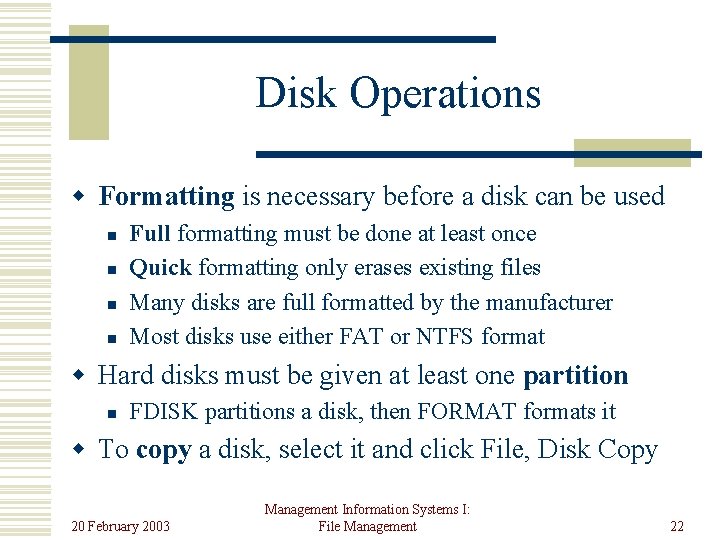
Disk Operations w Formatting is necessary before a disk can be used n n Full formatting must be done at least once Quick formatting only erases existing files Many disks are full formatted by the manufacturer Most disks use either FAT or NTFS format w Hard disks must be given at least one partition n FDISK partitions a disk, then FORMAT formats it w To copy a disk, select it and click File, Disk Copy 20 February 2003 Management Information Systems I: File Management 22
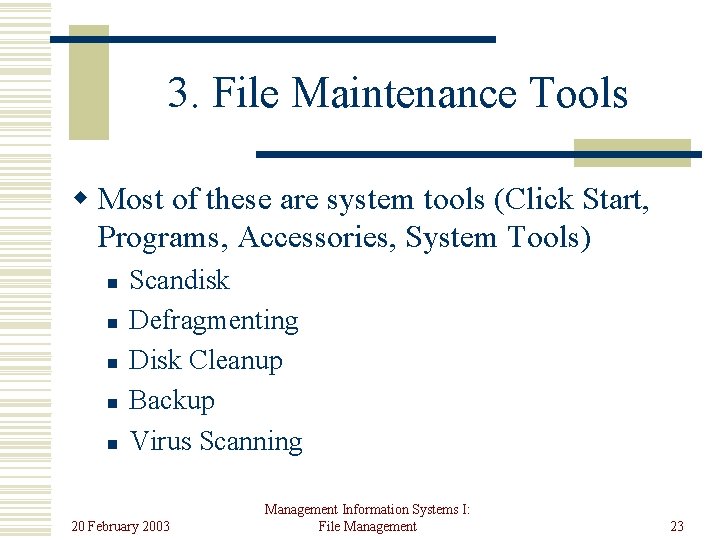
3. File Maintenance Tools w Most of these are system tools (Click Start, Programs, Accessories, System Tools) n n n Scandisk Defragmenting Disk Cleanup Backup Virus Scanning 20 February 2003 Management Information Systems I: File Management 23
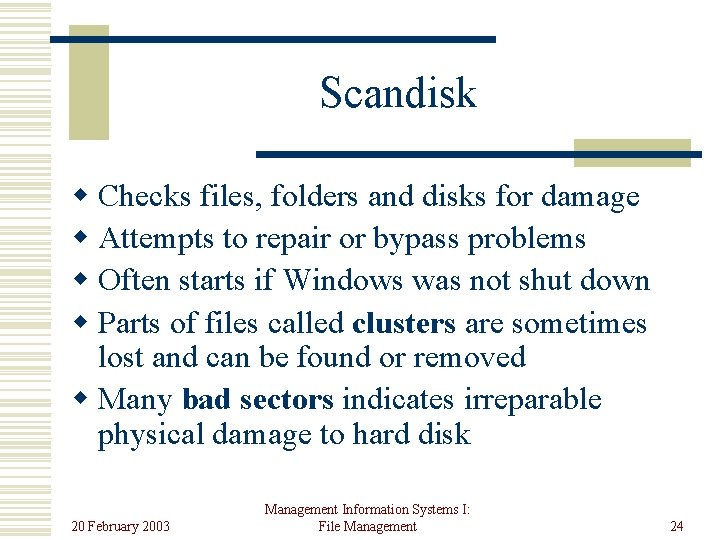
Scandisk w Checks files, folders and disks for damage w Attempts to repair or bypass problems w Often starts if Windows was not shut down w Parts of files called clusters are sometimes lost and can be found or removed w Many bad sectors indicates irreparable physical damage to hard disk 20 February 2003 Management Information Systems I: File Management 24
Defragmenting w Clusters of a file are normally stored together w Fragmented clusters are scattered over the disk w Fragmenting is caused by adding, removing or changing many files, e. g. un/re-installing programs w Fragmentation slows disk access w Disk defragmenter reduces fragmentation w Scandisk before you defragment 20 February 2003 Management Information Systems I: File Management 25
Disk Cleanup w Necessary when hard disk is nearly full w Removes or compresses unneeded files n n Temporary data files (from installation, Internet) Deleted files in the Recycle Bin Old or not recently used files Unused Windows components 20 February 2003 Management Information Systems I: File Management 26
Backup w w w Saves a copy of user and/or program files Files can be restored if originals are damaged User data is often very valuable and irreplaceable Your backup system should be cost-effective You can choose which files to back up, e. g. : n n Full: all files in a disk or folder Incremental: all files since the last backup w Files can be compressed to save space w Tape drives and cartridges are often used 20 February 2003 Management Information Systems I: File Management 27
Virus Scanning w Virus n n Program that can copy itself and damage files Spread through floppy disks, Internet downloads w Antivirus Software n n n Searches for known viruses in memory and disks Attempts to repair or quarantine infected files Products: Norton, AVG, PC Cillin, Mac. Afee 20 February 2003 Management Information Systems I: File Management 28
4. Control Panels w Used to control how the computer works w Double-click My Computer or click Start, Settings, Control Panel w Use details view for descriptions of each w Double-click any control panel to open it 20 February 2003 Management Information Systems I: File Management 29
Control Panels w System n View and change hardware and operating system properties and performance settings w Add/Remove Programs n n (Un)install programs and Windows components Create a startup disk in case of problems starting w Display n Wallpaper, screen saver, colour scheme, number of colours and screen area 20 February 2003 Management Information Systems I: File Management 30
Other Control Panels w Add New Hardware w Keyboard, Mouse, Printers, Modems w Fonts, Sounds, Multimedia w Date/Time, Regional Settings w Users, Passwords w Network 20 February 2003 Management Information Systems I: File Management 31