
File Maker Pro Tami Aune Technology Services Gustavus
- Slides: 34
File. Maker Pro Tami Aune Technology Services Gustavus Adolphus College
File. Maker Pro Version 7. 0 today – current version is 8. 0 http: //www. filemakerpro. com
File. Maker Pro What is it? n What does it do? n
File. Maker Pro n What is it? l n a database program for both Windows and Macintosh. What does it do? l Manage, present, and share information.
File. Maker Pro What is it? n What does it do? n Manage, present, and share information. File. Maker Pro lets you do all three effortlessly. Design your own layouts and create reports. Then, instantly sort and search through the information by any criteria you choose.
Today n n n Define general terminology and concepts associated with developing and working with databases. Demonstrate the development of a simple database for data management. Demonstrate some of the powerful features of File. Maker Pro.
Database Goal Transform a disorganized pile of information into an organized, searchable, manageable pool of information.
File. Maker Pro–The Goals After File. Maker Pro you will be able to: find information quickly l update and maintain information l print documents such as invoices, form letters and mailing labels l analyze information using on screen and printed reports l
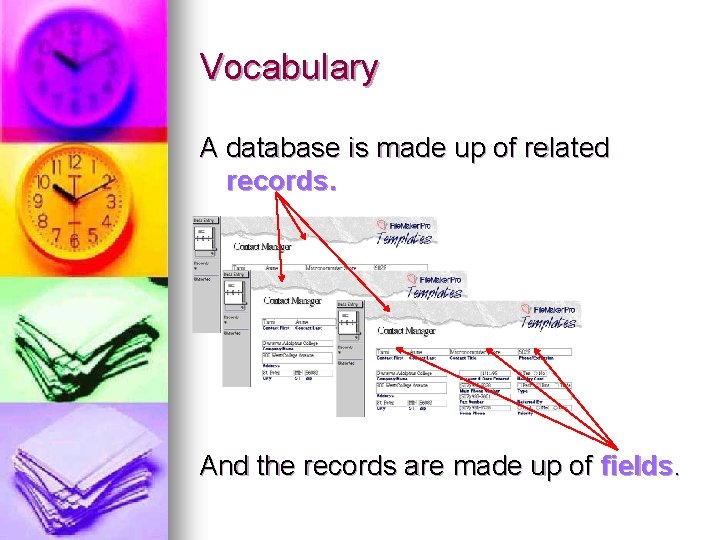
Vocabulary A database is made up of related records. And the records are made up of fields.
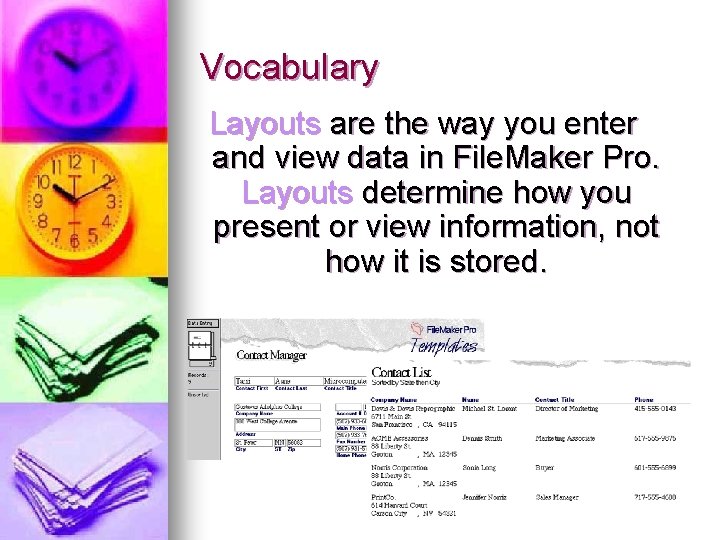
Vocabulary Layouts are the way you enter and view data in File. Maker Pro. Layouts determine how you present or view information, not how it is stored.
Vocabulary Layouts determine how you present information, not how it is stored. You design each layout with a specific purpose in mind. Most layouts display only some of the fields in the database -mailing labels or invoice Once a layout is designed, you can rearrange it, change it, add fields or graphics to it.
Modes You work with File. Maker Pro in one of four modes: n Browse n Find n Layout n Preview
Modes You work with File. Maker Pro in one of four modes n Browse Use Browse mode to enter data and view records. n Find n Layout n Preview
Modes You work with File. Maker Pro in one of four modes n Browse n Find Use Find to locate a record or group of records quickly. n Layout n Preview
Modes You work with File. Maker Pro in one of four modes n Browse n Find n Layout Use Layout mode to specify how information will appear on the screen or when you print it. n Preview
Modes You work with File. Maker Pro in one of four modes n Browse n Find n Layout n Preview Use Preview to see what the pages will look like when you print them.
Modes You work with File. Maker Pro in one of four modes: n Browse n Find n Layout n Preview
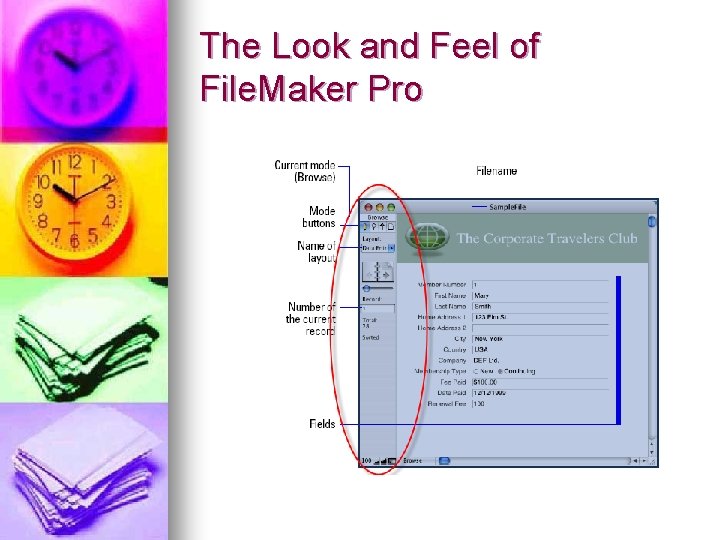
The Look and Feel of File. Maker Pro
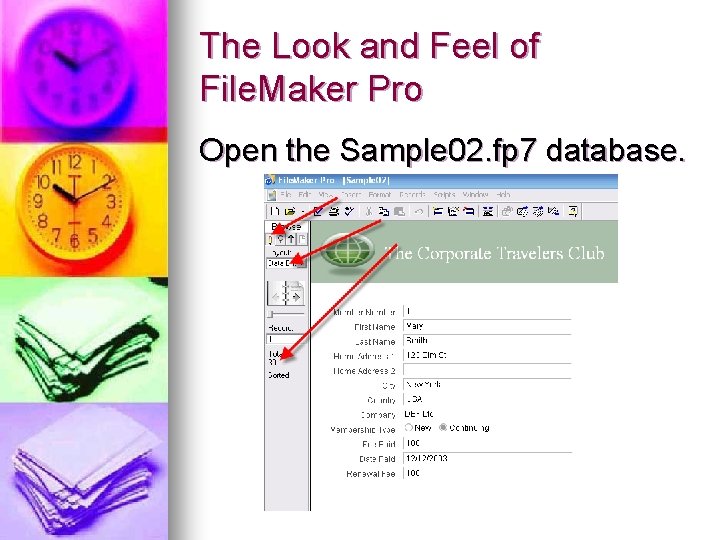
The Look and Feel of File. Maker Pro Open the Sample 02. fp 7 database.
The Look and Feel of File. Maker Pro Open the Sample 02. fp 7 database. Browse Mode Move between records – click – slide – enter a number. How many records?
The Look and Feel of File. Maker Pro Open the Sample 02. fp 7 database. Browse Mode Move between Layouts Choose List of Member Layout – notice the amount of information displayed. Different Ways to Display the Same Layout List of Members Layout – View as a form, list and table.
The Look and Feel of File. Maker Pro – Find and Sort Open the Sample 03. fp 7 database. Find all the members who live in New York City.
The Look and Feel of File. Maker Pro – Find and Sort Open the Sample 03. fp 7 database. Different Types of Finds – All USA and New Members All the New York or London members Range search – Fee paid in first half of 2004 Narrowing or refining your search – fee paid in first half of 2004, but not those that paid in February.
The Look and Feel of File. Maker Pro – Find and Sort Open the Sample 03. fp 7 database. Different Types of Finds – Narrowing or refining your search – fee paid in first half of 2004, but not those that paid in February.
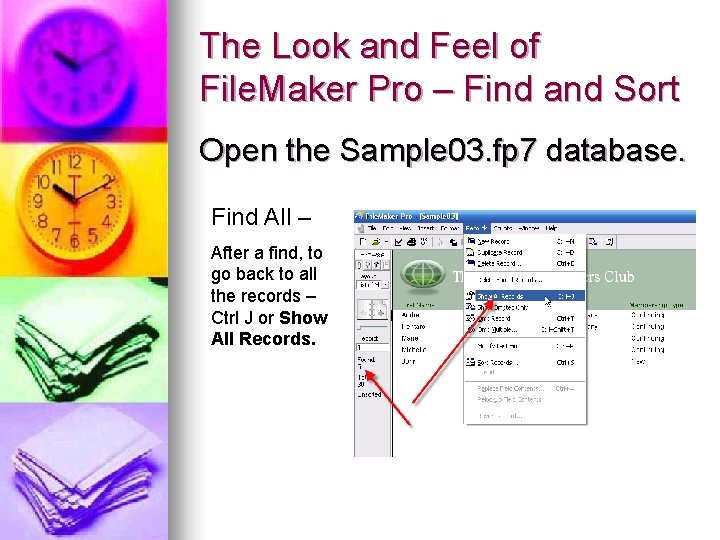
The Look and Feel of File. Maker Pro – Find and Sort Open the Sample 03. fp 7 database. Find All – After a find, to go back to all the records – Ctrl J or Show All Records.
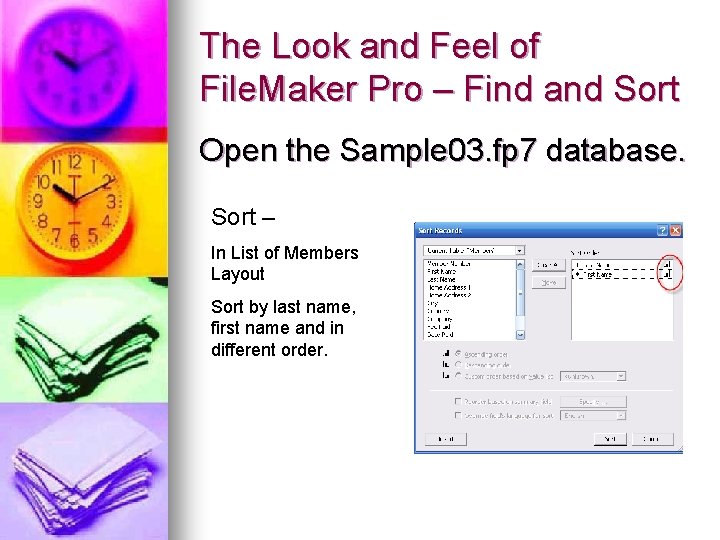
The Look and Feel of File. Maker Pro – Find and Sort Open the Sample 03. fp 7 database. Sort – In List of Members Layout Sort by last name, first name and in different order.
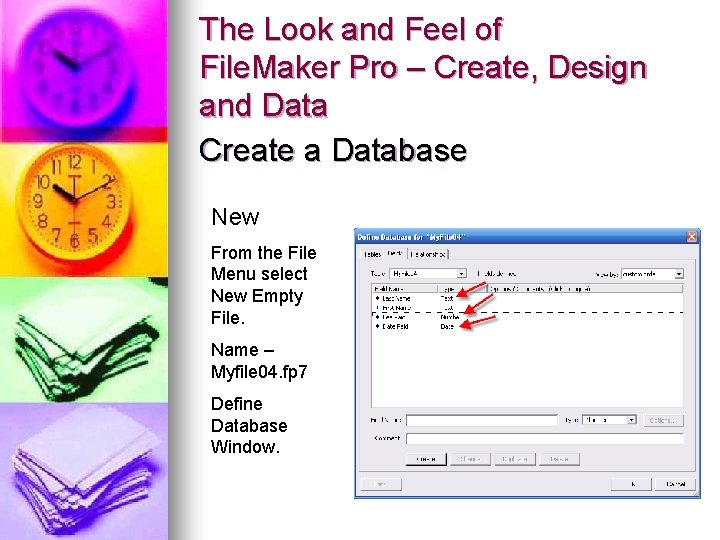
The Look and Feel of File. Maker Pro – Create, Design and Data Create a Database New From the File Menu select New Empty File. Name – Myfile 04. fp 7 Define Database Window.
The Look and Feel of File. Maker Pro – Create, Design and Data Create a Database Enter Data Jane Doe 25. 00 11/11/2004 John Smith 75. 00 2/2/2004 Change Data Jane paid 75. 00 rather than 25. 00.
The Look and Feel of File. Maker Pro – Changing What You See – Layouts. Changes what you see – not what is saved in the database.
The Look and Feel of File. Maker Pro – Changing What You See – Layouts. Open Working FilesMy. File 05. fp 7 and Sample FilesSample 05. fp 7 Layout Mode Switch to Layout Mode and the Fee Information Layout. Change Field Sizes Move a Field Add a Field (City) Format the Fee Paid as Number – 2 decimals with $ Extra Credit – Color – Fonts and Graphics
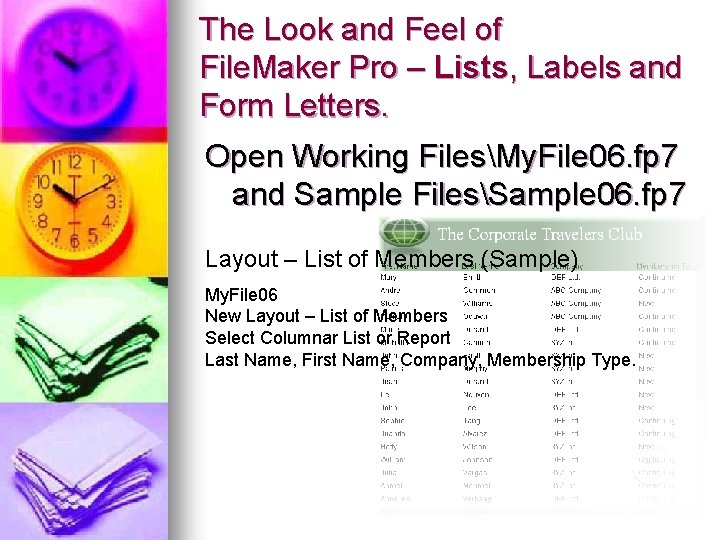
The Look and Feel of File. Maker Pro – Lists, Labels and Form Letters. Open Working FilesMy. File 06. fp 7 and Sample FilesSample 06. fp 7 Layout – List of Members (Sample) My. File 06 New Layout – List of Members Select Columnar List or Report Last Name, First Name, Company, Membership Type.
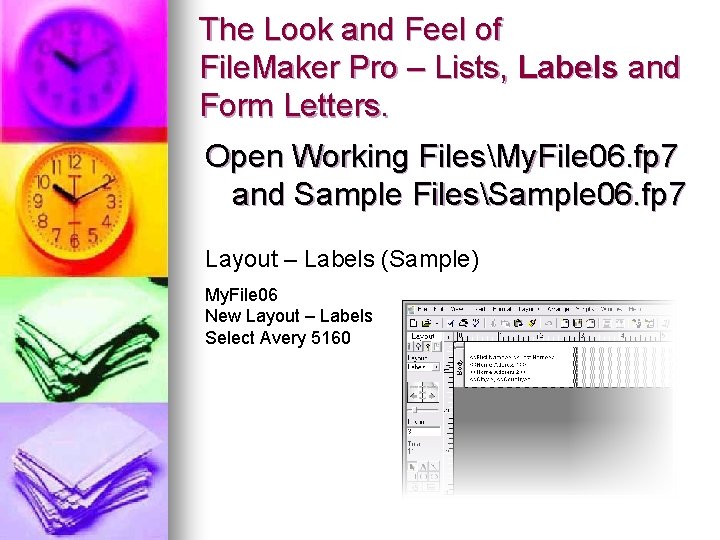
The Look and Feel of File. Maker Pro – Lists, Labels and Form Letters. Open Working FilesMy. File 06. fp 7 and Sample FilesSample 06. fp 7 Layout – Labels (Sample) My. File 06 New Layout – Labels Select Avery 5160
Design Tips Use separate fields for first name and last name, so you can search or sort records based on either n Use separate fields for city, state and zip code n Use a separate field for titles n
File. Maker Pro