
File explorer email and password CSCI 104 Essentials
- Slides: 43
File explorer, email and password CSCI 104 Essentials of Computing I Fall 2019 Lecture note Dr. Sajedul Talukder 14 February
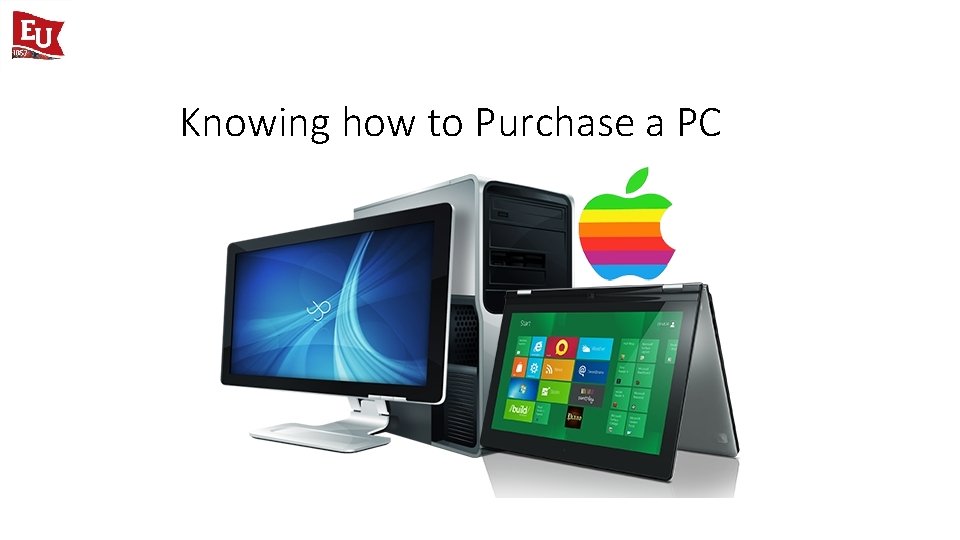
Knowing how to Purchase a PC
Purchase of a PC (1) • What to Consider • How much can you spend? • Desktop or Laptop? • What will it be used for? • Hardware • Processor (speed and type) • RAM • Hard Disk (size and type) • Input/Output (e. g. display size)
Purchase of a PC (2) • Connectivity • • • USB 3. 0 ports or USB 2. 0 ports? Any SD card slot? HDMI? Thunderbolt 3 ports? Ethernet ports (especially if you're a gamer) • Battery Life • Platform (Mac, Windows or Chrome OS? )
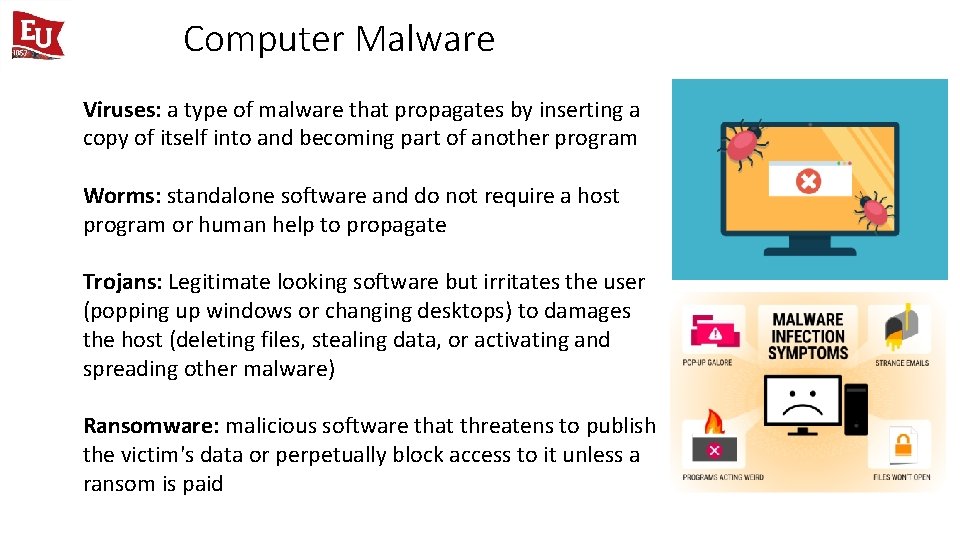
Computer Malware Viruses: a type of malware that propagates by inserting a copy of itself into and becoming part of another program Worms: standalone software and do not require a host program or human help to propagate Trojans: Legitimate looking software but irritates the user (popping up windows or changing desktops) to damages the host (deleting files, stealing data, or activating and spreading other malware) Ransomware: malicious software that threatens to publish the victim's data or perpetually block access to it unless a ransom is paid
Antivirus Software n n n A computer virus is an actively infectious program that can erase data and/or alter the way your computer works Worms and Trojan horses are other types of infectious programs, but all are bad Computer viruses are spread through email, and/or infected floppy disks Windows does not include an antivirus program; i. e. , you must buy it separately and update it frequently Should you get antivirus software?
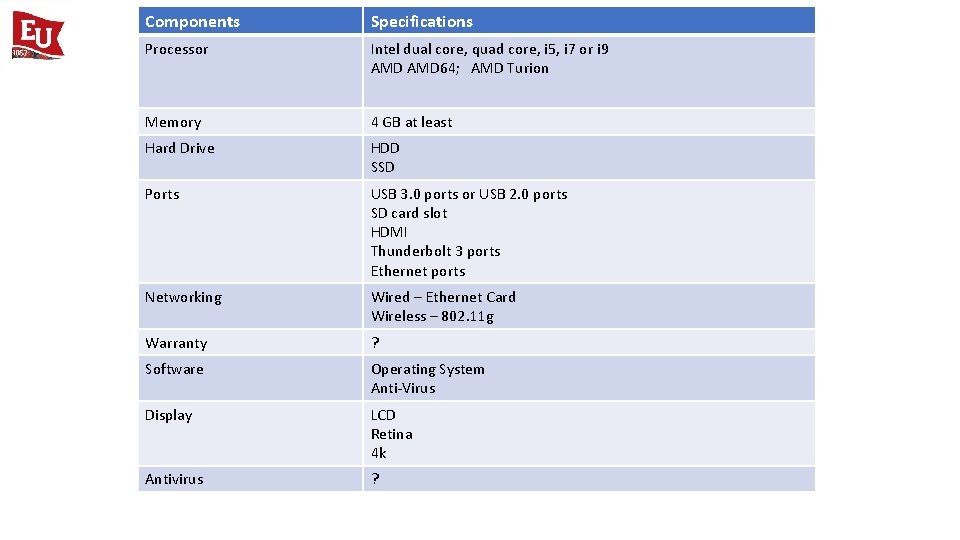
Components Specifications Processor Intel dual core, quad core, i 5, i 7 or i 9 AMD 64; AMD Turion Memory 4 GB at least Hard Drive HDD SSD Ports USB 3. 0 ports or USB 2. 0 ports SD card slot HDMI Thunderbolt 3 ports Ethernet ports Networking Wired – Ethernet Card Wireless – 802. 11 g Warranty ? Software Operating System Anti-Virus Display LCD Retina 4 k Antivirus ?
File Management • Work with folders and files • Select, copy, and move multiple files and folders • Identify common interface components • Open a file • Close a file and application • File compression • Use the Clipboard group commands
File and Folder • A file is a set of instructions or data • Program file: Microsoft Word or Microsoft Excel • Data File: Document or workbook • Copy, move, rename or delete a file • A folder allows us to organize our files • May contain files and/or other folders
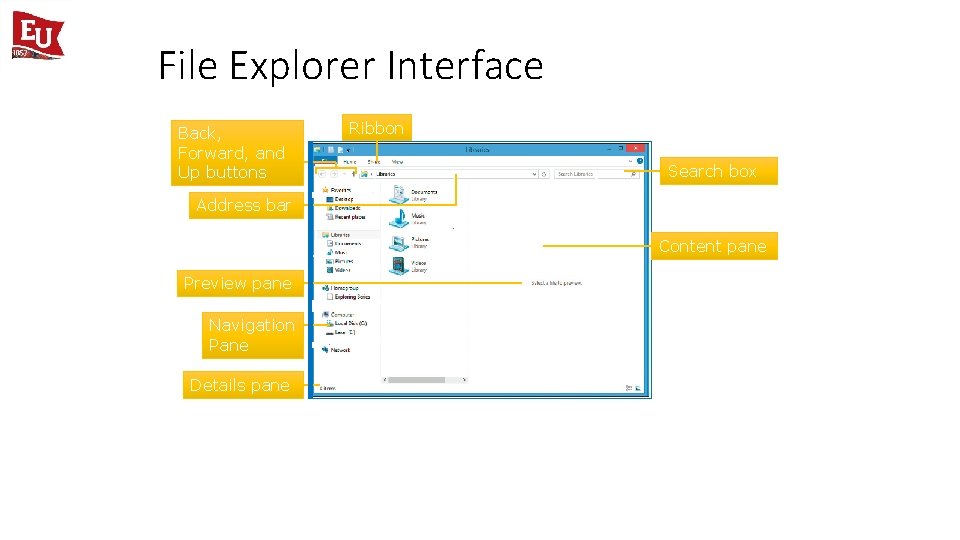
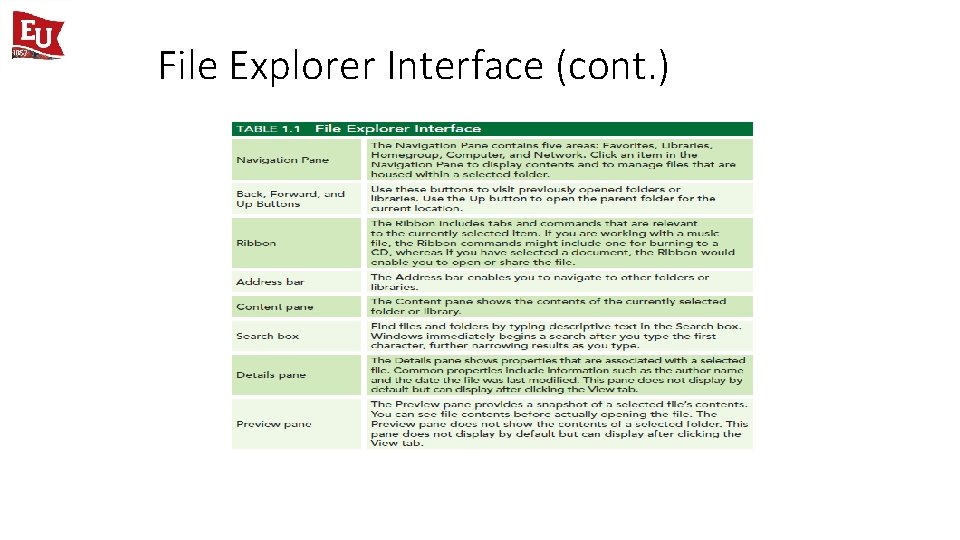
File Explorer Interface Back, Forward, and Up buttons Ribbon Search box Address bar Content pane Preview pane Navigation Pane Details pane
File Explorer Interface (cont. )
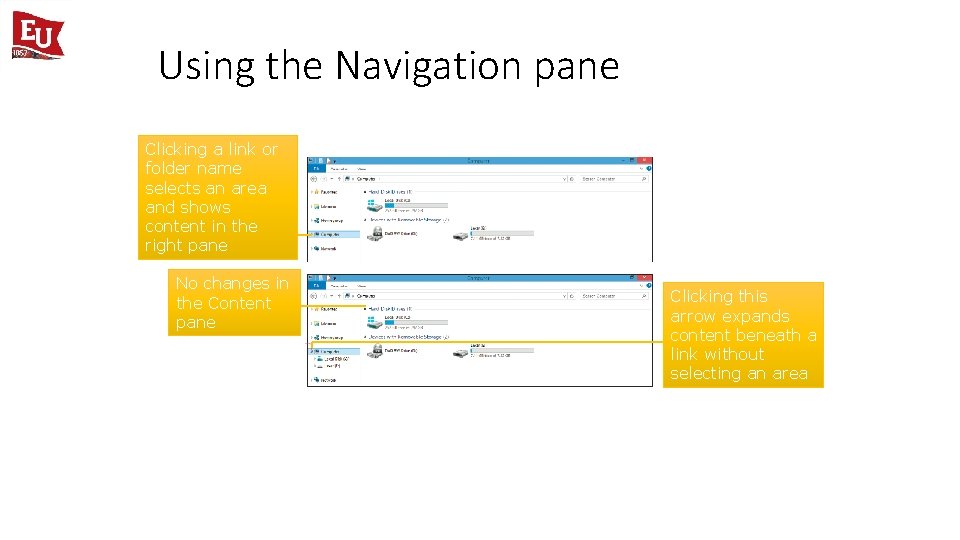
Using the Navigation pane Clicking a link or folder name selects an area and shows content in the right pane No changes in the Content pane Clicking this arrow expands content beneath a link without selecting an area
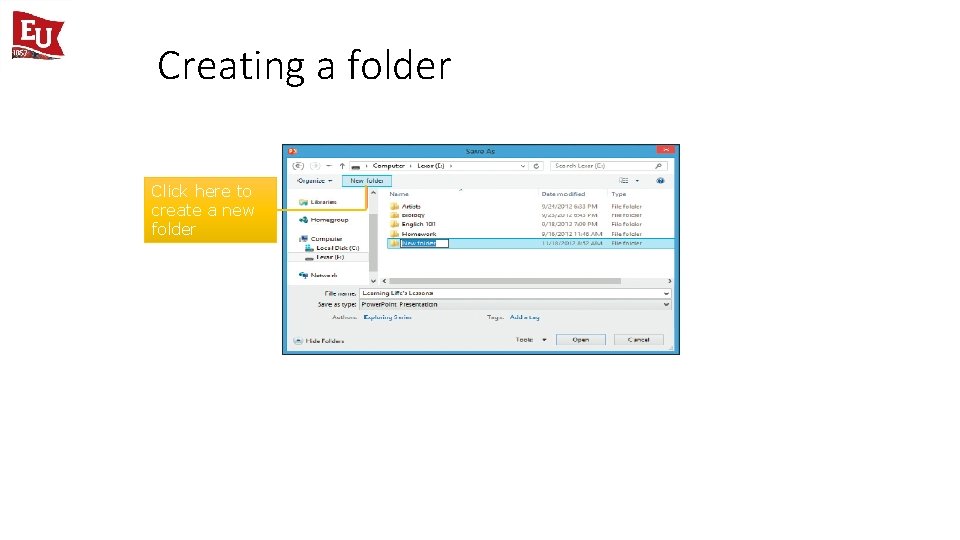
Creating a folder Click here to create a new folder
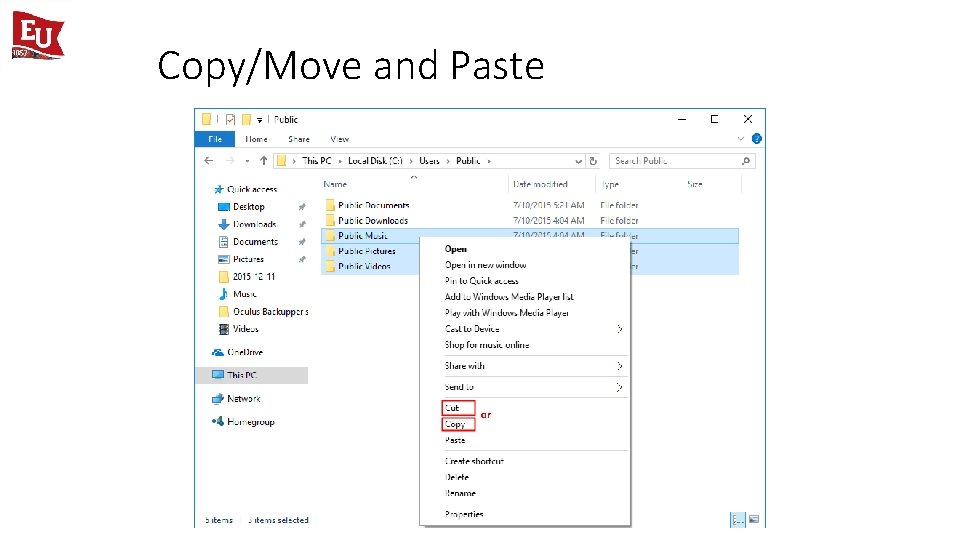
Copy/Move and Paste
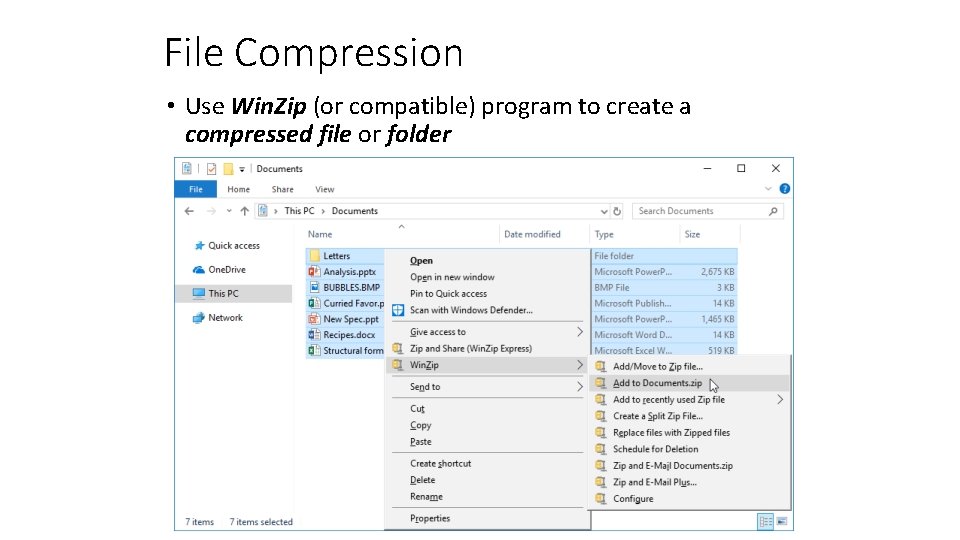
File Compression • Use Win. Zip (or compatible) program to create a compressed file or folder
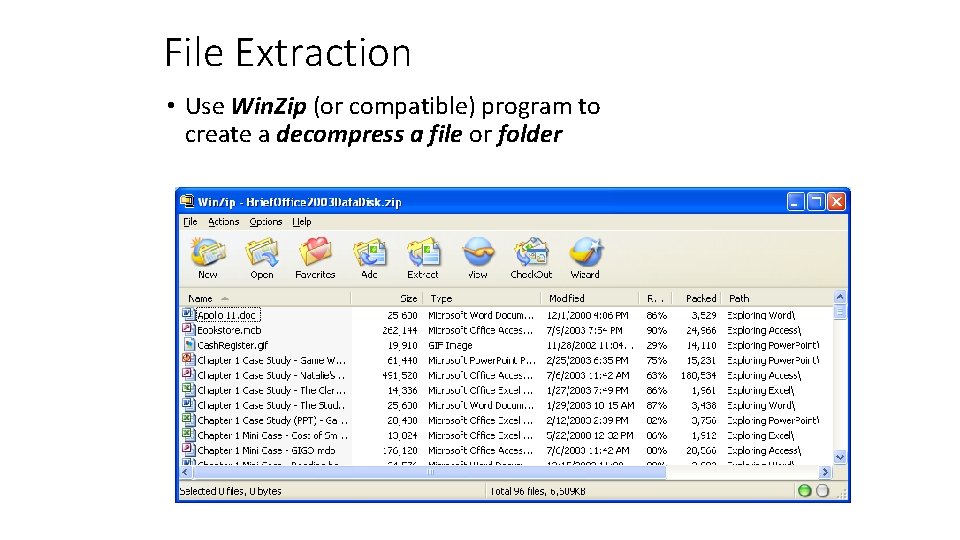
File Extraction • Use Win. Zip (or compatible) program to create a decompress a file or folder
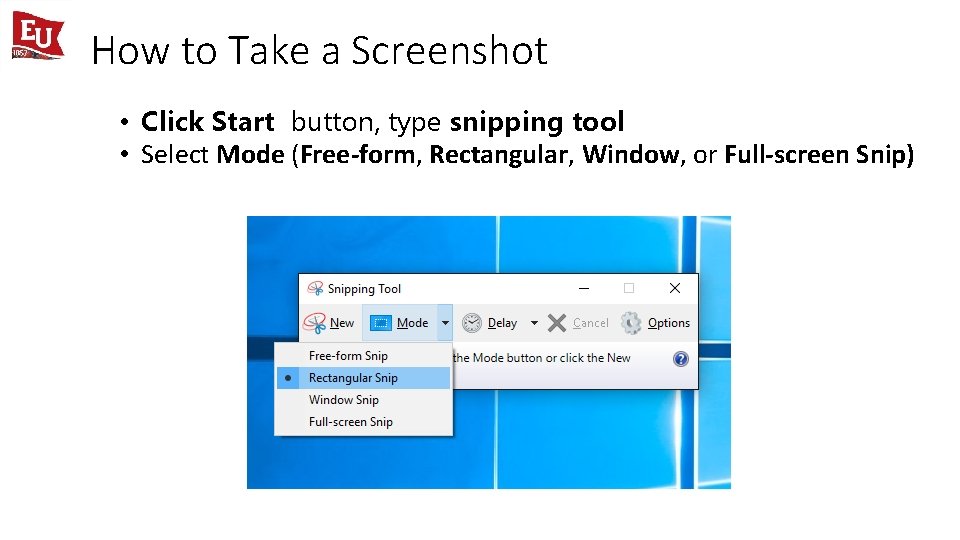
How to Take a Screenshot • Click Start button, type snipping tool • Select Mode (Free-form, Rectangular, Window, or Full-screen Snip)
Passwords 14 February
It is important to make a good password • Stops others from stealing your information • Stops others from stealing your identity • Stops others from getting you in trouble
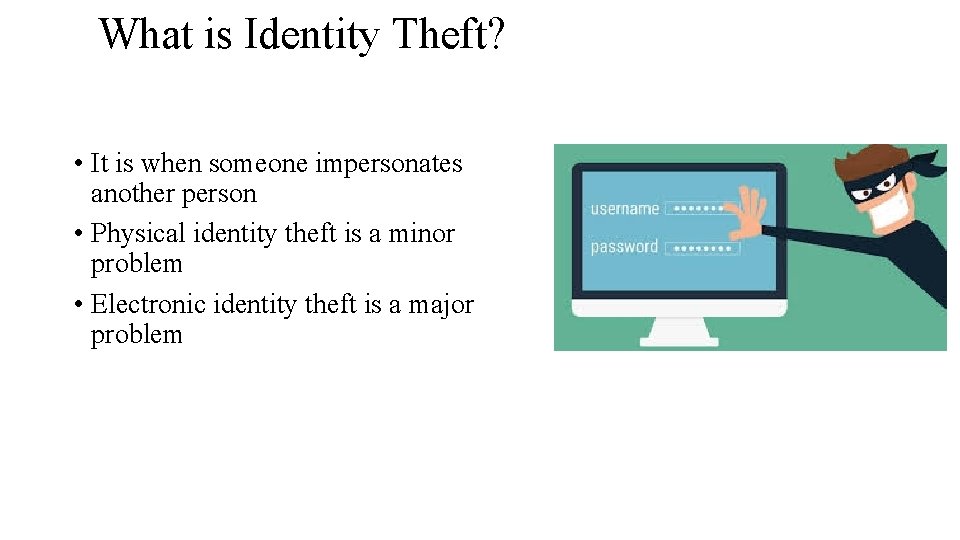
What is Identity Theft? • It is when someone impersonates another person • Physical identity theft is a minor problem • Electronic identity theft is a major problem
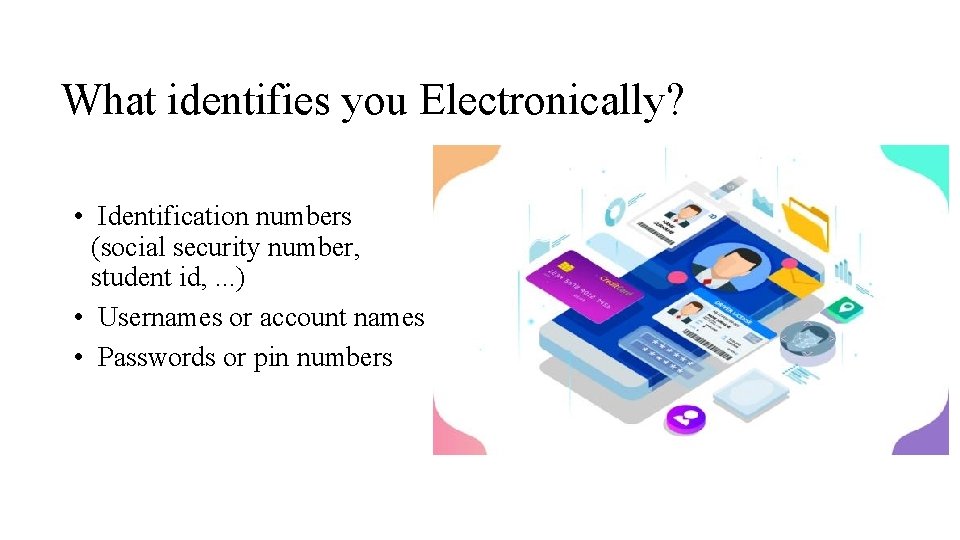
What identifies you Electronically? • Identification numbers (social security number, student id, . . . ) • Usernames or account names • Passwords or pin numbers
Where could identity theft occur • Anywhere you have personal information • Accounts (School, Facebook, Bank, Amazon, Credit Card etc. ) • Emailing personal information
You should NEVER… • Give your password to anyone • A friend or family • An IT person • An anonymous email • Be careful when unexpected requests for passwords appear
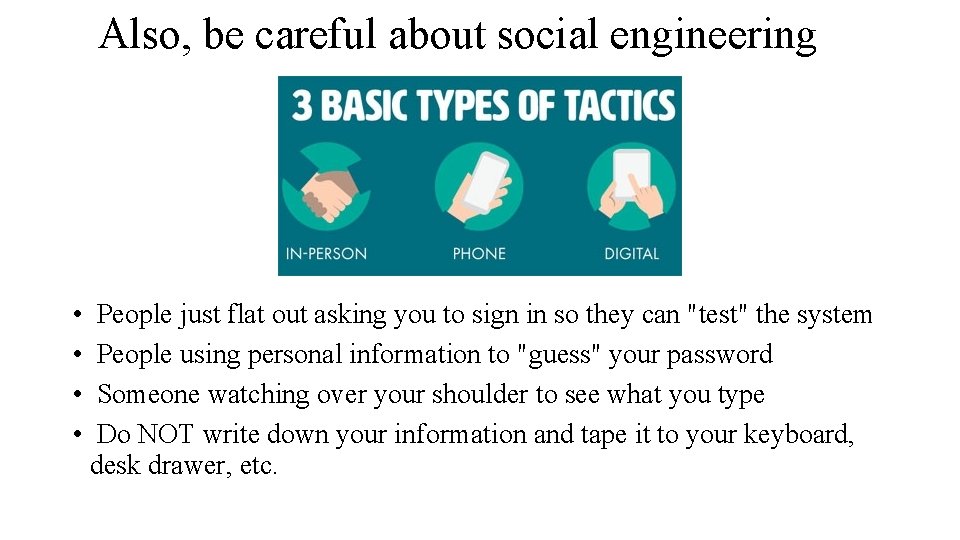
Also, be careful about social engineering • • People just flat out asking you to sign in so they can "test" the system People using personal information to "guess" your password Someone watching over your shoulder to see what you type Do NOT write down your information and tape it to your keyboard, desk drawer, etc.
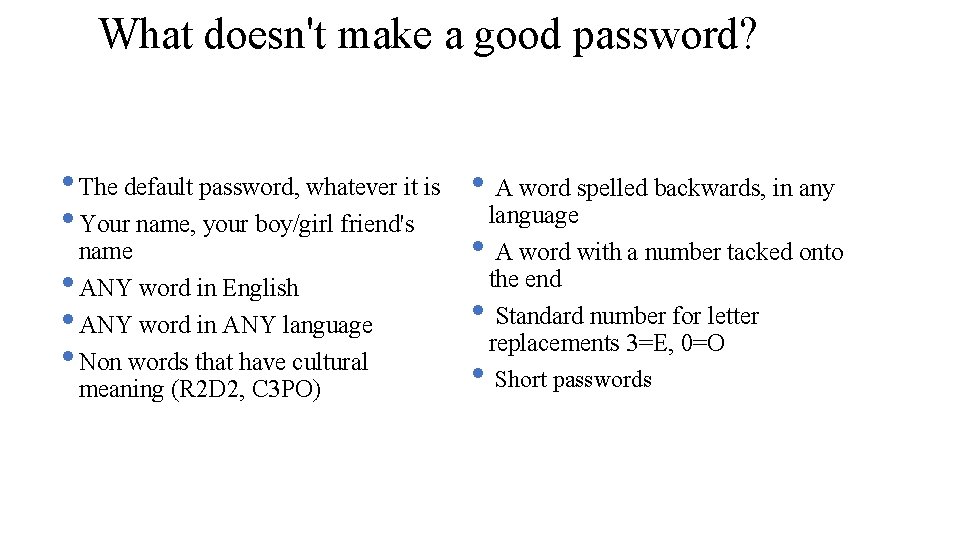
What doesn't make a good password? • The default password, whatever it is • A word spelled backwards, in any language • Your name, your boy/girl friend's name • A word with a number tacked onto the end • ANY word in English • Standard number for letter • ANY word in ANY language replacements 3=E, 0=O • Non words that have cultural • Short passwords meaning (R 2 D 2, C 3 PO)
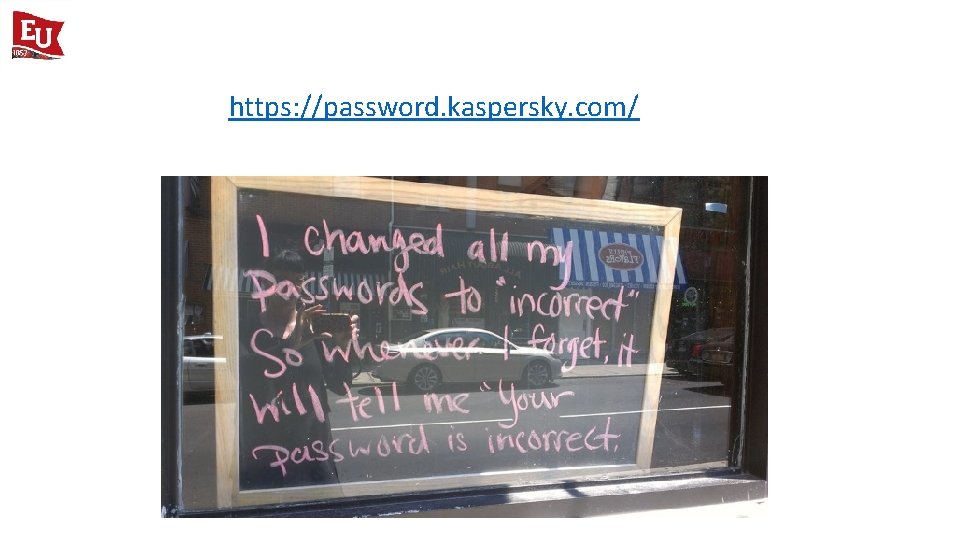
https: //password. kaspersky. com/
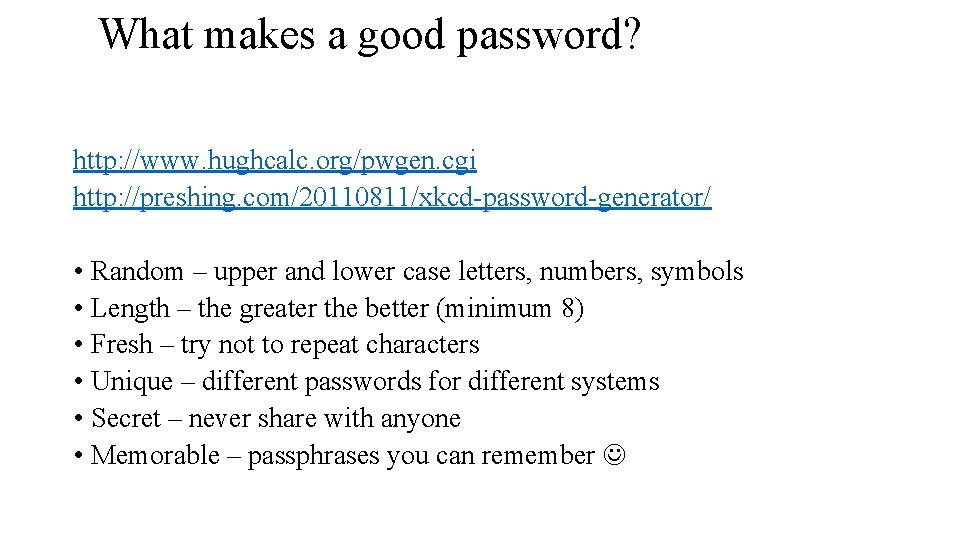
What makes a good password? http: //www. hughcalc. org/pwgen. cgi http: //preshing. com/20110811/xkcd-password-generator/ • Random – upper and lower case letters, numbers, symbols • Length – the greater the better (minimum 8) • Fresh – try not to repeat characters • Unique – different passwords for different systems • Secret – never share with anyone • Memorable – passphrases you can remember
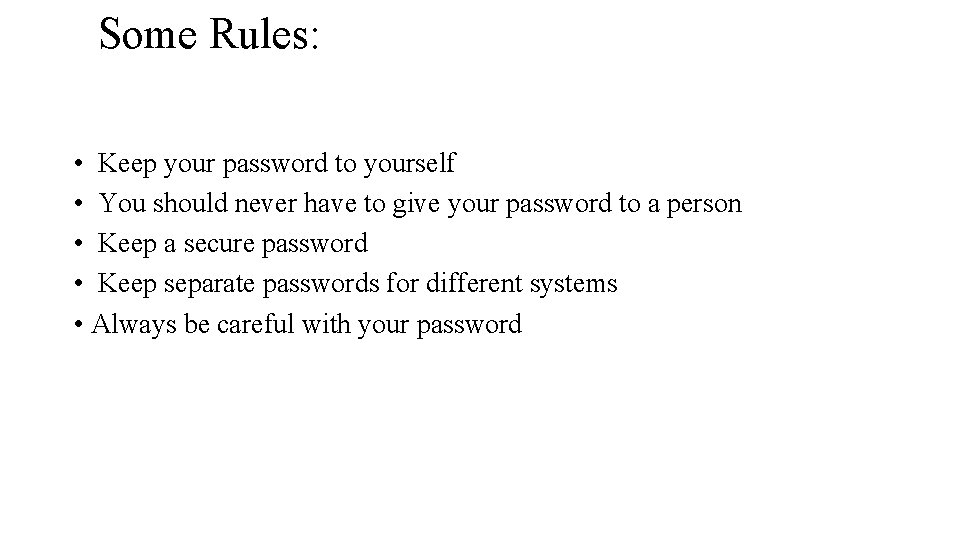
Some Rules: • Keep your password to yourself • You should never have to give your password to a person • Keep a secure password • Keep separate passwords for different systems • Always be careful with your password
Why these rules for passwords? • Identity Theft has become a major problem • In most systems, your account name or number along with your password are your identity on that system • Most account names are public information
Changing your Password 14 February
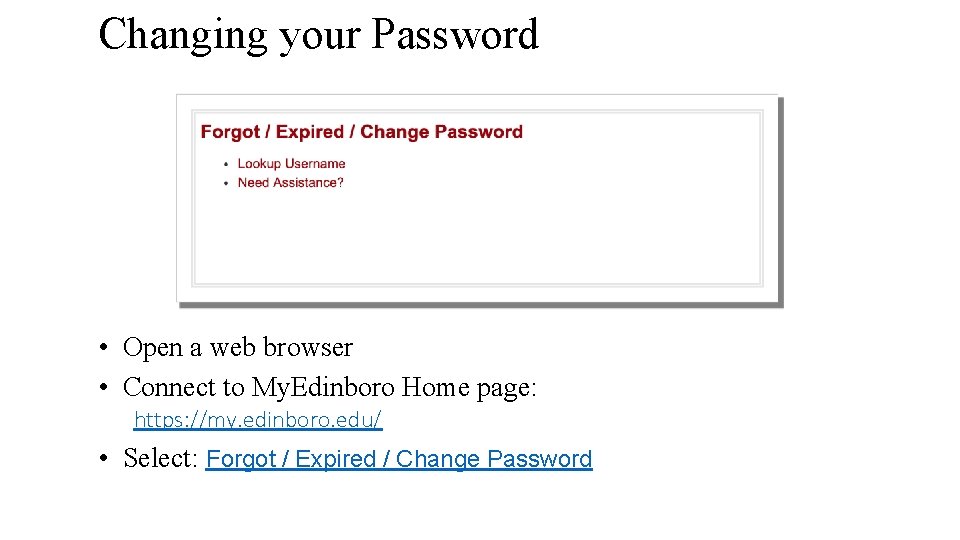
Changing your Password • Open a web browser • Connect to My. Edinboro Home page: https: //my. edinboro. edu/ • Select: Forgot / Expired / Change Password
EUP Student Email 14 February
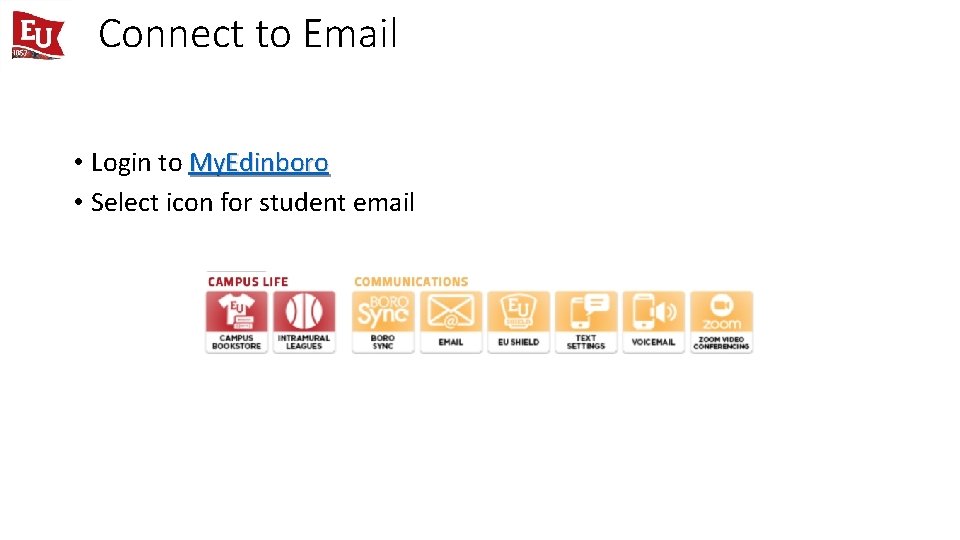
Connect to Email • Login to My. Edinboro • Select icon for student email
Communicating through Email • Most official correspondences are handled through your campus email account • It is one form of information release (alerts can be sent to email) • Most official announcements are handled through email • Distribution lists are established for classes, majors, departments, etc.
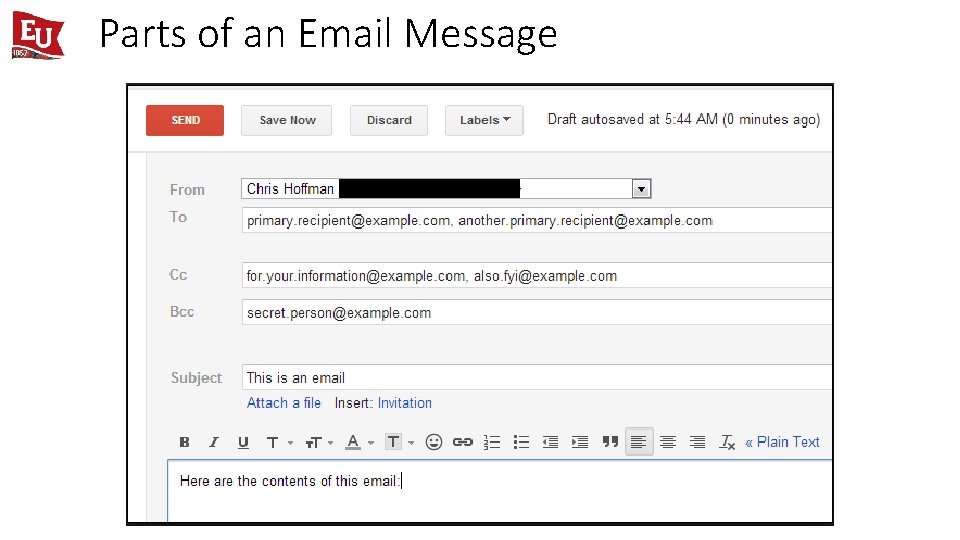
Parts of an Email Message
Parts of an Email Message • TO: email address(es) of primary persons • CC: (carbon copy) email address(es) of other people who may be involved/interested in the contents of the message (Think FYI) • BCC: (blind carbon copy) email address(es) of other people who will receive a copy, but the fact that they have received a copy is concealed from other recipient(s) • Use this when sending an email to a group of people where you don't want to share membership/emails with the group • Use it when you don't want the person bcc'd to be forced to acknowledge that they received a copy • It also stops "reply all" • Subject: short summary of contents • Body: message
Email Attachments • A file sent along with an email message • File format is maintained • Size is usually limited • In most email clients: • Find the attach button • Select the file you want to attach • Be careful of attachments • Don't open attachments from people you don't know/trust • Zip or self-extracting zip files (. zip or. exe)
Email Etiquette • First and foremost THINK about what you are sending • Would you put it on paper? • Someone might print it out • Would you want it to last forever? • Most systems are backed up, and most people are capable of saving email messages • Would you want it used in court? • System records are subject to subpoena • Would you want it published? • Some records are subject to the laws
Email Etiquette • Don't "e-mail angry" • Be careful with confidential information • Keep it clean • Organize your message - you don't want to read something that is a mess • Content – be clear in your message • Be clear in your subject line • You want the recipient to read it • People receive tens to hundreds of email messages a day • You don't want it caught in a spam filter
Email Etiquette • Beware of the "reply all" • Briefly introduce yourself • Your e-mail is a reflection of you • Be concise and to the point • Answer all questions and preempt further questions • Use proper spelling, grammar & punctuation • Pay attention to the TO and CC fields
Final Tips • Be careful when you don’t recognize the sender • Notice the actual email address • Don’t respond to threats – “send us your password and email before you lose all your contacts” • Notice phishing emails - poor grammar or misspelled words can be an indicator • Keep passwords private and update them every 90 days
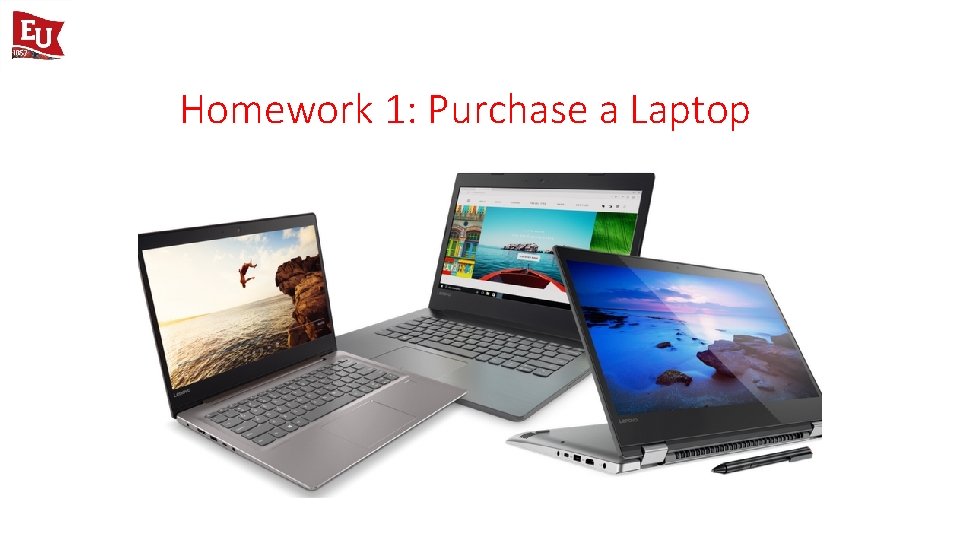
Homework 1: Purchase a Laptop
Windows Explorer Exercise (In Class Exercise 1) • • • Run the program Make folders Make sub-folders Good naming Zipping