
File Attributes and Permissions Types of users The
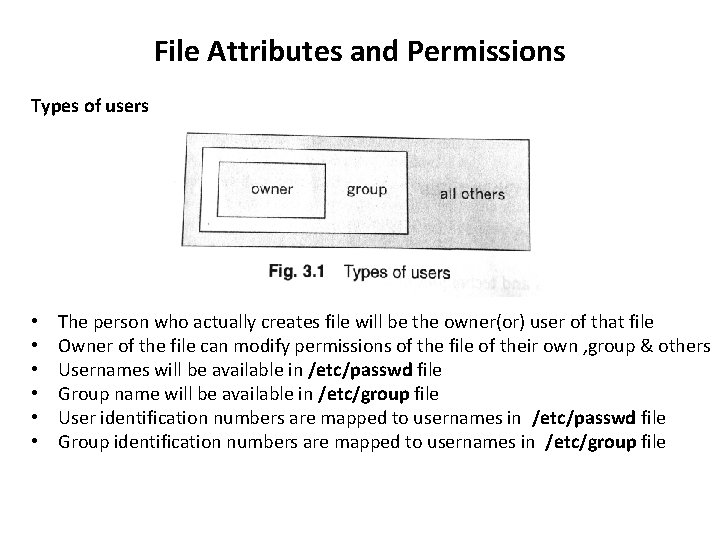
File Attributes and Permissions Types of users • • • The person who actually creates file will be the owner(or) user of that file Owner of the file can modify permissions of the file of their own , group & others Usernames will be available in /etc/passwd file Group name will be available in /etc/group file User identification numbers are mapped to usernames in /etc/passwd file Group identification numbers are mapped to usernames in /etc/group file
File Attributes Any type of file will have 1. Name 2. Creation, Modification and access time 3. A size 4. An owner 5. Group of owner 6. Link information 7. Permissions 8. Inode number All this information about a file are called its attributes
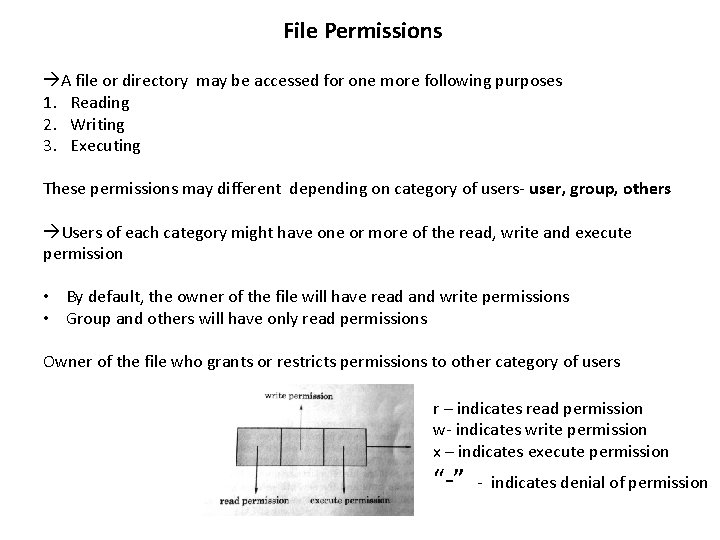
File Permissions A file or directory may be accessed for one more following purposes 1. Reading 2. Writing 3. Executing These permissions may different depending on category of users- user, group, others Users of each category might have one or more of the read, write and execute permission • By default, the owner of the file will have read and write permissions • Group and others will have only read permissions Owner of the file who grants or restricts permissions to other category of users r – indicates read permission w- indicates write permission x – indicates execute permission “-” - indicates denial of permission
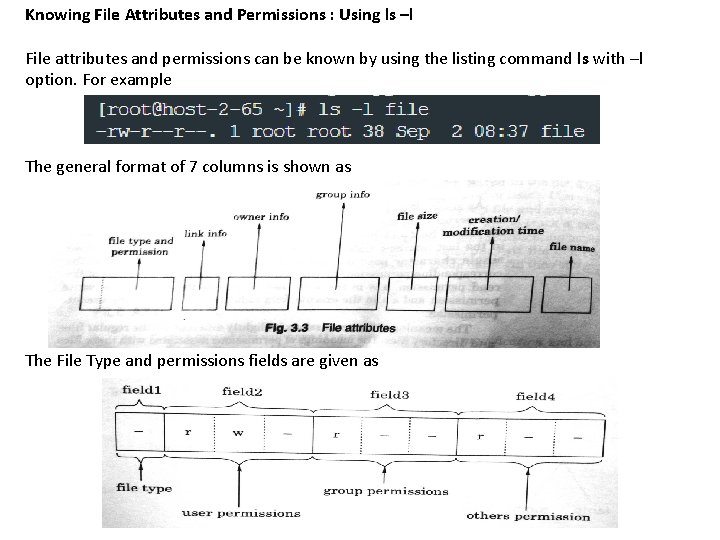
Knowing File Attributes and Permissions : Using ls –l File attributes and permissions can be known by using the listing command ls with –l option. For example The general format of 7 columns is shown as The File Type and permissions fields are given as
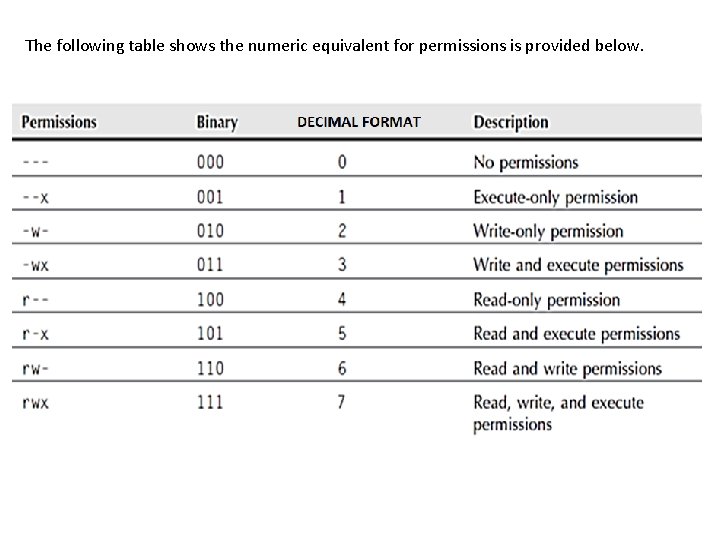
The following table shows the numeric equivalent for permissions is provided below.
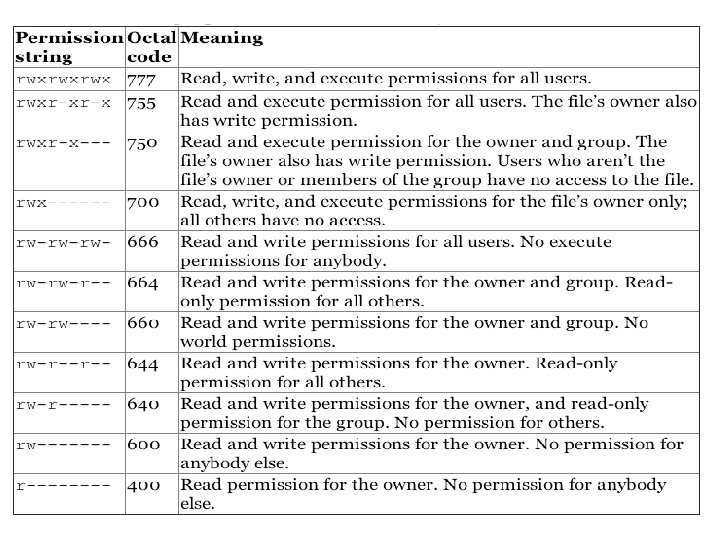
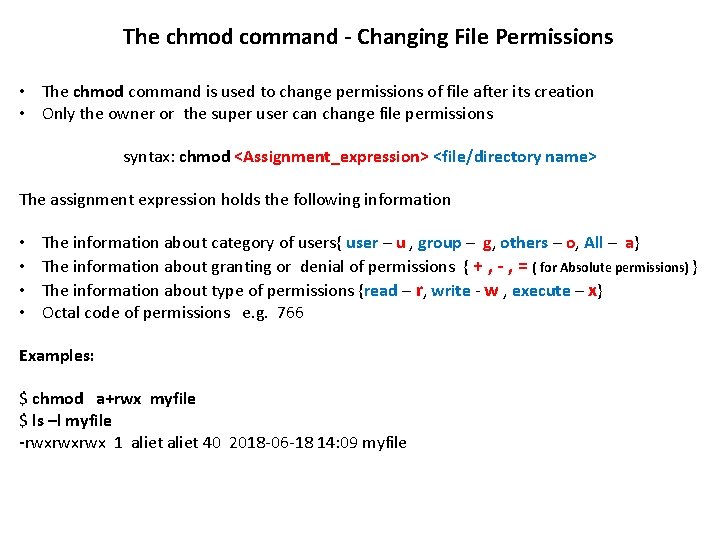
The chmod command - Changing File Permissions • The chmod command is used to change permissions of file after its creation • Only the owner or the super user can change file permissions syntax: chmod <Assignment_expression> <file/directory name> The assignment expression holds the following information • • The information about category of users{ user – u , group – g, others – o, All – a} The information about granting or denial of permissions { + , - , = ( for Absolute permissions) } The information about type of permissions {read – r, write - w , execute – x} Octal code of permissions e. g. 766 Examples: $ chmod a+rwx myfile $ ls –l myfile -rwxrwxrwx 1 aliet 40 2018 -06 -18 14: 09 myfile
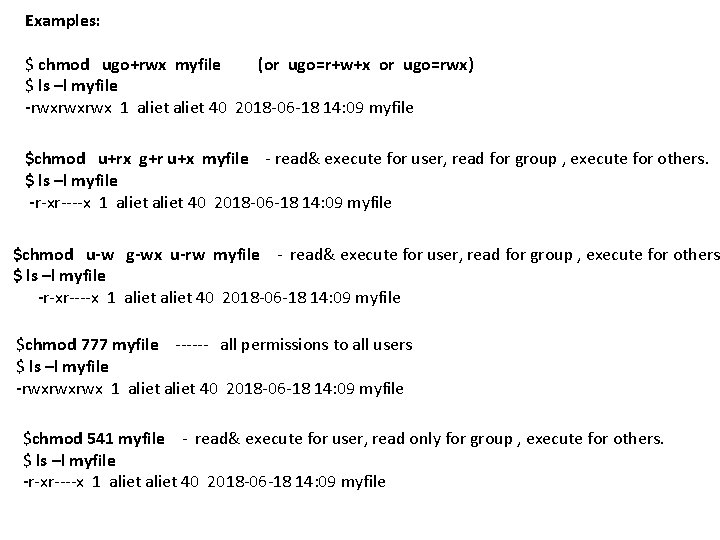
Examples: $ chmod ugo+rwx myfile (or ugo=r+w+x or ugo=rwx) $ ls –l myfile -rwxrwxrwx 1 aliet 40 2018 -06 -18 14: 09 myfile $chmod u+rx g+r u+x myfile - read& execute for user, read for group , execute for others. $ ls –l myfile -r-xr----x 1 aliet 40 2018 -06 -18 14: 09 myfile $chmod u-w g-wx u-rw myfile - read& execute for user, read for group , execute for others. $ ls –l myfile -r-xr----x 1 aliet 40 2018 -06 -18 14: 09 myfile $chmod 777 myfile ------ all permissions to all users $ ls –l myfile -rwxrwxrwx 1 aliet 40 2018 -06 -18 14: 09 myfile $chmod 541 myfile - read& execute for user, read only for group , execute for others. $ ls –l myfile -r-xr----x 1 aliet 40 2018 -06 -18 14: 09 myfile
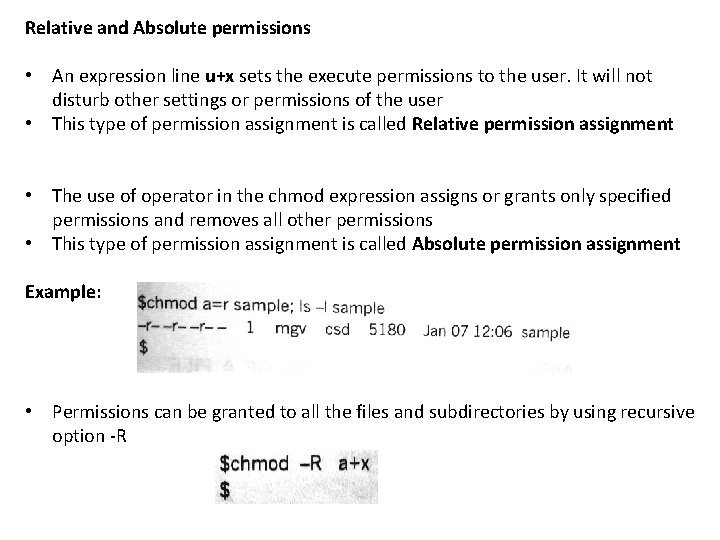
Relative and Absolute permissions • An expression line u+x sets the execute permissions to the user. It will not disturb other settings or permissions of the user • This type of permission assignment is called Relative permission assignment • The use of operator in the chmod expression assigns or grants only specified permissions and removes all other permissions • This type of permission assignment is called Absolute permission assignment Example: • Permissions can be granted to all the files and subdirectories by using recursive option -R
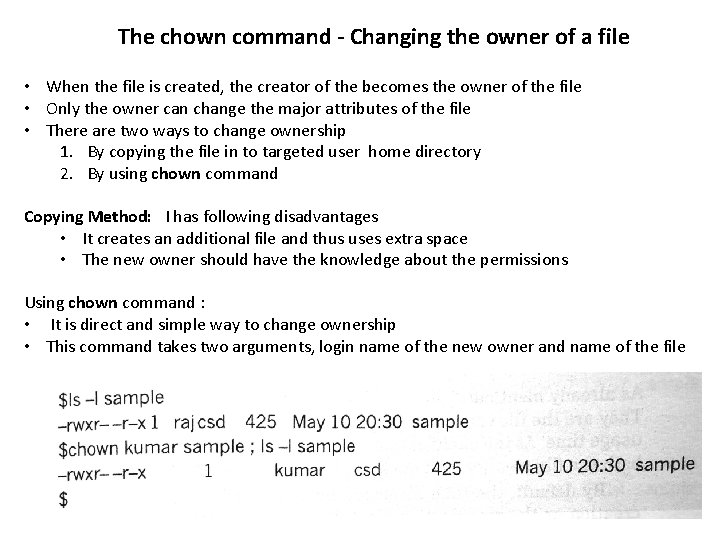
The chown command - Changing the owner of a file • When the file is created, the creator of the becomes the owner of the file • Only the owner can change the major attributes of the file • There are two ways to change ownership 1. By copying the file in to targeted user home directory 2. By using chown command Copying Method: I has following disadvantages • It creates an additional file and thus uses extra space • The new owner should have the knowledge about the permissions Using chown command : • It is direct and simple way to change ownership • This command takes two arguments, login name of the new owner and name of the file
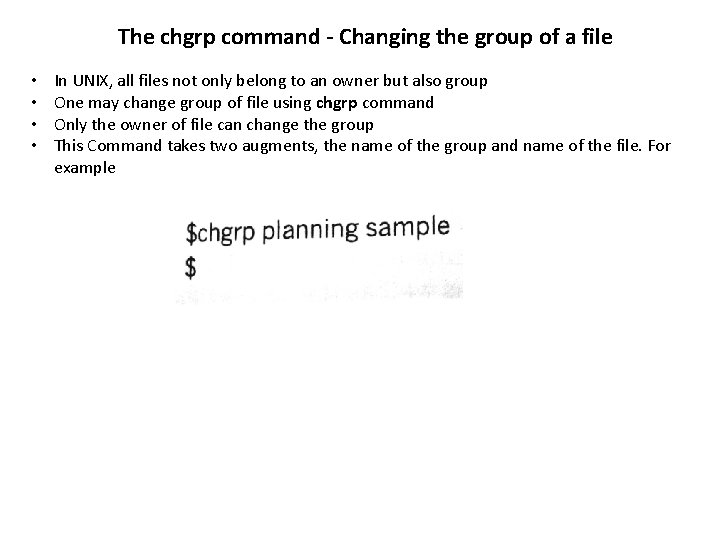
The chgrp command - Changing the group of a file • • In UNIX, all files not only belong to an owner but also group One may change group of file using chgrp command Only the owner of file can change the group This Command takes two augments, the name of the group and name of the file. For example
- Slides: 11