
Features of New XBRL Reporting System to file
Features of New XBRL Reporting System to file the revised supervisory returns by NBFCs Reserve Bank of India Department of Supervision (NBFCs) Kolkata
Outline Ø Introduction Ø Present system of reporting of returns by NBFCs Ø New Reporting Platform for Returns Submission & Its Features Ø Procedures for populating the data and uploading the returns to XBRL system Ø Conclusion
Introduction to new reporting platform (XBRL) to file the returns by NBFCs
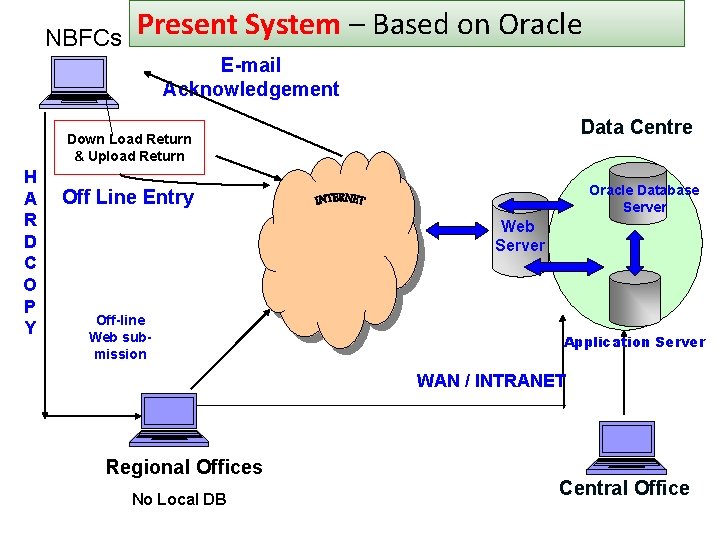
NBFCs Present System – Based on Oracle E-mail Acknowledgement Data Centre Down Load Return & Upload Return H A R D C O P Y Oracle Database Server Off Line Entry Web Server Off-line Web submission Application Server WAN / INTRANET Regional Offices No Local DB Central Office
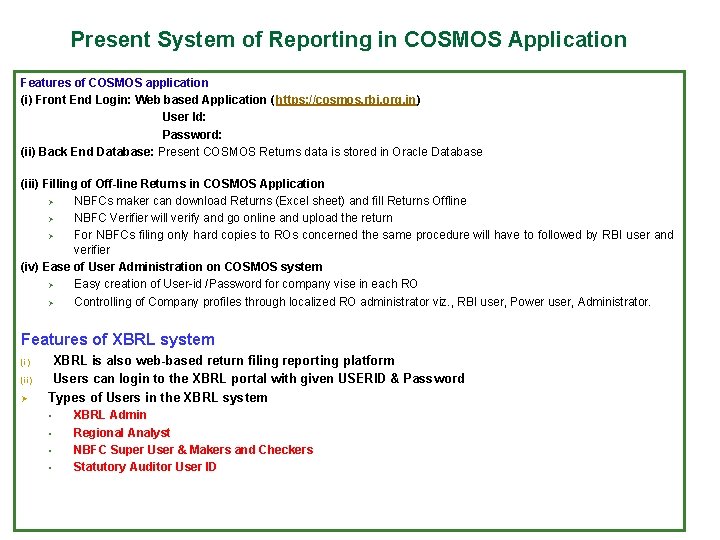
Present System of Reporting in COSMOS Application Features of COSMOS application (i) Front End Login: Web based Application ( https: //cosmos. rbi. org. in) User Id: Password: (ii) Back End Database: Present COSMOS Returns data is stored in Oracle Database (iii) Filling of Off-line Returns in COSMOS Application Ø NBFCs maker can download Returns (Excel sheet) and fill Returns Offline Ø NBFC Verifier will verify and go online and upload the return Ø For NBFCs filing only hard copies to ROs concerned the same procedure will have to followed by RBI user and verifier (iv) Ease of User Administration on COSMOS system Ø Easy creation of User-id /Password for company vise in each RO Ø Controlling of Company profiles through localized RO administrator viz. , RBI user, Power user, Administrator. Features of XBRL system (i) (ii) Ø XBRL is also web-based return filing reporting platform Users can login to the XBRL portal with given USERID & Password Types of Users in the XBRL system § § XBRL Admin Regional Analyst NBFC Super User & Makers and Checkers Statutory Auditor User ID
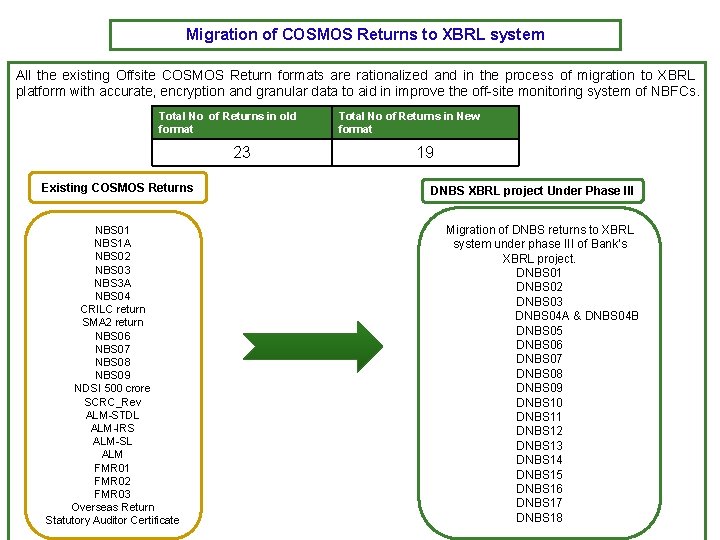
Migration of COSMOS Returns to XBRL system All the existing Offsite COSMOS Return formats are rationalized and in the process of migration to XBRL platform with accurate, encryption and granular data to aid in improve the off-site monitoring system of NBFCs. Total No of Returns in old format 23 Existing COSMOS Returns NBS 01 NBS 1 A NBS 02 NBS 03 NBS 3 A NBS 04 CRILC return SMA 2 return NBS 06 NBS 07 NBS 08 NBS 09 NDSI 500 crore SCRC_Rev ALM-STDL ALM-IRS ALM-SL ALM FMR 01 FMR 02 FMR 03 Overseas Return Statutory Auditor Certificate Total No of Returns in New format 19 DNBS XBRL project Under Phase III Migration of DNBS returns to XBRL system under phase III of Bank’s XBRL project. DNBS 01 DNBS 02 DNBS 03 DNBS 04 A & DNBS 04 B DNBS 05 DNBS 06 DNBS 07 DNBS 08 DNBS 09 DNBS 10 DNBS 11 DNBS 12 DNBS 13 DNBS 14 DNBS 15 DNBS 16 DNBS 17 DNBS 18
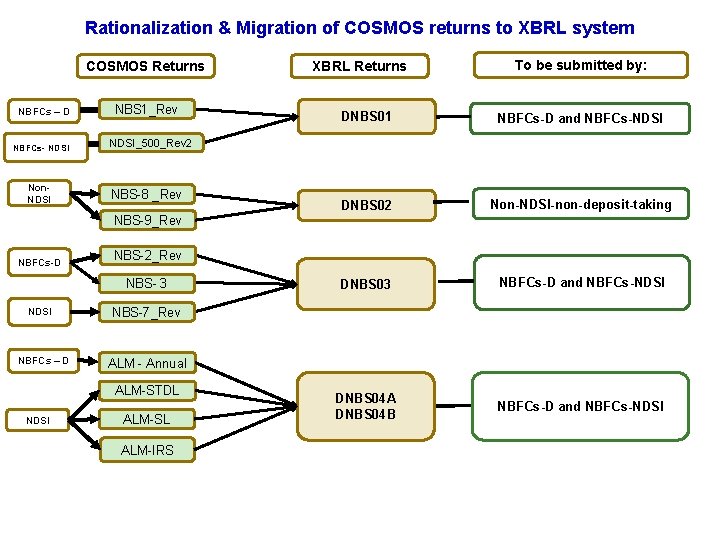
Rationalization & Migration of COSMOS returns to XBRL system COSMOS Returns NBFCs – D NBFCs- NDSI Non. NDSI NBS 1_Rev XBRL Returns To be submitted by: DNBS 01 NBFCs-D and NBFCs-NDSI DNBS 02 Non-NDSI-non-deposit-taking DNBS 03 NBFCs-D and NBFCs-NDSI DNBS 04 A DNBS 04 B NBFCs-D and NBFCs-NDSI_500_Rev 2 NBS-8 _Rev NBS-9_Rev NBFCs-D NBS-2_Rev NBS- 3 NDSI NBFCs – D NBS-7_Rev ALM - Annual ALM-STDL NDSI ALM-SL ALM-IRS
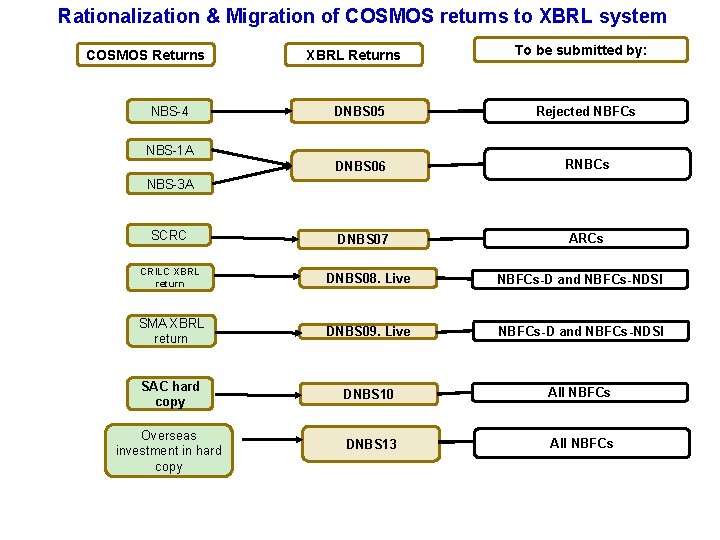
Rationalization & Migration of COSMOS returns to XBRL system COSMOS Returns NBS-4 XBRL Returns To be submitted by: DNBS 05 Rejected NBFCs DNBS 06 RNBCs DNBS 07 ARCs NBS-1 A NBS-3 A SCRC CRILC XBRL return DNBS 08. Live NBFCs-D and NBFCs-NDSI SMA XBRL return DNBS 09. Live NBFCs-D and NBFCs-NDSI SAC hard copy DNBS 10 All NBFCs DNBS 13 All NBFCs Overseas investment in hard copy
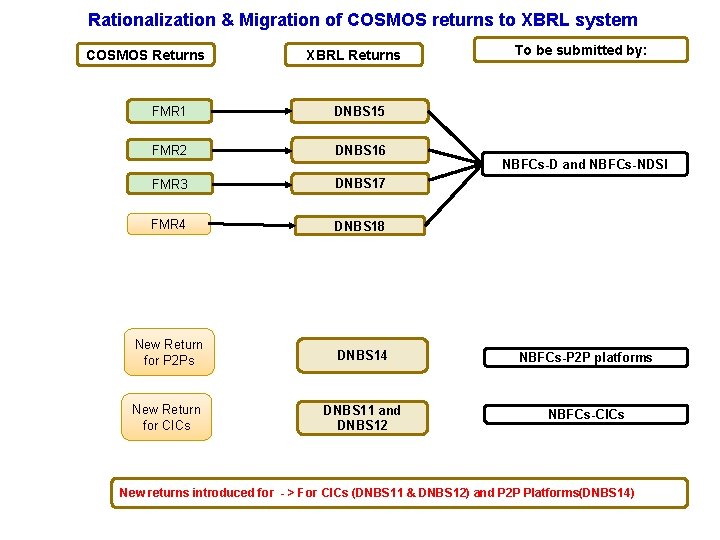
Rationalization & Migration of COSMOS returns to XBRL system COSMOS Returns XBRL Returns To be submitted by: FMR 1 DNBS 15 FMR 2 DNBS 16 FMR 3 DNBS 17 FMR 4 DNBS 18 New Return for P 2 Ps DNBS 14 NBFCs-P 2 P platforms New Return for CICs DNBS 11 and DNBS 12 NBFCs-CICs NBFCs-D and NBFCs-NDSI New returns introduced for - > For CICs (DNBS 11 & DNBS 12) and P 2 P Platforms(DNBS 14)
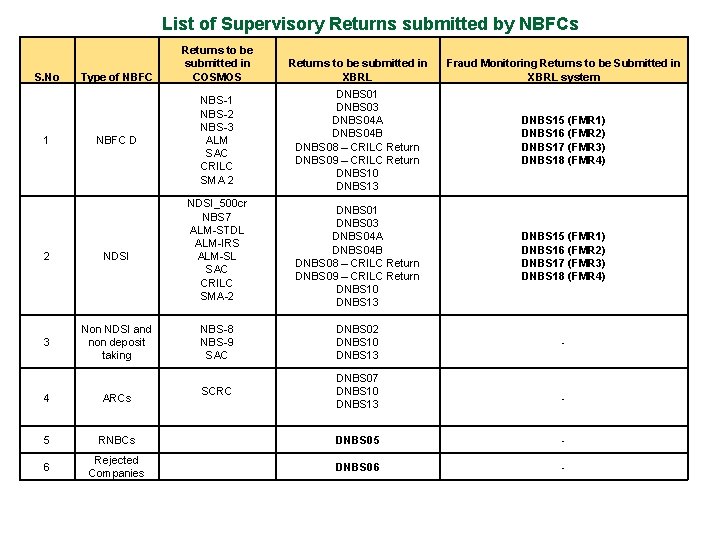
List of Supervisory Returns submitted by NBFCs S. No 1 Type of NBFC D 2 NDSI 3 Non NDSI and non deposit taking Returns to be submitted in COSMOS Returns to be submitted in XBRL Fraud Monitoring Returns to be Submitted in XBRL system DNBS 01 DNBS 03 DNBS 04 A DNBS 04 B DNBS 08 – CRILC Return DNBS 09 – CRILC Return DNBS 10 DNBS 13 DNBS 15 (FMR 1) DNBS 16 (FMR 2) DNBS 17 (FMR 3) DNBS 18 (FMR 4) NBS-8 NBS-9 SAC DNBS 02 DNBS 10 DNBS 13 - SCRC DNBS 07 DNBS 10 DNBS 13 NBS-1 NBS-2 NBS-3 ALM SAC CRILC SMA 2 NDSI_500 cr NBS 7 ALM-STDL ALM-IRS ALM-SL SAC CRILC SMA-2 4 ARCs - 5 RNBCs DNBS 05 - 6 Rejected Companies DNBS 06 -
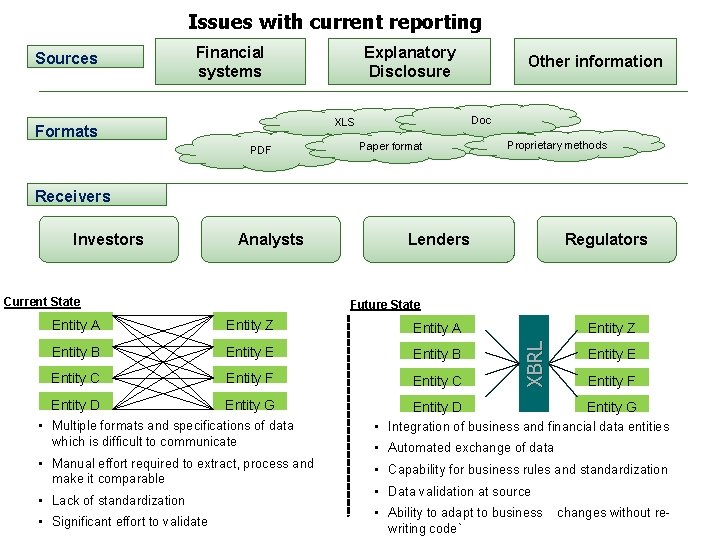
Issues with current reporting Sources Financial systems Explanatory Disclosure Doc XLS Formats PDF Other information Paper format Proprietary methods Receivers Analysts Current State Lenders Regulators Future State Entity A Entity Z Entity A Entity B Entity E Entity B Entity C Entity F Entity C Entity D Entity G Entity D Entity Z XBRL Investors Entity E Entity F Entity G • Multiple formats and specifications of data which is difficult to communicate • Integration of business and financial data entities • Manual effort required to extract, process and make it comparable • Capability for business rules and standardization • Lack of standardization • Significant effort to validate • Automated exchange of data • Data validation at source • Ability to adapt to business writing code` changes without re-
Need of Better System & Better Platform
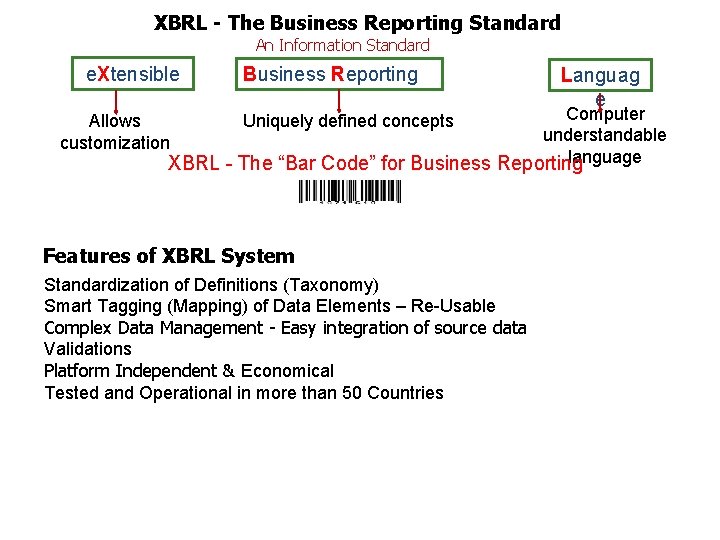
XBRL - The Business Reporting Standard An Information Standard e. Xtensible Business Reporting Languag e Computer understandable language XBRL - The “Bar Code” for Business Reporting Allows customization Uniquely defined concepts Features of XBRL System Standardization of Definitions (Taxonomy) Smart Tagging (Mapping) of Data Elements – Re-Usable Complex Data Management - Easy integration of source data Validations Platform Independent & Economical Tested and Operational in more than 50 Countries
Steps to Install the XBRL Return Installer to access the return formats in the XBRL system
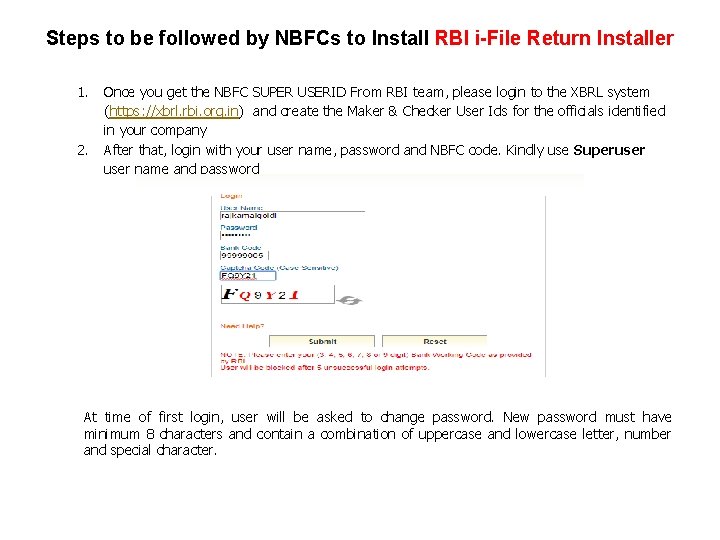
Steps to be followed by NBFCs to Install RBI i-File Return Installer 1. 2. Once you get the NBFC SUPER USERID From RBI team, please login to the XBRL system (https: //xbrl. rbi. org. in) and create the Maker & Checker User Ids for the officials identified in your company After that, login with your user name, password and NBFC code. Kindly use Superuser name and password At time of first login, user will be asked to change password. New password must have minimum 8 characters and contain a combination of uppercase and lowercase letter, number and special character.
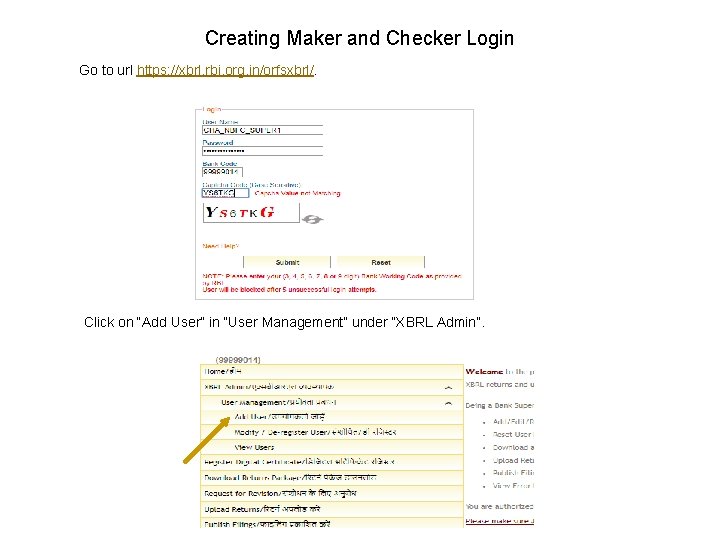
Creating Maker and Checker Login Go to url https: //xbrl. rbi. org. in/orfsxbrl/. Click on “Add User” in “User Management” under “XBRL Admin”.
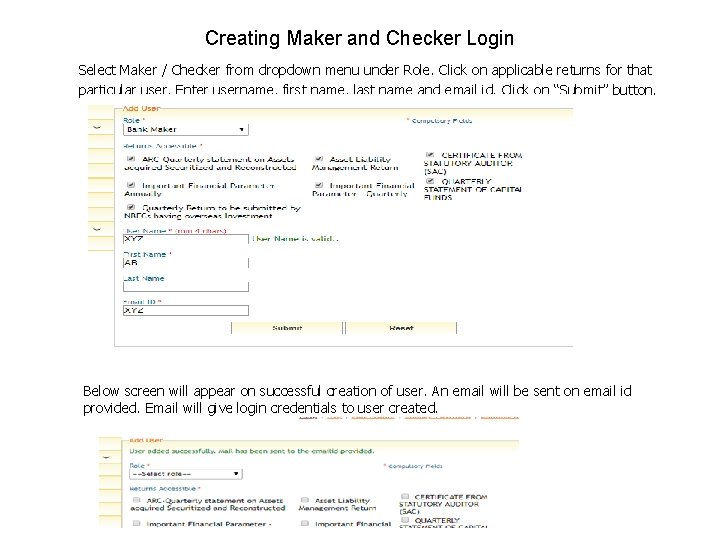
Creating Maker and Checker Login Select Maker / Checker from dropdown menu under Role. Click on applicable returns for that particular user. Enter username, first name, last name and email id. Click on “Submit” button. Below screen will appear on successful creation of user. An email will be sent on email id provided. Email will give login credentials to user created.
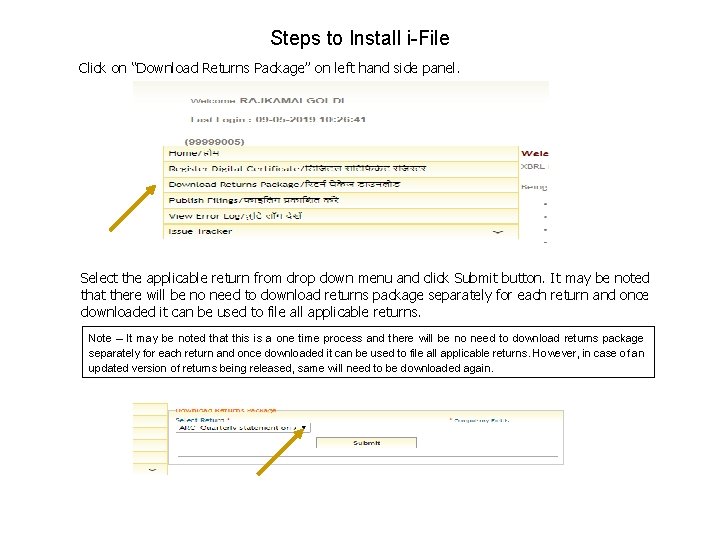
Steps to Install i-File Click on “Download Returns Package” on left hand side panel. Select the applicable return from drop down menu and click Submit button. It may be noted that there will be no need to download returns package separately for each return and once downloaded it can be used to file all applicable returns. Note – It may be noted that this is a one time process and there will be no need to download returns package separately for each return and once downloaded it can be used to file all applicable returns. However, in case of an updated version of returns being released, same will need to be downloaded again.
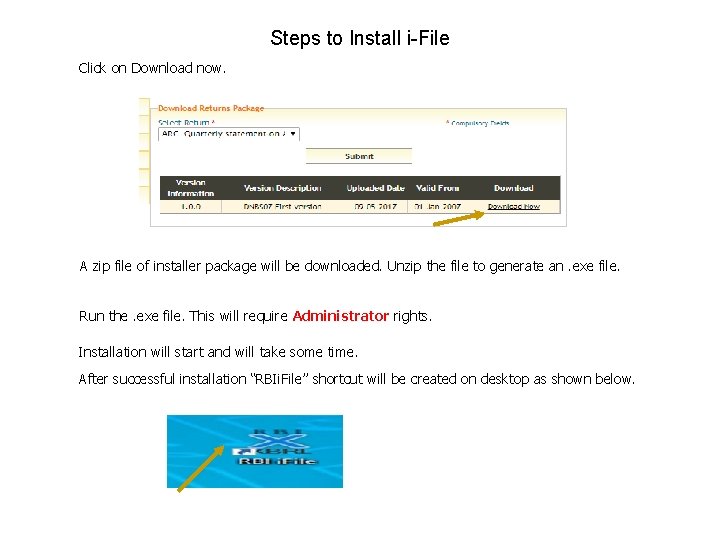
Steps to Install i-File Click on Download now. A zip file of installer package will be downloaded. Unzip the file to generate an. exe file. Run the. exe file. This will require Administrator rights. Installation will start and will take some time. After successful installation “RBIi. File” shortcut will be created on desktop as shown below.
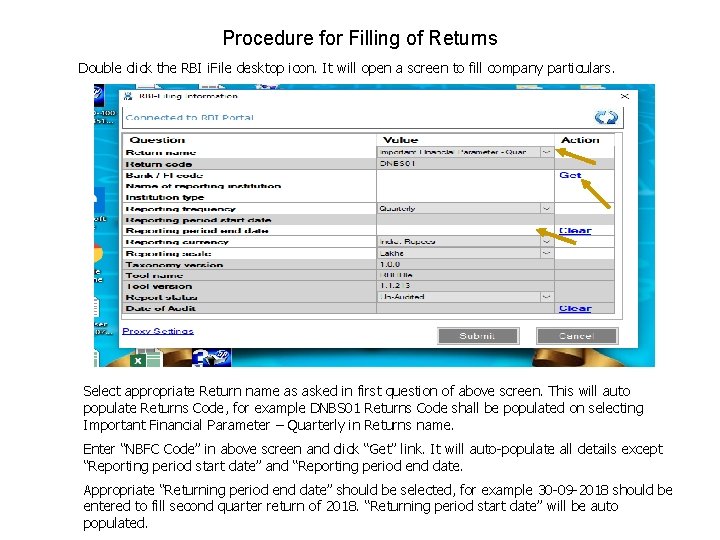
Procedure for Filling of Returns Double click the RBI i. File desktop icon. It will open a screen to fill company particulars. Select appropriate Return name as asked in first question of above screen. This will auto populate Returns Code, for example DNBS 01 Returns Code shall be populated on selecting Important Financial Parameter – Quarterly in Returns name. Enter “NBFC Code” in above screen and click “Get” link. It will auto-populate all details except “Reporting period start date” and “Reporting period end date. Appropriate “Returning period end date” should be selected, for example 30 -09 -2018 should be entered to fill second quarter return of 2018. “Returning period start date” will be auto populated.
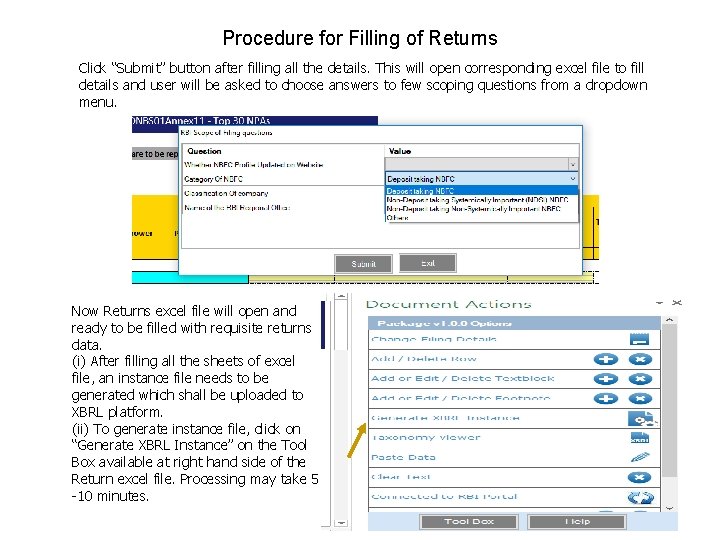
Procedure for Filling of Returns Click “Submit” button after filling all the details. This will open corresponding excel file to fill details and user will be asked to choose answers to few scoping questions from a dropdown menu. Now Returns excel file will open and ready to be filled with requisite returns data. (i) After filling all the sheets of excel file, an instance file needs to be generated which shall be uploaded to XBRL platform. (ii) To generate instance file, click on “Generate XBRL Instance” on the Tool Box available at right hand side of the Return excel file. Processing may take 5 -10 minutes.
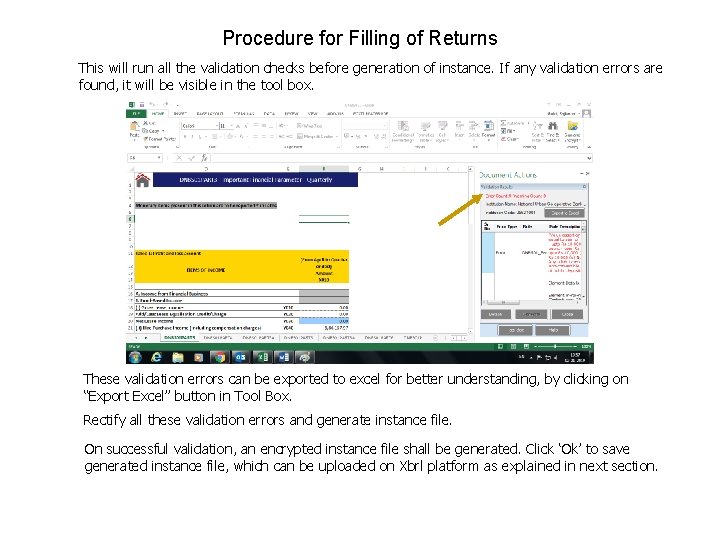
Procedure for Filling of Returns This will run all the validation checks before generation of instance. If any validation errors are found, it will be visible in the tool box. These validation errors can be exported to excel for better understanding, by clicking on “Export Excel” button in Tool Box. Rectify all these validation errors and generate instance file. On successful validation, an encrypted instance file shall be generated. Click ‘Ok’ to save generated instance file, which can be uploaded on Xbrl platform as explained in next section.
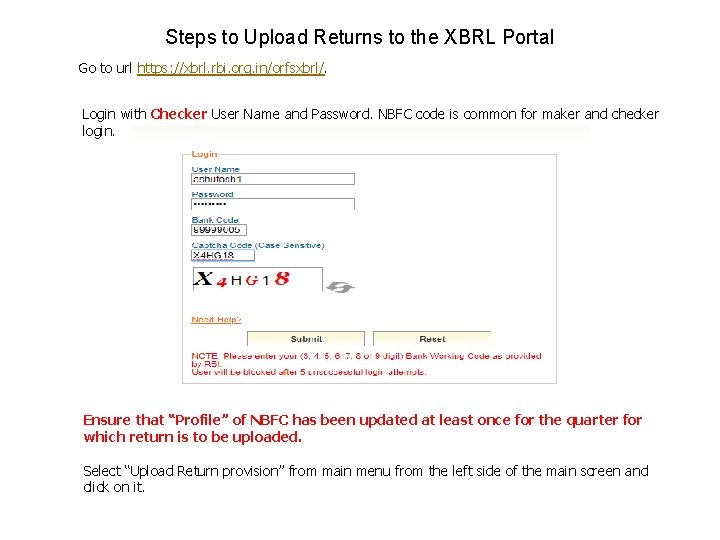
Steps to Upload Returns to the XBRL Portal Go to url https: //xbrl. rbi. org. in/orfsxbrl/. Login with Checker User Name and Password. NBFC code is common for maker and checker login. Ensure that “Profile” of NBFC has been updated at least once for the quarter for which return is to be uploaded. Select “Upload Return provision” from main menu from the left side of the main screen and click on it.
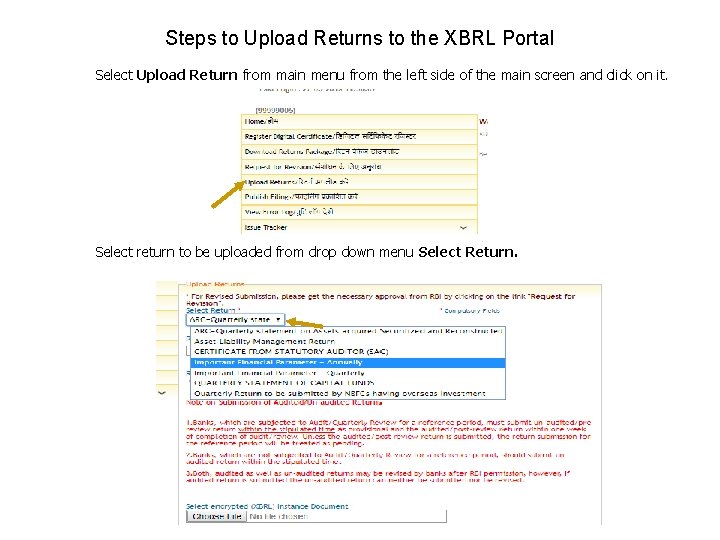
Steps to Upload Returns to the XBRL Portal Select Upload Return from main menu from the left side of the main screen and click on it. Select return to be uploaded from drop down menu Select Return.
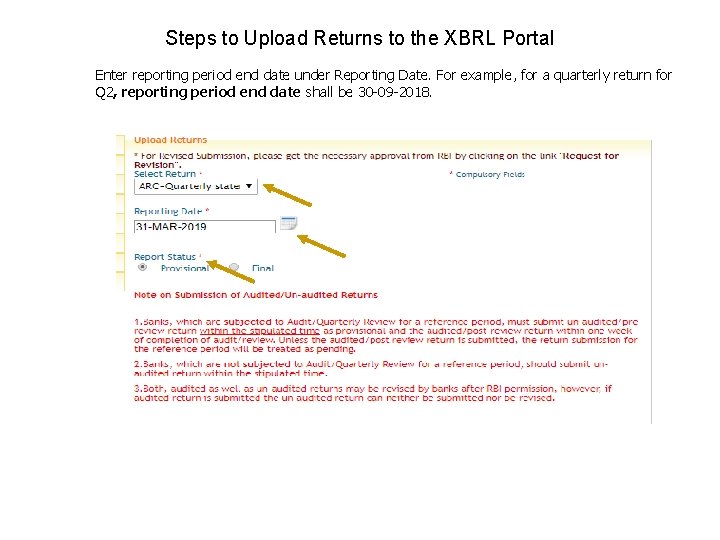
Steps to Upload Returns to the XBRL Portal Enter reporting period end date under Reporting Date. For example, for a quarterly return for Q 2, reporting period end date shall be 30 -09 -2018.
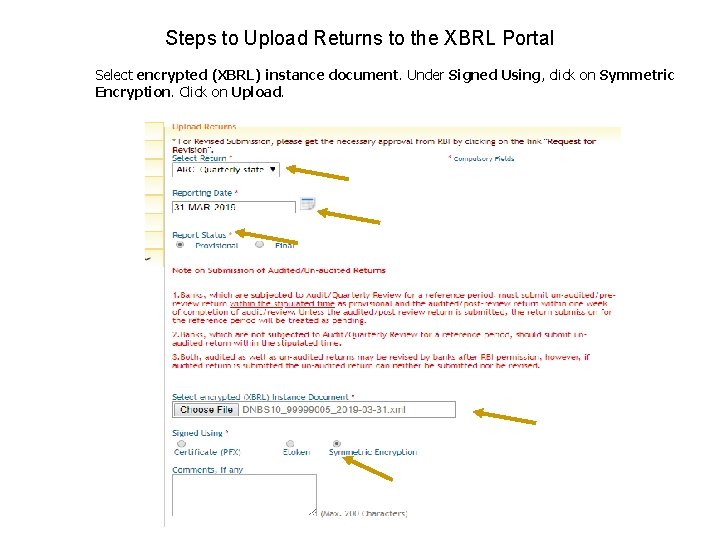
Steps to Upload Returns to the XBRL Portal Select encrypted (XBRL) instance document. Under Signed Using, click on Symmetric Encryption. Click on Upload.
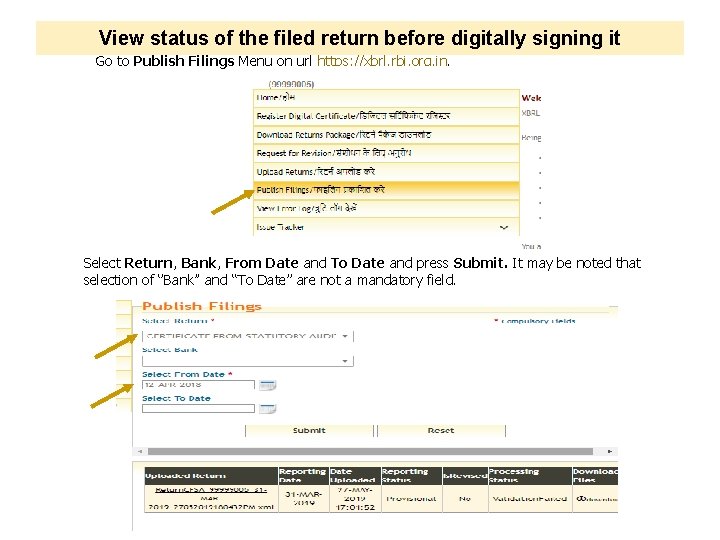
View status of the filed return before digitally signing it Go to Publish Filings Menu on url https: //xbrl. rbi. org. in. Select Return, Bank, From Date and To Date and press Submit. It may be noted that selection of ‘’Bank’’ and “To Date” are not a mandatory field.
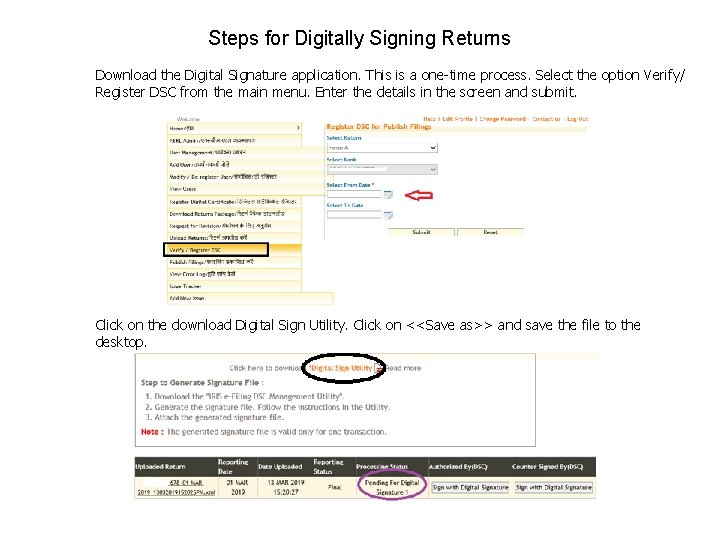
Steps for Digitally Signing Returns Download the Digital Signature application. This is a one-time process. Select the option Verify/ Register DSC from the main menu. Enter the details in the screen and submit. Click on the download Digital Sign Utility. Click on <<Save as>> and save the file to the desktop.
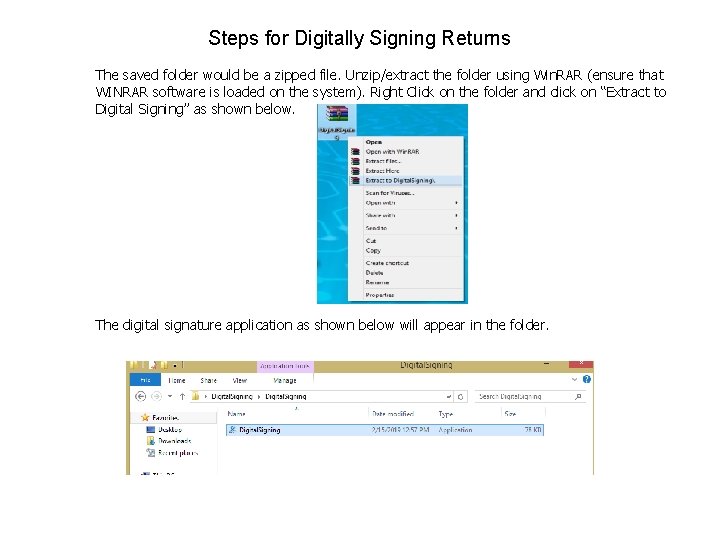
Steps for Digitally Signing Returns The saved folder would be a zipped file. Unzip/extract the folder using Win. RAR (ensure that WINRAR software is loaded on the system). Right Click on the folder and click on “Extract to Digital Signing” as shown below. The digital signature application as shown below will appear in the folder.
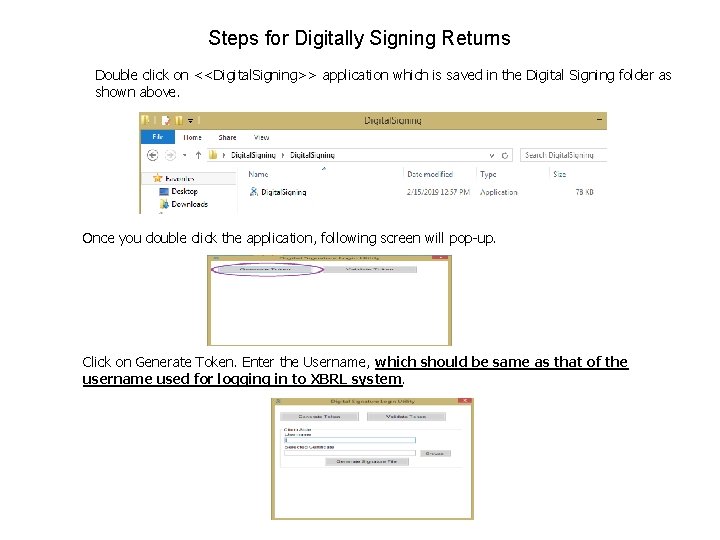
Steps for Digitally Signing Returns Double click on <<Digital. Signing>> application which is saved in the Digital Signing folder as shown above. Once you double click the application, following screen will pop-up. Click on Generate Token. Enter the Username, which should be same as that of the username used for logging in to XBRL system.
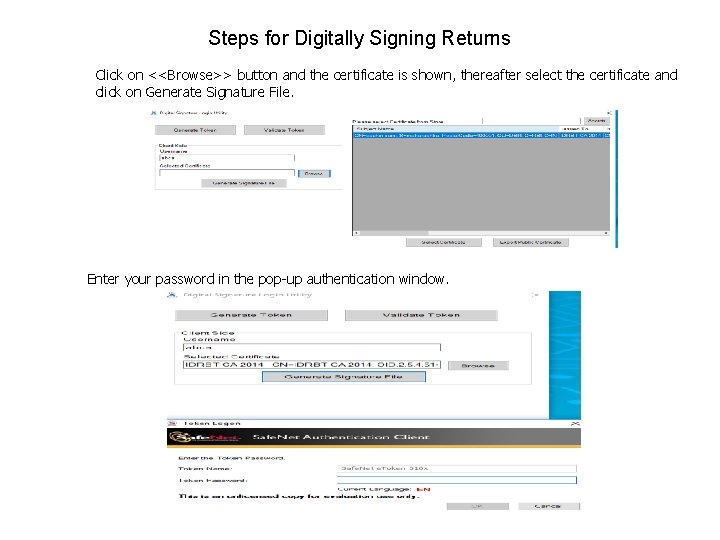
Steps for Digitally Signing Returns Click on <<Browse>> button and the certificate is shown, thereafter select the certificate and click on Generate Signature File. Enter your password in the pop-up authentication window.
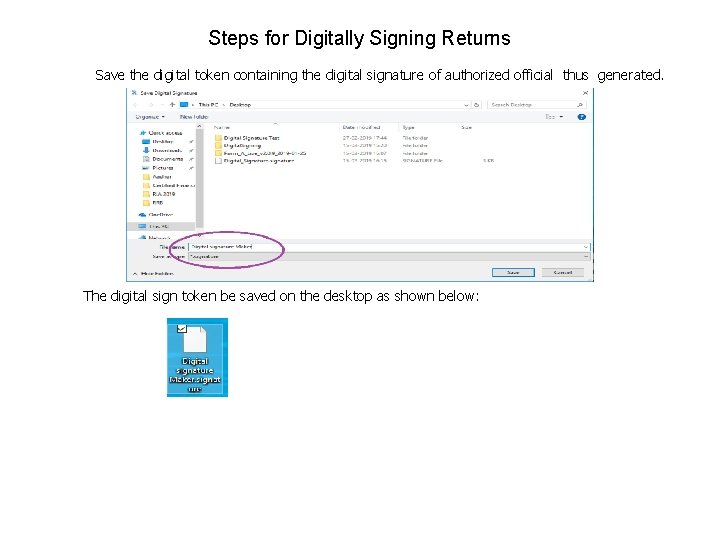
Steps for Digitally Signing Returns Save the digital token containing the digital signature of authorized official thus generated. The digital sign token be saved on the desktop as shown below:
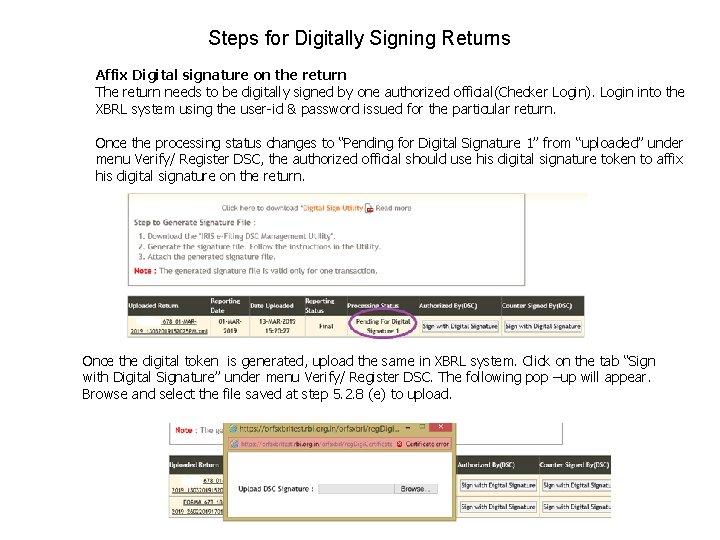
Steps for Digitally Signing Returns Affix Digital signature on the return The return needs to be digitally signed by one authorized official(Checker Login). Login into the XBRL system using the user-id & password issued for the particular return. Once the processing status changes to “Pending for Digital Signature 1” from “uploaded” under menu Verify/ Register DSC, the authorized official should use his digital signature token to affix his digital signature on the return. Once the digital token is generated, upload the same in XBRL system. Click on the tab “Sign with Digital Signature” under menu Verify/ Register DSC. The following pop –up will appear. Browse and select the file saved at step 5. 2. 8 (e) to upload.
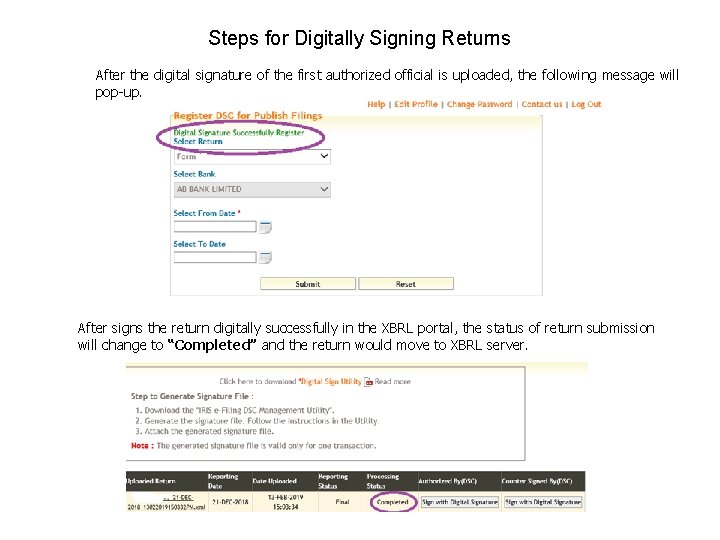
Steps for Digitally Signing Returns After the digital signature of the first authorized official is uploaded, the following message will pop-up. After signs the return digitally successfully in the XBRL portal, the status of return submission will change to “Completed” and the return would move to XBRL server.
Steps for Digitally Signing Returns Please take note of the following points: ü The XBRL user-id attaches a particular e-token that has been used for signing the return for the first time. From the next time onwards, XBRL system identifies the same XBRL user-id with a particular e-token. Thus the same person can only digitally sign the return in future for the same login Id. When the authorized person is on leave/transferred, a new user Id will have to be created for the new authorized official and the authorized official will have to use his/her e-token. ü The digital signature token once used for signing the return cannot be used again. Therefore the official will have to follow the steps at 5. 2. 6 & 5. 2. 8 every time a return.
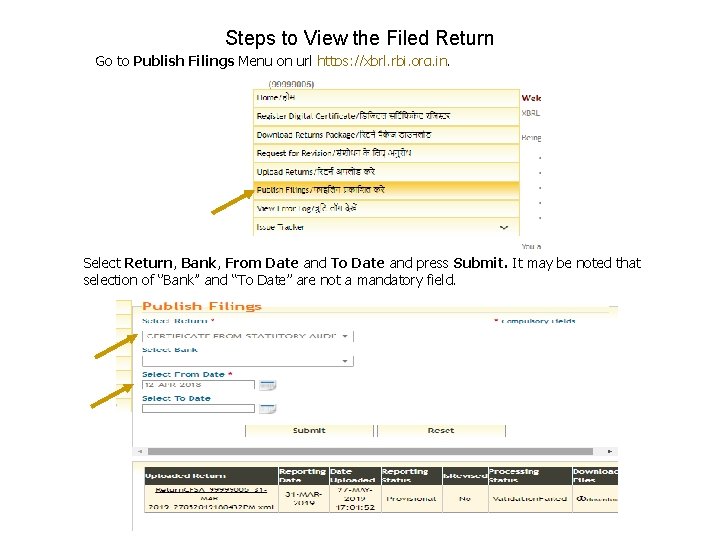
Steps to View the Filed Return Go to Publish Filings Menu on url https: //xbrl. rbi. org. in. Select Return, Bank, From Date and To Date and press Submit. It may be noted that selection of ‘’Bank’’ and “To Date” are not a mandatory field.
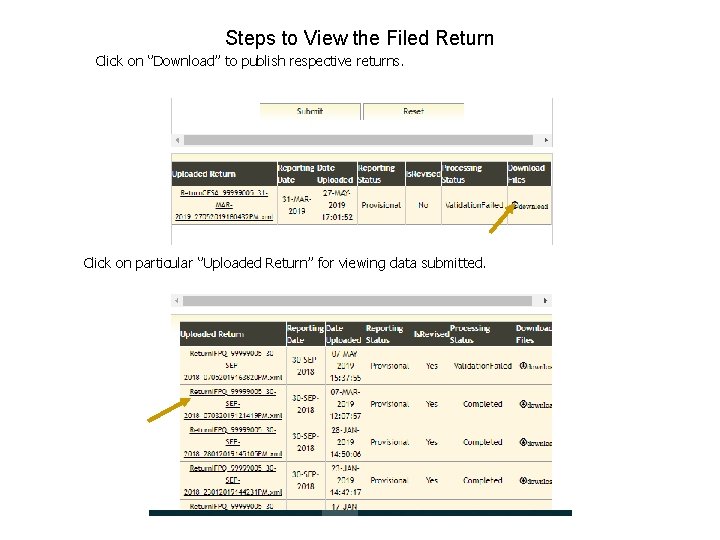
Steps to View the Filed Return Click on ‘’Download’’ to publish respective returns. Click on particular ‘’Uploaded Return’’ for viewing data submitted.
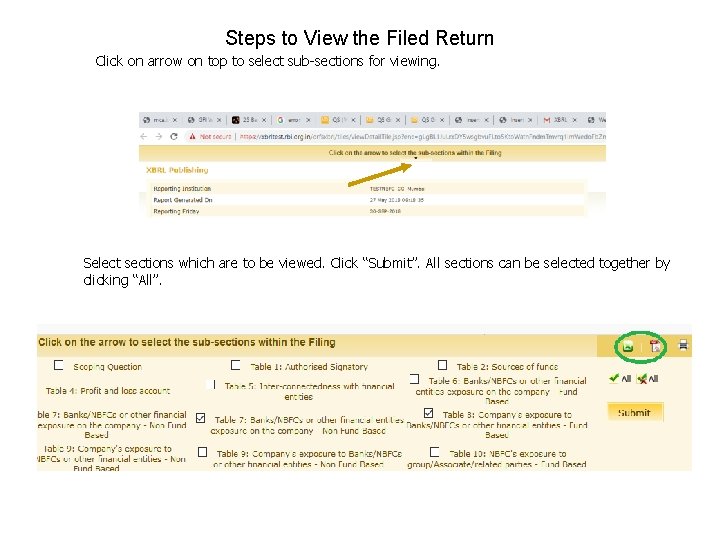
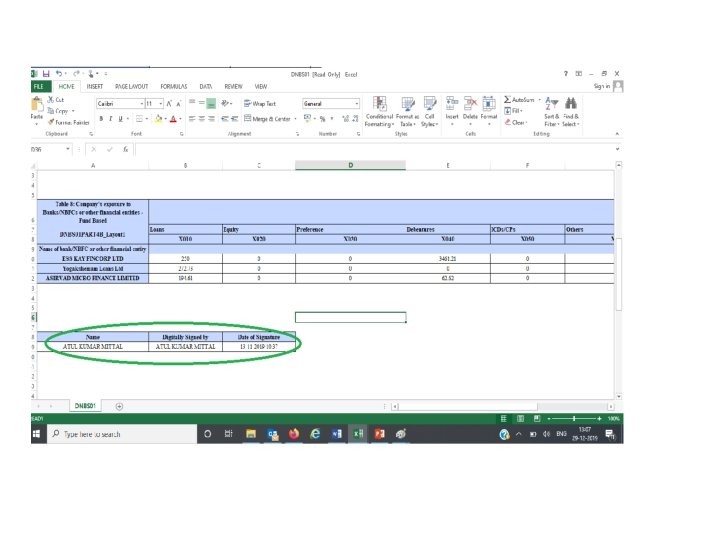
Steps to View the Filed Return Click on arrow on top to select sub-sections for viewing. Select sections which are to be viewed. Click “Submit”. All sections can be selected together by clicking “All”.
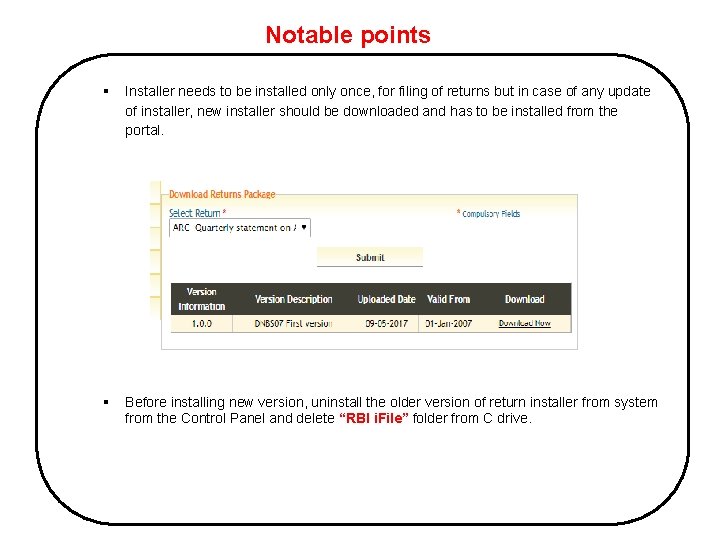
Notable points § Installer needs to be installed only once, for filing of returns but in case of any update of installer, new installer should be downloaded and has to be installed from the portal. § Before installing new version, uninstall the older version of return installer from system from the Control Panel and delete “RBI i. File” folder from C drive.
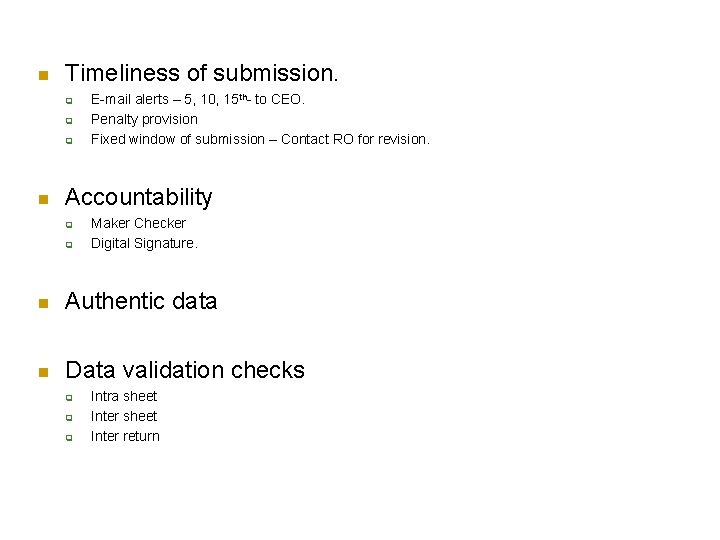
n Timeliness of submission. q q q n E-mail alerts – 5, 10, 15 th- to CEO. Penalty provision Fixed window of submission – Contact RO for revision. Accountability q q Maker Checker Digital Signature. n Authentic data n Data validation checks q q q Intra sheet Inter return
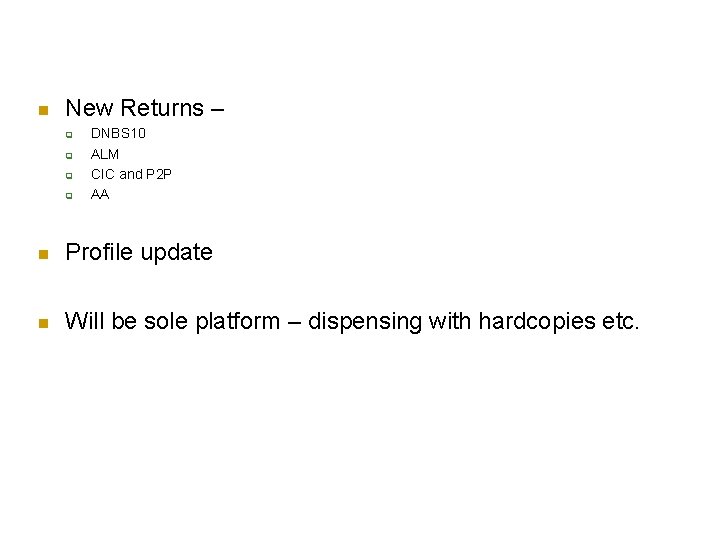
n New Returns – q q DNBS 10 ALM CIC and P 2 P AA n Profile update n Will be sole platform – dispensing with hardcopies etc.
XBRL Help Desk Support Contacts For any kind of support for smooth filing of returns in the XRBL system, please contact us on the following e-mail ID: rbixbrlsupport@irisbusiness. com cosmosdnbskolkata@rbi. org. in Help Lines: 033 -2231 0201

Thank You
- Slides: 44