
FDR COMPLIANCE PROGRAM GUIDANCE MEDICARE PARTS C AND
- Slides: 26
FDR COMPLIANCE PROGRAM GUIDANCE MEDICARE PARTS C AND D FIRST TIER, DOWNSTREAM AND RELATED ENTITIES
AUDIT READINESS The Centers for Medicare and Medicaid Services (CMS) has indicated they may conduct an audit on any First Tier, Downstream or Related entity. CMS reserves the right to bypass the Plan altogether. We are providing you with the tools necessary to pass the audit elements. A failed audit could result in a Corrective Action Plan (CAP), implemented by the Plan or CMS directly. Unfortunately, this affects the overall effectiveness of all parties in the hierarchy and their Compliance Oversight scores.
WHAT DOES THIS MEAN FOR YOU? As a “Related Entity, ” you are required to abide by all applicable CMS Compliance program requirements, in the event you employ any non-agent, non-producing personnel, either in or outside of your office. This means; if you have an administrative assistant, receptionist, contracting processor, etc. , full or part time, and he/she does not have a Health license and is not contracted to sell for any MA and/or PDP carriers, you are responsible for abiding by these guidelines set forth by CMS.
COMMON AUDIT ELEMENTS • Employee Code of Conduct • Compliance, FWA and HIPAA • Fraud, Waste and Abuse Reporting • Policies and Procedures • Record Retention • HHS-OIG and GSA Employee/Non-producing Personnel Screening *A sample set of Policies and Procedures will be provided for your use. You may implement them as they are, or create your own using the sample set as a reference guide.
EMPLOYEE AUDIT ELEMENTS Within in the first 90 days of hire and annually thereafter, each employee should receive, complete, and sign and date, acknowledging receipt and understanding of the following guidelines: § Employee Code of Conduct § Fraud, Waste and Abuse Training § Employees should have a confidential source for reporting potential fraud, waste and/or abuse § General Compliance Training Note: FWA and Compliance training must now be completed thru CMS’ Learning Management System, available on CMS’ website. Instructions for accessing the system and completing the training will be provided.
RECORD RETENTION § You may be asked to provide records/evidence that each of the audit elements were completed, initially and annually thereafter, for each non-producing employee. § Records must be maintained for a period of time, including ten years for MA related services.
HHS-OIG AND GSA EMPLOYEE SCREENING How to Conduct the HHS-OIG and GSA Searches
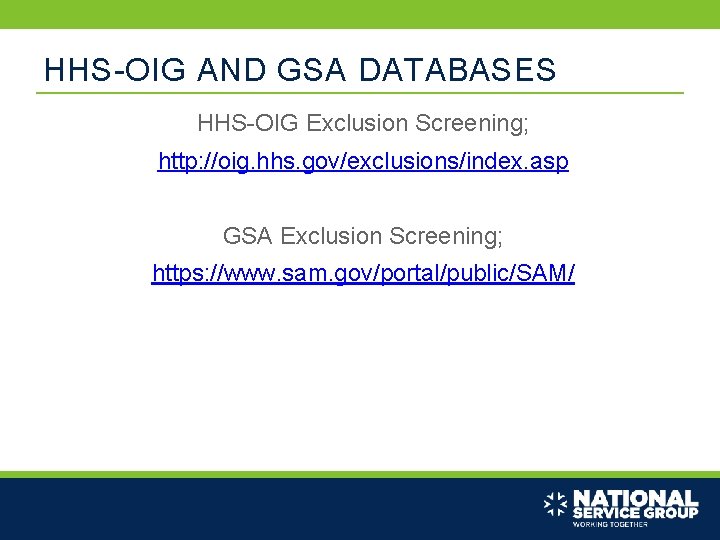
HHS-OIG AND GSA DATABASES HHS-OIG Exclusion Screening; http: //oig. hhs. gov/exclusions/index. asp GSA Exclusion Screening; https: //www. sam. gov/portal/public/SAM/
WHAT IS AN EXCLUSION? HHS-OIG Exclusion is defined as individuals and entities currently excluded from participation in Medicare, Medicaid and all other Federal health care programs. GSA Exclusion is defined as records entered by the Federal government identifying those parties excluded from receiving Federal contracts, certain subcontracts, and certain types of Federal financial and non-financial assistance and benefits.
UNDERSTANDING EXCLUSIONS • If an individual or entity is excluded, Federal funds cannot be used to support this person, or organization including any item or service they may have provided, ordered or prescribed whether directly or indirectly obtained. More detailed information regarding HHS-OIG Facts can be found here: http: //oig. hhs. gov/faqs/exclusions-faq. asp
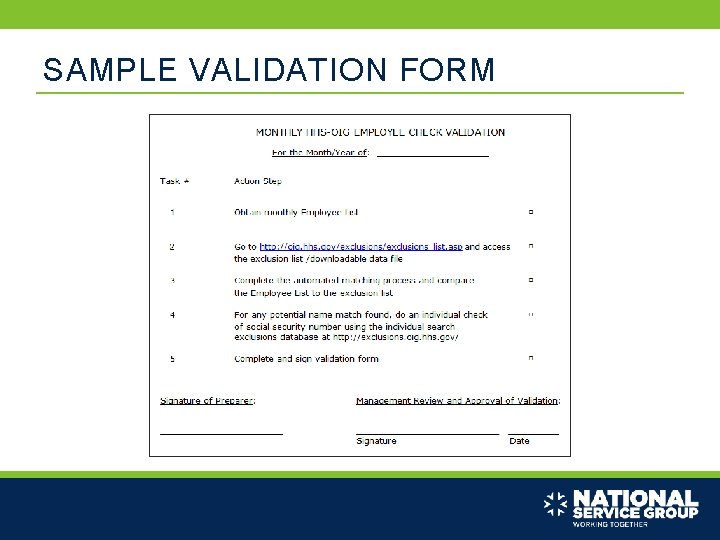
YOUR JOB IS TO… Make certain that each employee had been properly screened against both databases prior to hire, and then monthly thereafter. In the event of an audit, you will be asked to provide the following; • Evidence each search was conducted prior to hire. • Evidence of a current (or, month requested) Employee Roster, including each employee’s name, date of birth, hire date and, in some cases, termination date. • Evidence of each monthly search having been conducted. • Evidence of exclusions, or potential matches, having been verified as “No Match, ” by way of a print out, or “print screen, ” and a validation form (or something similar).
IN THE EVENT OF A POSITIVE MATCH In the event you encounter a positive match, you are to comply with all laws and regulations, making certain to report the findings to your up line, as well as all respective carriers.
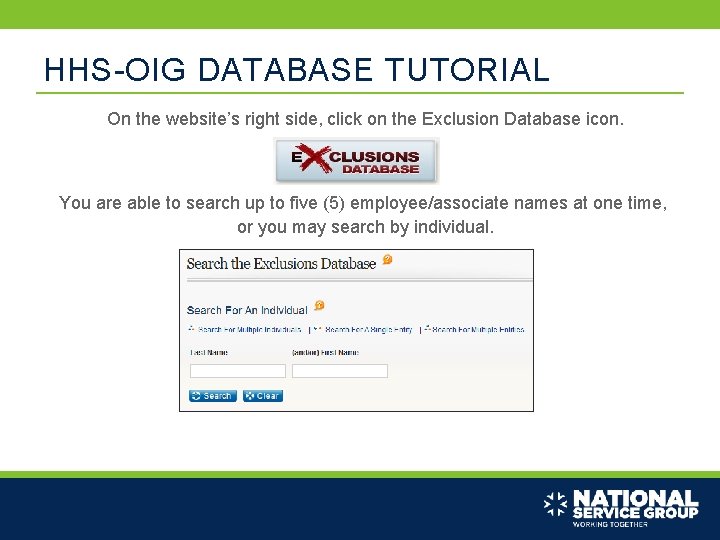
HHS-OIG DATABASE TUTORIAL On the website’s right side, click on the Exclusion Database icon. You are able to search up to five (5) employee/associate names at one time, or you may search by individual.
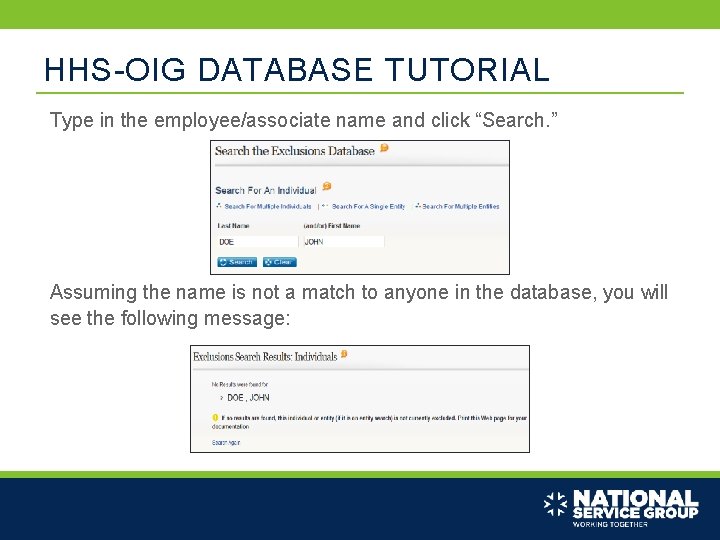
HHS-OIG DATABASE TUTORIAL Type in the employee/associate name and click “Search. ” Assuming the name is not a match to anyone in the database, you will see the following message:
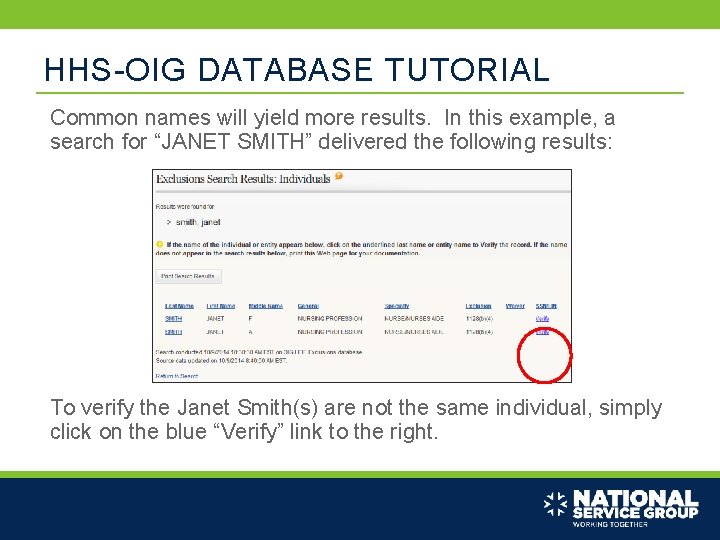
HHS-OIG DATABASE TUTORIAL Common names will yield more results. In this example, a search for “JANET SMITH” delivered the following results: To verify the Janet Smith(s) are not the same individual, simply click on the blue “Verify” link to the right.
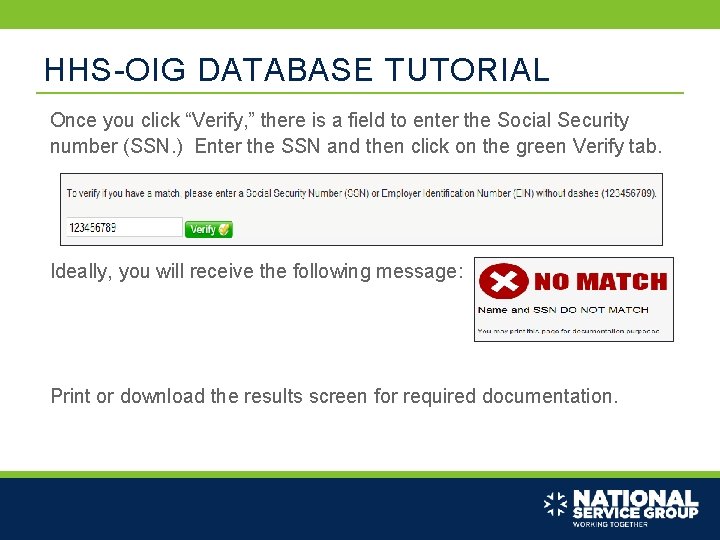
HHS-OIG DATABASE TUTORIAL Once you click “Verify, ” there is a field to enter the Social Security number (SSN. ) Enter the SSN and then click on the green Verify tab. Ideally, you will receive the following message: Print or download the results screen for required documentation.
VALIDATING THE SEARCH RESULTS § Create a validation form to provide evidence of the search run. § Designate a person to run the search and verify a search was conducted and all potential exclusions were a “No Match. ” § Management should then review and acknowledge the process was satisfactorily completed.
SAMPLE VALIDATION FORM
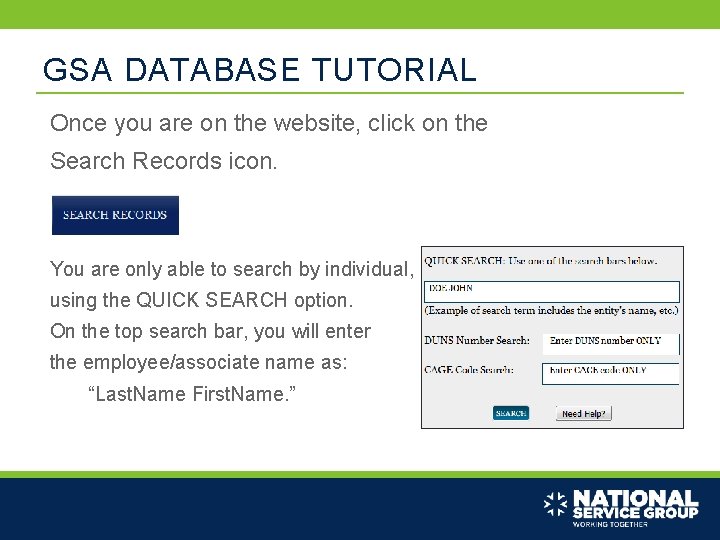
GSA DATABASE TUTORIAL Once you are on the website, click on the Search Records icon. You are only able to search by individual, using the QUICK SEARCH option. On the top search bar, you will enter the employee/associate name as: “Last. Name First. Name. ”
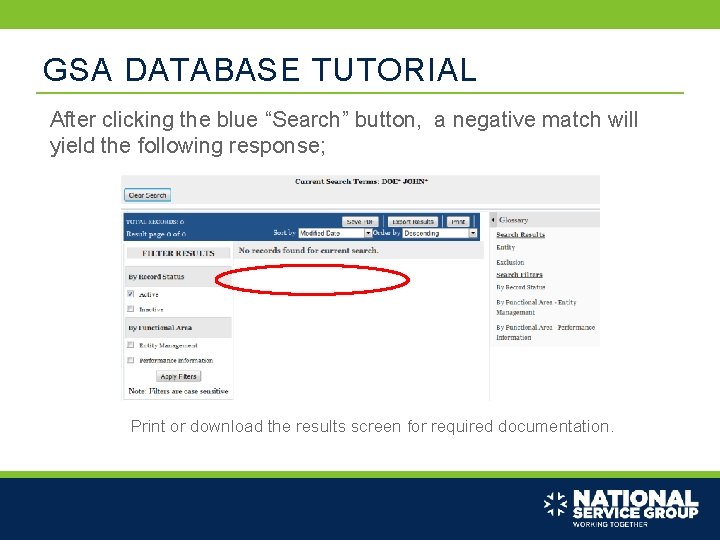
GSA DATABASE TUTORIAL After clicking the blue “Search” button, a negative match will yield the following response; Print or download the results screen for required documentation.
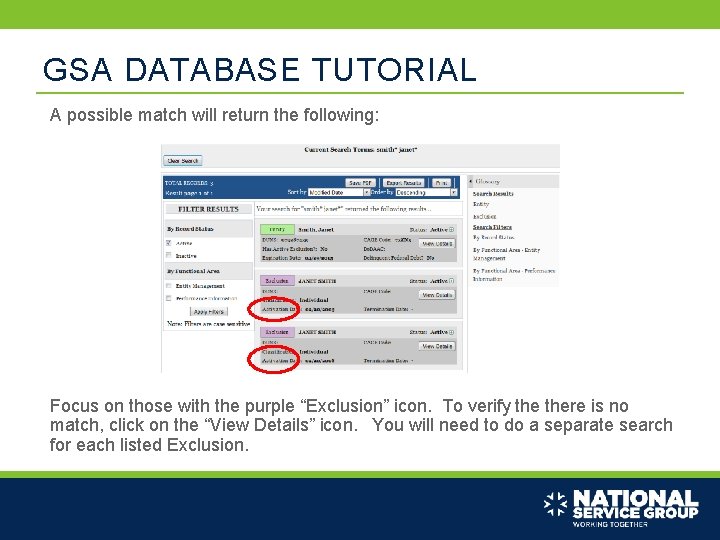
GSA DATABASE TUTORIAL A possible match will return the following: Focus on those with the purple “Exclusion” icon. To verify there is no match, click on the “View Details” icon. You will need to do a separate search for each listed Exclusion.
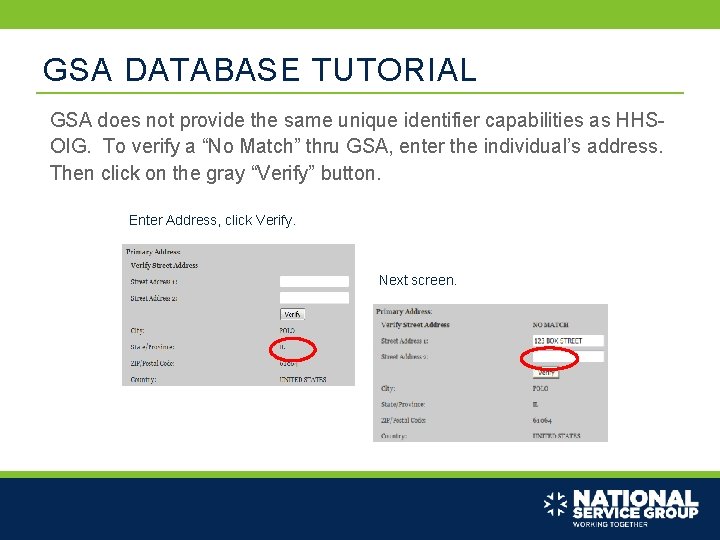
GSA DATABASE TUTORIAL GSA does not provide the same unique identifier capabilities as HHSOIG. To verify a “No Match” thru GSA, enter the individual’s address. Then click on the gray “Verify” button. Enter Address, click Verify. Next screen.
VALIDATING THE SEARCH RESULTS § Create a validation form to provide evidence of the search run. § Designate a person to run the search and verify a search was conducted and all potential exclusions were a “No Match. ” § Management should then review and acknowledge the process was satisfactorily completed.
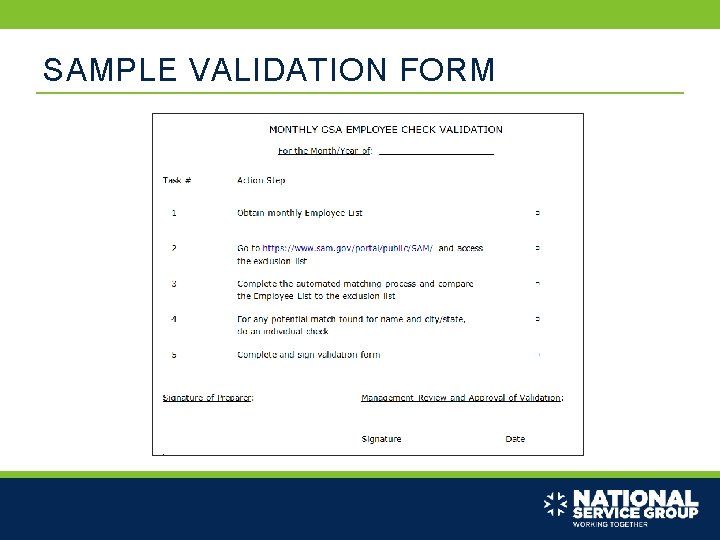
SAMPLE VALIDATION FORM
FOR ASSISTANCE Please feel free to contact us at: (844) 206 -2927 Compliance@NSGACommunications. com Thank you for your support and cooperation!
Not affiliated with the United States government or the federal Medicare program. The content of this presentation reflects the opinion of the presenter and not necessarily the opinion of any entity with which the presenter has a business relationship. Certain exclusions and limitations may apply. This information is provided for educational purposes. This information provides general guidelines and compliance with these steps does not guarantee compliance with all applicable regulations. Neither the presenter nor any entity with which the presenter may be affiliated or employed provide legal advice. Copyright© 2016 National Service Group. All rights reserved.