
Fast GPU Histogram Analysis for Scene Post Processing



- Slides: 17
Fast GPU Histogram Analysis for Scene Post. Processing Andy Luedke Halo Development Team Microsoft Game Studios
Why do Histogram Analysis? » Dynamically adjust post-processing settings based on rendered scene content » Drive tone adjustments by discovering intensity levels and adjusting tonemapper settings » Make environments feel consistent with a wide range of illumination » Mimic eye’s natural adaptation to exposure and focal ranges
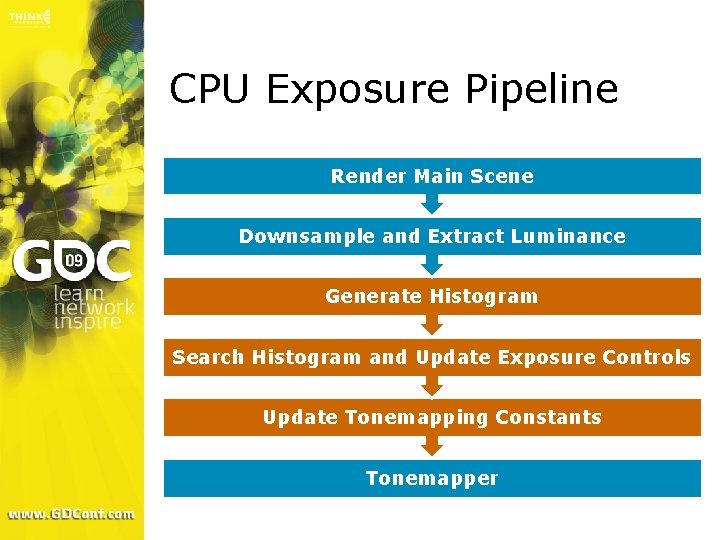
Existing Techniques » Average Scene Luminance > Varies significantly with small perceived changes in HDR scenes » Luminance Histogram Provides more useful exposure data > Limited by fixed number of bins > CPU generated from locked texture > > Adjustable > granularity, poor performance GPU queries to update histogram bins > Low granularity, delayed scene response
Luminance Histogram » Used to find interesting exposure control points Median luminance (50 th percentile) > Bright point (90 th – 95 th percentile) > » Search histogram for each point » Only contains luminance data from previously rendered frames » Expensive to generate and search » Histograms are not great for exposure control
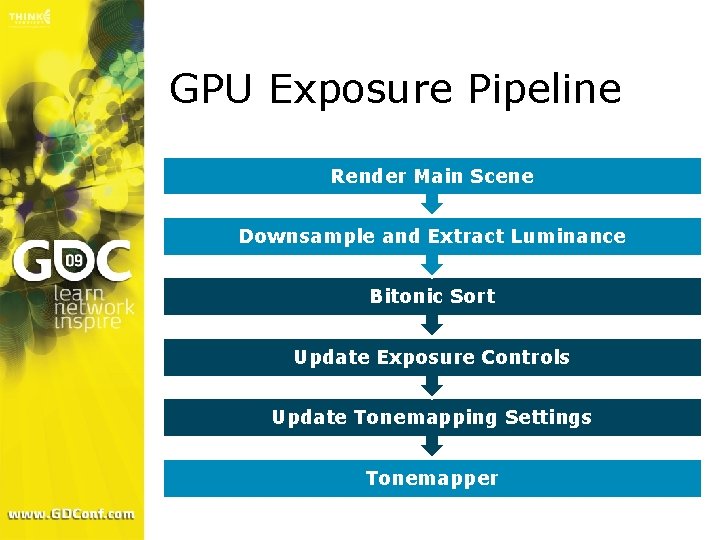
Sorted Luminance Buffer » Sorting the luminance fixes many problems with histogram method » Expensive to sort on the CPU » Sort on the GPU instead Parallel sorts are quite fast on GPUs > Works on current frame’s data > » Easy to find percentiles in a sorted luminance buffer > Sample center of buffer for median value, or at X*N/100 for Xth percentile
GPU Sorting » Avoids histogram range clamping and bin granularity problems » Works on current frame’s values » Sorts multiple channels at once > Sort luminance and depth in a two channel buffer, or more in 4 channels » Sorted buffer remains on GPU > CPU processing of exposure control can be moved to the GPU exclusively
GPU Sorting (continued) » Bitonic sort works well on the GPU Well suited for shader implementation > Exactly ½*(log 2 n * (log 2 n+1)) passes > » Scale to slower hardware by reducing size of sorting buffer > Exposure control point lookups are still direct, but have less resolution » Bitonic sort works best on power of 2 textures, but can be tweaked to work on other sizes
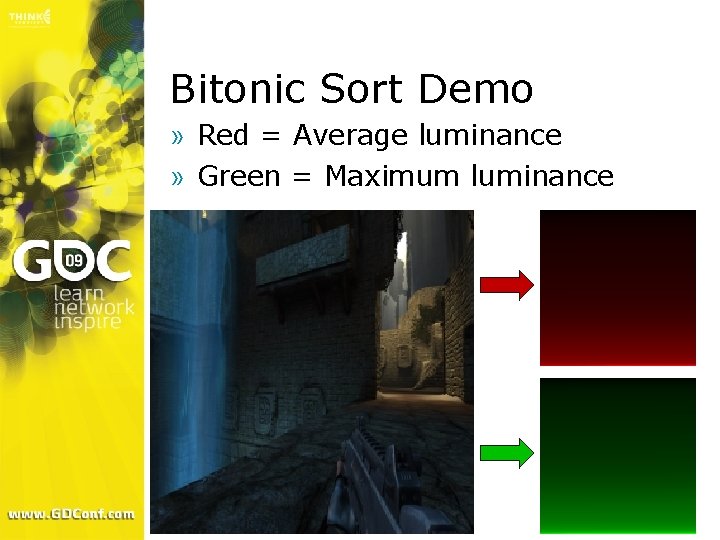
Bitonic Sort Demo » Red = Average luminance » Green = Maximum luminance
GPU Exposure Processing » Shader samples sorted luminance buffer and outputs updated exposure control values Use GPU to sample many points and do complex adjustments (curves, etc) > Blend new exposure control values with previous values over time > » Another shader generates further tonemapping settings > Bloom settings, saturation, tone, etc.
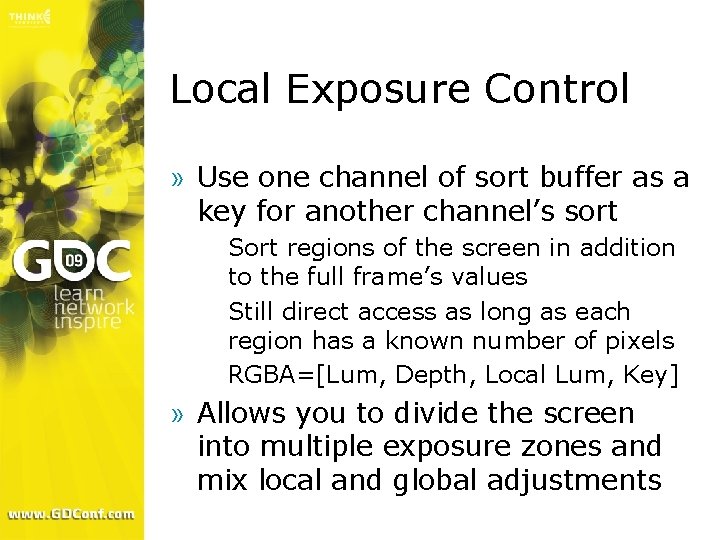
Local Exposure Control » Use one channel of sort buffer as a key for another channel’s sort Sort regions of the screen in addition to the full frame’s values > Still direct access as long as each region has a known number of pixels > RGBA=[Lum, Depth, Local Lum, Key] > » Allows you to divide the screen into multiple exposure zones and mix local and global adjustments
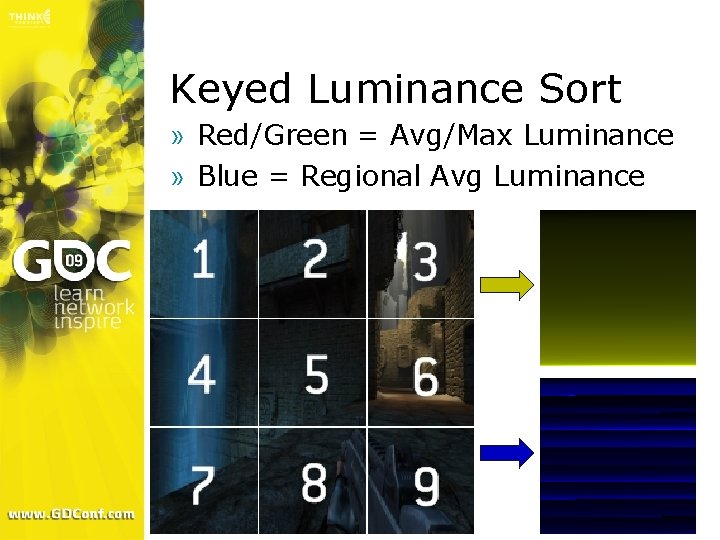
Keyed Luminance Sort » Red/Green = Avg/Max Luminance » Blue = Regional Avg Luminance
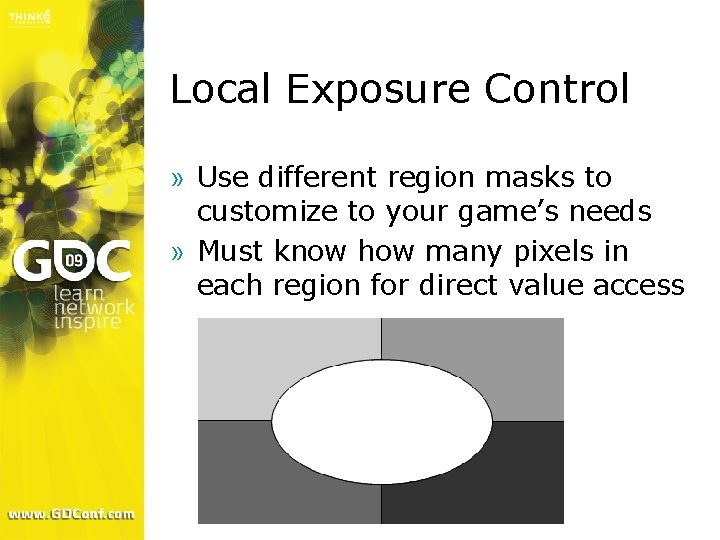
Local Exposure Control » Use different region masks to customize to your game’s needs » Must know how many pixels in each region for direct value access
Focal Range Control » Sorted depth gives useful information for DOF ranges » Detect changes in depth range, adjusting DOF settings to simulate eye’s adjustment of focal range » Extracting depth has sampling cost, but no additional sorting cost > May not need to filter on downsample
CPU Exposure Pipeline Render Main Scene Downsample and Extract Luminance Generate Histogram Search Histogram and Update Exposure Controls Update Tonemapping Constants Tonemapper
GPU Exposure Pipeline Render Main Scene Downsample and Extract Luminance Bitonic Sort Update Exposure Controls Update Tonemapping Settings Tonemapper
Questions? » aluedke@microsoft. com » Please fill out your surveys References » GPU Gems, Chapter 37 » GPU Gems 2, Chapter 46 » Uber. Flow: A GPU-based particle engine [Kipfer, et al. ] » Wikipedia, Sorting Algoritms