
Faculty Notebook Orientation HP Compaq nc 6320 HP
Faculty Notebook Orientation HP Compaq nc 6320
HP Compaq nc 6320 Workshop Overview • • • Policies/procedures/legal information Specifications Logging in on campus Logging in at home Notebook specific applications Specialized buttons Function keys Battery life Setting up wireless connections manager Configuring Outlook 2007 for on campus use
Liability Statements • Reporting a theft – Call public safety, then call us – Data deletion protocol – Unit recovery process • Data safety – Use your U drive – Be careful about the data you place on this computer – Be careful about who accesses this computer • These workstations are assigned to you. • Please read and sign the legal agreement.
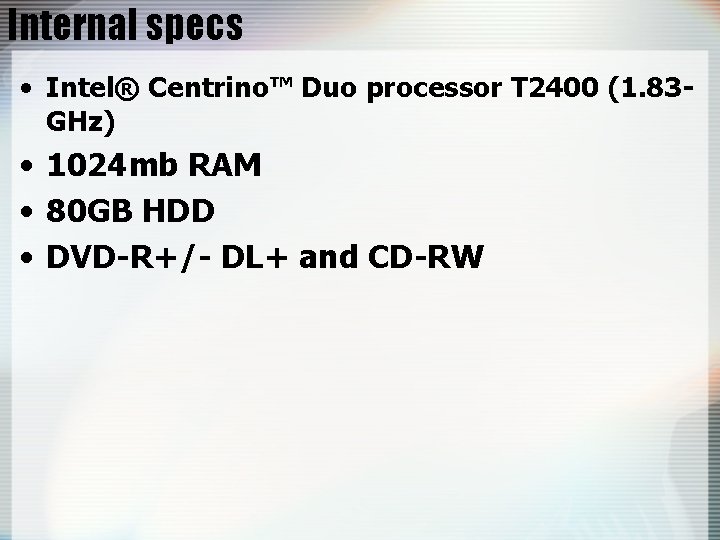
Internal specs • Intel® Centrino™ Duo processor T 2400 (1. 83 GHz) • 1024 mb RAM • 80 GB HDD • DVD-R+/- DL+ and CD-RW
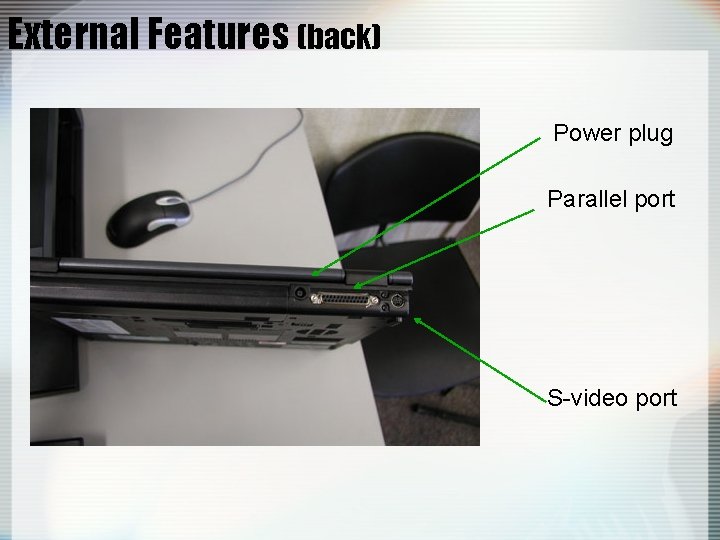
External Features (back) Power plug Parallel port S-video port
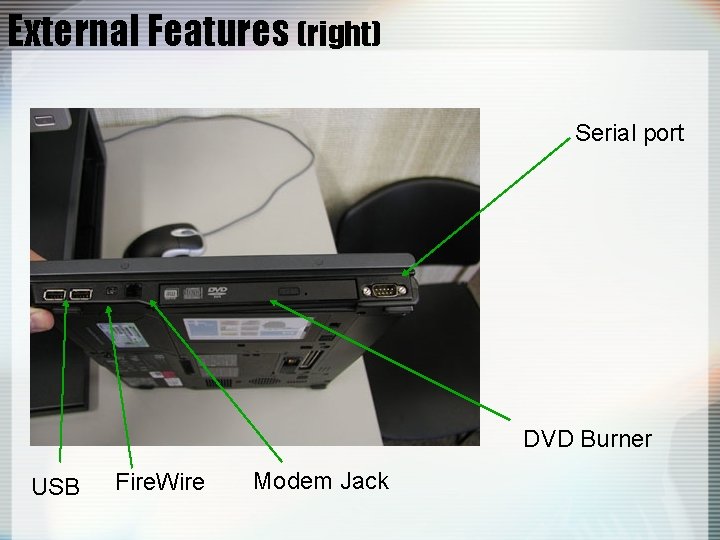
External Features (right) Serial port DVD Burner USB Fire. Wire Modem Jack
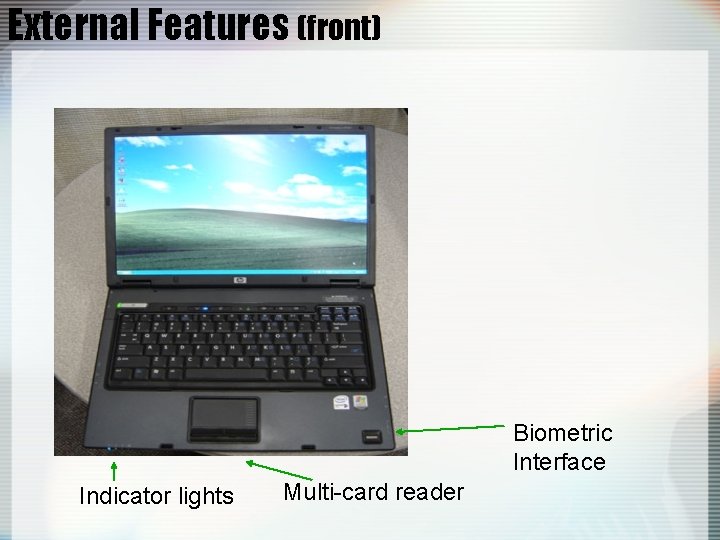
External Features (front) Biometric Interface Indicator lights Multi-card reader
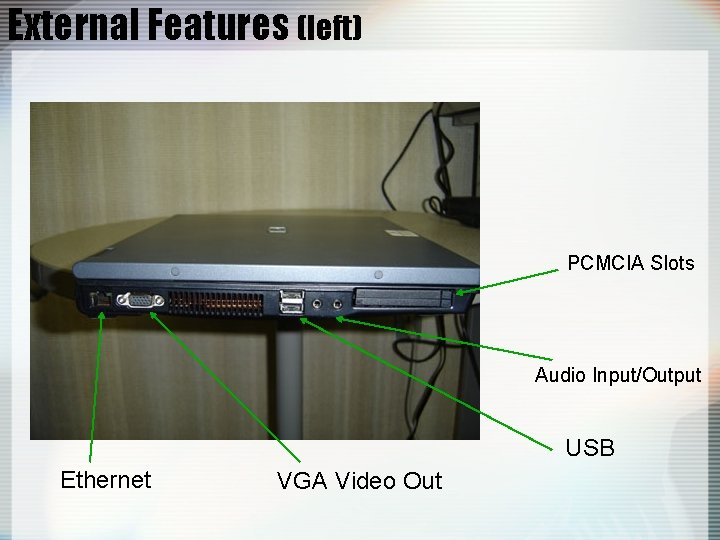
External Features (left) PCMCIA Slots Audio Input/Output USB Ethernet VGA Video Out
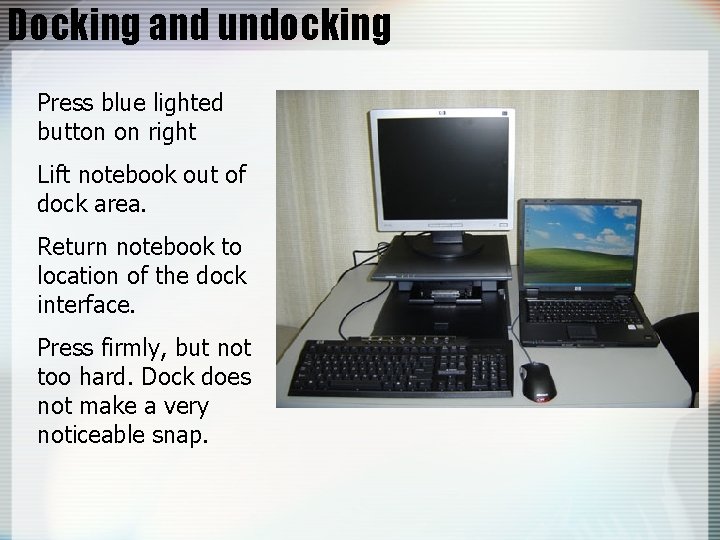
Docking and undocking Press blue lighted button on right Lift notebook out of dock area. Return notebook to location of the dock interface. Press firmly, but not too hard. Dock does not make a very noticeable snap.
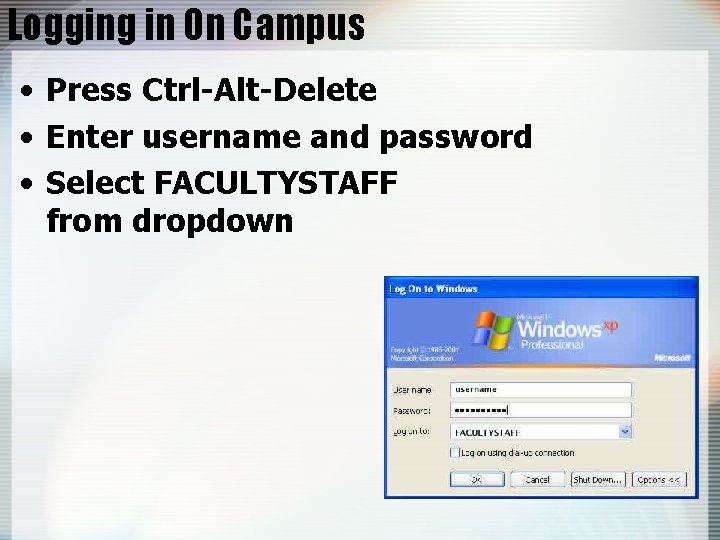
Logging in On Campus • Press Ctrl-Alt-Delete • Enter username and password • Select FACULTYSTAFF from dropdown
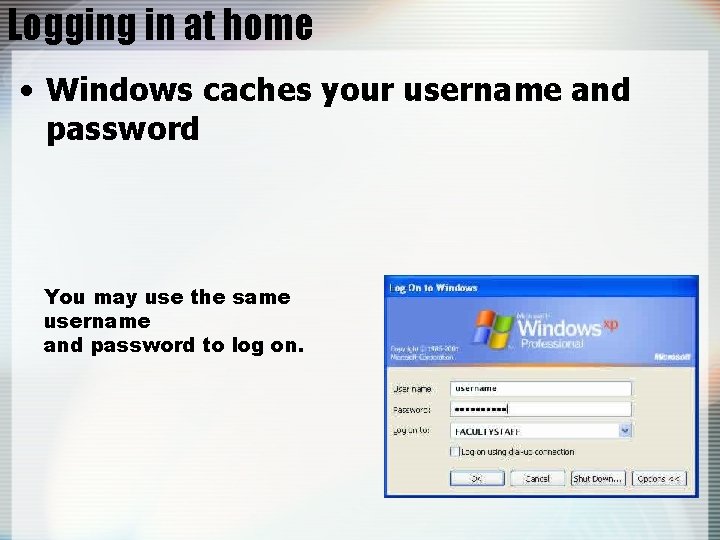
Logging in at home • Windows caches your username and password You may use the same username and password to log on.
Notebook Specific Applications • • • HP Software Update HP Backup and Recovery Intervideo Win. DVD HP Protect. Tools Bluetooth Functionality • These applications enhance the usability of your computer, but are not necessities. • There are processes in HP Protect. Tools which can potentially lock you out of your machine permanently. Please exercise caution if using HP Protect. Tools • Look for training sessions on these and other topics soon.
Credential Manager • Purpose: Application designed to consolidate passwords and provide a single sign on feature while using the notebook. • For the purposes of this workshop, we will create a Credential Manager password so it will stop annoying us , and then leave the application alone.
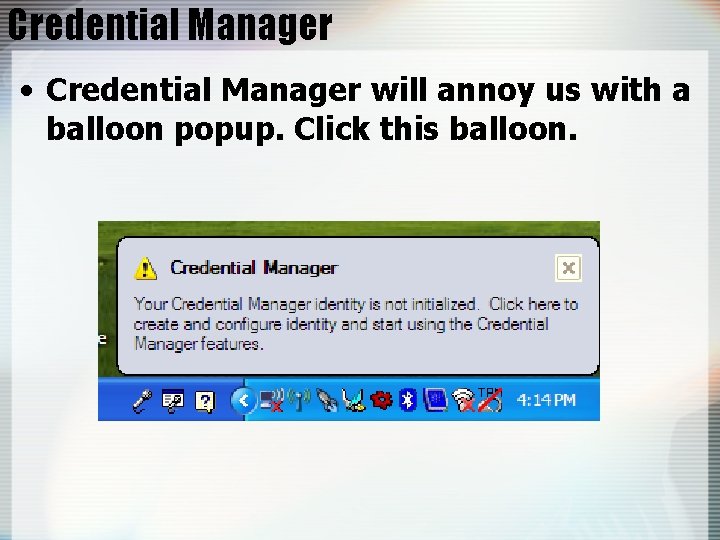
Credential Manager • Credential Manager will annoy us with a balloon popup. Click this balloon.
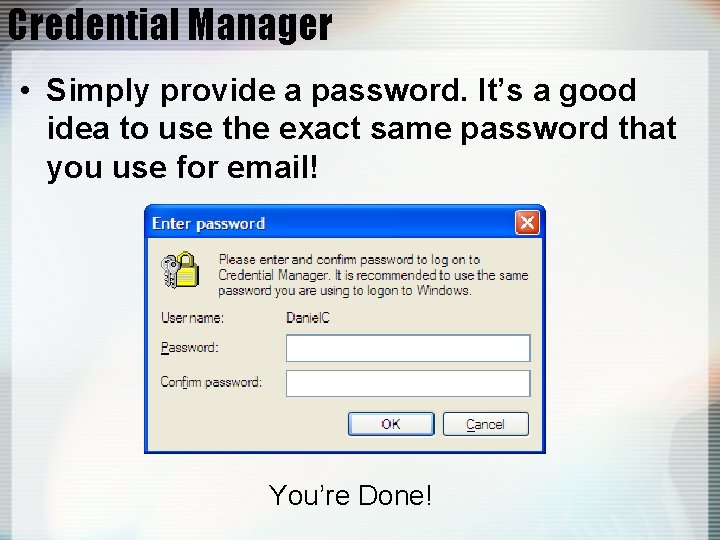
Credential Manager • Simply provide a password. It’s a good idea to use the exact same password that you use for email! You’re Done!
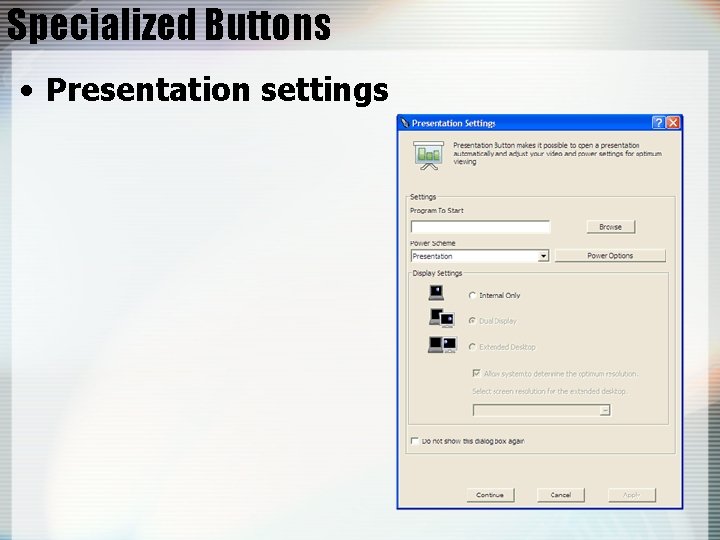
Specialized Buttons • Presentation settings
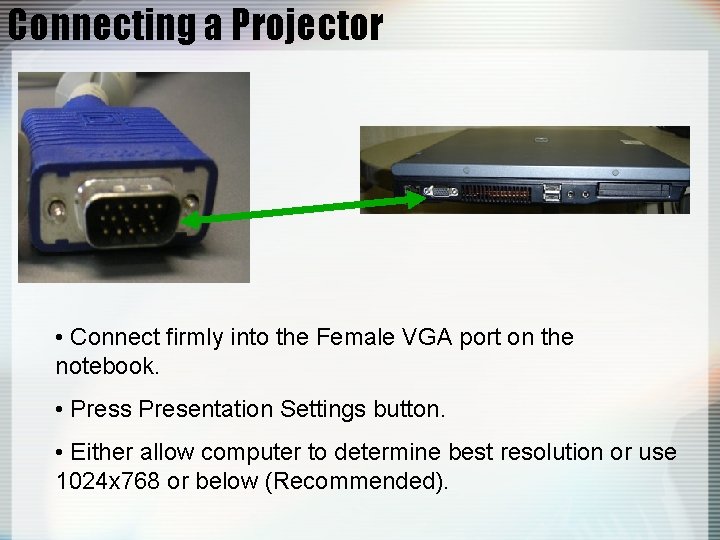
Connecting a Projector • Connect firmly into the Female VGA port on the notebook. • Press Presentation Settings button. • Either allow computer to determine best resolution or use 1024 x 768 or below (Recommended).
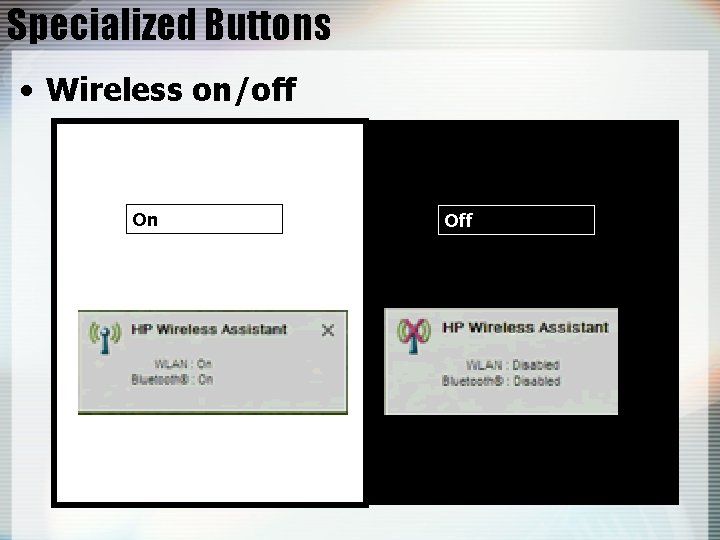
Specialized Buttons • Wireless on/off On Off
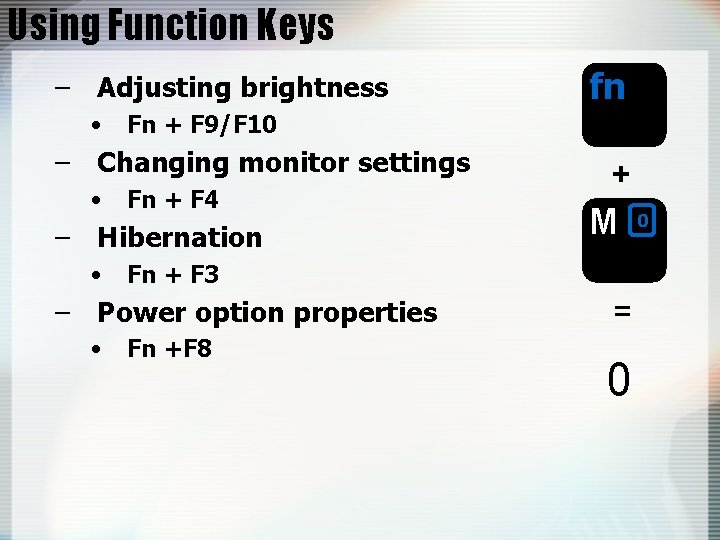
Using Function Keys – Adjusting brightness • Fn + F 9/F 10 – Changing monitor settings • Fn + F 4 – Hibernation • + M Fn + F 3 – Power option properties • fn Fn +F 8 = 0 0
Preserving battery life Taken from http: //www. batteryuniversity. com/parttwo-34. htm • We have already completed the most important step. • Keep the lithium-ion battery cool. Avoid a hot car. For prolonged storage, keep the battery at a 40% charge level. • Consider removing the battery from a laptop when running on fixed power. (Some laptop manufacturers are concerned about dust and moisture accumulating inside the battery casing. ) • Avoid frequent full discharges because this puts additional strain on the battery. • Several partial discharges with frequent recharges are better for lithium-ion than one deep one
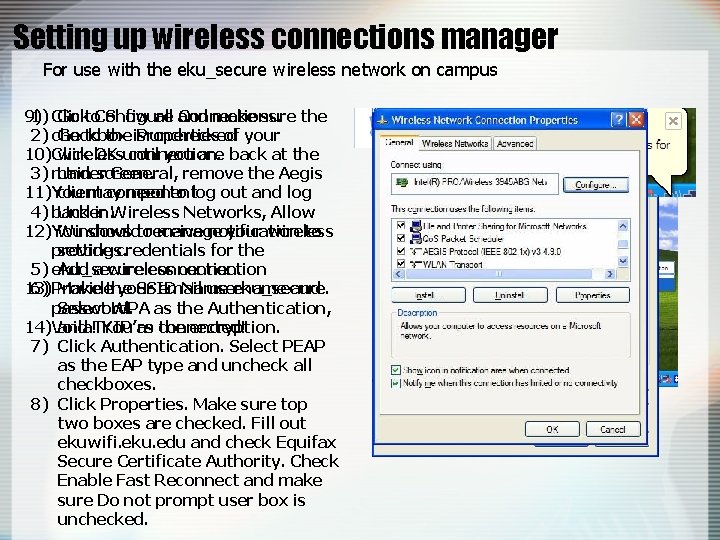
Setting up wireless connections manager For use with the eku_secure wireless network on campus 9) make sure the 1) Click Go to. Configure Show all and Connections. unchecked 2) checkbox Go to the is Properties of your 10)Click OK until you are back at the wireless connection. screen. 3) main Under General, remove the Aegis 11)You may need to log out and log client component in. Wireless Networks, Allow 4) back Under 12)You shouldtoreceive notification to Windows manage your wireless provide credentials for the settings. connection. 5) eku_secure Add a wireless connection 13) your email username and 6) Provide Make the SSID Name eku_secure. password. Select WPA as the Authentication, 14)Voila! You’re and TKIP as connected! the encryption. 7) Click Authentication. Select PEAP as the EAP type and uncheck all checkboxes. 8) Click Properties. Make sure top two boxes are checked. Fill out ekuwifi. eku. edu and check Equifax Secure Certificate Authority. Check Enable Fast Reconnect and make sure Do not prompt user box is unchecked.
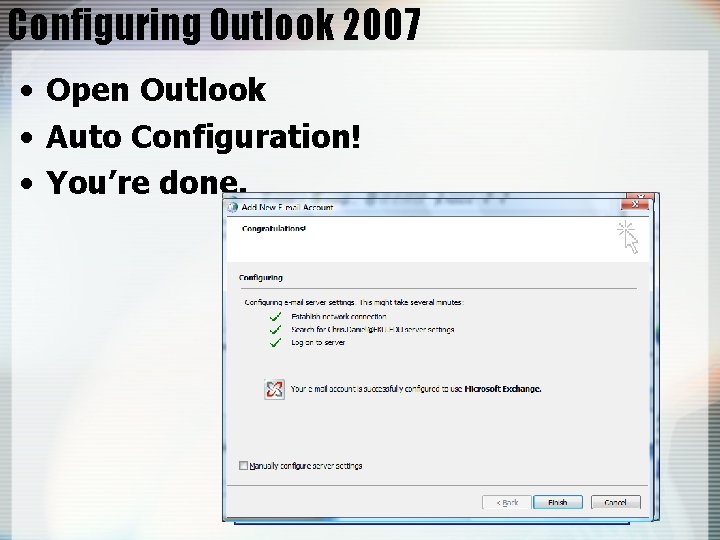
Configuring Outlook 2007 • Open Outlook • Auto Configuration! • You’re done.

Questions
- Slides: 23