
FAA Pavement Design Rigid Pavement FAARFIELD Design Example





- Slides: 82
FAA Pavement Design Rigid Pavement FAARFIELD Design Example Presented to: 2008 Eastern Region Airport Conference By: Rodney N. Joel, P. E. Civil Engineer / Airfield Pavement Airport Engineering Division Date: March 2008 Federal Aviation Administration
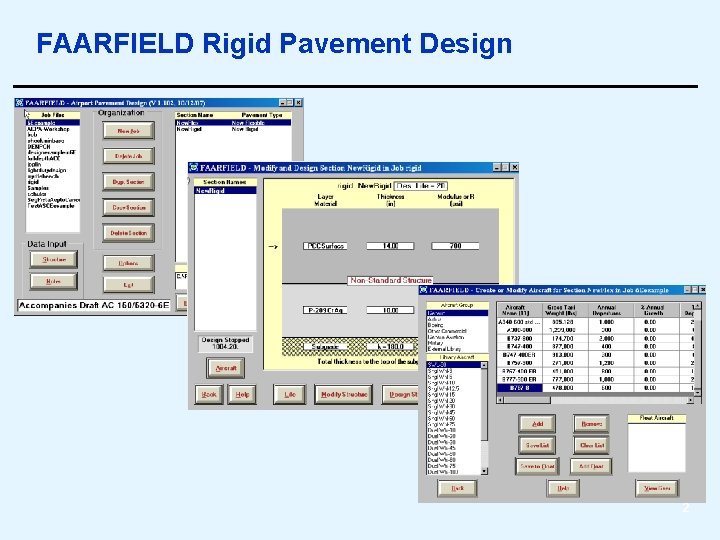
FAARFIELD Rigid Pavement Design 2
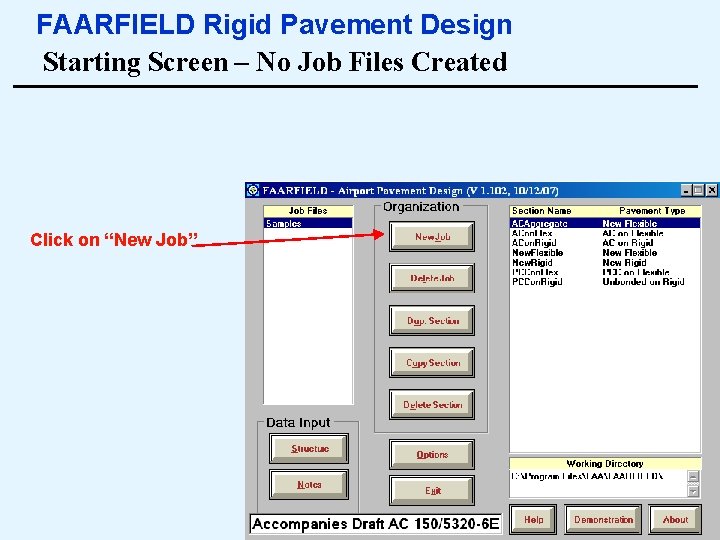
FAARFIELD Rigid Pavement Design Starting Screen – No Job Files Created Click on “New Job” 3
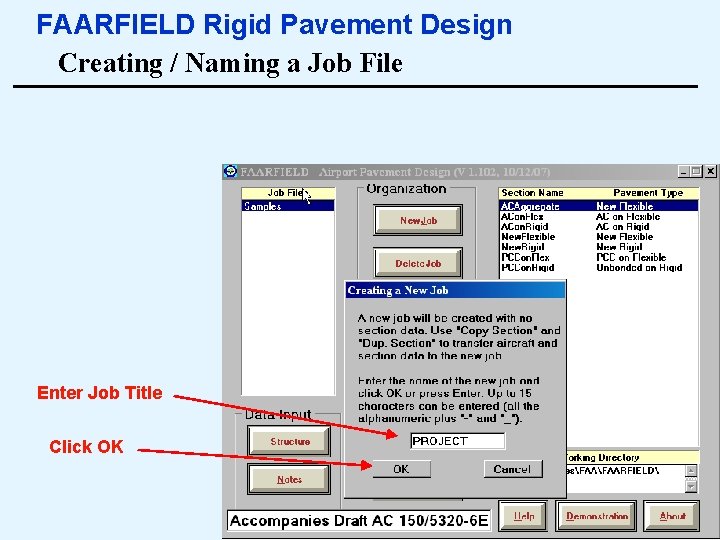
FAARFIELD Rigid Pavement Design Creating / Naming a Job File Enter Job Title Click OK 4
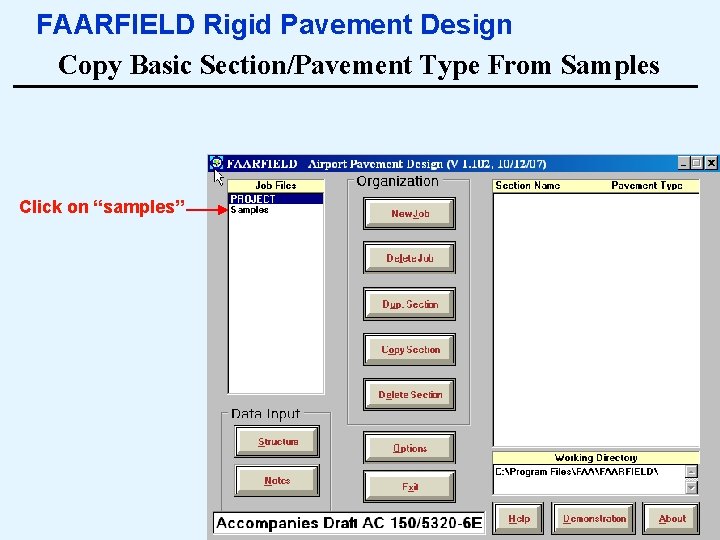
FAARFIELD Rigid Pavement Design Copy Basic Section/Pavement Type From Samples Click on “samples” 5
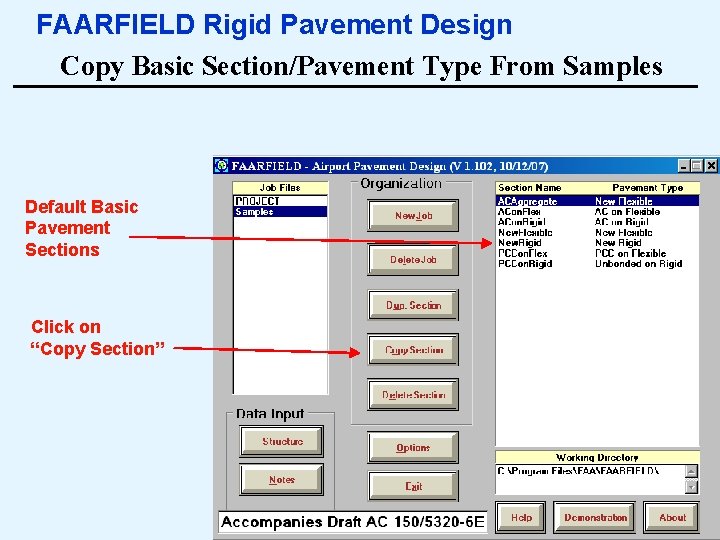
FAARFIELD Rigid Pavement Design Copy Basic Section/Pavement Type From Samples Default Basic Pavement Sections Click on “Copy Section” 6
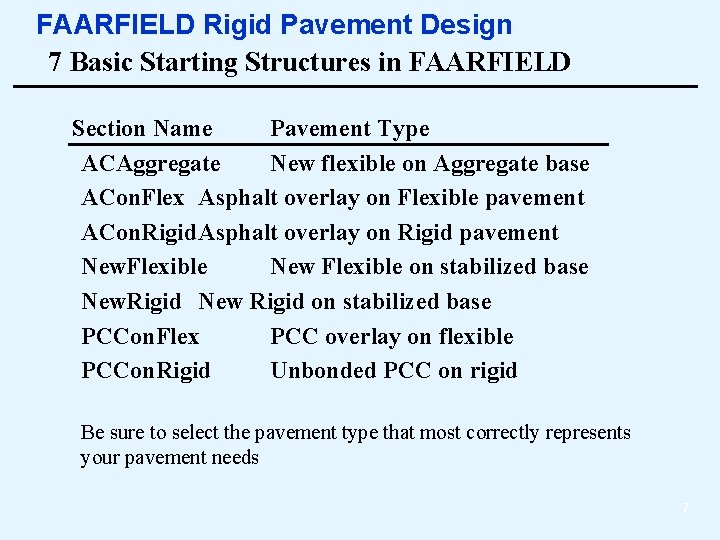
FAARFIELD Rigid Pavement Design 7 Basic Starting Structures in FAARFIELD Section Name Pavement Type ACAggregate New flexible on Aggregate base ACon. Flex Asphalt overlay on Flexible pavement ACon. Rigid. Asphalt overlay on Rigid pavement New. Flexible New Flexible on stabilized base New. Rigid New Rigid on stabilized base PCCon. Flex PCC overlay on flexible PCCon. Rigid Unbonded PCC on rigid Be sure to select the pavement type that most correctly represents your pavement needs 7
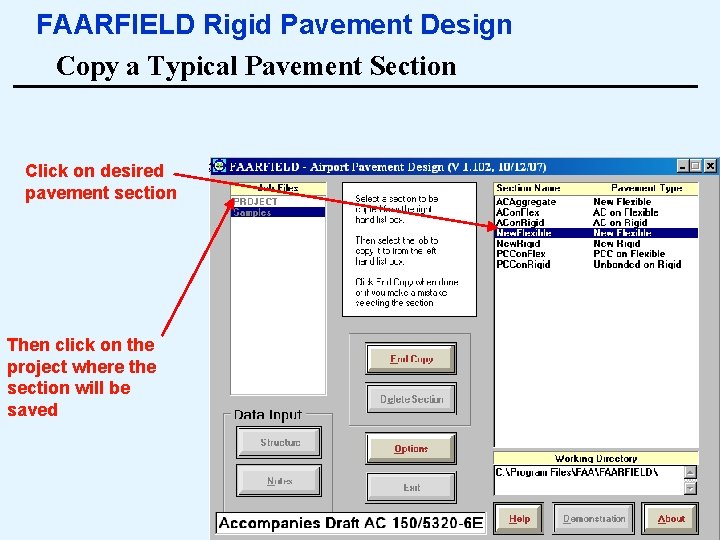
FAARFIELD Rigid Pavement Design Copy a Typical Pavement Section Click on desired pavement section Then click on the project where the section will be saved 8
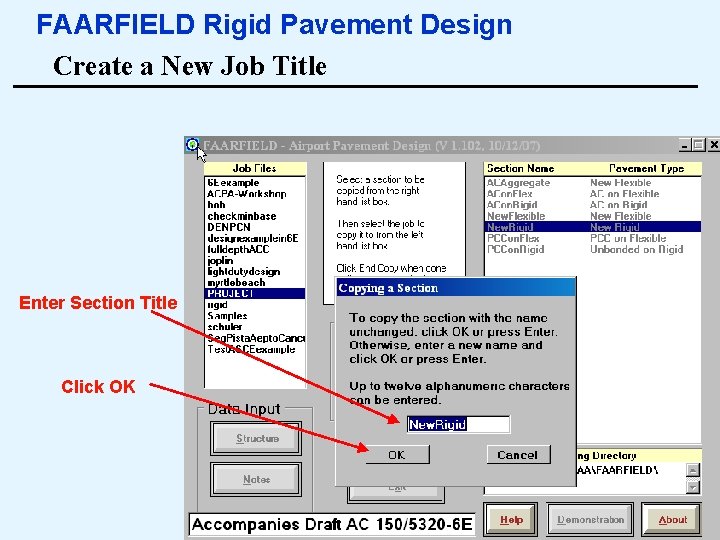
FAARFIELD Rigid Pavement Design Create a New Job Title Enter Section Title Click OK 9
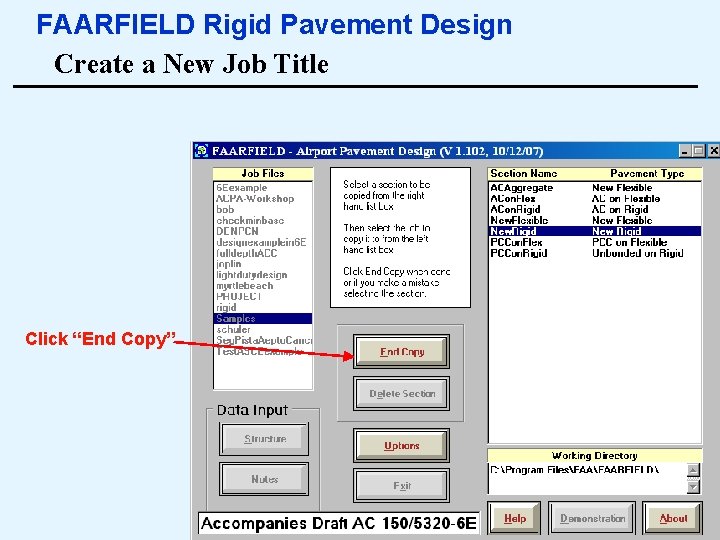
FAARFIELD Rigid Pavement Design Create a New Job Title Click “End Copy” 10
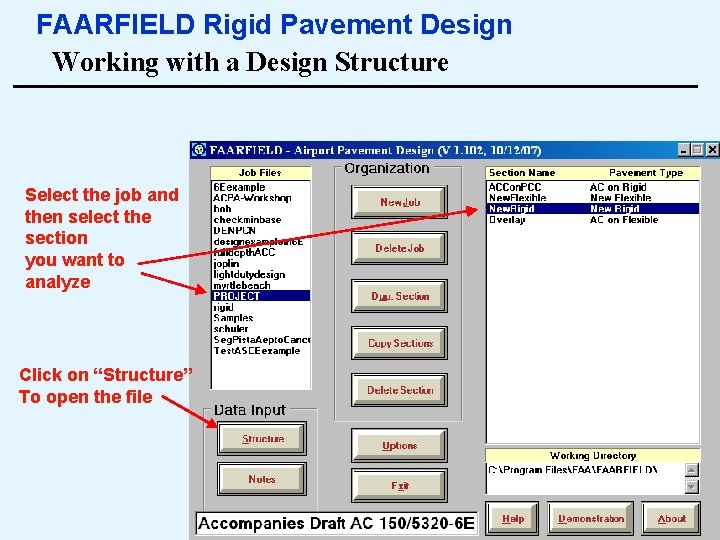
FAARFIELD Rigid Pavement Design Working with a Design Structure Select the job and then select the section you want to analyze Click on “Structure” To open the file 11
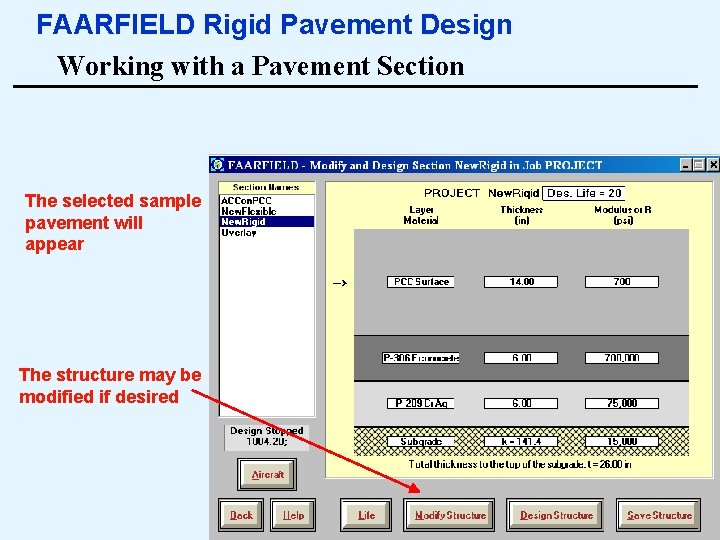
FAARFIELD Rigid Pavement Design Working with a Pavement Section The selected sample pavement will appear The structure may be modified if desired 12
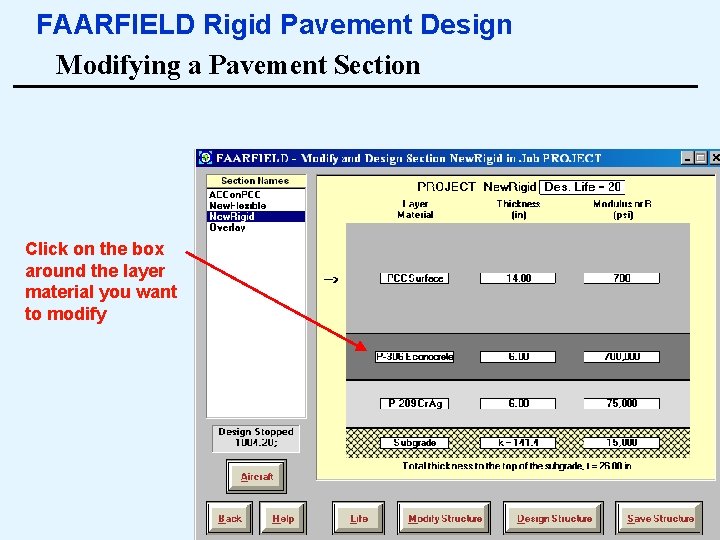
FAARFIELD Rigid Pavement Design Modifying a Pavement Section Click on the box around the layer material you want to modify 13
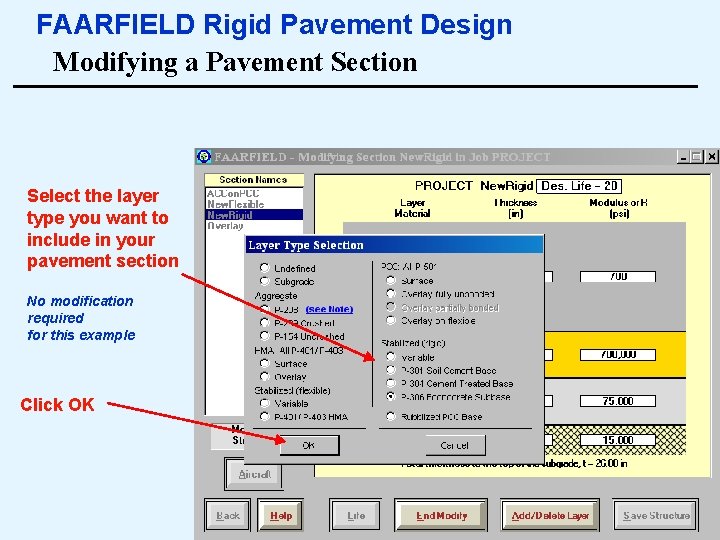
FAARFIELD Rigid Pavement Design Modifying a Pavement Section Select the layer type you want to include in your pavement section No modification required for this example Click OK 14
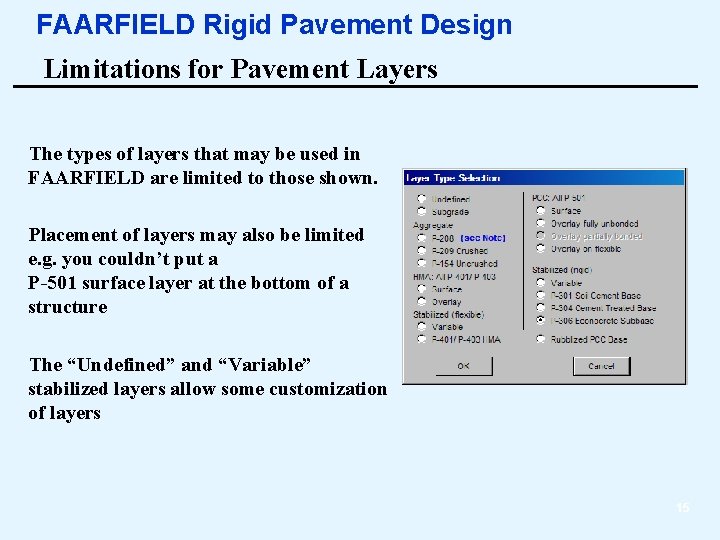
FAARFIELD Rigid Pavement Design Limitations for Pavement Layers The types of layers that may be used in FAARFIELD are limited to those shown. Placement of layers may also be limited e. g. you couldn’t put a P-501 surface layer at the bottom of a structure The “Undefined” and “Variable” stabilized layers allow some customization of layers 15
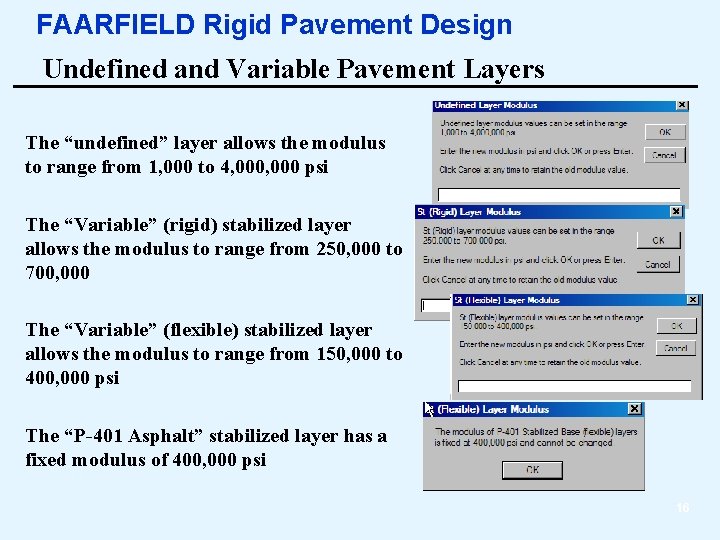
FAARFIELD Rigid Pavement Design Undefined and Variable Pavement Layers The “undefined” layer allows the modulus to range from 1, 000 to 4, 000 psi The “Variable” (rigid) stabilized layer allows the modulus to range from 250, 000 to 700, 000 The “Variable” (flexible) stabilized layer allows the modulus to range from 150, 000 to 400, 000 psi The “P-401 Asphalt” stabilized layer has a fixed modulus of 400, 000 psi 16
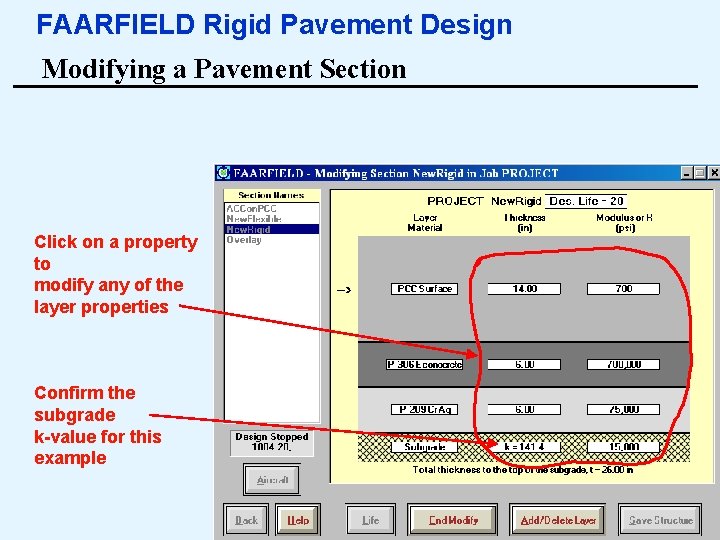
FAARFIELD Rigid Pavement Design Modifying a Pavement Section Click on a property to modify any of the layer properties Confirm the subgrade k-value for this example 17
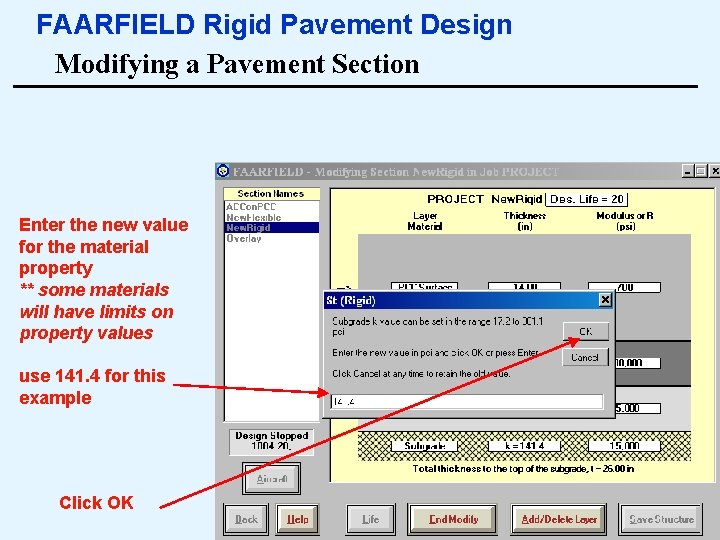
FAARFIELD Rigid Pavement Design Modifying a Pavement Section Enter the new value for the material property ** some materials will have limits on property values use 141. 4 for this example Click OK 18
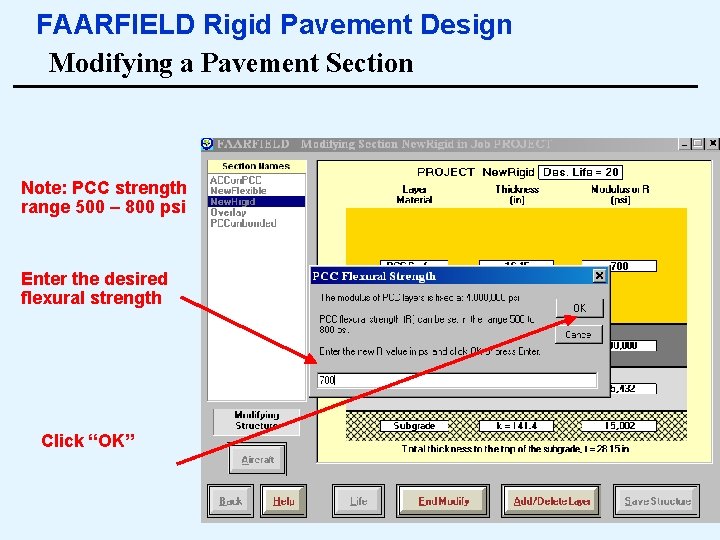
FAARFIELD Rigid Pavement Design Modifying a Pavement Section Note: PCC strength range 500 – 800 psi Enter the desired flexural strength Click “OK” 19
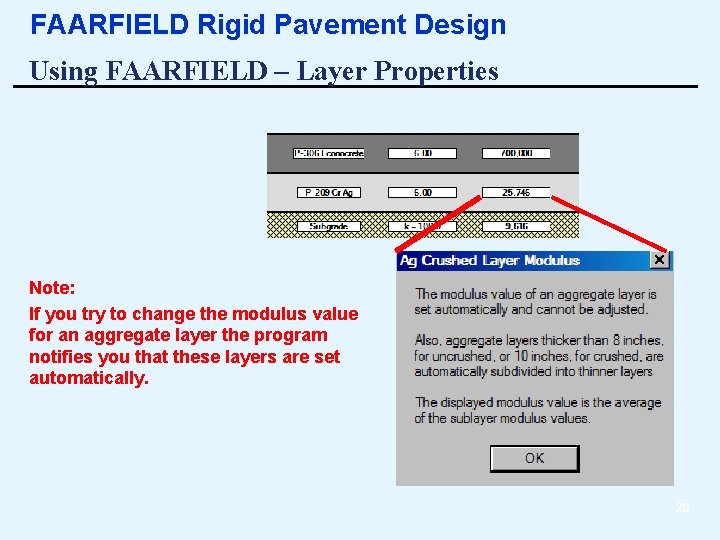
FAARFIELD Rigid Pavement Design Using FAARFIELD – Layer Properties Note: If you try to change the modulus value for an aggregate layer the program notifies you that these layers are set automatically. 20
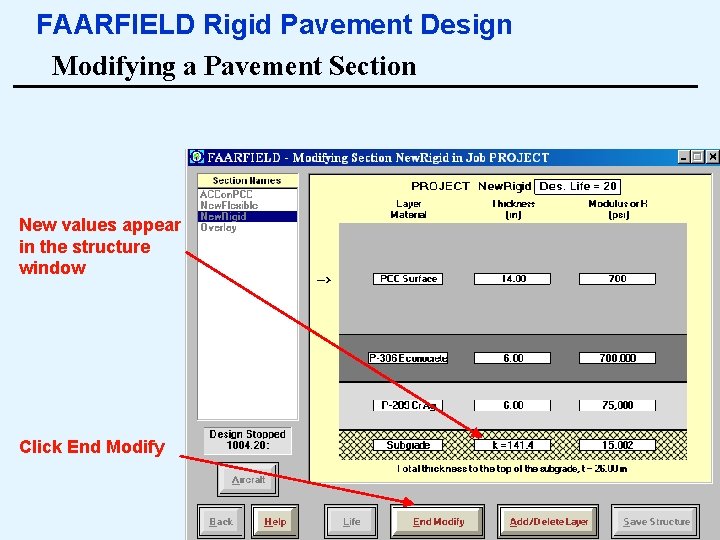
FAARFIELD Rigid Pavement Design Modifying a Pavement Section New values appear in the structure window Click End Modify 21
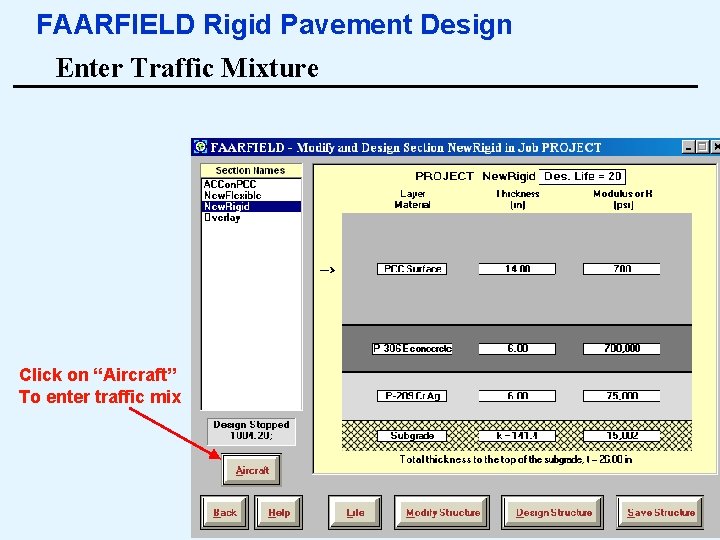
FAARFIELD Rigid Pavement Design Enter Traffic Mixture Click on “Aircraft” To enter traffic mix 22
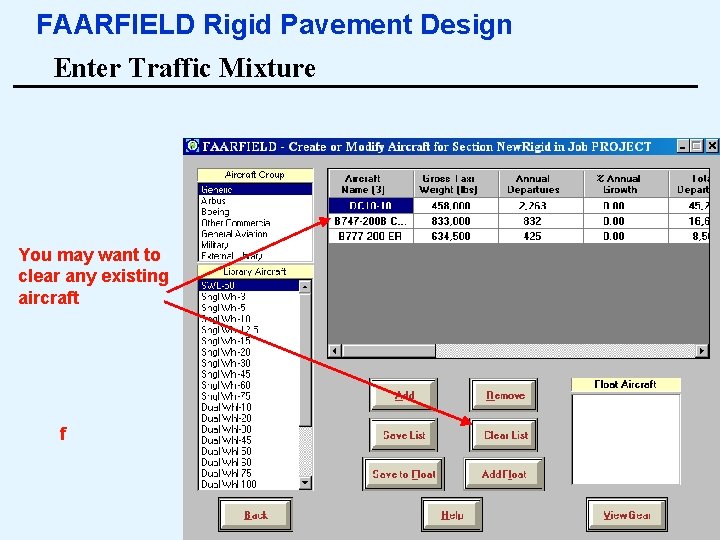
FAARFIELD Rigid Pavement Design Enter Traffic Mixture You may want to clear any existing aircraft f 23
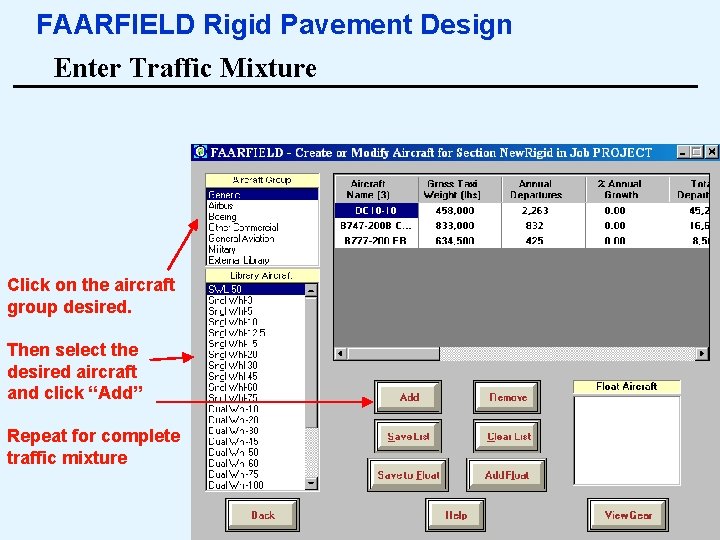
FAARFIELD Rigid Pavement Design Enter Traffic Mixture Click on the aircraft group desired. Then select the desired aircraft and click “Add” Repeat for complete traffic mixture 24
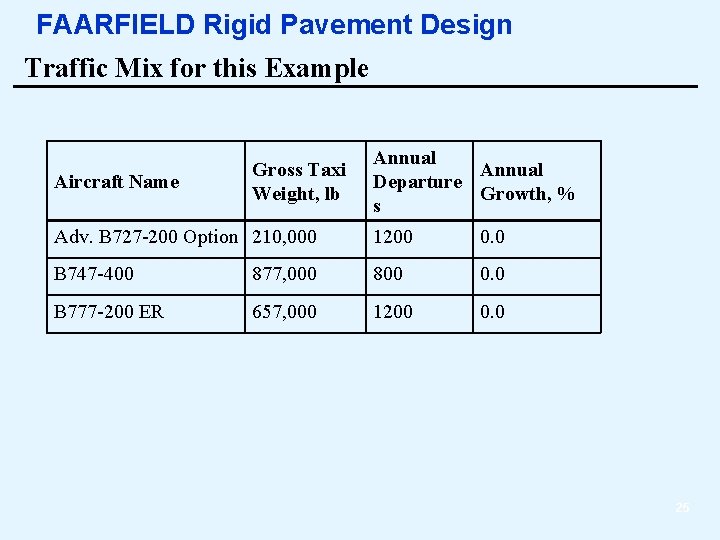
FAARFIELD Rigid Pavement Design Traffic Mix for this Example Aircraft Name Gross Taxi Weight, lb Annual Departure Growth, % s Adv. B 727 -200 Option 210, 000 1200 0. 0 B 747 -400 877, 000 800 0. 0 B 777 -200 ER 657, 000 1200 0. 0 25
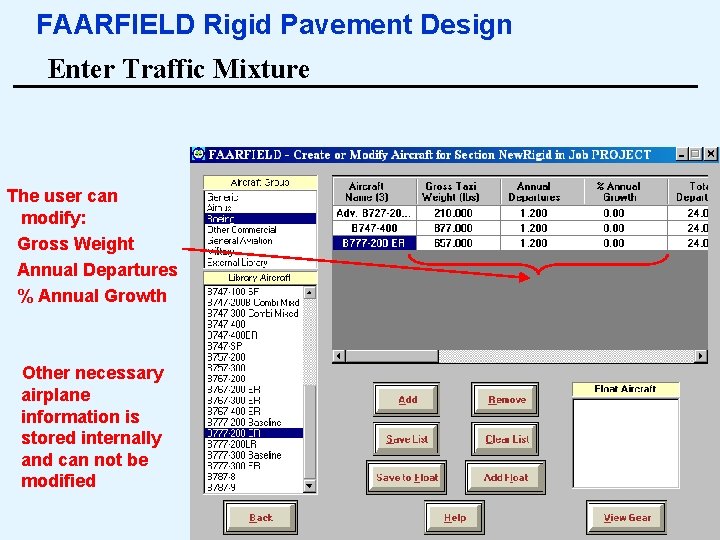
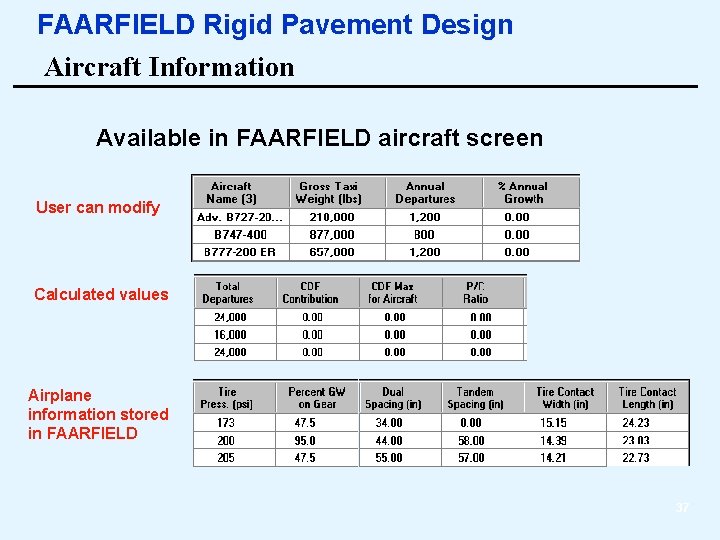
FAARFIELD Rigid Pavement Design Enter Traffic Mixture The user can modify: Gross Weight Annual Departures % Annual Growth Other necessary airplane information is stored internally and can not be modified 26
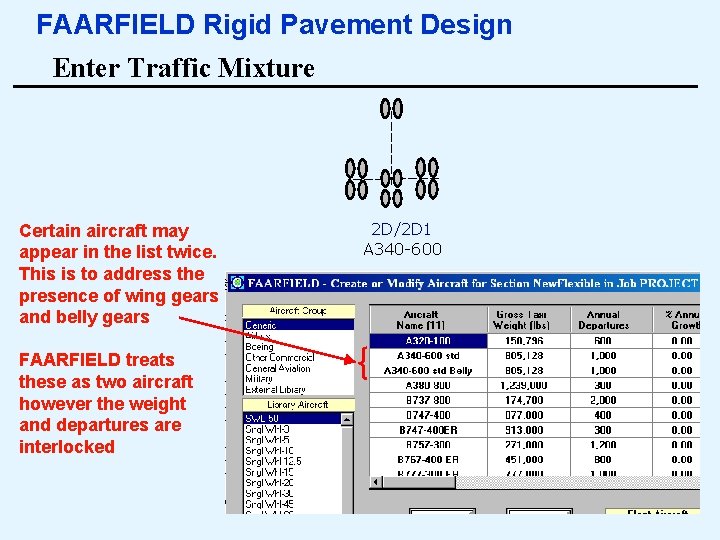
FAARFIELD Rigid Pavement Design Enter Traffic Mixture Certain aircraft may appear in the list twice. This is to address the presence of wing gears and belly gears 2 D/2 D 1 A 340 -600 FAARFIELD treats these as two aircraft however the weight and departures are interlocked 27
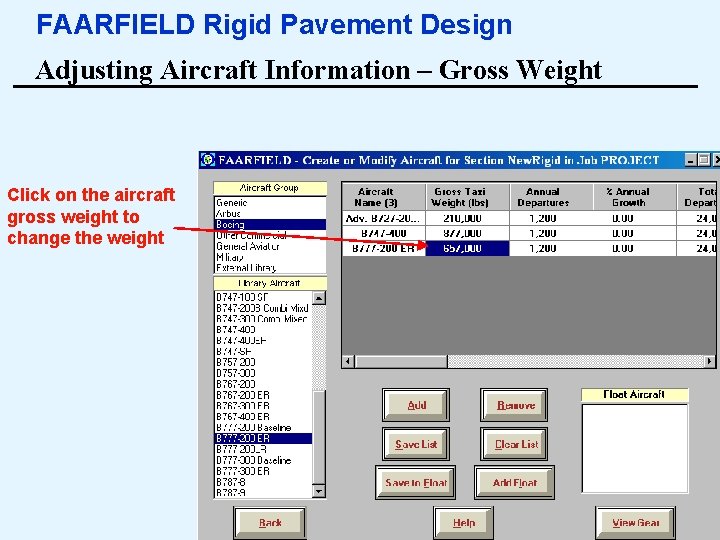
FAARFIELD Rigid Pavement Design Adjusting Aircraft Information – Gross Weight Click on the aircraft gross weight to change the weight 28
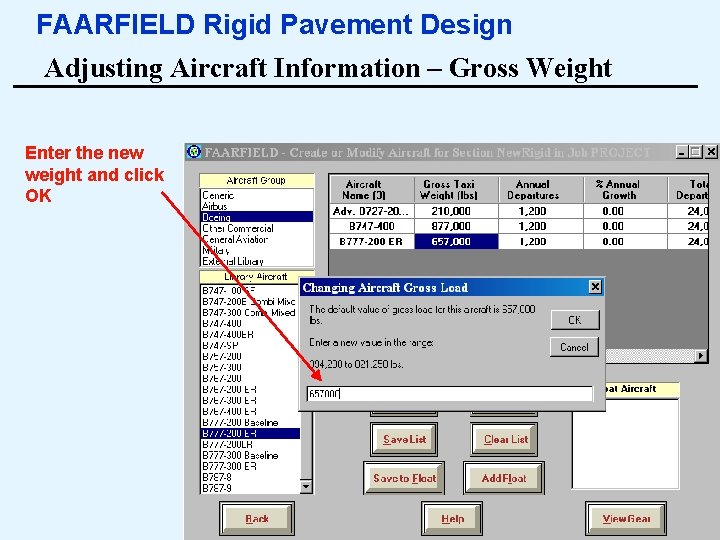
FAARFIELD Rigid Pavement Design Adjusting Aircraft Information – Gross Weight Enter the new weight and click OK 29
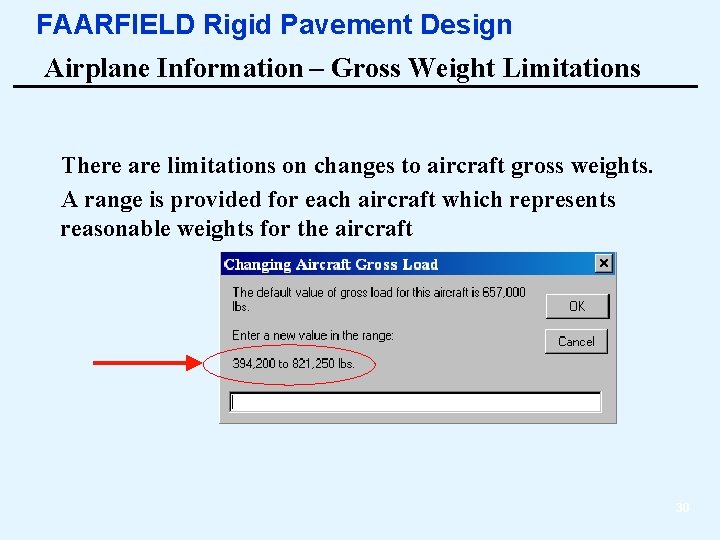
FAARFIELD Rigid Pavement Design Airplane Information – Gross Weight Limitations There are limitations on changes to aircraft gross weights. A range is provided for each aircraft which represents reasonable weights for the aircraft 30
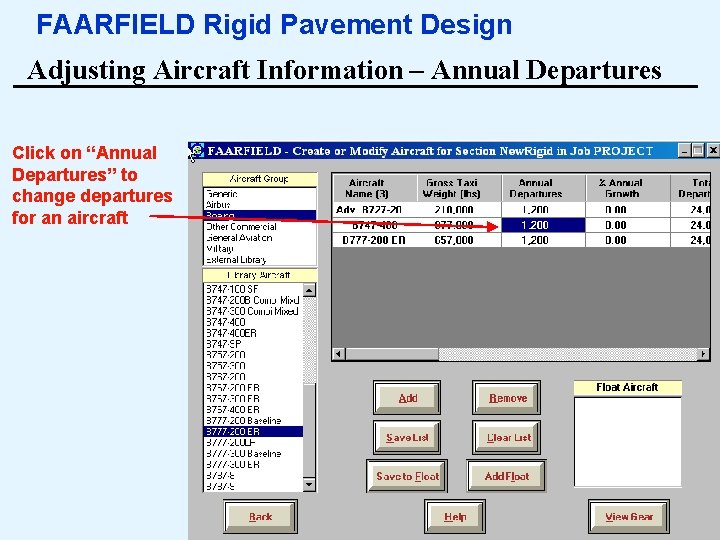
FAARFIELD Rigid Pavement Design Adjusting Aircraft Information – Annual Departures Click on “Annual Departures” to change departures for an aircraft 31
FAARFIELD Rigid Pavement Design Adjusting Aircraft Information – Annual Departures Enter the annual departures of the aircraft Click OK Current program limits on annual departures: 0 to 100, 000 32
FAARFIELD Rigid Pavement Design Annual Departures in FAARFIELD ØAnnual departures has the same meaning as the previous design procedure. ØArrivals are ignored. ØFor design purposes FAARFIELD uses the total annual departures, adjusted for growth, multiplied by the total design period in years e. g. 1200 annual departures X 20 years = 24, 000 departures 33
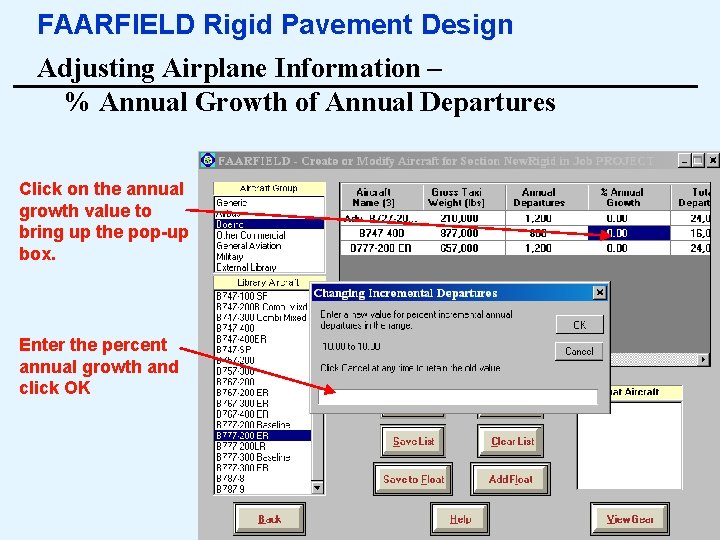
FAARFIELD Rigid Pavement Design Adjusting Airplane Information – % Annual Growth of Annual Departures Click on the annual growth value to bring up the pop-up box. Enter the percent annual growth and click OK 34
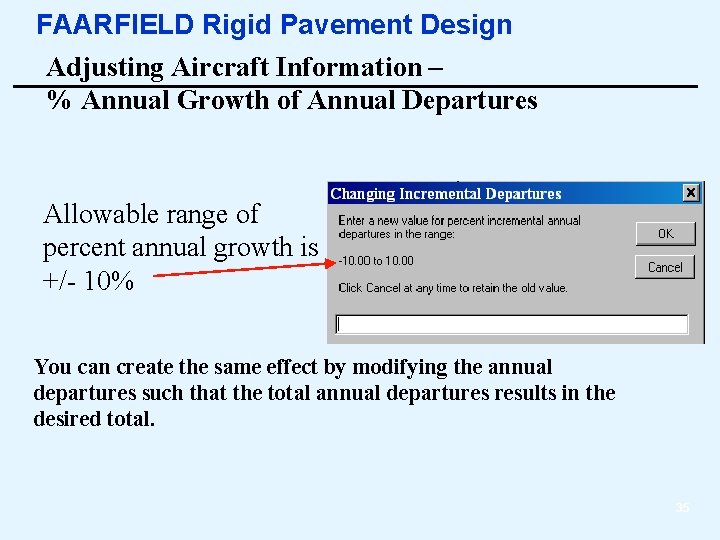
FAARFIELD Rigid Pavement Design Adjusting Aircraft Information – % Annual Growth of Annual Departures Allowable range of percent annual growth is +/- 10% You can create the same effect by modifying the annual departures such that the total annual departures results in the desired total. 35
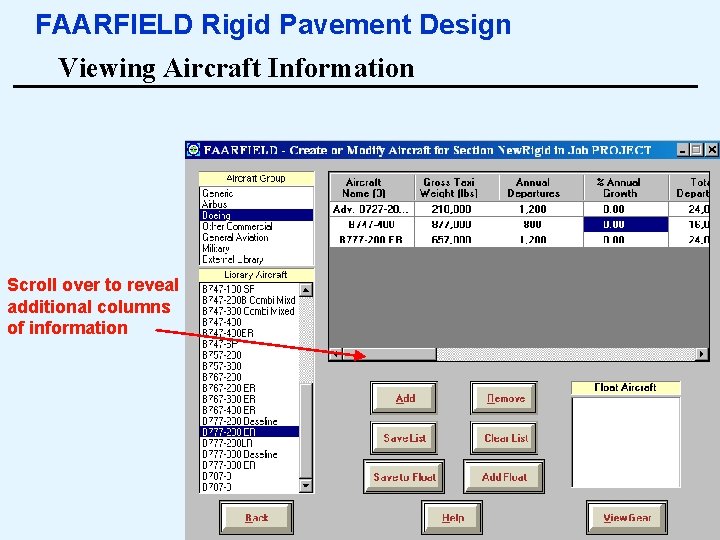
FAARFIELD Rigid Pavement Design Viewing Aircraft Information Scroll over to reveal additional columns of information 36
FAARFIELD Rigid Pavement Design Aircraft Information Available in FAARFIELD aircraft screen User can modify Calculated values Airplane information stored in FAARFIELD 37
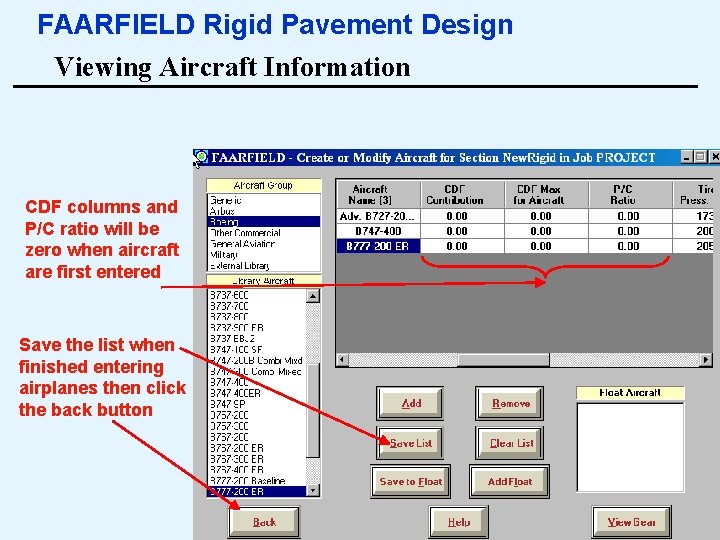
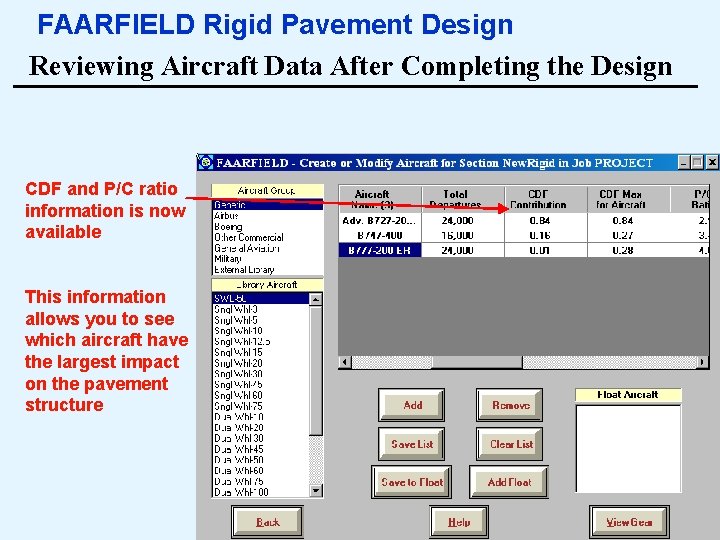
FAARFIELD Rigid Pavement Design Viewing Aircraft Information CDF columns and P/C ratio will be zero when aircraft are first entered Save the list when finished entering airplanes then click the back button 38
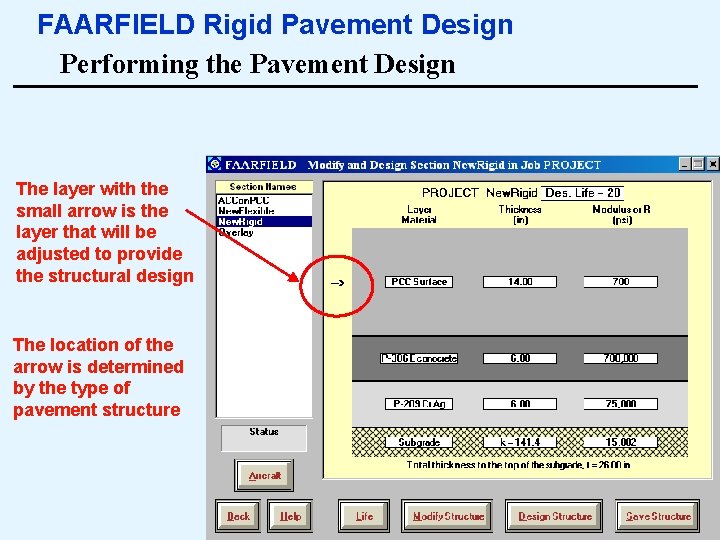
FAARFIELD Rigid Pavement Design Performing the Pavement Design The layer with the small arrow is the layer that will be adjusted to provide the structural design The location of the arrow is determined by the type of pavement structure 39
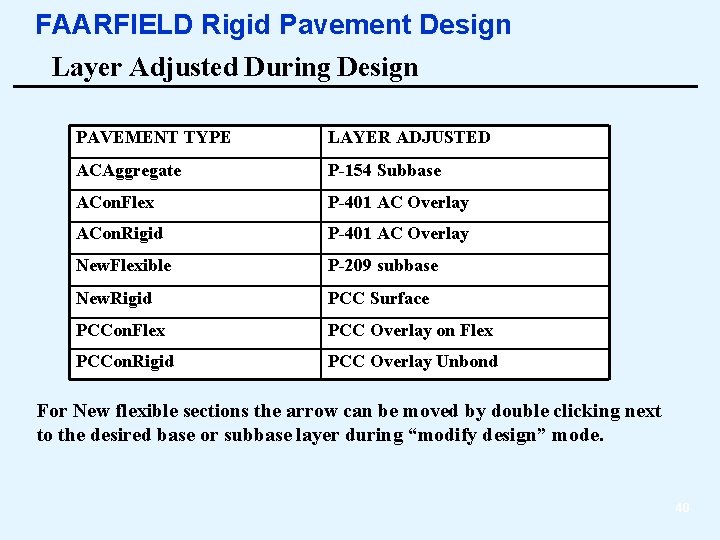
FAARFIELD Rigid Pavement Design Layer Adjusted During Design PAVEMENT TYPE LAYER ADJUSTED ACAggregate P-154 Subbase ACon. Flex P-401 AC Overlay ACon. Rigid P-401 AC Overlay New. Flexible P-209 subbase New. Rigid PCC Surface PCCon. Flex PCC Overlay on Flex PCCon. Rigid PCC Overlay Unbond For New flexible sections the arrow can be moved by double clicking next to the desired base or subbase layer during “modify design” mode. 40
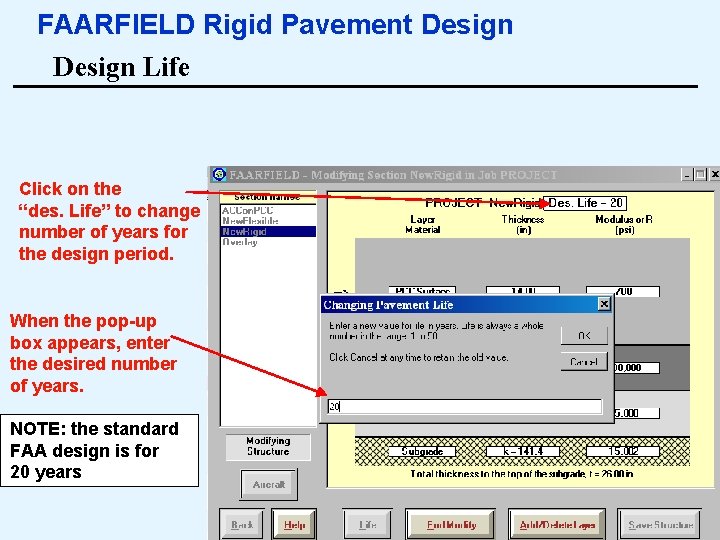
FAARFIELD Rigid Pavement Design Life Click on the “des. Life” to change number of years for the design period. When the pop-up box appears, enter the desired number of years. NOTE: the standard FAA design is for 20 years 41
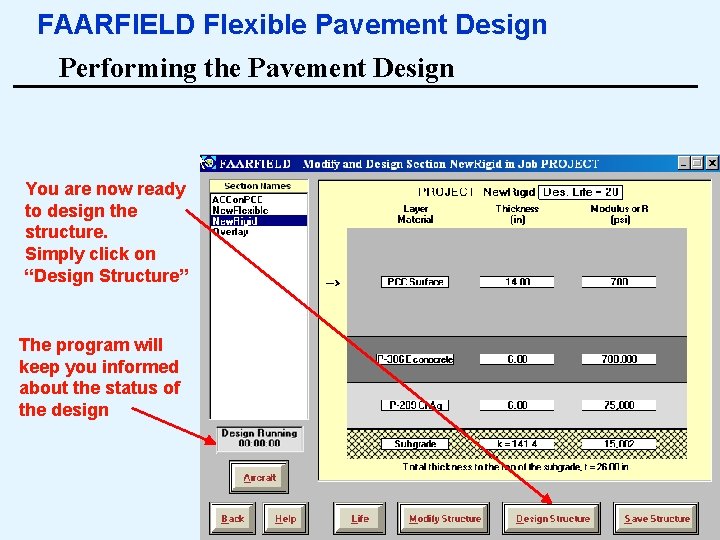
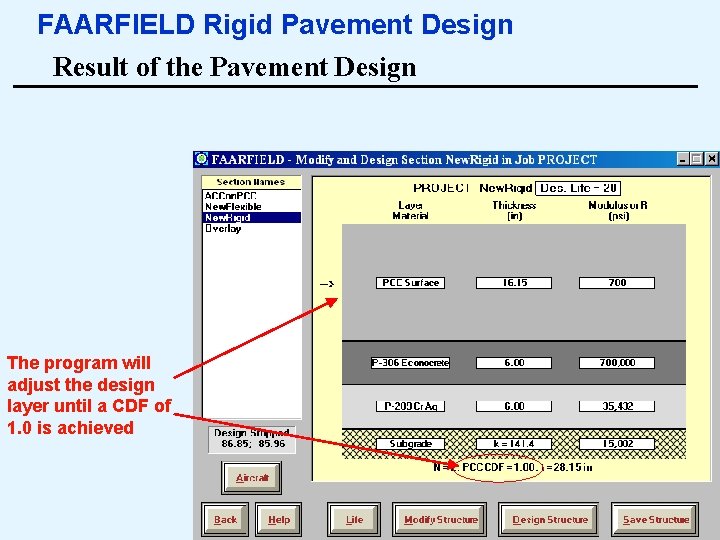
FAARFIELD Flexible Pavement Design Performing the Pavement Design You are now ready to design the structure. Simply click on “Design Structure” The program will keep you informed about the status of the design 42
FAARFIELD Rigid Pavement Design Result of the Pavement Design The program will adjust the design layer until a CDF of 1. 0 is achieved 43
FAARFIELD Rigid Pavement Design Reviewing Aircraft Data After Completing the Design CDF and P/C ratio information is now available This information allows you to see which aircraft have the largest impact on the pavement structure 44
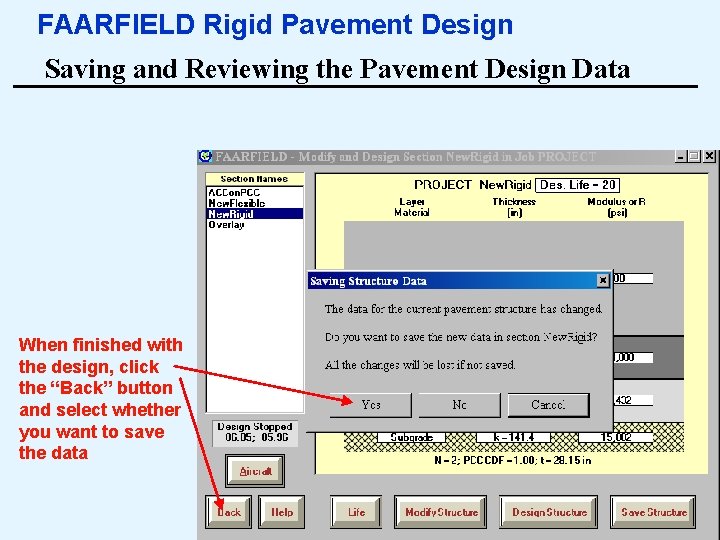
FAARFIELD Rigid Pavement Design Saving and Reviewing the Pavement Design Data When finished with the design, click the “Back” button and select whether you want to save the data 45
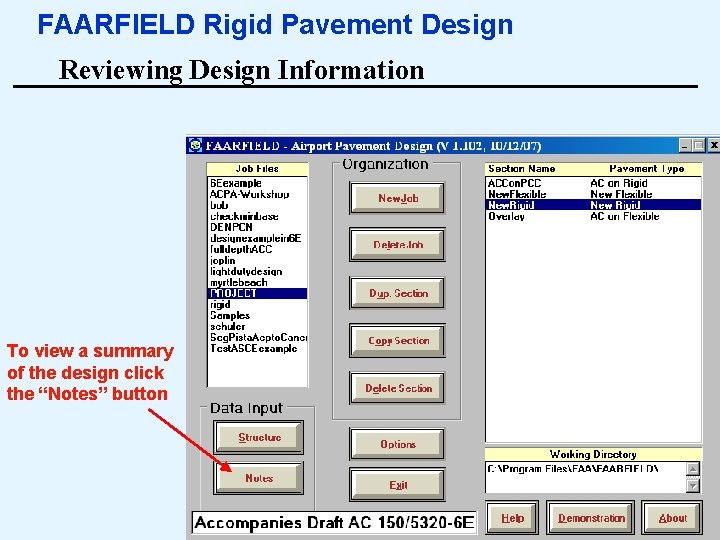
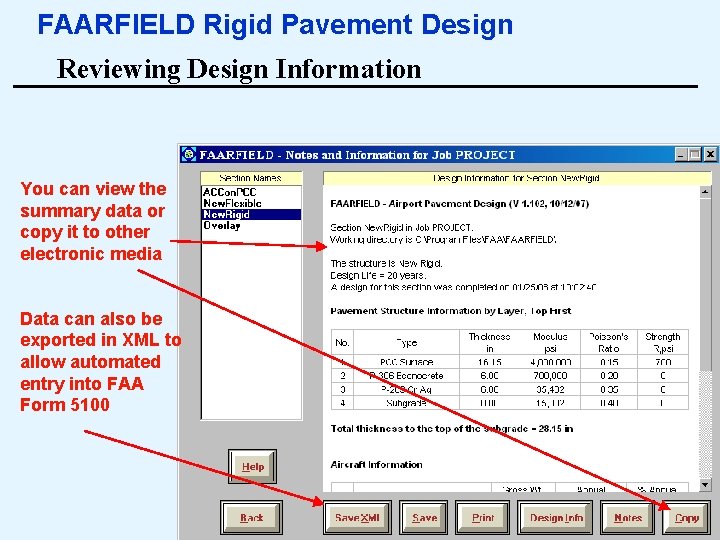
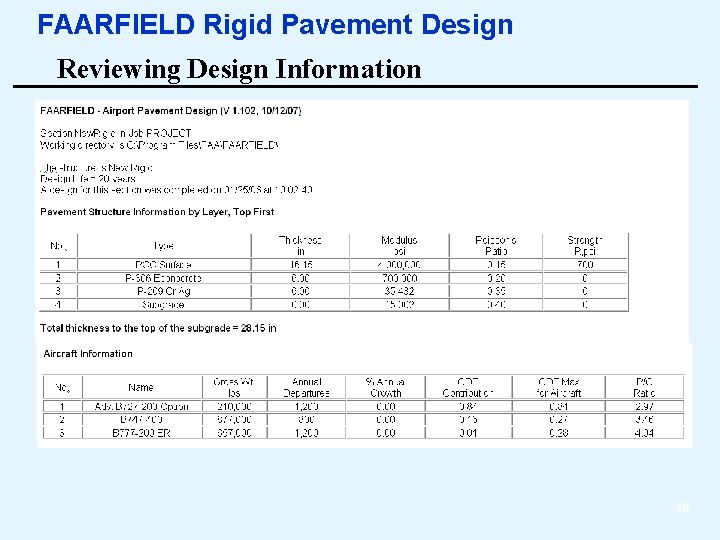
FAARFIELD Rigid Pavement Design Reviewing Design Information To view a summary of the design click the “Notes” button 46
FAARFIELD Rigid Pavement Design Reviewing Design Information You can view the summary data or copy it to other electronic media Data can also be exported in XML to allow automated entry into FAA Form 5100 47
FAARFIELD Rigid Pavement Design Reviewing Design Information 48
FAARFIELD - Sample PCC Overlay Design Overlay design is very similar to new pavement design except that the design is only allowed to iterate on the overlay layer The steps and options are similar to that of a new flexible design 49
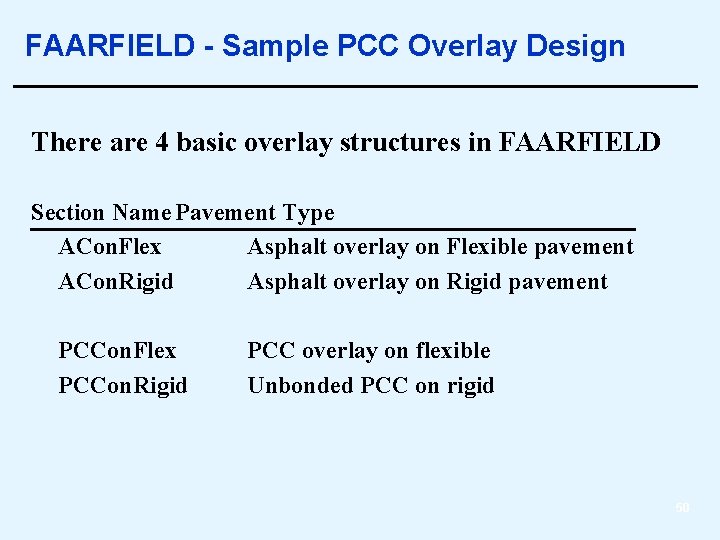
FAARFIELD - Sample PCC Overlay Design There are 4 basic overlay structures in FAARFIELD Section Name Pavement Type ACon. Flex Asphalt overlay on Flexible pavement ACon. Rigid Asphalt overlay on Rigid pavement PCCon. Flex PCCon. Rigid PCC overlay on flexible Unbonded PCC on rigid 50
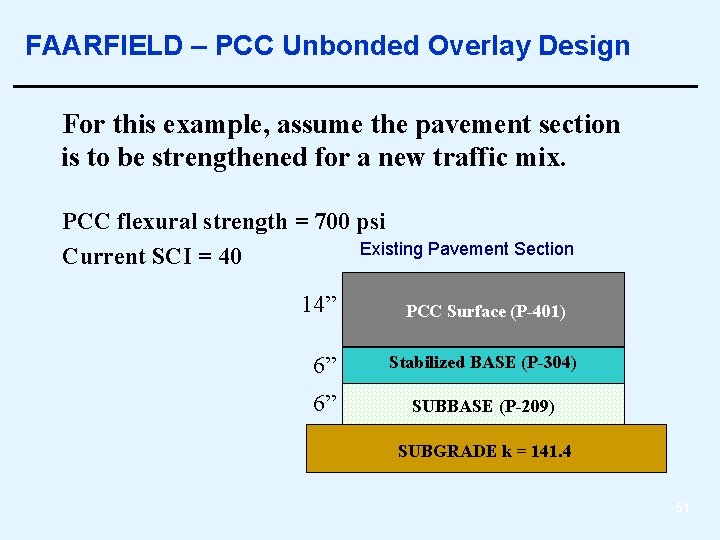
FAARFIELD – PCC Unbonded Overlay Design For this example, assume the pavement section is to be strengthened for a new traffic mix. PCC flexural strength = 700 psi Existing Pavement Section Current SCI = 40 14” PCC Surface (P-401) 6” Stabilized BASE (P-304) 6” SUBBASE (P-209) SUBGRADE k = 141. 4 51
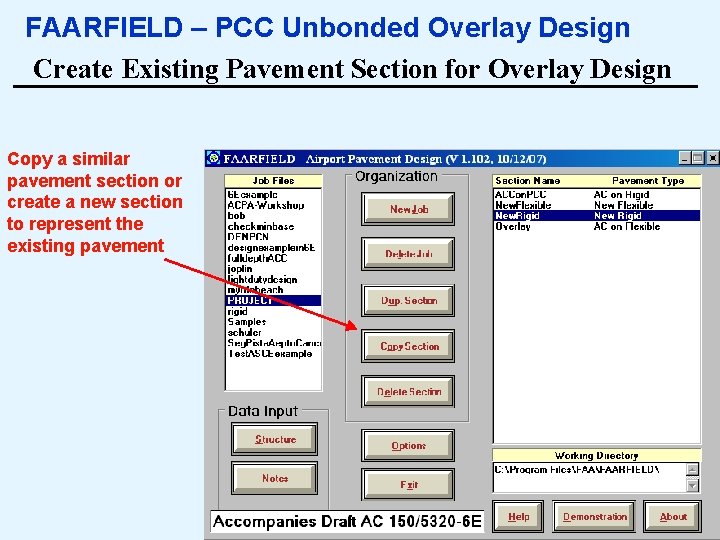
FAARFIELD – PCC Unbonded Overlay Design Create Existing Pavement Section for Overlay Design Copy a similar pavement section or create a new section to represent the existing pavement 52
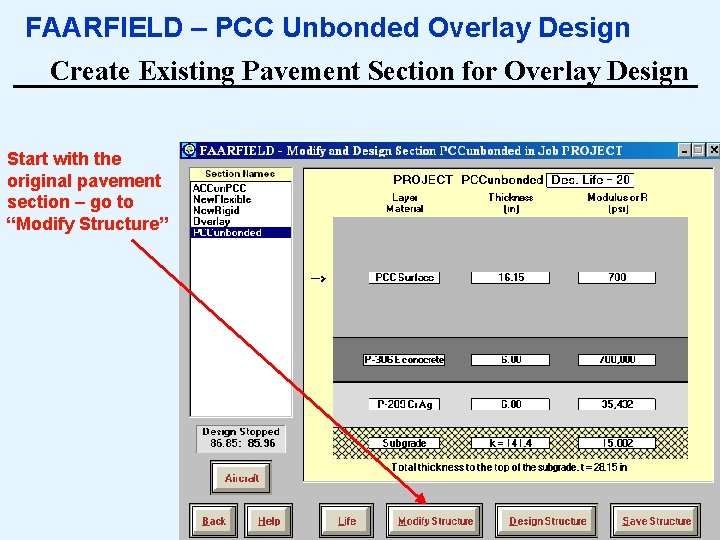
FAARFIELD – PCC Unbonded Overlay Design Create Existing Pavement Section for Overlay Design Start with the original pavement section – go to “Modify Structure” 53
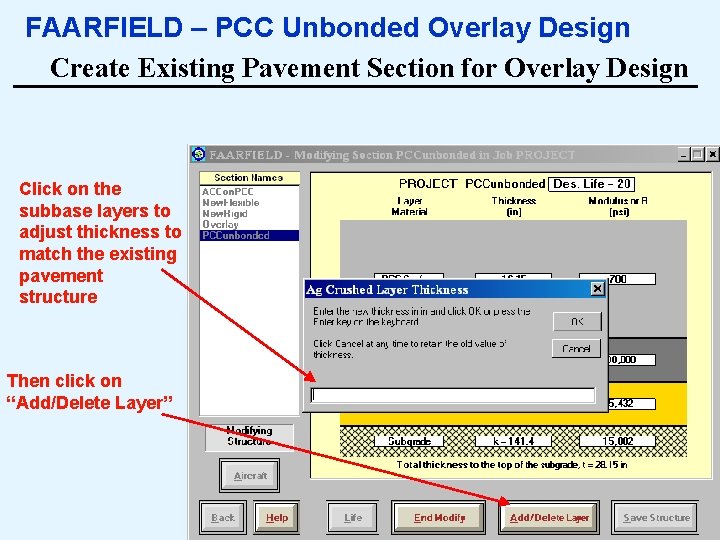
FAARFIELD – PCC Unbonded Overlay Design Create Existing Pavement Section for Overlay Design Click on the subbase layers to adjust thickness to match the existing pavement structure Then click on “Add/Delete Layer” 54
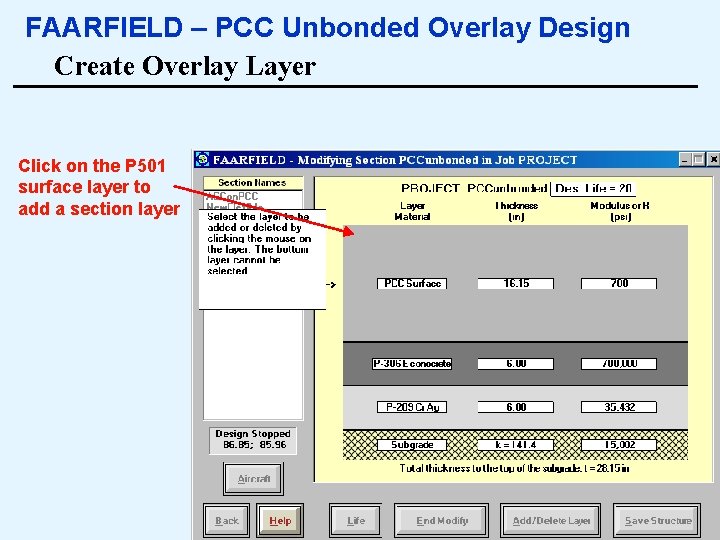
FAARFIELD – PCC Unbonded Overlay Design Create Overlay Layer Click on the P 501 surface layer to add a section layer 55
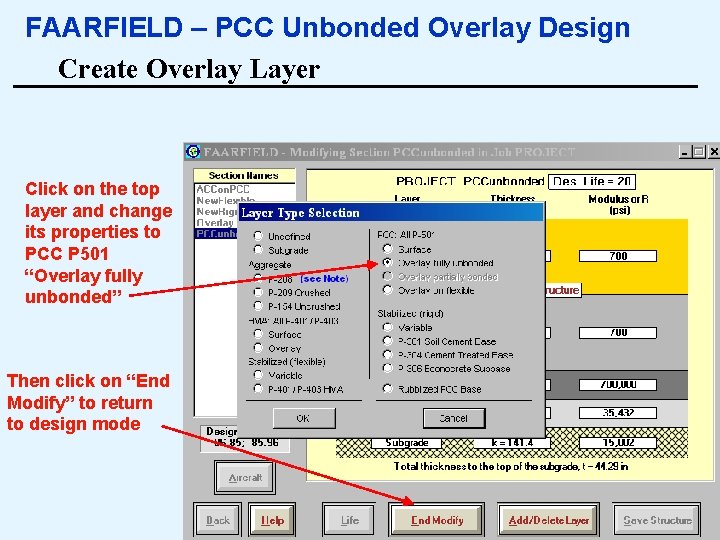
FAARFIELD – PCC Unbonded Overlay Design Create Overlay Layer Click on the top layer and change its properties to PCC P 501 “Overlay fully unbonded” Then click on “End Modify” to return to design mode 56
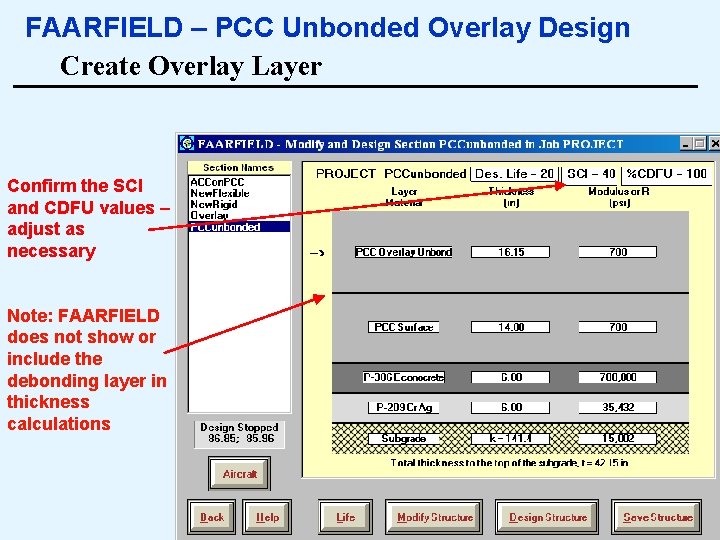
FAARFIELD – PCC Unbonded Overlay Design Create Overlay Layer Confirm the SCI and CDFU values – adjust as necessary Note: FAARFIELD does not show or include the debonding layer in thickness calculations 57
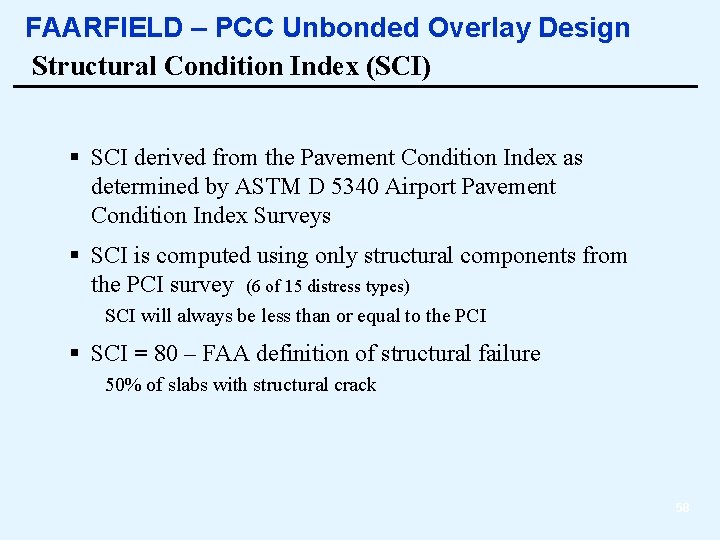
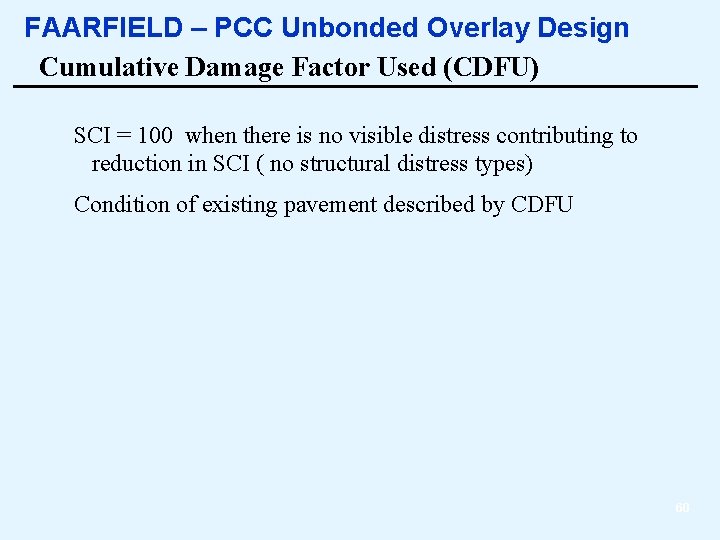
FAARFIELD – PCC Unbonded Overlay Design Structural Condition Index (SCI) § SCI derived from the Pavement Condition Index as determined by ASTM D 5340 Airport Pavement Condition Index Surveys § SCI is computed using only structural components from the PCI survey (6 of 15 distress types) SCI will always be less than or equal to the PCI § SCI = 80 – FAA definition of structural failure 50% of slabs with structural crack 58
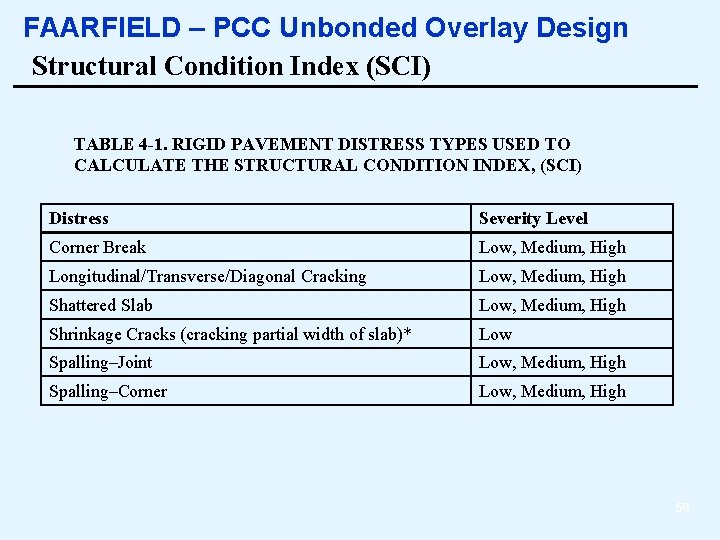
FAARFIELD – PCC Unbonded Overlay Design Structural Condition Index (SCI) TABLE 4 -1. RIGID PAVEMENT DISTRESS TYPES USED TO CALCULATE THE STRUCTURAL CONDITION INDEX, (SCI) Distress Severity Level Corner Break Low, Medium, High Longitudinal/Transverse/Diagonal Cracking Low, Medium, High Shattered Slab Low, Medium, High Shrinkage Cracks (cracking partial width of slab)* Low Spalling–Joint Low, Medium, High Spalling–Corner Low, Medium, High 59
FAARFIELD – PCC Unbonded Overlay Design Cumulative Damage Factor Used (CDFU) SCI = 100 when there is no visible distress contributing to reduction in SCI ( no structural distress types) Condition of existing pavement described by CDFU 60
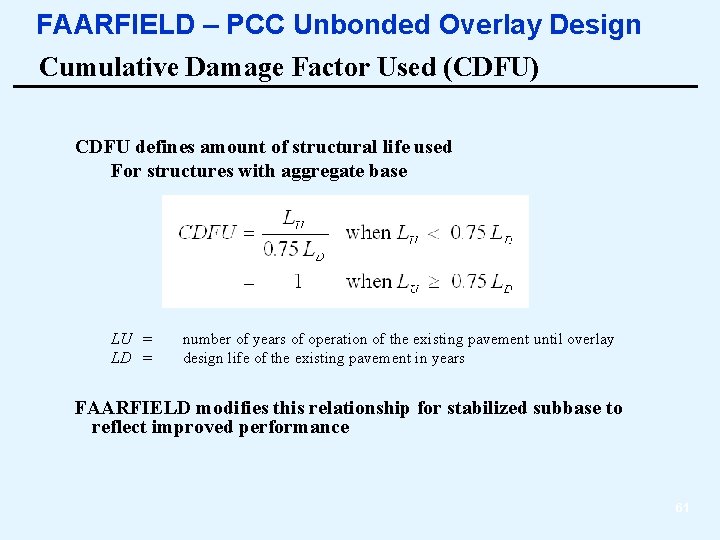
FAARFIELD – PCC Unbonded Overlay Design Cumulative Damage Factor Used (CDFU) CDFU defines amount of structural life used For structures with aggregate base LU = LD = number of years of operation of the existing pavement until overlay design life of the existing pavement in years FAARFIELD modifies this relationship for stabilized subbase to reflect improved performance 61
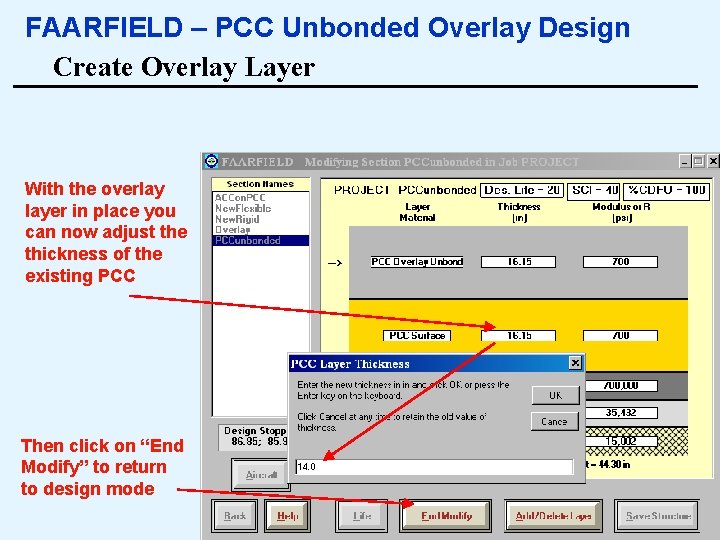
FAARFIELD – PCC Unbonded Overlay Design Create Overlay Layer With the overlay layer in place you can now adjust the thickness of the existing PCC Then click on “End Modify” to return to design mode 62
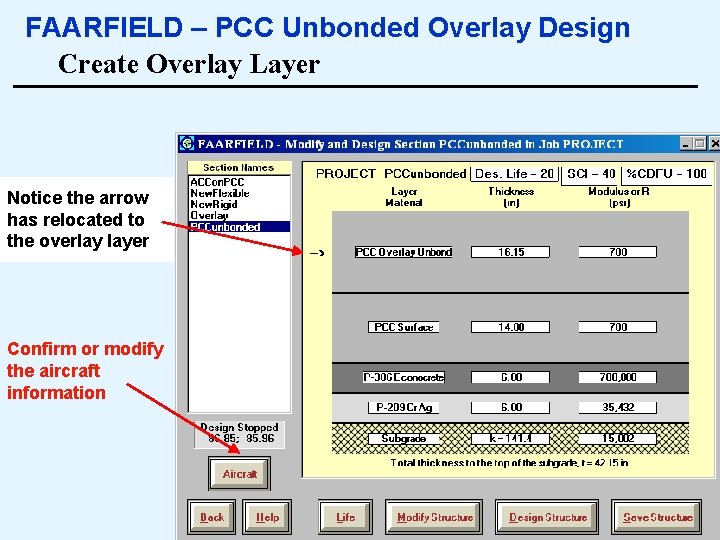
FAARFIELD – PCC Unbonded Overlay Design Create Overlay Layer Notice the arrow has relocated to the overlay layer Confirm or modify the aircraft information 63
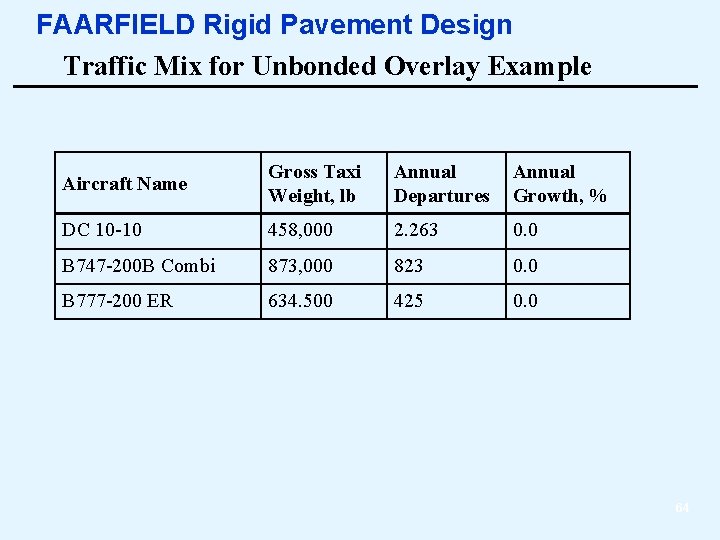
FAARFIELD Rigid Pavement Design Traffic Mix for Unbonded Overlay Example Aircraft Name Gross Taxi Weight, lb Annual Departures Annual Growth, % DC 10 -10 458, 000 2. 263 0. 0 B 747 -200 B Combi 873, 000 823 0. 0 B 777 -200 ER 634. 500 425 0. 0 64
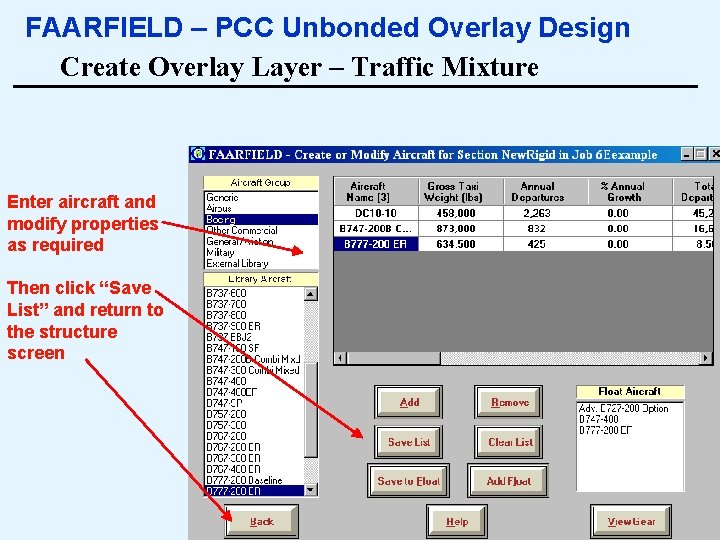
FAARFIELD – PCC Unbonded Overlay Design Create Overlay Layer – Traffic Mixture Enter aircraft and modify properties as required Then click “Save List” and return to the structure screen 65
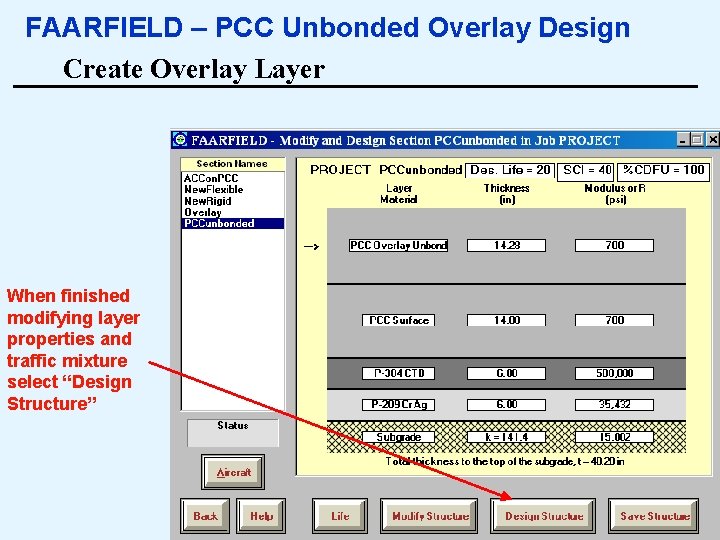
FAARFIELD – PCC Unbonded Overlay Design Create Overlay Layer When finished modifying layer properties and traffic mixture select “Design Structure” 66
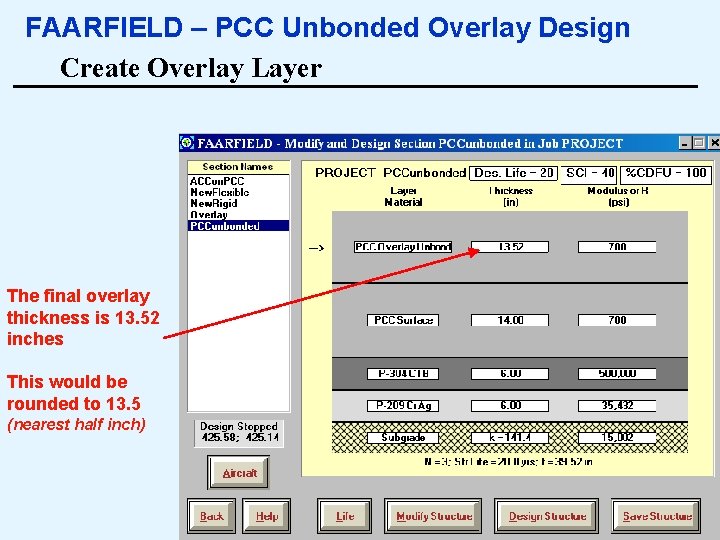
FAARFIELD – PCC Unbonded Overlay Design Create Overlay Layer The final overlay thickness is 13. 52 inches This would be rounded to 13. 5 (nearest half inch) 67
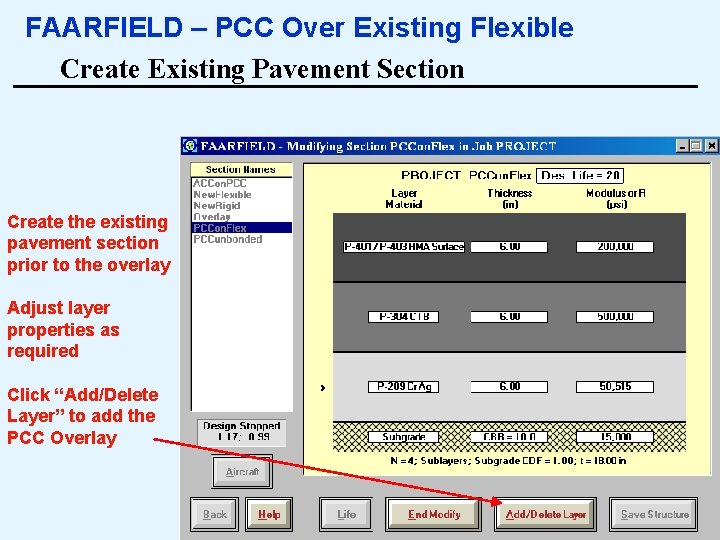
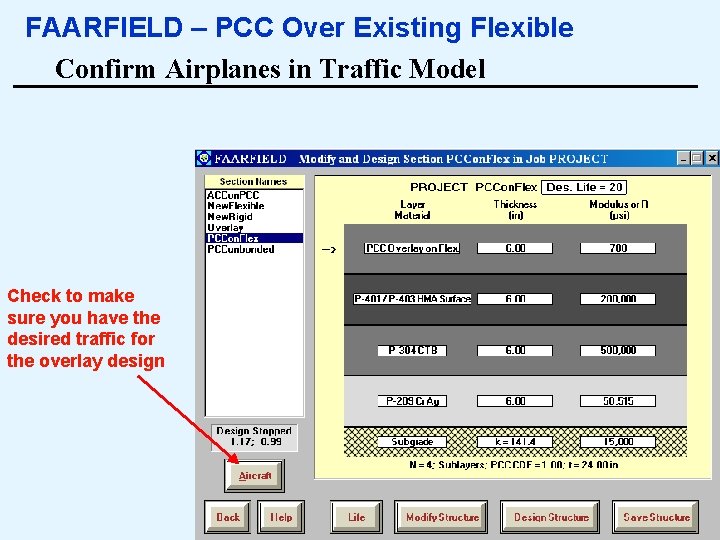
FAARFIELD – PCC Over Existing Flexible Assume the pavement section is to be strengthened by a placing a PCC overlay on the existing flexible pavement Existing Pavement Section 6” ACC Surface (P-401) 6” Stabilized BASE (P-304) 6” SUBBASE (P-209) SUBGRADE k = 141. 4 68
FAARFIELD – PCC Over Existing Flexible Create Existing Pavement Section Create the existing pavement section prior to the overlay Adjust layer properties as required Click “Add/Delete Layer” to add the PCC Overlay 69
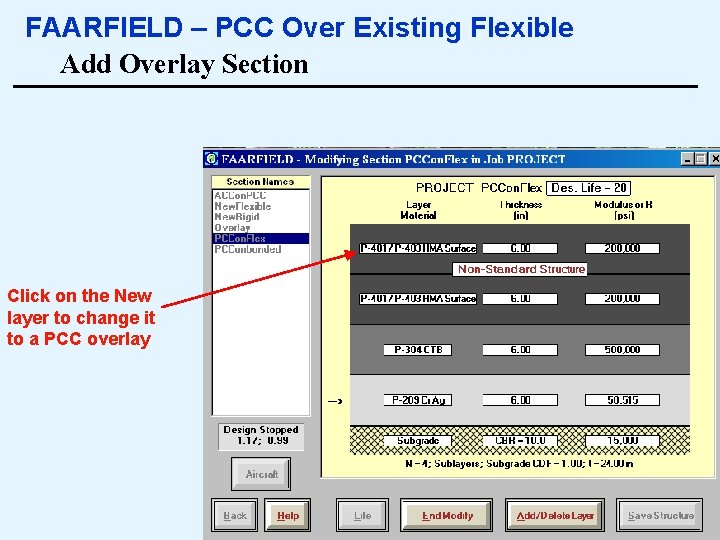
FAARFIELD – PCC Over Existing Flexible Add Overlay Section Click on the New layer to change it to a PCC overlay 70
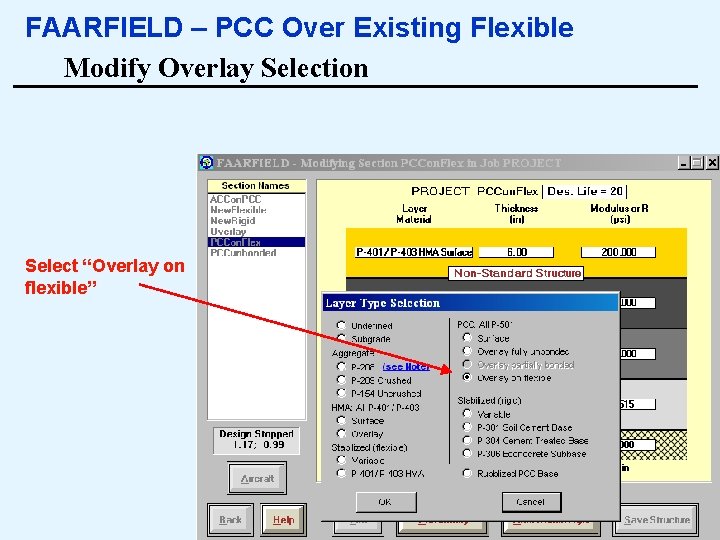
FAARFIELD – PCC Over Existing Flexible Modify Overlay Selection Select “Overlay on flexible” 71
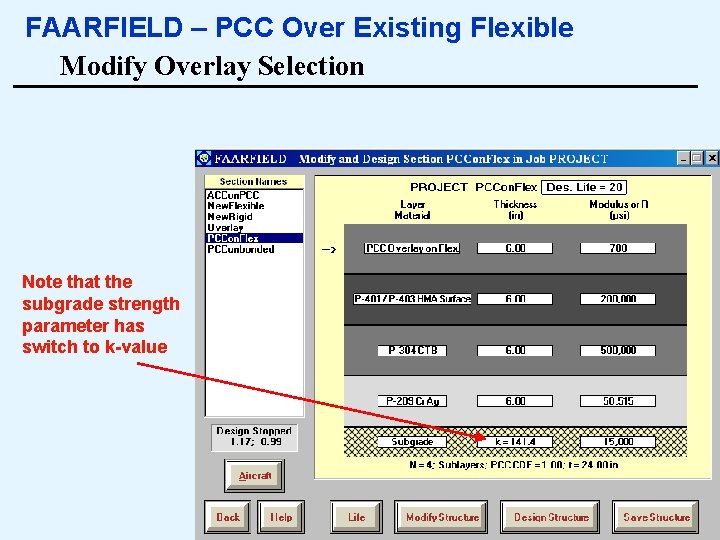
FAARFIELD – PCC Over Existing Flexible Modify Overlay Selection Note that the subgrade strength parameter has switch to k-value 72
FAARFIELD – PCC Over Existing Flexible Confirm Airplanes in Traffic Model Check to make sure you have the desired traffic for the overlay design 73
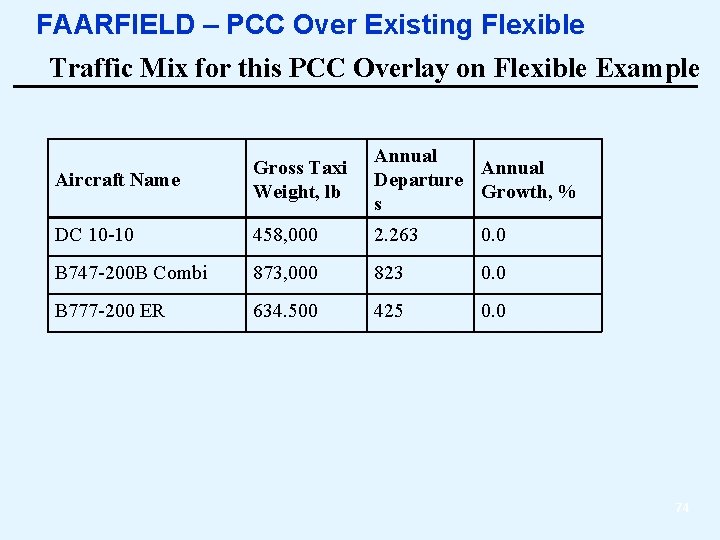
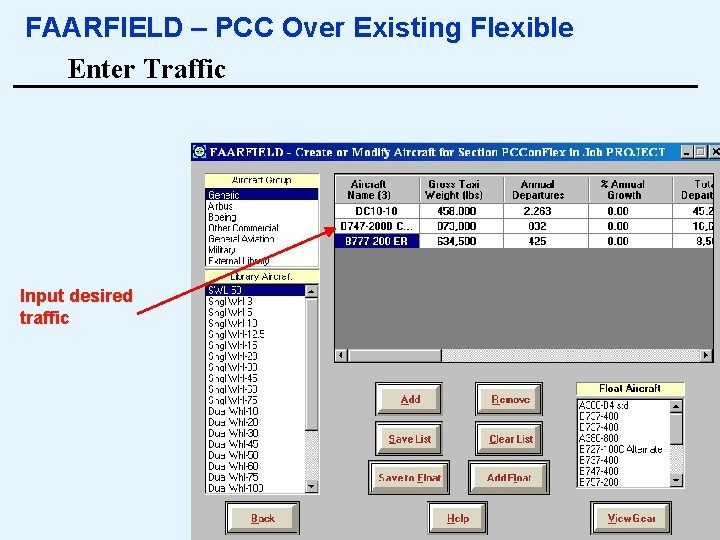
FAARFIELD – PCC Over Existing Flexible Traffic Mix for this PCC Overlay on Flexible Example Aircraft Name Gross Taxi Weight, lb Annual Departure Growth, % s DC 10 -10 458, 000 2. 263 0. 0 B 747 -200 B Combi 873, 000 823 0. 0 B 777 -200 ER 634. 500 425 0. 0 74
FAARFIELD – PCC Over Existing Flexible Enter Traffic Input desired traffic 75
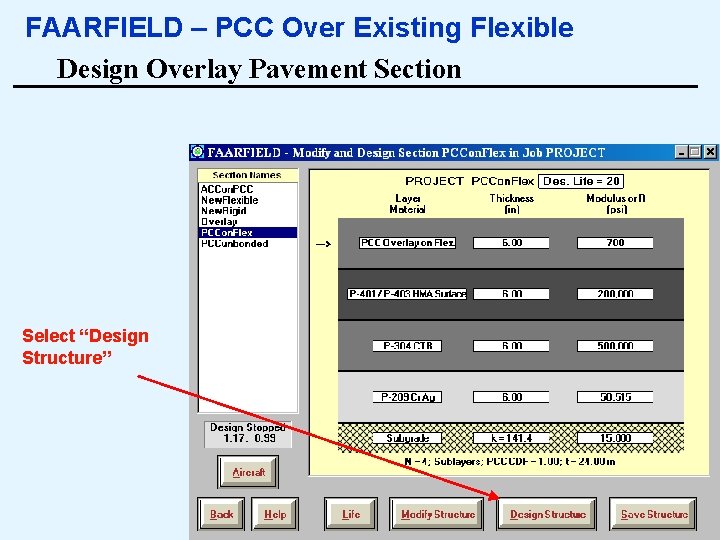
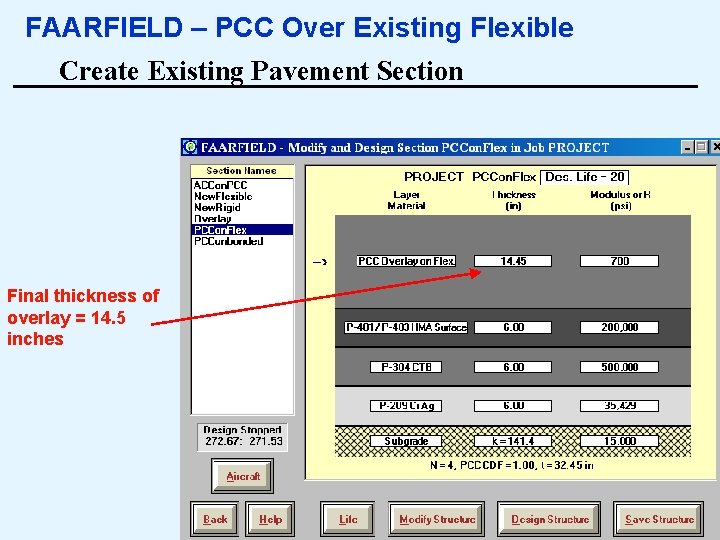
FAARFIELD – PCC Over Existing Flexible Design Overlay Pavement Section Select “Design Structure” 76
FAARFIELD – PCC Over Existing Flexible Create Existing Pavement Section Final thickness of overlay = 14. 5 inches 77
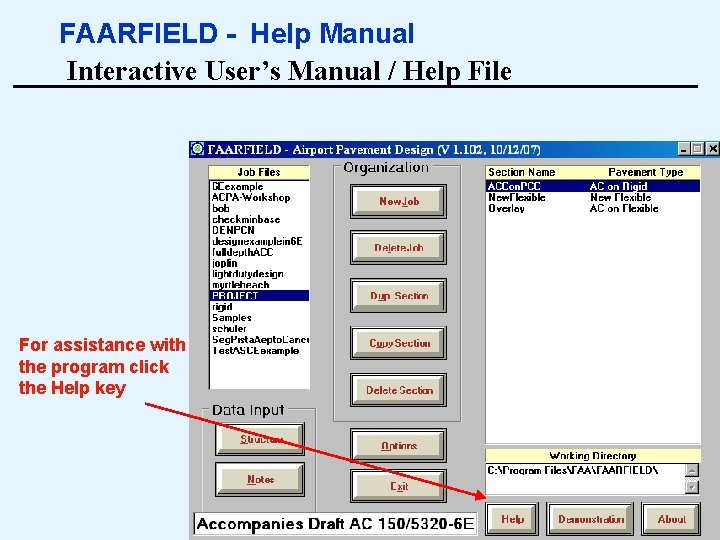
FAARFIELD - Help Manual Interactive User’s Manual / Help File For assistance with the program click the Help key 78
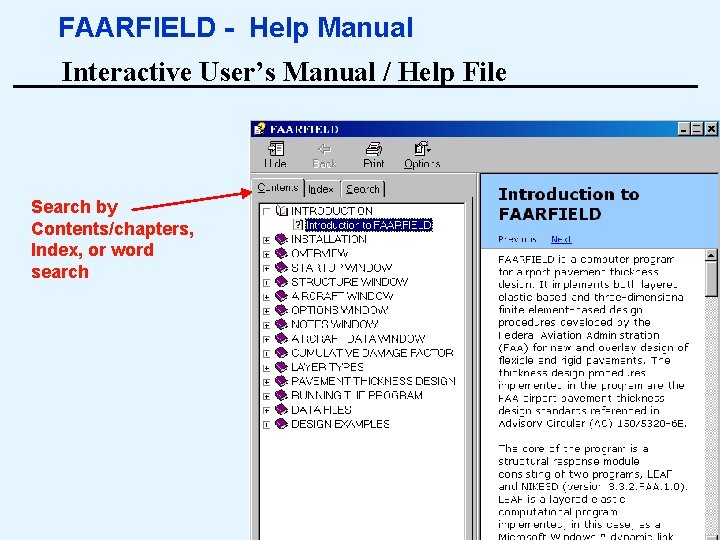
FAARFIELD - Help Manual Interactive User’s Manual / Help File Search by Contents/chapters, Index, or word search 79
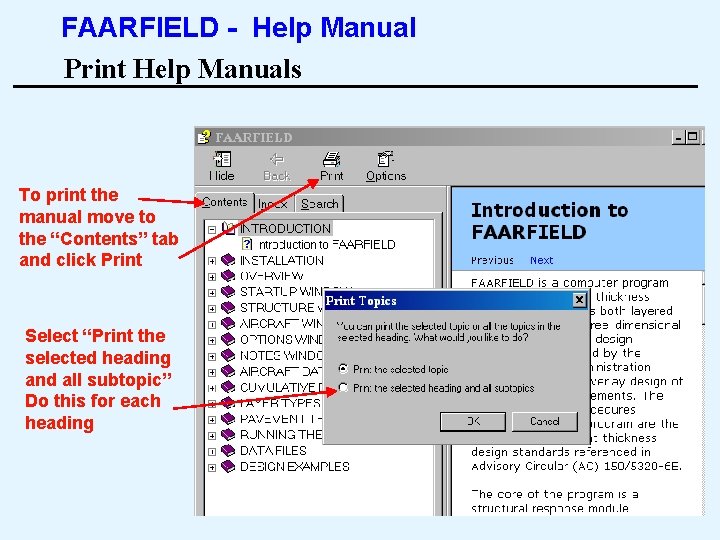
FAARFIELD - Help Manual Print Help Manuals To print the manual move to the “Contents” tab and click Print Select “Print the selected heading and all subtopic” Do this for each heading 80
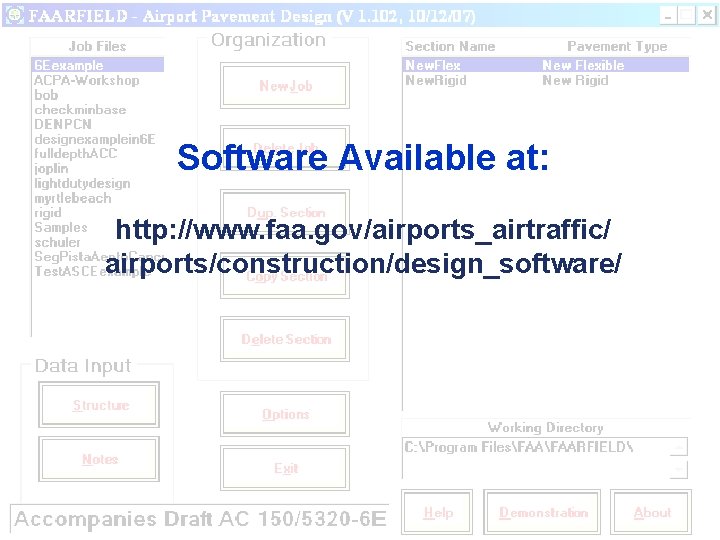
Software Available at: http: //www. faa. gov/airports_airtraffic/ airports/construction/design_software/ 81
Thank You Questions? Rodney Joel, P. E. Civil Engineer / Airfield Pavements FAA, Office of Airport Safety and Standards Airport Engineering Division, AAS-100 rodney. joel@faa. gov 82