
Exploring Outlook XP Outlook is a powerful information
- Slides: 27
Exploring Outlook XP ØOutlook is a powerful information manager ØYou can use Outlook to perform a wide range of communication and organizational tasks, such as sending, receiving, and organizing email; organizing contact information; scheduling appointments, events, and meetings; creating a to-do list and delegating tasks; and writing notes ØSix main components ØMail, Calendar, Contacts, Tasks, Notes, and Journal
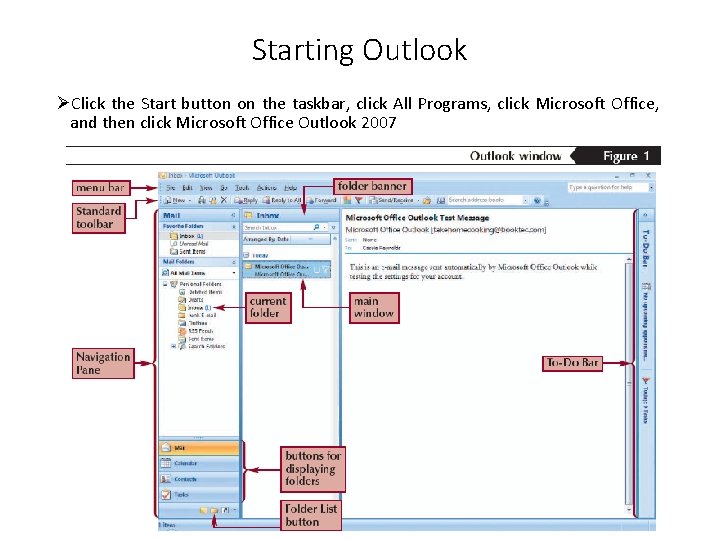
Starting Outlook XP ØClick the Start button on the taskbar, click All Programs, click Microsoft Office, and then click Microsoft Office Outlook 2007
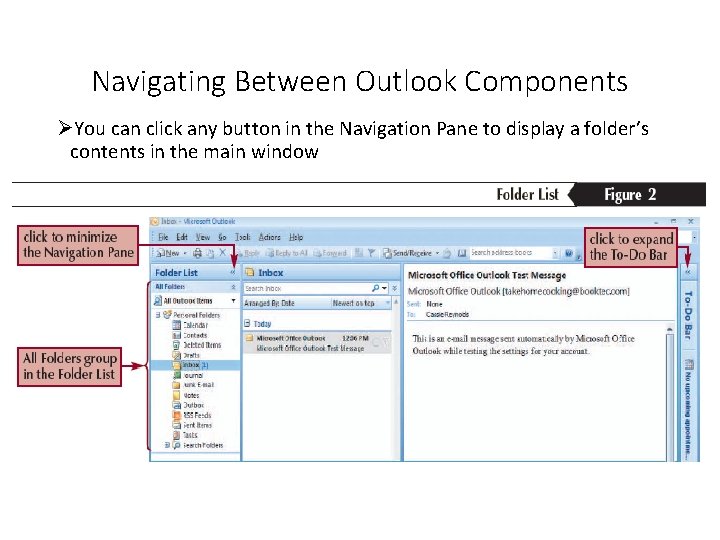
Navigating Between Outlook Components ØYou can click any button in the Navigation Pane to display a folder’s contents in the main window XP
Creating and Sending E-mail Messages XP ØE-mail, the electronic transfer of messages between computers, is a simple and inexpensive way to communicate with friends around the corner, family across the country, and colleagues in the same building or around the world ØAn e-mail address is a user ID and a host name separated by @
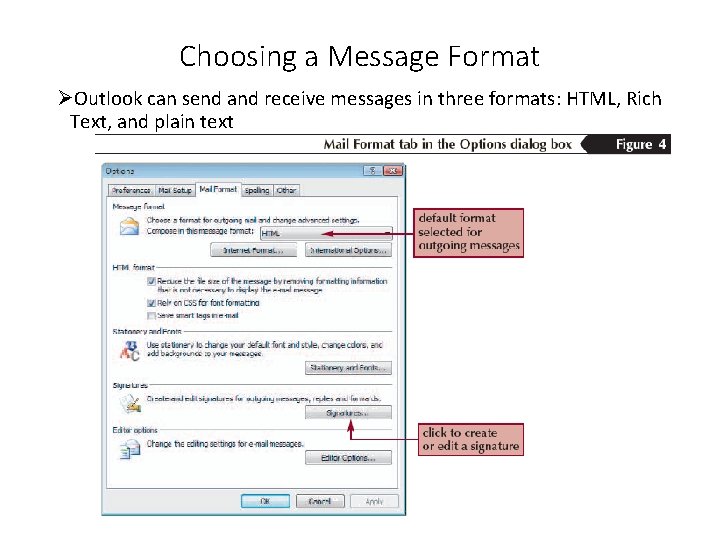
Choosing a Message Format XP ØOutlook can send and receive messages in three formats: HTML, Rich Text, and plain text
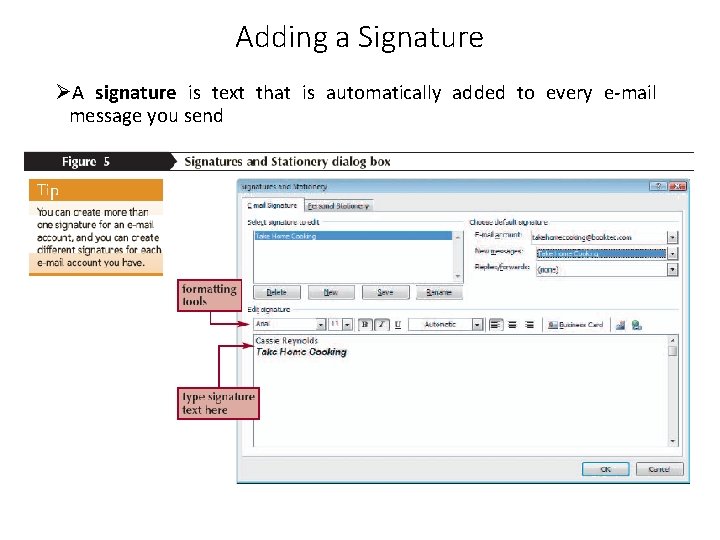
Adding a Signature XP ØA signature is text that is automatically added to every e-mail message you send
Using Stationery and Themes XP ØStationery is an HTML file that includes complementary background colors, images, or patterns ØA theme includes complementary backgrounds as well as other design elements such as fonts, bullets, colors, and effects
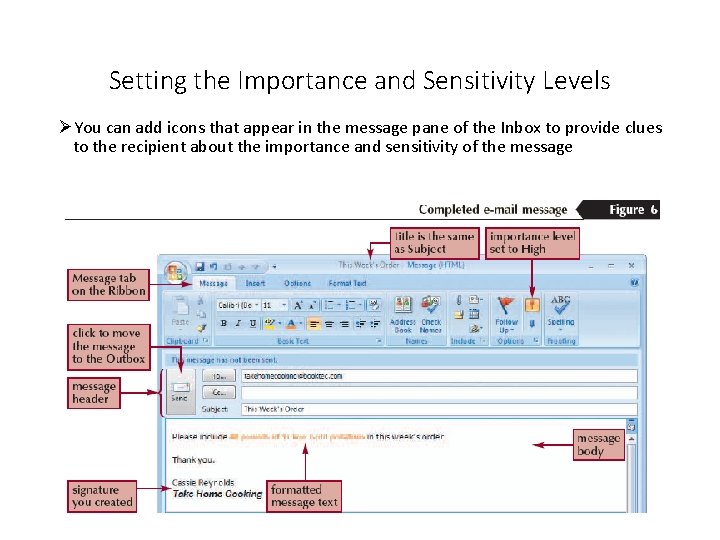
Creating an E-mail Message XP ØClick the New button arrow on the Standard toolbar, and then click Mail Message ØType recipient e-mail address(es) in the To box (separate by semicolons) ØType recipient e-mail address(es) in the Cc box and the Bcc box, as needed ØType a topic in the Subject box, and then type the message body ØFormat the message as needed ØClick the Send button
XP Setting the Importance and Sensitivity Levels ØYou can add icons that appear in the message pane of the Inbox to provide clues to the recipient about the importance and sensitivity of the message
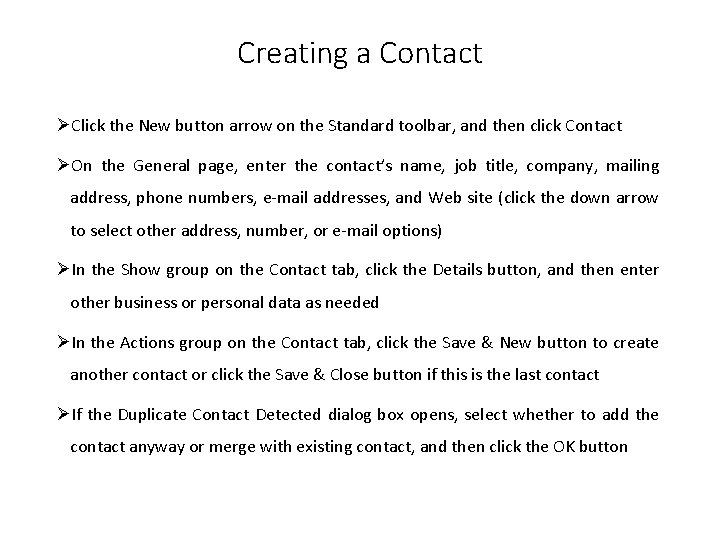
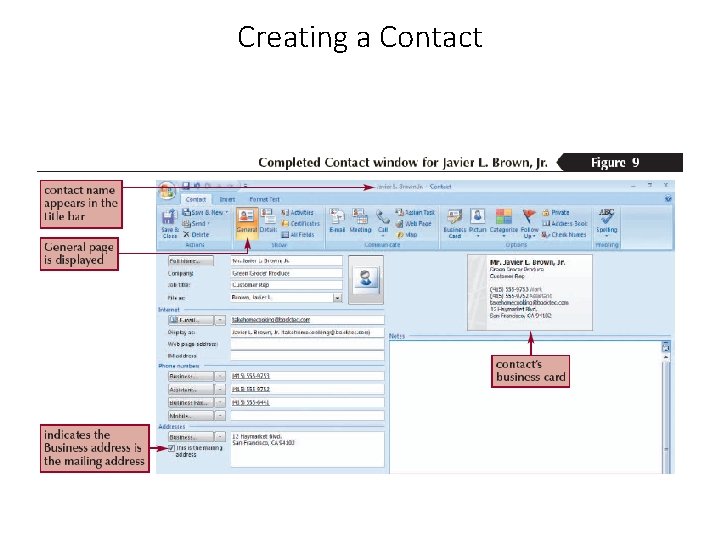
Creating a Contact XP ØClick the New button arrow on the Standard toolbar, and then click Contact ØOn the General page, enter the contact’s name, job title, company, mailing address, phone numbers, e-mail addresses, and Web site (click the down arrow to select other address, number, or e-mail options) ØIn the Show group on the Contact tab, click the Details button, and then enter other business or personal data as needed ØIn the Actions group on the Contact tab, click the Save & New button to create another contact or click the Save & Close button if this is the last contact ØIf the Duplicate Contact Detected dialog box opens, select whether to add the contact anyway or merge with existing contact, and then click the OK button
Creating a Contact XP
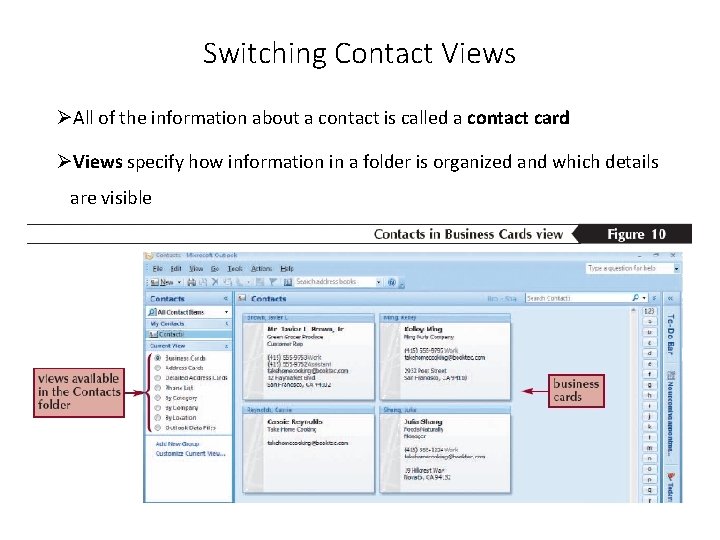
Switching Contact Views XP ØAll of the information about a contact is called a contact card ØViews specify how information in a folder is organized and which details are visible
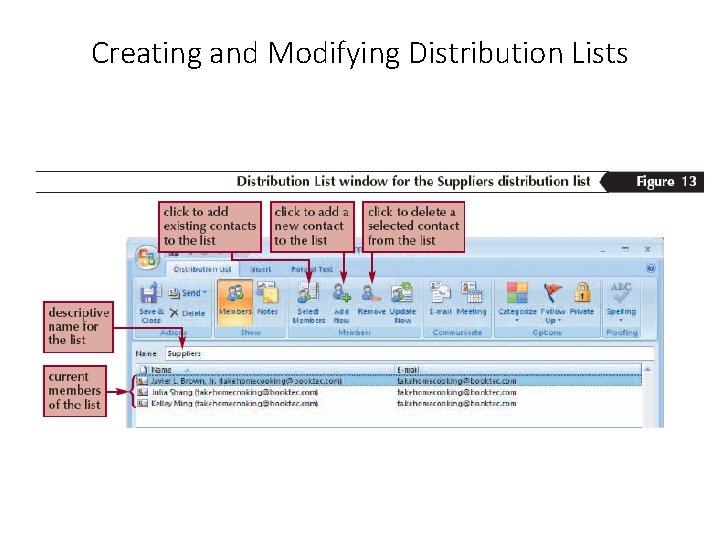
Creating and Modifying Distribution Lists XP ØA distribution list is a group of people to whom you frequently send the same messages, such as all suppliers ØClick the New button arrow on the Standard toolbar, and then click Distribution List ØIn the Members group on the Distribution List tab, click the Select Members button ØClick the Address Book arrow, and then click Contacts ØDouble-click the names you want to add to the distribution list, and then click the OK button ØClick in the Name text box, and then type a contact name for the distribution list ØIn the Actions group on the Distribution List tab, click the Save & Close button
Creating and Modifying Distribution Lists XP
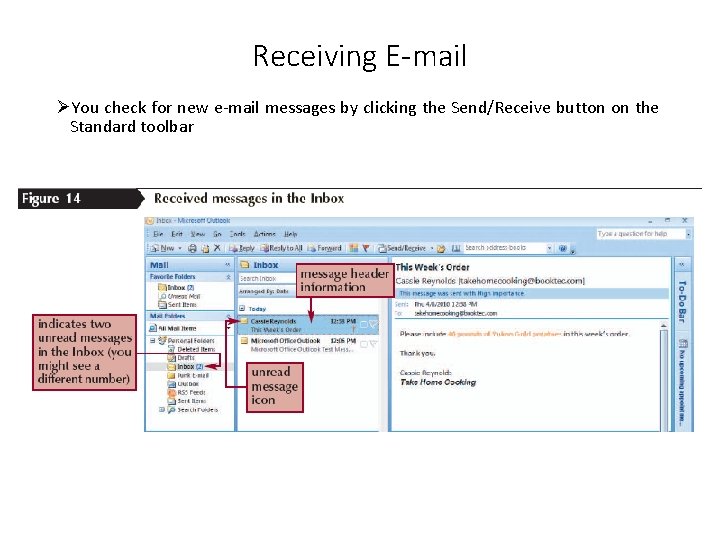
Receiving E-mail XP ØYou check for new e-mail messages by clicking the Send/Receive button on the Standard toolbar
Replying to and Forwarding Messages XP ØReply responds to the sender, and Reply to All responds to the sender and all recipients (including any Bcc recipients) ØForward sends a copy of the message to one or more recipients you specify; you enter the e-mail addresses in the To or Cc box
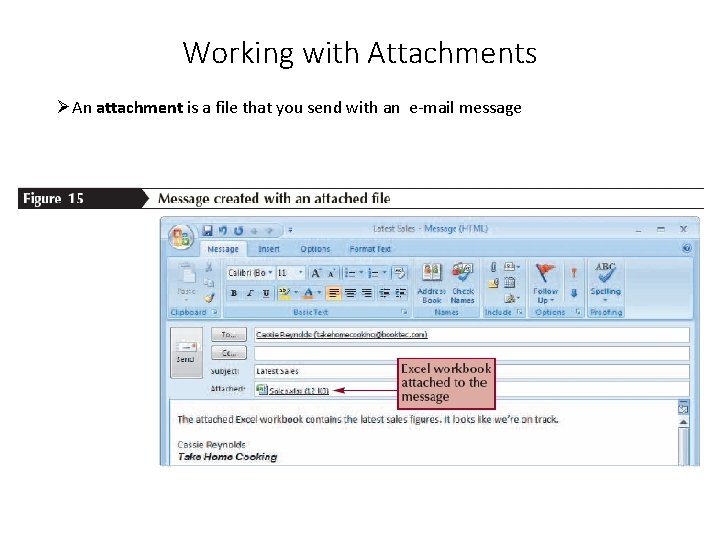
Working with Attachments ØAn attachment is a file that you send with an e-mail message XP
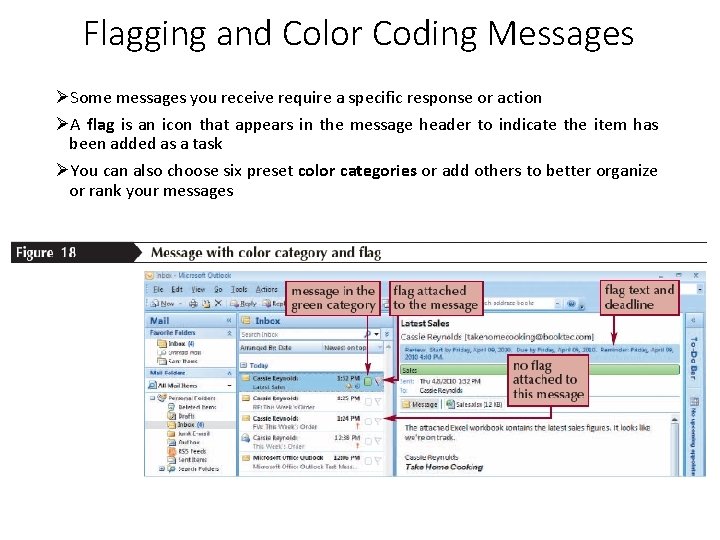
Flagging and Color Coding Messages XP ØSome messages you receive require a specific response or action ØA flag is an icon that appears in the message header to indicate the item has been added as a task ØYou can also choose six preset color categories or add others to better organize or rank your messages
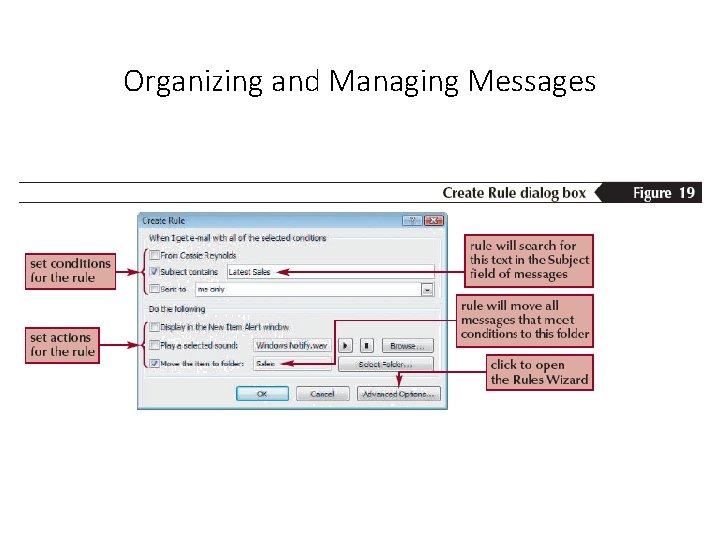
Organizing and Managing Messages XP ØYou should create a logical folder structure in which to store your messages ØOne method for keeping messages organized and the Inbox uncluttered is to move a message out of the Inbox as soon as you have dealt with it ØRather than manually filing messages, you can create rules that specify how Outlook should process and organize them ØEach rule includes three parts: the conditions that determine if a message is to be acted on, the actions that should be applied to qualifying messages, and any exceptions that remove a message from the qualifying group
Organizing and Managing Messages XP
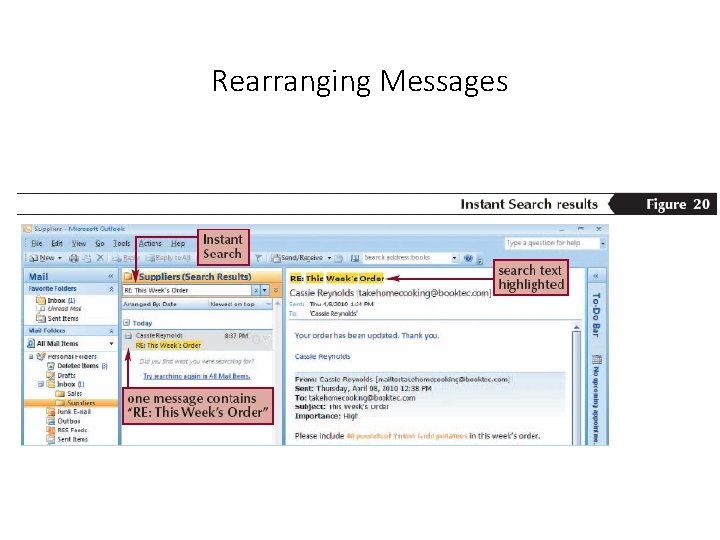
Rearranging Messages XP ØRather than searching through multiple folders, you can have Instant Search find the desired message (or any other Outlook item) ØOpen the folder you want to search ØType the search text in the Instant Search box. ØTo narrow your search, you can click the Expand Query Builder button, and then enter additional criteria
Rearranging Messages XP
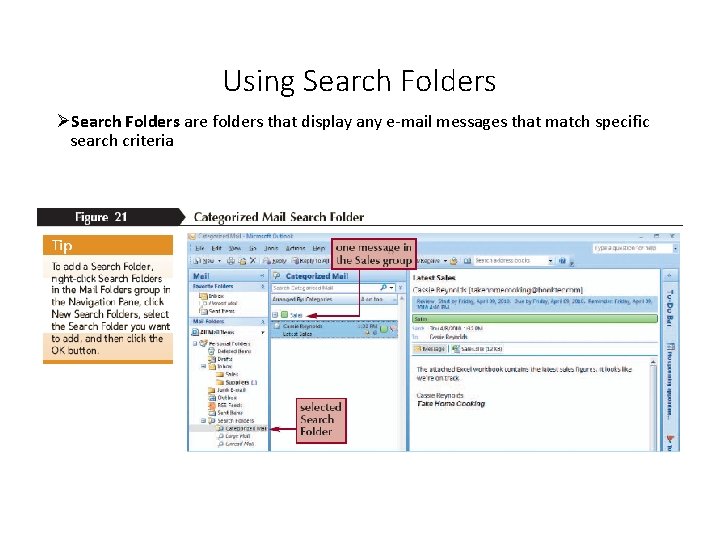
Using Search Folders ØSearch Folders are folders that display any e-mail messages that match specific search criteria XP
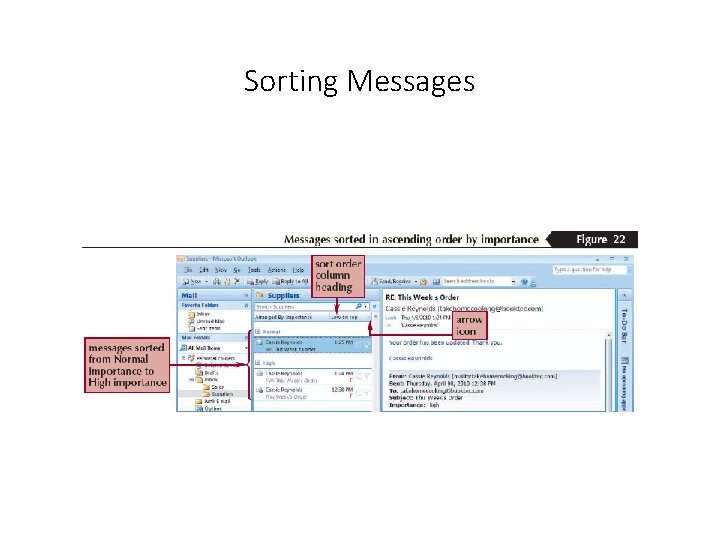
Sorting Messages XP ØSorting is a way to arrange items in a specific order—either ascending or descending ØAscending order arranges messages alphabetically from A to Z, chronologically from earliest to latest, or numerically from lowest to highest ØDescending order arranges messages in reverse alphabetical, chronological, or numerical order
Sorting Messages XP
Storing Messages XP ØYou can store messages by saving them in other file formats or by archiving them ØYou can use the Save As command to save messages and other Outlook items in other file formats ØWhen you archive a folder, you transfer messages or other items stored in a folder (such as an attachment in the e-mail folder) to a personal folder file when the items have reached the age you specify ØA personal folders file is a special storage file with a. pst extension that contains folders, messages, forms, and files
Deleting Items and Exiting Outlook ØAfter you finish working with Outlook, you should exit the program ØUnlike other programs, you don’t need to save or close any files XP