
Exploring Microsoft Word Chapter 5 Desktop Publishing Creating
Exploring Microsoft Word Chapter 5 Desktop Publishing: Creating a Newsletter By Robert T. Grauer Maryann Barber Exploring Microsoft Office XP- Microsoft Word 2002 Chapter 5 1
Objectives (1 of 2) ¡ ¡ Design and implement a multicolumn newsletter; explain how sections are used to vary the number of columns in a document. Define a pull quote and a reverse; explain how to implement these features using Microsoft Word. Define typography; explain how styles can be used to implement changes in typography throughout a document. Use the Insert Picture command to insert clip art into a document; explain how the Format Picture command is used to move and size a graphic. Exploring Microsoft Office XP- Microsoft Word 2002 Chapter 5 2
Objectives (2 of 2) ¡ ¡ ¡ Discuss the importance of a grid in the design of a document; describe the use of white space as a design element. Use the Drawing toolbar to add objects to a Word document; describe the function of at least four different drawing tools. Use object linking to create a Word document that contains an Excel worksheet and an Excel chart. Exploring Microsoft Office XP- Microsoft Word 2002 Chapter 5 3

Overview (1 of 2) ¡ Desktop Publishing evolved with faster computers, laser printers, and page composition software. ¡ Word can be used as a desktop publishing program. Exploring Microsoft Office XP- Microsoft Word 2002 Chapter 5 4
Overview (2 of 2) ¡ Desktop Publishing is the merger of text with graphics without using external services. ¡ Saves you time and money. ¡ Use basic graphic design techniques to create a newsletter. Exploring Microsoft Office XP- Microsoft Word 2002 Chapter 5 5
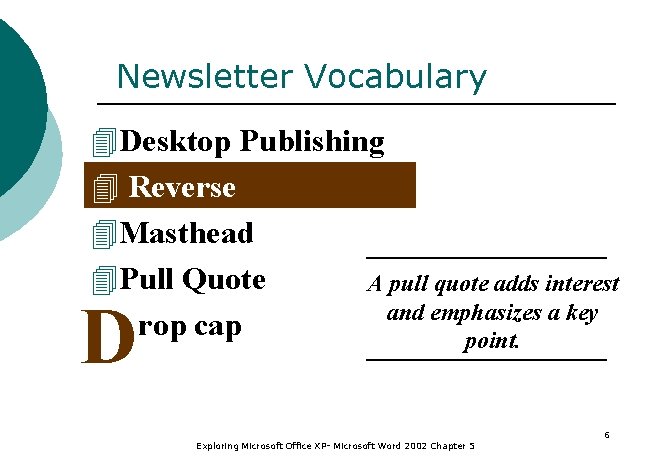
Newsletter Vocabulary 4 Desktop Publishing 4 Reverse 4 Masthead 4 Pull Quote A pull quote adds interest and emphasizes a key rop cap point. D Exploring Microsoft Office XP- Microsoft Word 2002 Chapter 5 6
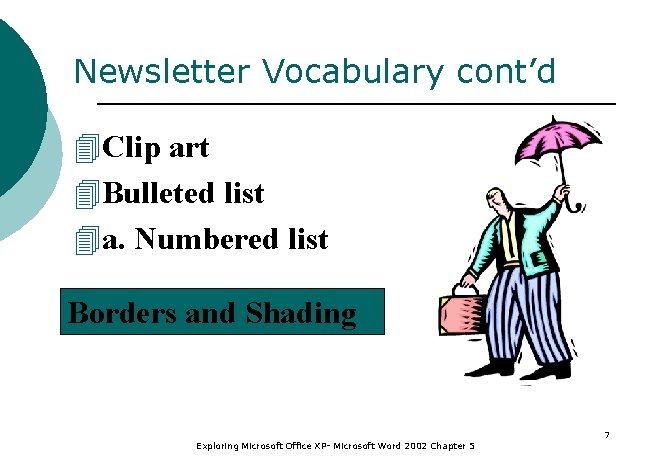
Newsletter Vocabulary cont’d 4 Clip art 4 Bulleted list 4 a. Numbered list Borders and Shading Exploring Microsoft Office XP- Microsoft Word 2002 Chapter 5 7
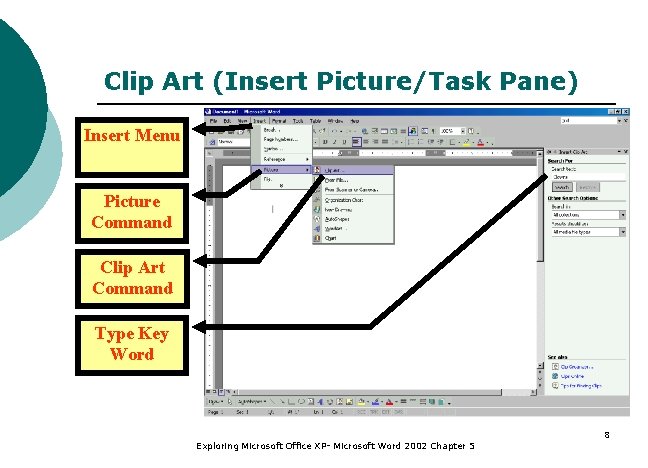
Clip Art (Insert Picture/Task Pane) Insert Menu Picture Command Clip Art Command Type Key Word Exploring Microsoft Office XP- Microsoft Word 2002 Chapter 5 8

Bullets and Numbering (Format Menu) Bullets Numbers Preview Apply Exploring Microsoft Office XP- Microsoft Word 2002 Chapter 5 9
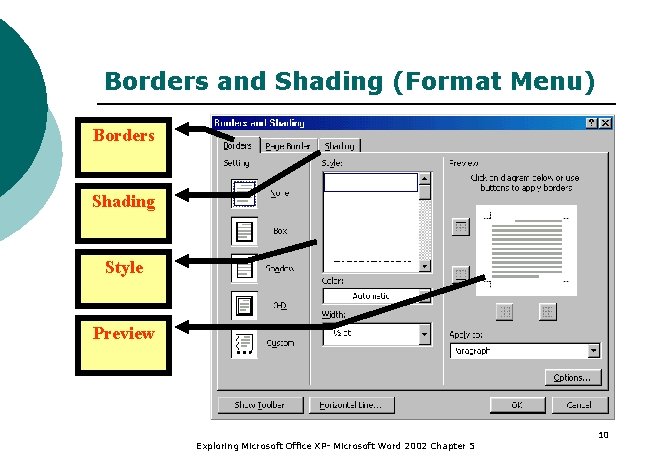
Borders and Shading (Format Menu) Borders Shading Style Preview Exploring Microsoft Office XP- Microsoft Word 2002 Chapter 5 10
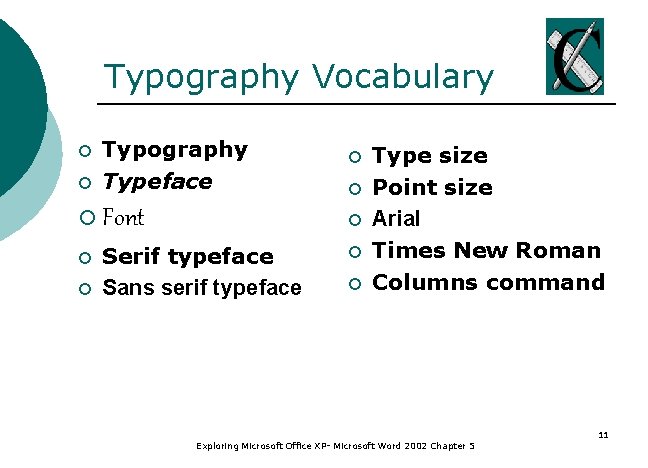
Typography Vocabulary ¡ ¡ Typography Typeface ¡ Font ¡ ¡ ¡ Serif typeface Sans serif typeface ¡ ¡ Type size Point size Arial Times New Roman Columns command Exploring Microsoft Office XP- Microsoft Word 2002 Chapter 5 11

Format Font Command Font List Style & Size Font Effects Exploring Microsoft Office XP- Microsoft Word 2002 Chapter 5 12
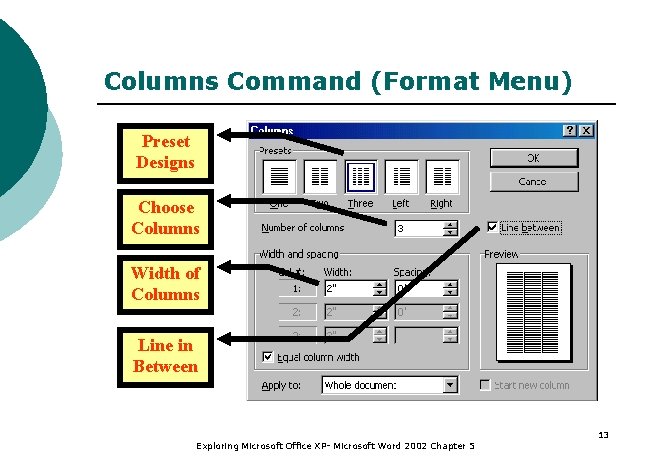
Columns Command (Format Menu) Preset Designs Choose Columns Width of Columns Line in Between Exploring Microsoft Office XP- Microsoft Word 2002 Chapter 5 13
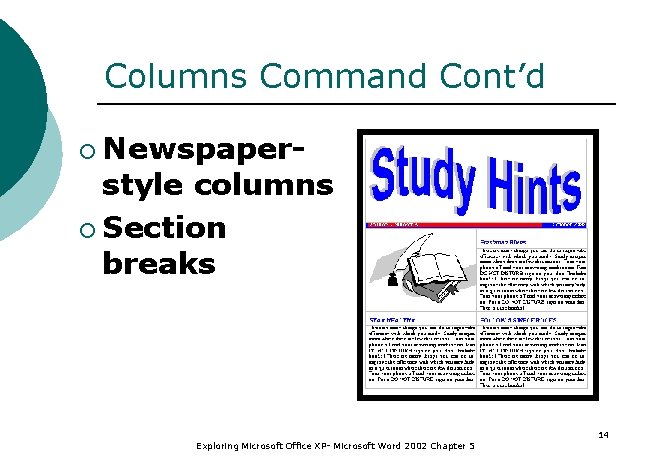
Columns Command Cont’d ¡ Newspaper- style columns ¡ Section breaks Exploring Microsoft Office XP- Microsoft Word 2002 Chapter 5 14
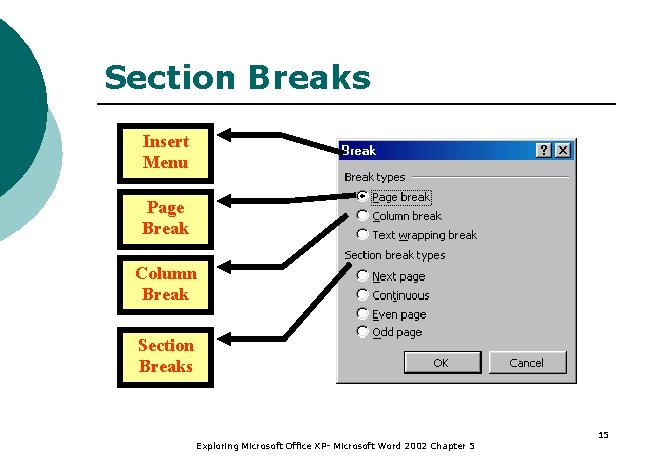
Section Breaks Insert Menu Page Break Column Break Section Breaks Exploring Microsoft Office XP- Microsoft Word 2002 Chapter 5 15
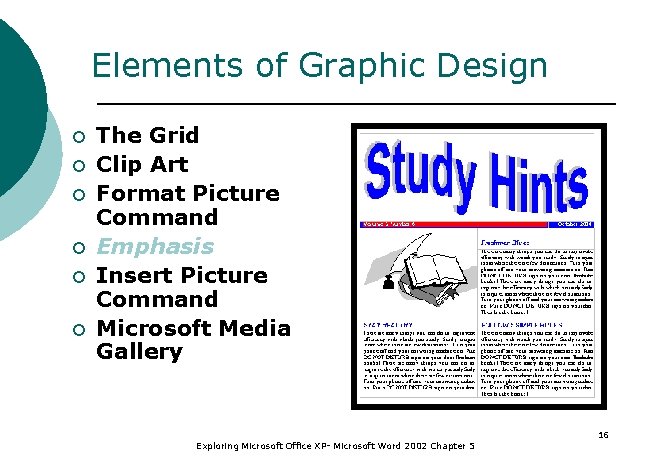
Elements of Graphic Design ¡ ¡ ¡ The Grid Clip Art Format Picture Command Emphasis Insert Picture Command Microsoft Media Gallery Exploring Microsoft Office XP- Microsoft Word 2002 Chapter 5 16
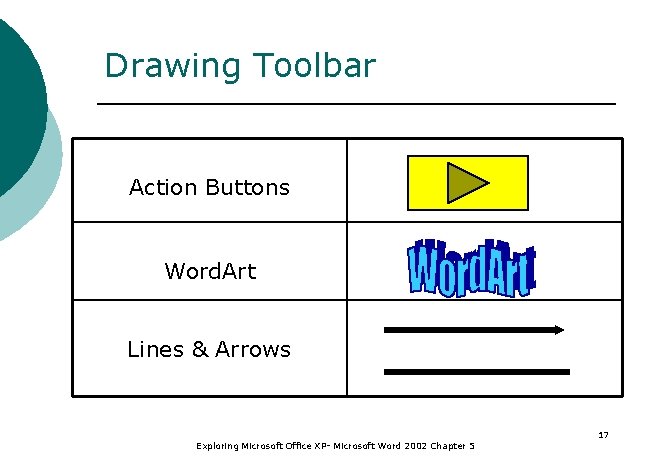
Drawing Toolbar Action Buttons Word. Art Lines & Arrows Exploring Microsoft Office XP- Microsoft Word 2002 Chapter 5 17
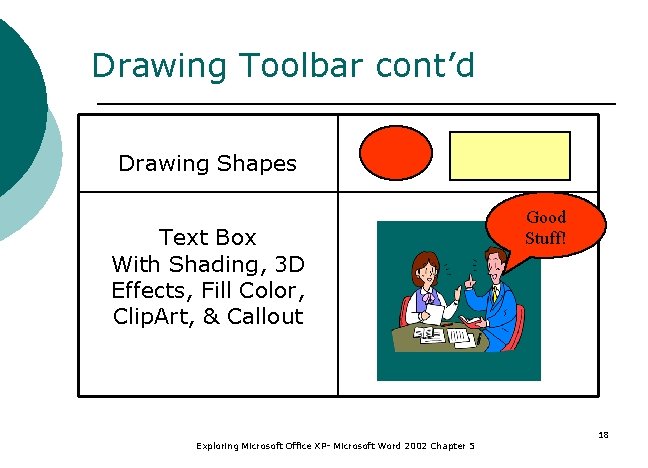
Drawing Toolbar cont’d Drawing Shapes Text Box With Shading, 3 D Effects, Fill Color, Clip. Art, & Callout Exploring Microsoft Office XP- Microsoft Word 2002 Chapter 5 Good Stuff! 18
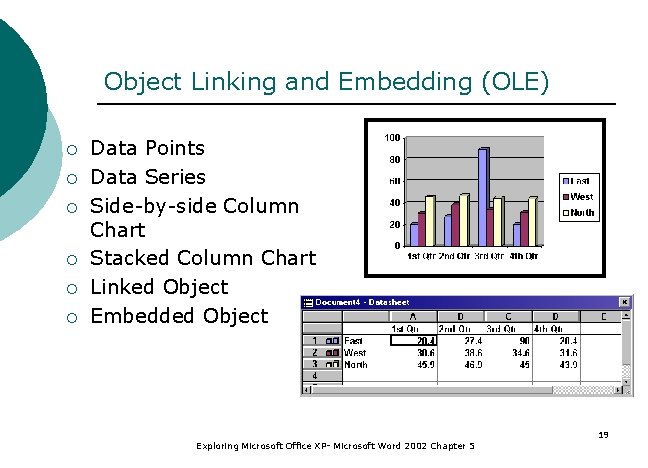
Object Linking and Embedding (OLE) ¡ ¡ ¡ Data Points Data Series Side-by-side Column Chart Stacked Column Chart Linked Object Embedded Object Exploring Microsoft Office XP- Microsoft Word 2002 Chapter 5 19
Summary (1 of 2) ¡ Successful use of desktop publishing requires knowledge of basic graphic design and Word commands. ¡ Typography is the process of selecting typefaces, type styles, and type sizes. ¡ The design of a document is developed on a grid. Use columns and sections. ¡ Emphasize with type size and/or type style. Exploring Microsoft Office XP- Microsoft Word 2002 Chapter 5 20
Summary (2 of 2) ¡ Use boxes and/or shading to get attention. ¡ Use pull quotes with horizontal lines. ¡ Use a reverse to emphasize text. ¡ Clip art should be used in moderation for enhancement. ¡ Use the Drawing toolbar to insert objects. ¡ Use object linking for charting data. Exploring Microsoft Office XP- Microsoft Word 2002 Chapter 5 21
- Slides: 21