
Exploring Microsoft Office 365 Introductory Chapter 1 Office
- Slides: 40
Exploring Microsoft Office 365 Introductory Chapter 1 Office 365 Common Features Copyright © 2020, 2017, 2014 Pearson All Rights Reserved
Learning Objectives 1. 1 Start an Office Application 1. 2 Work with Files 1. 3 Use Common Interface Components 1. 4 Get Help 1. 5 Install Add-ins 1. 6 Use Templates and Apply Themes 1. 7 Modify Text 1. 8 Relocate Text Copyright © 2020, 2017, 2014 Pearson All Rights Reserved
Learning Objectives 1. 9 Review a Document 1. 10 Work with Pictures 1. 11 Change Document Views 1. 12 Change the Page Layout 1. 13 Create a Header and Footer 1. 14 Configure Document Properties 1. 15 Preview and Print a File Copyright © 2020, 2017, 2014 Pearson All Rights Reserved
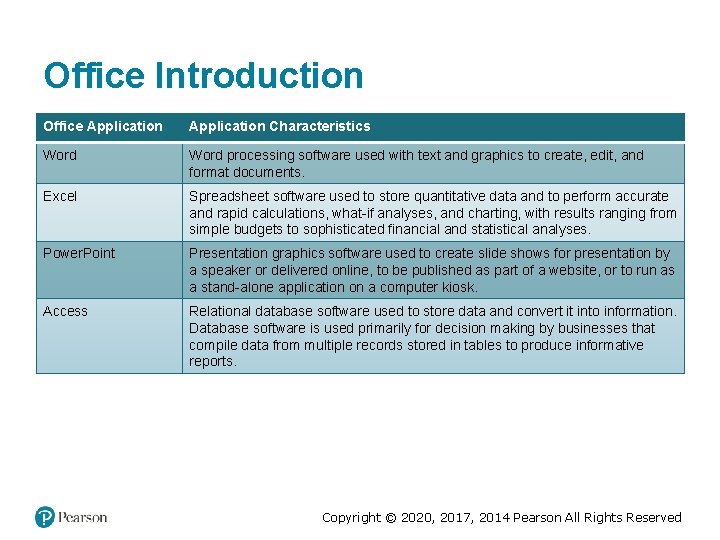
Office Introduction Office Application Characteristics Word processing software used with text and graphics to create, edit, and format documents. Excel Spreadsheet software used to store quantitative data and to perform accurate and rapid calculations, what-if analyses, and charting, with results ranging from simple budgets to sophisticated financial and statistical analyses. Power. Point Presentation graphics software used to create slide shows for presentation by a speaker or delivered online, to be published as part of a website, or to run as a stand-alone application on a computer kiosk. Access Relational database software used to store data and convert it into information. Database software is used primarily for decision making by businesses that compile data from multiple records stored in tables to produce informative reports. Copyright © 2020, 2017, 2014 Pearson All Rights Reserved
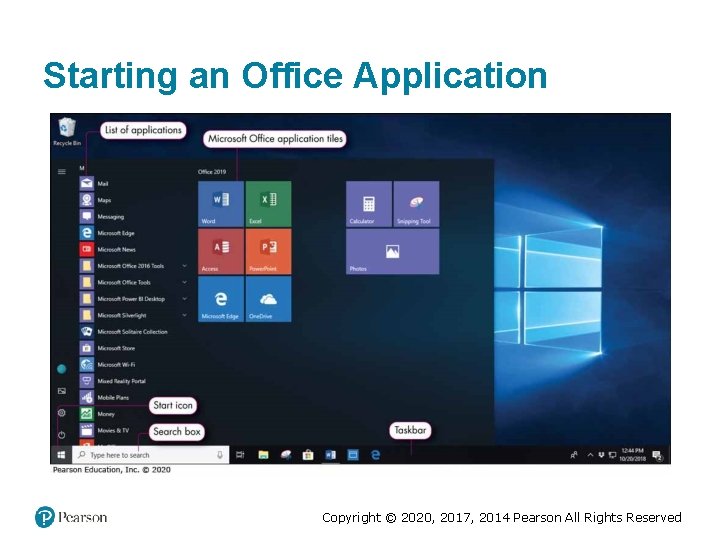
Starting an Office Application Copyright © 2020, 2017, 2014 Pearson All Rights Reserved
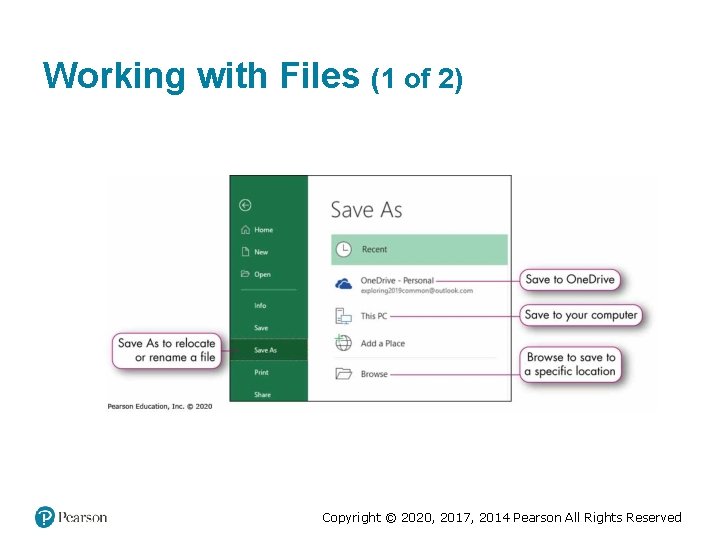
Working with Files (1 of 2) Copyright © 2020, 2017, 2014 Pearson All Rights Reserved
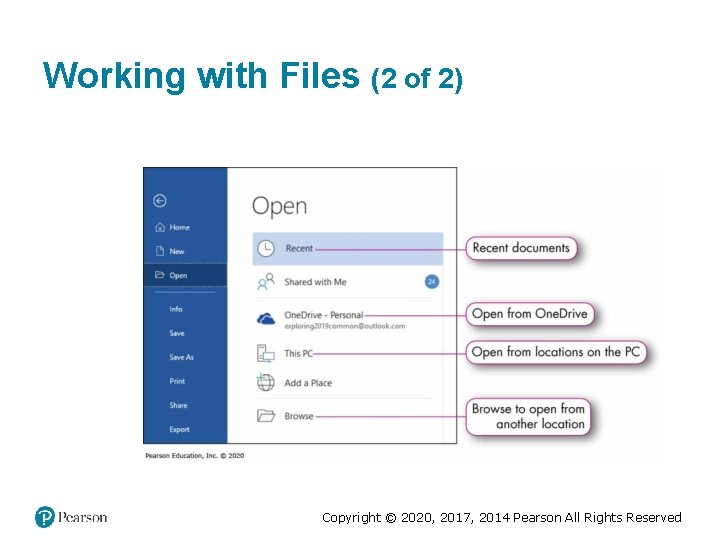
Working with Files (2 of 2) Copyright © 2020, 2017, 2014 Pearson All Rights Reserved
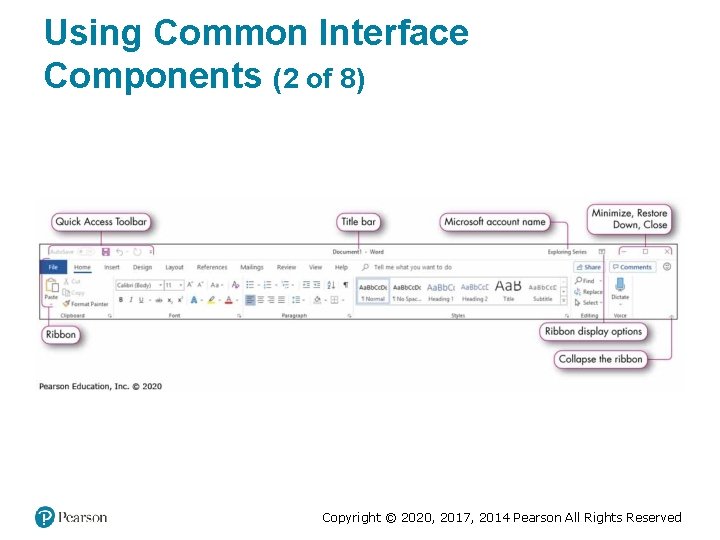
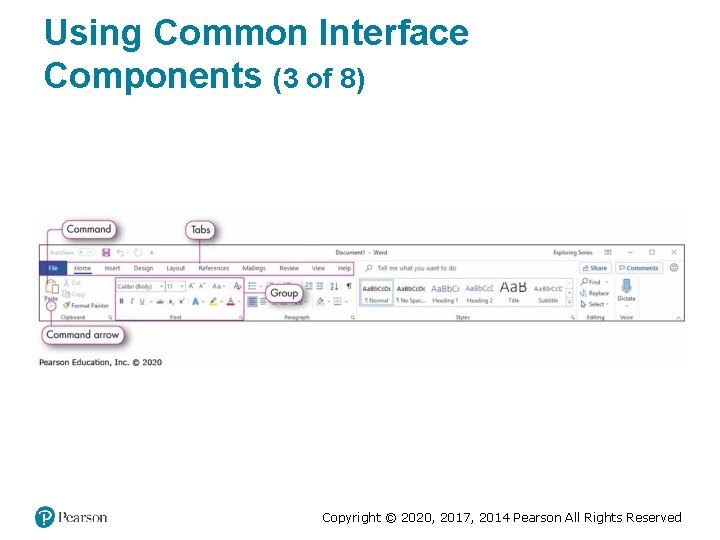
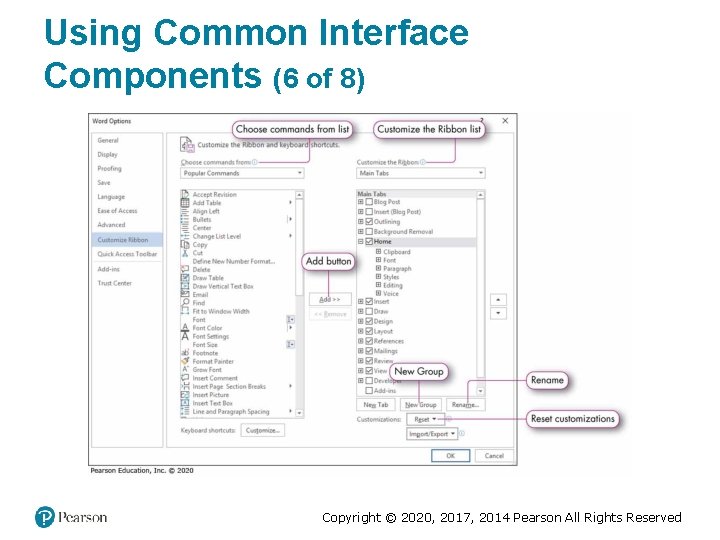
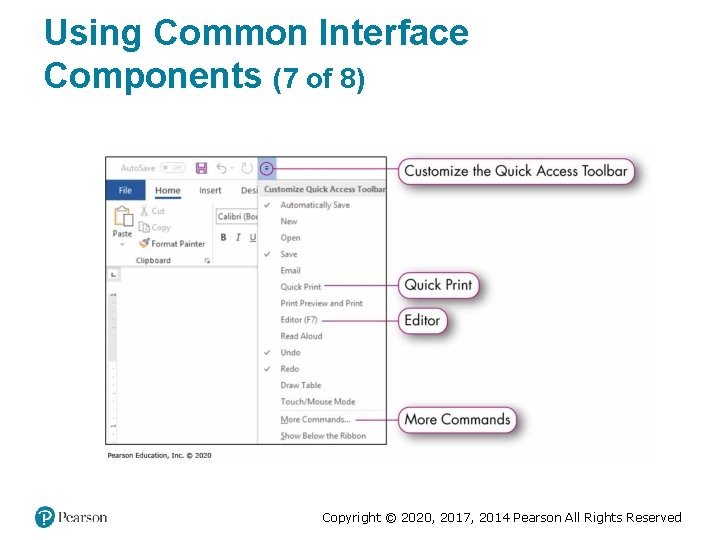
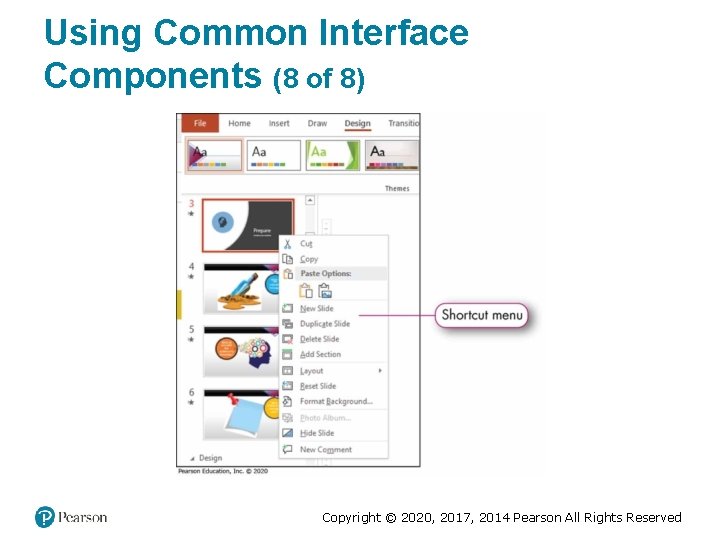
Using Common Interface Components (1 of 8) • Common interface components: • Title bar – Identifies current file name and application – Includes control buttons • Ribbon—contains tabs, groups, and commands • Tabs—contain task-oriented groups • Group— subset of a tab that organizes similar commands • Command—button or task that performs a specific task Copyright © 2020, 2017, 2014 Pearson All Rights Reserved
Using Common Interface Components (2 of 8) Copyright © 2020, 2017, 2014 Pearson All Rights Reserved
Using Common Interface Components (3 of 8) Copyright © 2020, 2017, 2014 Pearson All Rights Reserved
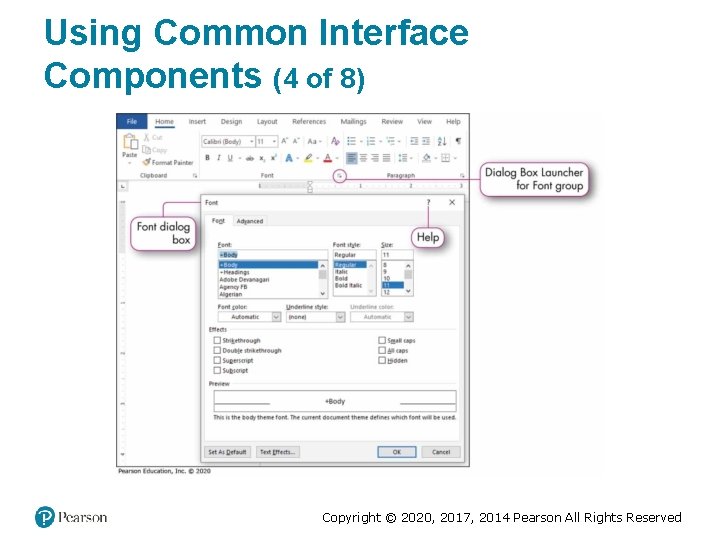
Using Common Interface Components (4 of 8) Copyright © 2020, 2017, 2014 Pearson All Rights Reserved
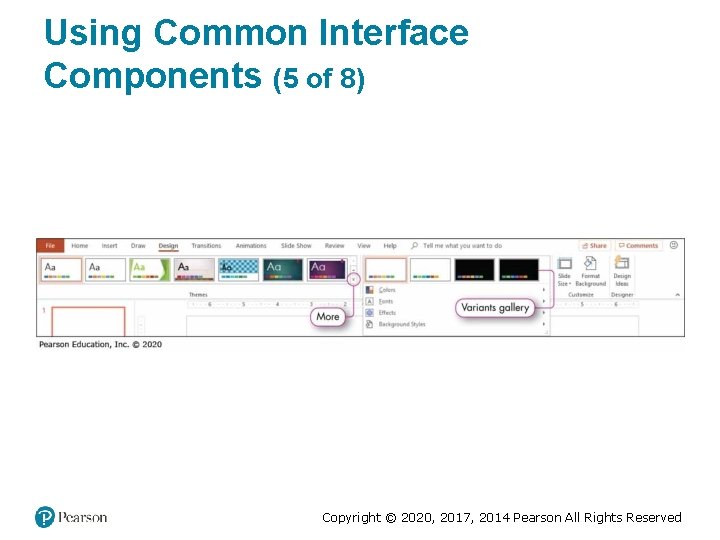
Using Common Interface Components (5 of 8) Copyright © 2020, 2017, 2014 Pearson All Rights Reserved
Using Common Interface Components (6 of 8) Copyright © 2020, 2017, 2014 Pearson All Rights Reserved
Using Common Interface Components (7 of 8) Copyright © 2020, 2017, 2014 Pearson All Rights Reserved
Using Common Interface Components (8 of 8) Copyright © 2020, 2017, 2014 Pearson All Rights Reserved
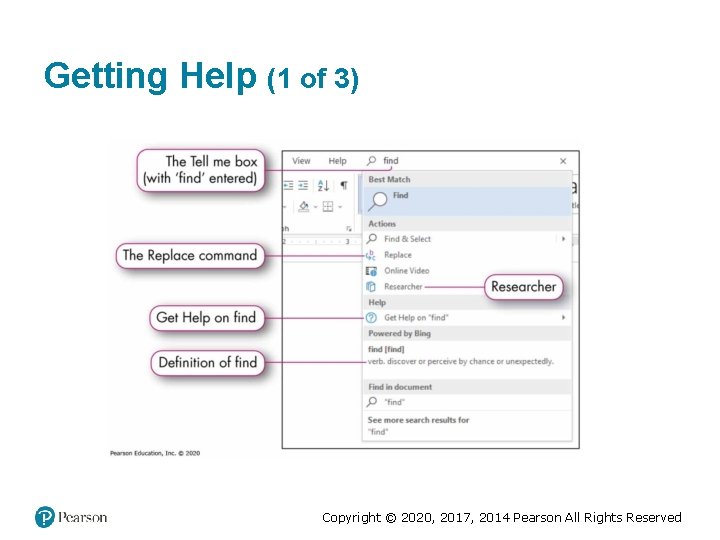
Getting Help (1 of 3) Copyright © 2020, 2017, 2014 Pearson All Rights Reserved
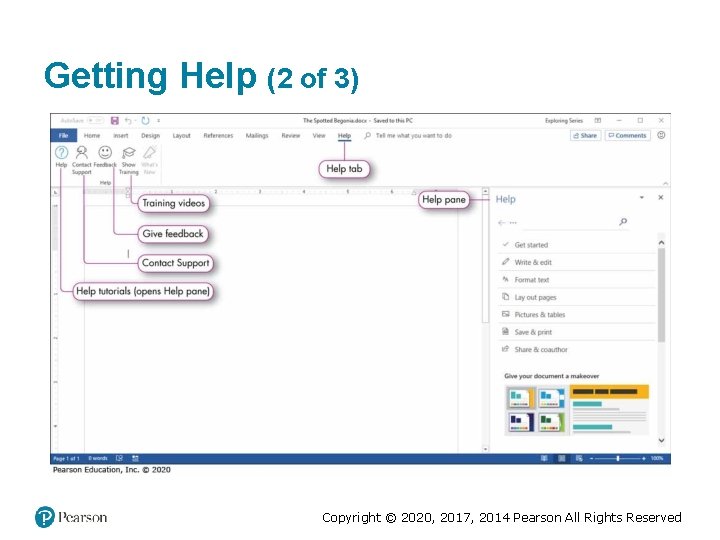
Getting Help (2 of 3) Copyright © 2020, 2017, 2014 Pearson All Rights Reserved
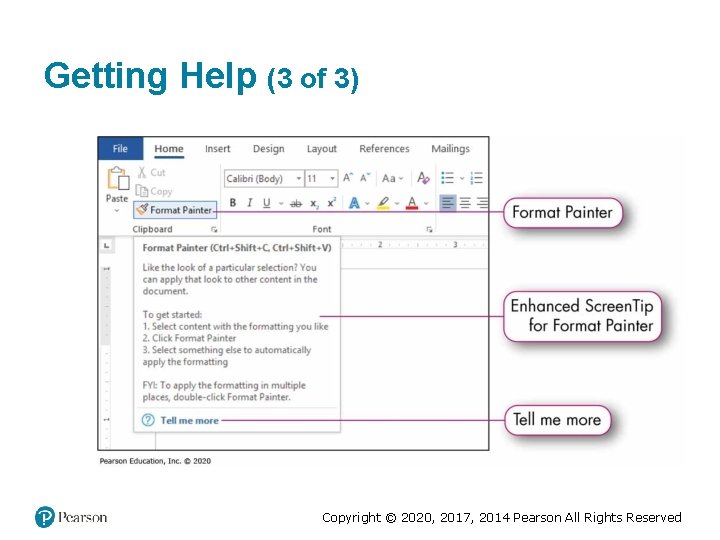
Getting Help (3 of 3) Copyright © 2020, 2017, 2014 Pearson All Rights Reserved
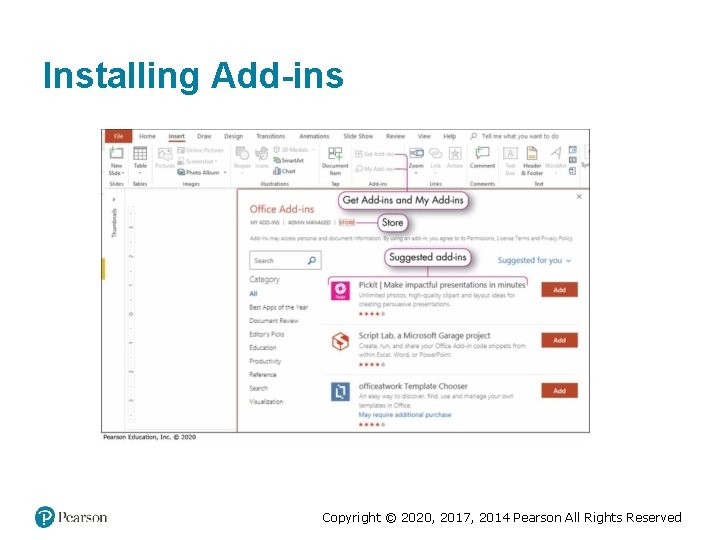
Installing Add-ins Copyright © 2020, 2017, 2014 Pearson All Rights Reserved
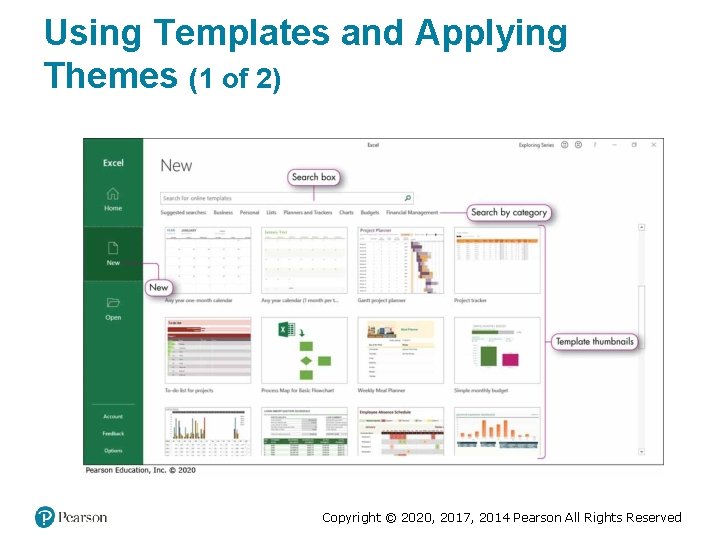
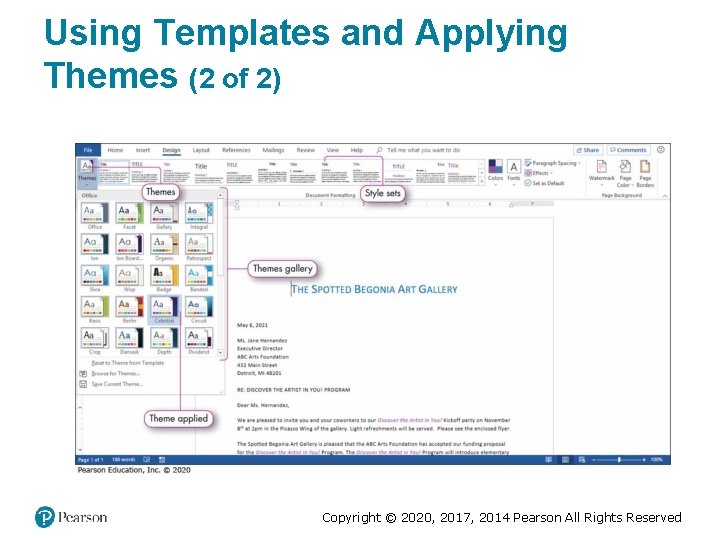
Using Templates and Applying Themes (1 of 2) Copyright © 2020, 2017, 2014 Pearson All Rights Reserved
Using Templates and Applying Themes (2 of 2) Copyright © 2020, 2017, 2014 Pearson All Rights Reserved
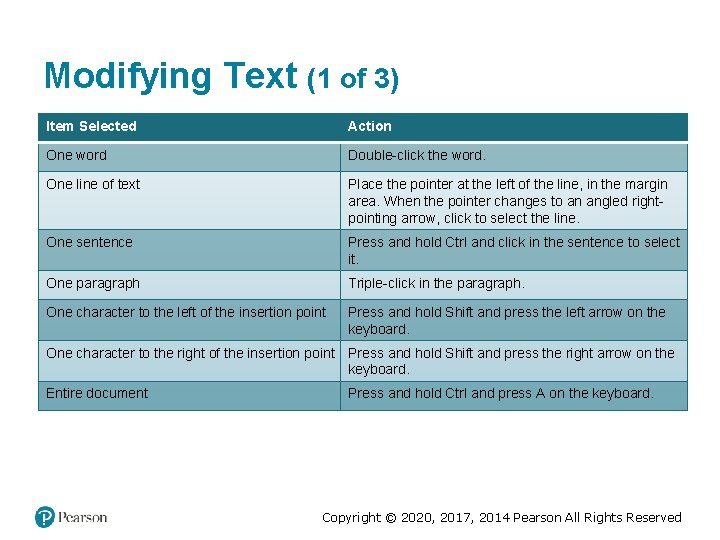
Modifying Text (1 of 3) Item Selected Action One word Double-click the word. One line of text Place the pointer at the left of the line, in the margin area. When the pointer changes to an angled rightpointing arrow, click to select the line. One sentence Press and hold Ctrl and click in the sentence to select it. One paragraph Triple-click in the paragraph. One character to the left of the insertion point Press and hold Shift and press the left arrow on the keyboard. One character to the right of the insertion point Press and hold Shift and press the right arrow on the keyboard. Entire document Press and hold Ctrl and press A on the keyboard. Copyright © 2020, 2017, 2014 Pearson All Rights Reserved
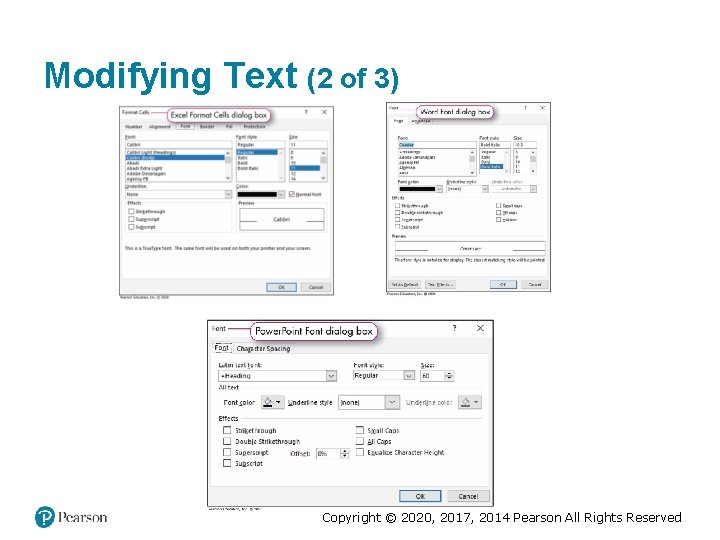
Modifying Text (2 of 3) Copyright © 2020, 2017, 2014 Pearson All Rights Reserved
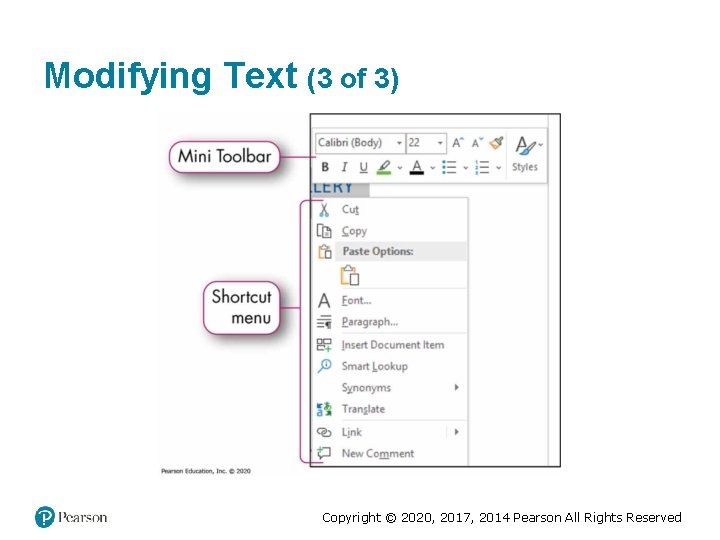
Modifying Text (3 of 3) Copyright © 2020, 2017, 2014 Pearson All Rights Reserved
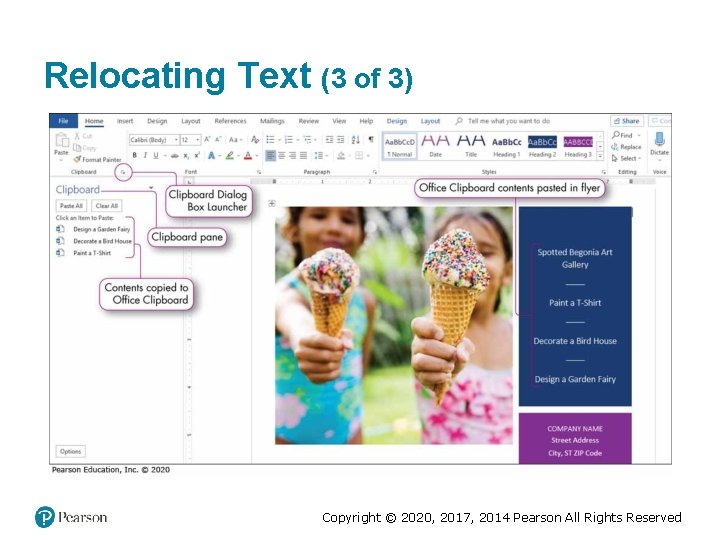
Relocating Text (1 of 3) • Office Clipboard—area of memory reserved to temporarily hold selections that have been cut or copied • Cut—removes a selection from the original location and places it in the Office Clipboard • Copy—duplicates a selection from the original location and places a copy in the Office Clipboard • Paste—places a cut or copied selection into another location in a document Copyright © 2020, 2017, 2014 Pearson All Rights Reserved
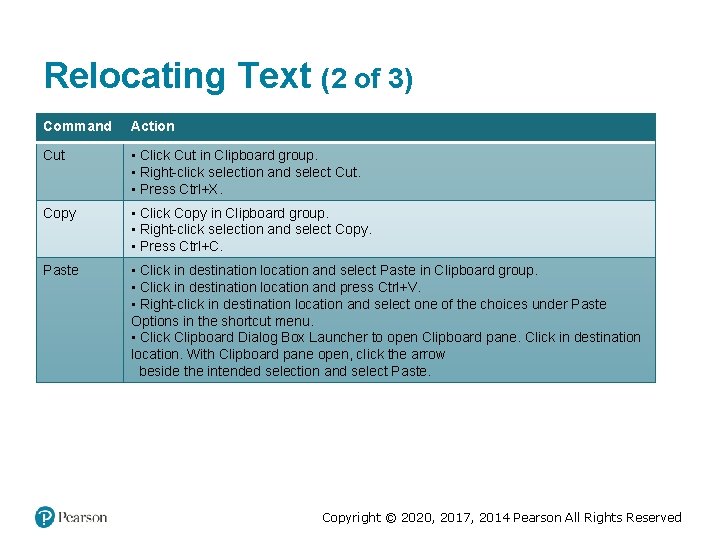
Relocating Text (2 of 3) Command Action Cut • Click Cut in Clipboard group. • Right-click selection and select Cut. • Press Ctrl+X. Copy • Click Copy in Clipboard group. • Right-click selection and select Copy. • Press Ctrl+C. Paste • Click in destination location and select Paste in Clipboard group. • Click in destination location and press Ctrl+V. • Right-click in destination location and select one of the choices under Paste Options in the shortcut menu. • Click Clipboard Dialog Box Launcher to open Clipboard pane. Click in destination location. With Clipboard pane open, click the arrow beside the intended selection and select Paste. Copyright © 2020, 2017, 2014 Pearson All Rights Reserved
Relocating Text (3 of 3) Copyright © 2020, 2017, 2014 Pearson All Rights Reserved
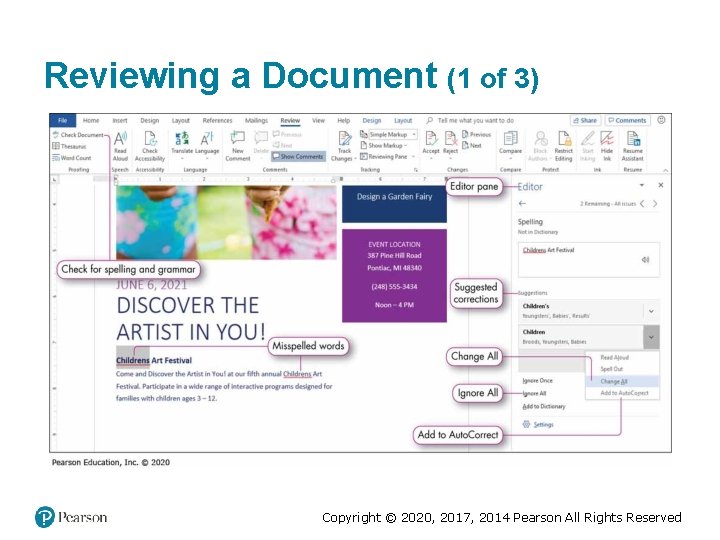
Reviewing a Document (1 of 3) Copyright © 2020, 2017, 2014 Pearson All Rights Reserved
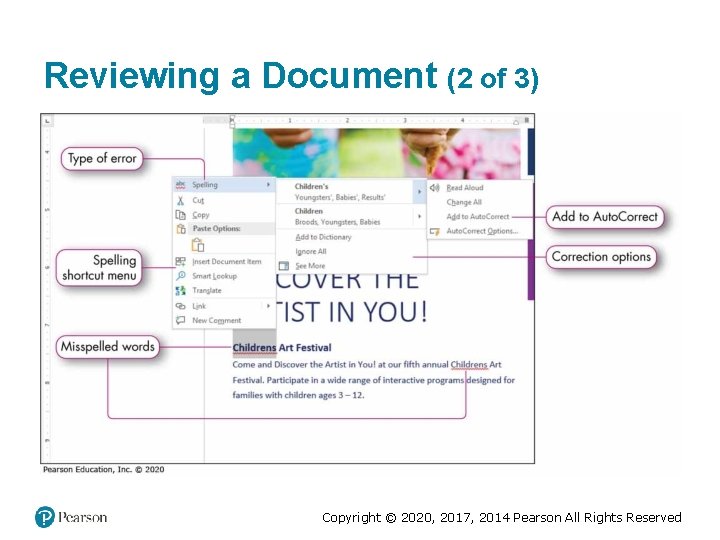
Reviewing a Document (2 of 3) Copyright © 2020, 2017, 2014 Pearson All Rights Reserved
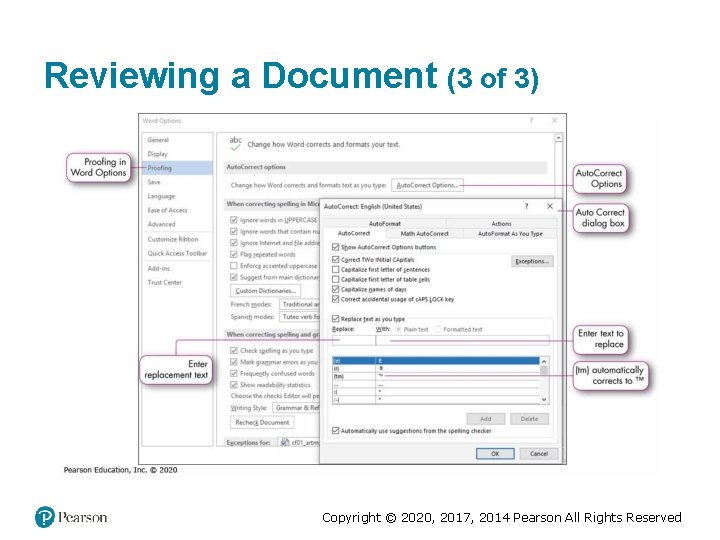
Reviewing a Document (3 of 3) Copyright © 2020, 2017, 2014 Pearson All Rights Reserved
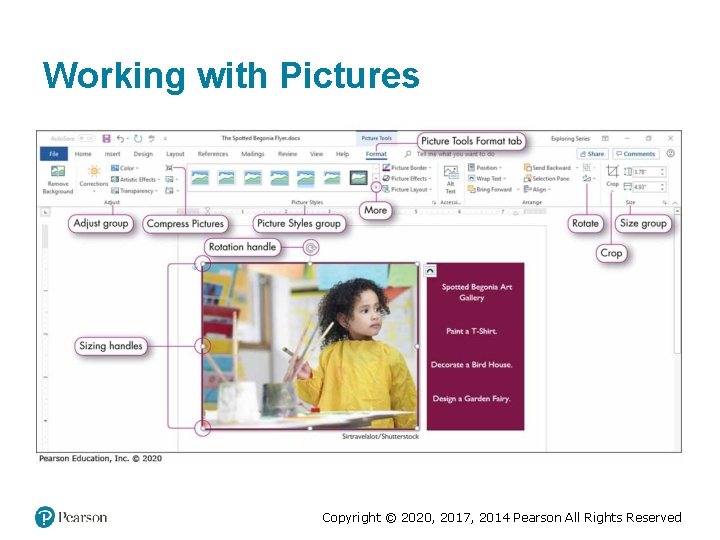
Working with Pictures Copyright © 2020, 2017, 2014 Pearson All Rights Reserved
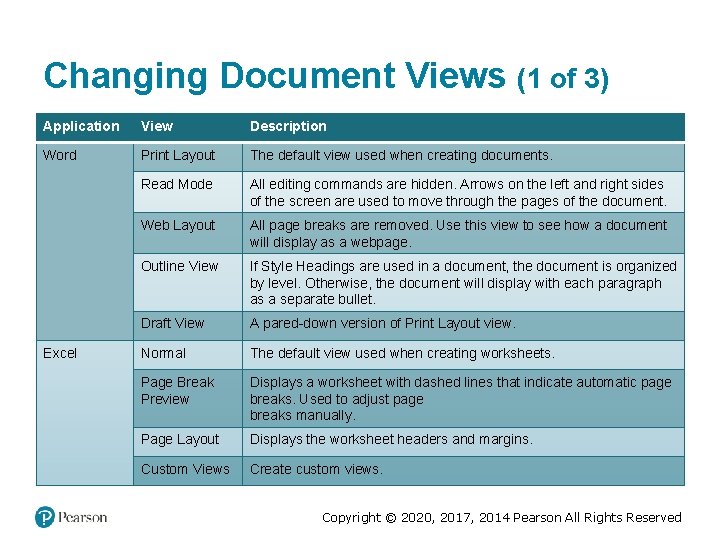
Changing Document Views (1 of 3) Application View Description Word Print Layout The default view used when creating documents. Read Mode All editing commands are hidden. Arrows on the left and right sides of the screen are used to move through the pages of the document. Web Layout All page breaks are removed. Use this view to see how a document will display as a webpage. Outline View If Style Headings are used in a document, the document is organized by level. Otherwise, the document will display with each paragraph as a separate bullet. Draft View A pared-down version of Print Layout view. Normal The default view used when creating worksheets. Page Break Preview Displays a worksheet with dashed lines that indicate automatic page breaks. Used to adjust page breaks manually. Page Layout Displays the worksheet headers and margins. Custom Views Create custom views. Excel Copyright © 2020, 2017, 2014 Pearson All Rights Reserved
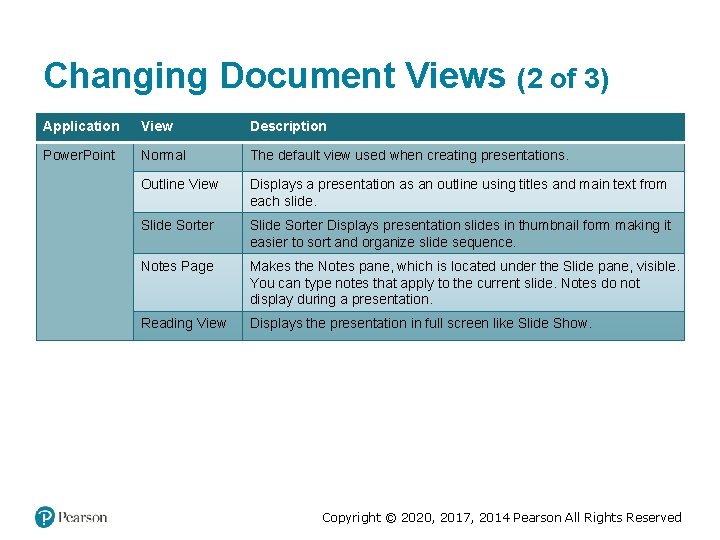
Changing Document Views (2 of 3) Application View Description Power. Point Normal The default view used when creating presentations. Outline View Displays a presentation as an outline using titles and main text from each slide. Slide Sorter Displays presentation slides in thumbnail form making it easier to sort and organize slide sequence. Notes Page Makes the Notes pane, which is located under the Slide pane, visible. You can type notes that apply to the current slide. Notes do not display during a presentation. Reading View Displays the presentation in full screen like Slide Show. Copyright © 2020, 2017, 2014 Pearson All Rights Reserved
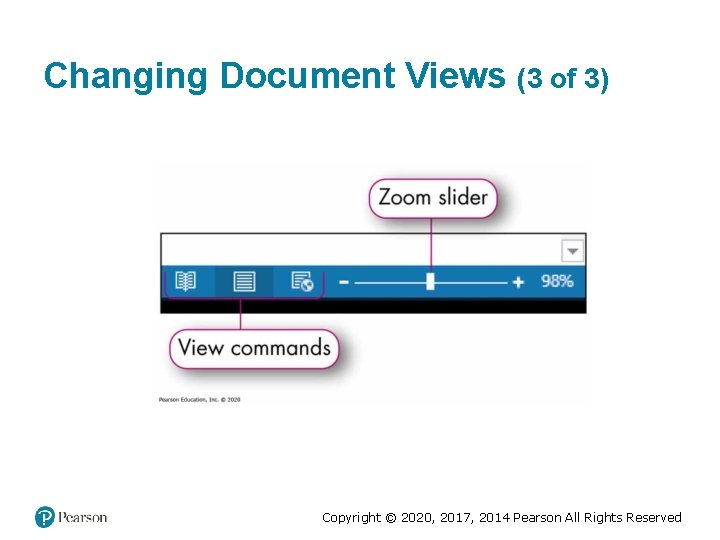
Changing Document Views (3 of 3) Copyright © 2020, 2017, 2014 Pearson All Rights Reserved
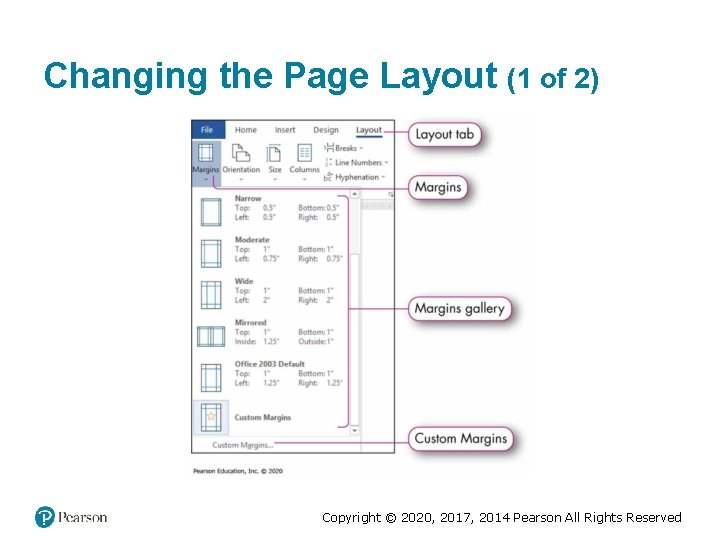
Changing the Page Layout (1 of 2) Copyright © 2020, 2017, 2014 Pearson All Rights Reserved
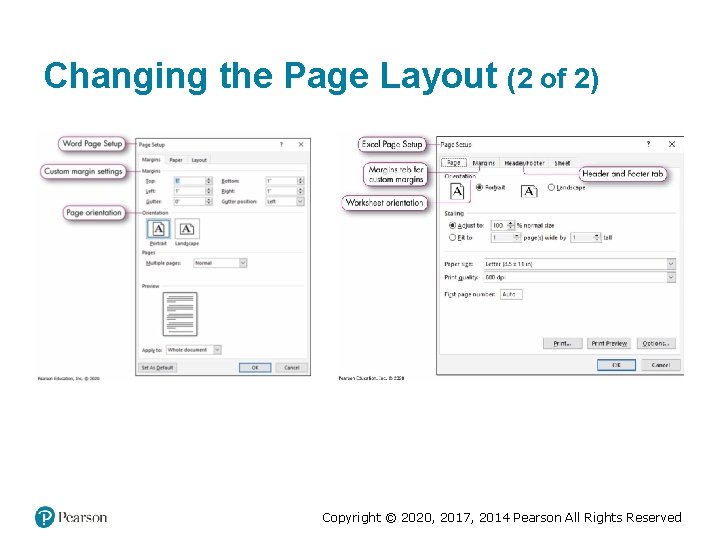
Changing the Page Layout (2 of 2) Copyright © 2020, 2017, 2014 Pearson All Rights Reserved
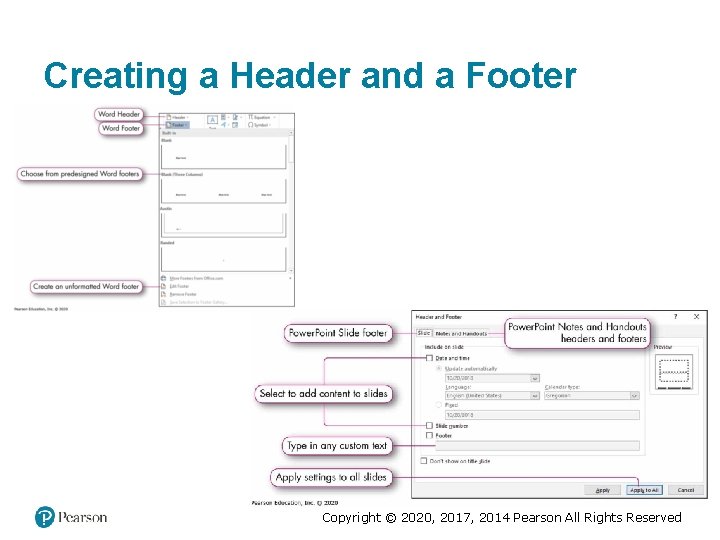
Creating a Header and a Footer Copyright © 2020, 2017, 2014 Pearson All Rights Reserved
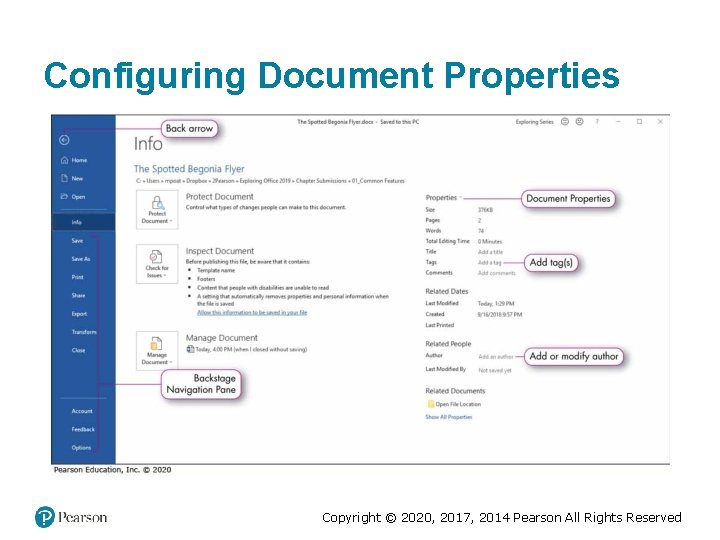
Configuring Document Properties Copyright © 2020, 2017, 2014 Pearson All Rights Reserved
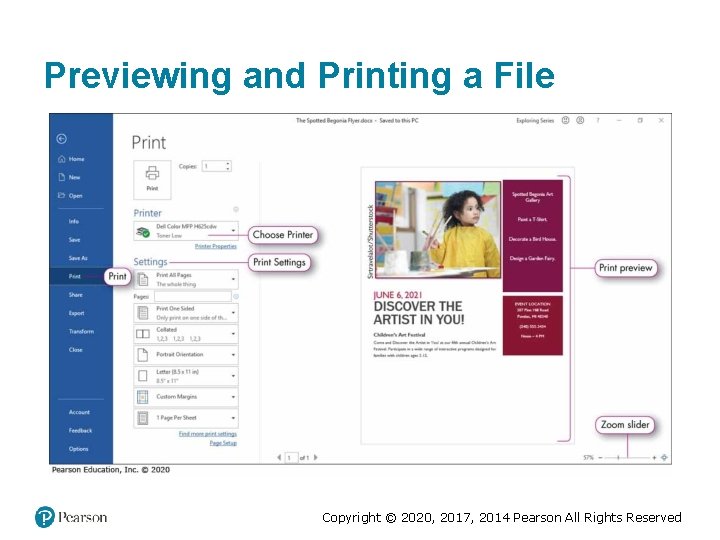
Previewing and Printing a File Copyright © 2020, 2017, 2014 Pearson All Rights Reserved
Copyright This work is protected by United States copyright laws and is provided solely for the use of instructors in teaching their courses and assessing student learning. Dissemination or sale of any part of this work (including on the World Wide Web) will destroy the integrity of the work and is not permitted. The work and materials from it should never be made available to students except by instructors using the accompanying text in their classes. All recipients of this work are expected to abide by these restrictions and to honor the intended pedagogical purposes and the needs of other instructors who rely on these materials. Copyright © 2020, 2017, 2014 Pearson All Rights Reserved